
My goal was to provision a remote-office ESXi host over a simulated WAN using vSphere Zero Touch Provisioning (ZTP). I wanted to test the journey from network boot to installation and cluster registration on physical hardware.
The lab combines an Intel NUC running Ubuntu, a Ubiquiti network, a dedicated vCenter, and a second NUC acting as the remote ESXi host. Native UEFI HTTPS boot reached the installer, the customized Kickstart completed the installation, and the host registered with vCenter automatically. Its certificate was issued by vCenter’s CA with status Good. I then imported the existing vCenter into VCF and joined the existing workload-domain NSX Manager. The completed single-host setup is running satisfactorily.
The architecture
The Ubuntu server, wan.example.com, acts as the router and WAN simulator between the central environment and the ROBO networks. Both the simulator and ROBO host connect to the same Ubiquiti switch. VLAN separation and gateway placement force traffic between the central environment and the remote site through Ubuntu.
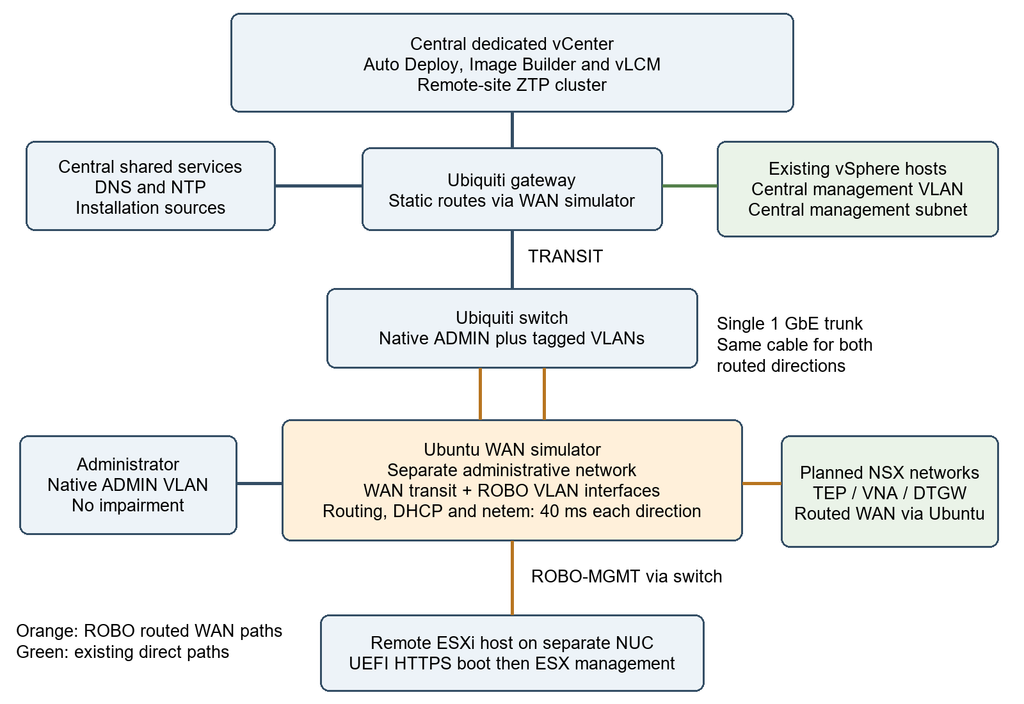
Ubiquiti routes traffic destined for the ROBO networks to the WAN simulator. On the remote side, Ubuntu provides the management gateway at 10.20.10.1. Traffic between devices on the same subnet remains local and does not cross the simulator simply because those devices belong to the remote site.
Using one Ethernet port
The WAN simulator is an Intel NUC 13 Pro with an i7-1360P, approximately 64 GB of RAM, and one Ethernet port connected at 1 Gbps. A single interface was sufficient because the switch carries multiple VLANs over that connection.
Ubuntu uses VLAN interfaces for the WAN transit and ROBO networks. Its administrative address remains on the existing untagged management network at 10.10.10.2/24. Keeping administrative access separate from the simulated WAN path makes troubleshooting easier.
Planning the remote networks
I reserved separate networks for management, migration, NSX transport, and workloads. All hostnames, addresses, VLAN IDs, and MAC addresses below are illustrative examples rather than the actual lab values.
| Purpose | VLAN | Subnet |
|---|---|---|
| WAN transit | 900 | 10.255.0.0/29 |
| ROBO ESXi management | 910 | 10.20.10.0/28 |
| ROBO vMotion | 920 | 10.20.20.0/28 |
| ROBO host TEP | 930 | 10.20.30.0/28 |
| ROBO VNA management | 931 | 10.20.30.16/28 |
| DTGW external connections | 932 | 10.20.30.32/28 |
| Private VPC workload | — | 10.20.50.0/27 |
| Private TGW subnet | — | 10.20.50.32/27 |
| Separate NSX overlay test segment | — | 10.20.40.0/25 |
The network plan includes management, vMotion and reserved NSX and workload networks. The completed lab uses distributed management and vMotion networking and the existing workload-domain NSX Manager; the reserved networks are not evidence that every planned NSX feature has been deployed.
Introducing WAN latency
The simulator is configured to introduce 40 ms of delay in each direction. This represents approximately 80 ms of added round-trip latency, plus the underlying network delay. The configured one-way delay and the round-trip time reported by ping are different measurements.
Adjusting the WAN simulator delay
Run these commands on the Ubuntu WAN simulator. The wanctl helper uses Linux traffic control to apply IPv4 delay, loss and a rate limit at the transit boundary in both directions.
# Inspect the saved profile and active queues
sudo wanctl status

# Add 40 ms in each direction, roughly 80 ms added round-trip delay
sudo wanctl set --delay-ms 40

# Increase to 80 ms in each direction, roughly 160 ms added RTT
sudo wanctl set --delay-ms 80

# Combine delay with 0.1 percent loss and a 100 Mbit/s per-direction cap
sudo wanctl set --delay-ms 40 --loss-pct 0.1 --rate-mbit 100

# Remove simulated delay, loss and rate limiting; retain routing and DHCP
sudo wanctl clear
Each set command replaces the entire profile. Omitted options become zero: no added delay, no simulated loss and no configured rate cap. The profile is saved in /etc/wan-simulator-profile.json and reapplied by wan-network.service after boot. sudo wanctl restore reapplies that saved profile manually.
Compare ping round-trip times from the remote host to a central endpoint before and after a change, and inspect sudo wanctl status for queue statistics. The original network latency remains in addition to the configured delay. Traffic must cross the simulator’s transit interface to be affected; site-local traffic and the simulator’s own administrative traffic are outside these prefix-based impairment rules.
WAN simulator setup files
Download the sanitized WAN simulator setup bundle. It includes adapted copies of the server setup scripts, the configuration files they generate, the matching wanctl.py, a setup guide and SHA-256 checksums. All network values and interface names are illustrative and match the examples in this post. Private keys, credentials and certificates are excluded.
install.shcreates a backup, configures Netplan VLAN interfaces and forwarding sysctls, installs the helpers and enableswan-network.service.network.shestablishes policy routing, IPv4 forwarding rules and the IFB interface used to shape incoming traffic.install-robo-ztp.shinstalls the management-only DHCP configuration and enableswan-ztp-dhcp.service.- The
etc/directory contains the generated Netplan YAML, cloud-init network override, sysctl configuration, systemd service units and DHCP configuration.
Before running the installers, adapt the physical interface name, VLAN IDs, addresses, gateways, DNS servers, host MAC reservation and vCenter boot FQDN. Preserve the existing parent Ethernet definition and administration settings in Netplan. Install the Ubuntu prerequisites listed in the read-me, place the adapted scripts in /opt/wan-build, and use local console access because applying Netplan can interrupt connectivity.
cd /opt/wan-build
sudo bash install.sh
sudo bash install-robo-ztp.sh
sudo wanctl status
sudo wanctl set --delay-ms 40
The physical switch trunk and central router return routes must be configured separately. The simulator routes without NAT; DHCP serves only known management reservations and supplies the HTTPS boot URL. Firmware certificate trust remains a separate prerequisite. These sanitized setup examples passed consistency and mocked command checks; they have not been deployed as a new server configuration. Read the included instructions and inspect existing firewall rules before adapting them.
Preparing vCenter for ZTP
I deployed vcenter.example.com at 10.10.20.10 on VLAN 200, then created the remote-dc datacenter and remote-ztp-cluster cluster. I enabled the provisioning services, configured the cluster image, and created a deployment rule matching the remote host’s physical NIC MAC address:
02:00:00:00:00:01
ZTP in vSphere uses native UEFI HTTPS boot and deployment rules to automate provisioning. Configuration Profiles can provide desired host configuration; this lab currently uses a customized Kickstart for its host-specific settings. Broadcom describes the workflow in its VCF Edge ZTP walkthrough.
I also configured vCenter’s SFTP backup destination on backup.example.com and completed an initial backup before proceeding.
DHCP and the native VLAN
Ubuntu provides DHCP for the ROBO management network. The remote host receives the following example settings:
| Setting | Value |
|---|---|
| IP address | 10.20.10.2 |
| Subnet mask | 255.255.255.240 |
| Gateway | 10.20.10.1 |
| DNS servers | 10.10.10.10 and 10.10.10.11 |
| Domain | example.com |
For the firmware’s HTTP boot request, DHCP supplies this URL:
https://vcenter.example.com/vmw/brs/vbmx64.efi
An early obstacle was the switch port configuration. The remote host needed VLAN 910 as its native VLAN so the firmware’s untagged boot traffic reached the correct DHCP service. After correcting that setting, the logs showed the remote host receiving its reserved address and the HTTPS boot URL.
Getting HTTPS boot to trust vCenter
The most time-consuming boot issue involved certificate trust. The NUC initially reported:
Could not retrieve NBP file size from HTTP server
I verified that the boot file was available from vCenter, but availability alone did not establish that the firmware trusted its certificate. During troubleshooting, I investigated newer firmware and eventually gained access to the TLS certificate enrollment setting. I added the vCenter CA certificate to the firmware’s trust store and retried native HTTPS boot.
The boot URL uses vcenter.example.com because that hostname matches the vCenter certificate. William Lam’s NUC ZTP walkthrough provides an example of exporting the VMCA certificate in DER format and enrolling it through the firmware’s TLS configuration.
After certificate enrollment, the NUC progressed into loading the ESXi installer.
Handling the Intel hybrid CPU
Consumer Intel processors introduce another consideration: their performance and efficiency cores are not uniform. For the network-loaded installer, I appended this option to the generated boot.cfg kernelopt line, preserving its existing content:
cpuUniformityHardCheckPanic=FALSE
This is a lab workaround for the consumer CPU. Modifying the network installer’s boot configuration does not automatically persist the setting in the installed host. I now append it to the primary installed boot bank during %post and set the persistent kernel setting during %firstboot. The installed boot.cfg and runtime setting confirmed that the host booted with the workaround. William Lam’s walkthrough documents the distinction between installer and installed-host configuration.
Making disk selection and cleanup repeatable
Earlier attempts left ESXi boot banks on both SATA disks, which made it possible to modify the wrong boot.cfg. I changed the lab installation to clear partitions on all local disks and select the NGFF 512 GB SATA SSD by model. I also created a local datastore on the 2 TB NVMe drive for workload storage.
clearpart --alldrives --overwritevmfs
install --firstdisk="NGFF 512GB SSD" --overwritevmfs
This configuration removes partitions and data from all selected local drives. It is appropriate here because every disk in this disposable lab host is approved for erasure. The NGFF disk selector is specific to this hardware and must be adapted before reuse.
An early %pre script failed to create an included installation directive. A later %post script also failed. Using a direct disk selector and the primary installed boot-bank path simplified the sequence, and the host subsequently booted ESXi. The Kickstart also retains static management networking, NTP, SSH and ESXi Shell settings, kernel settings, and the other requested lab configuration.
Preparing distributed networking for VCF
After the remote ESXi host registered automatically with vCenter, I created a vSphere Distributed Switch in the remote vCenter and created two distributed port groups on that switch:
- Management — for ESXi host management and communication with vCenter.
- vMotion — for the site’s vMotion network. I added a VMkernel adapter with vMotion traffic enabled and a static address on this network. Using the illustrative addressing above, this is 10.20.20.2/28 (subnet mask 255.255.255.240). The WAN simulator’s DHCP service is bound to the management interface and does not serve this VLAN.
The distributed switch uses the ROBO host’s physical uplink. Management and vMotion networking are configured, and the distributed switch accepts an MTU of 9000. End-to-end jumbo-frame validation against another vMotion host was not part of this single-host deployment.
Importing the existing vCenter into VCF
With the distributed switch, management and vMotion port groups, vMotion VMkernel adapter and local NVMe datastore in place, I used the Import a vCenter workflow to bring the existing vCenter into VCF as a workload domain.
- Enter a workload-domain name and select the external vCenter option.
- Provide the vCenter FQDN and the required appliance root and SSO credentials.
- Review the certificate thumbprint and confirm the required trust acknowledgments.
- Select Join existing NSX Manager Instance, choose the existing workload-domain NSX Manager and provide the required NSX credentials.
- Run the prechecks, review the results and submit the import.
The prechecks reported 50 passed, 0 errors and 1 warning. The warning concerned ESXi upgrade policy across vCenter and SDDC Manager; I proceeded with it as a non-blocking warning in this lab. The import subsequently completed successfully, reusing the existing workload-domain NSX Manager.
The completed single host lab
The final setup has one remote ESXi host, local workload storage on its 2 TB NVMe drive, distributed management and vMotion networking, the existing workload-domain NSX Manager and the required licensing. I am satisfied with its current operation and have closed the lab roadmap. No additional host is planned. This result demonstrates the provisioning and import workflow; it does not establish host failover, multi-host vMotion, upgrade resilience or WAN outage recovery.
Download the sanitized Python examples
I have included sanitized copies of the Python scripts used in this lab so you can inspect and adapt them for your own environment. The download replaces my host identifiers, addresses, domain names and disk model with placeholders or example values. It contains no real password hashes, passwords, SSH keys, certificates or VMware compiled modules.
Download the sanitized Python examples ZIP. The archive includes three scripts, a read-me with prerequisites and commands, and SHA-256 checksums.
patch-native-ztp-cpu.pycustomizes the Kickstart response for one selected host. Run it on vCenter with the Python interpreter matching the vendor bytecode. Replace the target host ID, installation disk model and example network settings throughout the file. It defaults to a dry run and refuses--applywhile required placeholders remain.set-edge-root-password.pyprompts for a password and writes a protected hash for future installations. Run it on vCenter; it does not change the password of an already-installed host. Keep its hash-file path consistent with the patch.wanctl.pycontrols delay, loss and bandwidth on an Ubuntu WAN simulator. Adapt its prefixes and interface names first. Routing, VLANs and the IFB device must already exist; this script does not build the simulator network.
Read the included instructions before running anything. The patch is an unsupported lab workaround that modifies vendor bytecode. It rejects an unexpected handler or mismatched Python bytecode. Back up the appliance, run the dry-run checks, inspect the generated Kickstart, and retain the printed rollback path before applying it. No first-boot hostname reset or certificate regeneration is included.
The example Kickstart erases partitions on all installer-visible disks. It also contains lab choices such as enabling SSH and ESXi Shell, bypassing a CPU uniformity check, reducing memory isolation and installing a community mock VIB without signature checking. Review or remove those choices for your environment. Module rollback cannot recover erased disk data.