
Configure SSO for VCF Operations for Logs
Configure SSO for VCF Operations for Logs with OIDC settings, directory groups and role assignments, then complete Fleet Manager registration.
Overview
This guide configures SSO for VCF Operations for Logs using an OIDC client and the lab’s directory groups. I cover appliance authentication settings, role assignments, login testing and the final Fleet Manager registration step.
Generate the OIDC client
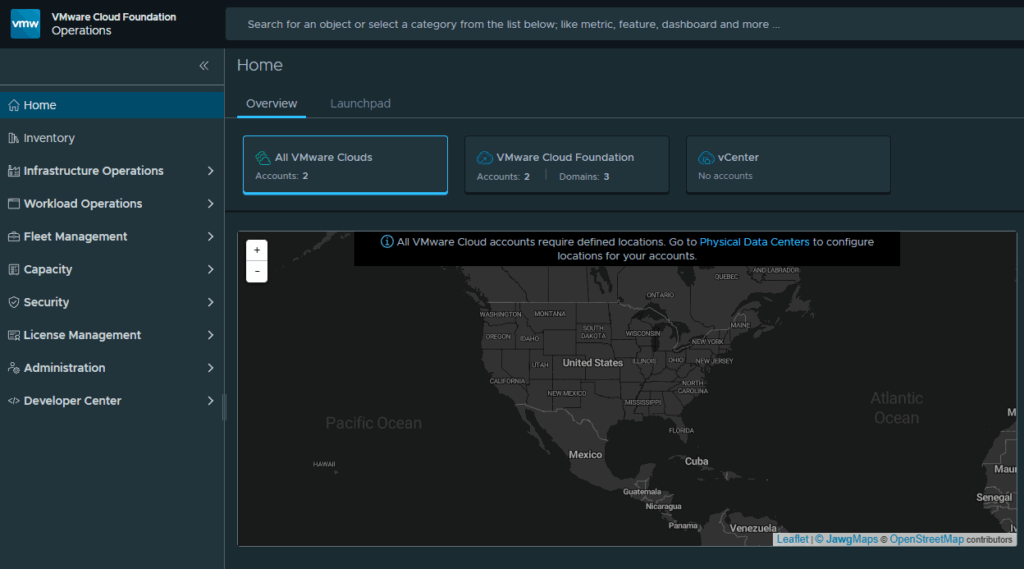
Expand Fleet Management and click on Identity & Access.
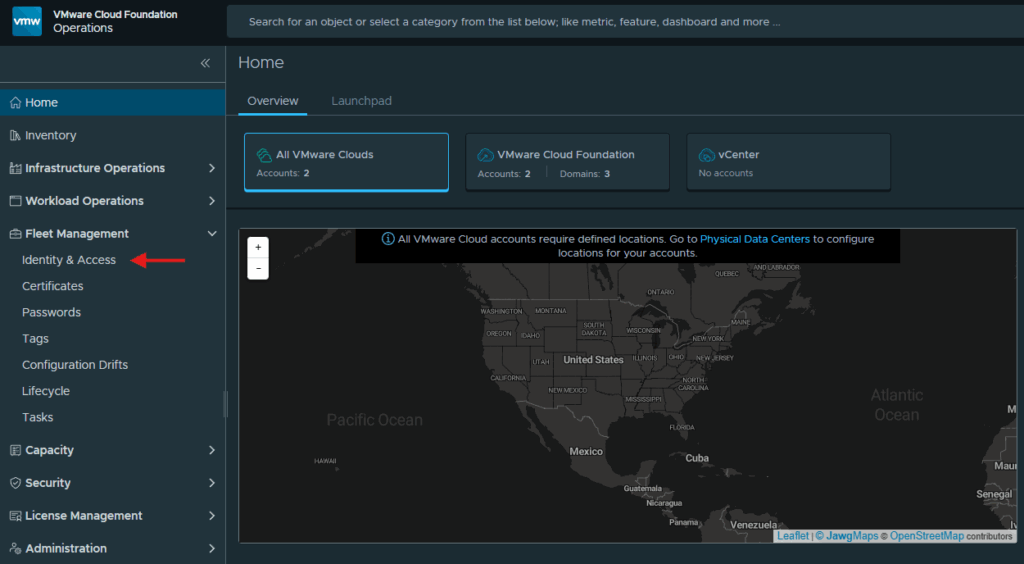
Click on VCF Other Components.
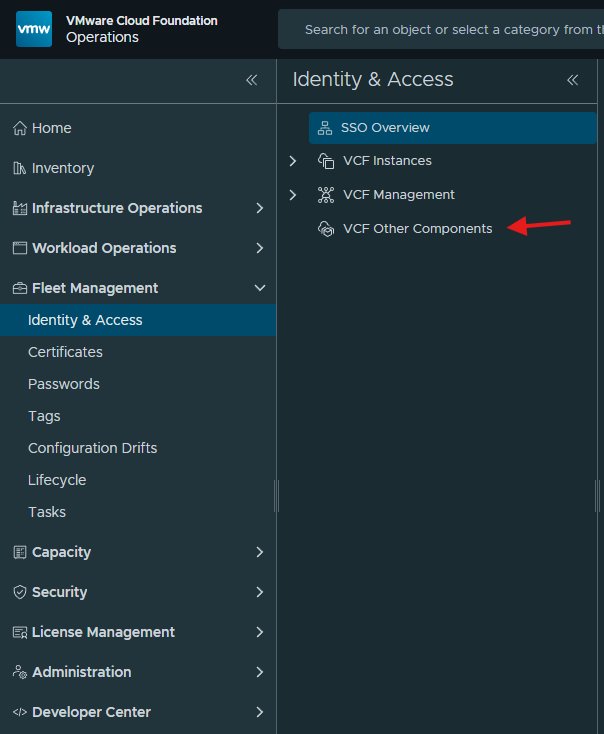
Click Continue to enable single sign on for VCF Operations for Logs.
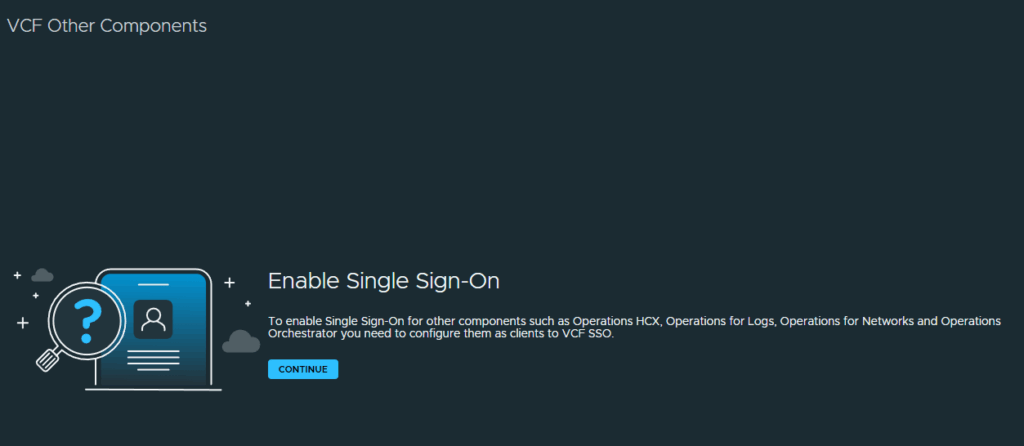
For the name, I am going to use the FQDN of my Operations for Log appliance. Then click on Generate OIDC Client.
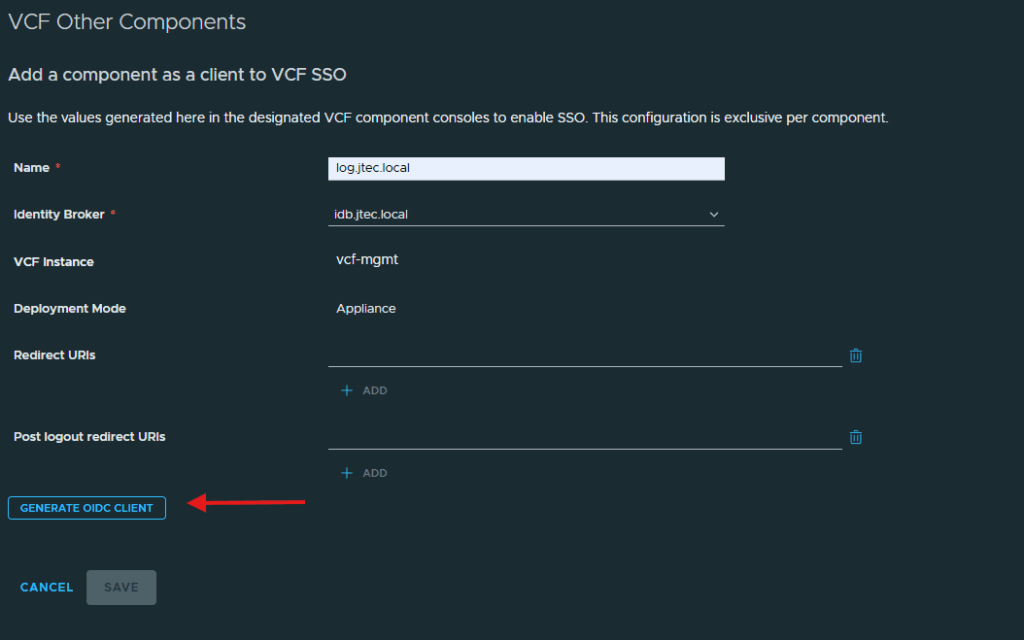
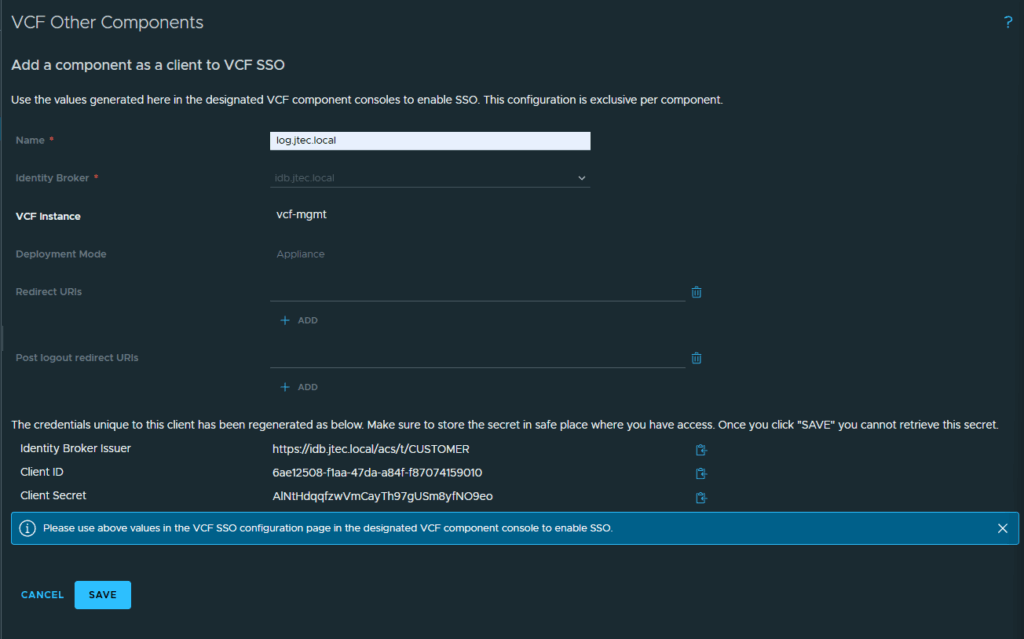
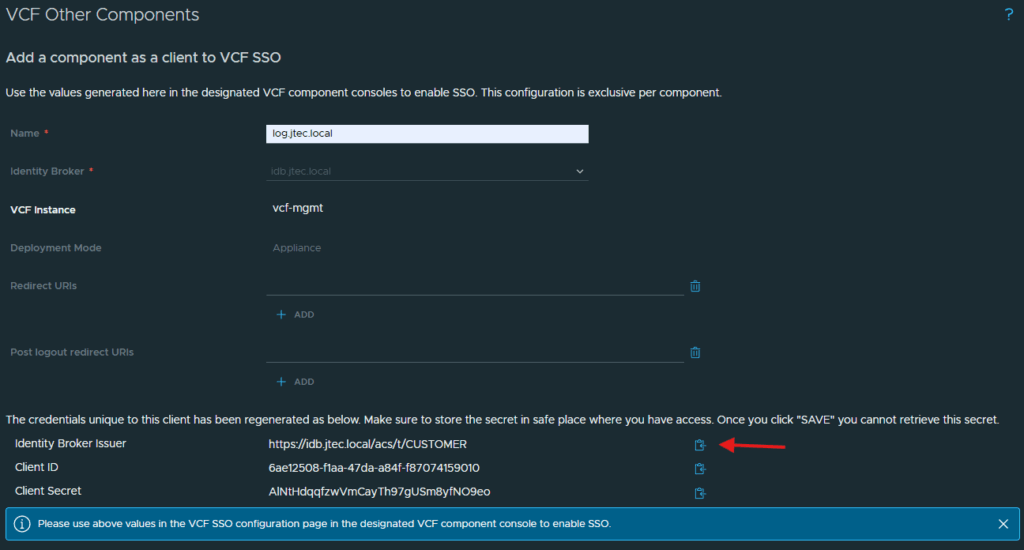
It will create 3 entries that will need to be configured in the Operations for Logs appliance.
Configure Operations for Logs
I am going to leave this window open and not click save yet. Open a new tab and login to the VCF Operation for Logs web gui with the local admin.
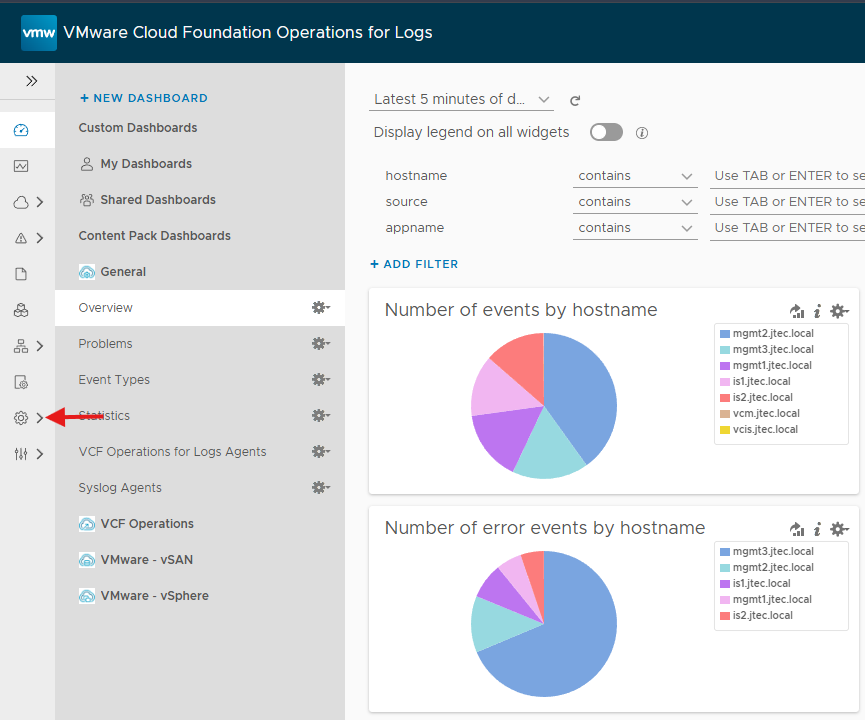
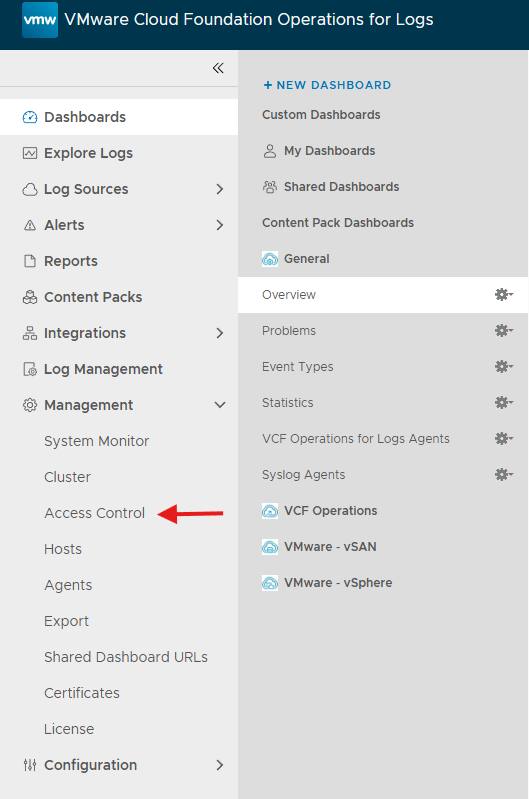
Click on the Gear icon in the left hand column
Click on Access Control.
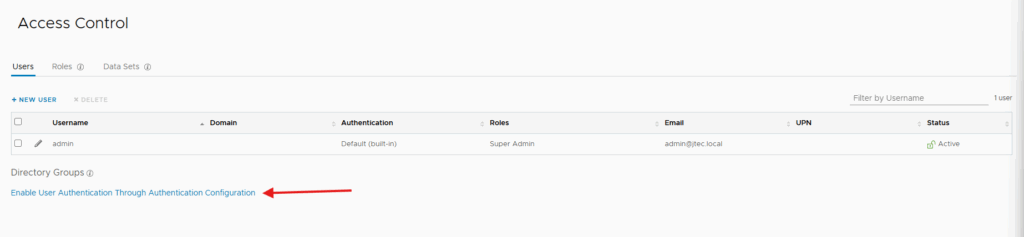
Click on Enable User Authentication Through Authentication Configuration
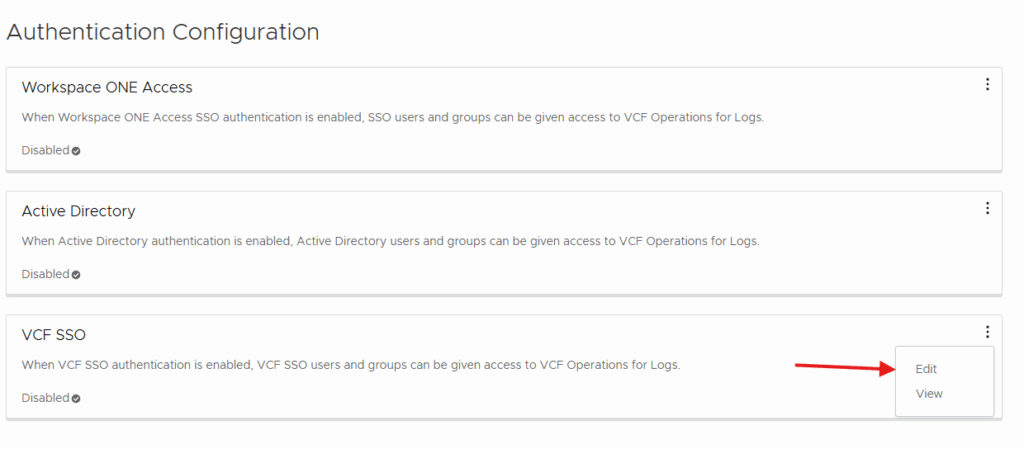
Click the 3 dots next to VCF SSO and select Edit.
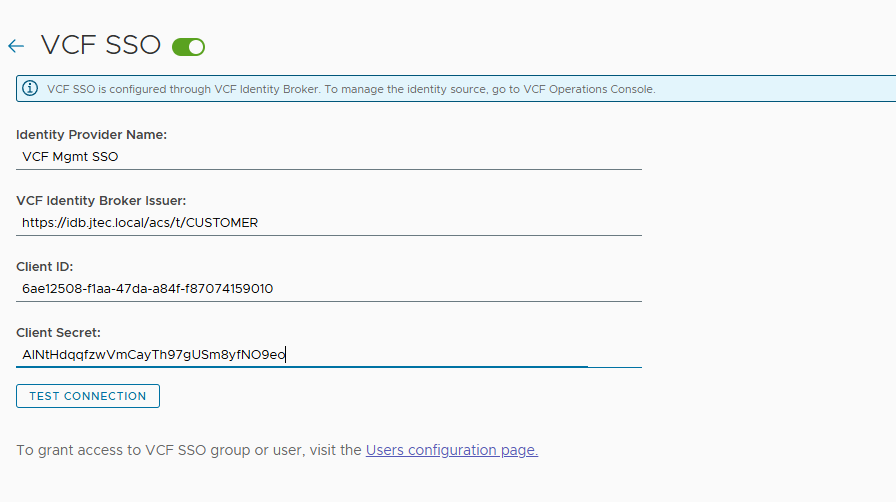
Here we will enter in the Provider Name, Broker Issuer, Client ID and Client Secret. The previous screen has provided us with the information except for the name which is going to be VCF Mgmt SSO for me.
We can copy the information from the Identity & Access screen using the clipboard icon.
After all the information has been entered in, click Test Connection
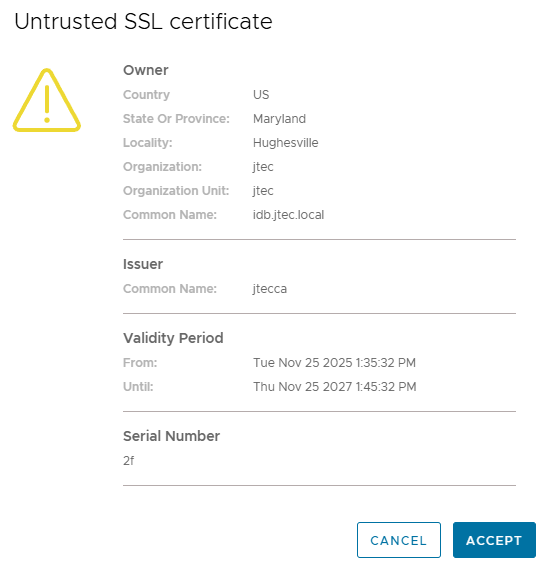
You may get a pop-up for an untrusted SSL certificate. Before accepting it, verify that the certificate subject or hostname matches the Identity Broker, confirm the expected issuing certificate authority, and compare the displayed fingerprint with a trusted source from your environment. After confirming those details, click Accept to continue with the test.
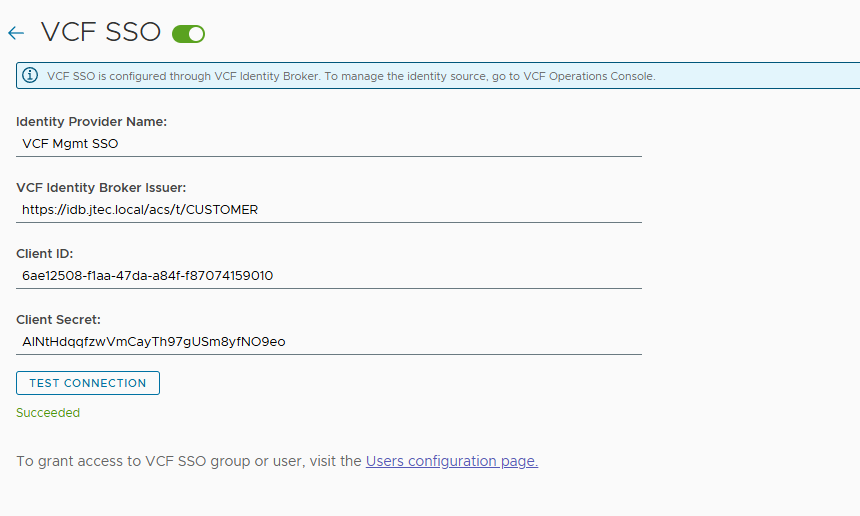
If everything was entered correctly, you will receive a Succeeded message underneath Test Connection.
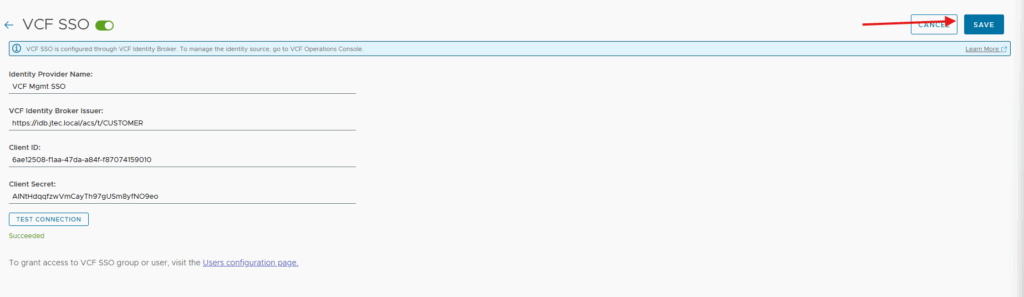
Click Save to complete this configuration.
Assign directory group permissions
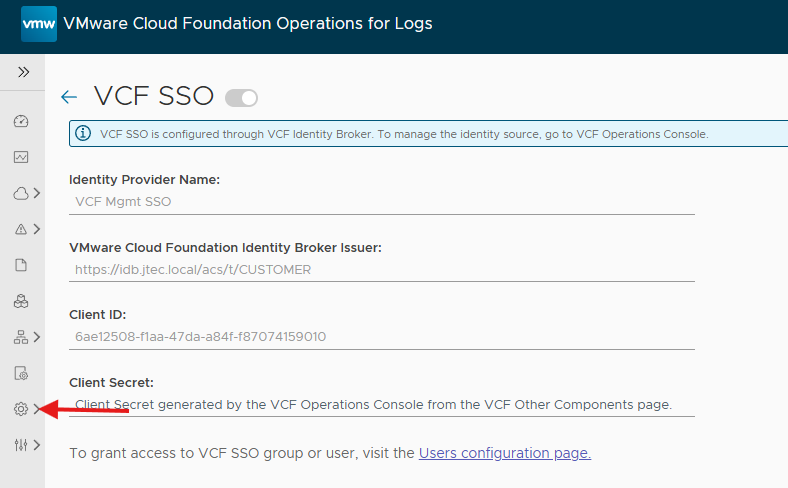
Now we have to assign permissions, click the Gear icon in the left again.
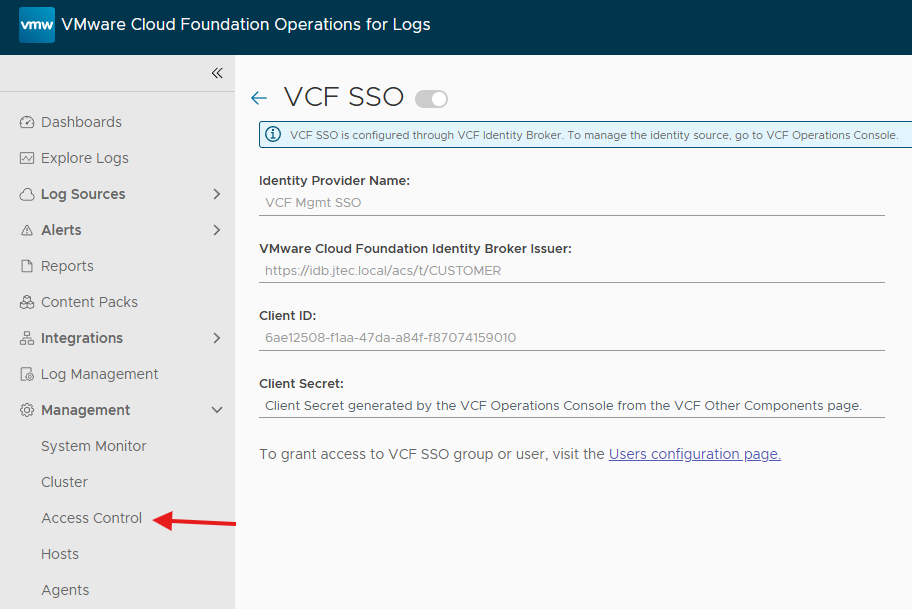
Click Access Control
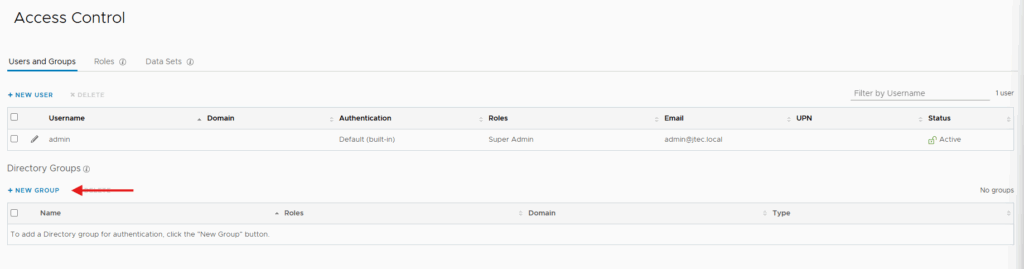
Click New Group under Directory Groups.
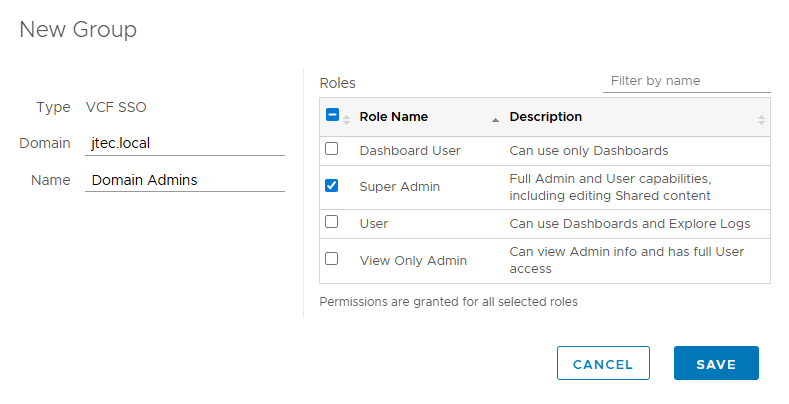
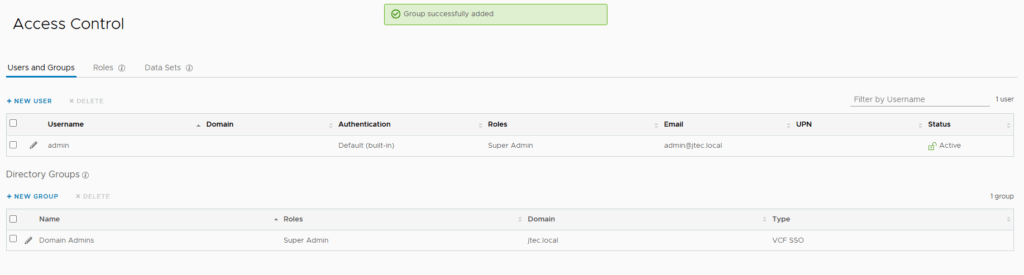
In the pop-up enter in the Domain, Group Name and click the checkbox next to the role you want to assign this group. Click Save to complete.
You will receive a confirmation the group was added.
Test SSO login
After you have added all your groups, click the drop down next to admin. Click Logout

We can now change the Login Method to VCF SSO, by clicking the drop down and click Log In
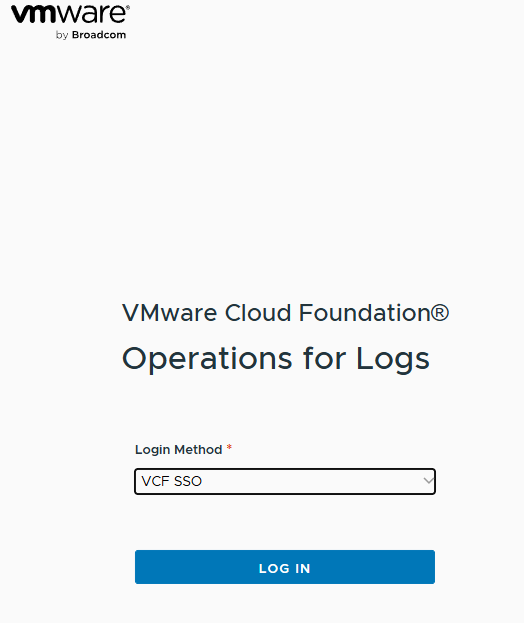
Enter in the login information for a active directory user, since I still have my VCF Operations tab open it automatically picked my vcfadmin user to log me into VCF Operations for Logs.
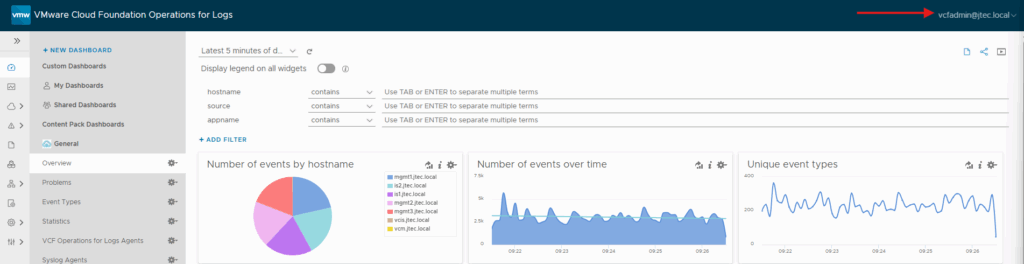
The Active Directory login completed successfully, confirming that VCF SSO authentication and the assigned group access worked in this lab.
Complete Fleet Manager registration
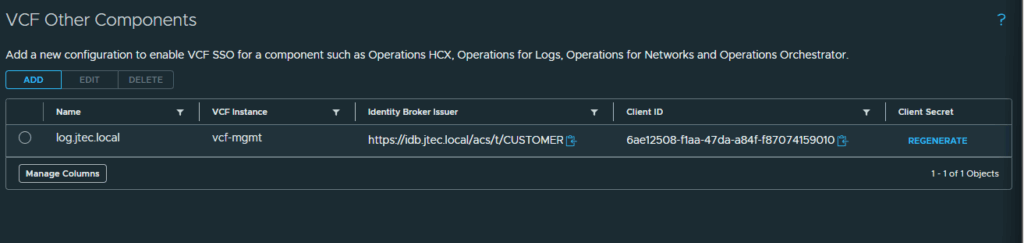
Go back to the VCF Operations web gui and click Save to complete the addition.
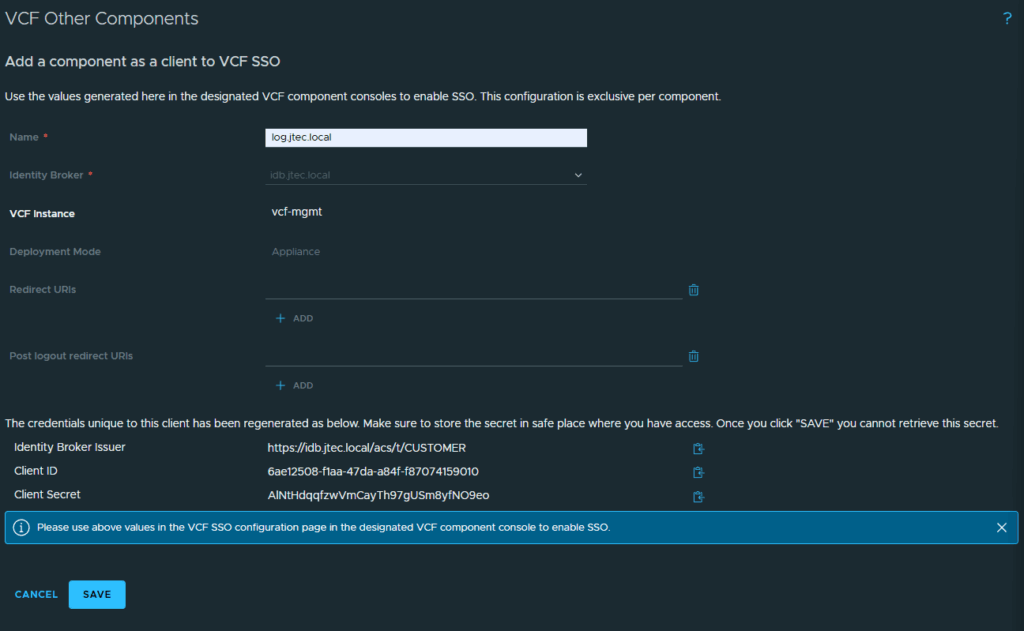
We can now see the VCF Operations for Logs single sign on configuration is completed.
You can return to my main VCF Lab page to follow along with this deployment.