
Configure SSO for VCF Operations for Networks
Configure SSO for VCF Operations for Networks using an OIDC client, Identity Broker settings and user roles, then test Active Directory login.
Overview
This guide configures SSO for VCF Operations for Networks with an OIDC client and Identity Broker settings. I follow the appliance configuration, user and group roles, and Active Directory login test used in my lab.
Generate the OIDC client
We start by logging in to the VCF Operations web gui.
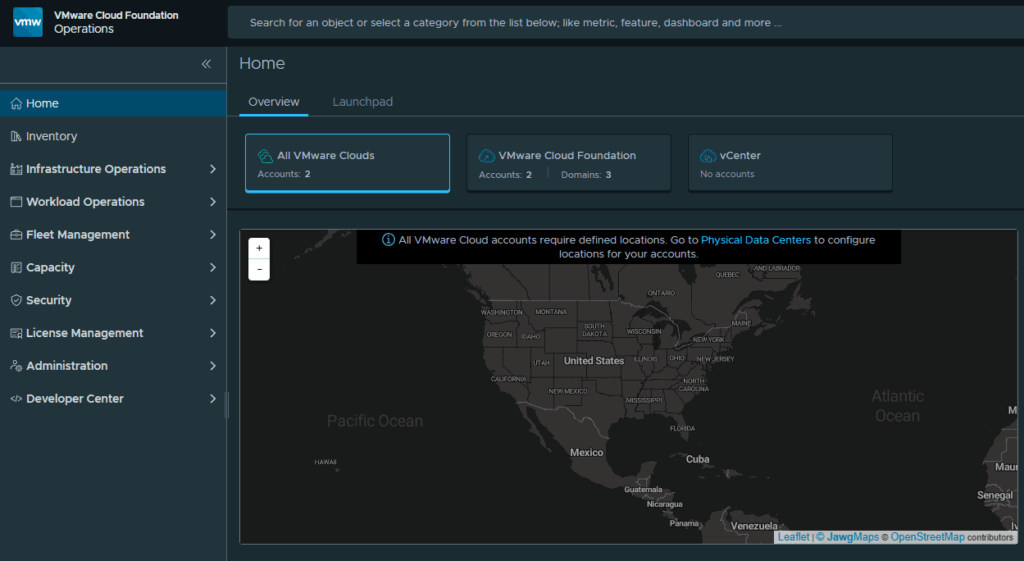
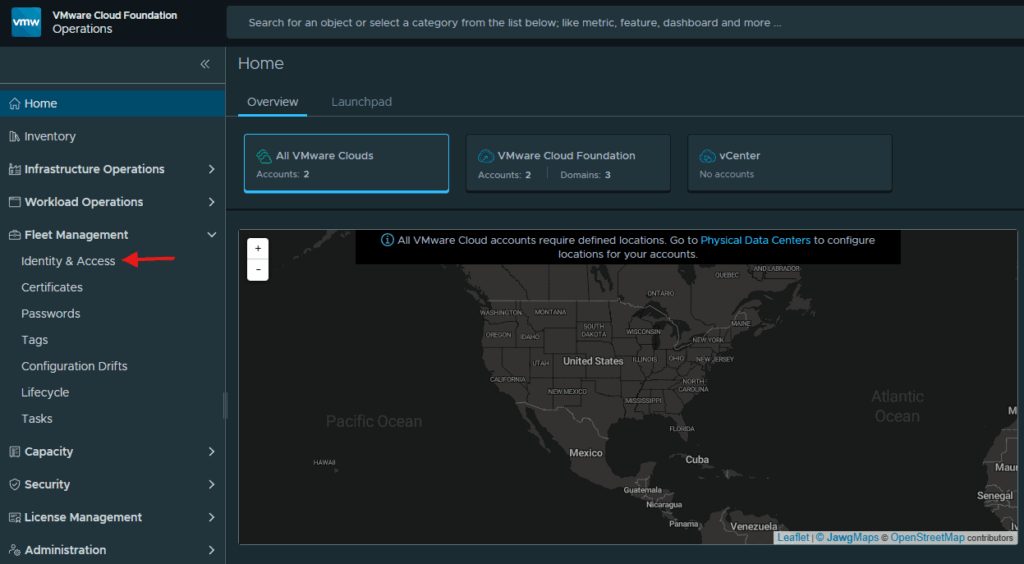
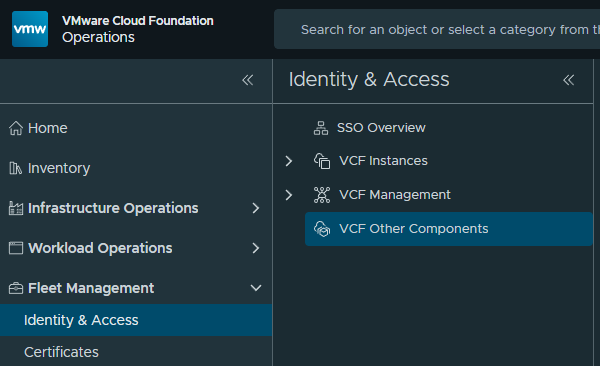
Expand Fleet Management and click on Identity & Access.
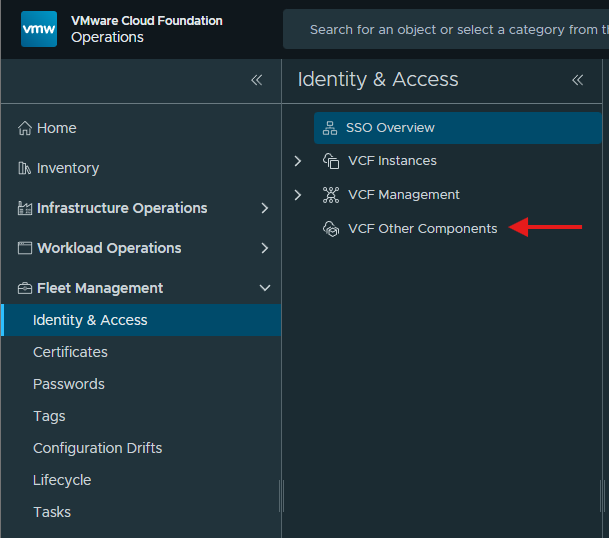
Click on VCF Other Components
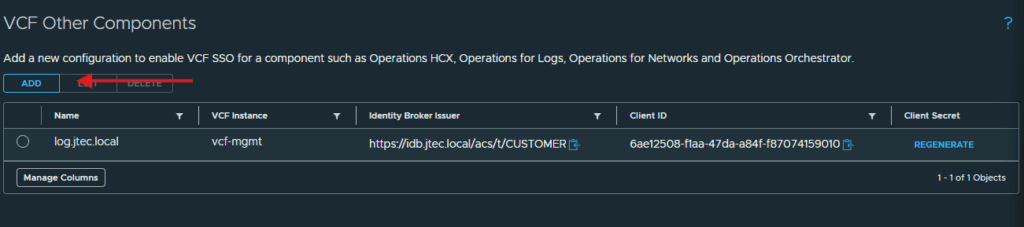
Click Add to configure single sign on.
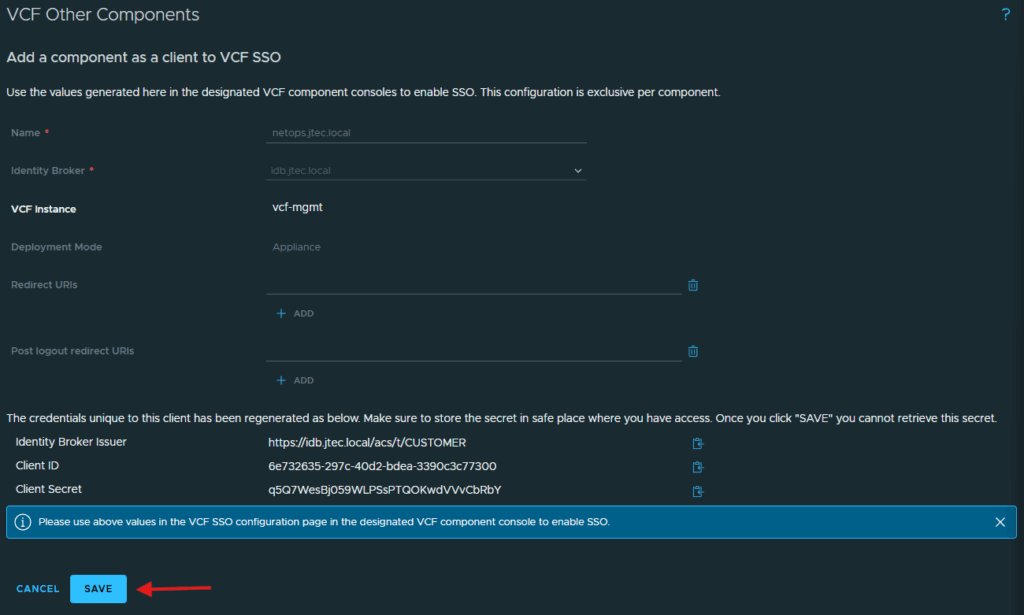
I am going to use the FQDN of my Operations for Networks appliance as the name. Click Generate OIDC Client after inputting a name.
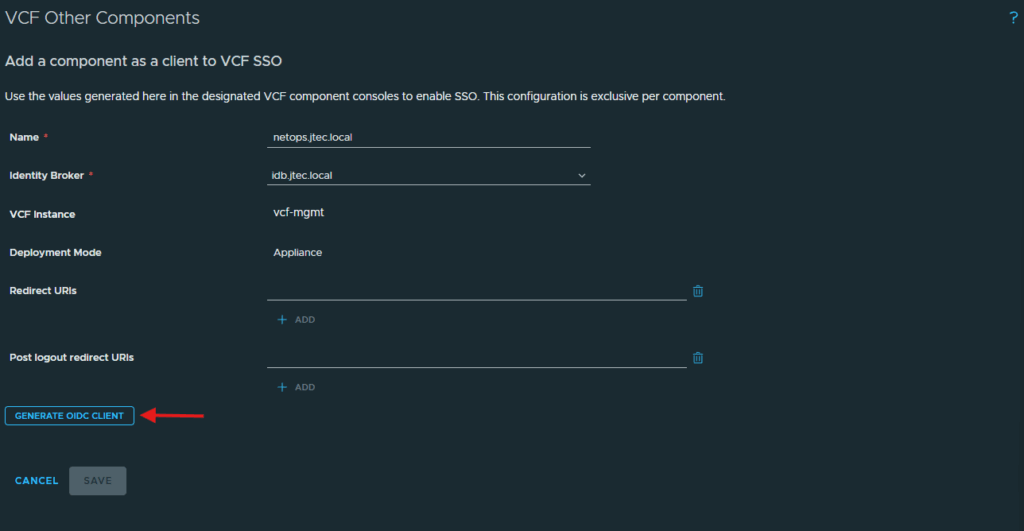
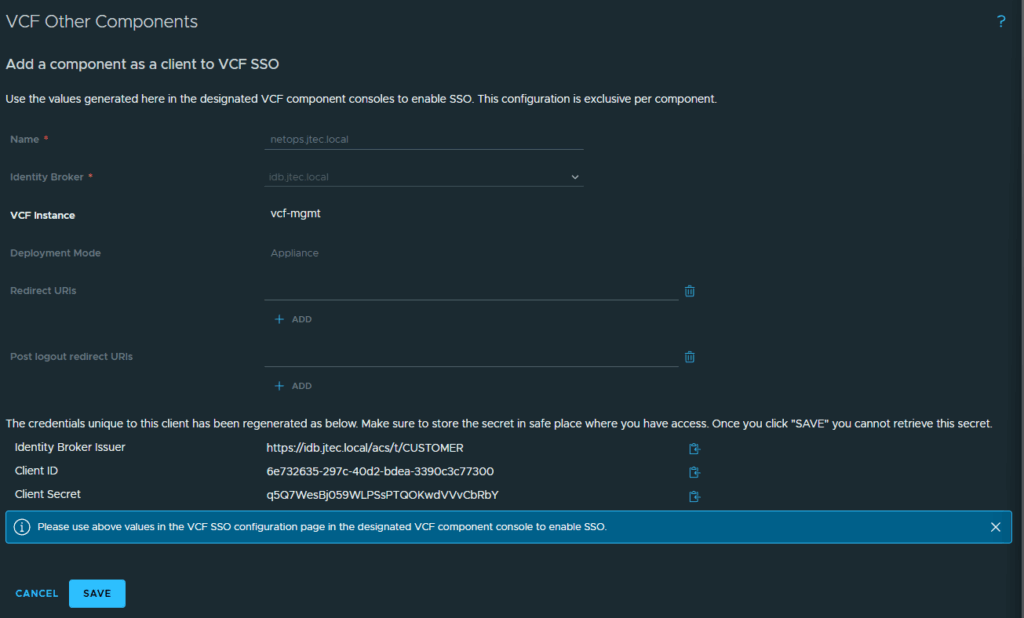
It will create the Identity Broker Issuer, Client ID and Client Secret to use in the configuration.
Configure Operations for Networks
We will need this information to configure the single sign on in VCF Operations for Networks. Now open a new tab and load the web gui for VCF Operations for Networks.
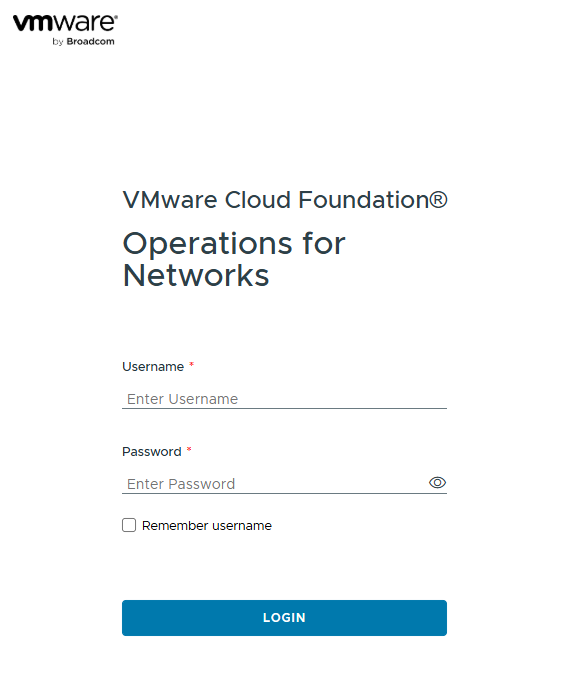
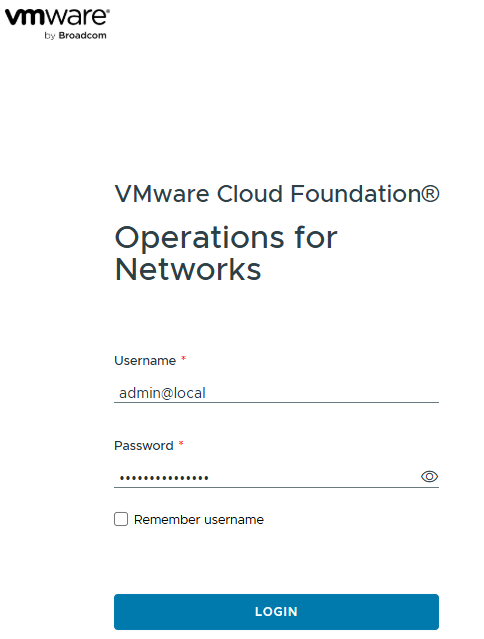
Login with the admin@local account and the password you provided during deployment.
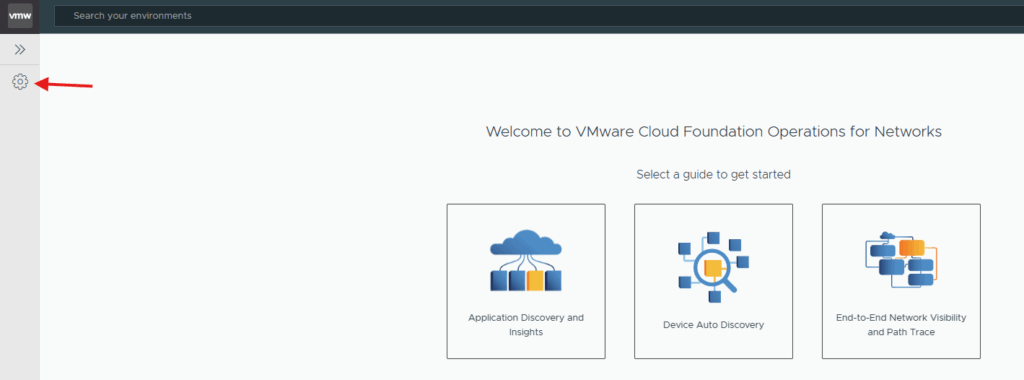
Click the Gear icon in the left column.
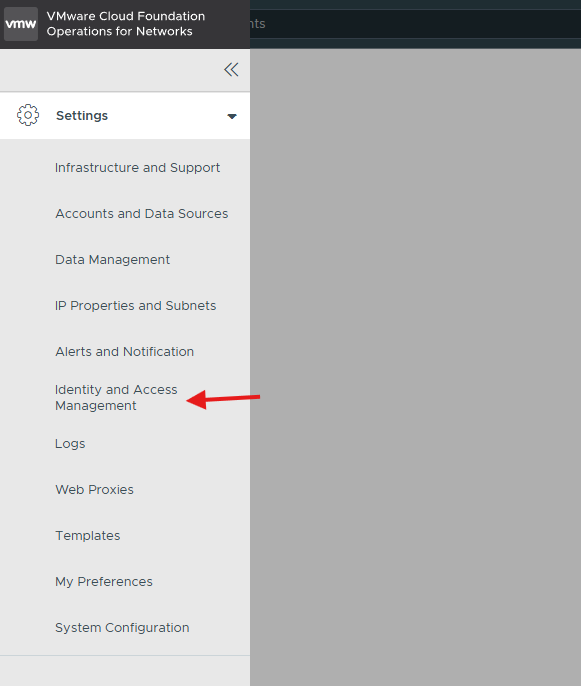
Click on Identity and Access Management
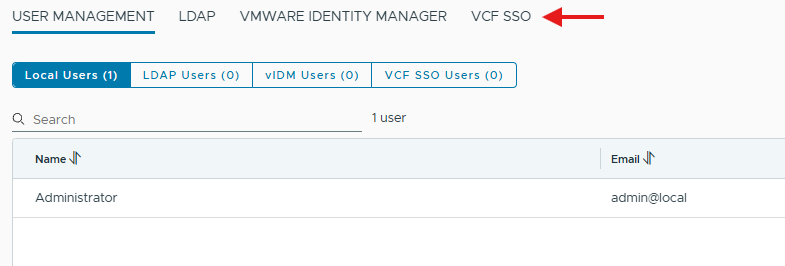
Click on the VCF SSO tab.
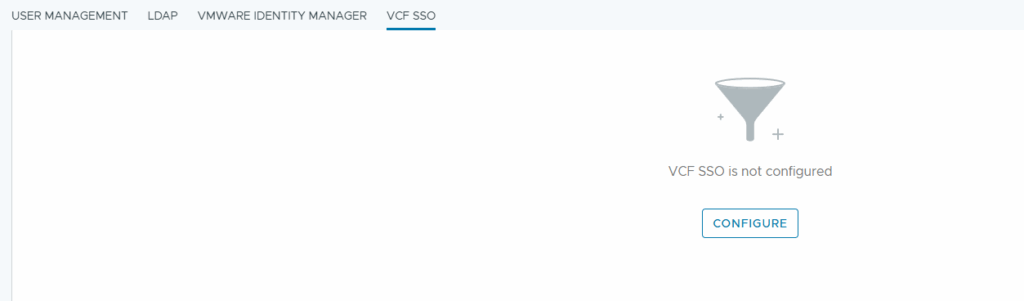
Click on Configure
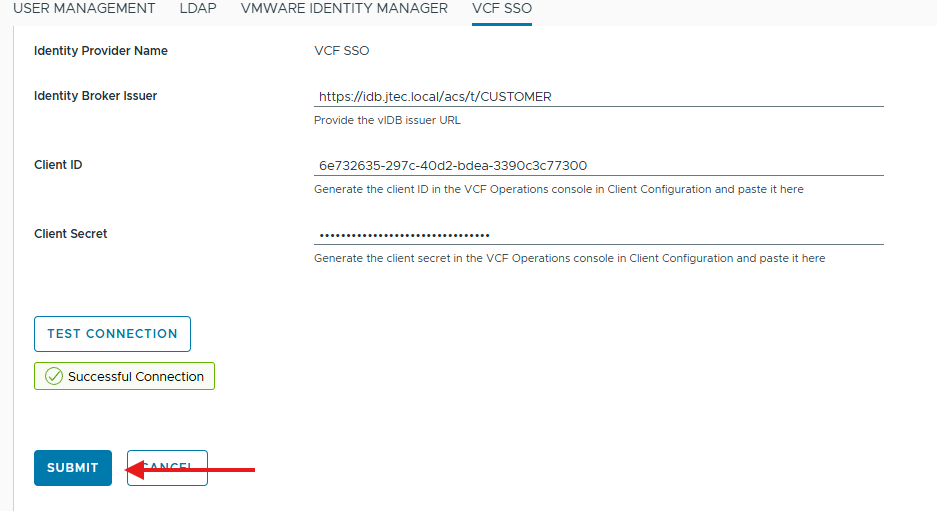
Enter in the information we generate previously, you can copy the information from VCF Operations using the clipboard icon.
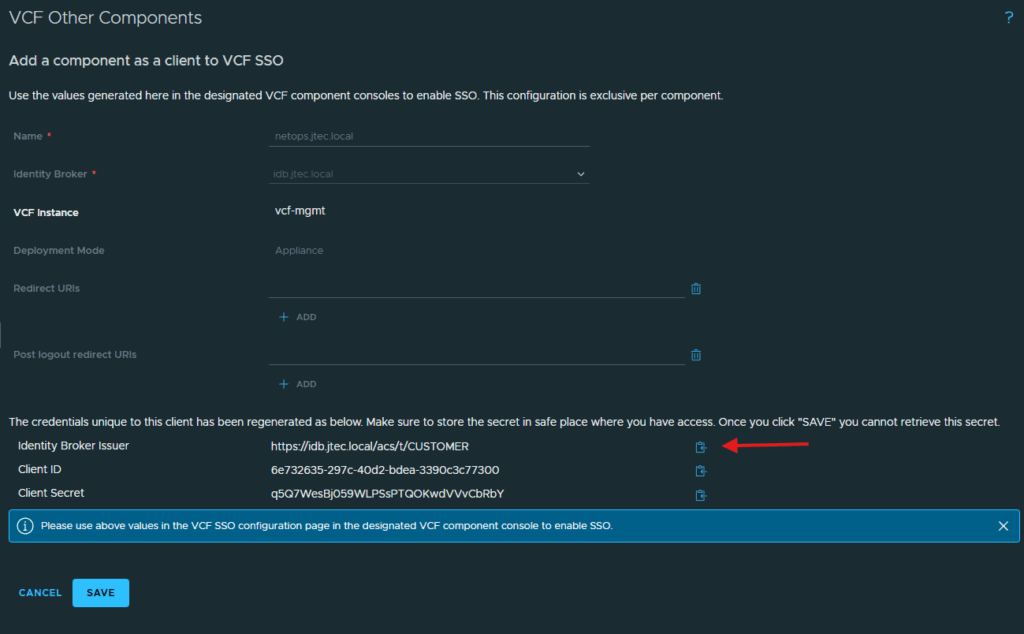
With everything copied, click Test Connection.
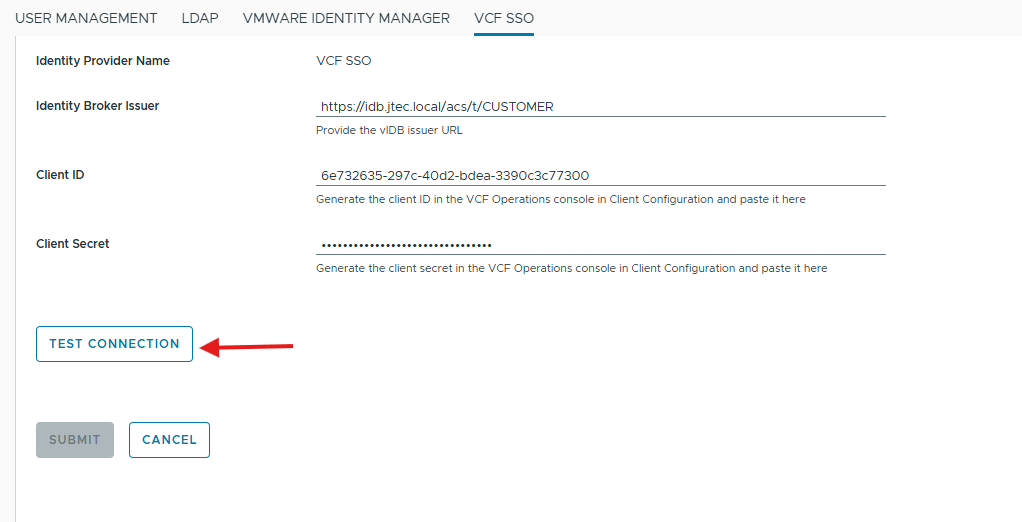
A pop-up may appear for an untrusted root ca found. Click Accept to continue.
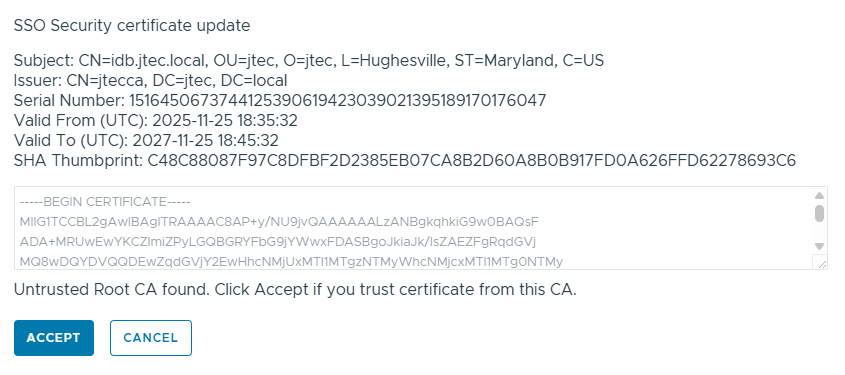
If everything is correct, you will see Successful Connection.
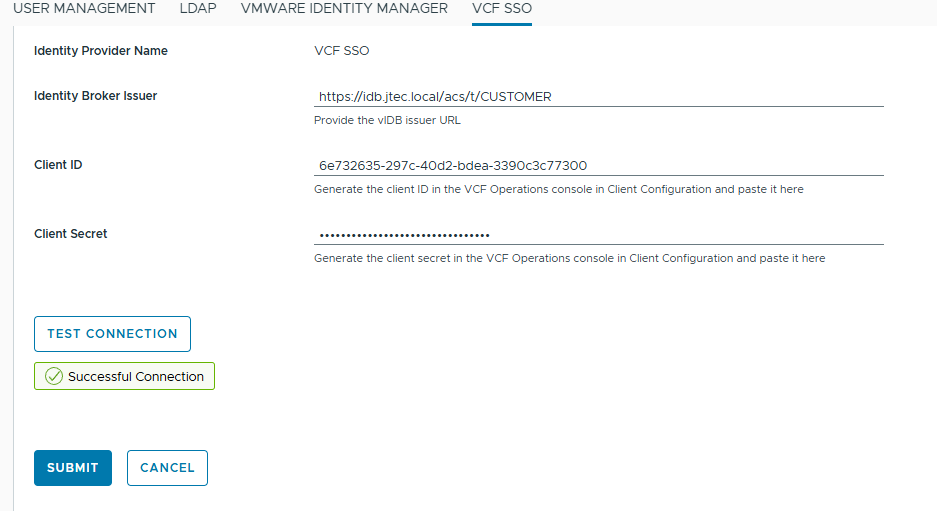
Click Submit to complete the configuration.
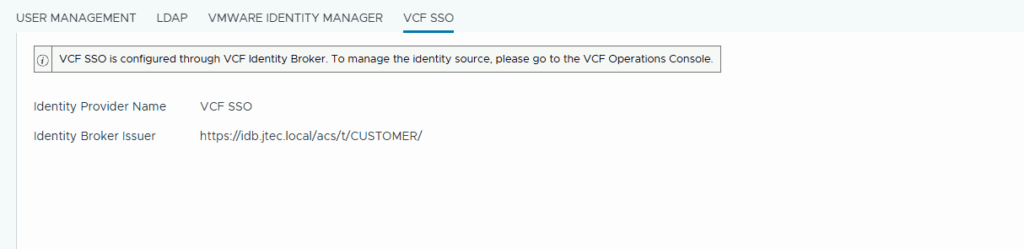
We can confirm the setup is completed.
Assign user and group roles
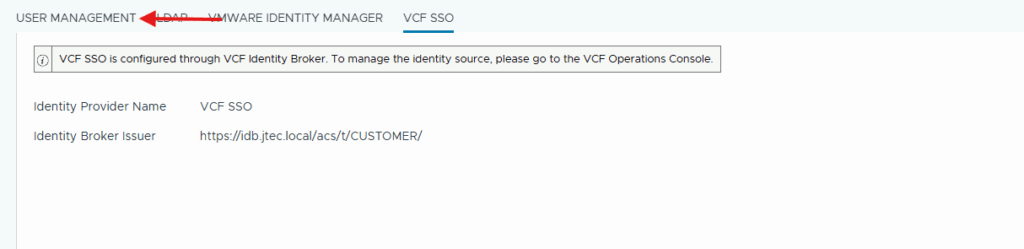
Now click on User Management
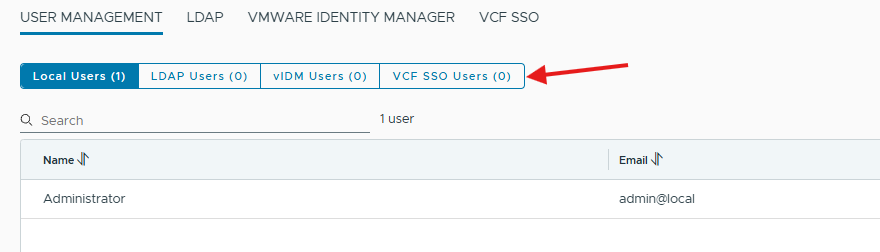
Click on VCF SSO Users
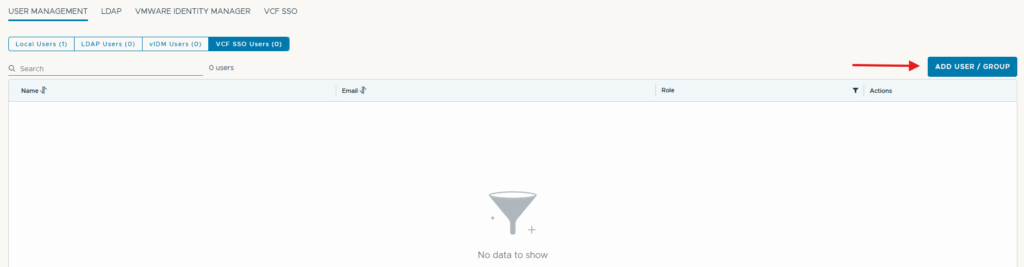
Click on Add User/Group to bring in the users and groups
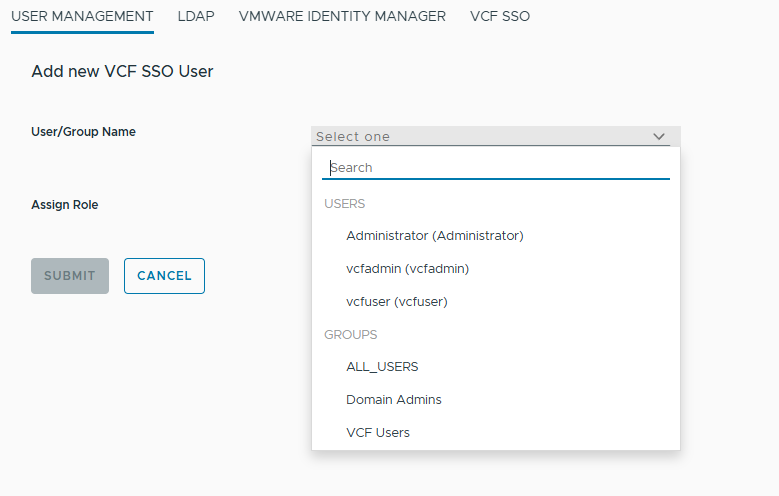
Click the drop down for User/Group Name and we can see the users that have been imported from active directory.
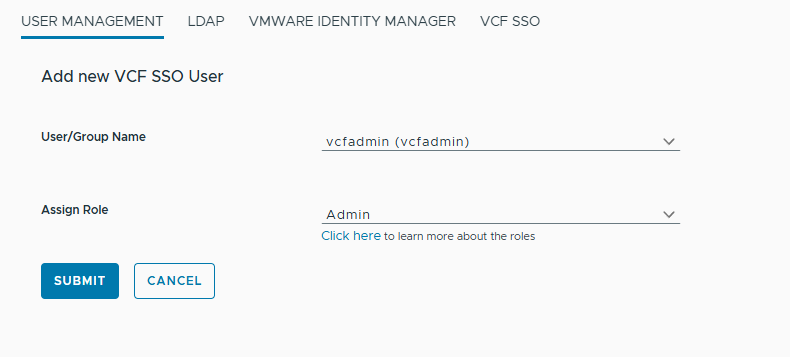
In this example I am going to choose vcfadmin and assign the role of Admin for this user.
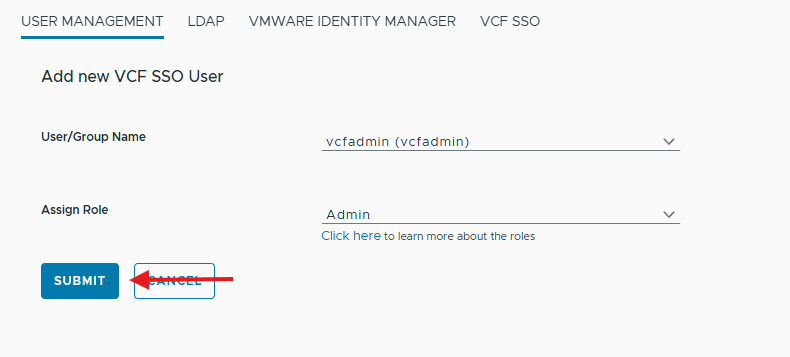
Click Submit to finish adding this user.
You will receive a confirmation the user has been added.

Repeat the process above for additional users or groups you want to add.
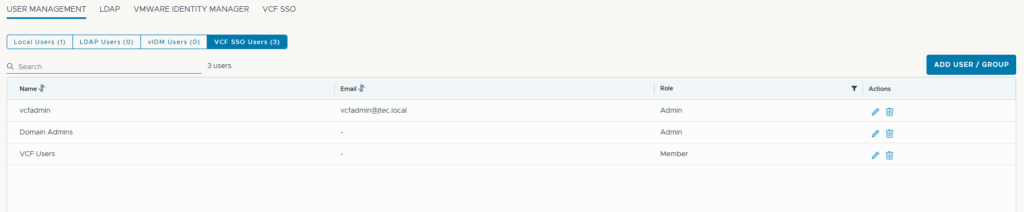
Test SSO login
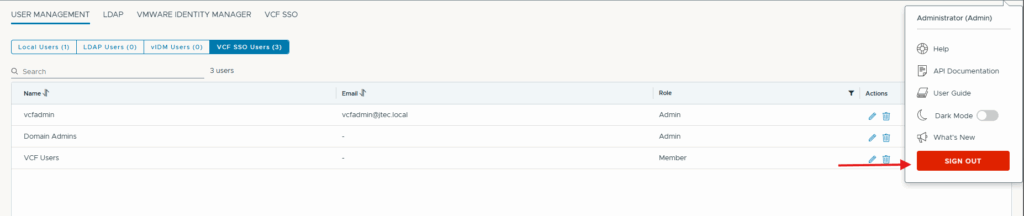
With all the groups and users added to the appliance, click the Menu icon in the top right and select Sign Out.
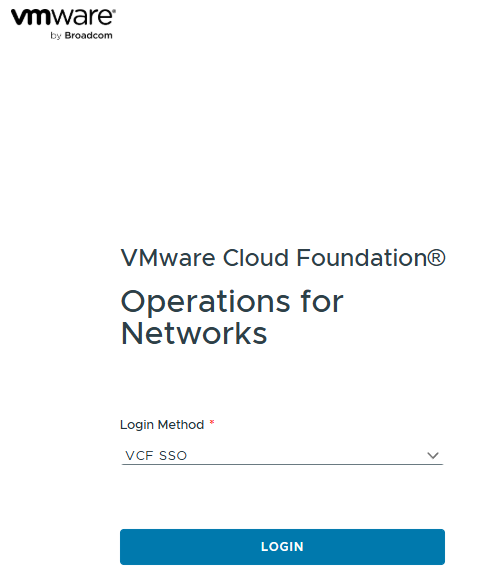
We see that VCF SSO is available as a Login Method now, click Login
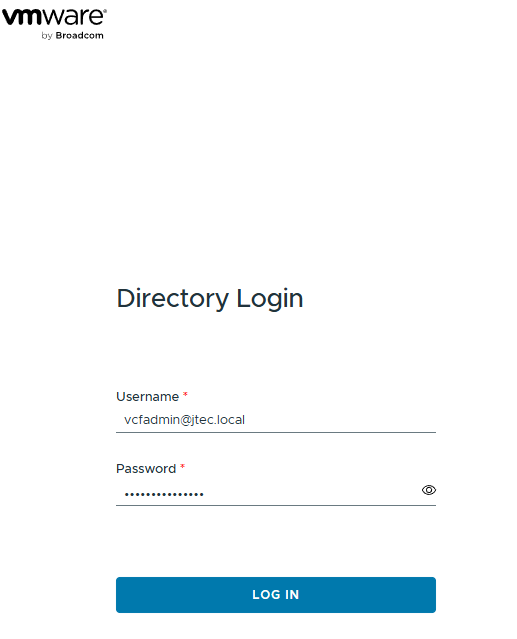
Enter in the active directory user information and click Log In
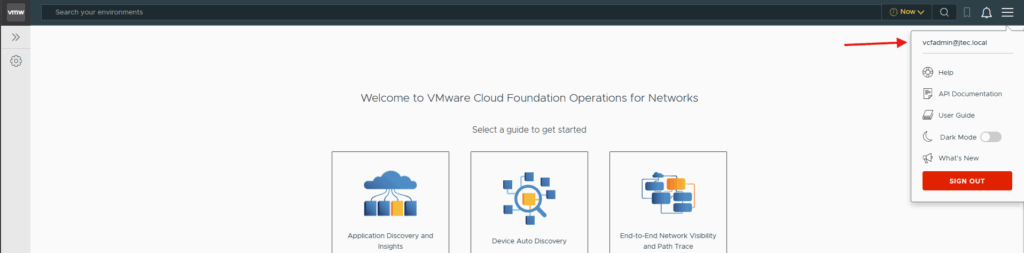
If successful we will be logged in to the web gui, and can confirm by click the Menu icon to see the user information.
Complete Fleet Manager registration
Now we have to return the VCF Operations web gui and complete the process.
Back at the VCF Other Components page, click Save to complete the identity broker configuration.
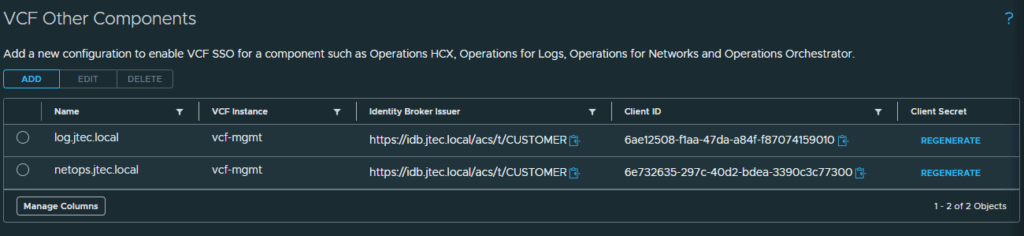
We now see that it is listed as configured in the list of VCF Components.
You can return to my main VCF Lab page to follow along with this deployment.