
In my previous posts, I have gone through the process of deploying the VMware Cloud Foundation (VCF) management and workload domains. I also have discussed importing a VCF domain in to a current fleet manager. You can view those posts by going to my main VCF 9.0 page here.
Now that I have a good VCF 9 deployment running, I want to upgrade to the latest version which is 9.0.1, you should always read the release notes and ensure your hardware is compatible prior to completing the upgrade.
The first step in getting the upgrade going is to download the binaries using the VMware Cloud Foundation Download Tool, there are a ton of other blogs out there discussing how to use this so I am not going to walkthrough this. Once you have the binaries downloaded and uploaded to your offline depot, you need to make sure they appear available to the SDDC Manager.
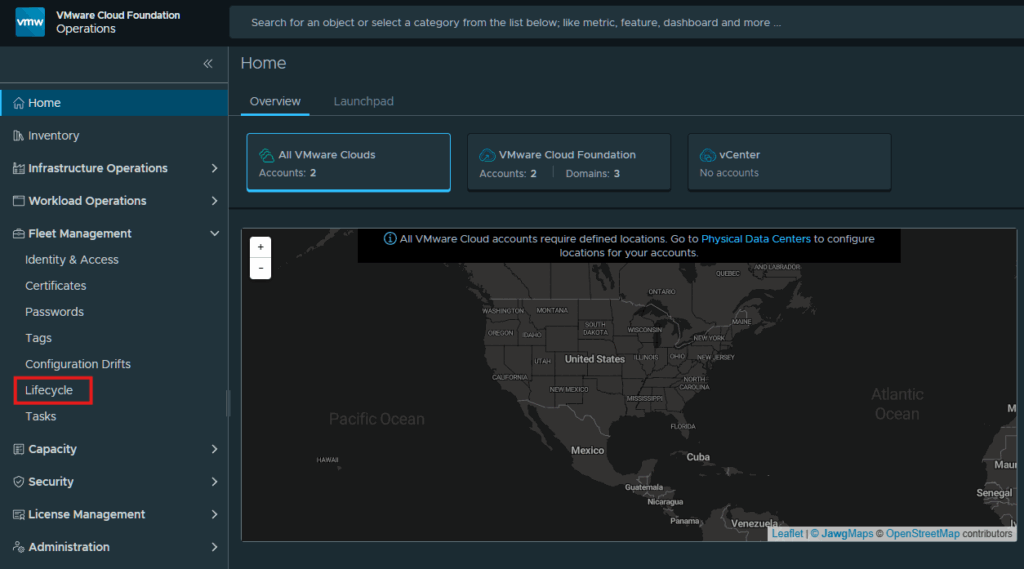
Login to your VCF Operations Console, expand Fleet Management and click on Lifecycle
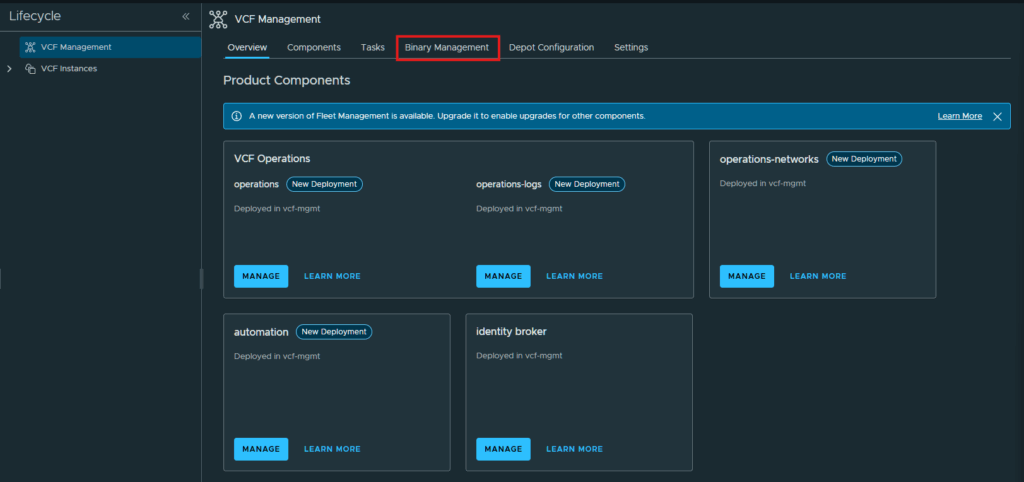
Now click on VCF Management and then Binary Management
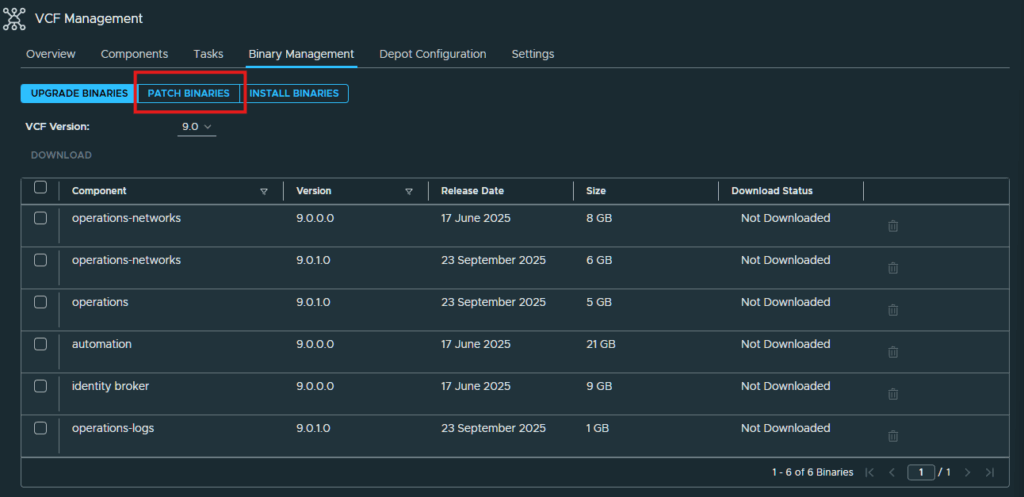
The first step in upgrade requires us to patch the Fleet Manager appliance so that we can download the rest of the binaries. In the Binary Management page, click on Patch Binaries
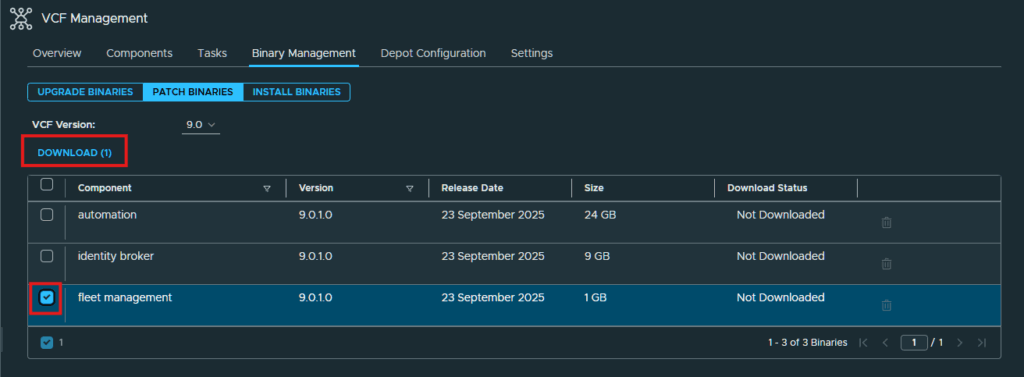
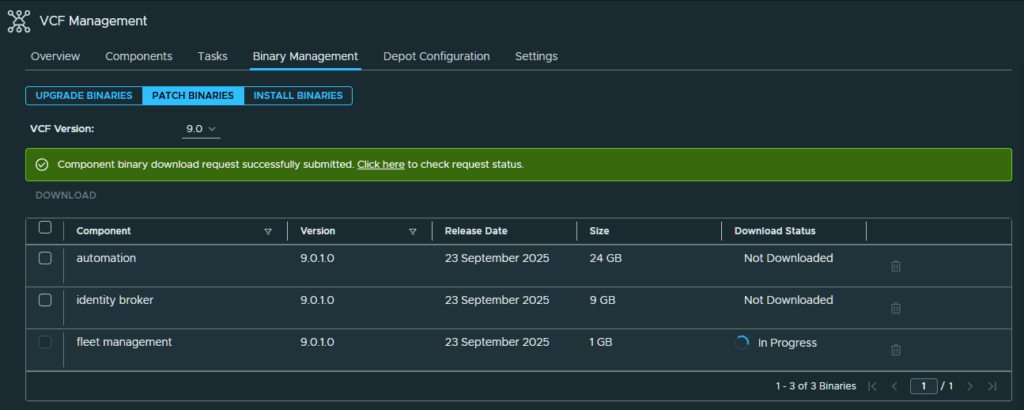
Click the check box next to fleet management and click the Download link.
Wait for the binary to download
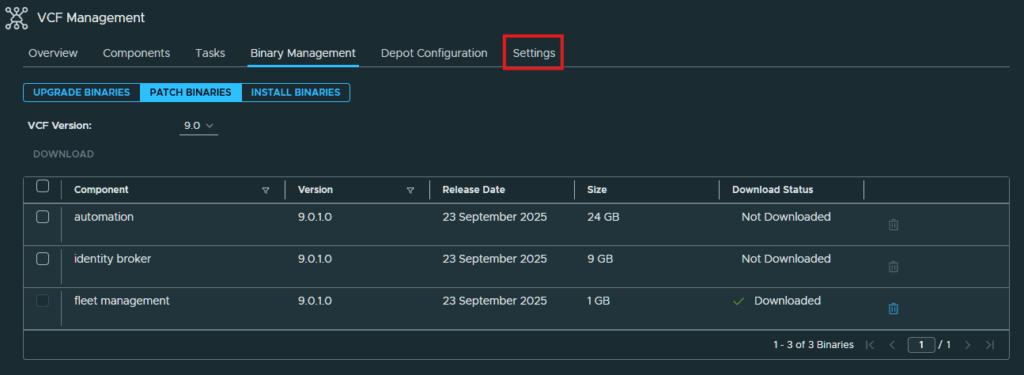
Now that the binary is download, click on Settings
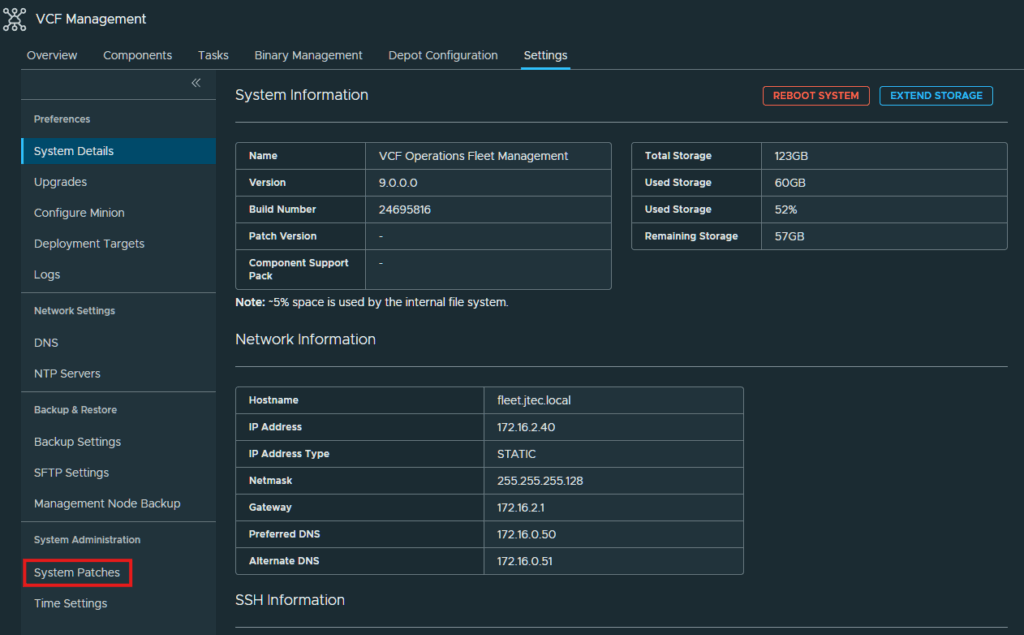
Click on System Patches
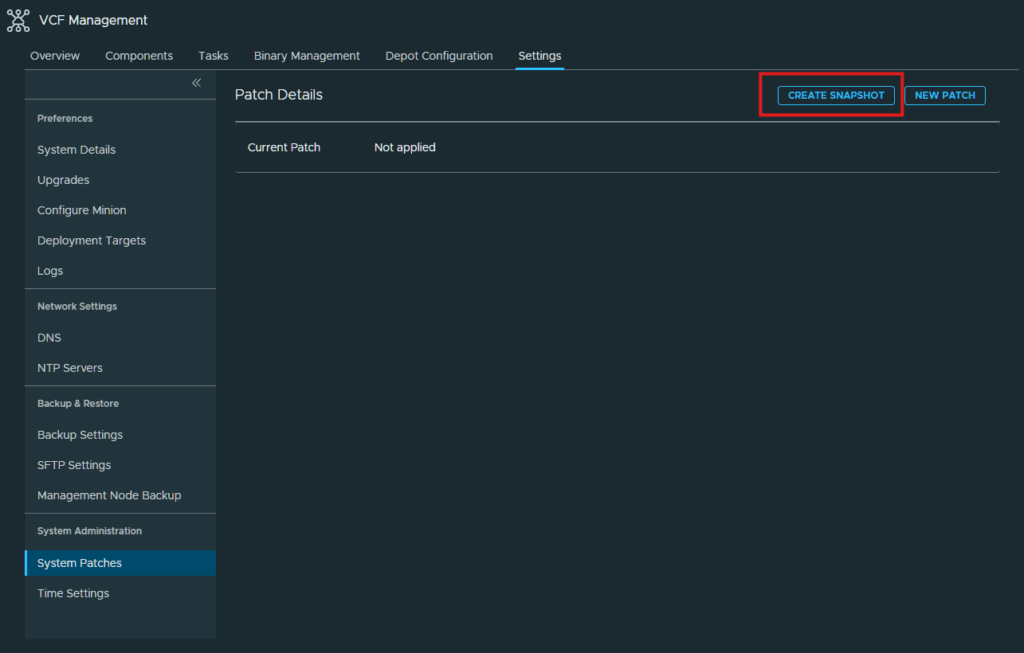
Since we are about to patch the appliance, we first need to take a snapshot in case we need to rollback. Click on Create Snapshot.
Enter in the vCenter FQDN and select the credentials that can be used to login to the vCenter.
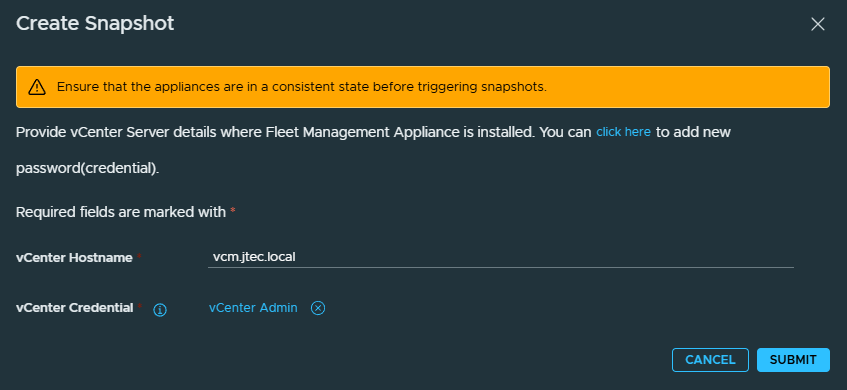
Wait for that task to complete before moving on. You can click on the link to view the progress.
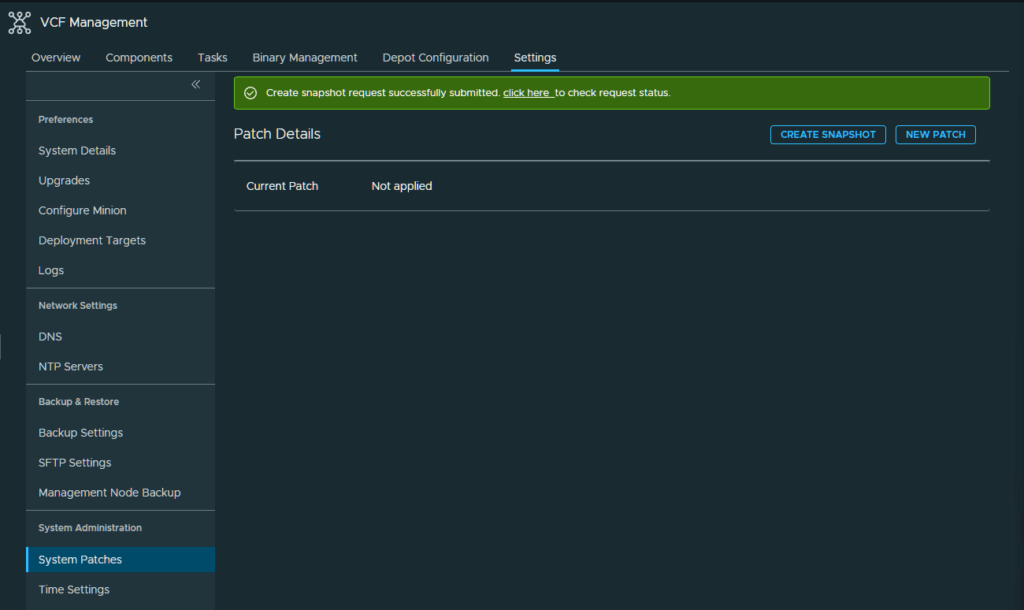
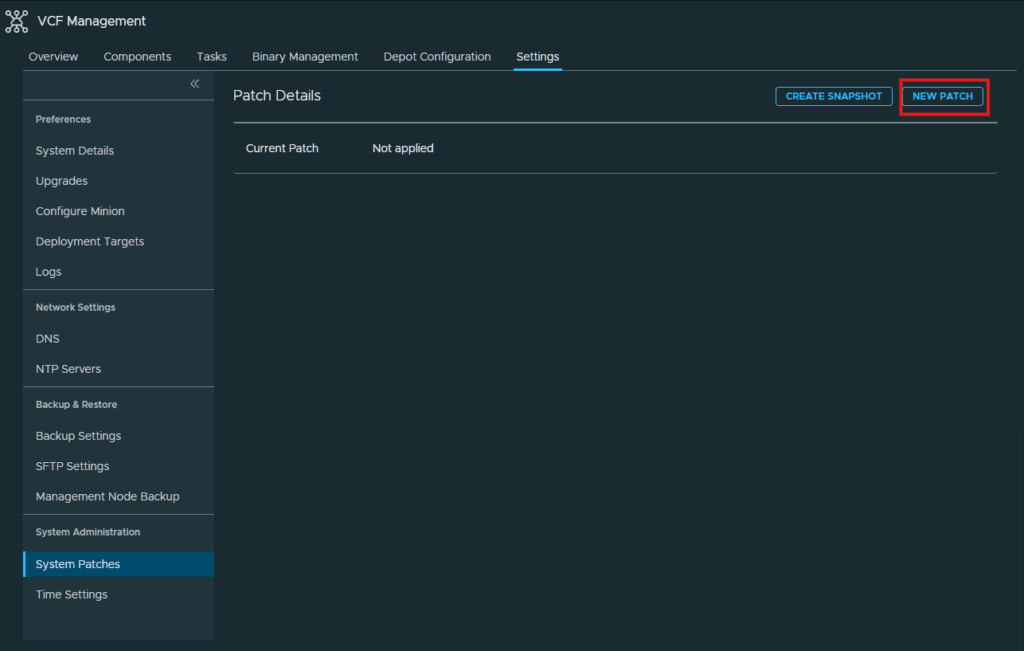
After the snapshot has completed, click on New Patch
The patch we just download should be available now, click the radio button next to the patch and click Next
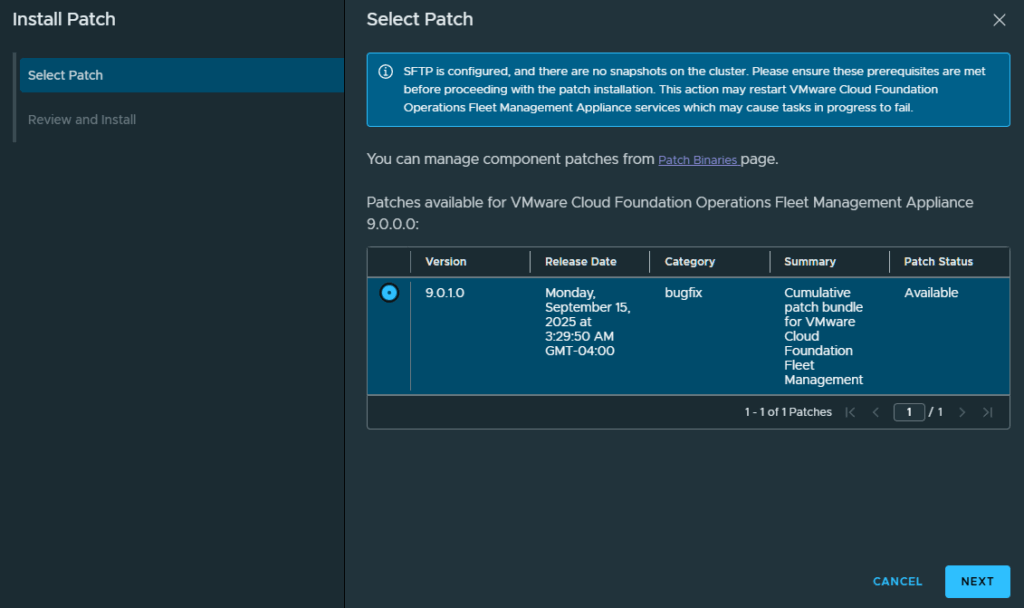
Click Install
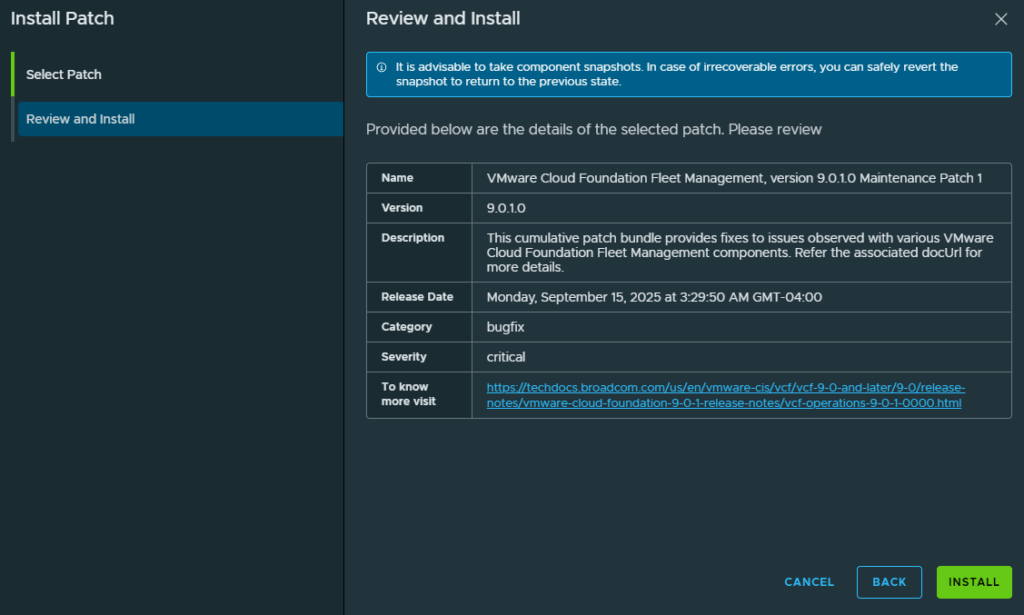
Wait for the patch to install before proceeding. The fleet manager will reboot, so you may lose connectivity for a period of time.
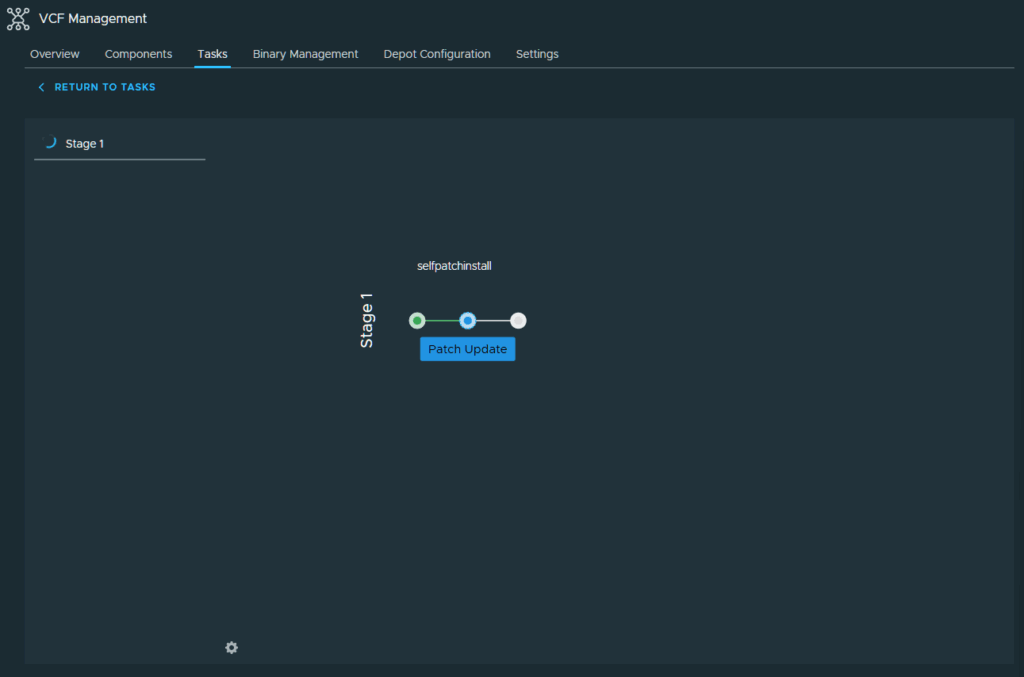
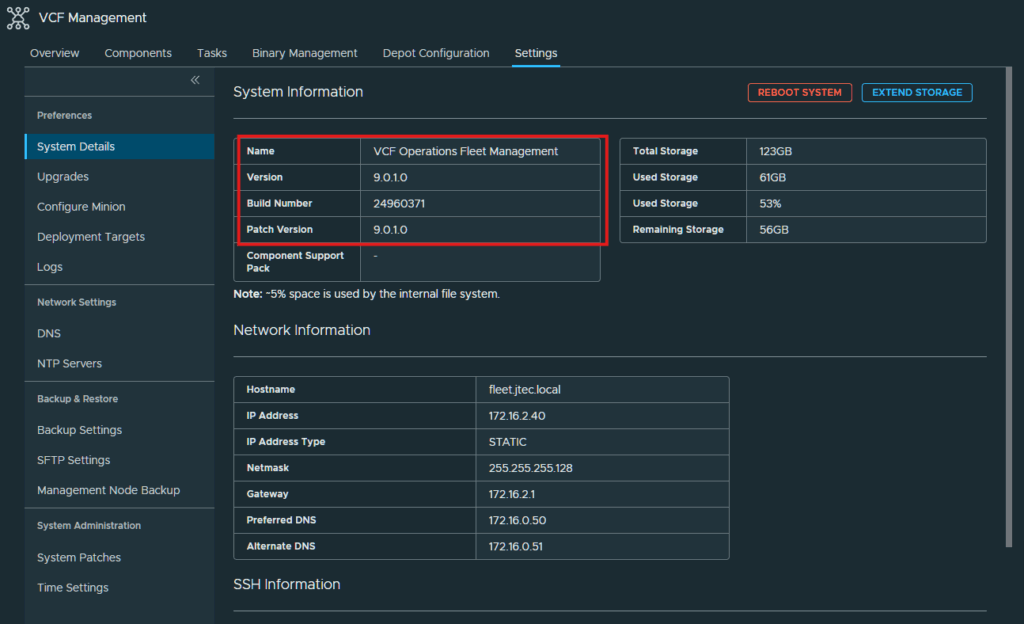
I went back to the overview and received a VCF Fleet Manager not ready message and after some time it refreshed back to the normal overview. I also wanted to confirm it upgrade by clicking on Settings
With the Fleet Manager upgraded, we can download the remaining binaries for VCF Operations Click on Binary Management
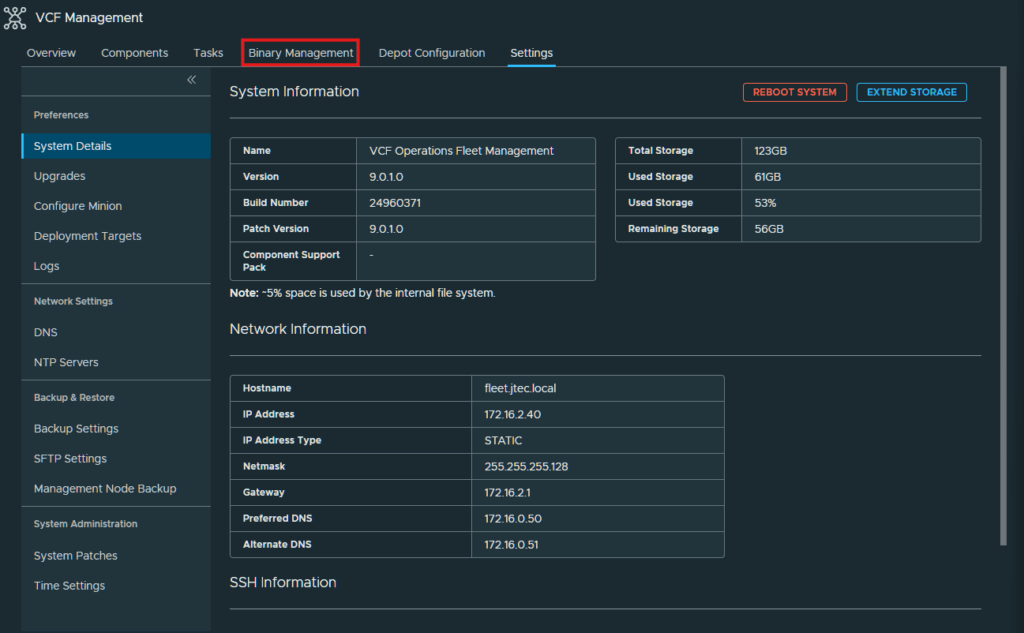
Click the checkboxes next to all the 9.0.1.0 versions of the VCF operations appliances and click Download.
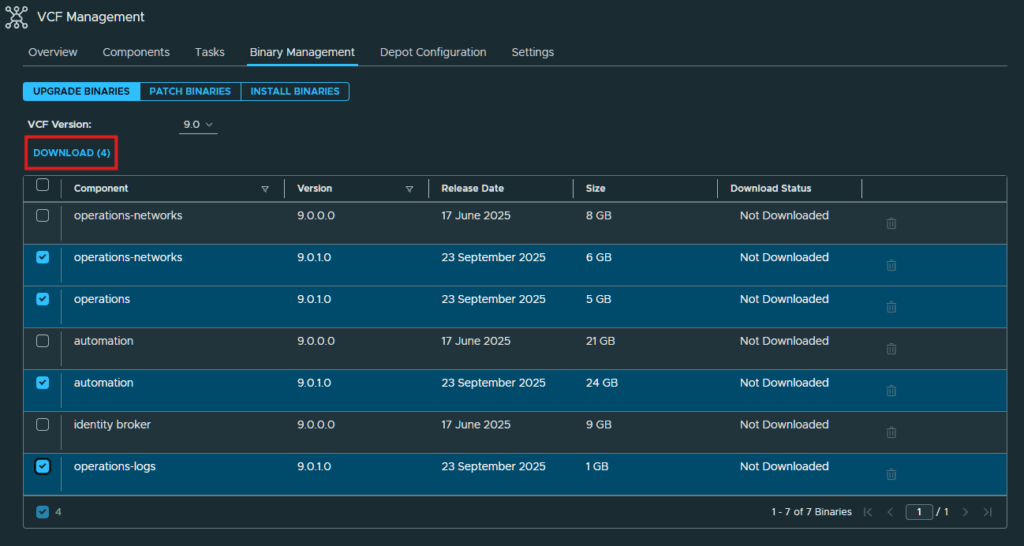
Once all the binaries have downloaded for the other appliances, we can proceed to upgrade them. Click on Components.
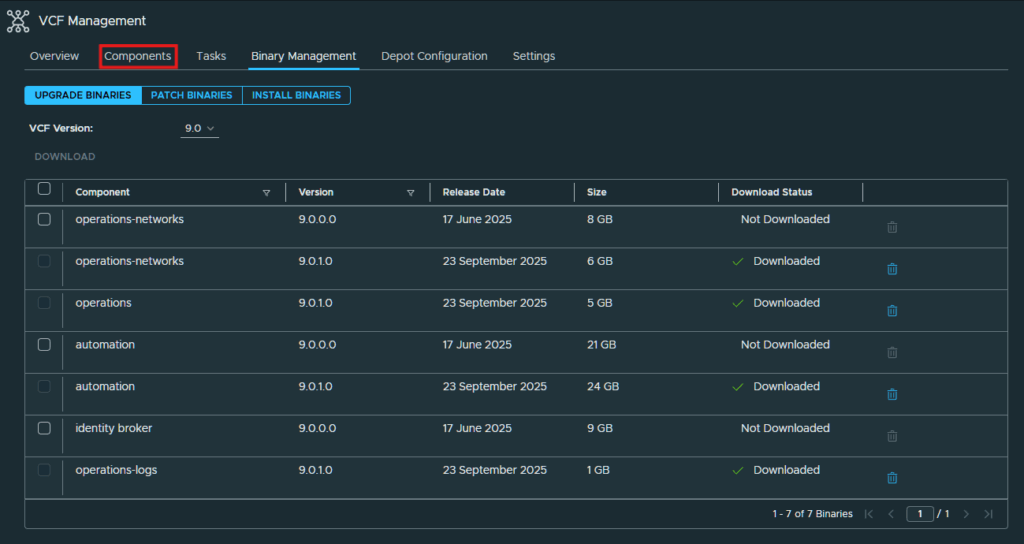
Then click on Plan Upgrade.
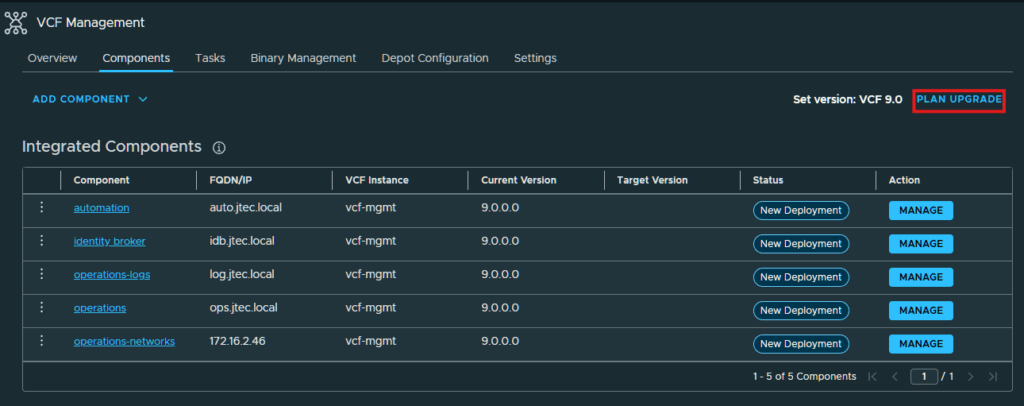
Click the drop-down next to each product and select the Target Version. Click Create Plan
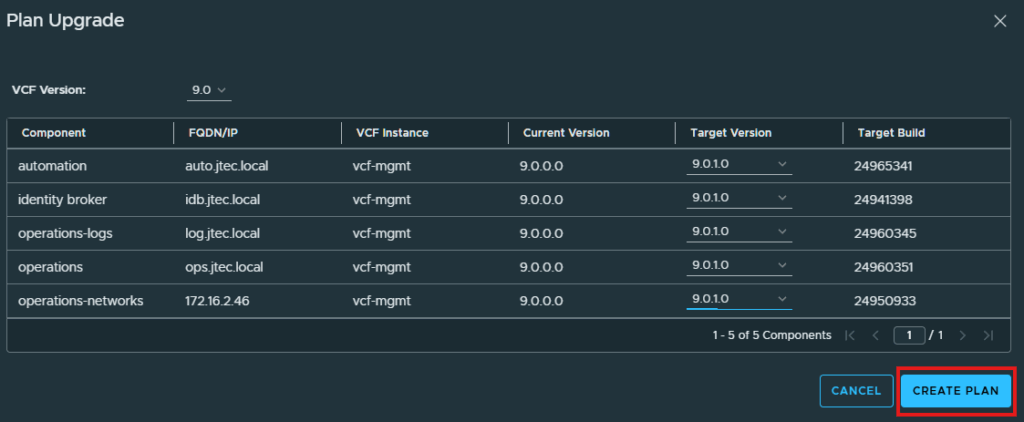
The status of each product will change and provide the upgrade path for each.
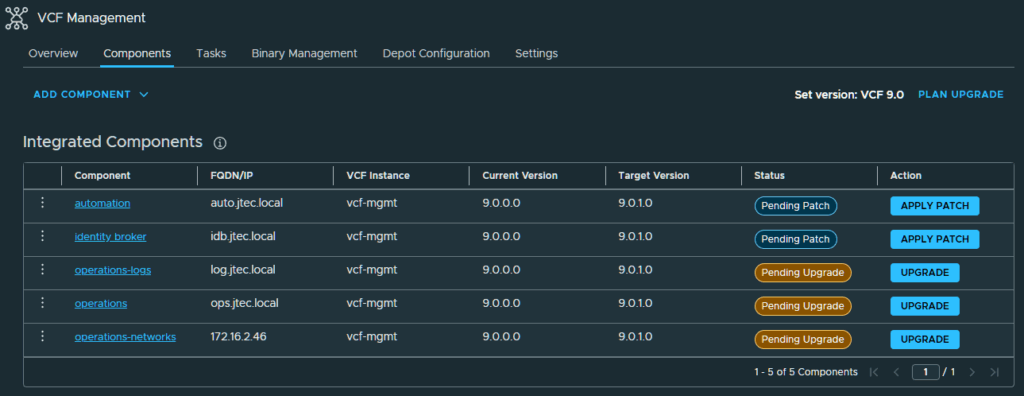
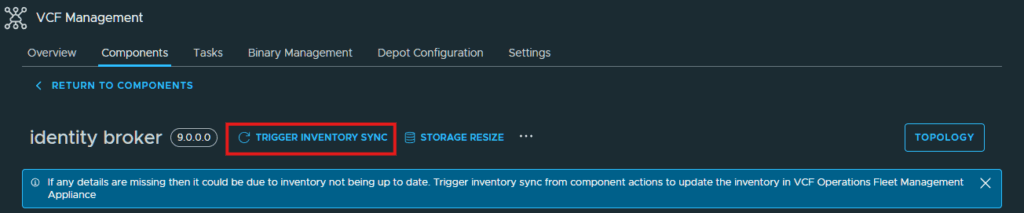
Prior to upgrading these products, it is always recommended to perform an inventory sync. You can perform that by clicking on each product and clicking the Trigger Inventory Sync link.
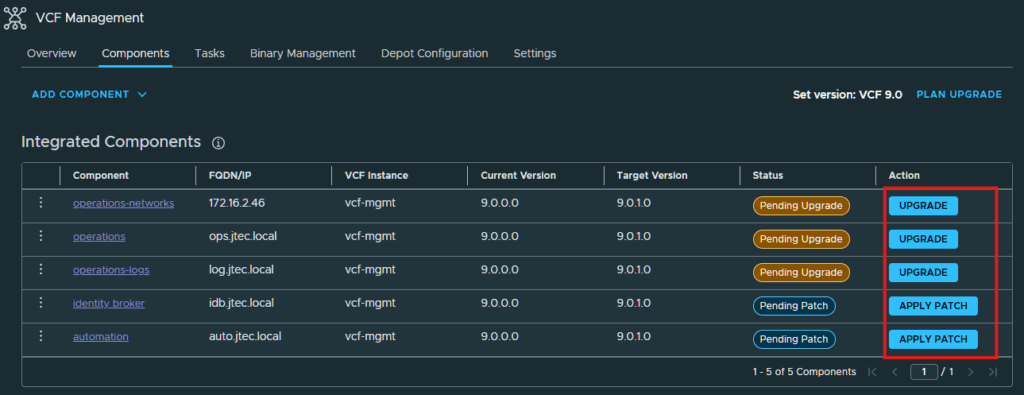
After all the products have been synced, you can start the upgrade by click on the link of the product you wish to patch/upgrade.
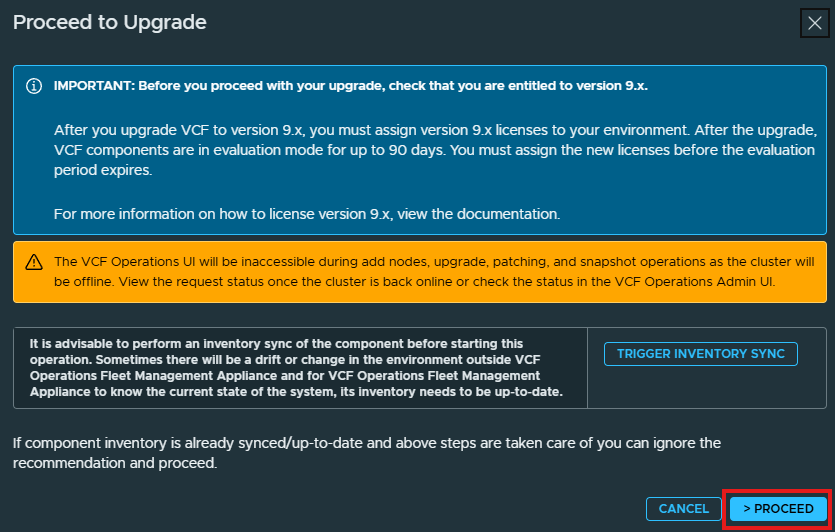
I am going to upgrade VCF Operations first, in the pop-up you will see the note about inventory syncing. Click Proceed to continue.
Click Next at the Select Version window.
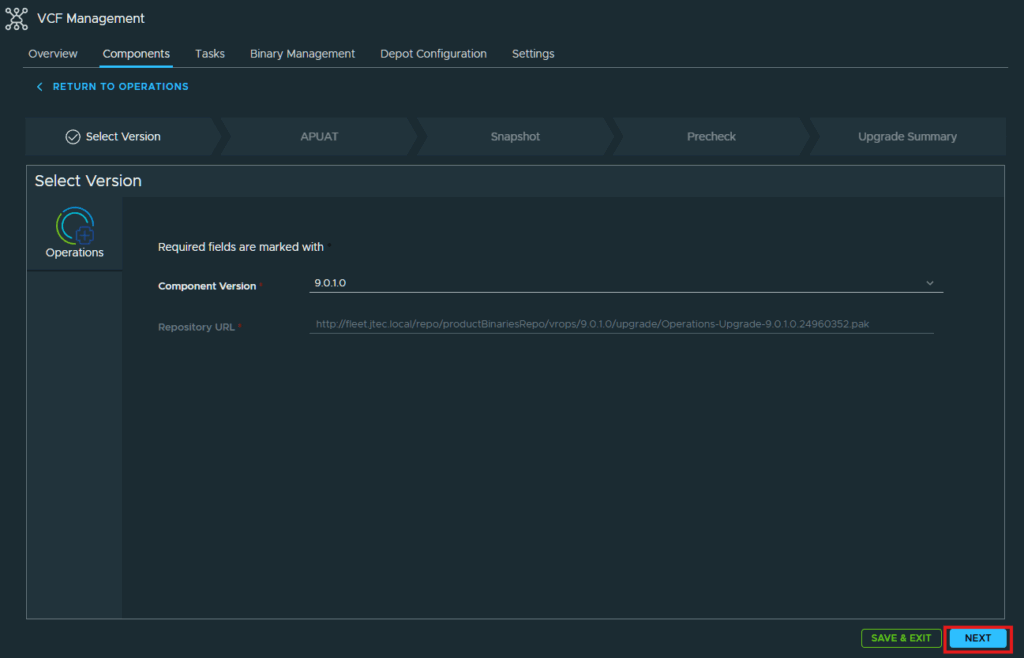
Click on Run Assessment to have the Aria Pre-Upgrade Assessment Tool (APUAT) run an environment assessment of VCF Operations.
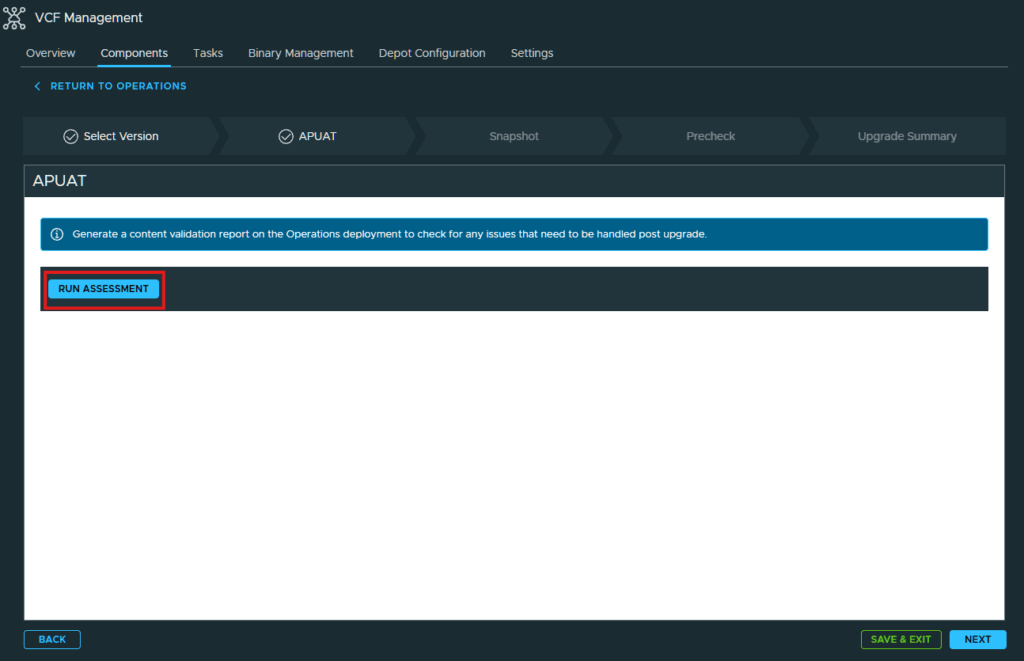
Wait for the Aria Pre-Upgrade Assessment Tool (APUAT) assessment to run.
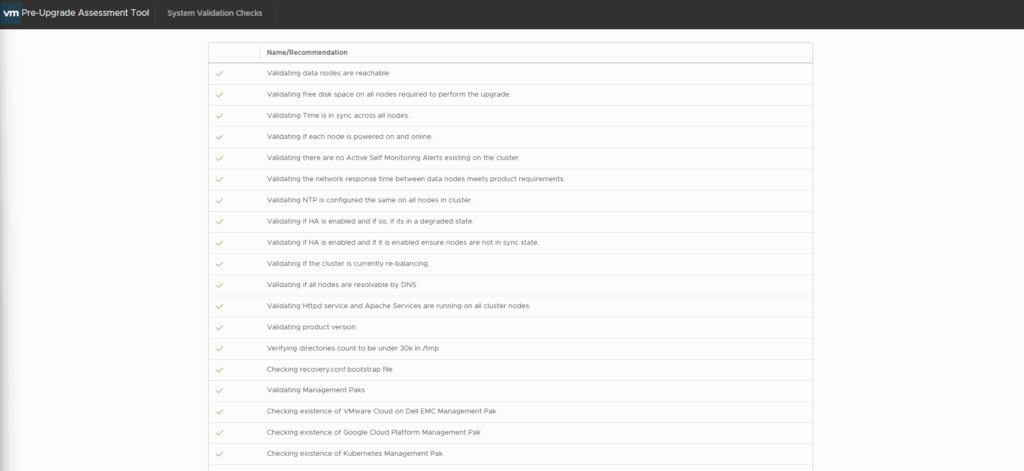
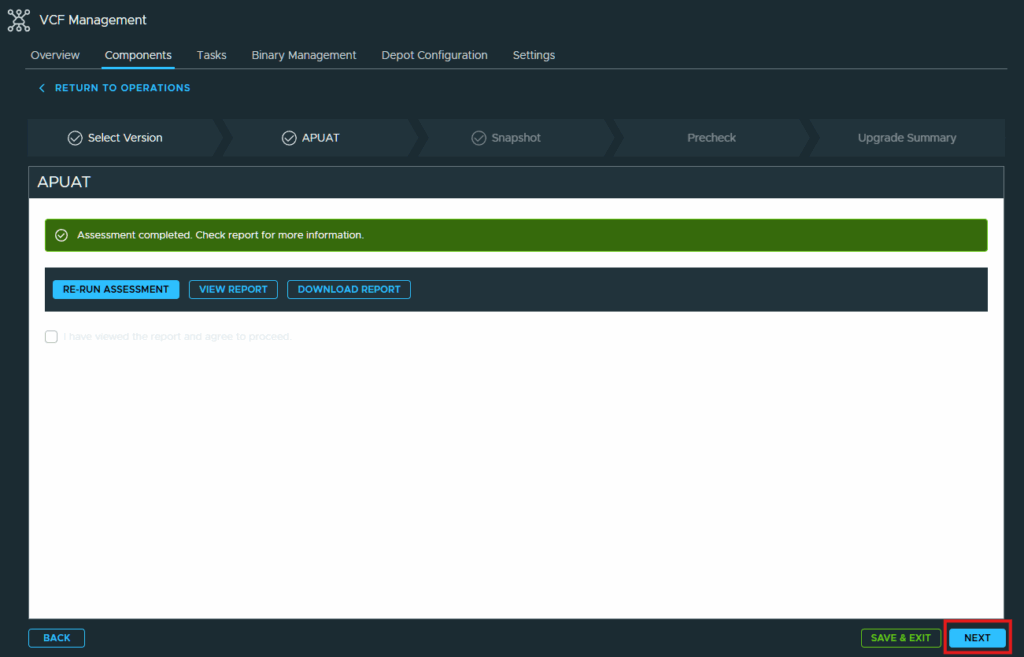
Once the report is completed, click on View Report and review the assessment to see if there is anything that should be addressed before the upgrade. My report showed now issues.
Return to the Upgrade process and click Next.
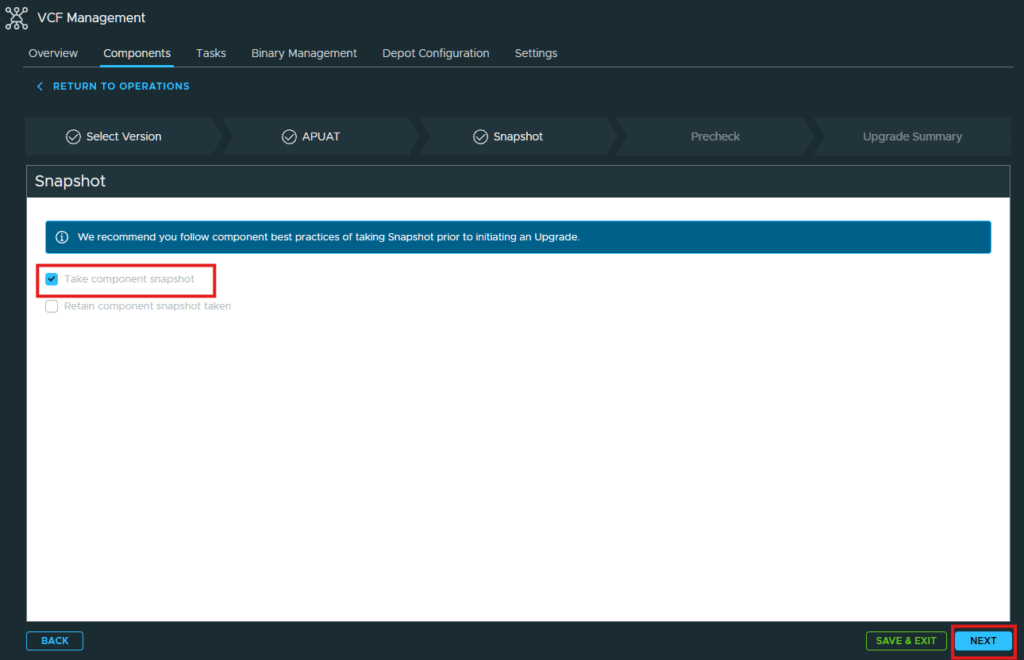
At the snapshot screen, leave the default selected to have the appliance take a snapshot before upgrading and click Next.
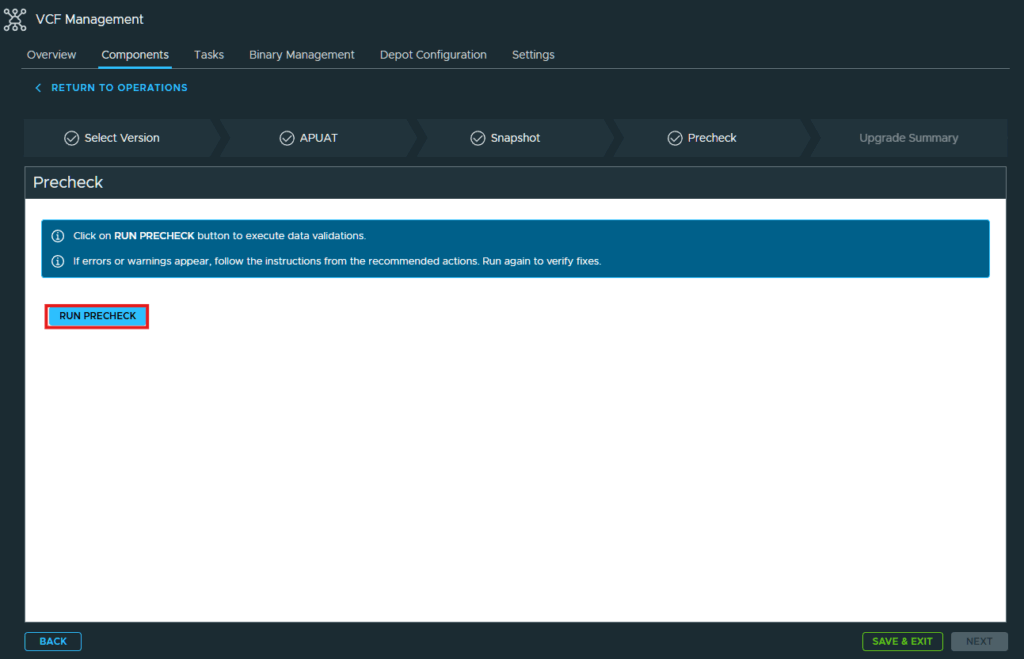
Click Run Precheck so it will validate everything we selected and allow us to continue on the process.
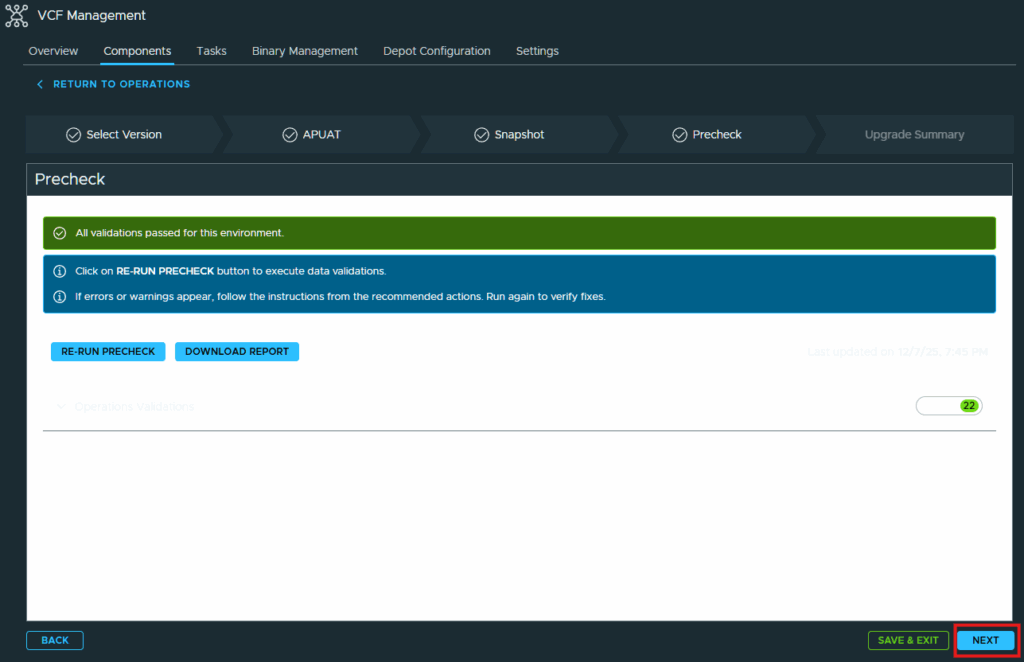
After the checks have passed, click Next to continue.
Review the upgrade summary page and click Submit if everything is correct for you.
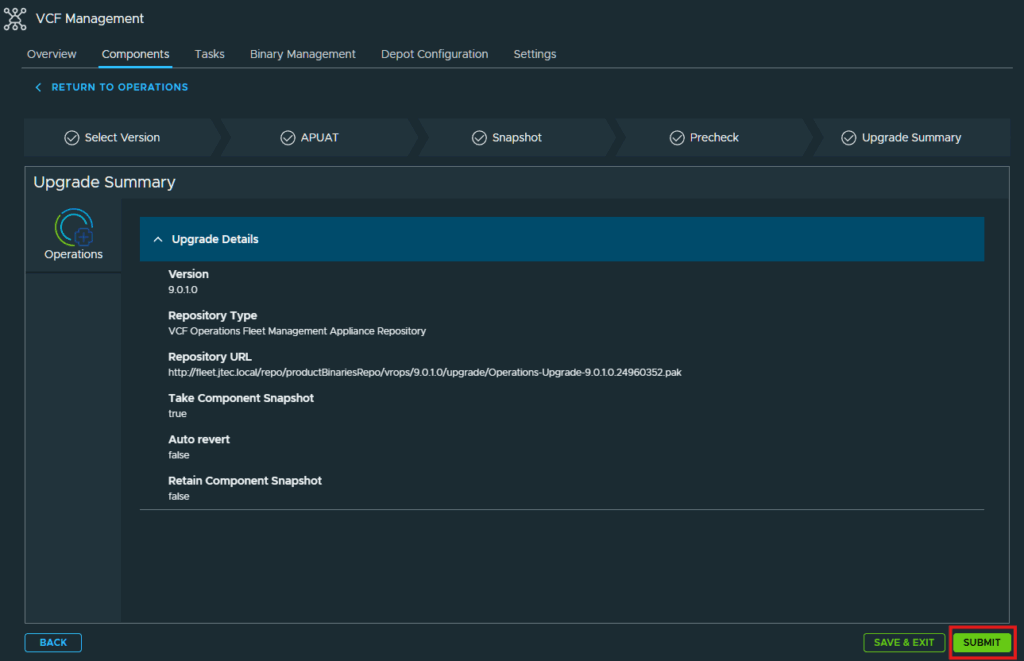
The upgrade for VCF Operations will start.
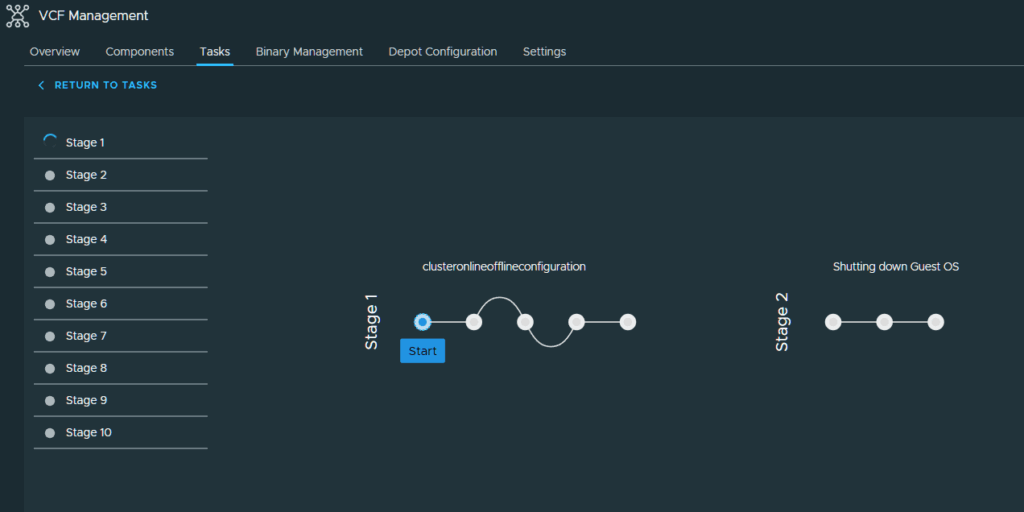
During the upgrade process, the VCF Operations UI will go offline for an extended period of time. If you refresh during the upgrade you may see an Error 503 Service Unavailable message.

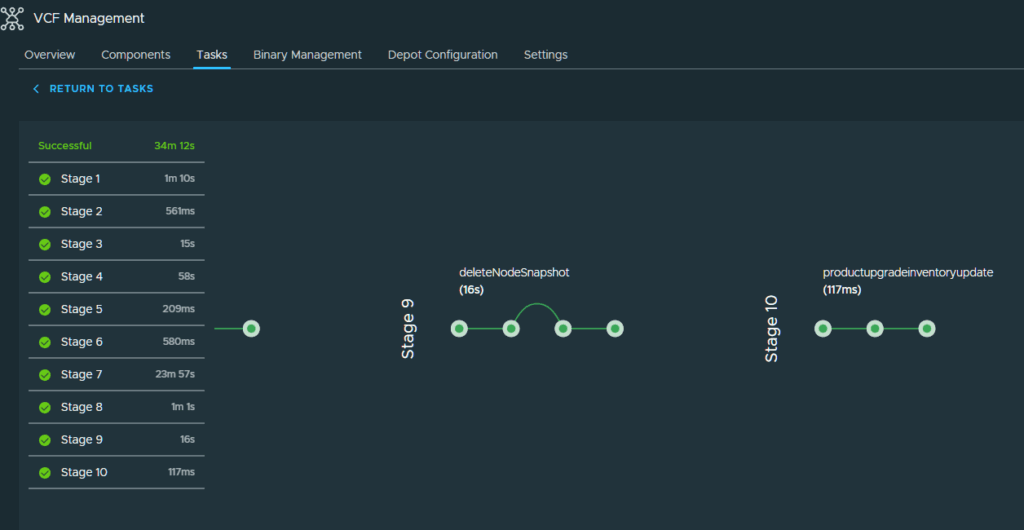
It took roughly 34 minutes for VCF Operations to upgrade.
You can validate the upgrade was successful by going back to the Components page and seeing that VCF operations is compliant with the upgrade plan.
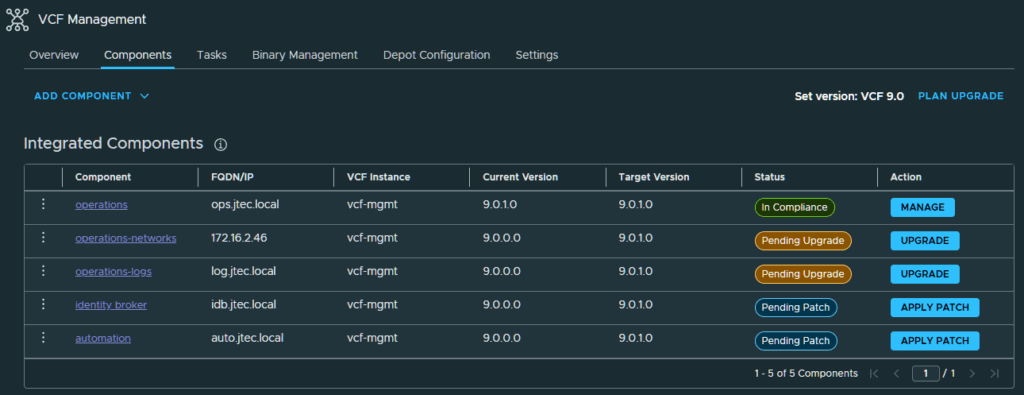
Next I am going to upgrade VCF Operations for Logs, click on Upgrade.
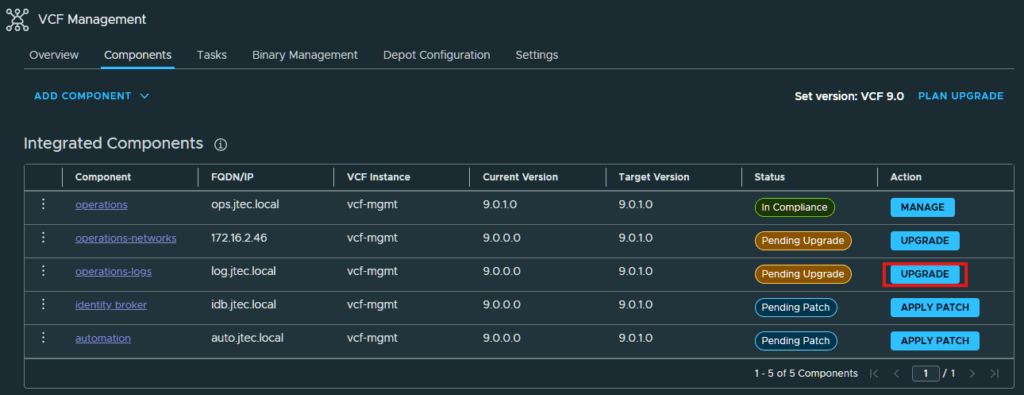
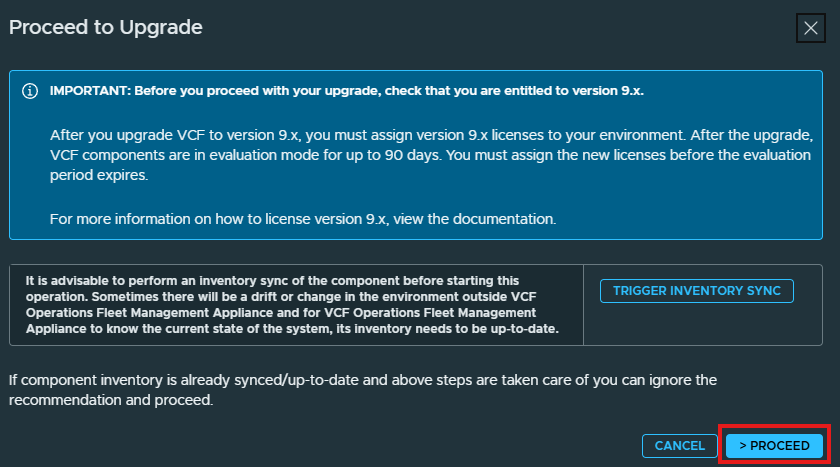
Click Proceed as on the pop-up. I have already triggered inventory sync for all products prior to starting this upgrade plan.
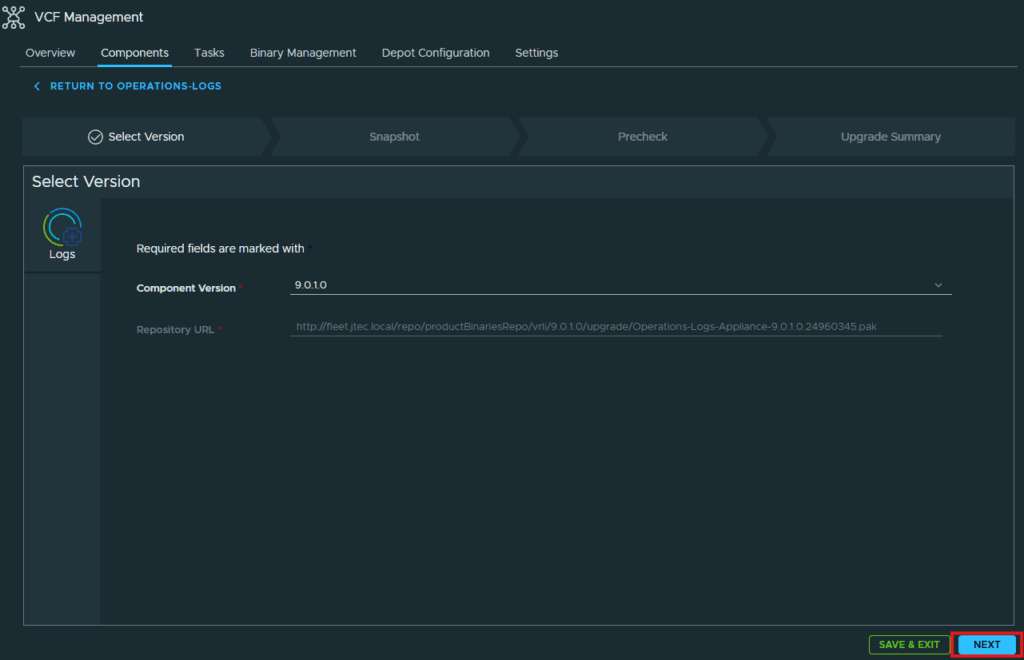
Click Next at the Select Version screen.
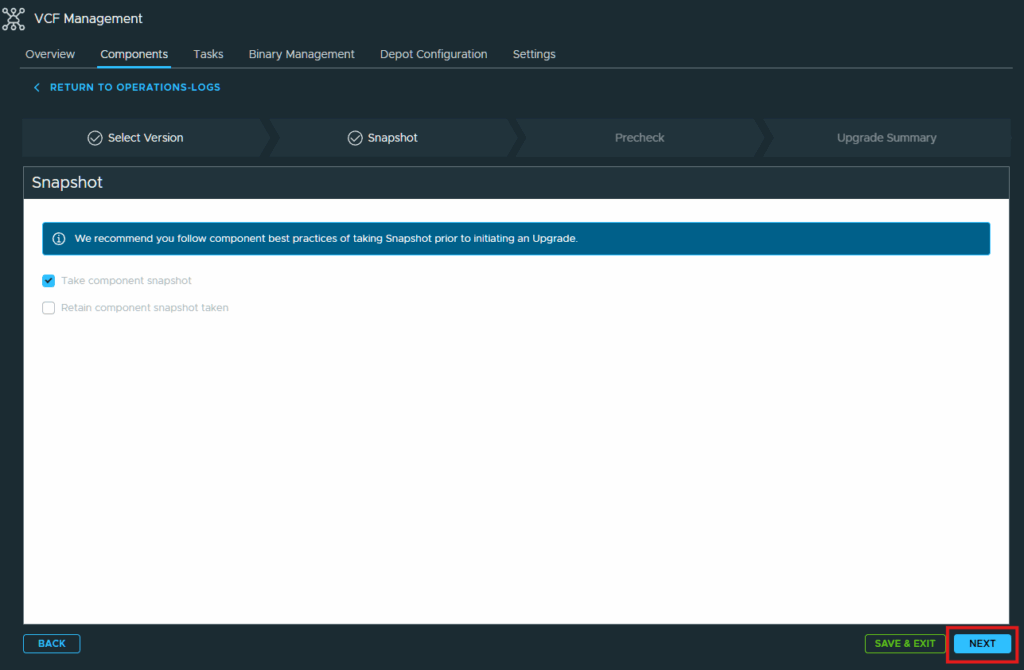
I am going to leave the defaults selected for the Snapshot settings and click Next to continue.
Click Run Precheck so it can run an assessment before the upgrade.
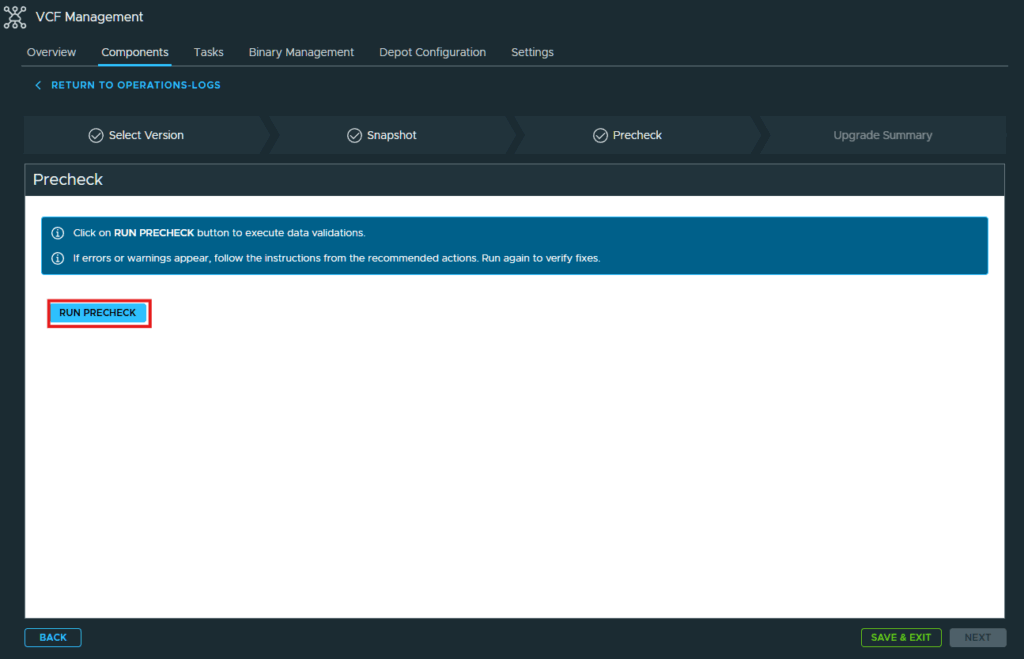
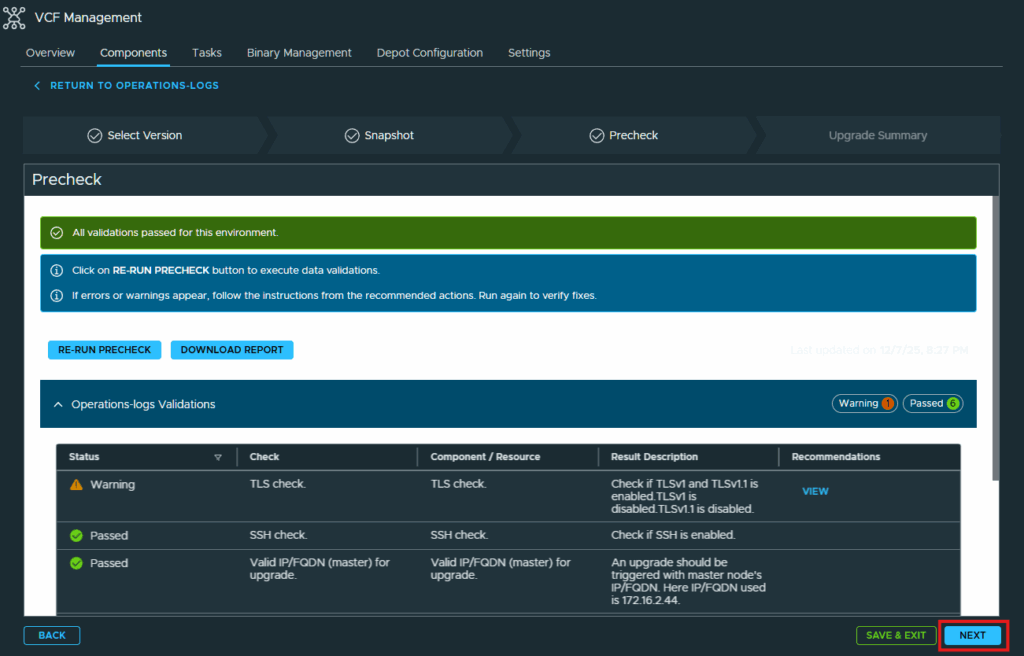
My precheck assessment had a warning for TLS v1 and TLS v1.1. I do not want either of these version running so I am going to dismiss this issue and click Next to continue.
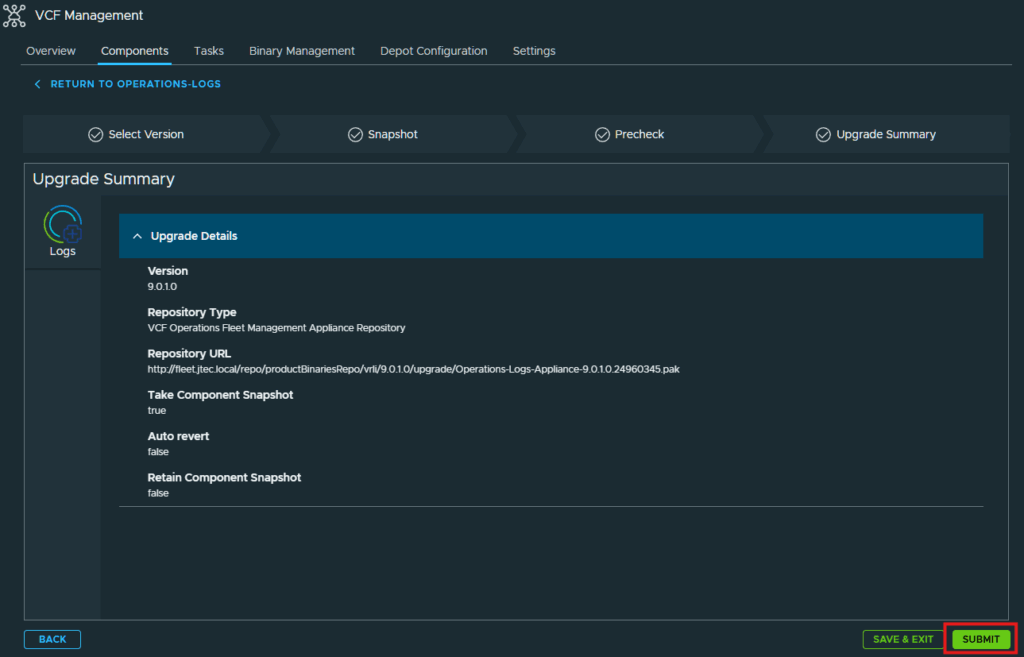
Review the Upgrade Summary and click Submit to start the upgrade.
The VCF Operations for Log upgrade will start.
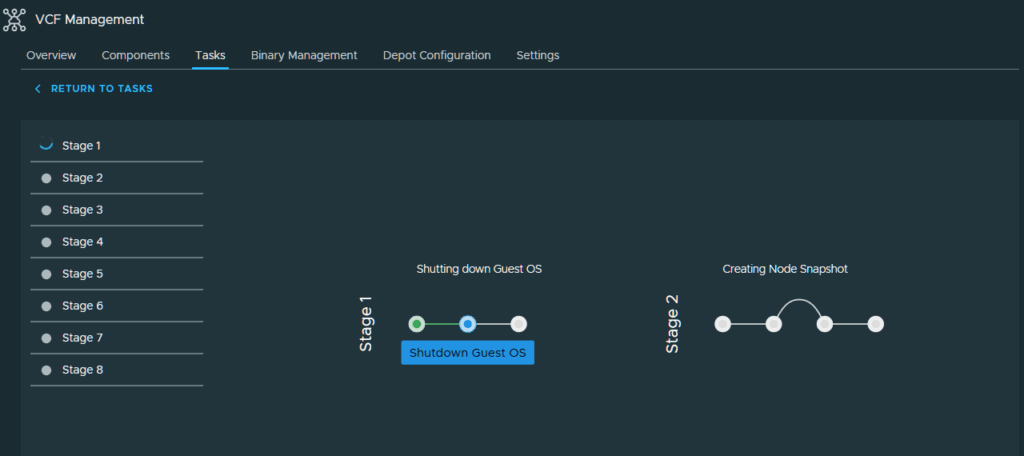
It took roughly 15 minutes for the VCF Operations for Logs upgrade to complete, it this was a cluster it would take significantly more as there are 3 or more appliances compared to the single appliance I am running in my lab.
Next we are going to upgrade VCF Operations for Networks, we will start back at the VCF Management components page.
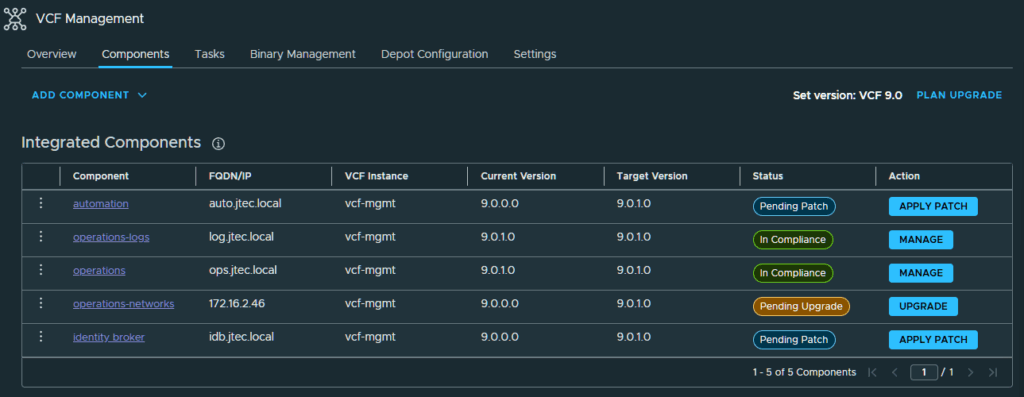
Click on Upgrade next to operations-networks.
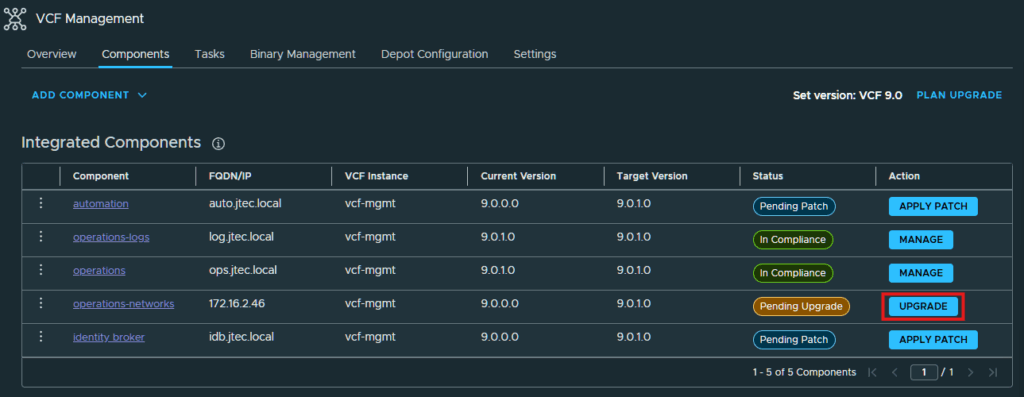
I am completing this upgrade over multiple days so I am going to trigger inventory sync in the pop-up. If you trigger an inventory sync another pop-up will appear and you have to select Confirm to start the sync. Click Proceed to continue with the upgrade.
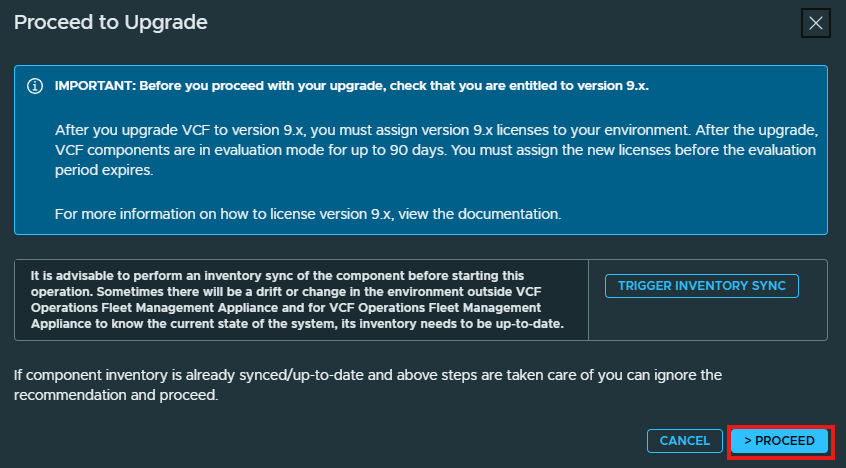
In the Select Version screen, click Next.
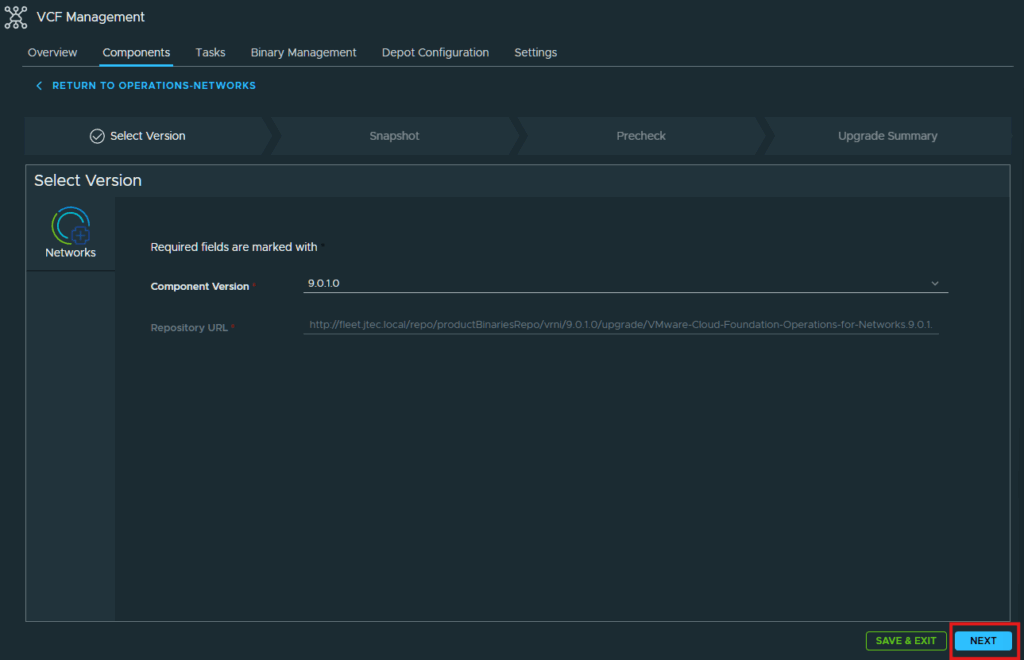
At the Snapshot screen, I am leaving the defaults selected so that it will create a snapshot before upgrading. Click Next.
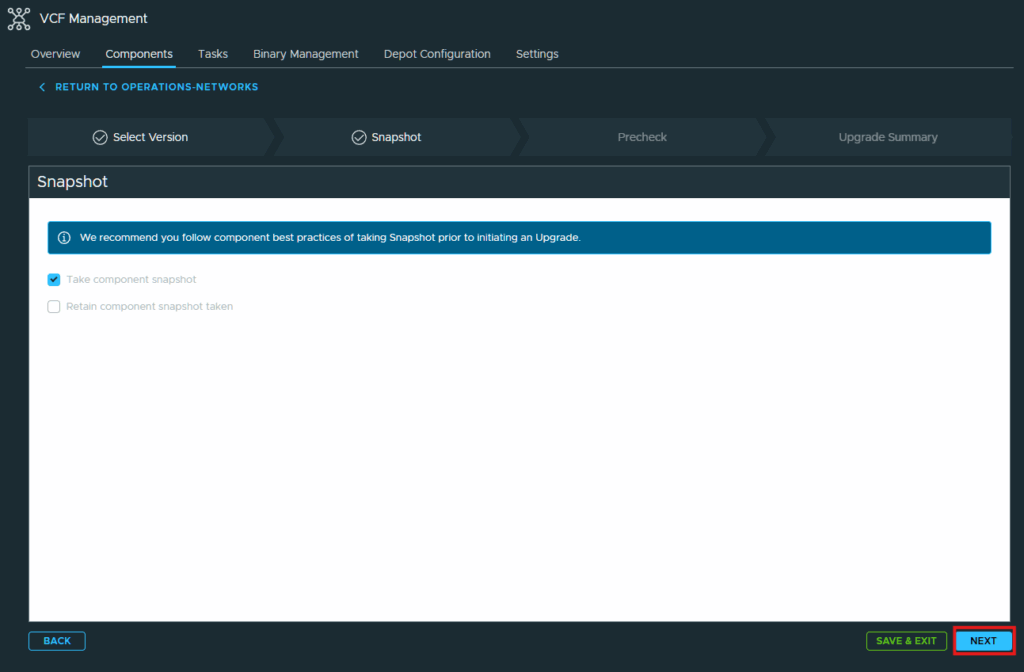
Click Run Precheck to validate the environment is ready for an upgrade.
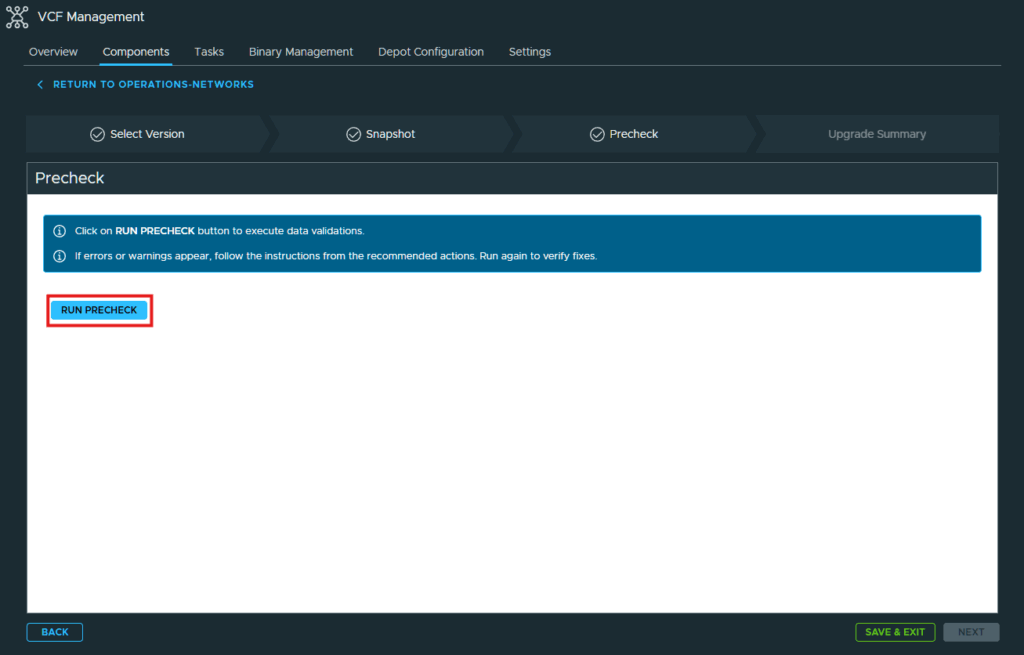
Review the precheck to see if there are any issues that need to be resolved before continuing. My precheck pass all the checks, so I clicked Next to continue.
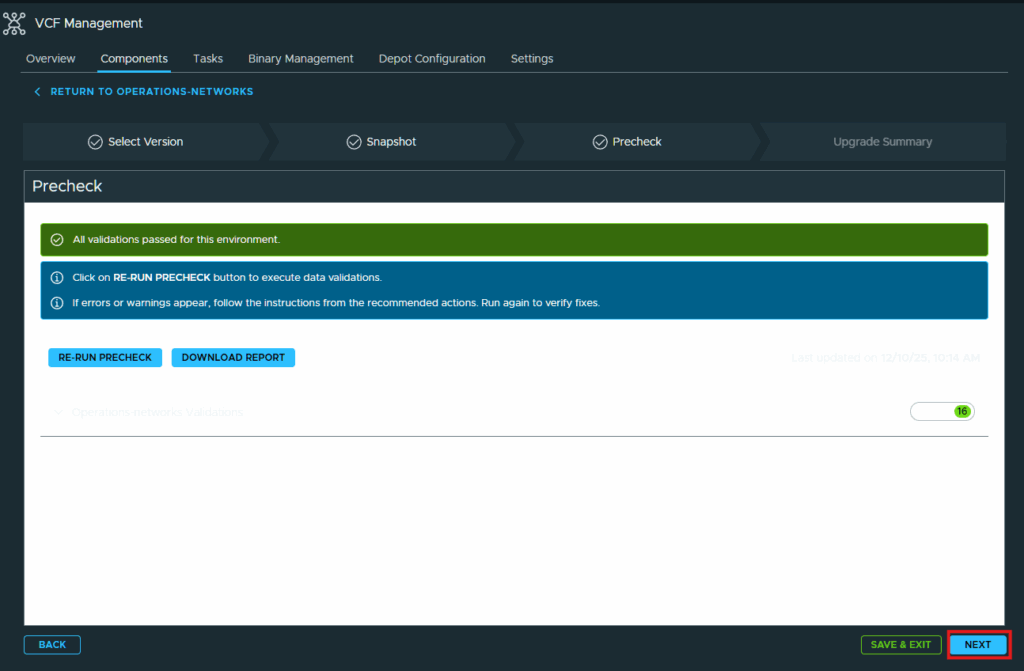
Review the Upgrade Summary page and click Submit to begin.
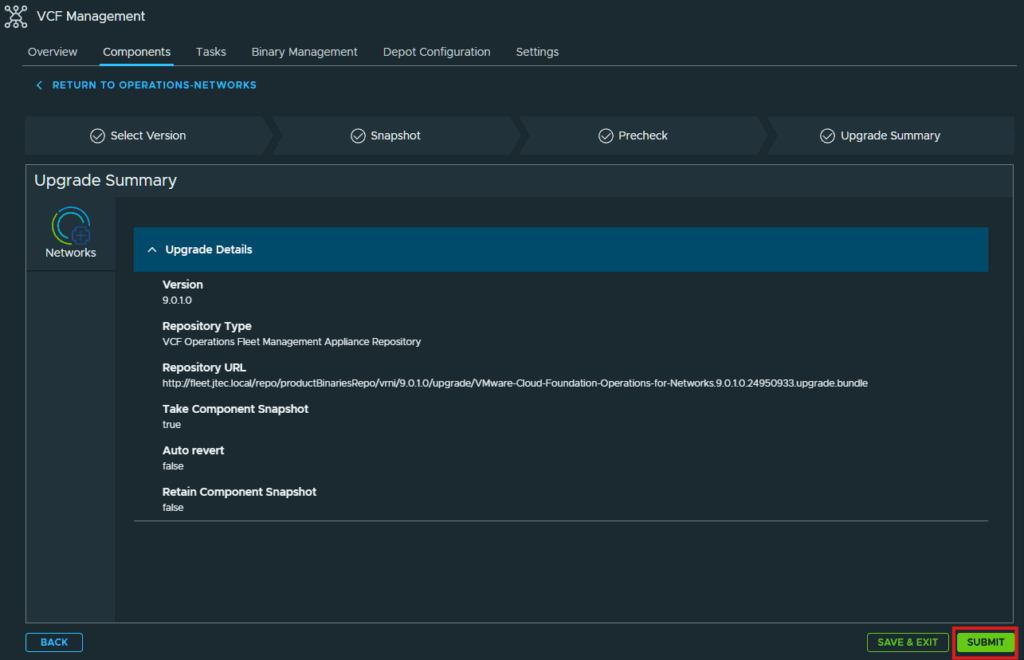
Wait for the upgrade to complete.
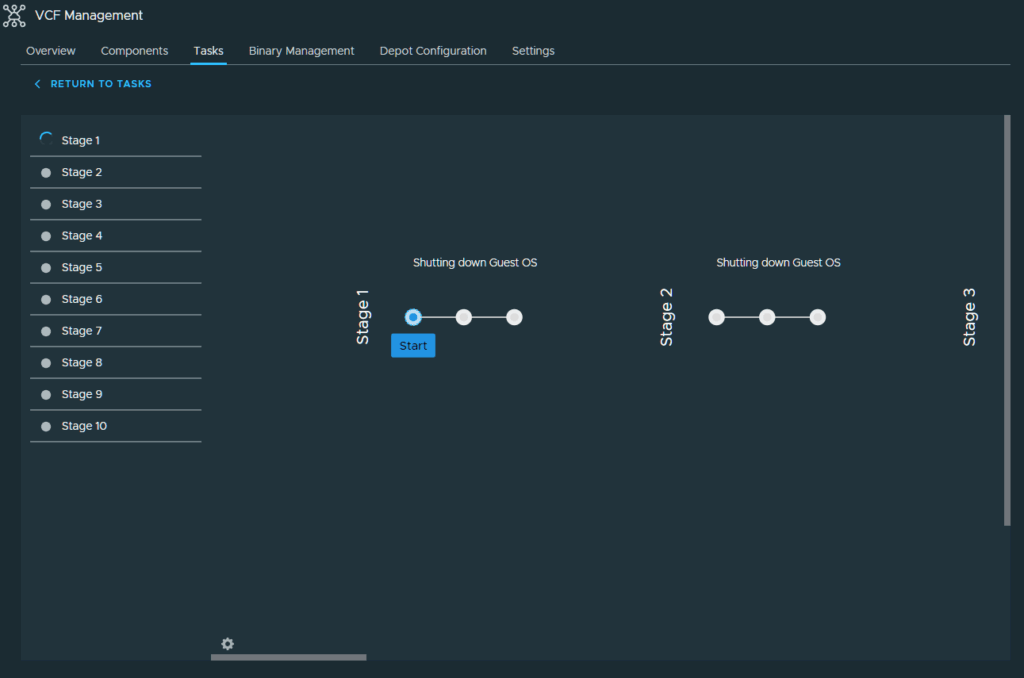
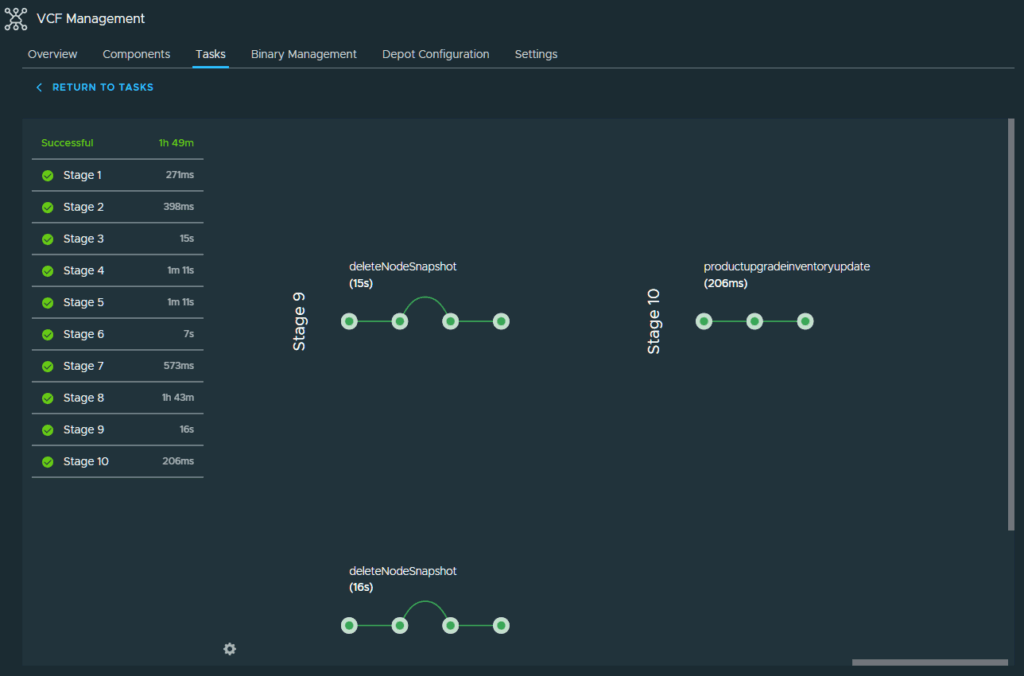
The VCF Operations for Networks upgrade took approximately 1 hour 49 minutes to upgrade. I had one issue with the upgrade uploading to the appliance but that remedied easily by restarting the upgrade, probably just timed out the first time it up was uploading.
Now we return to the components tab and move on to the next part of the process.
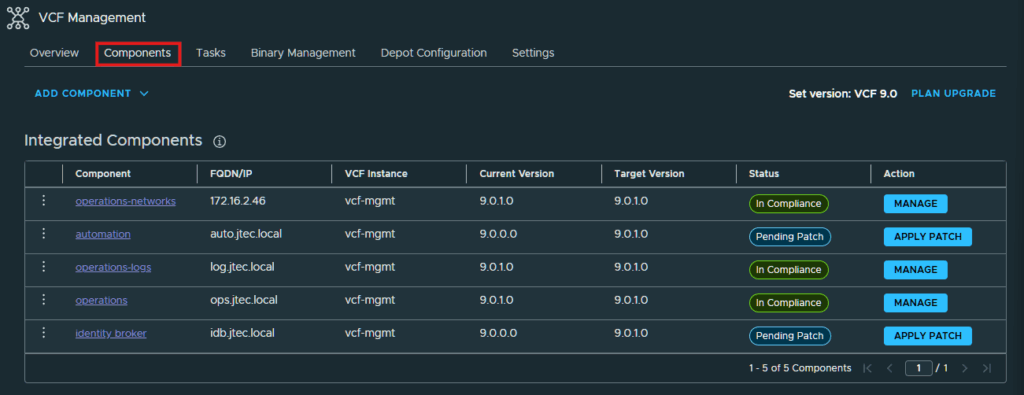
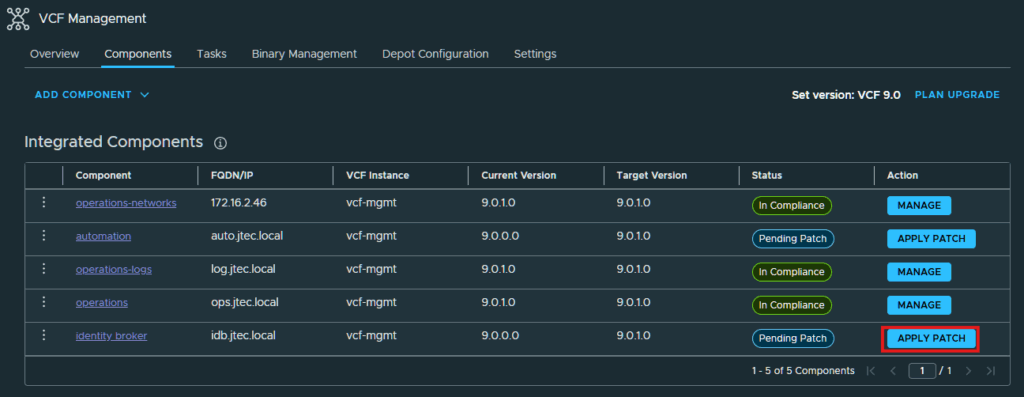
We see that we only have patches left to install, automation and identity broker. We haven’t downloaded the patches yet, so we have to do that first. Click on Binary Management.
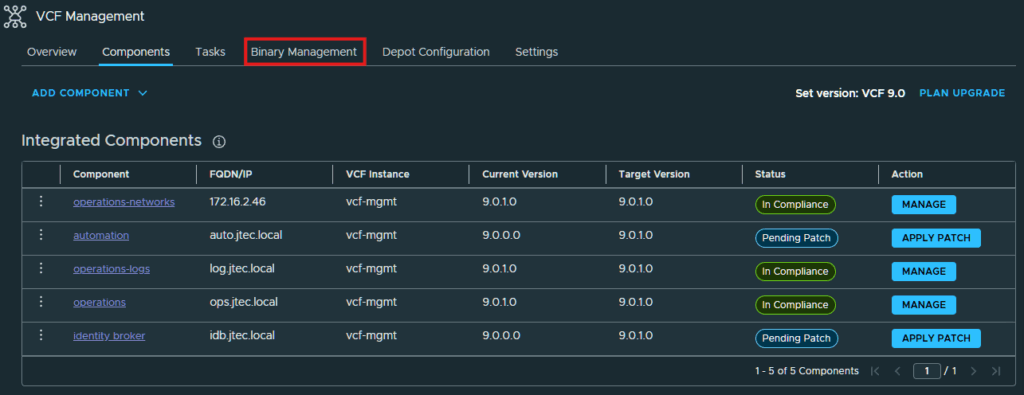
Then click on Patch Binaries.
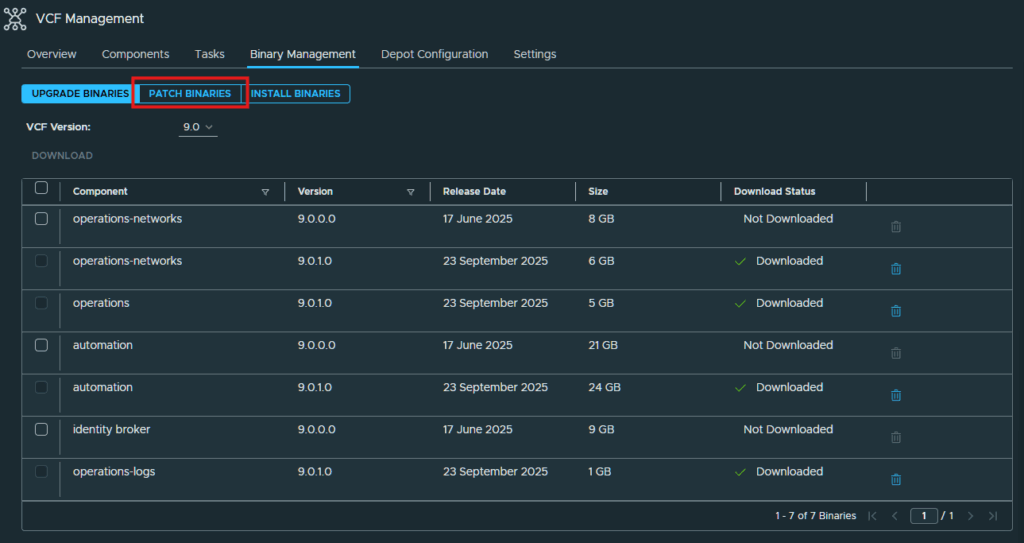
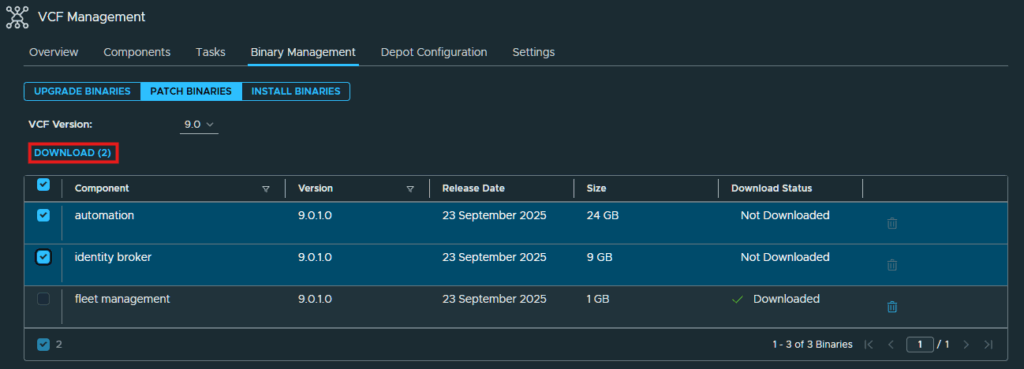
Select the checkboxes next to automation and identity broker and click the Download link.
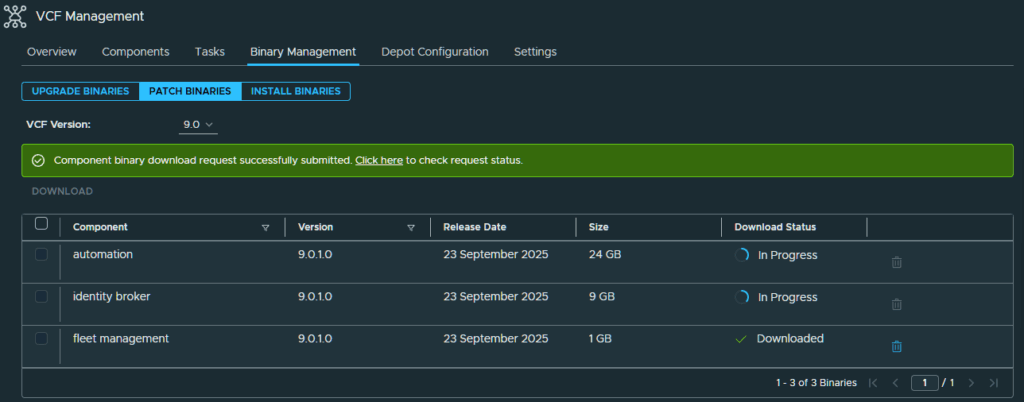
We have to wait for these to download before continuing.
After the patch binaries are downloaded, we can return to the Components screen and apply them. Click on Apply Patch next to identity broker.
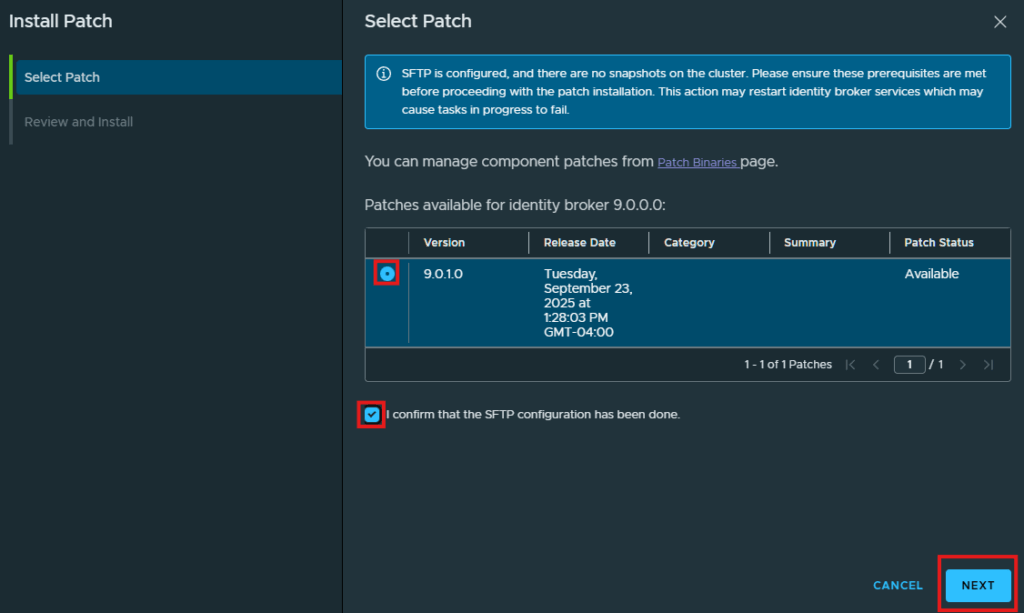
Select the radio button next to the 9.0.1.0 patch and click the check box next to “I confirm that the SFTP configuration has been done” Click Next to continue.
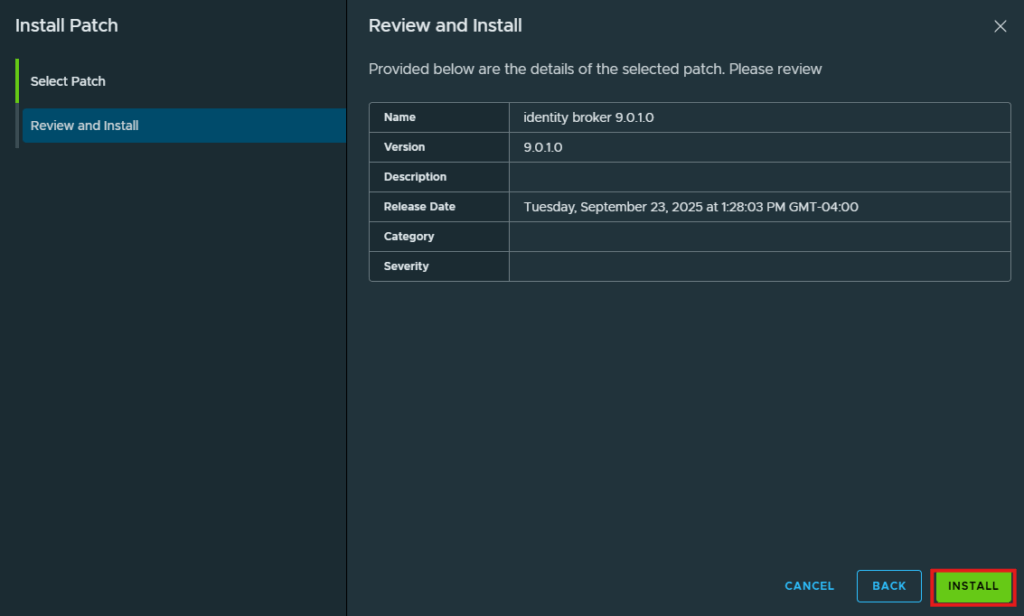
At the Review and Install screen, review the options selected and click Install.
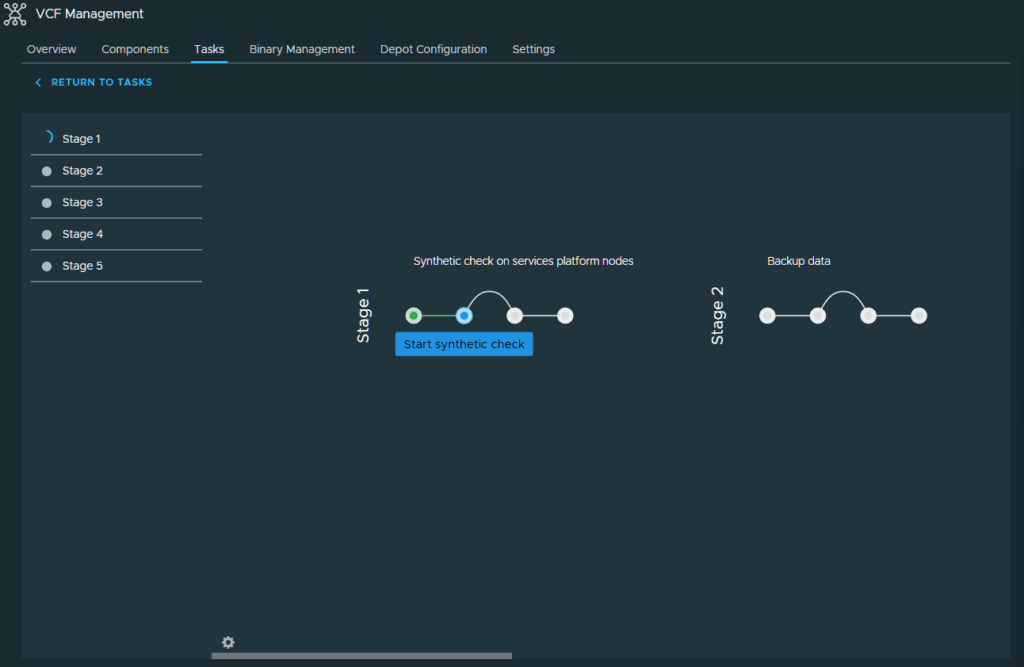
The patching process will begin.
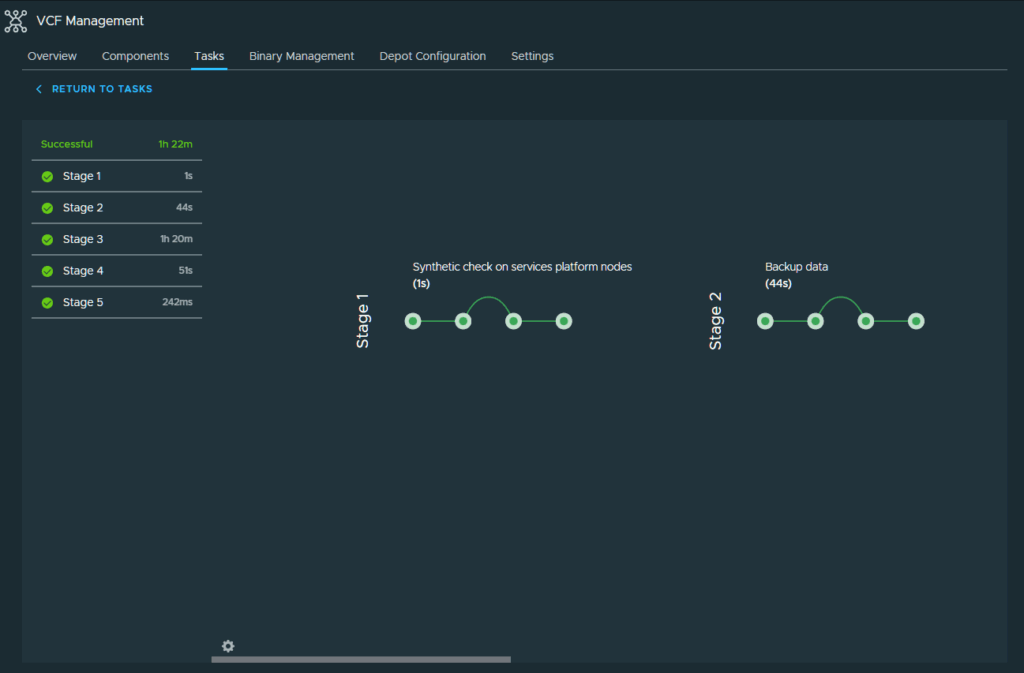
I took almost 1 hour and 30 minutes to complete the patching process on the identity broker appliances.
Now the last step in this part of the upgrade process is patching the VCF Automation appliance. We start by returning to the components screen and clicking Apply Patch next to automation.
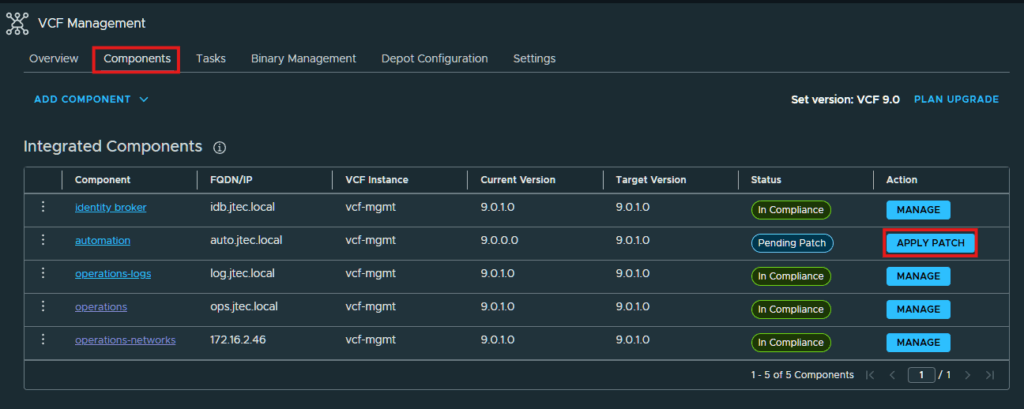
In the Install Patch pop-up it will confirm that you have SFTP configured for this appliance as well, click the radio button next to the patch version and the check box next to “I confirm that the SFTP configuration has been done”. Then click Next.
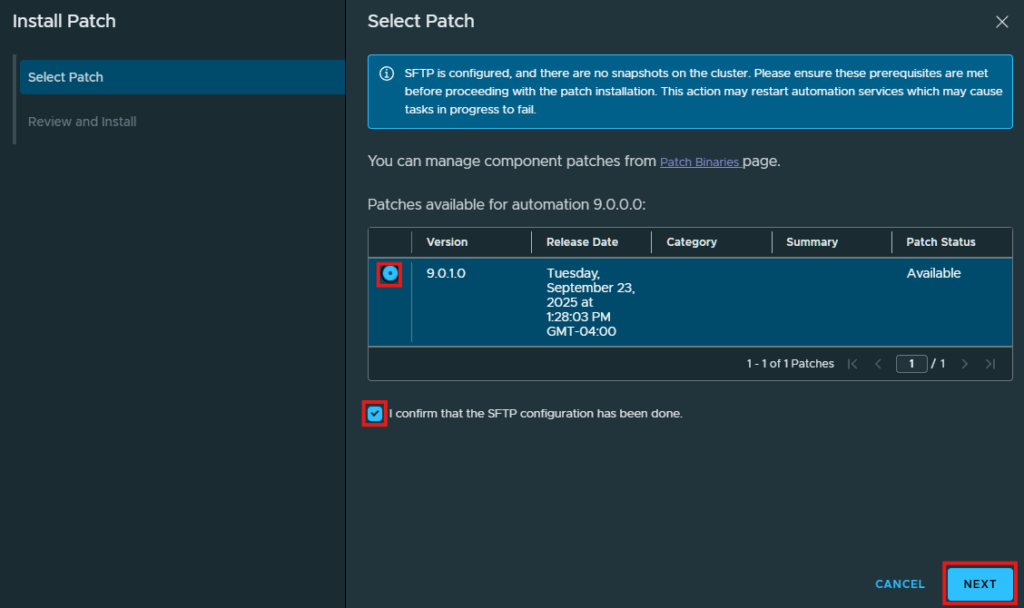
Click Install at the Review and Install screen.
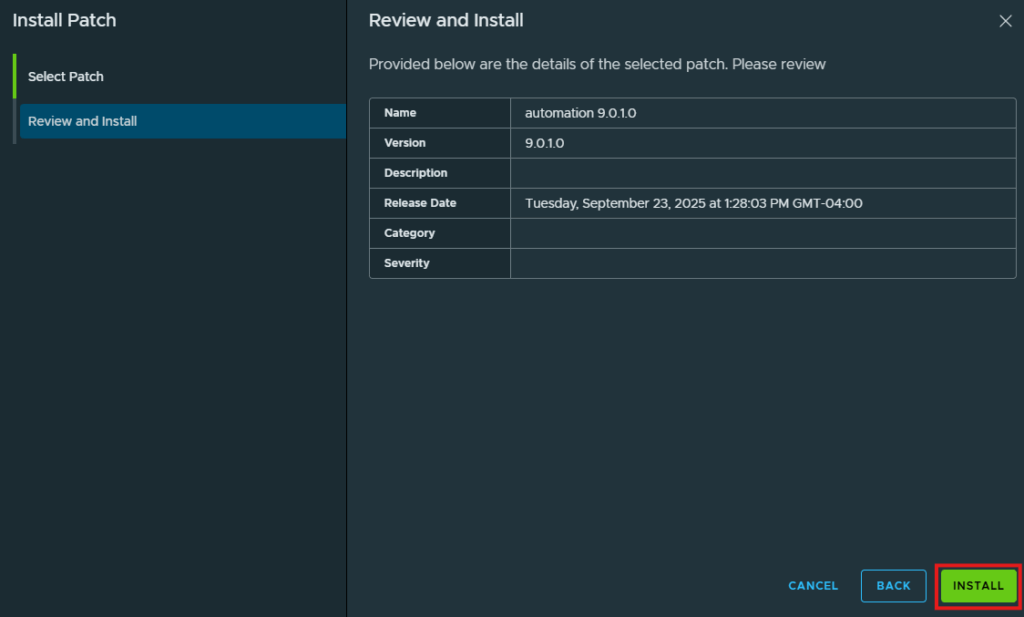
The patching process will begin.
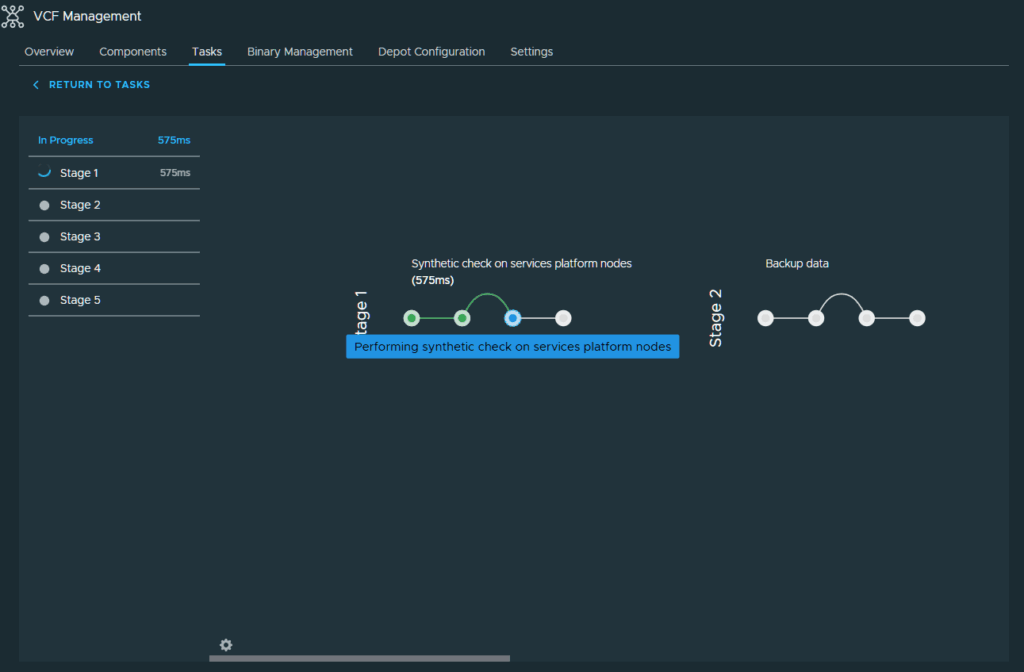
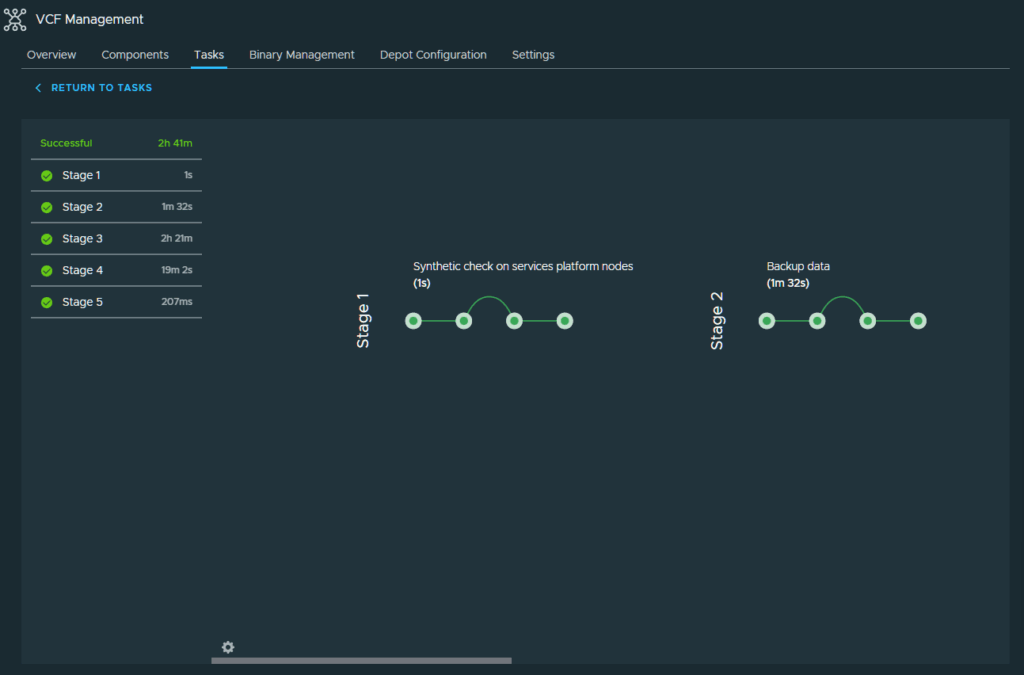
VCF Automation took roughly 2 hours and 30 minutes to complete the patching process on my lab with a single automation appliance.
Since this is walking through the entire upgrade, I have decided to split this into multiple posts as the upgrade process consists of upgrading the entire VCF product suite. This post was focuses on upgrading the VCF management components. In the next part I will continue on with upgrading the VCF core components (vCenter, NSX, ESXi).