
VCF Offline Depot Appliance 1.2: VCF 9.0 Downloads and VCF 9.1+ Installer Setup
An Ubuntu offline depot appliance for VCF 9.0.x binary download and hosting, with automated VCF Installer configuration and retrieval for VCF 9.1 and later.
4 vCPU · 8 GiB · VCF Installer workflow
As a Technical Account Manager (TAM), I am constantly working with customers and experiencing the same pains and struggles they experience with VMware Cloud Foundation (VCF). One of the biggest issues I have seen in the field is the configuration of the VCF Offline Depot, so I took some inspiration from William Lam (williamlam.com) and decided to build my own appliance just for the VCF Offline Depot. I wanted to make the configuration process as easy as I could, so I decided to try and automate as much of it as I could. With some help from Codex, I was able to build a secured Ubuntu Offline Depot that is mostly locked down and automates the connection process between the depot and the VCF Installer.
The goal was to bring deployment, content downloads, certificates, depot accounts, and Installer configuration into one browser-based workflow. You still supply your Broadcom entitlement, choose the content you need, and approve the certificate and endpoint changes. The appliance handles the configuration steps after those inputs are verified.
VCF version requirement: This build adds VCF 9.0.x binary download and hosting. Automated VCF Installer configuration and retrieval remain for VCF 9.1 and later. The diagram and Installer steps below describe that integration; downloading VCF 9.0 content does not enable Installer automation for 9.0. Verify compatibility before adopting later releases.
What is new in version 1.2
Appliance version 1.2.0, build 2026-10-07.1, adds VCF 9.0.x download support, exact release matching, and clearer results for content outside automatic-download coverage.
- VCF 9.0.x downloads: Download and host release-matched binaries, including the matching ESX installer media. Installer automation remains VCF 9.1 and later.
- Clear BOM coverage: Exact catalog matching avoids newer-version substitutions. Known VCF 9.0.2 catalog exclusions are listed explicitly, while unexpected missing files and transfer or checksum failures still report an incomplete job.
- All remaining binaries: Request the components available through the installed VCF Download Tool for the selected release, including Operations for Logs, beyond the initial-deployment content.
- Automatic Avi selection: The appliance matches the selected VCF release’s bill of materials to the product catalog and requests the exact Avi bundle IDs. No manual bundle ID is required. Each file is checked for size and SHA-256 integrity.
- Correct repeated-download results: Files already downloaded count toward completion, so a successful run can reuse existing content without transferring it again.
- Improved download cleanup: Catalog-verified content is preserved, including Avi OVAs. Cleanup handles filesystems safely, and an error produces a terminal result instead of leaving the management service with a stale running status.
- Updated guides: Revision 2.2 guides cover VCF 9.0.x, exact BOM matching, explicit exclusions, Avi selection, and the validation scope.
The existing bootable ESX ISO verification, VCF Installer retrieval controls, Depot Management page, restricted service identity, and network recovery remain available.
Download version 1.2, the guides, and release notes on GitHub.
What automatic downloads include
All remaining binaries covers supported automatic-download sources for the selected release. It does not promise a standalone file for every item in the bill of materials.
For VCF 9.0.2, OSA Witness, ESA Witness, VMware Tools, VMRC, Live Recovery, and Data Services Manager are excluded when their exact files are absent from the Download Tool catalog. Obtain these separately from the Broadcom Support Portal if needed. There is no manual-upload step in this automatic workflow. If a later catalog supplies an exact mapping, the appliance downloads it normally.
For VCF 9.0.2, Supervisor, VKS, and Velero are accounted for through the embedded package in the downloaded vCenter update repository. The appliance verifies the containing package with its reviewed SHA-256 checksum. This is package verification, not a service deployment test or a separate audit of each container image.
Review the exclusions in the job output. Unexpected catalog gaps, transfer or authorization failures, and checksum mismatches still report incomplete results. Private AI is not silently excluded: the HTTP 403 observed during testing remains a download failure.
Here is the process
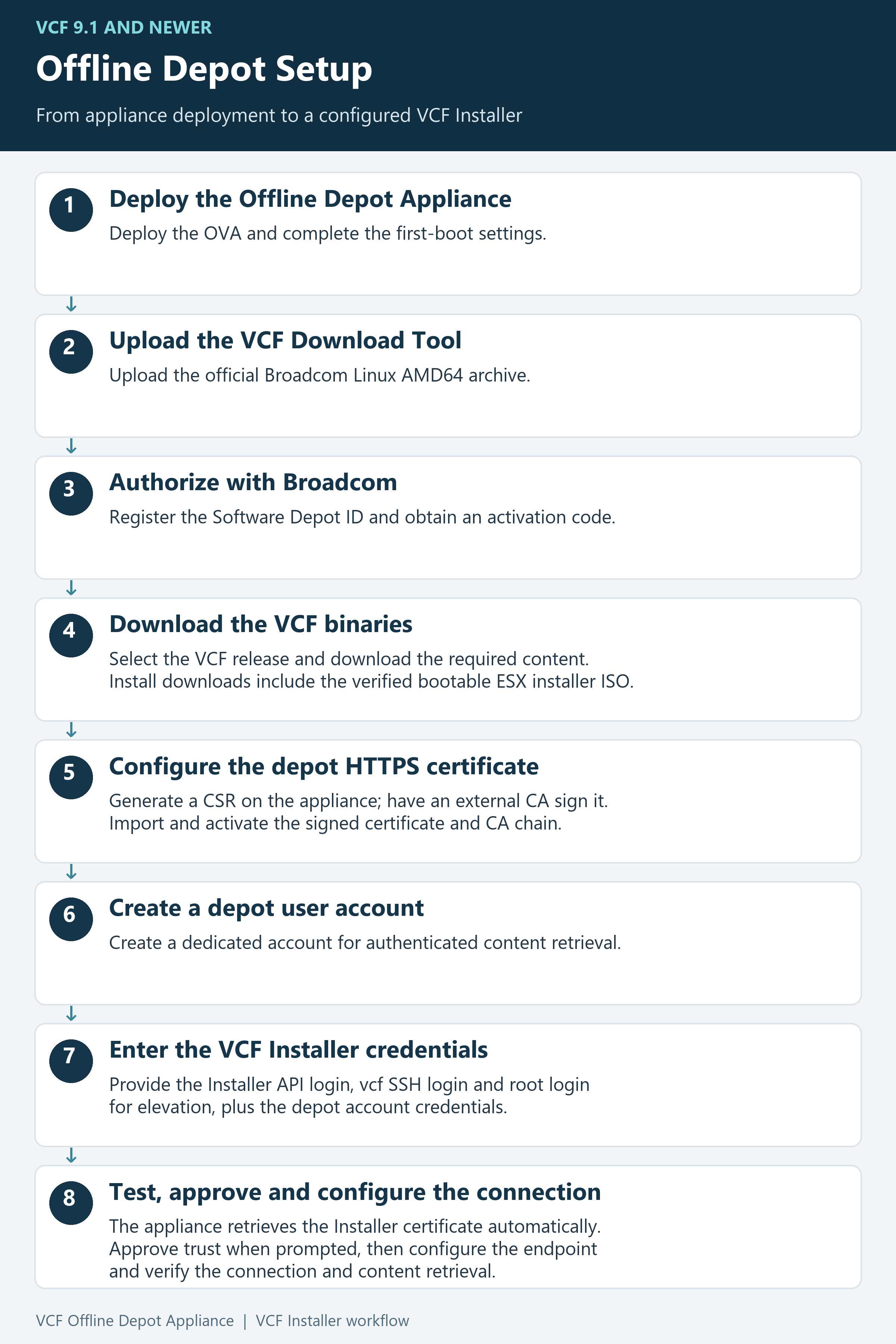
Download the setup diagram (PNG)
What you need before starting
The appliance deploys through vCenter or a compatible standalone ESX host. Have your appliance FQDN, network settings, DNS and NTP servers, Broadcom authorization details, and the official Linux AMD64 VCF Download Tool archive available. You will also need access to your certificate authority and the VCF Installer credentials described below.
| Component | Configuration |
|---|---|
| VCF release scope | VCF 9.0.x download and hosting; automated VCF Installer workflow for VCF 9.1 and later |
| Hosting platform | ESX 9.0 or later; virtual hardware version 22 |
| CPU and memory | 4 vCPU and 8 GiB |
| Operating-system disk | 32 GiB |
| Depot-data disk | 1 TiB, thin-provisioned |
| Initial networking | DHCP or static IPv4 |
| Integration covered | VCF Installer |
Keep an eye on the backing datastore as downloaded content grows. The appliance does not include entitled VCF binaries or replace the vendor’s entitlement requirements.
Step 1 Deploy the Offline Depot Appliance
Deploy the OVA and enter the first-boot properties. DHCP is the default, or you can provide a complete static IPv4 configuration. DNS and NTP properties accept up to two comma-separated entries each.
Set the web administrator, console recovery, and restricted maintenance passwords during deployment. Each must contain 15–256 characters, and the console recovery password must differ from both other passwords. There are no default deployment passwords.
First boot configures the appliance and initializes its blank data disk. The depot content service starts automatically with the management service. Once initialization completes, open https://<appliance-fqdn>/admin/ and sign in.
You can change the appliance timezone under Appliance management > Timezone. Save timezone is separate from applying network settings. NTP keeps the clock synchronized independently of the selected timezone.
Step 2 Upload the VCF Download Tool
Open Prepare Depot, then Download Tool, and upload the official Linux AMD64 archive obtained from Broadcom. The appliance validates and installs the archive, then displays the active tool version.
The tool is supplied separately so you can obtain it directly from the approved vendor source.
Step 3 Authorize with Broadcom
Open Authorize & Download Binaries and complete the authorization workflow using your Broadcom credentials or supported token and activation code. Retrieve and verify the Software Depot ID when prompted.
Supply the current activation code for each download job. The ACTIVATED badge records a previous successful activation; it does not replace the code required by a new job. DNS, outbound connectivity, and accurate time need to be working for this stage.
Step 4 Download the VCF binaries
Select the required available VCF release and content type, review the available storage, and start the download. This build supports VCF 9.0.x download and hosting as well as the VCF 9.1 workflow. Exact release matching prevents silently substituting a newer component version.
For Install binaries, the appliance also makes a separate VCF Download Tool request for the bootable ESX host installer ISO selected from the release catalog. The appliance verifies the ISO size and SHA-256 checksum before reporting success. A missing or invalid ISO causes the job to fail rather than silently completing without it.
To retrieve the broader set of content for that release, choose All remaining binaries in Authorize & Download. This requests each supported component and automatically resolves Avi from the matching VCF bill of materials. For VCF 9.1.1.0, that maps to Avi 32.1.3.25665611. Existing files are reused. Availability still depends on the Download Tool, release metadata, and Broadcom entitlement; this option can require substantially more storage than Install.
The download activity view lets you follow progress and investigate errors. When the job finishes, open Depot Files and select Refresh inventory.
The green UPDATED badge contains the refresh date and time, with file counts, incomplete files, and free space beside it. That badge confirms the inventory refreshed; check the download result and expected content before treating the release as complete. Its timestamp uses your browser workstation’s local time.
Step 5 Configure the depot HTTPS certificate
During initial setup, open HTTPS Certificate and generate a CSR using the appliance’s final FQDN and required subject alternative names. Submit the CSR to your external CA.
When the signed certificate is returned, upload the server certificate, root CA, and intermediate certificates where required. Select Convert and activate, then reconnect using the appliance FQDN and verify the served certificate.
The appliance generates the CSR and installs the signed response. It does not act as your certificate authority or remove the need for clients to trust the issuing CA.
Step 6 Configure a depot user account
Open Depot Accounts and create a dedicated account for content retrieval. This account is separate from the administrator account used to sign in to the GUI.
Store the credential securely and use it for the VCF Installer connection. Confirm an authenticated request can retrieve a known downloaded object and that an anonymous HTTPS request is rejected.
Step 7 Enter the VCF Installer credentials
Open VCF Connections, select VCF Installer, and enter the endpoint address and connection details. The workflow uses three credentials for different purposes:
- VCF Installer sign-in: authenticates to the endpoint API.
- The
vcfaccount: provides SSH access to the Installer. - The root credential: provides elevation for the configuration work after connecting as
vcf.
Select the depot account and enter its current password as well. Direct root SSH is not the expected connection method.
Step 8 Test and configure the connection
Select Test connection. The appliance retrieves the VCF Installer HTTPS certificate automatically. For an untrusted self-signed certificate, compare the displayed SHA-256 fingerprint with an independently trusted source before accepting it. An untrusted private-CA certificate may still require its server and root CA files.
SSH host-key verification is a separate check. Approve it only after confirming the Installer identity.
Once the required checks pass, review the proposed changes, select the authorization checkbox, and choose Configure endpoint. The appliance applies the depot settings and certificate trust, performs the required Installer service restarts, waits for stabilization, and checks content retrieval.
Wait for CONNECTED and verify representative metadata and binary retrieval. A successful connection test alone does not mean endpoint configuration is complete.
After setup
Once a saved connection is Connected, the initial Prepare Depot workflow is hidden. The main navigation provides Authorize & Download, VCF Connections, Depot Files, Depot Management, Connection Logs, and Appliance Status. Use Depot Management to maintain the Download Tool, Depot Accounts, and HTTPS Certificate after setup. Each of these three pages has a consistent Back to Depot Management button. The administrator menu contains appliance settings, signed updates, and administrator account management; these pages do not highlight an unrelated header item.
The appliance has a restricted recovery console, inbound SSH disabled, a host firewall, and separate administrator and depot accounts. Routine access is through HTTPS. Those controls reduce exposed access, while normal certificate, credential, patching, and network management still apply.
To retrieve binaries into the Installer after setup, open Authorize & Download, select the saved VCF Installer and a release available on the depot, supply the required Installer credentials, refresh availability, and start retrieval. Follow its task status separately from the depot download job. These controls support initial deployment and later release retrieval.
Validation and limitations
VCF 9.0.x is covered for binary download and hosting. The VCF Installer connection and automated retrieval workflow remains limited to VCF 9.1 and later, and each newer release requires compatibility validation. The current release is appliance 1.2.0, build 2026-10-07.1. The release assets include a signed release record describing the checks completed against that exact OVA.
The appliance provides permanent post-setup maintenance through Depot Management. Broadcom downloads still require your entitlement and authorization, and the VCF Installer connection must be configured and validated for your environment.
The OVA creates a fresh appliance; it does not migrate an existing depot’s accounts, certificates, configuration, or binaries. When testing a replacement, preserve the old appliance and avoid running both VMs with the same IP address.
The final OVA passed fresh deployment, first-boot administrator setup, HTTPS login, automatic content startup, restricted service identity, authenticated content retrieval, and reboot persistence. All 338 runtime file hashes matched, and installed Linux regression tests passed. The isolated qualification network reported unsynchronized time; verify NTP after deployment. Earlier live testing downloaded and verified the BOM-matched Avi controller and checked Operations for Logs on VCF 9.1.1, with separate VCF 9.0.2 download and catalog diagnosis. A full entitled bulk download and VCF Installer retrieval were not repeated on this fresh OVA. See the release record for the exact validation scope.
Project and documentation
The project repository is raleyj/vcf-depot on GitHub. The Deployment, Quick Start, Administrator, and Troubleshooting guides at revision 2.2 cover appliance 1.2.0, build 2026-10-07.1.
Download: The OVA, four Word guides, Markdown guides, release notes, and verification files are available from the GitHub release page. Download the OVA and the guides you need, or read the Quick Start Guide online. This build is available as the current release. Follow the verification instructions before deployment.
Final thoughts
I wanted to make this process easier to follow and reduce the amount of manual work between a deployed depot and a connected VCF Installer. This appliance brings those steps together, while keeping the trust approvals and configuration decisions visible to the administrator.
Download the VCF Offline Depot appliance
Get the OVA, guides, and verification files from the GitHub release.