
Stale vCenter Records in VCF Fleet Manager: Lab Troubleshooting
Investigate stale vCenter records in VCF Fleet Manager after a lab import. Review API troubleshooting and the risks of unsupported cleanup methods.
Overview
Stale vCenter records remained in VCF Fleet Manager after I recovered a failed lab import. This post documents my API investigation and unsupported cleanup experiment; for a supported environment, contact Broadcom Support rather than treating these lab steps as a supported removal procedure.
Diagnosis versus cleanup
The GET examples inspect inventory only. Use a trusted certificate for the Fleet endpoint; the revised examples omit -k and supply only the username so curl prompts for the password instead of placing it in shell history. Protect exported JSON because it can contain sensitive inventory.
Do not choose an environment merely because its ID resembles an old record. Match FQDN, inventory relationships and failed-task history. No supported internal-node deletion procedure was established during this review, so the destructive commands are no longer published.
The historical GET examples use curl.exe for Windows. Confirm the routes in the public API documentation for your installed build. Replace the uppercase ID placeholders only after inspecting the returned inventory. Create a protected output directory and use a new filename: --output overwrites an existing file.
Long story short, it was bothering me that when I tried to deploy a new product in VCF that the old vCenter was still showing up. So I went down the rabbit hole of finding it and removing it, was not an easy feat. Thanks to Brock Peterson, I was able to start to look at the APIs on the Fleet manager and begin to figure out where this vCenter record was stored:
VCF Operations 9 Fleet Manager API
Delete Certificates from the VCF Operations 9 Fleet Manager API
Important: unsupported lab procedure
Find the stale vCenter record
First thing you want to do is pull up the VCF Operations Fleet API page, which is located at https://fleet.example.com/api/swagger-ui/index.html. I wasn’t sure where to start with this so I looked through all the different options and it lead me to the Data Center Controller APIs, and I saw there was an option to get all the vCenters listed.
I first had to figure out the dataCenterVmid so that i could run the vCenter Get API,
curl.exe -u admin@local -X GET "https://fleet.example.com/lcm/lcops/api/v2/datacenters"This command showed me that I only had 1 datacenter which was DEFAULT_DC, so now I can find all the vCenters:
curl.exe -u admin@local -X GET "https://fleet.example.com/lcm/lcops/api/v2/datacenters/REPLACE_DATACENTER_ID/vcenters"And this showed that stale vCenter record still showing up, not knowing whether this would cause me any issues in the future. I had to remove it, otherwise it would continue to bug me every time I used my lab. So I’m thinking at this point, easy enough run a delete curl command and we are golden.
Historical lab action: an unsupported delete was attempted here. The executable deletion command is intentionally omitted; have Broadcom Support validate the object relationships and recovery plan before any inventory mutation.
Find the remaining environment reference
Well turns out it wasn’t that easy, I get an error that this is still referenced by an environment within VCF and can’t be deleted. Now I’m going back to beginning to figure out what I need to do in order to remove this and look at the Environment Controller API section. There is a command to pull all the environments.
curl.exe -u admin@local -X GET "https://fleet.example.com/lcm/lcops/api/v2/environments"This command shows me roughly 4 different environments, and with me not wanting to sift through all the lines of this GET command, I do a search for each individual environmentId and copy those out to a notepad. Then I decided to run a GET command to pull each environment separately and pipe it to a text file so that I can open them individually and find where this vCenter is.
curl.exe -u admin@local -X GET "https://fleet.example.com/lcm/lcops/api/v2/environments/REPLACE_ENVIRONMENT_ID" --output C:\Environment\REPLACE_ENVIRONMENT_ID.jsonAfter running the above command for each different environmentId, I was able to open them up and find that vCenter fqdn and which environment was still showing it as a reference. Inside that environment I also see the old collector that I forgot to remove before re-importing my VCF cluster and this was the record I needed to remove, so I started looking through all the different API sections to figure out which controller handled this but I didn’t find anything at first. That was because I was still on the public-api side, in the top right of the webpage there is a select definition option.
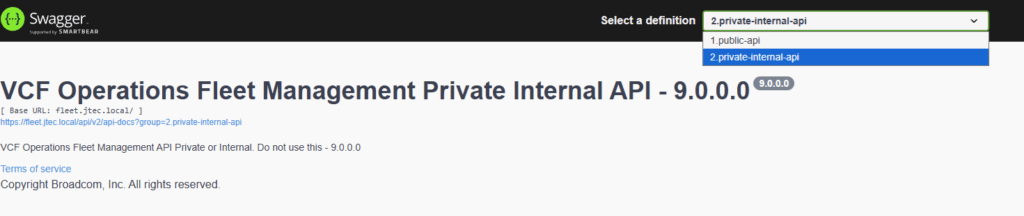
Inspect the internal inventory reference
The investigation reached the private/internal API, whose own page says it is not intended for use. That is the boundary for this walkthrough: retain the read-only findings and engage Broadcom Support rather than deleting internal inventory nodes.
Historical lab action: an unsupported delete was attempted here. The executable deletion command is intentionally omitted; have Broadcom Support validate the object relationships and recovery plan before any inventory mutation.
Remove and verify the stale record
Historical lab action: an unsupported delete was attempted here. The executable deletion command is intentionally omitted; have Broadcom Support validate the object relationships and recovery plan before any inventory mutation.
After that is run, I confirmed it was removed by pulling all the vCenters again:
curl.exe -u admin@local -X GET "https://fleet.example.com/lcm/lcops/api/v2/datacenters/REPLACE_DATACENTER_ID/vcenters"The lab cleanup removed the stale listing, but that observation does not establish a supported repair or prove that every inventory relationship remained consistent. Preserve the read-only evidence, task IDs and component versions for a support-led repair.