
The first thing I get my customers to think about after deploying VMware Cloud Foundation is to ensure backups are setup and start discussions on how to manage certificates.
There are a few places that backups need to be configured in the newest version of VMware Cloud Foundation. We will start by first logging into our VCF Operations web gui.
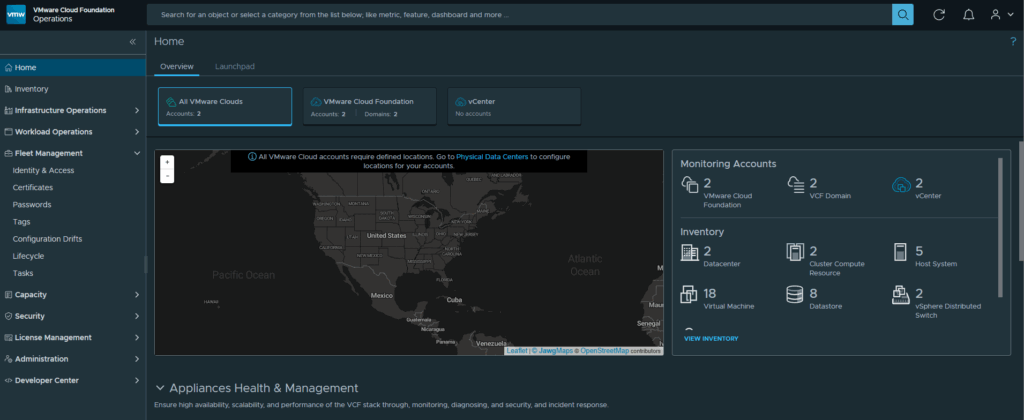
Expand Fleet Manager and click Lifecycle:
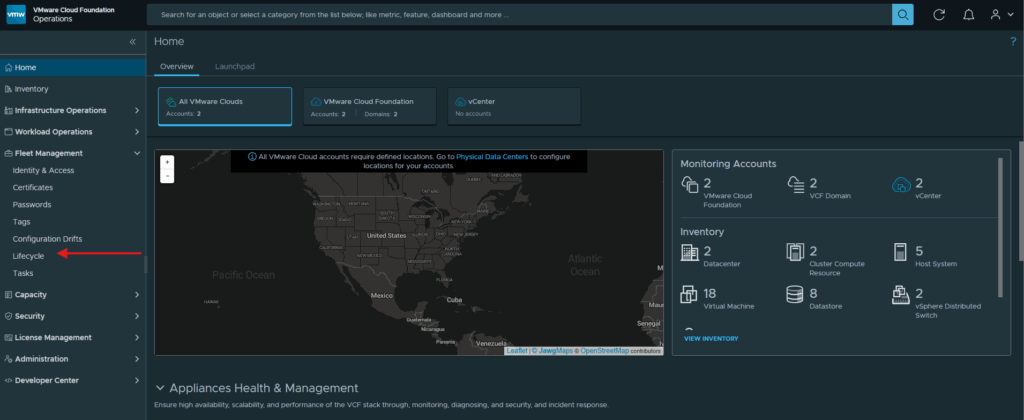
At the Lifecycle screen click on Settings:
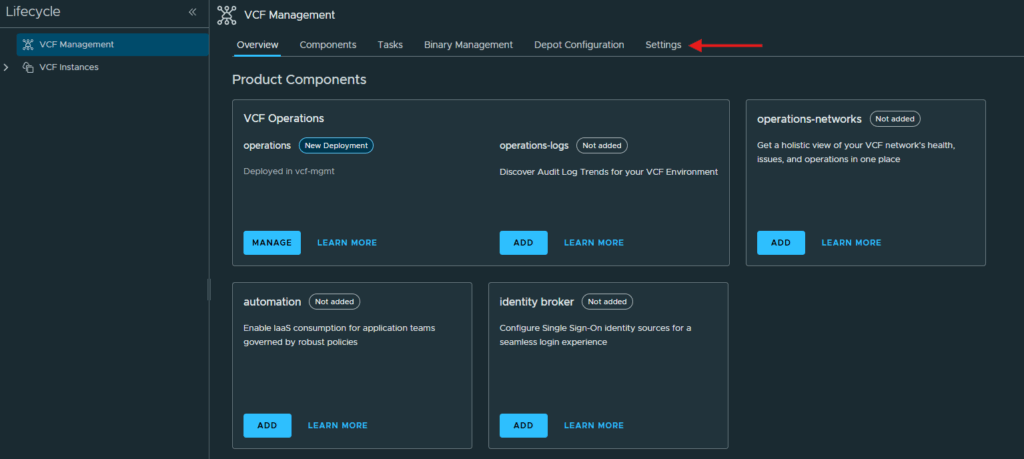
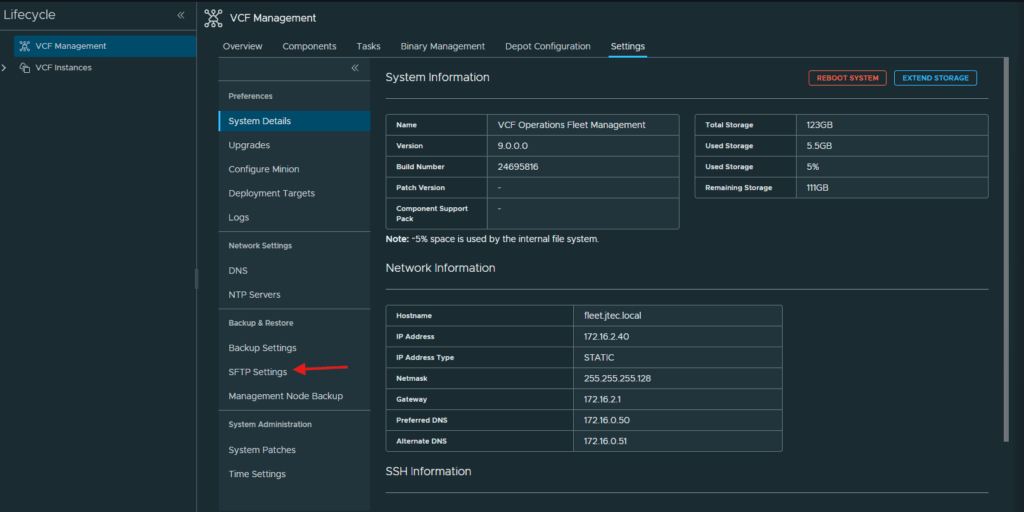
Click on SFTP Settings in the left hand menu:
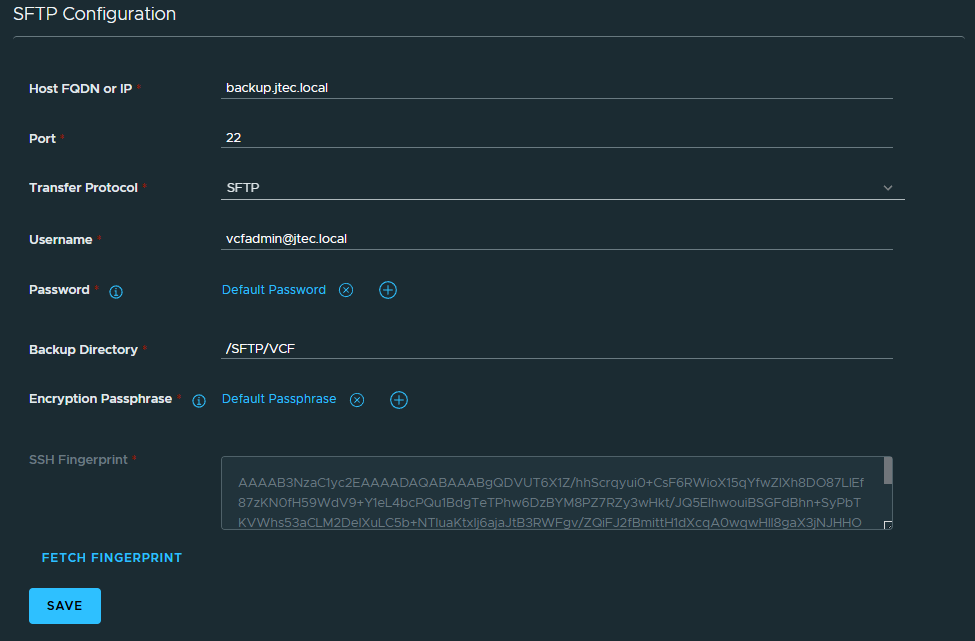
Enter in the server information for your SFTP Configuration and ensure you click Fetch Fingerprint. Then click Save:
If everything was entered correctly, you will receive the success message:
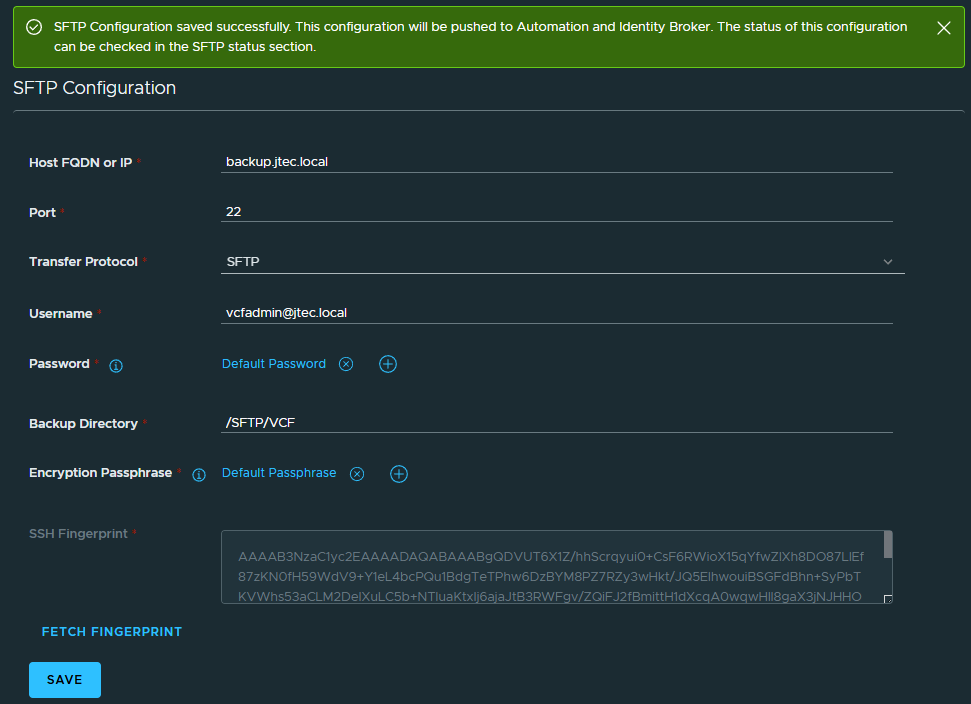
If you have VCF Automation and Identity broker deployed already it would try to push the configuration to these systems automatically. I don’t have that installed yet, these configurations can fail if you are running Windows-based backups as well.
Check out this post on how to resolve the error LCMVMSP10035
You can return to my main VCF Lab page to follow along this VCF deployment.