
Backing up your VCF infrastructure is crucial to ensure that you as you make changes if anything was to break you have the capability to revert back to a known working configuration. There are multiple steps to configuring the VCF components to backup. I am going to walkthrough them all in this post, there are still some manual steps that have to be taken to configure backups on some of the components and others can be managed through VCF Fleet Management.
First we are going to get the automated configurations out of the way, start by logging in to the VCF Operations web gui.
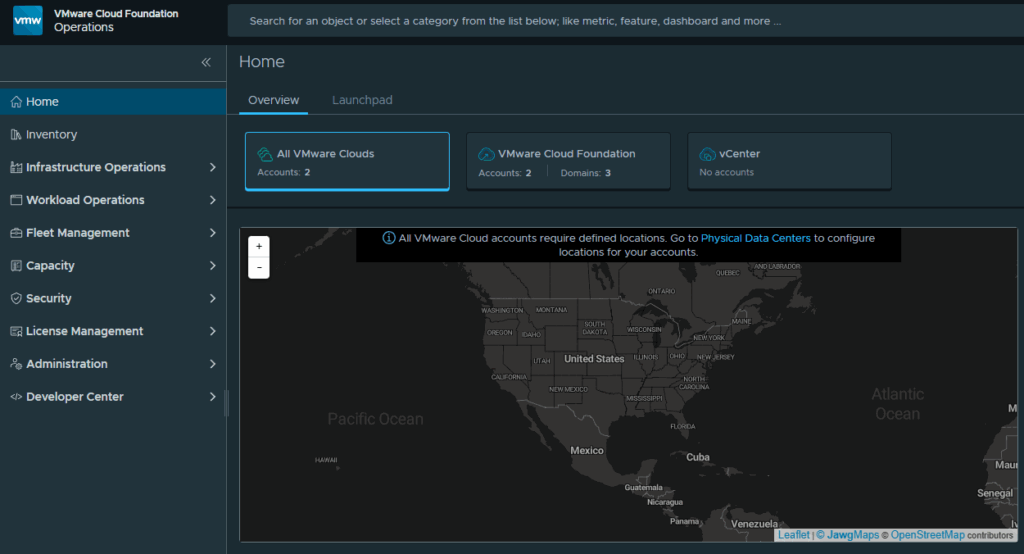
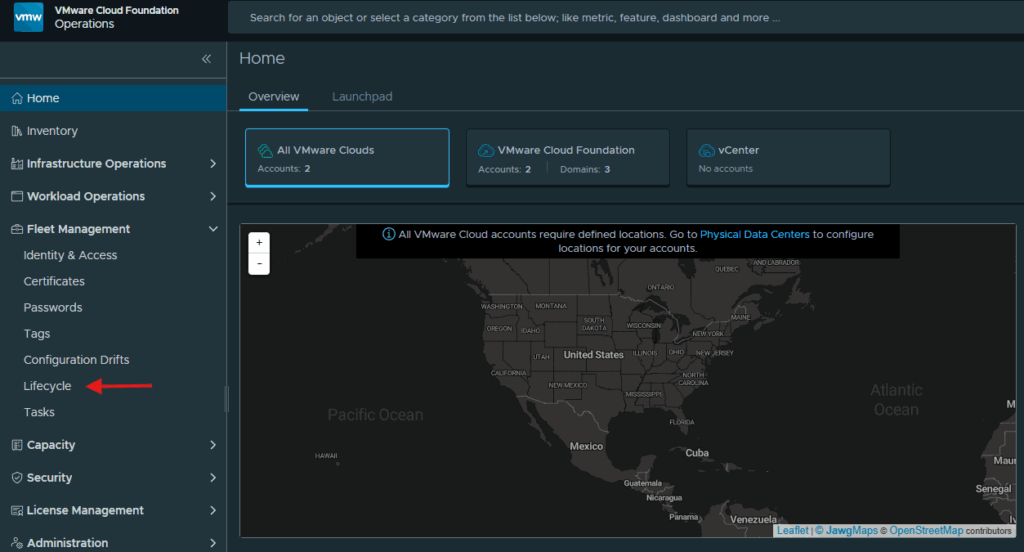
Expand Fleet Management and click on Lifecycle
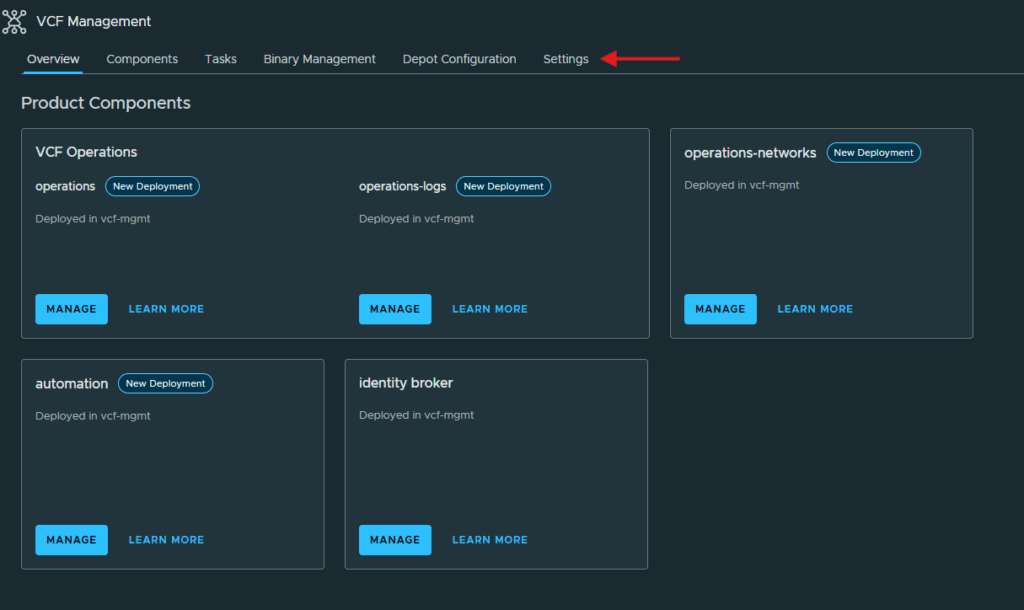
Click on Settings
Click on Backup Settings under Backup & Restore
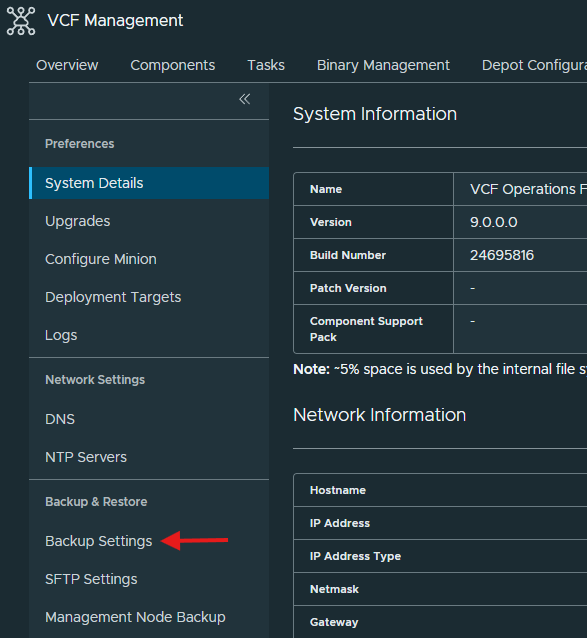
You will see that we are able to schedule the backups for VCF fleet manager node, automation and Identity broker here.
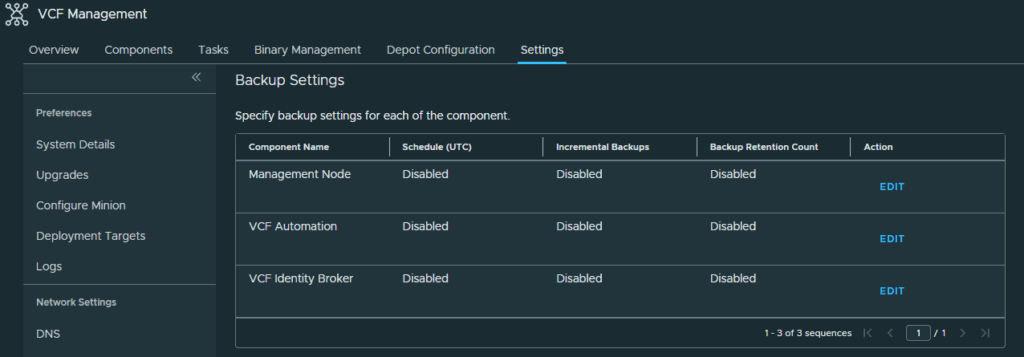
Click Edit next to Management Node.
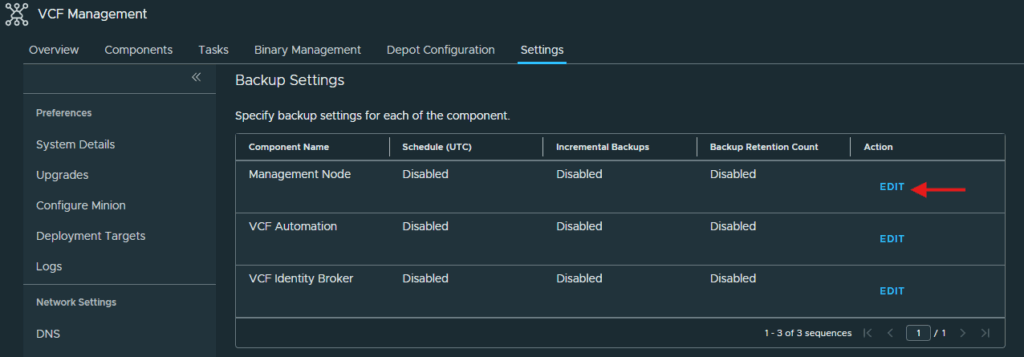
Enter in the time at which you want to backup everyday and you can also enable a retention policy so your backup storage location doesn’t fill up. I have chosen to backup the management node at 2400 UTC time each day and will retain 3 full backups.
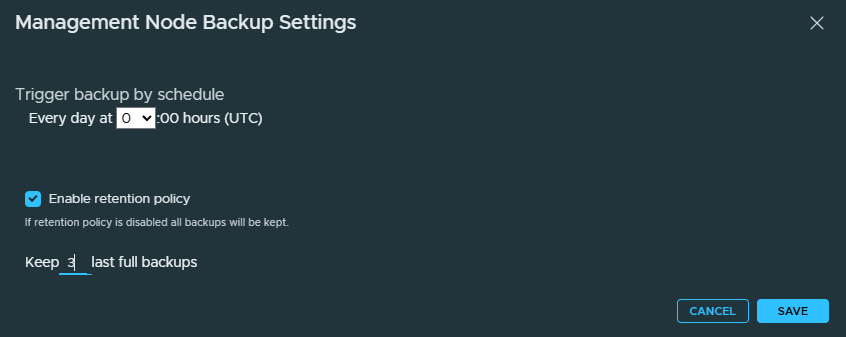
Click Save
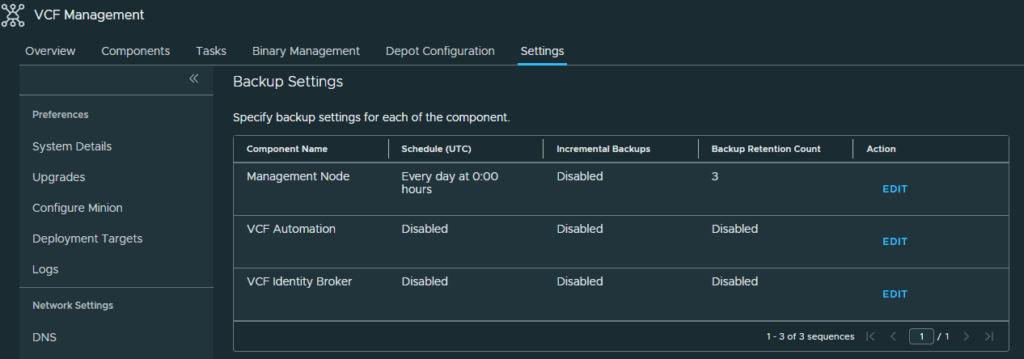
Click Edit next to each other component and configure the time for each full backup and if you want to enable a retention policy.
Once you have completed the configuration of all the VCF Components you can validate your settings at the settings page.
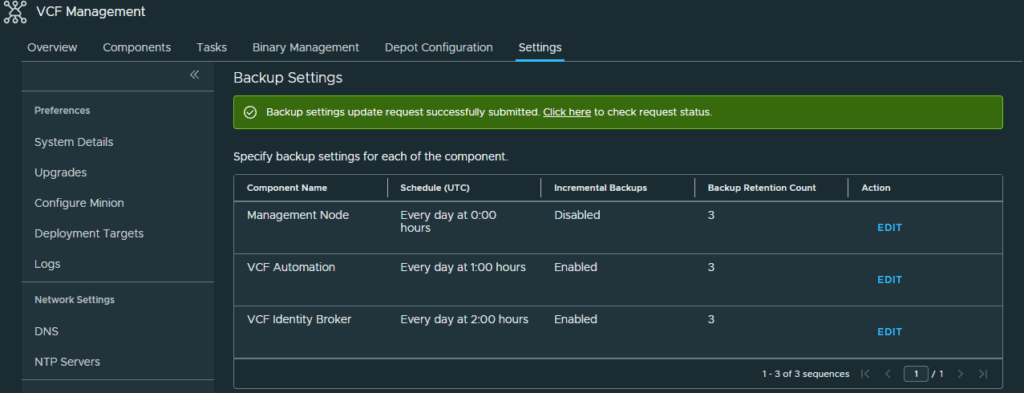
As you can see only certain components have been configured now, so we still have to configure NSX Manager, SDDC Manager and vCenter backups.
We can configure the SDDC manager to configure the backup settings for both SDDC and NSX appliances. Start by logging in to the SDDC manager.
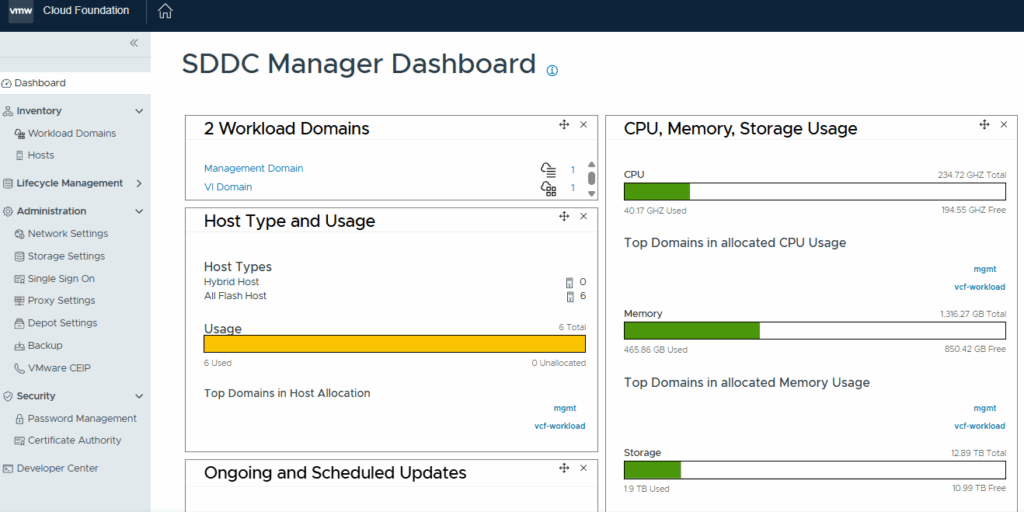
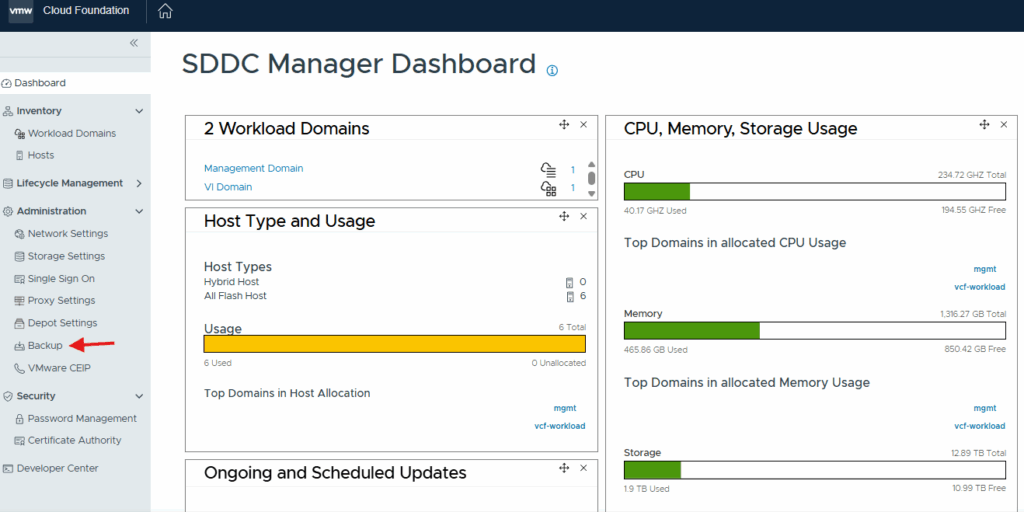
Click on Backup underneath Administration.
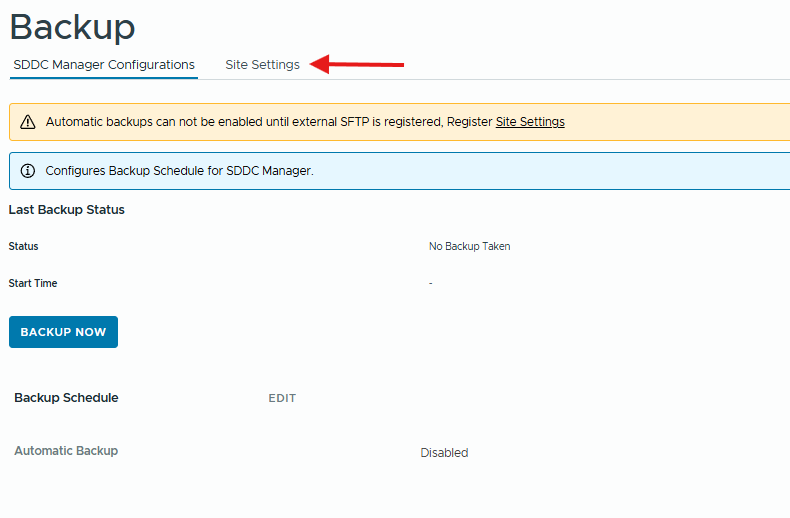
You will see that we can’t configure backups until an SFTP server is registered in Site Settings.
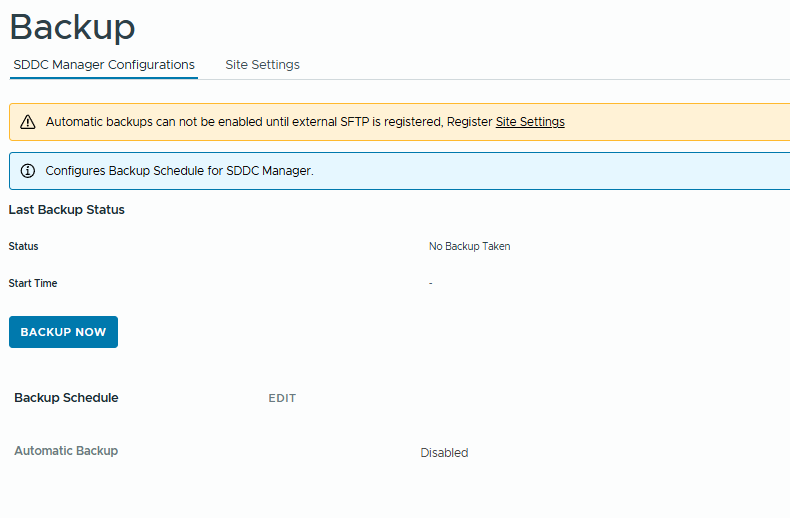
Click on Site Settings to configure the SFTP server.
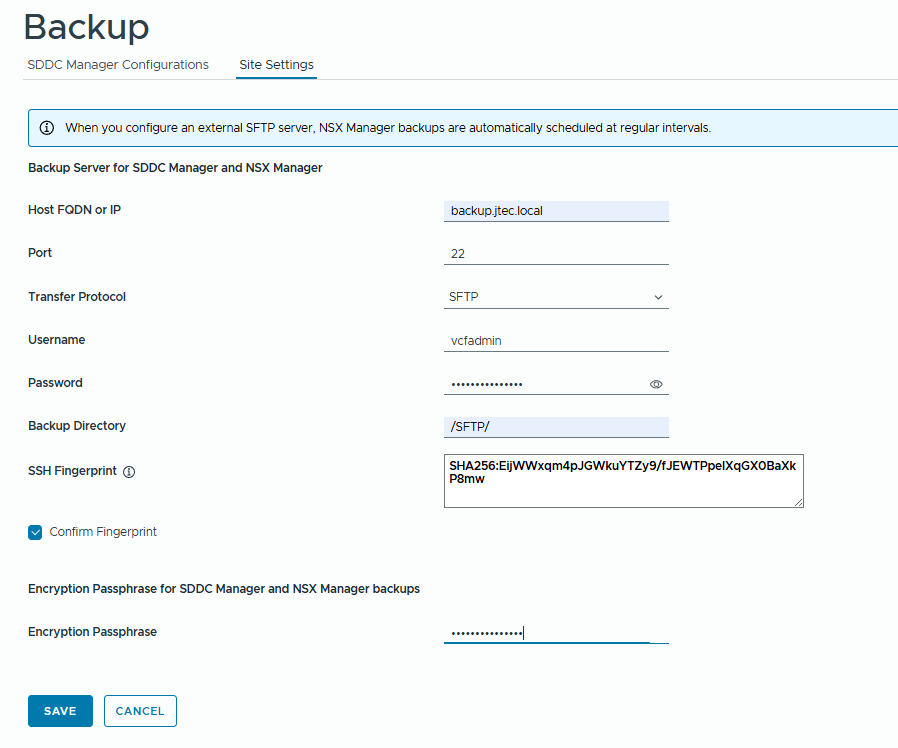
The SDDC manager defaults to its own server for backups. Enter in the required information to connect to the SFTP server that you built and click Save
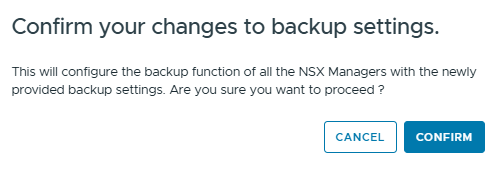
A pop-up will appear asking for confirmation on your settings. Click Confirm to continue.
If the connection is successful, the SDDC manager will begin configuration of the components
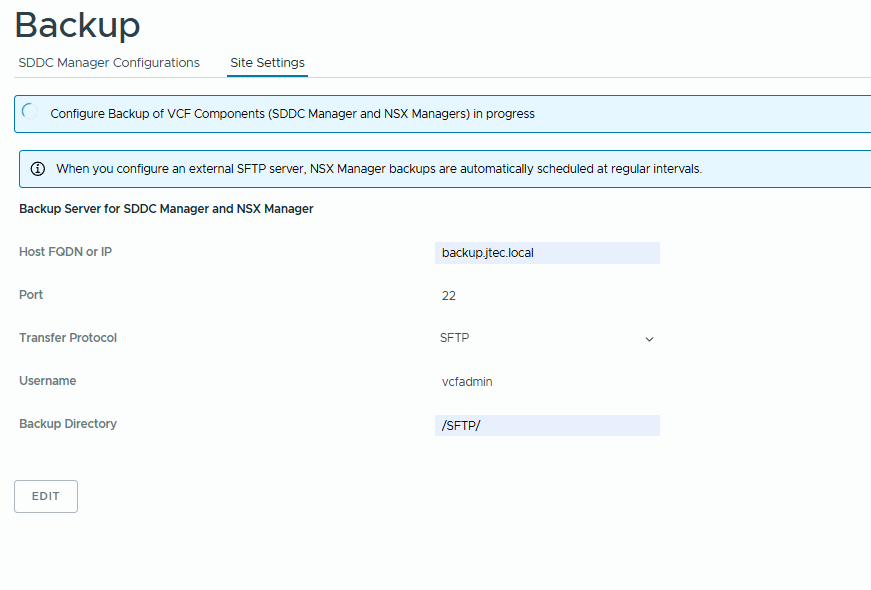
You can follow along in the tasks list to ensure no errors occurred.

Once the configuration has completed, click on SDDC Manager Configurations
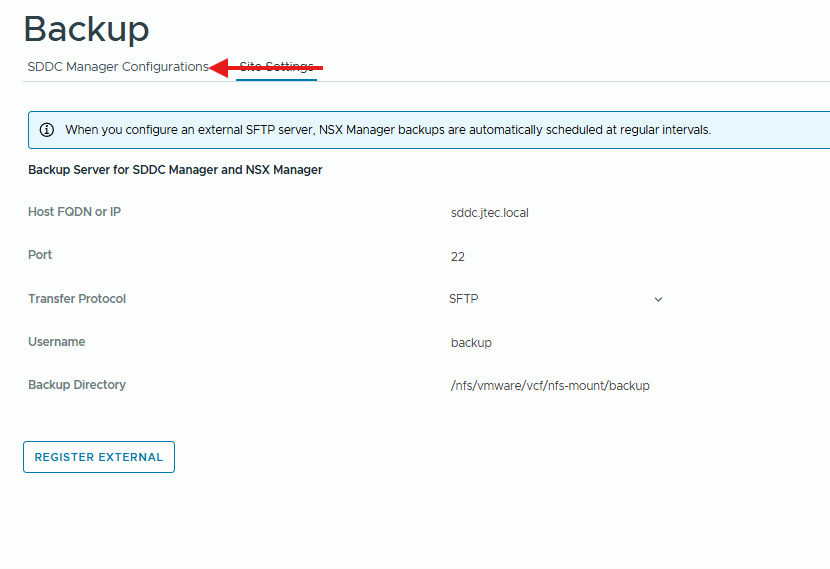
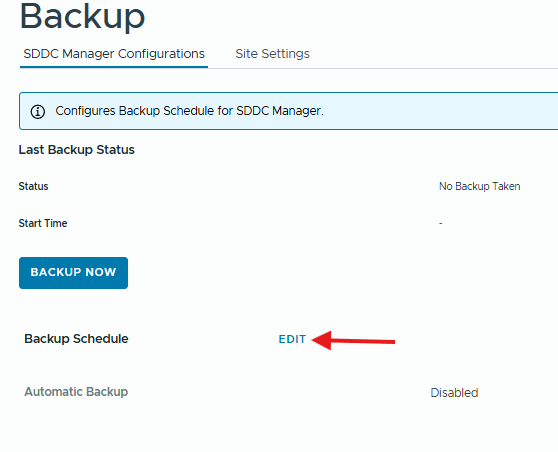
Click Edit next to Backup Schedule.
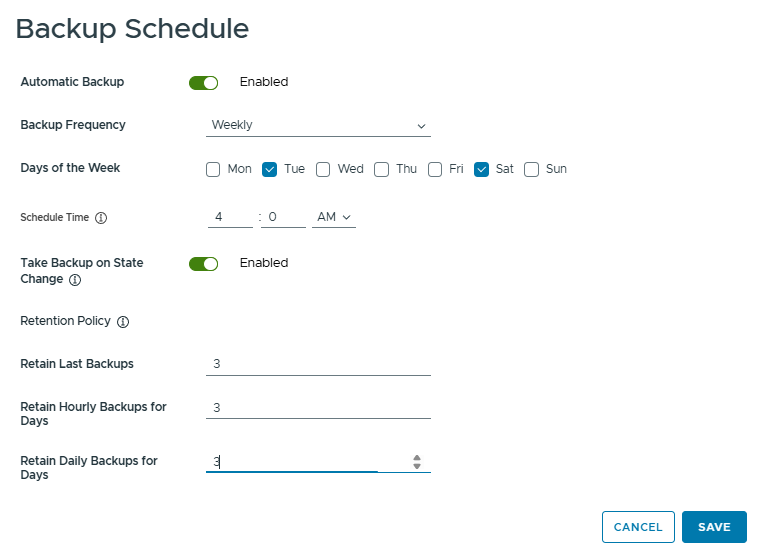
Configure the backup schedule for the SDDC manager, I have chosen to perform weekly backups 2 days a week at 0400 UTC and only retaining 3 backups of each type. Click Save to complete.
We have completed the backup configurations for SDDC Manager and NSX manager. All that is left now is to configure backups for vCenter. Start by logging into the vCenter VAMI gui, you will add the port 5480 at the end of the FQDN to access this interface.
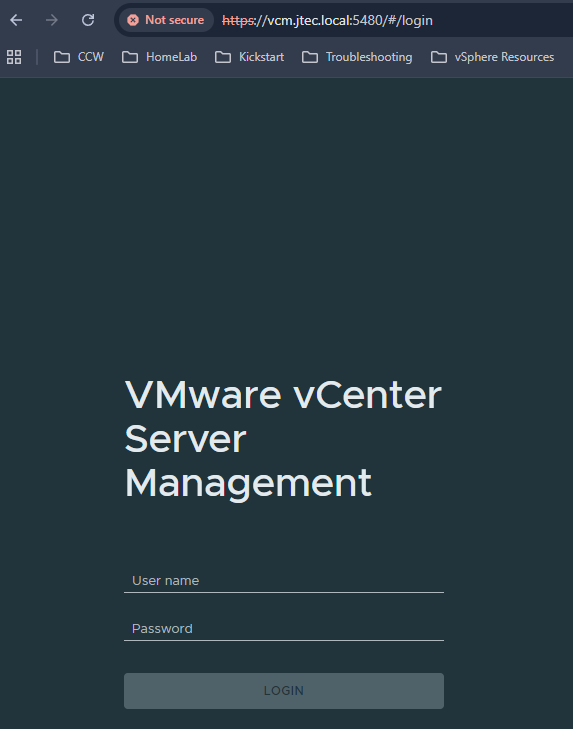
Login to the VAMI with your vCenter root account.
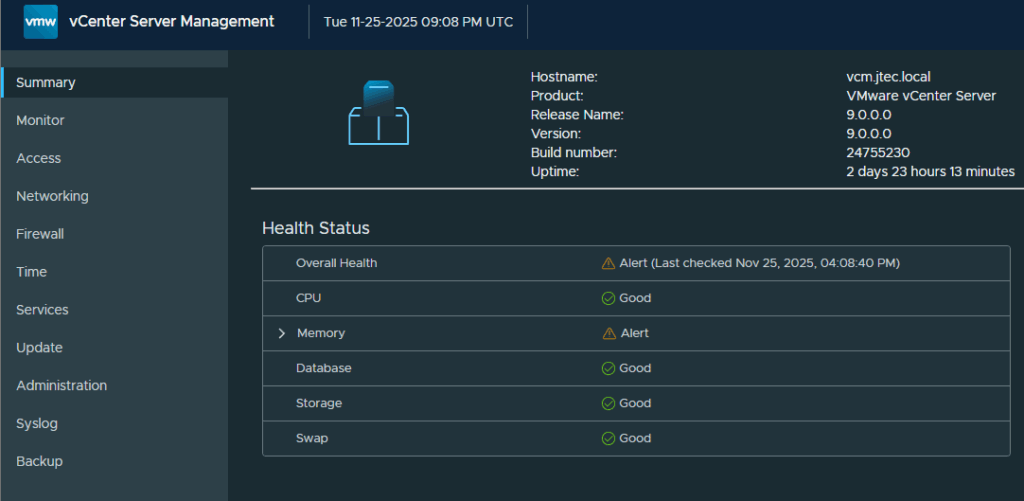
Click on Backup.
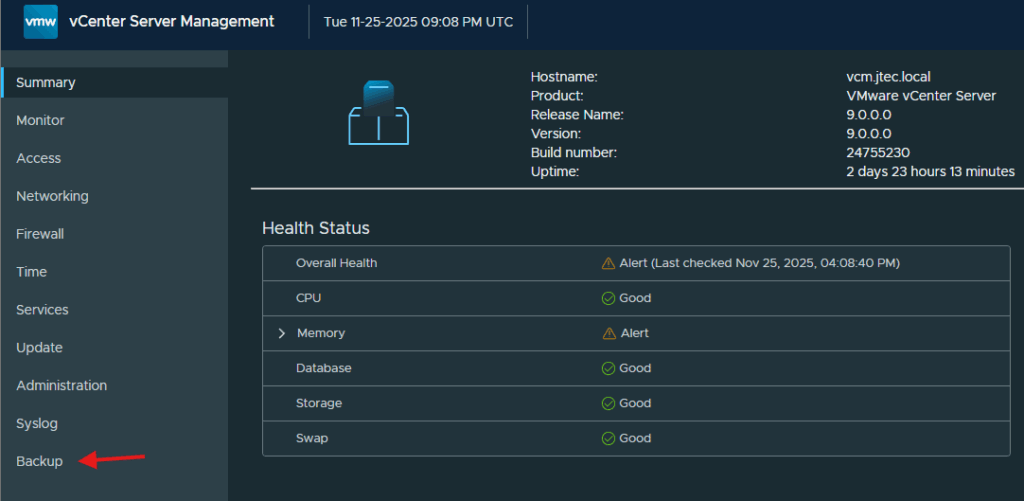
Click on Configure next to Backup Schedule.
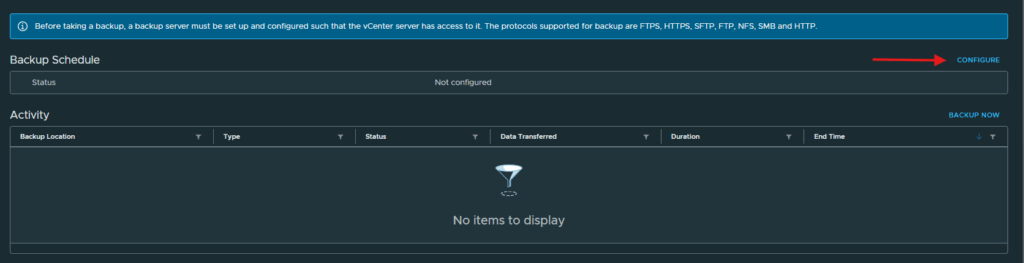
In the Create Backup Schedule pop-up, enter in the backup location, server credentials and number of backups to retain for the vCenter server.
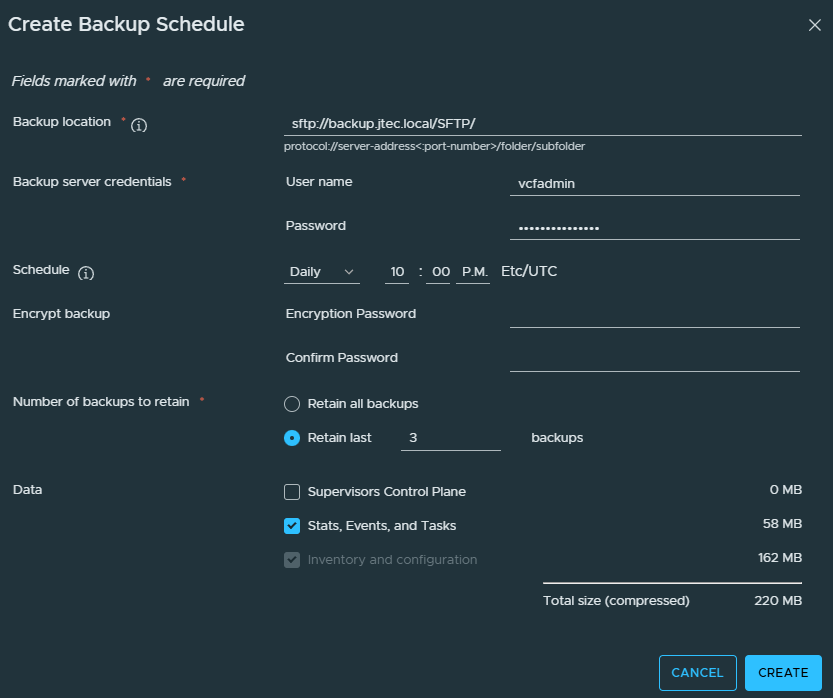
You can use different protocols with vCenter servers such as SMB but I only have an SFTP server created. You have to enter in the protocol at the beginning of the backup location address.
Click Create to confirm the schedule.
If successful, the Backup Schedule will show an Activated status.

We have completed the backup configuration for vCenters and all other VCF components.
You can return to my main VCF Lab page to follow along with this deployment.