
Deploy VCF Operations for Logs from Fleet Management
Follow VCF Operations for Logs installation through Fleet Management, including certificate generation, appliance settings and deployment prechecks.
Overview
This VCF Operations for Logs installation guide starts after the offline depot is connected and the install binaries are available. I follow the Fleet Management deployment wizard through certificates, appliance settings and prechecks.
Verify the Logs deployment
- Confirm the Fleet deployment task completes without failed stages and that the appliance can be reached through its intended FQDN.
- Log in and inspect node/cluster health, time synchronization, storage usage and certificate identity. The single-node lab choice is not evidence of cluster resilience.
- Configure an intended vSphere/syslog source, then search for a known recent event and confirm the correct source and timestamp. Deployment success alone does not prove ingestion.
- Verify retention/capacity settings and the release-supported backup/recovery method before relying on the service.
Record the result and time of each check in your deployment notes. These are acceptance checks to run in your environment, not a claim that this review has generated new test events.
Start the Logs deployment
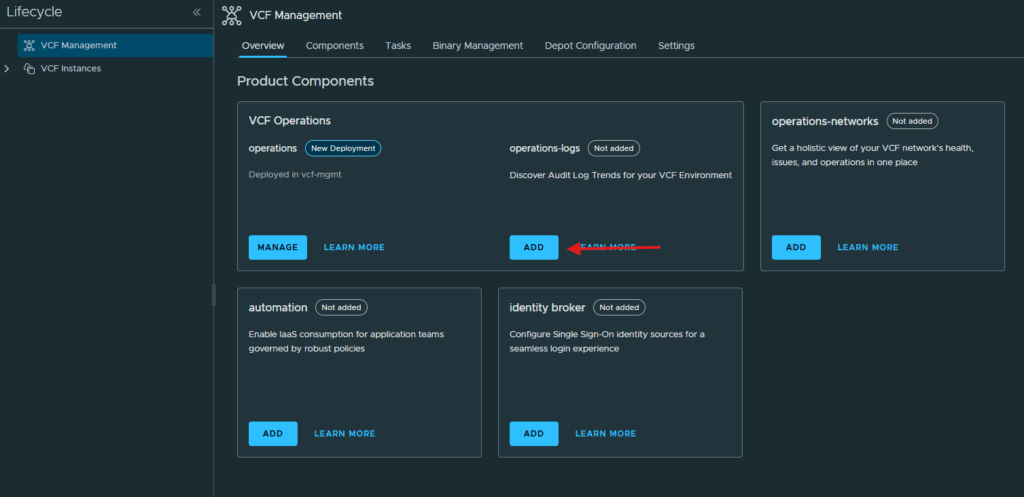
I am already logged into the VCF Operations web gui, if you are not that is the first step. Then you want to expand Fleet Management and click on Lifecycle.
In the Overview section of Lifecycle, click on Add underneath operations-logs
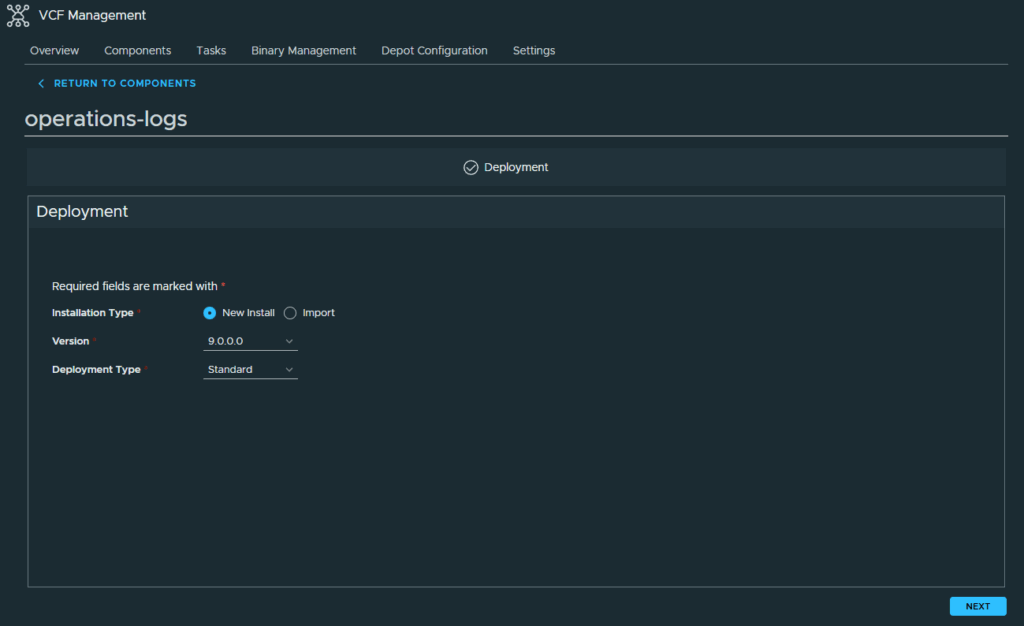
This will be a New Install and I am going to do a standard deployment type, if this is a production system then a cluster deployment is recommended. Click Next to continue.
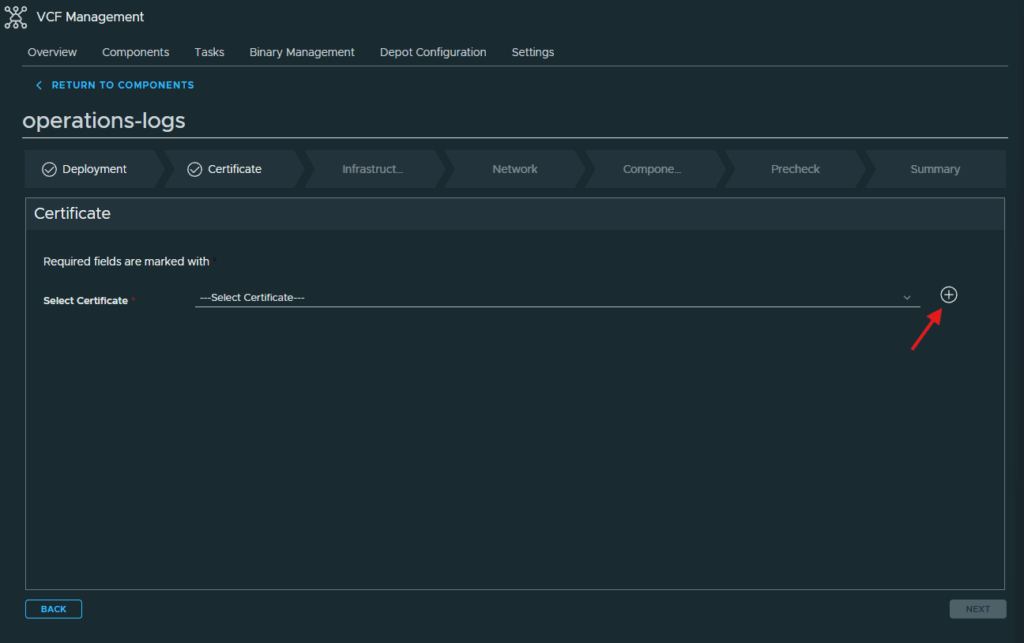
Configure the certificate
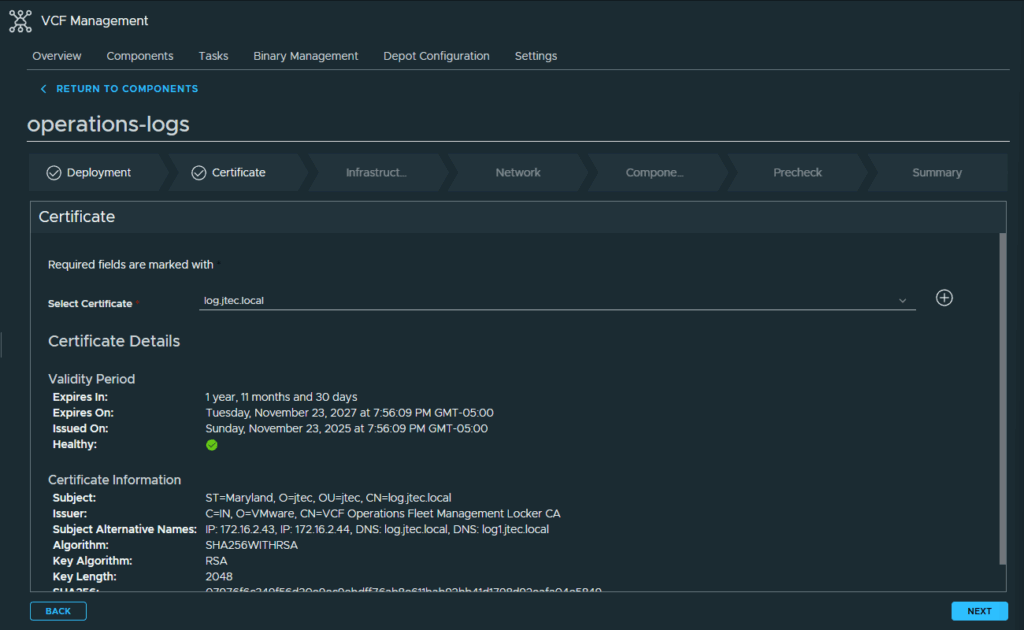
At the Certificate screen, click the Plus sign to generate a self-signed certificate. I will replace this certificate later with an external certificate authority certificate.
In the Generate Certificate pop-up, enter in the required information and click Generate. It’s your choice on how much additional information you want to include in your certificate. Since I will replace it later, I just needed the basics.
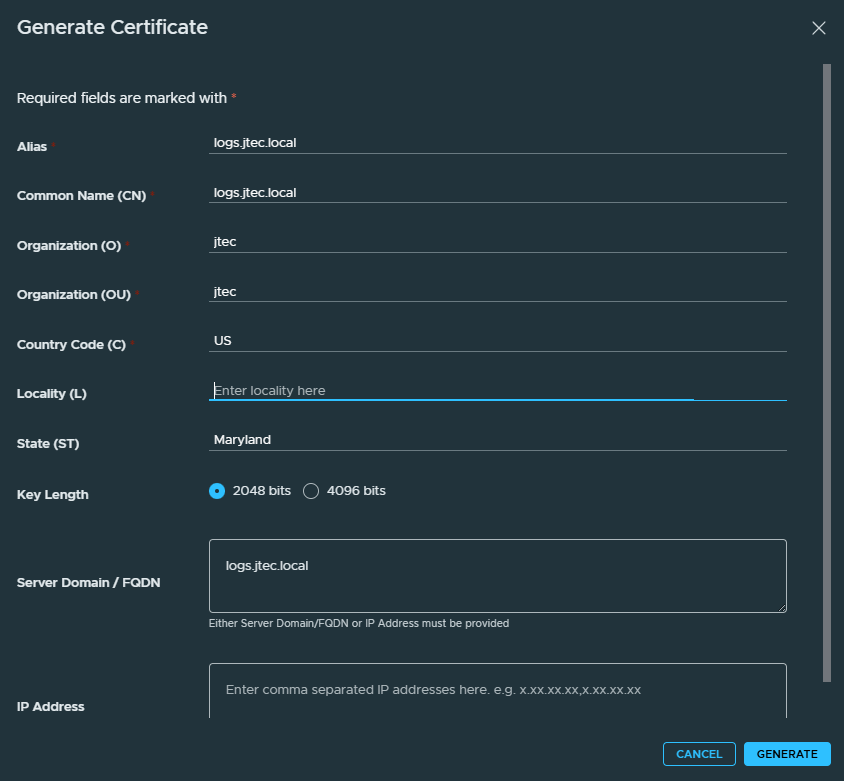
After the certificate generates, click the Select Certificate dropdown and click on the newly created certificate. Click Next
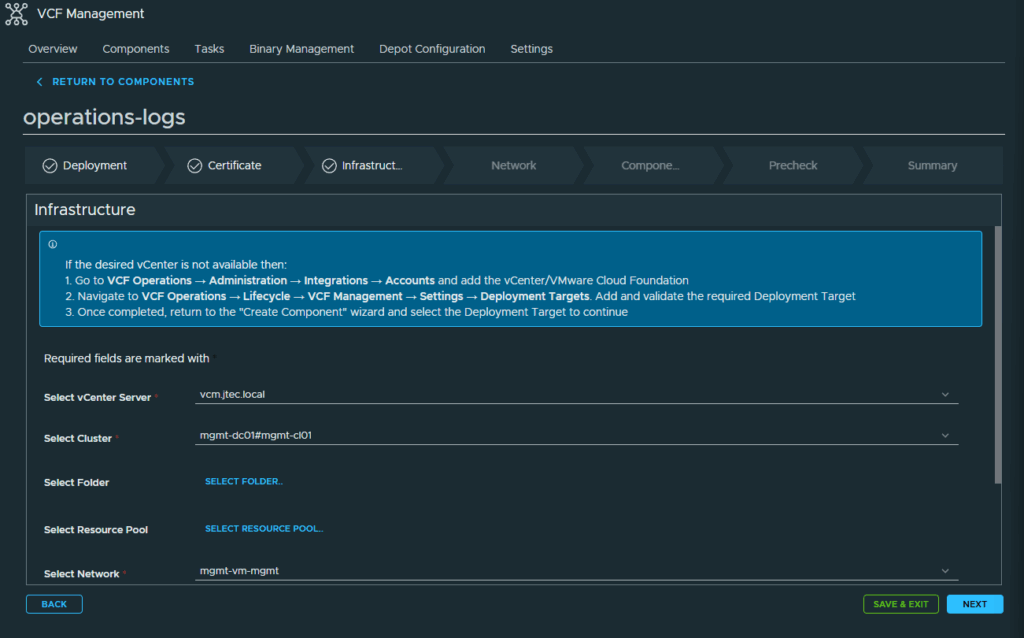
Configure appliance settings
Enter the infrastructure requirements for deployment and click Next.
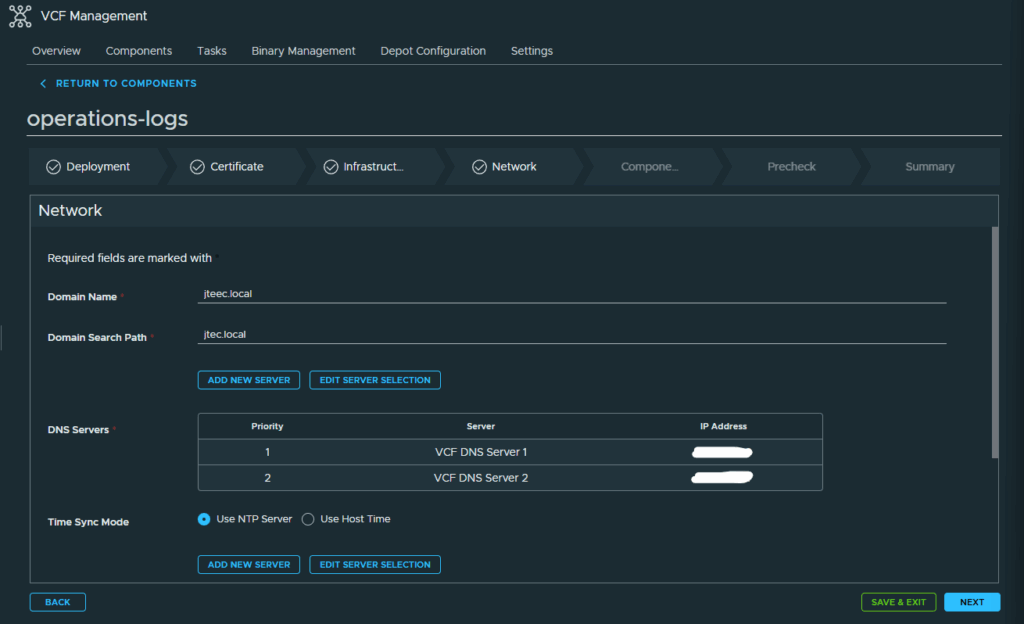
Enter in the required network information and click Next
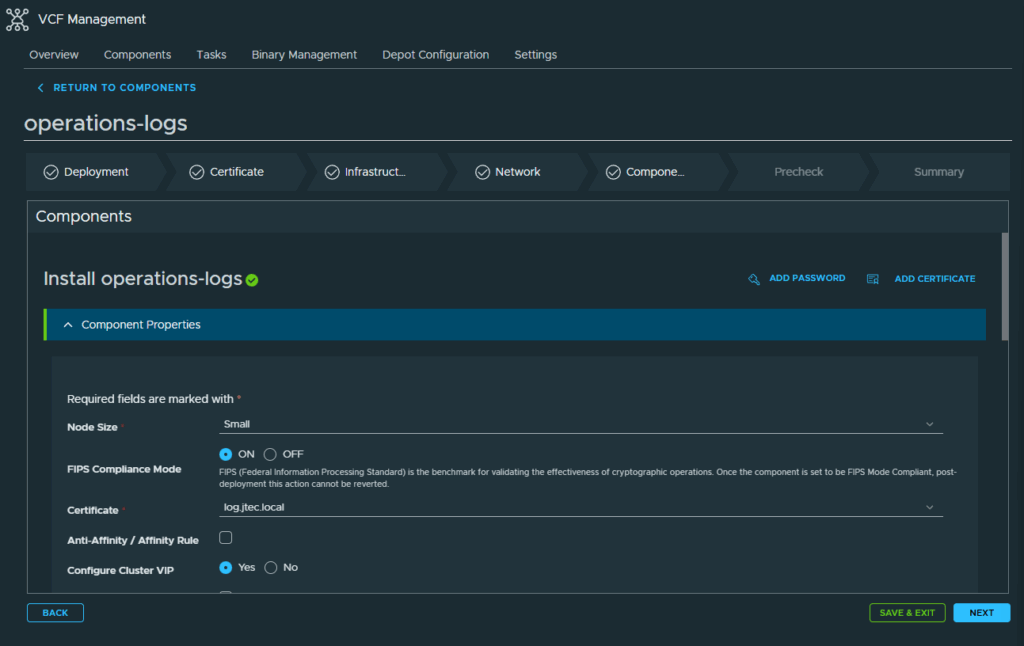
Enter in all the required components information for the appliance and cluster VIP. Click Next
Validate and deploy
Click on Run Precheck, to ensure all your deployment information is correct
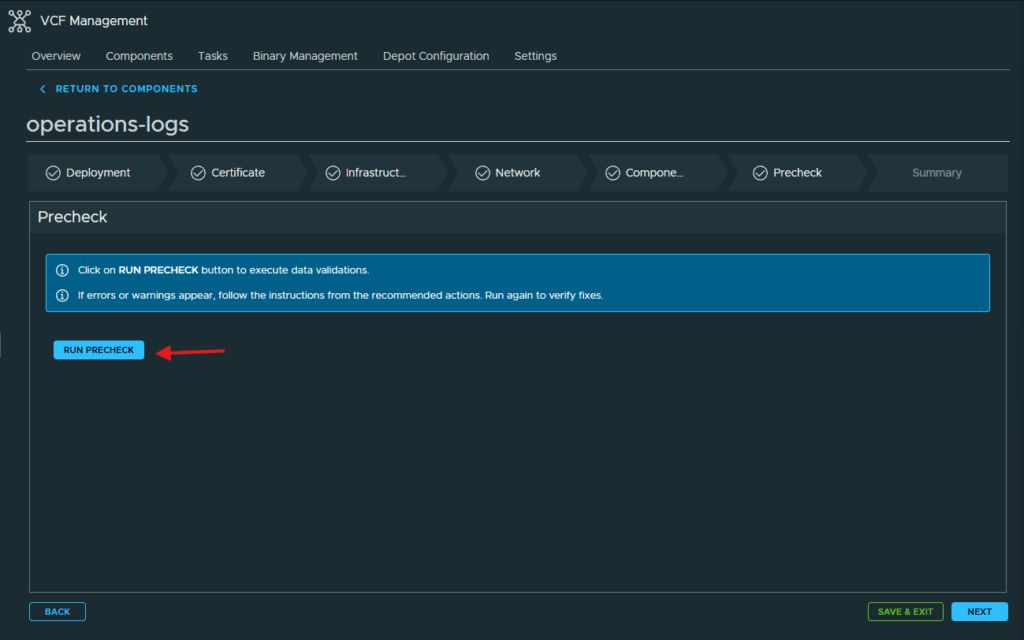
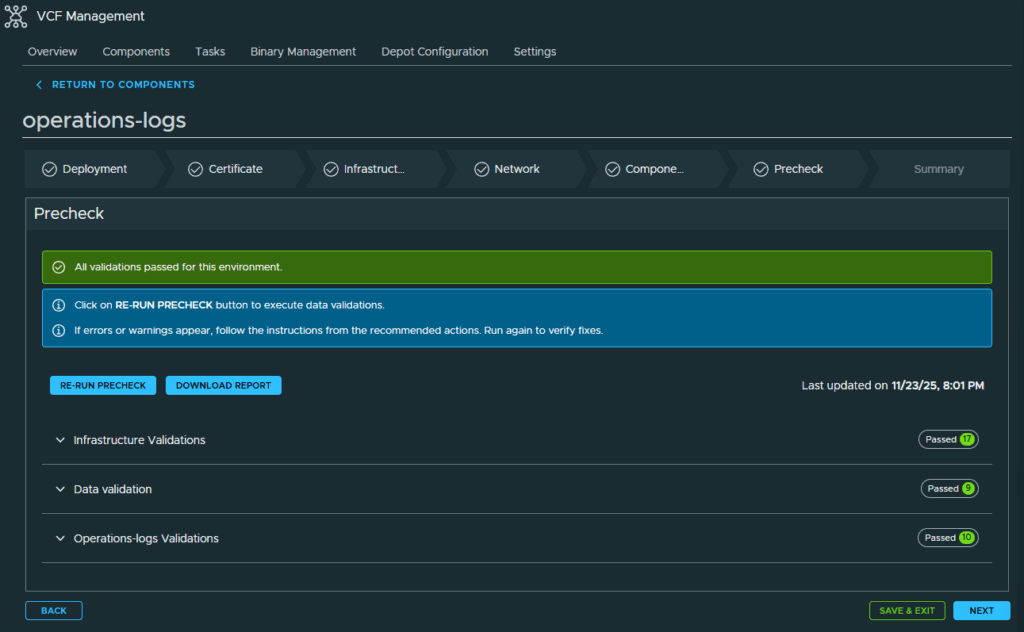
If all the prechecks pass then click Next to continue the deployment. If any prechecks fail, expand the section that failed and resolve those issues.
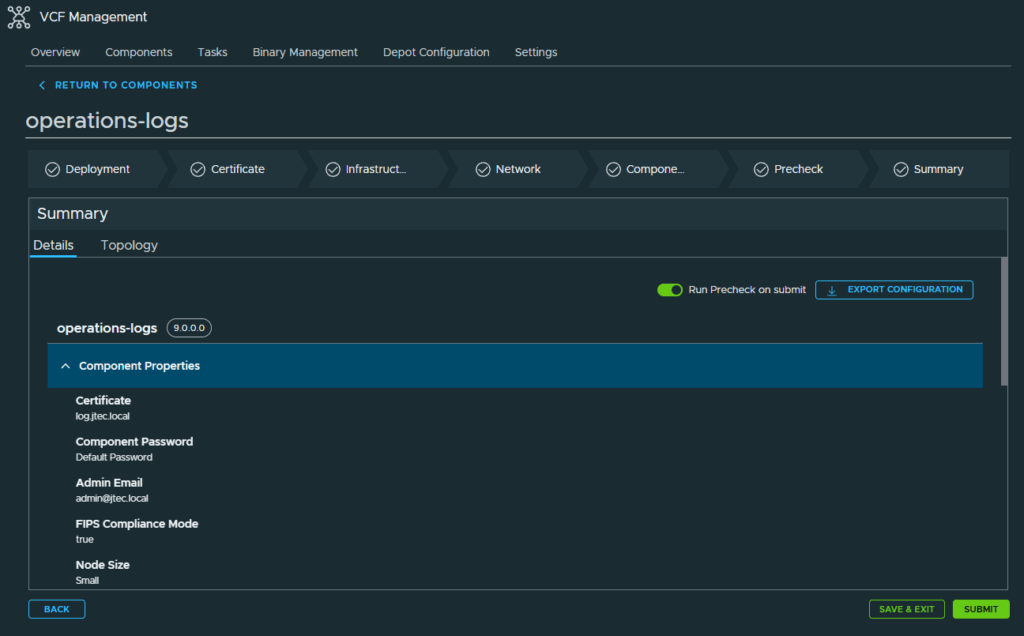
Review the summary page and ensure everything is correct. Click Submit to start the deployment.
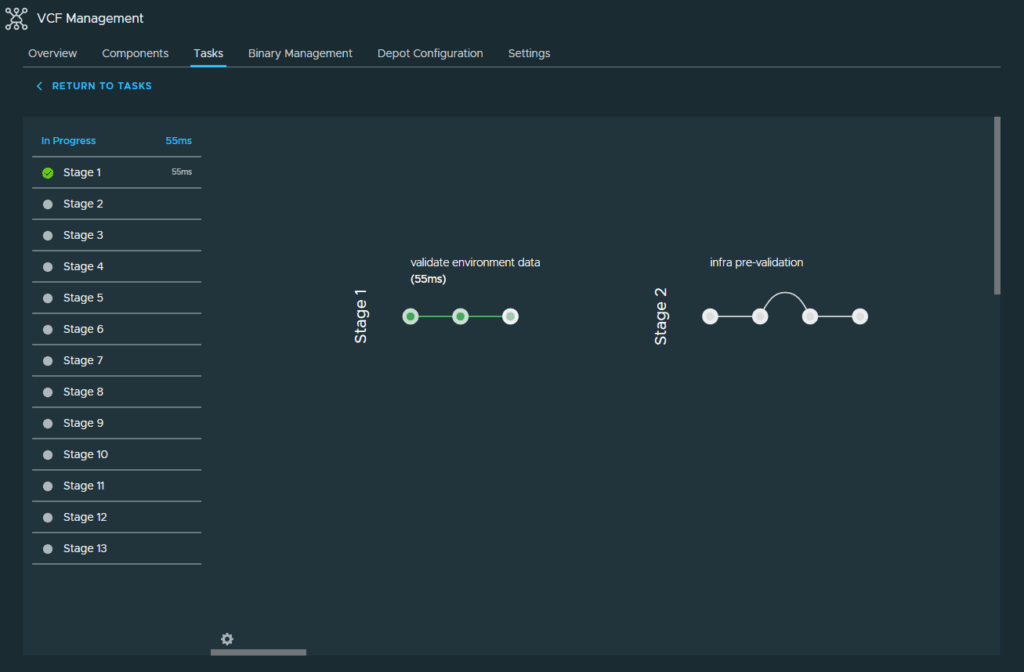
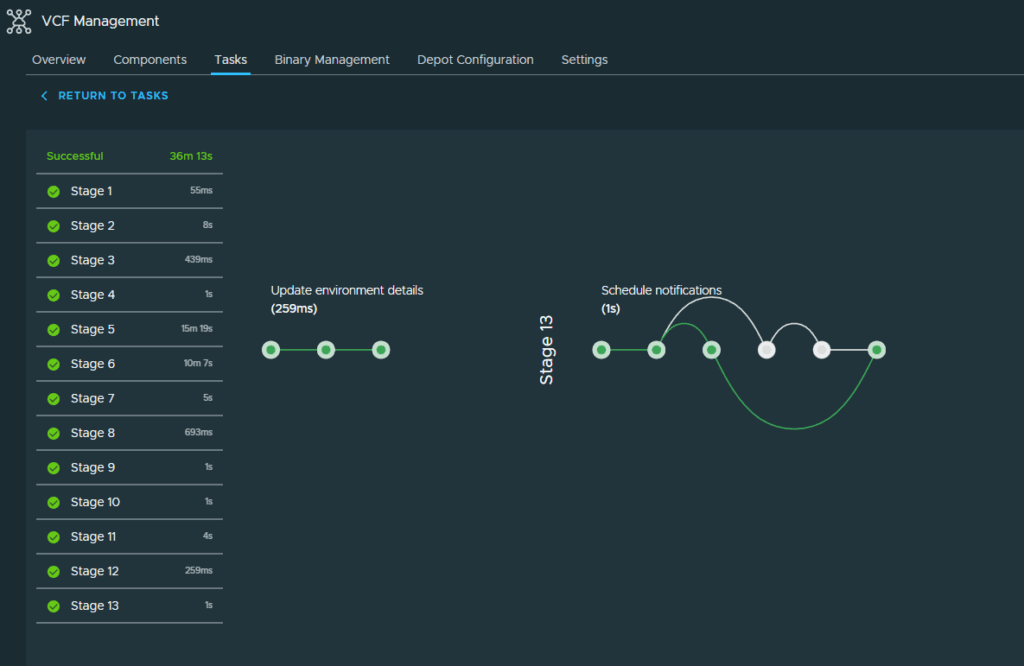
The deployment will start, there are a total of 13 stages for this deployment. Depending on the speed of your network and storage this could take some time to deploy.
After the deployment is successful you can login to Operations for Logs.
You can return to my main VCF Lab page to follow along this VCF deployment.