
Deploy a VCF 9 Workload Domain
Walk through VCF 9 workload domain deployment, including commissioned hosts, vCenter, NSX, vSAN ESA and distributed switch configuration.
Choose the workload-domain guide for your lab
This earlier VCF 9.0 walkthrough uses vSAN ESA. For VCF 9.1.1 with NFS storage, follow Creating a VCF 9.1.1 Workload Domain. Both paths are indexed in the VCF lab guide index.
Overview
This VCF 9 workload-domain deployment walkthrough starts with commissioned hosts and follows the wizard in VCF Operations. I cover the vCenter, NSX, storage and networking inputs for the deployment model used in my lab.
Deployment model and readiness worksheet
This walkthrough creates a new workload domain using three unassigned hosts, vSAN ESA, centralized NSX connectivity and a custom vDS based on the default profile. Supervisor is deferred. The domain’s vCenter and NSX appliances are placed on the management cluster; they are not an imported existing workload domain.
| Area | Verify before selecting Proceed |
|---|---|
| Hosts | Commissioned, unassigned and healthy; matching supported image, drivers/firmware, credentials and capacity. |
| Management | Available capacity for vCenter/NSX; unique appliance FQDNs/IPs, DNS/PTR, NTP and certificate trust. |
| Storage | Compatible ESA devices, intended datastore/policy and capacity for the desired failures-to-tolerate setting. |
| Networks | Management, vMotion, vSAN and host TEP VLANs/IP pools; MTU, uplinks and routing verified end to end. |
| Recovery | Current management backups and no conflicting lifecycle operation; preserve the submitted spec and task IDs. |
- Acknowledge prerequisites only after checking them. Resolve validation failures rather than accepting them as a normal lab step.
- After creation, verify domain task completion, all three host connections, datastore health, image compliance and NSX status before adding workloads.
Related background: commissioning hosts
Start the workload domain wizard
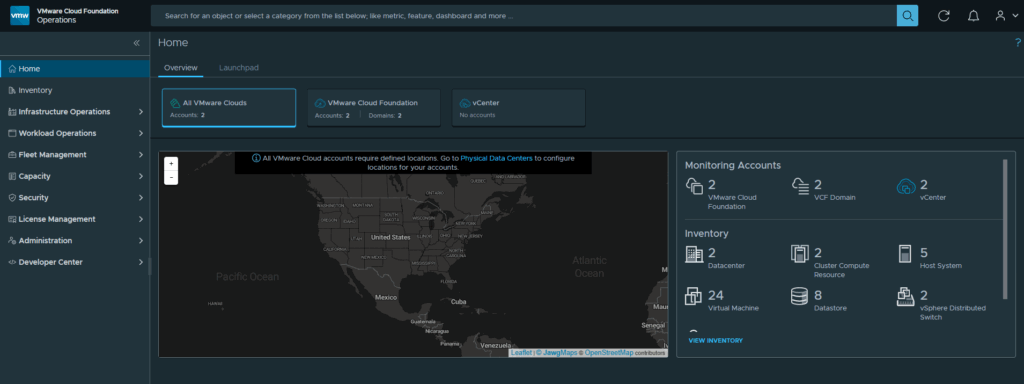
Login to the VCF Operations web gui, click on Inventory
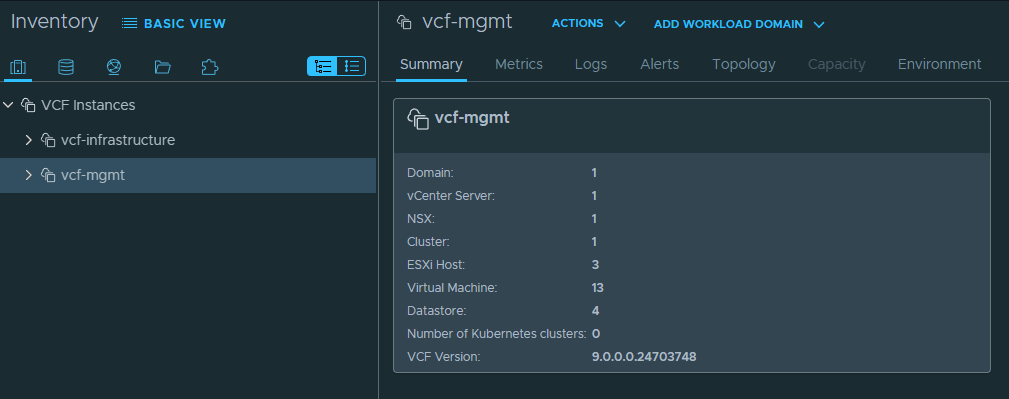
Click on the VCF instance you want to add your workload domain to, in this example I will be using vcf-mgmt
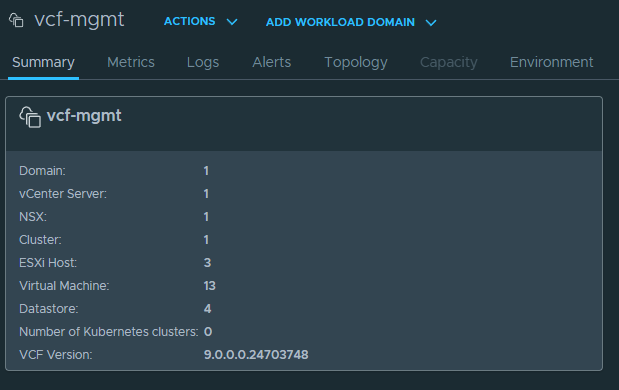
Click on the Add Workload Domain drop down and select Create New
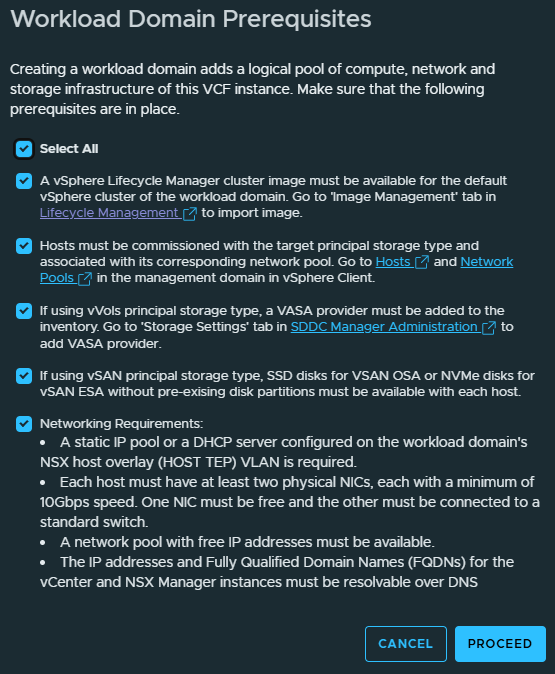
The Prerequisites pop-up will appear, click Select All and Proceed to continue.
Configure domain identity and vCenter
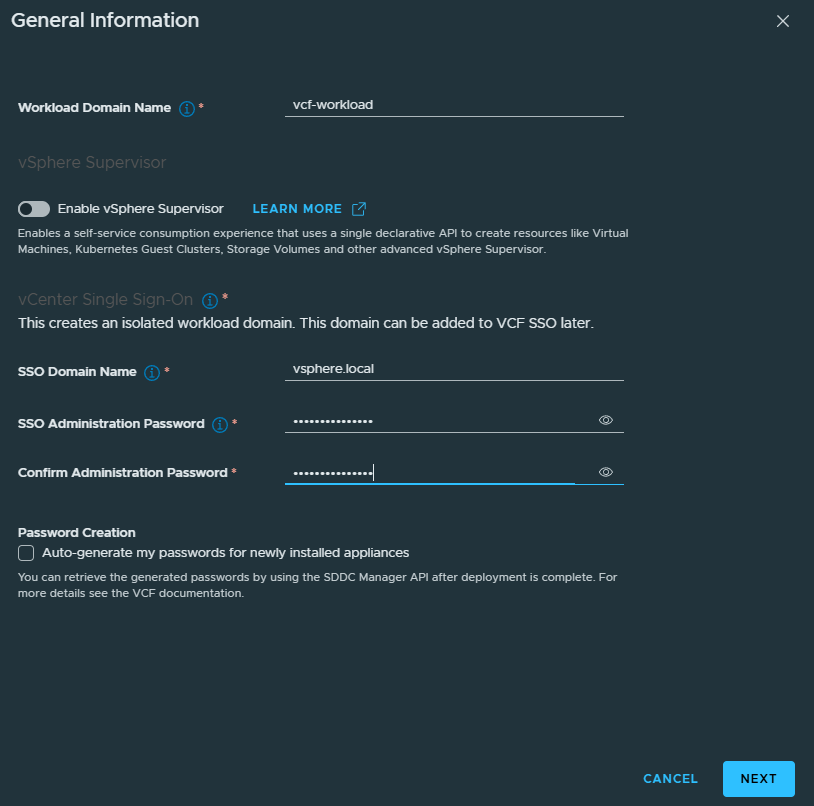
In the General Information screen, enter in a domain name, sso domain name and you can enable vSphere supervisor now or later. I am going to deploy this later on. Also you can manually enter passwords or use auto generated. If you want to enter your own passwords, uncheck the box next to auto-generate. Click Next to continue.
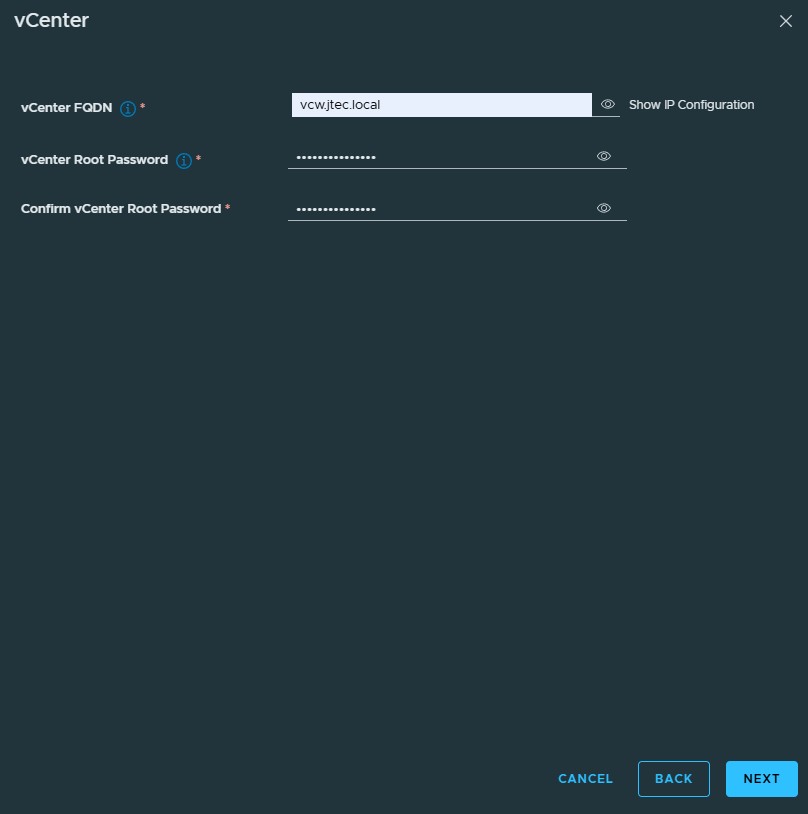
Enter in the FQDN for your workload vCenter and the root password, click Next to continue.
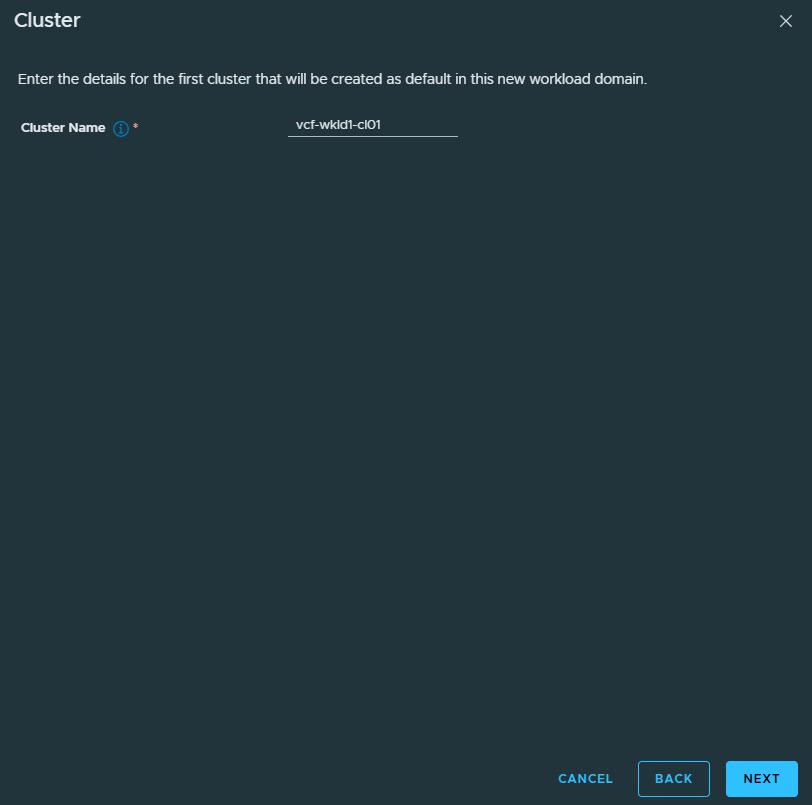
Provide a cluster name for the workload domain and click Next.
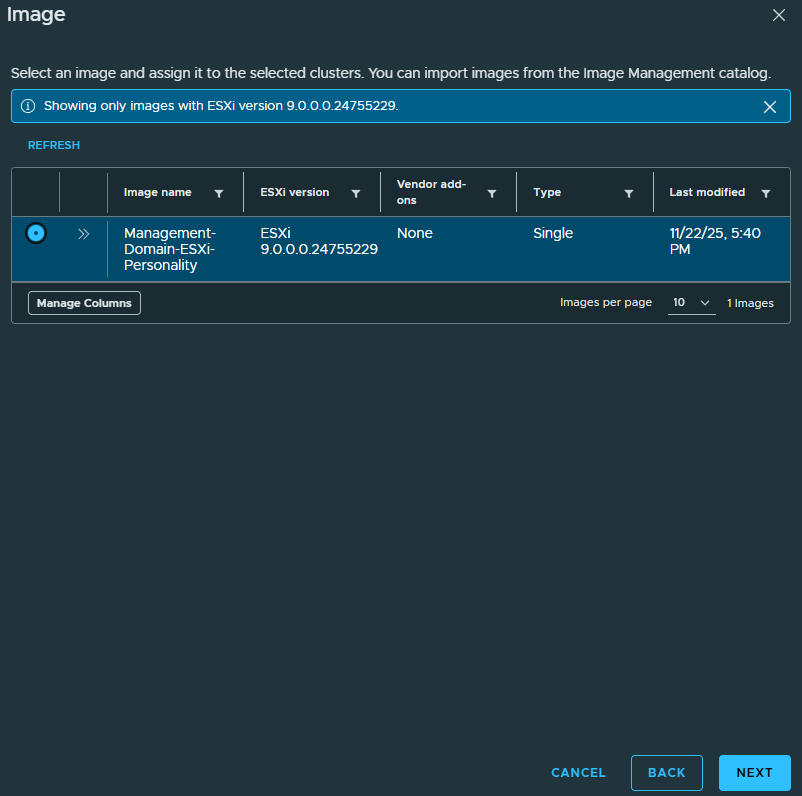
Another new change with VCF 9 is the introduction of VMware Lifecycle Images, if you don’t have the same hardware for your management and workload domains you will need to create a new image. I will provide a walkthrough of this creation in another post.
My hardware is consist between both domains so I will use the same image for my workload domain as my management domain. Click Next to continue after selecting an image.
Configure NSX and storage
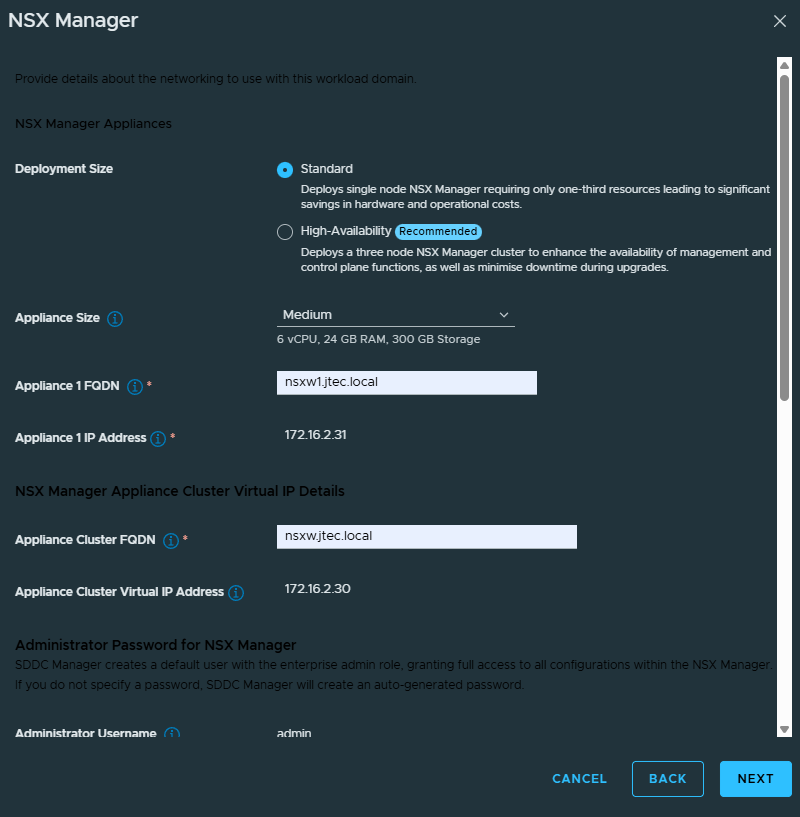
In the NSX Manager screen, select the deployment size for your NSX Manager, the FQDN for the appliance and cluster VIP. It will also ask you whether you want centralized or distributed connectivity and the passwords for the admin and auditor accounts.
I will be using centralized connectivity as I want to use NSX Edges. Click Next after you have entered in all the required information.
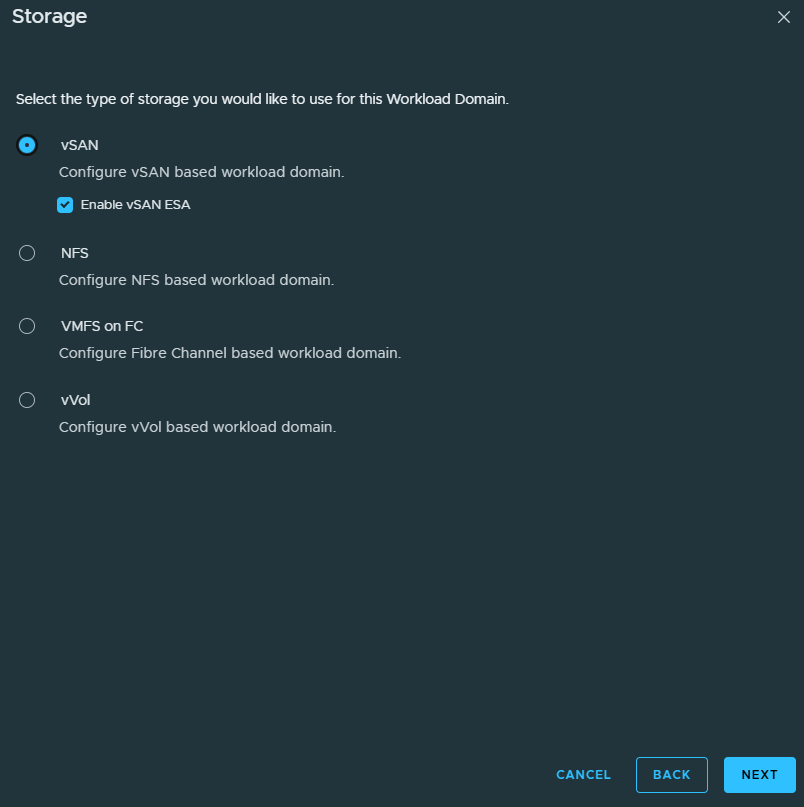
Select what storage type you are going to use for this workload domain. I have NVMe drives installed in these hosts so I will be running vSAN ESA. Click Next.
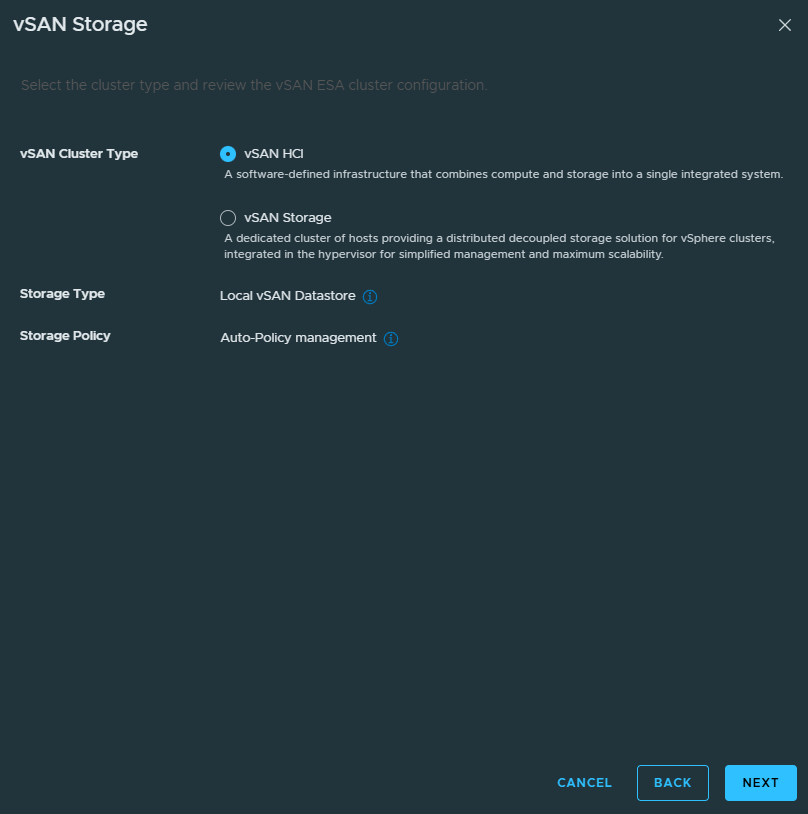
At the vSAN storage screen, I am leaving the defaults selected. Click Next.
Select hosts and configure networking
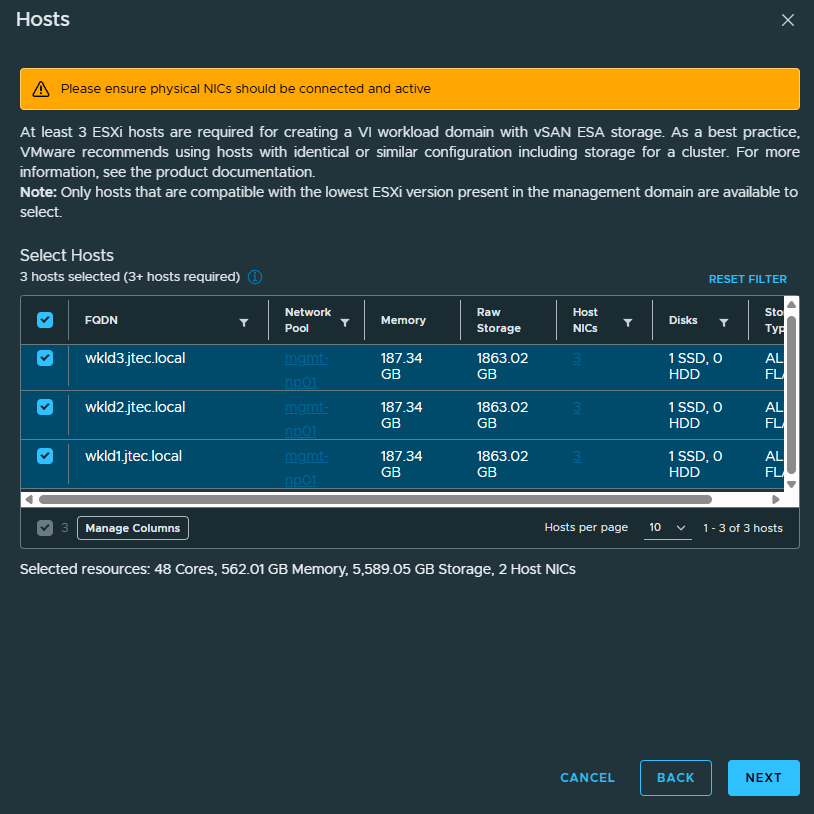
Select which Hosts you want to add to the workload domain, I have 3 unassigned hosts for this and will be using all 3 hosts. Click the checkboxes next to the hosts you want to use and click Next.
For the Distributed Switch, you can use a default profile with no changes or customize it. I am going to create a custom distributed switch so that I can modify the names of the port groups.
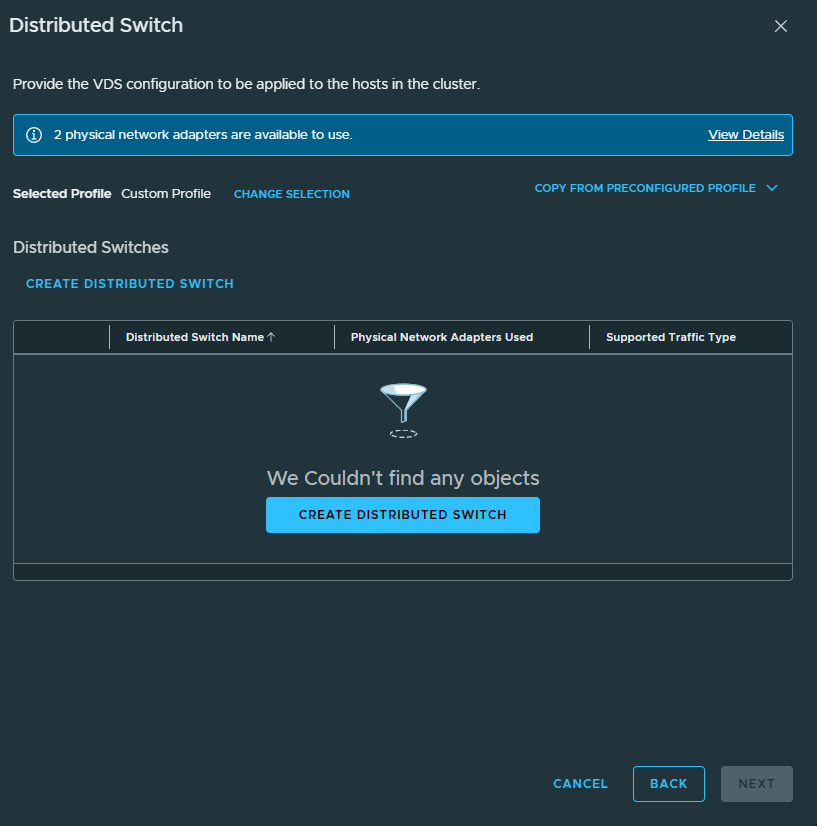
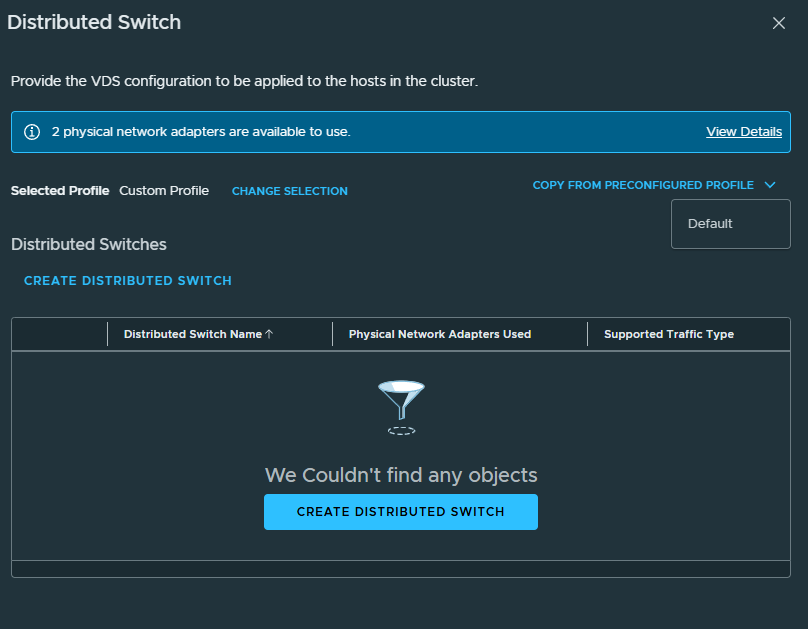
To make things easier I will be starting with a copy of the default switch, click the drop down from the copy from preconfigured profile and select Default
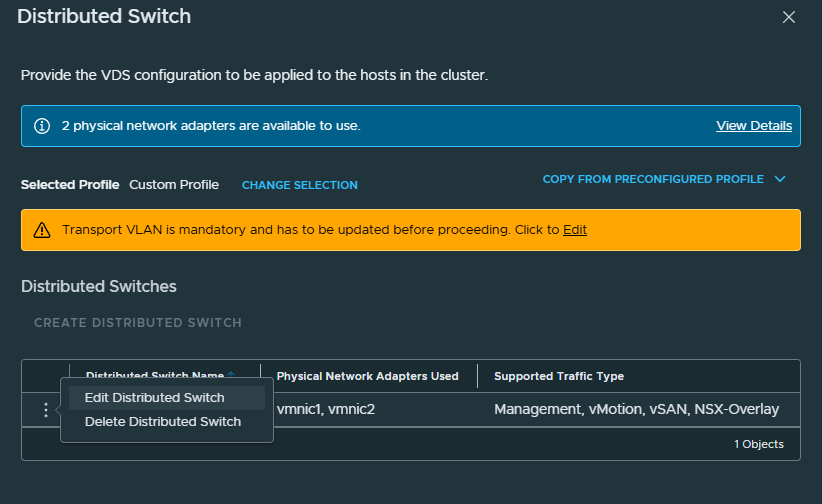
Click the 3 dots next to the distributed switch and select Edit Distributed Switch
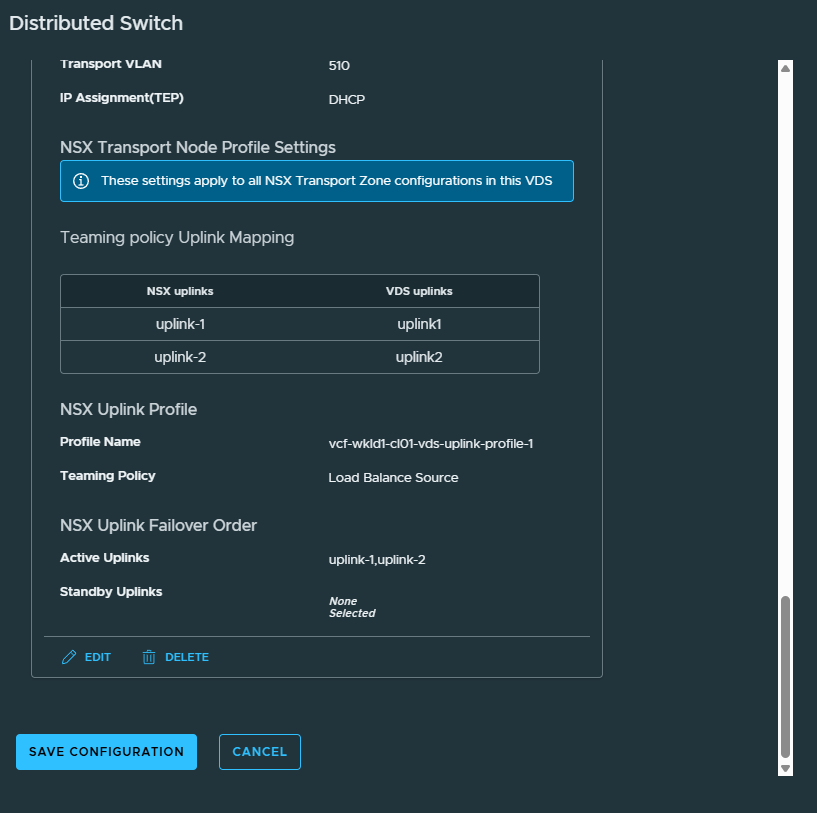
Modify the settings you would like to change and click Save Configuration at the bottom. The only required change is to input a Transport VLAN IP Assignment for the host overlay.
You are required to click the Acknowledge link before continuing to ensure that you have inputted a transport VLAN for host tunnel endpoints.
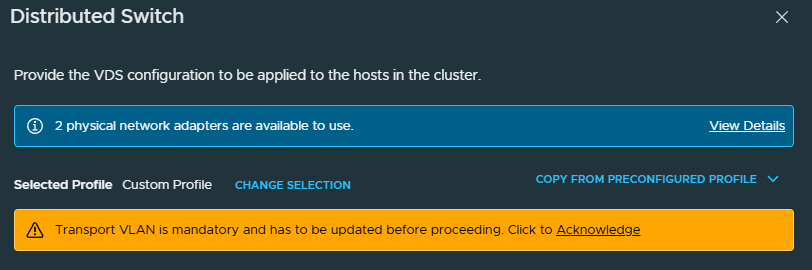
Click Next to continue.
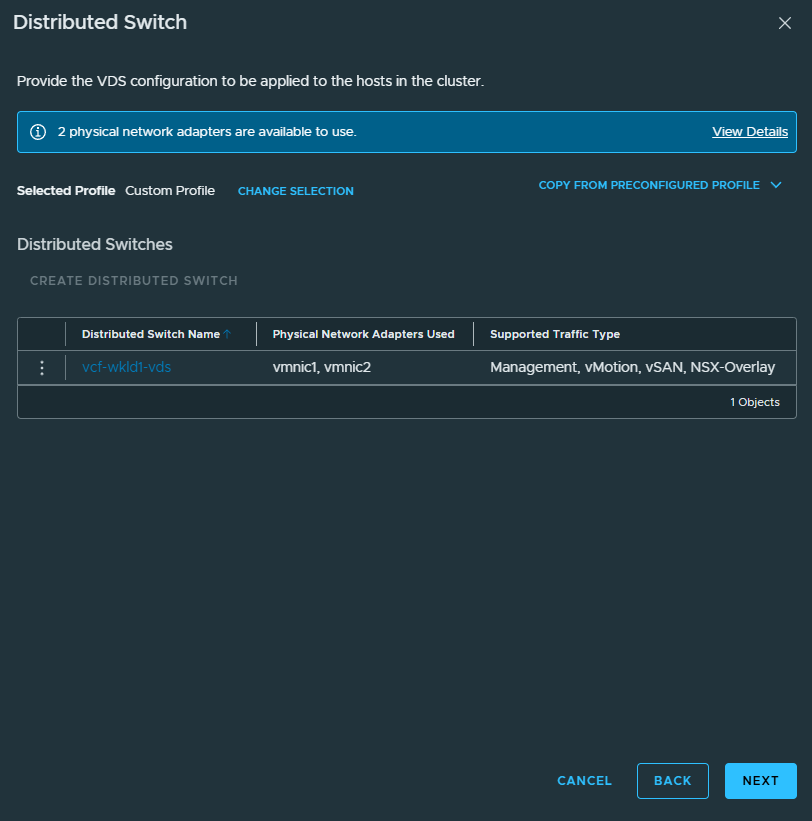
Validate and deploy
Review the information you provided for the workload domain and click Finish if everything is correct to begin the workload domain deployment.
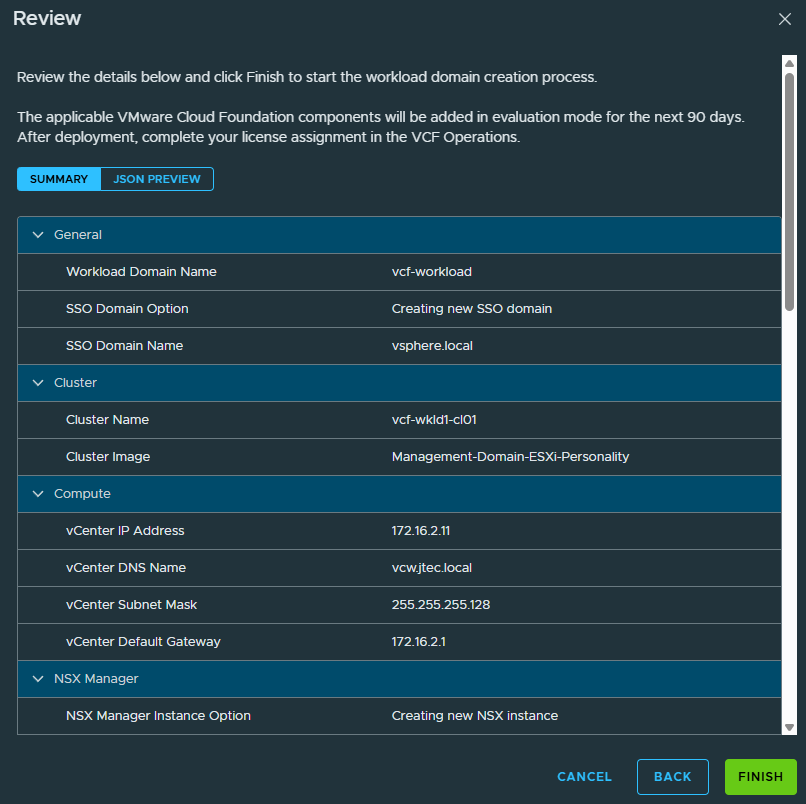
A validation will occur on the information provided prior to starting the deployment.
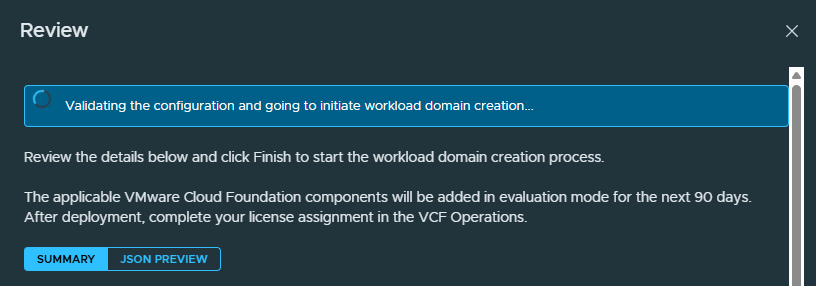
After that a pop-up will appear advising you the creation has started and you can view the sddc manager tasks to follow along with the deployment.
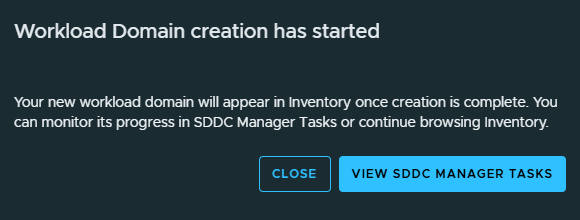
The deployment will create the NSX manager and vCenter server for the workload domain on the management cluster and complete the additional configurations to build the new workload domain.

You can return to my main VCF Lab page to follow along with this deployment.