
Configure vCenter Linking in VCF 9
Configure vCenter 9 linking in VCF Operations. Create a group, select vCenters and verify the linked inventory view with VCF SSO.
Overview
This guide configures vCenter linking through VCF Operations in my VCF 9 lab. I create a linking group, select the vCenters and check the resulting linked inventory view, with VCF SSO as part of the setup.
For the architecture behind this workflow, see Broadcom’s vCenter Linking overview. VCF 9 linking provides a common vSphere Client view across a group of vCenters. It is not the legacy Enhanced Linked Mode directory-replication model.
In VCF 9, we now link the vCenters together to be able to view them all when you login to a single vCenter. This is completed in the VCF Operations web gui now.
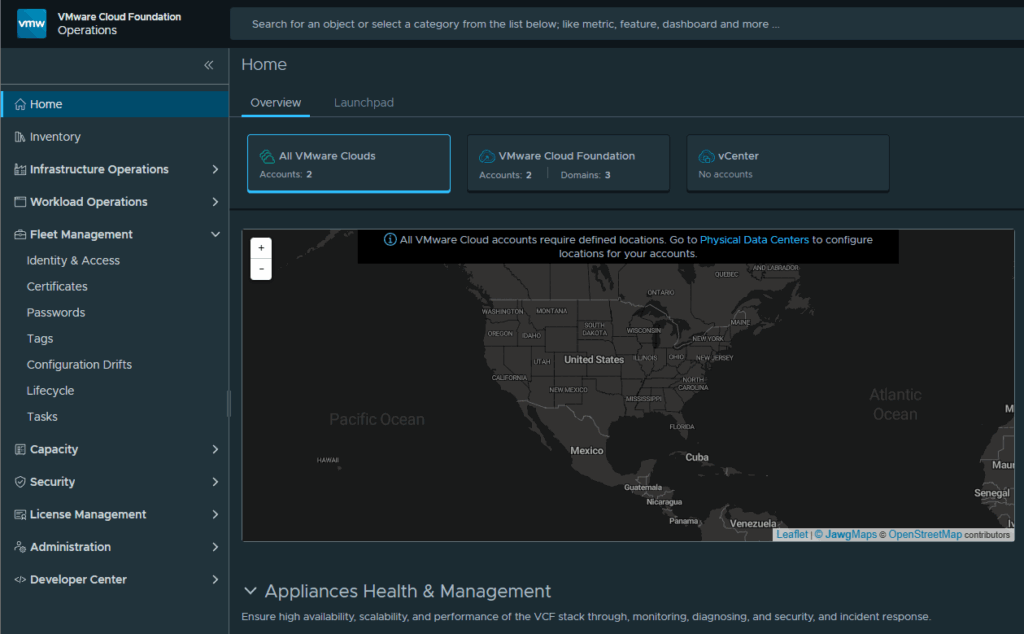
Scope and SSO prerequisites
Use vCenter 9.0 or later and configure the participating systems with the common VCF identity setup before creating the group. Confirm that the intended account can sign in and has the required access on each vCenter. Review version, permissions and existing ELM status during linking validation. The systems retain independent inventories and lifecycle management; a shared view does not merge them into one vCenter.
Local vsphere.local accounts are maintained separately on each vCenter when using linking; do not assume an account created on one is replicated to the others. See Broadcom’s account-management guidance.
Create the vCenter linking group
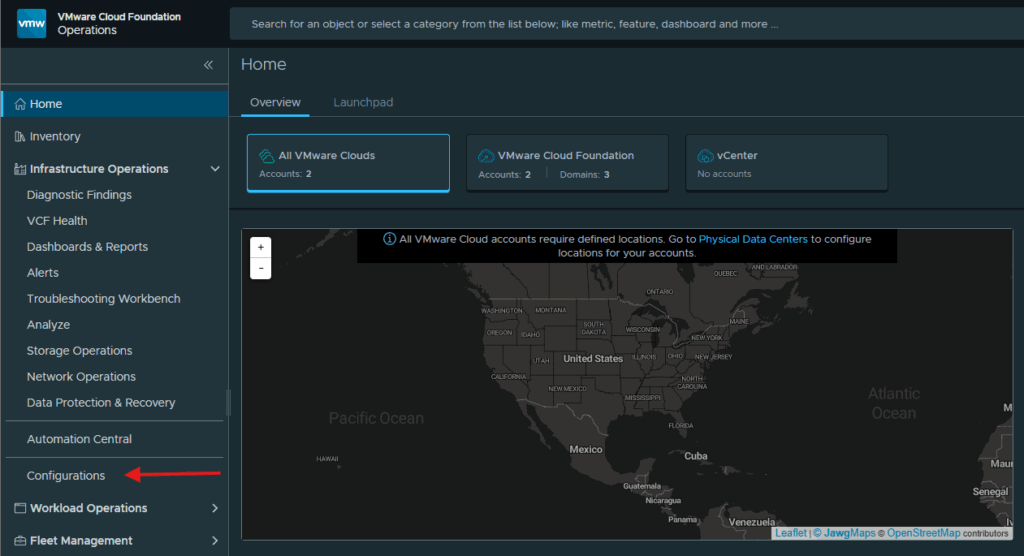
Expand Infrastructure Operations and click on Configurations
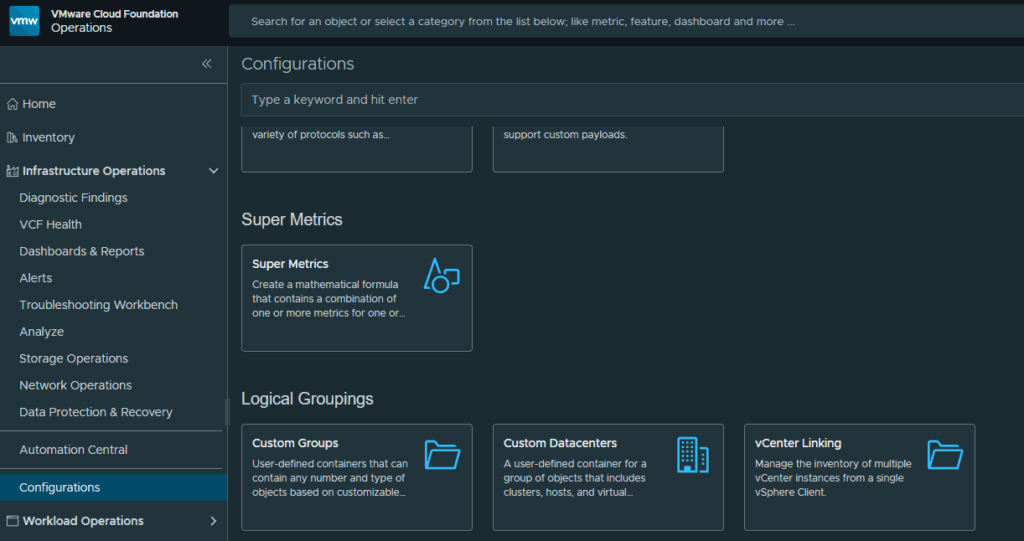
Scroll down and click on vCenter Linking under Logical Groupings.
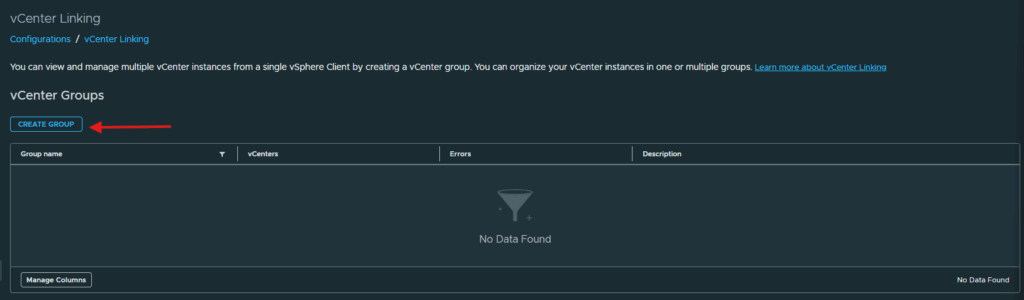
Click Create Groups
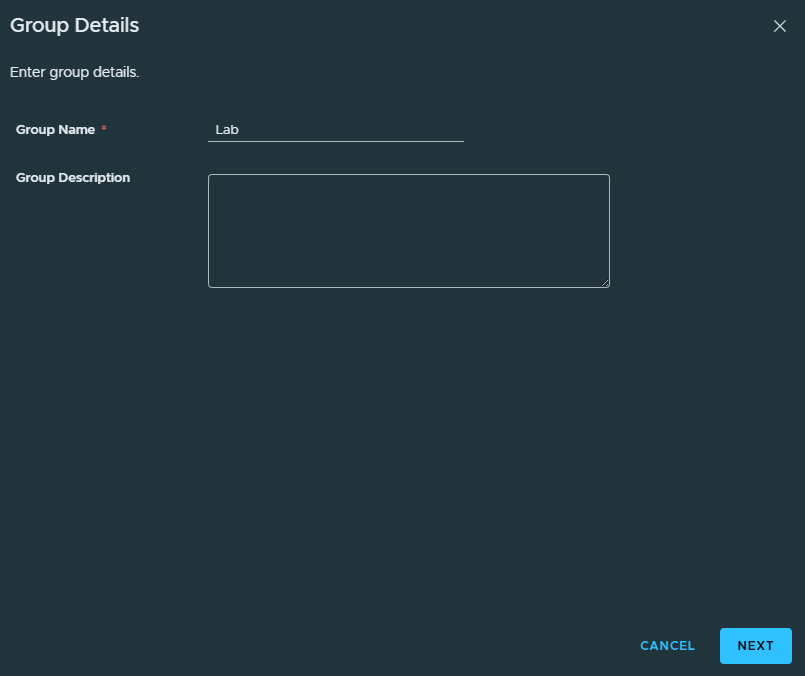
Provide a group name and click Next
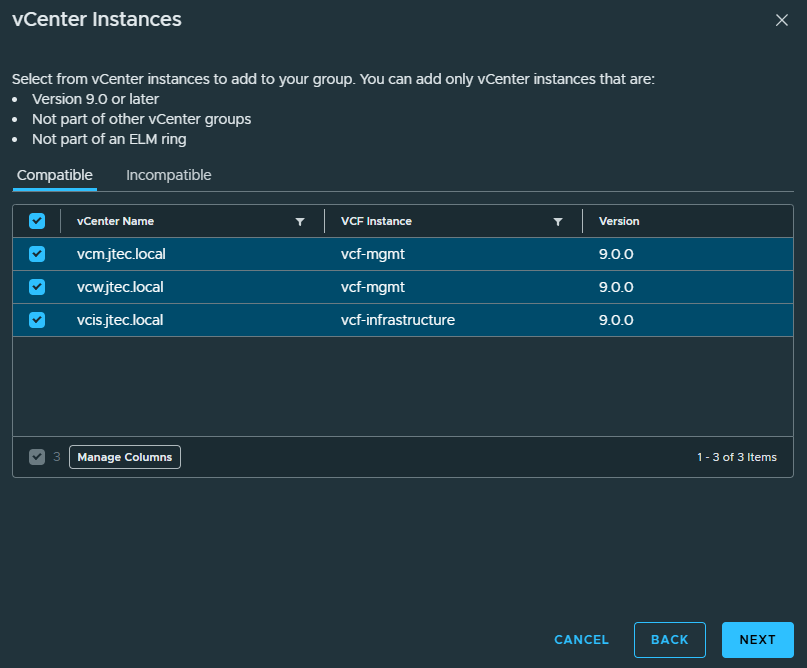
Click the checkbox next to each vCenter you want to link together and click Next
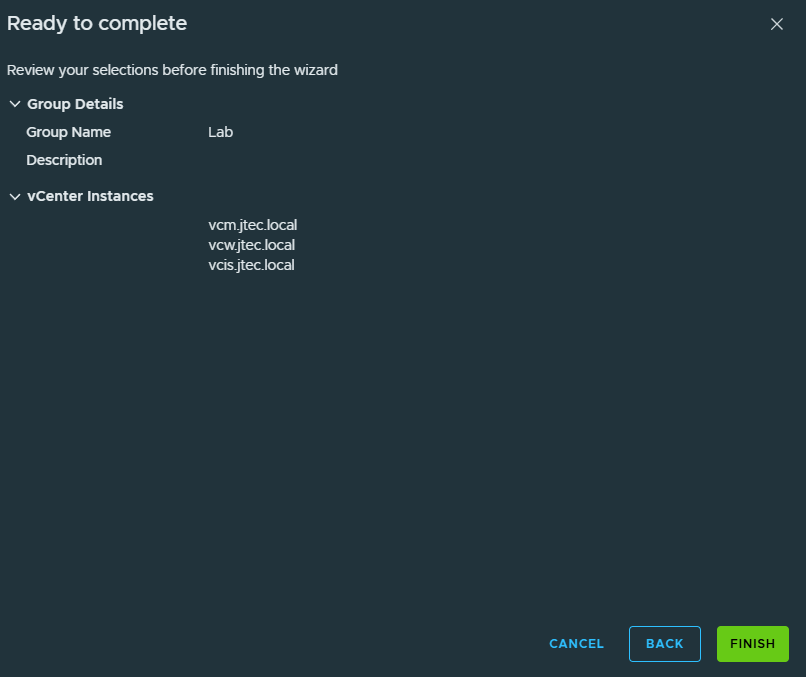
Review the group settings and click Finish to link all the vCenters together.
Verify linking status
It will take some time to complete the linking process, and you can check by clicking on the group name
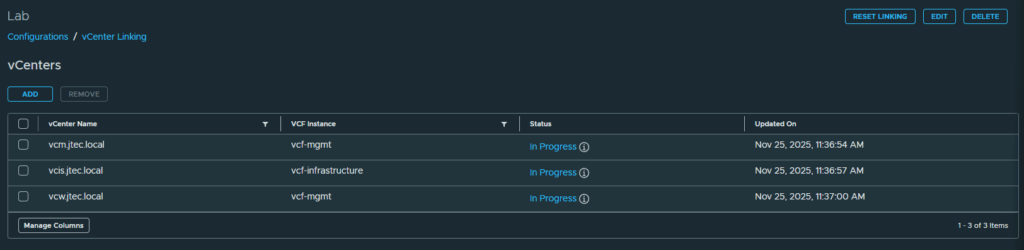
Once they are completed, they will show Active.
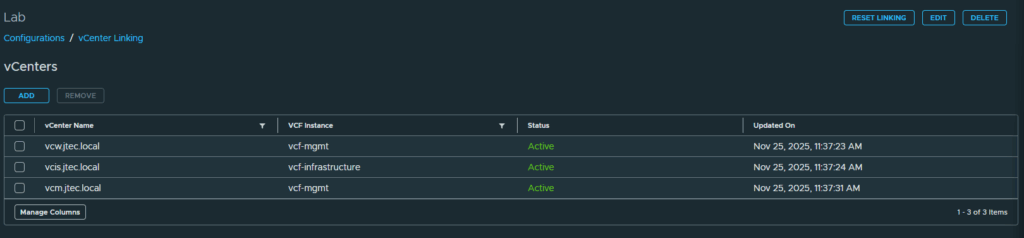
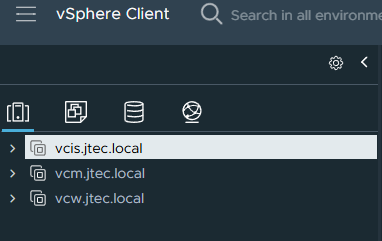
Now when you login to any of the vCenters with your VCF SSO login, you will see them all linked together in the same gui.
You can return to my main VCF Lab page to follow along with this deployment.
Check the linked view
Expected checks after configuration: confirm each selected member is Active, sign in through VCF SSO, and verify that the group’s inventories appear with the access intended for that account. Check a known object on each member. If inventory is missing, review member status and account permissions before treating linking as complete. These checks are guidance for readers; no new cross-vCenter permission test was performed for this update.