
Configure VCF Backups: Fleet Manager, NSX and vCenter
Walk through VCF backup configuration for Fleet Manager, Automation, Identity Broker, SDDC Manager, NSX and vCenter using SFTP storage.
Overview
This VCF backup configuration walkthrough sets up schedules for the components in my lab using SFTP storage. I cover Fleet Management settings and the separate SDDC Manager, NSX and vCenter steps; configuring a schedule is not a substitute for testing recovery.
Coverage, retention and recovery validation
| Component | Where this walkthrough configures it | Completion evidence |
|---|---|---|
| Fleet Management node | Fleet Lifecycle backup settings | Successful backup task plus files and timestamp at the destination. |
| Automation and Identity Broker | Fleet Lifecycle component settings | Verify each component separately; SFTP configuration alone is not proof of a backup. |
| SDDC Manager | SDDC backup configuration | Completed job, destination files and known encryption passphrase. |
| NSX | Settings coordinated through SDDC in this lab | Check the actual NSX backup schedule and last successful result. |
| vCenter | VAMI on port 5480 | Activated schedule AND a successful file-based backup. |
| Operations, Logs, Networks and workloads | Not demonstrated by these schedules | Plan their release-supported protection separately; this article is not coverage for every VM or service. |
Three retained backups is the lab setting, not a universal retention policy. Choose frequency from the acceptable data-loss window and retain enough independent recovery points to cover delayed detection of mistakes. Check destination capacity, access restrictions and separation from the failure domain being protected.
- Run a manual backup for each listed component and inspect its task, timestamp and destination files. Verify access to keys/passphrases without storing them alongside public examples.
- Plan an isolated restore test using the matching product/version procedure. Avoid duplicate production names/IPs and verify restored login, inventory and service health.
- Record restore duration and any dependencies to compare with the recovery objective. No restore test was executed for this editorial review.
Snapshots are temporary rollback aids, not independent backups. See Broadcom’s SDDC snapshot guidance. Operations restoration is a separate concern in Broadcom’s VCF partial-recovery guidance.
Configure Fleet Management backup schedules
First we are going to get the automated configurations out of the way, start by logging in to the VCF Operations web gui.
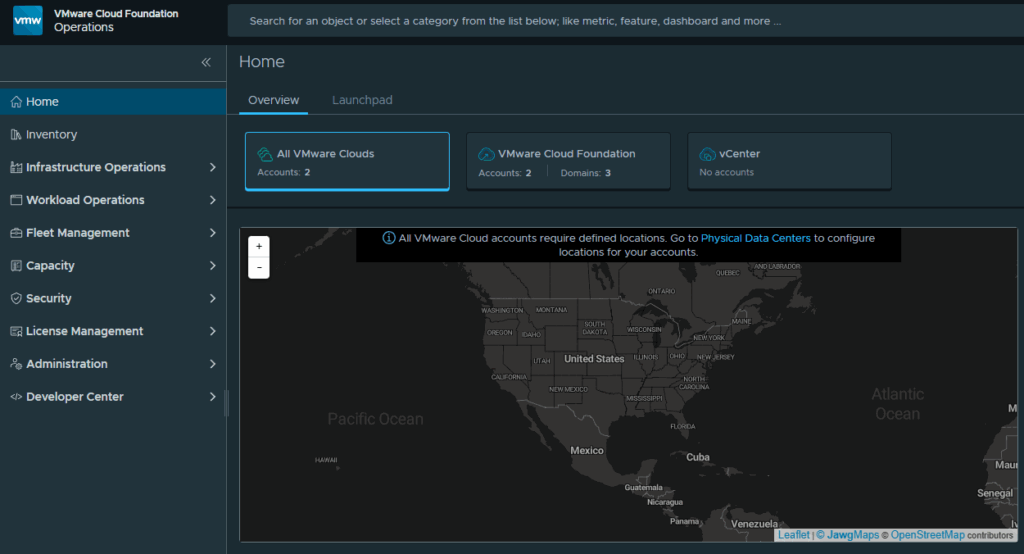
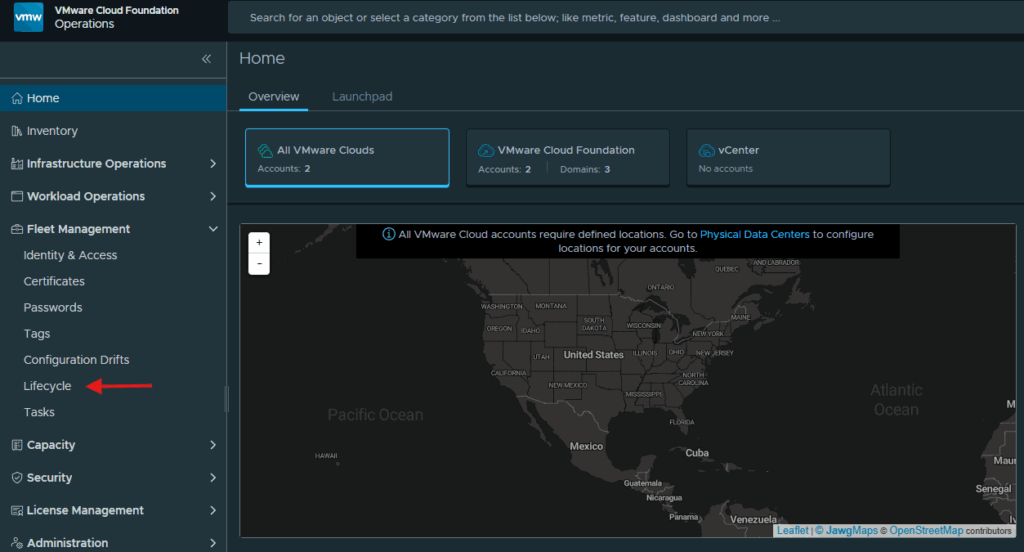
Expand Fleet Management and click on Lifecycle
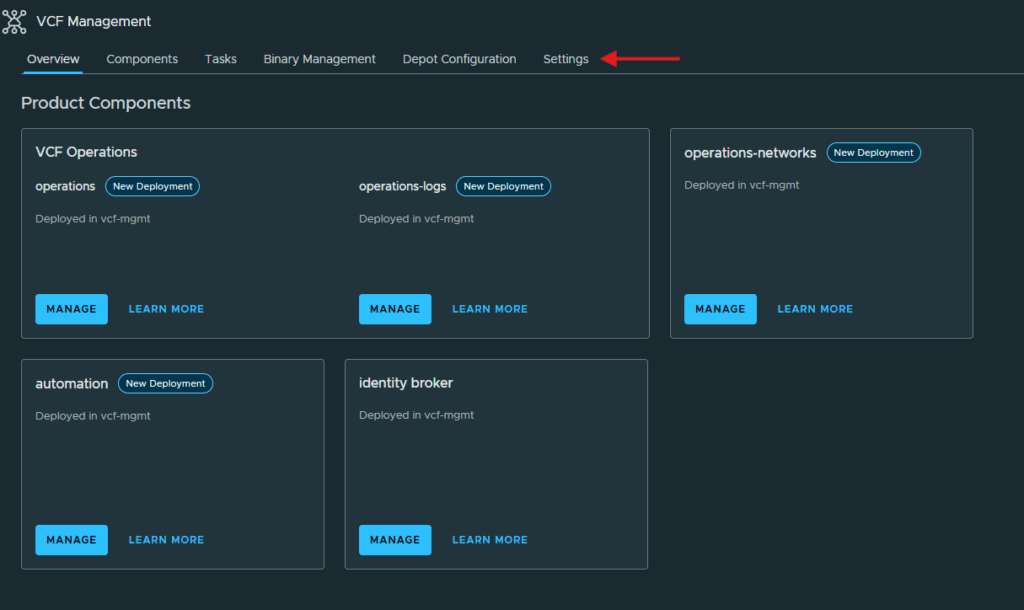
Click on Settings
Click on Backup Settings under Backup & Restore
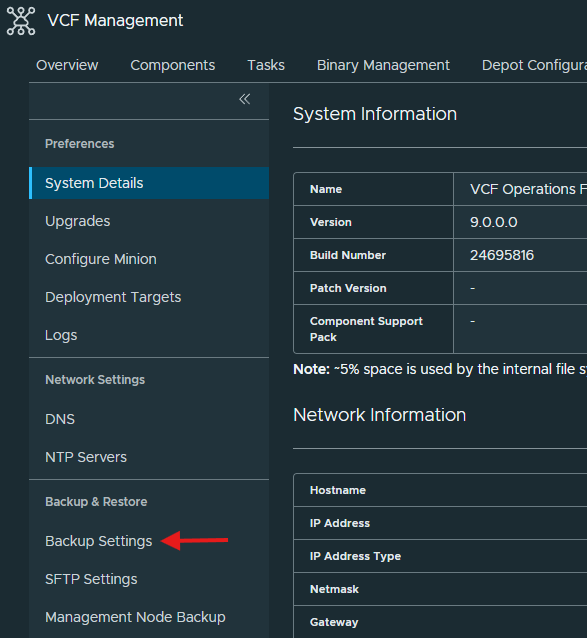
You will see that we are able to schedule the backups for VCF fleet manager node, automation and Identity broker here.
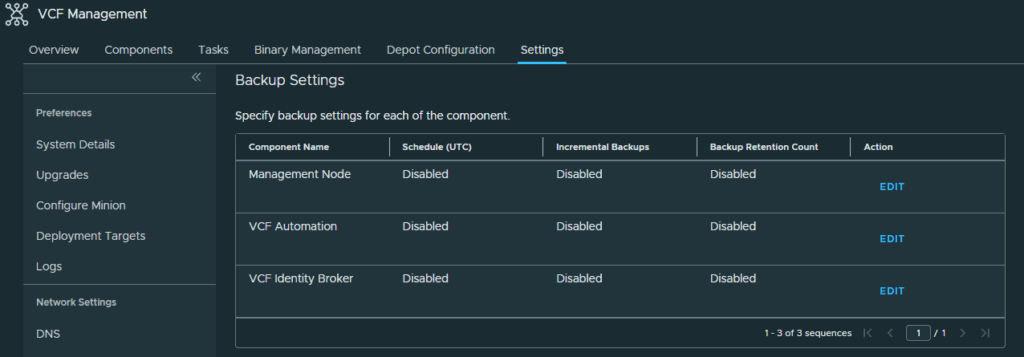
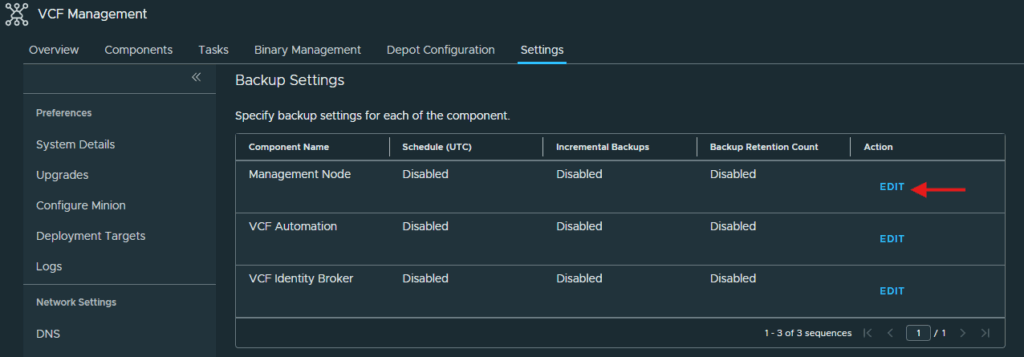
Click Edit next to Management Node.
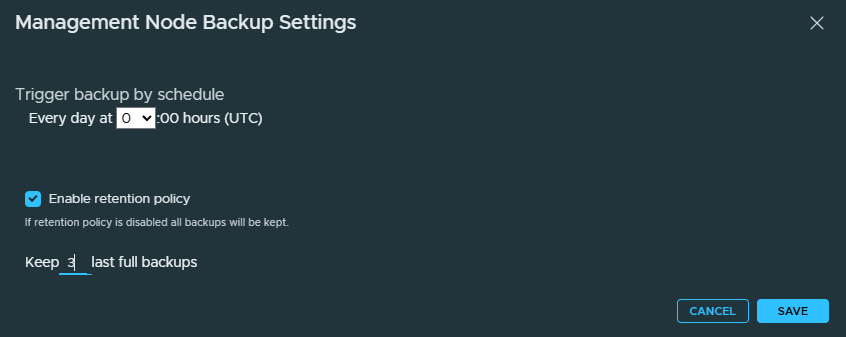
Enter in the time at which you want to backup everyday and you can also enable a retention policy so your backup storage location doesn’t fill up. I have chosen to backup the management node at 2400 UTC time each day and will retain 3 full backups.
Click Save
Click Edit next to each other component and configure the time for each full backup and if you want to enable a retention policy.
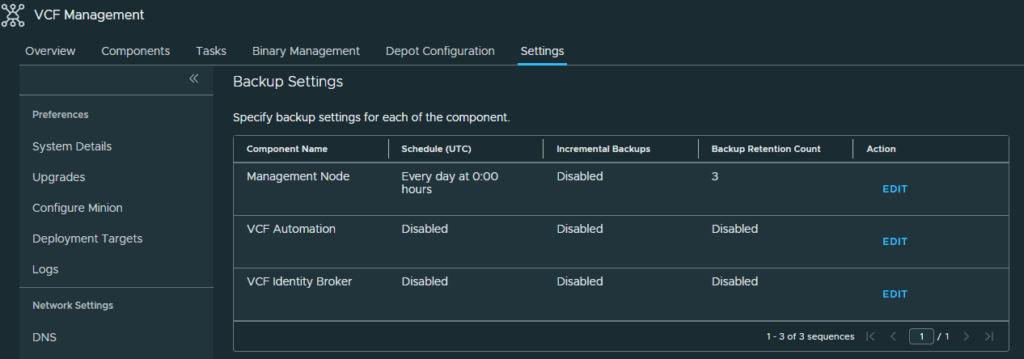
Once you have completed the configuration of all the VCF Components you can validate your settings at the settings page.
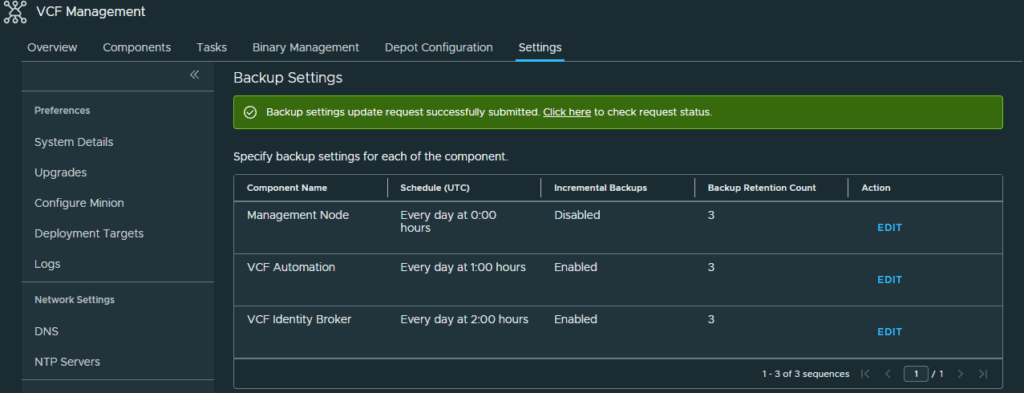
As you can see only certain components have been configured now, so we still have to configure NSX Manager, SDDC Manager and vCenter backups.
Configure SDDC Manager and NSX backups
We can configure the SDDC manager to configure the backup settings for both SDDC and NSX appliances. Start by logging in to the SDDC manager.
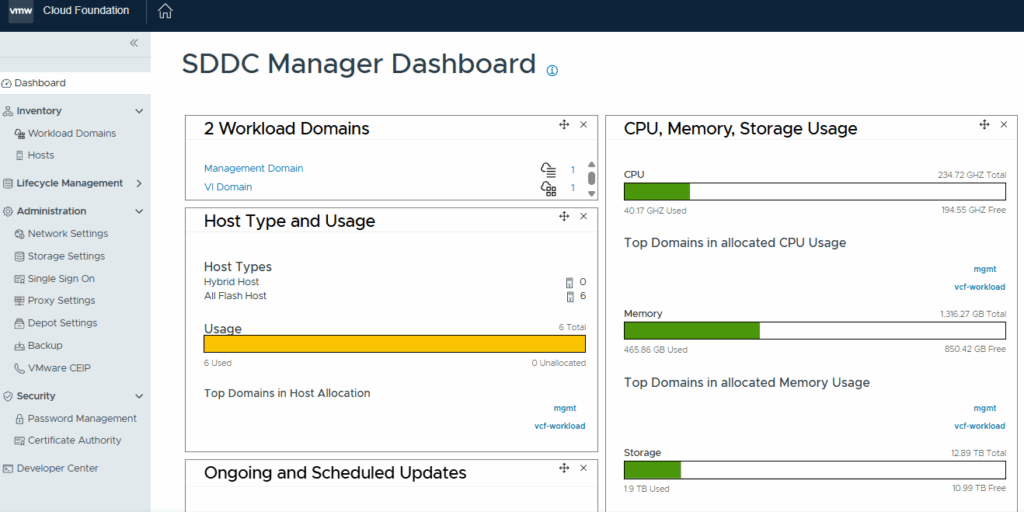
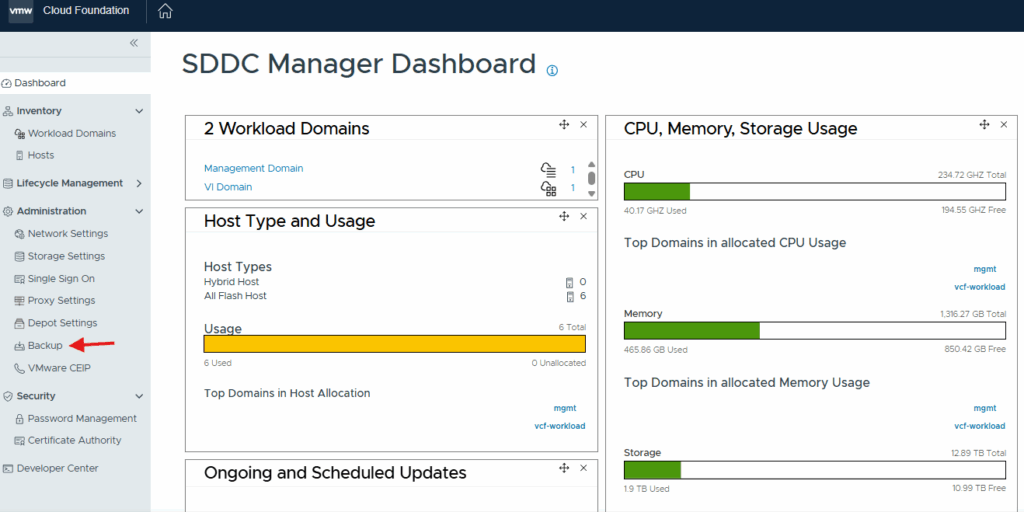
Click on Backup underneath Administration.
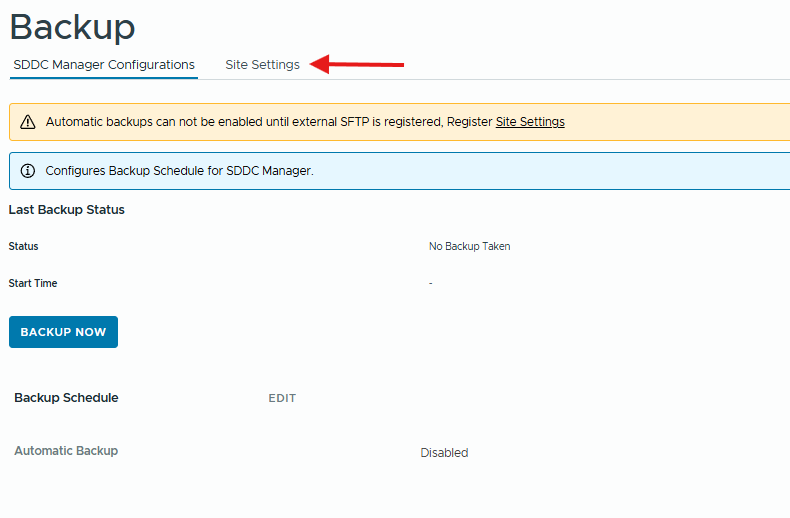
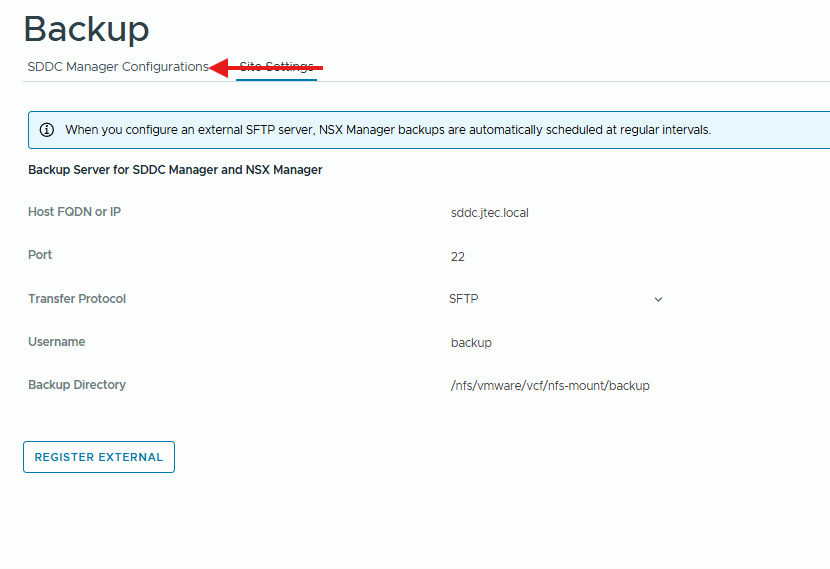
You will see that we can’t configure backups until an SFTP server is registered in Site Settings.
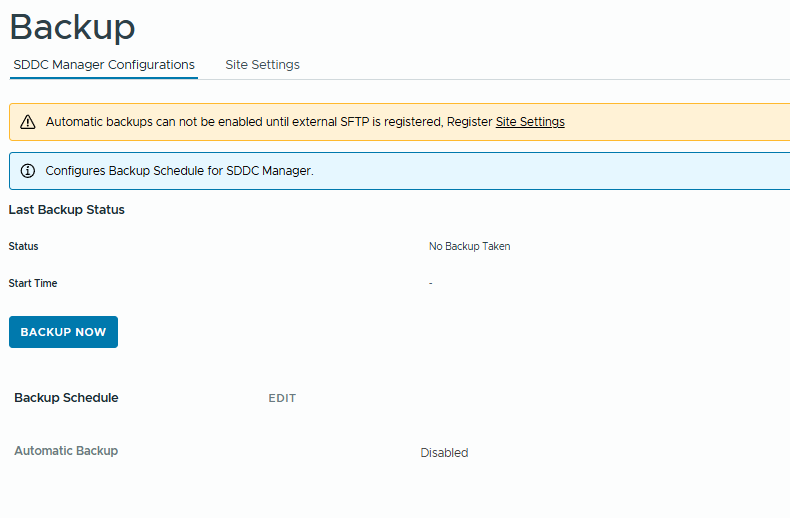
Click on Site Settings to configure the SFTP server.
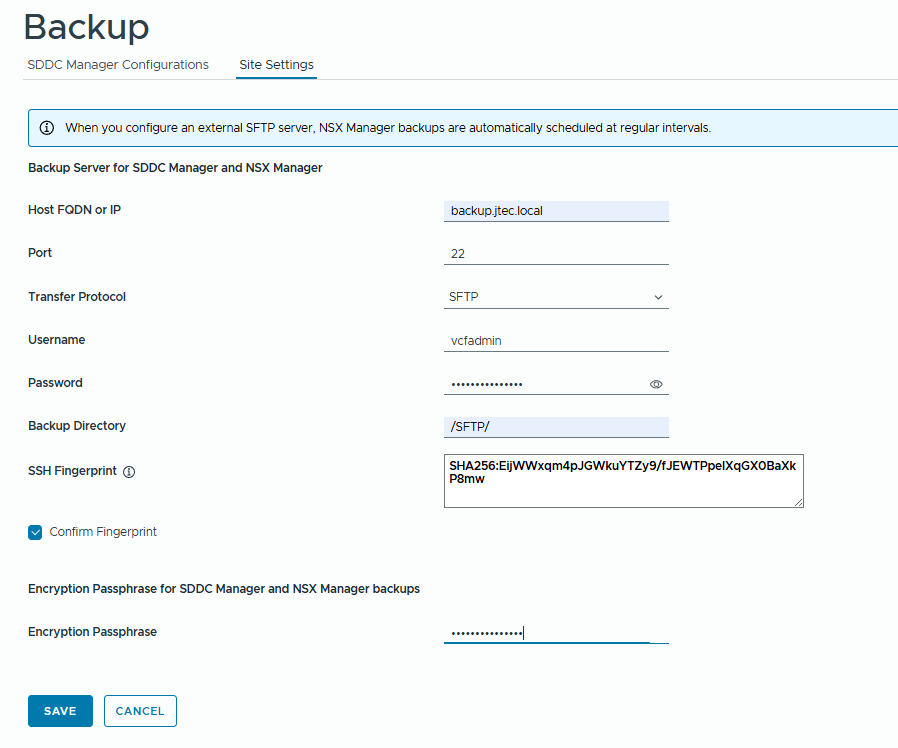
The SDDC manager defaults to its own server for backups. Enter in the required information to connect to the SFTP server that you built and click Save
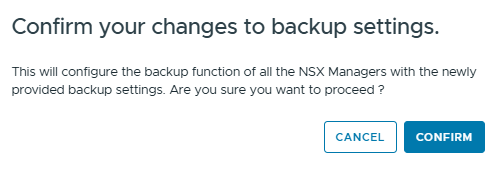
A pop-up will appear asking for confirmation on your settings. Click Confirm to continue.
If the connection is successful, the SDDC manager will begin configuration of the components
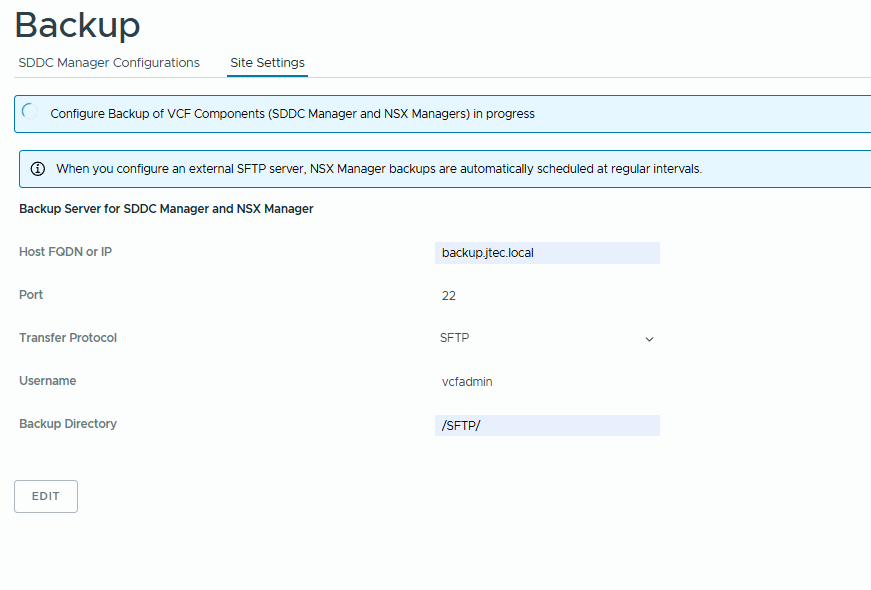
You can follow along in the tasks list to ensure no errors occurred.

Once the configuration has completed, click on SDDC Manager Configurations
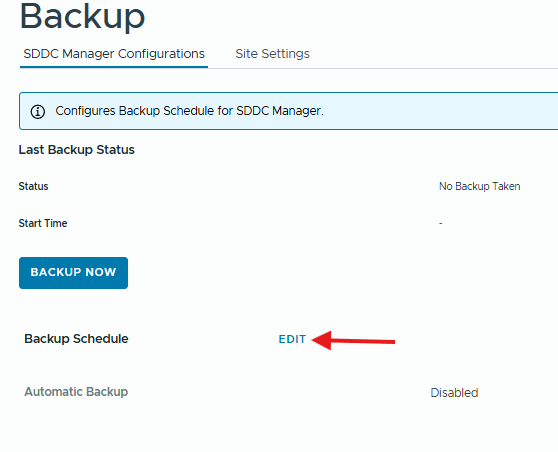
Click Edit next to Backup Schedule.
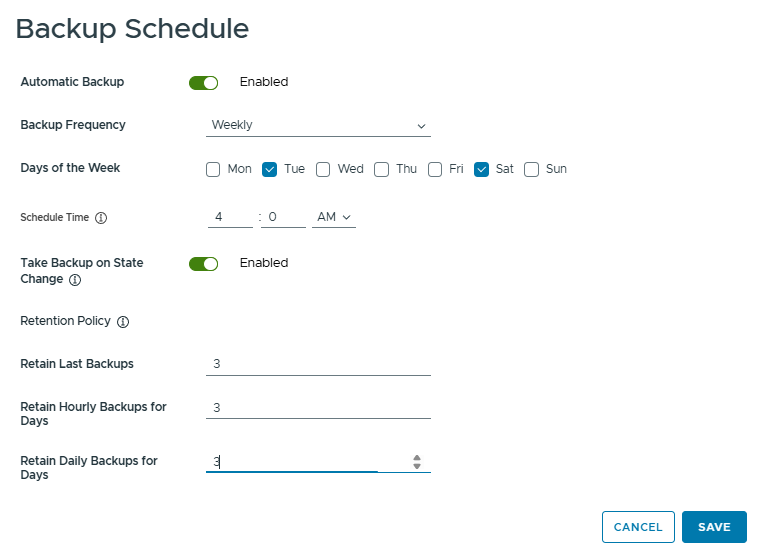
Configure the backup schedule for the SDDC manager, I have chosen to perform weekly backups 2 days a week at 0400 UTC and only retaining 3 backups of each type. Click Save to complete.
Configure the vCenter backup schedule
We have completed the backup configurations for SDDC Manager and NSX manager. All that is left now is to configure backups for vCenter. Start by logging into the vCenter VAMI gui, you will add the port 5480 at the end of the FQDN to access this interface.
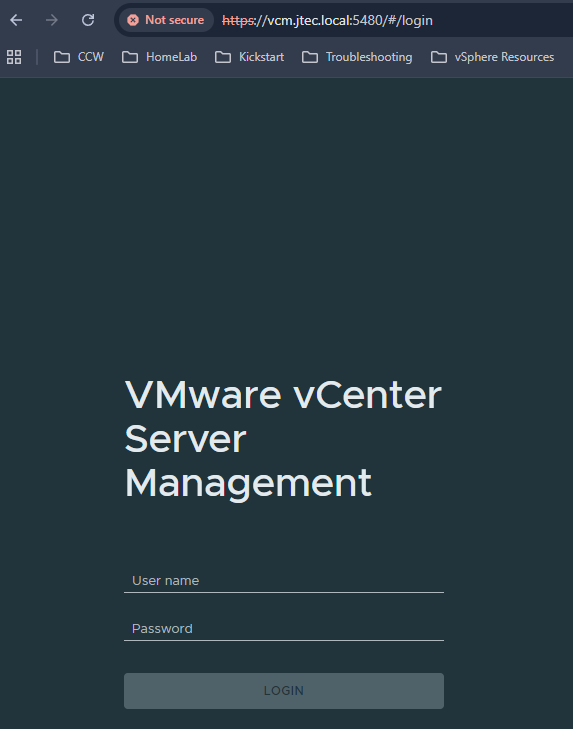
Login to the VAMI with your vCenter root account.
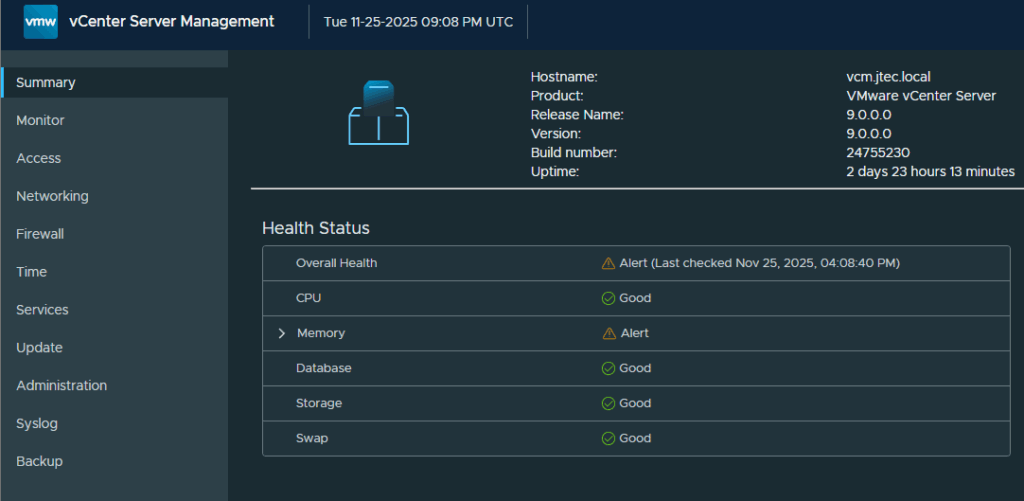
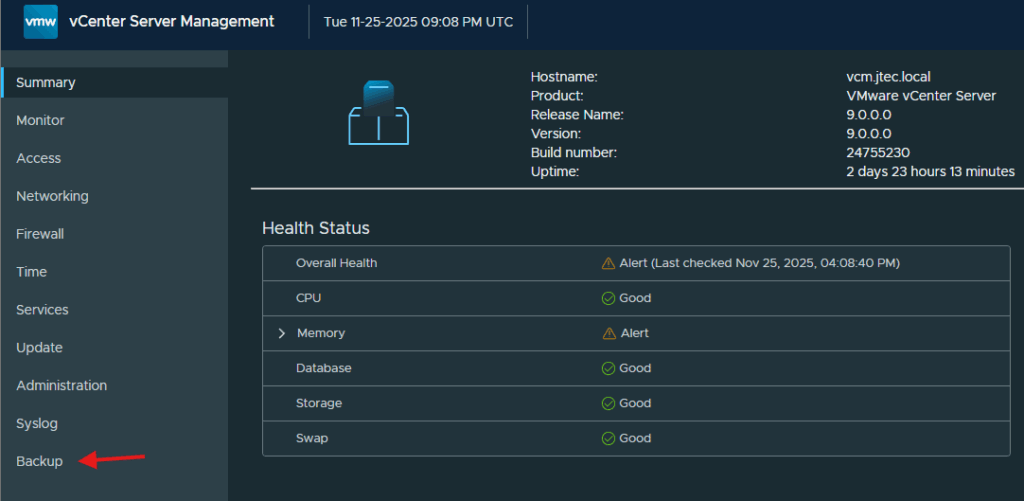
Click on Backup.
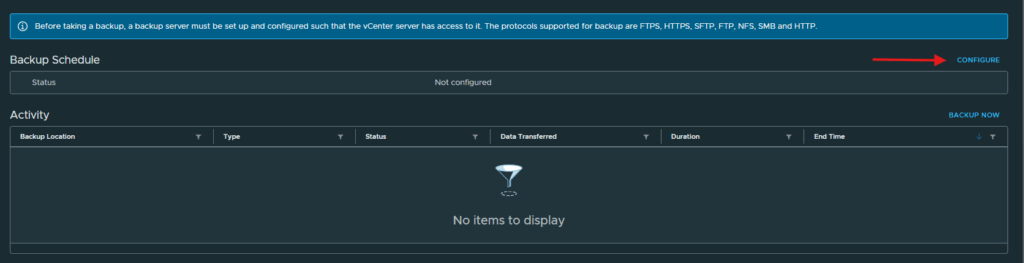
Click on Configure next to Backup Schedule.
In the Create Backup Schedule pop-up, enter in the backup location, server credentials and number of backups to retain for the vCenter server.
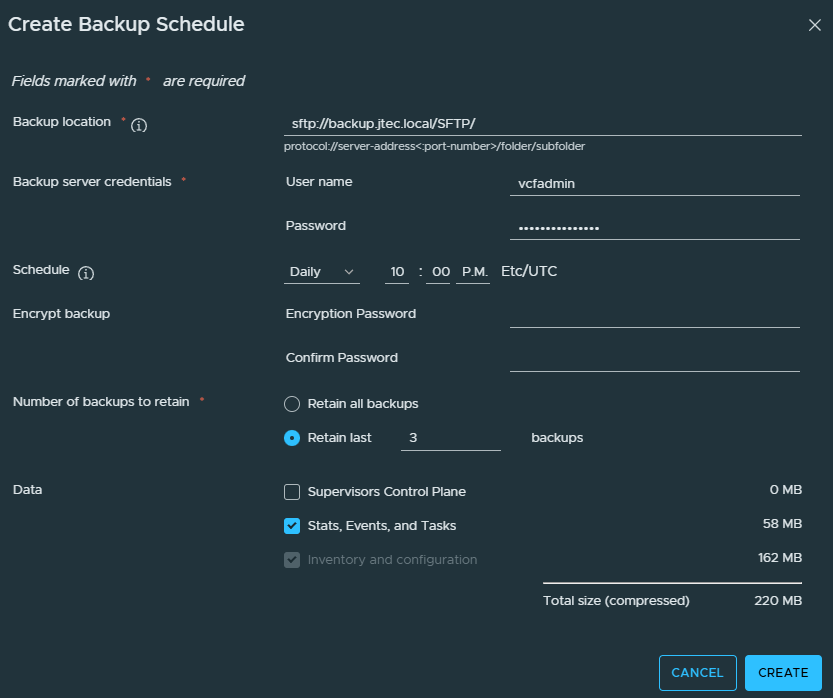
You can use different protocols with vCenter servers such as SMB but I only have an SFTP server created. You have to enter in the protocol at the beginning of the backup location address.
Click Create to confirm the schedule.
If successful, the Backup Schedule will show an Activated status.

The schedules shown here cover the listed management components. They do not establish backup coverage for every VCF service or workload; verify the remaining products and perform recovery tests separately.
You can return to my main VCF Lab page to follow along with this deployment.