
I wanted to build a two-node vSAN ESA cluster (Express Storage Architecture) in my homelab. This walkthrough covers the host networking, deployment of the ESA Witness Appliance, and the vSphere Client configuration wizard.
The final layout uses two ESXi hosts for vSAN data and a vSAN ESA Witness Appliance deployed from an OVA for witness components. The witness helps establish quorum; it does not add usable VM data capacity to the two-node datastore. See the vSAN 2-Node Cluster Guide for the architecture and deployment requirements.
Networking for a two-node vSAN ESA cluster
Before starting, I had the two data hosts in a cluster and had created the distributed port groups for the vSAN network. The witness appliance remains outside the data cluster and is managed by the same vCenter Server. Its network must be able to communicate with the data hosts.
This is a homelab configuration. Hardware, capacity, and settings shown here describe my lab; check the compatibility and sizing requirements for your own deployment. Environment-specific names and addresses in the screenshots have been replaced with consistent generic examples. The settings and selections reflect the captured walkthrough.
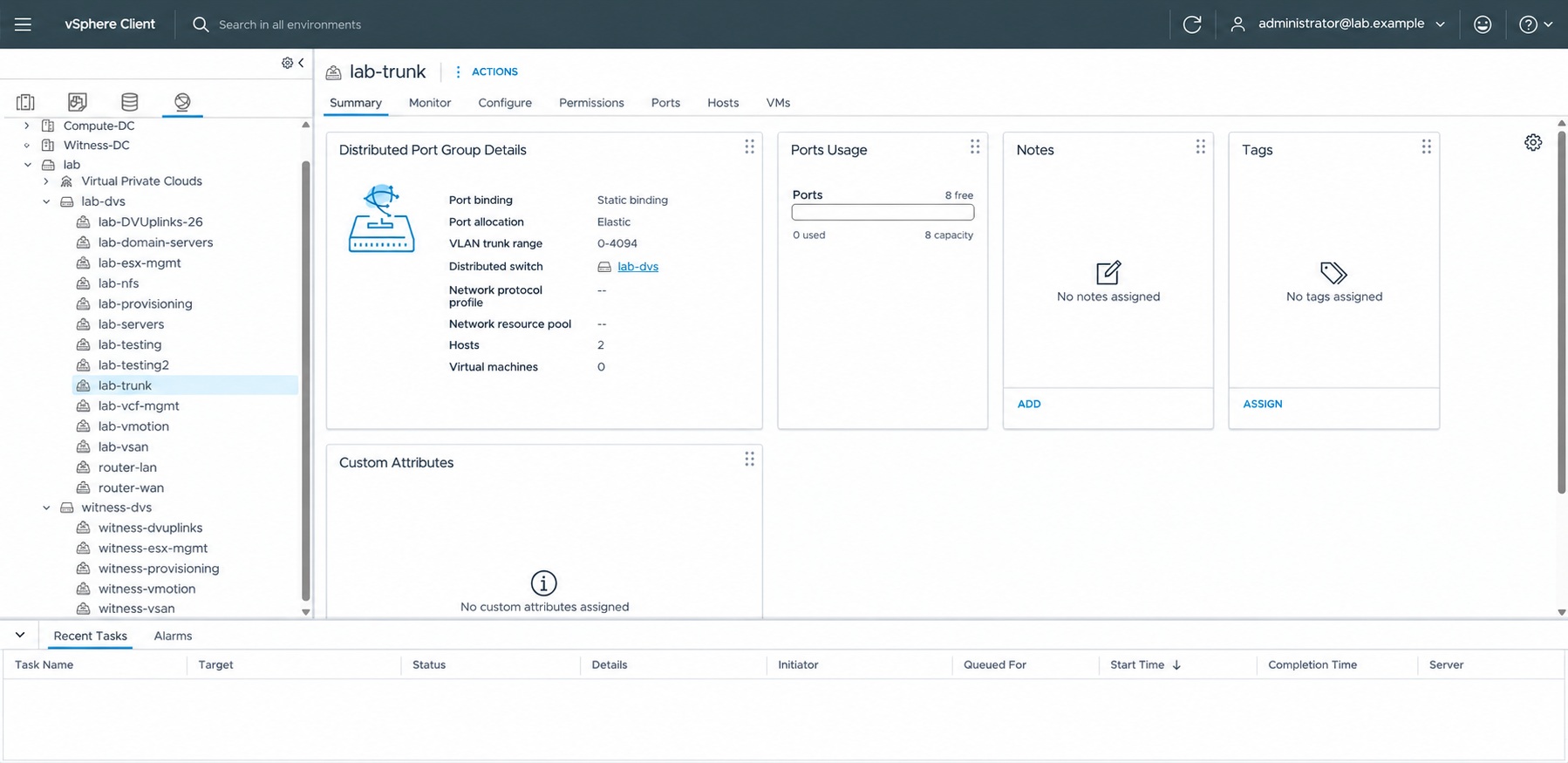
Create a vSAN VMkernel adapter on each data host
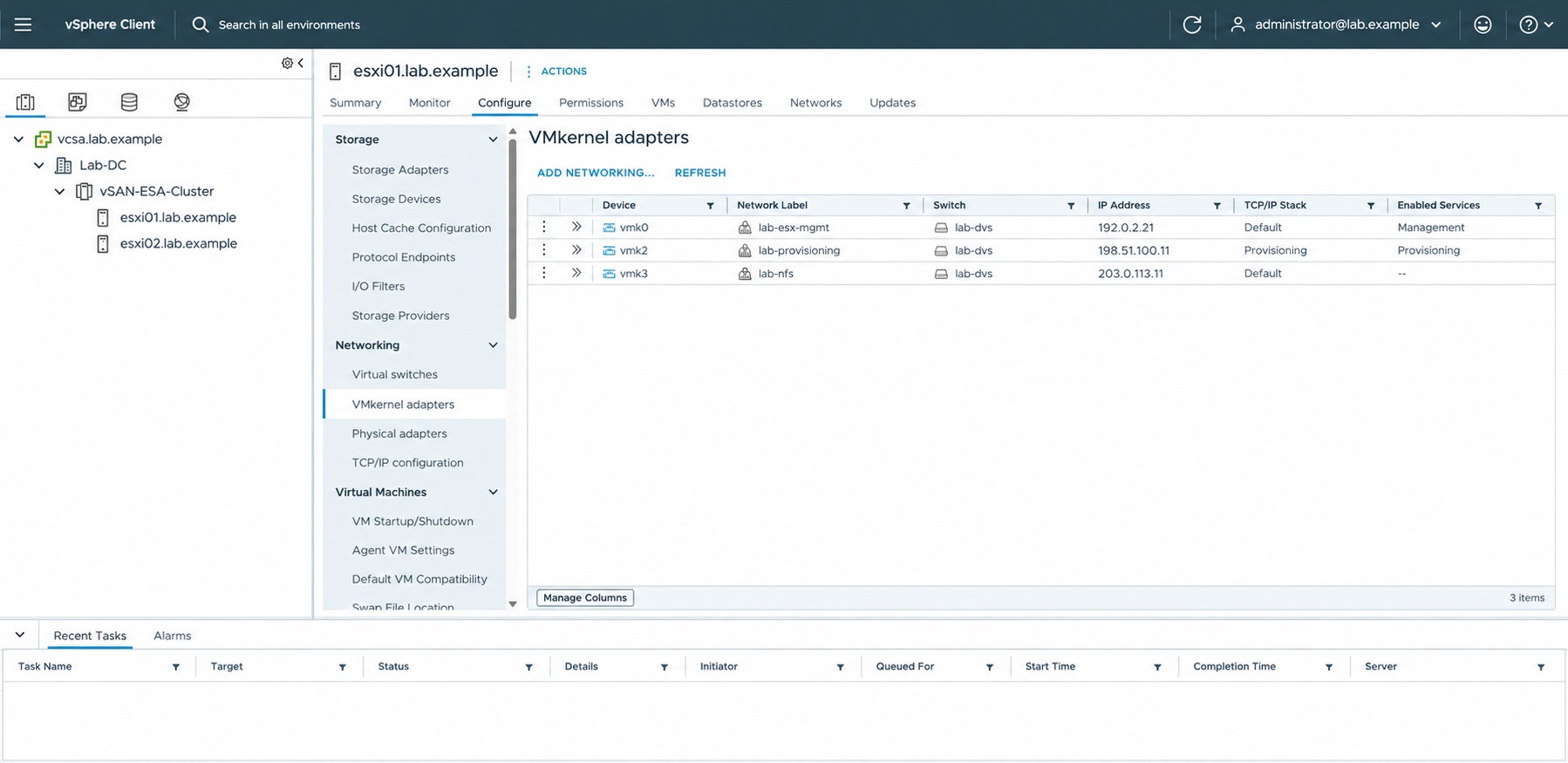
Select the first data host and open Configure → Networking → VMkernel adapters. Click Add Networking.
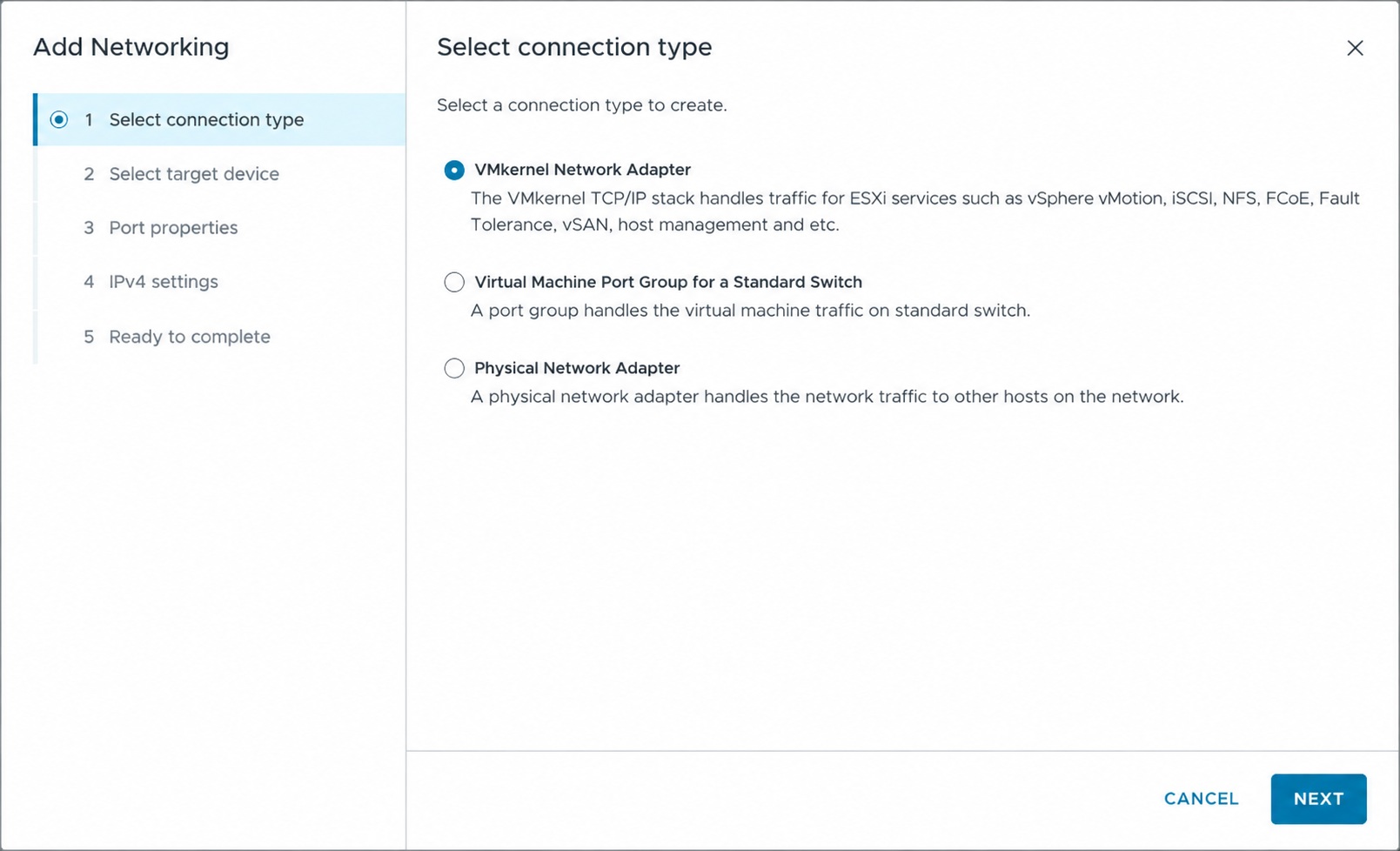
For the connection type, select VMkernel Network Adapter and click Next.
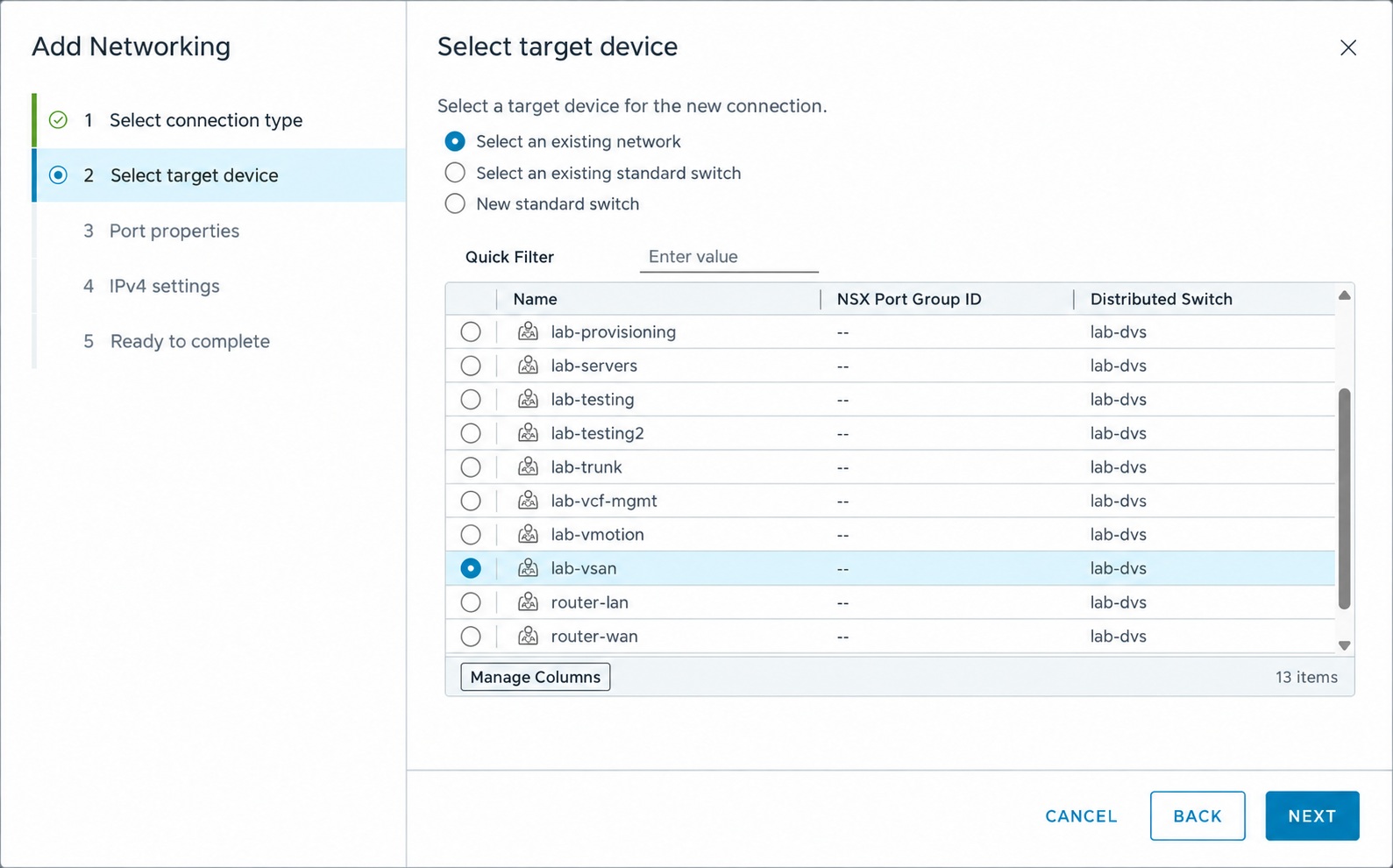
Choose Select an existing network, then select the distributed port group created for vSAN traffic.
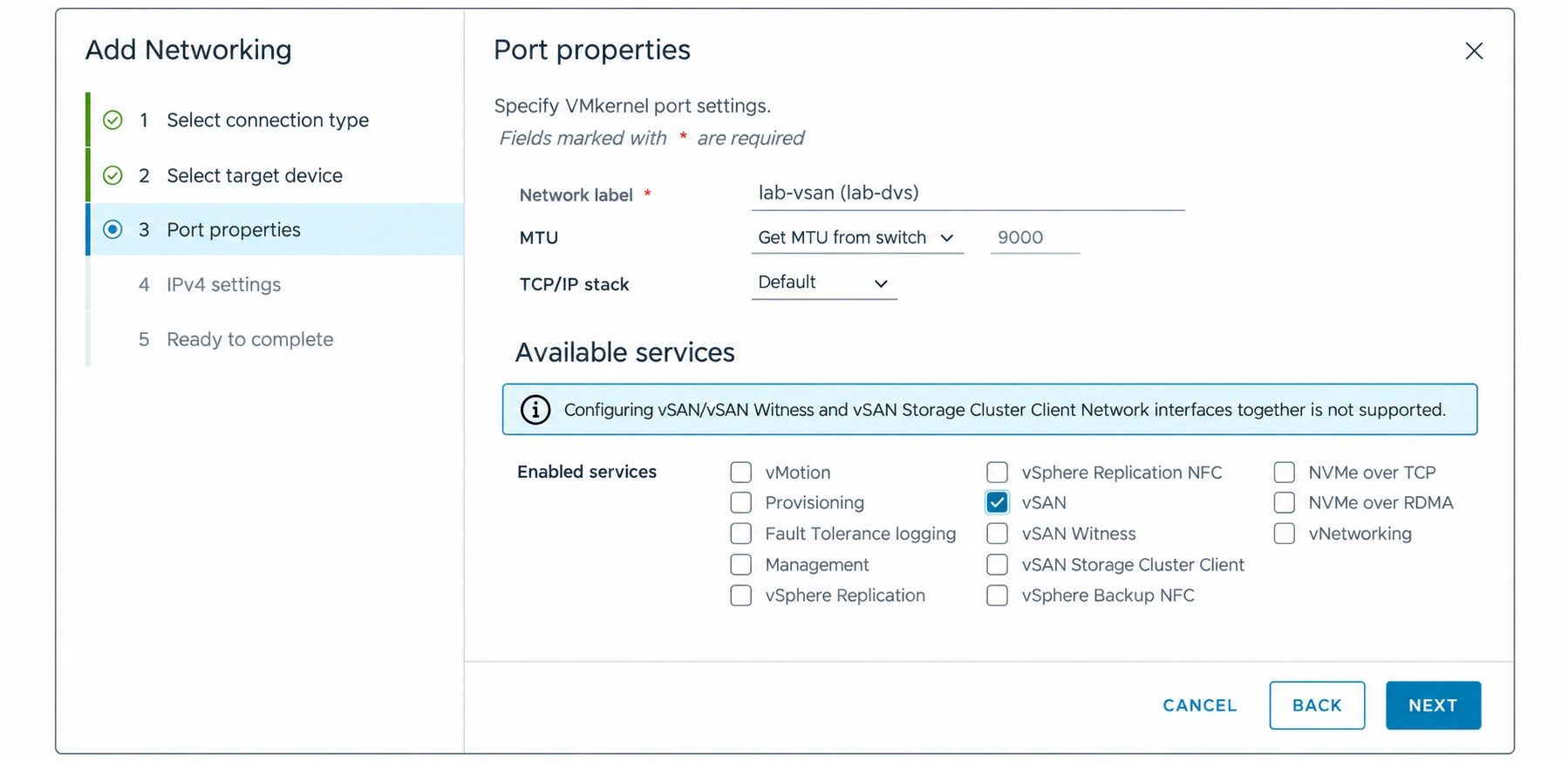
On Port properties, enable the vSAN service. I used the Default TCP/IP stack and an MTU of 9000. Use an MTU supported consistently across the full network path; changing only the VMkernel setting does not establish end-to-end jumbo-frame connectivity.
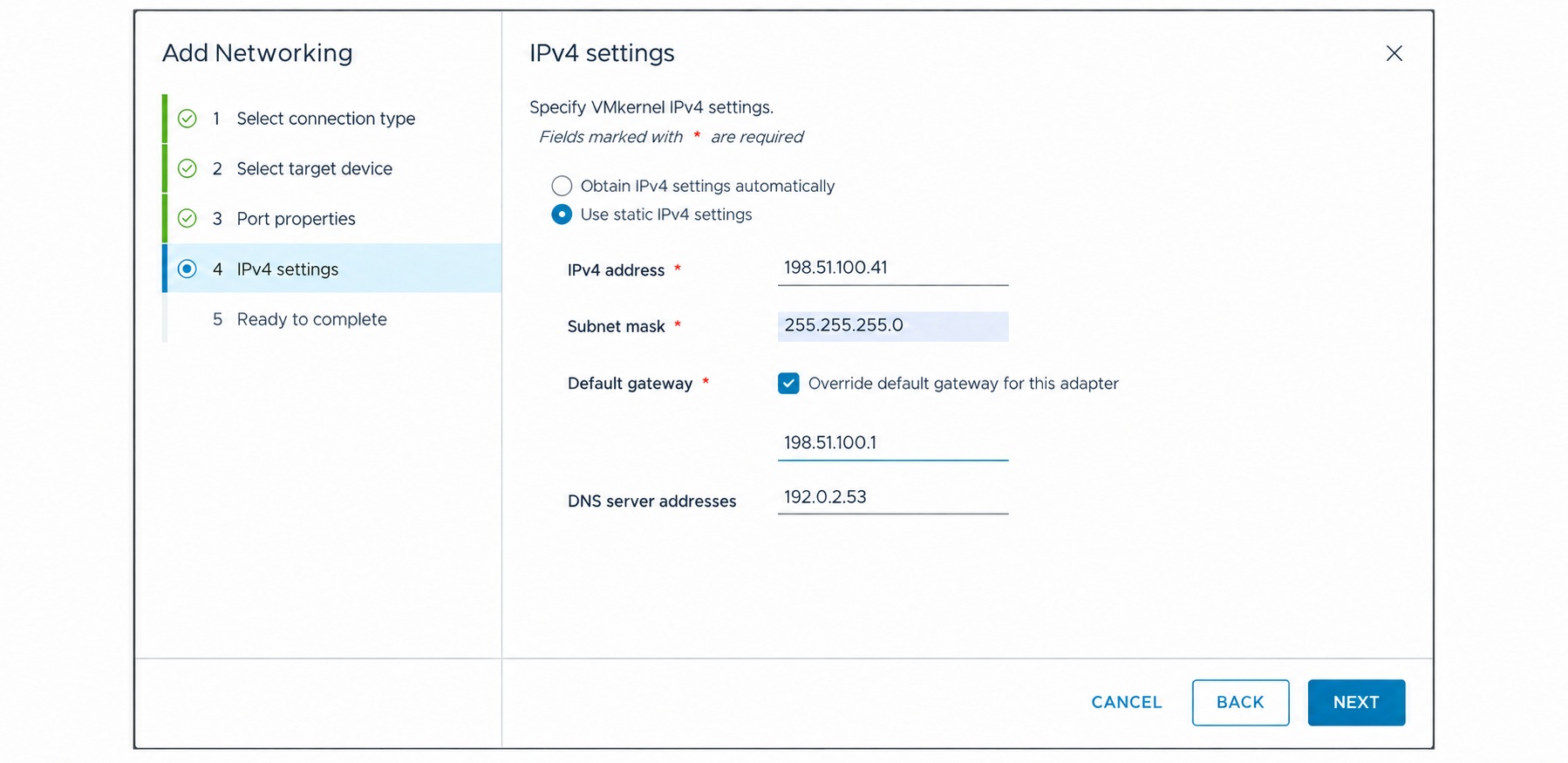
Enter the host’s static IPv4 configuration. Use a unique address for each host, the correct subnet mask, and the appropriate routing for your network. The screenshot uses generic example values in place of my internal addresses: IP 198.51.100.41, subnet mask 255.255.255.0, gateway 198.51.100.1, and DNS server 192.0.2.53.
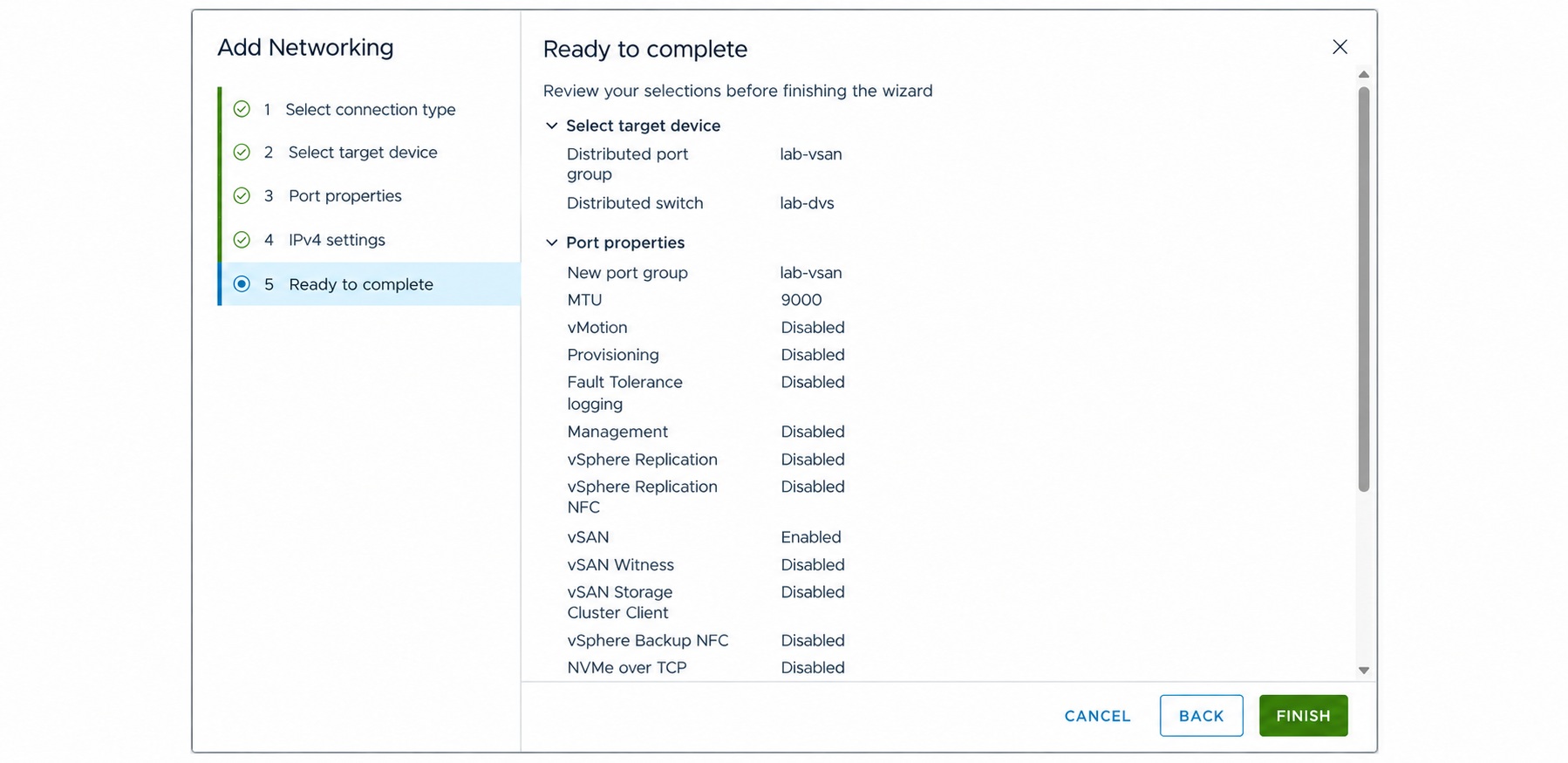
Review the selected port group, MTU, and enabled services, then click Finish. Repeat the same process on the second data host, using its own IP address. I have included the first host’s screenshots because the second host follows the same workflow.
Deploy the vSAN ESA Witness Appliance OVA
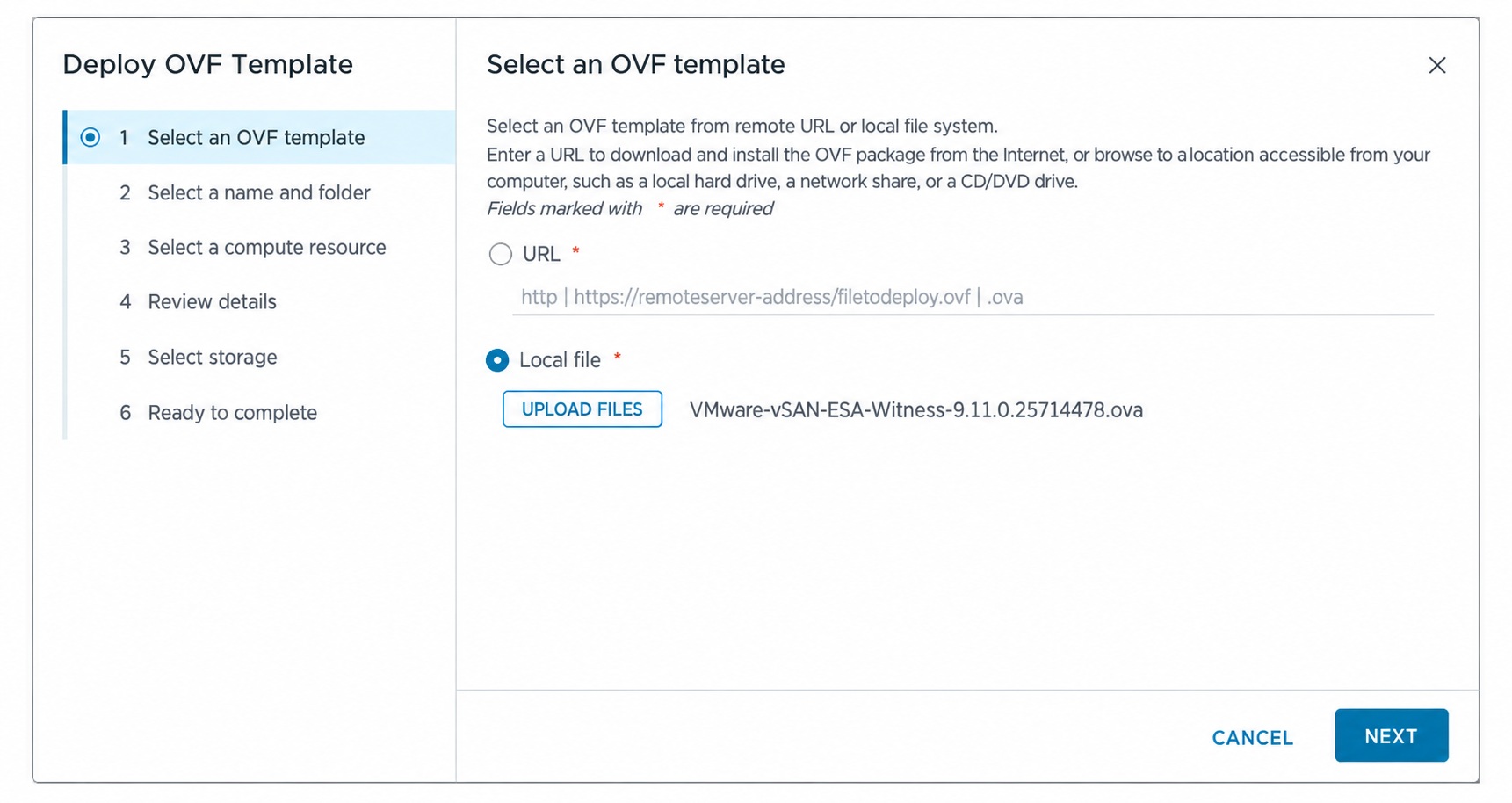
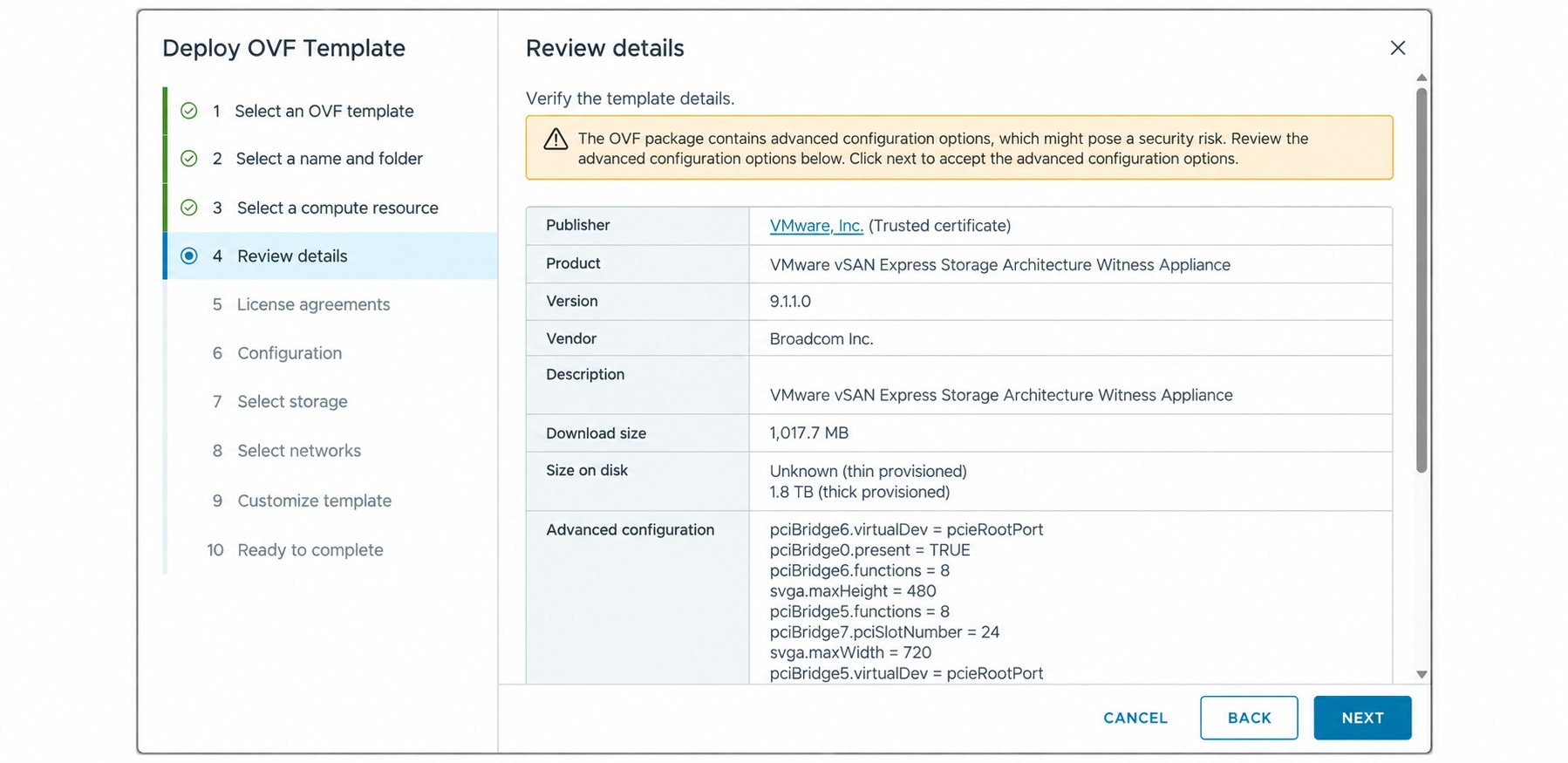
Download the ESA witness OVA from the Broadcom Support portal with the required entitlements. Start Deploy OVF Template in the vSphere Client, choose Local file, and select the downloaded OVA. This walkthrough uses the 9.1.1.0 ESA witness template.
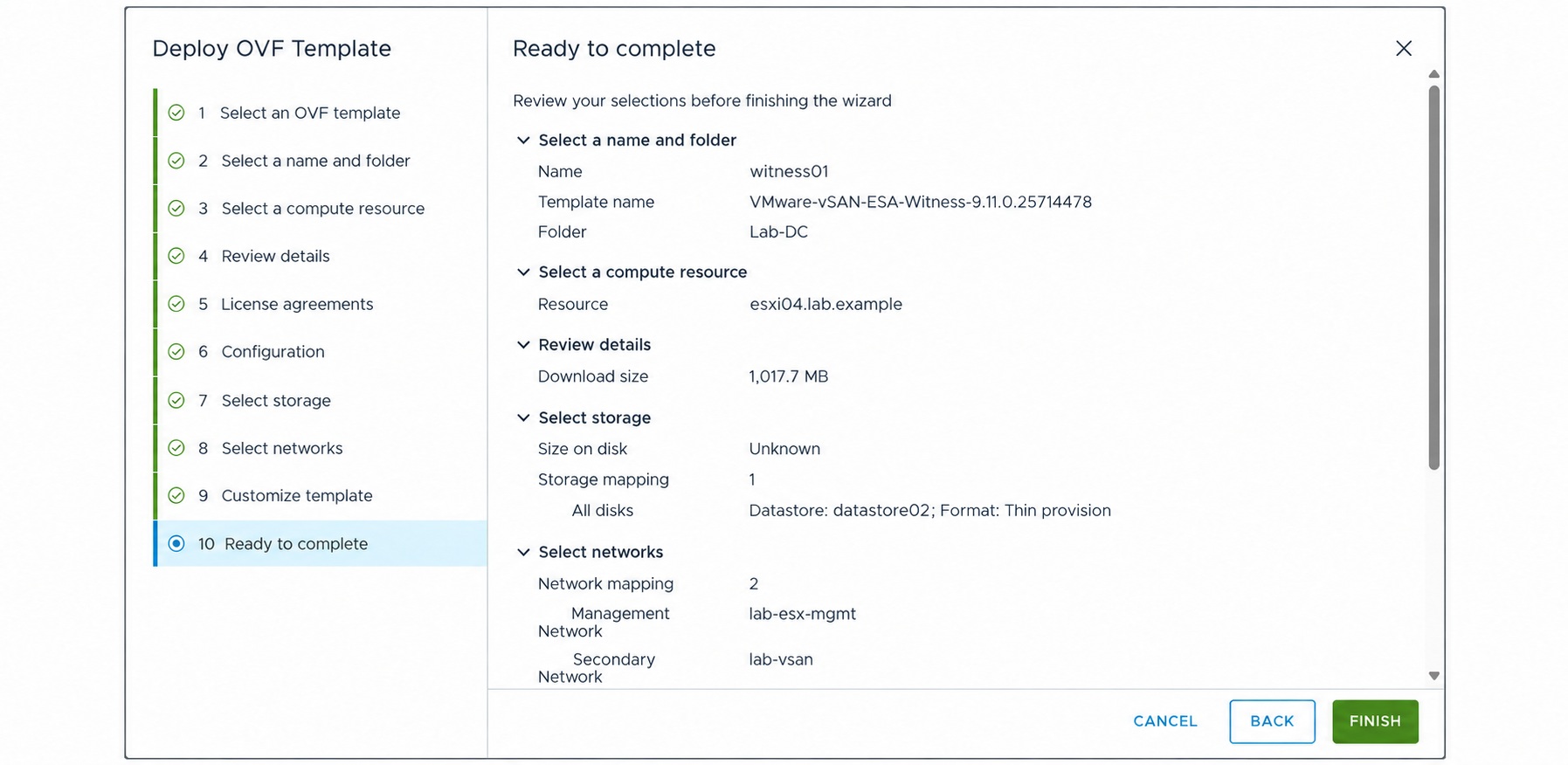
Enter an appliance name and choose its inventory location. The examples in this post use witness01 and Lab-DC.
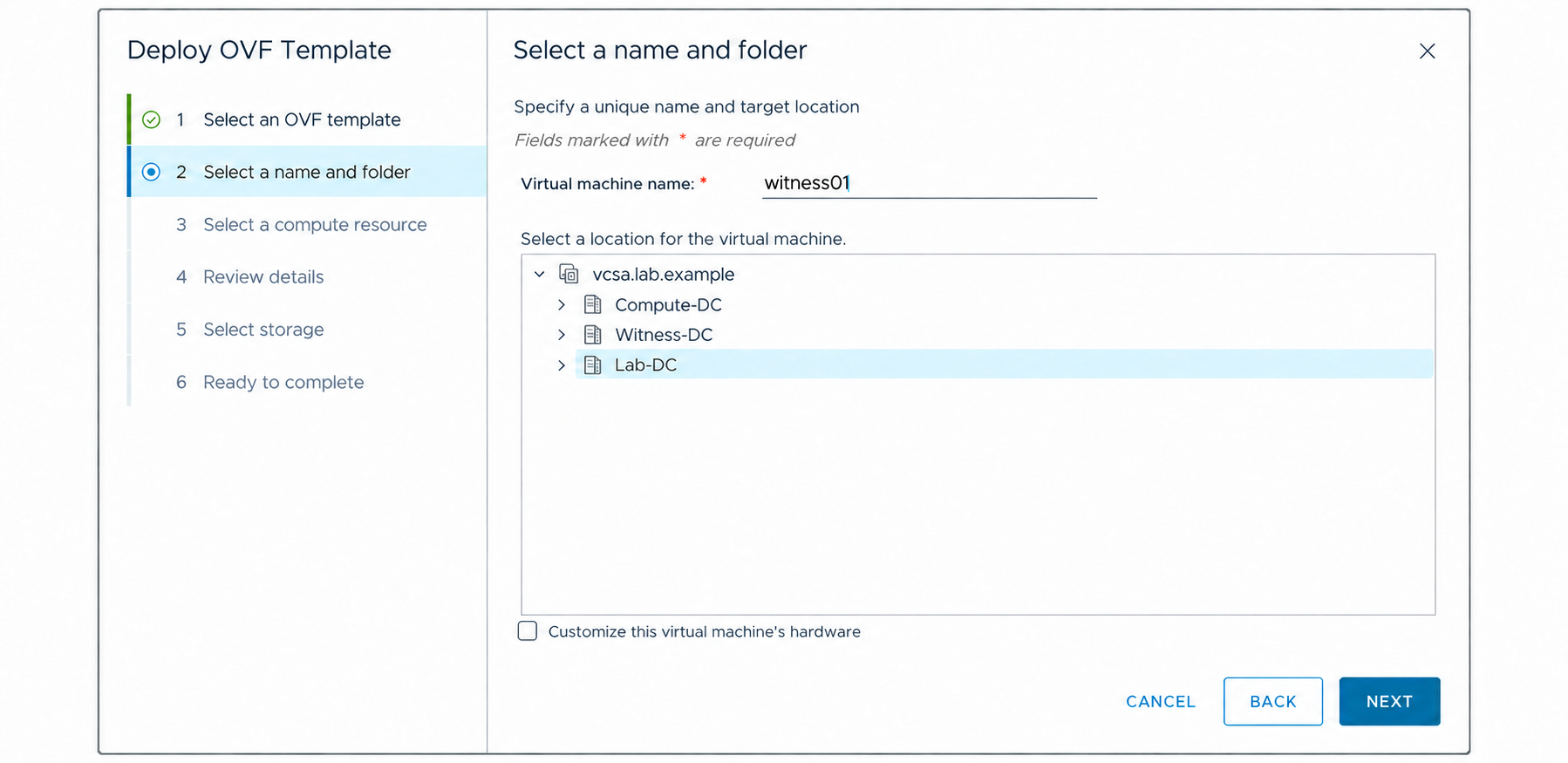
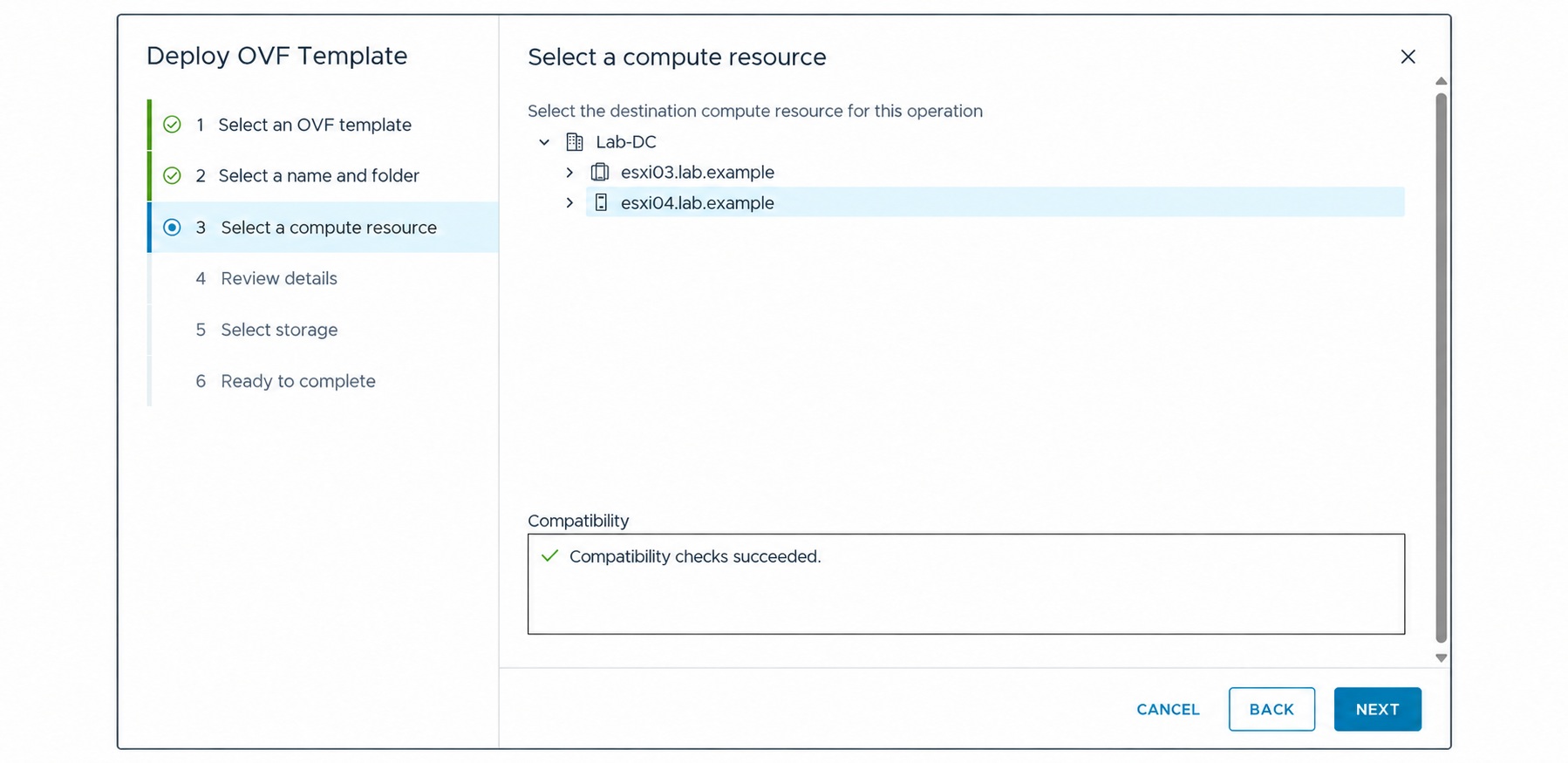
Select the compute resource that will run the witness VM and confirm the compatibility check succeeds.
Review the template details and advanced configuration options.
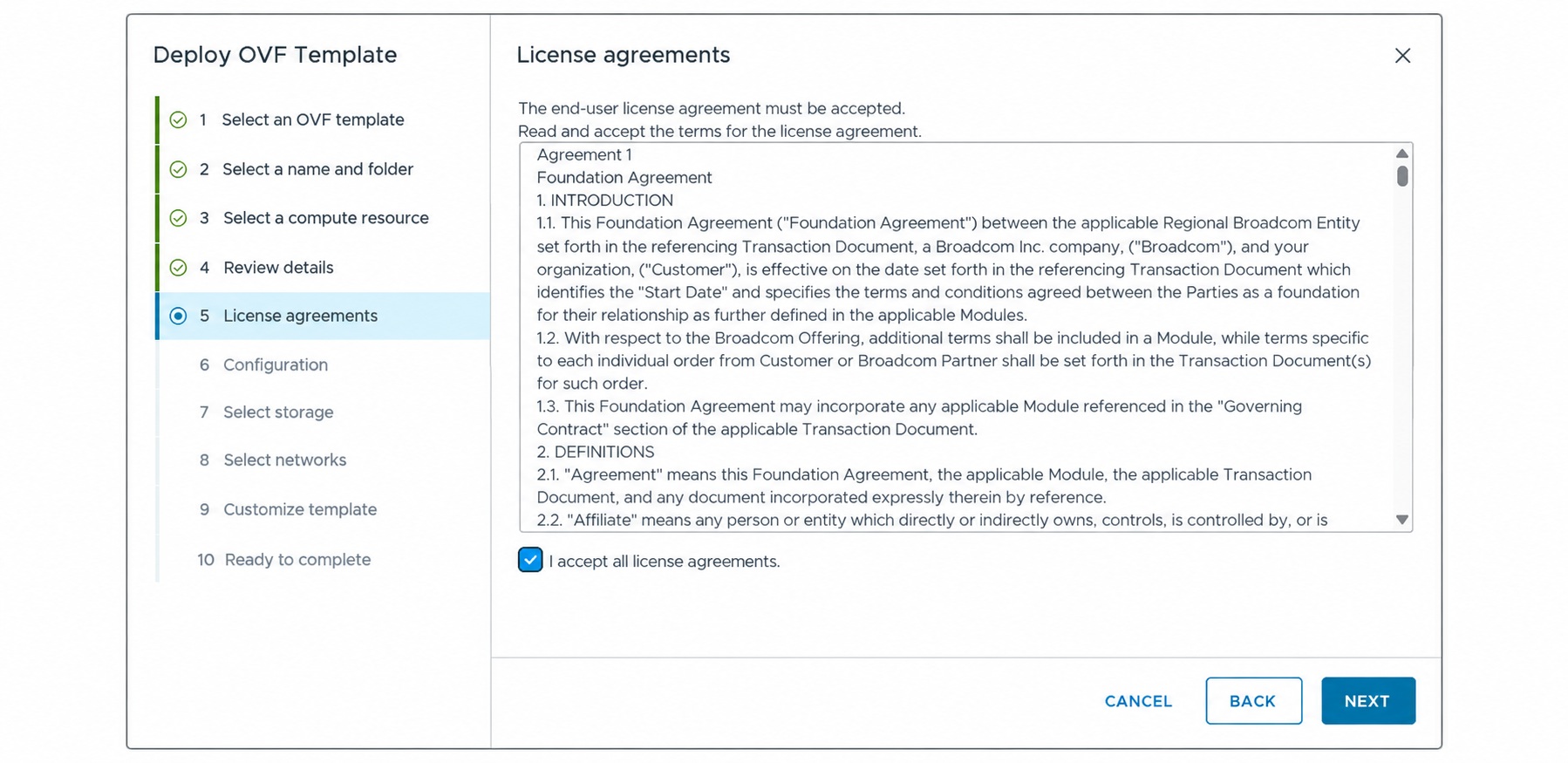
Read the license agreement and accept it to continue with deployment.
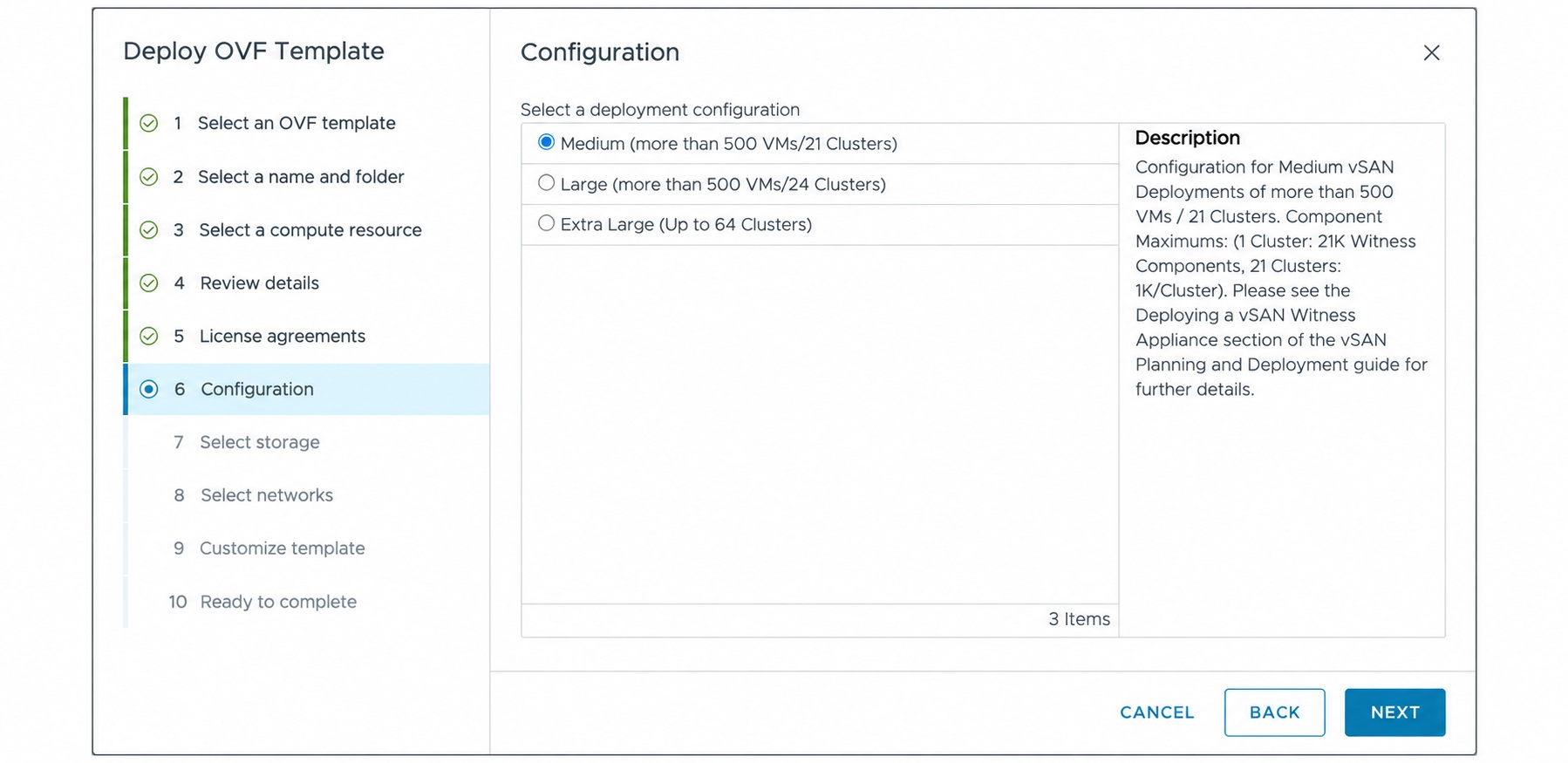
Choose the deployment configuration appropriate for your environment. I selected Medium in this lab.
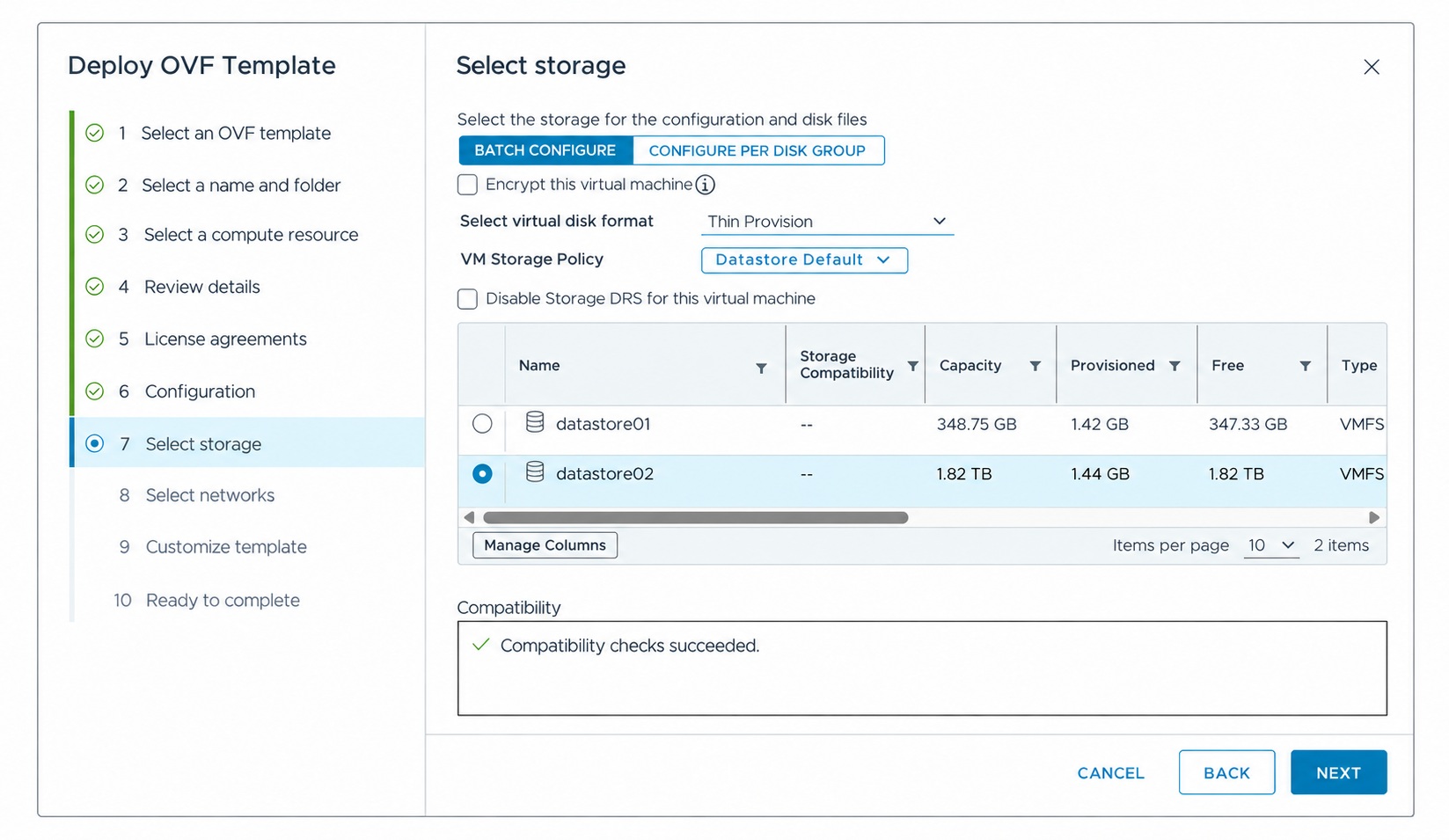
Select the datastore and virtual disk format. I used Thin Provision for the witness VM.
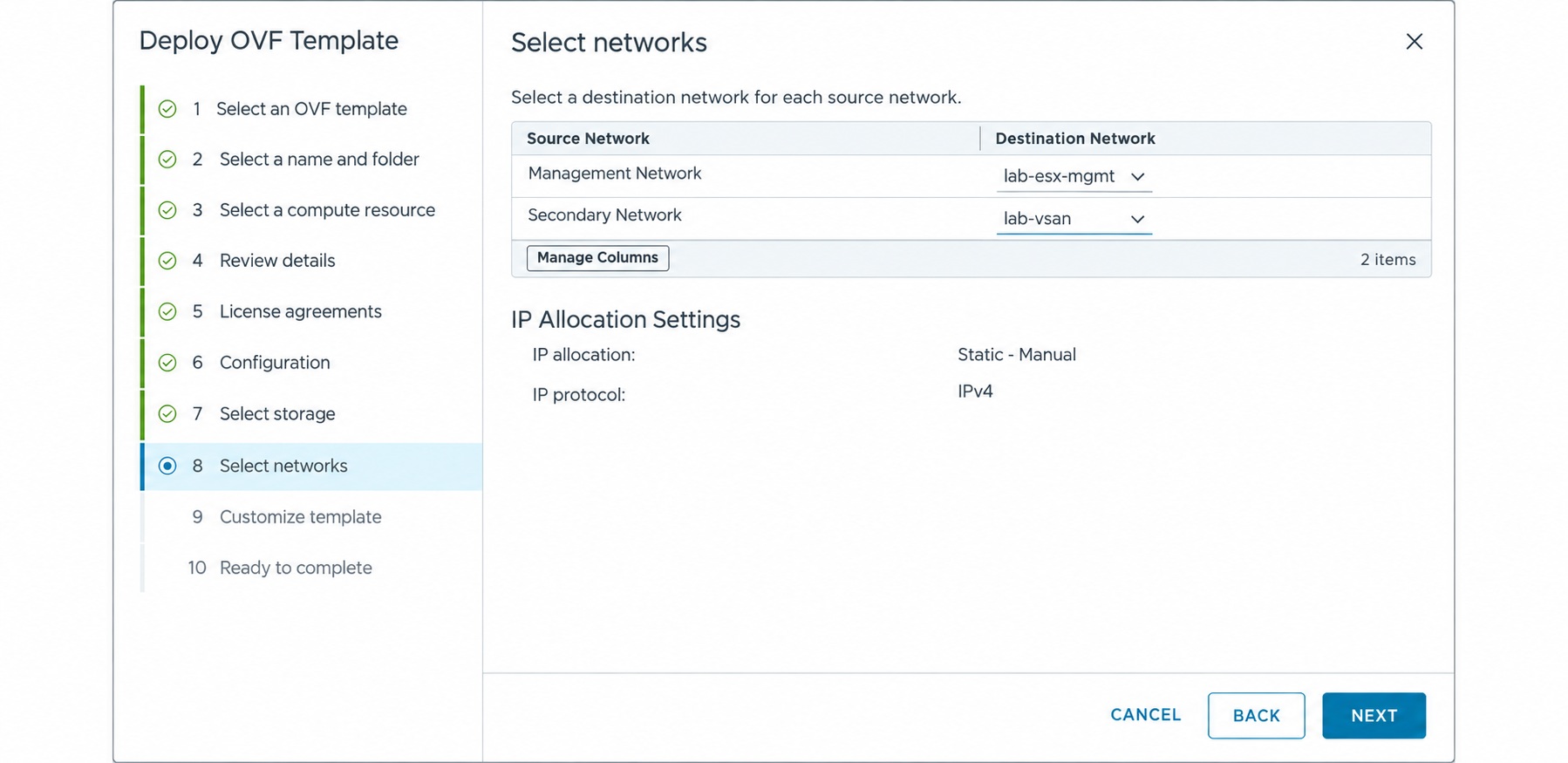
Map Management Network to the management port group and Secondary Network to the vSAN port group. The examples use lab-esx-mgmt and lab-vsan.
Set and confirm the appliance root password, then select Secondary for vSAN traffic. Enter the management-network settings.
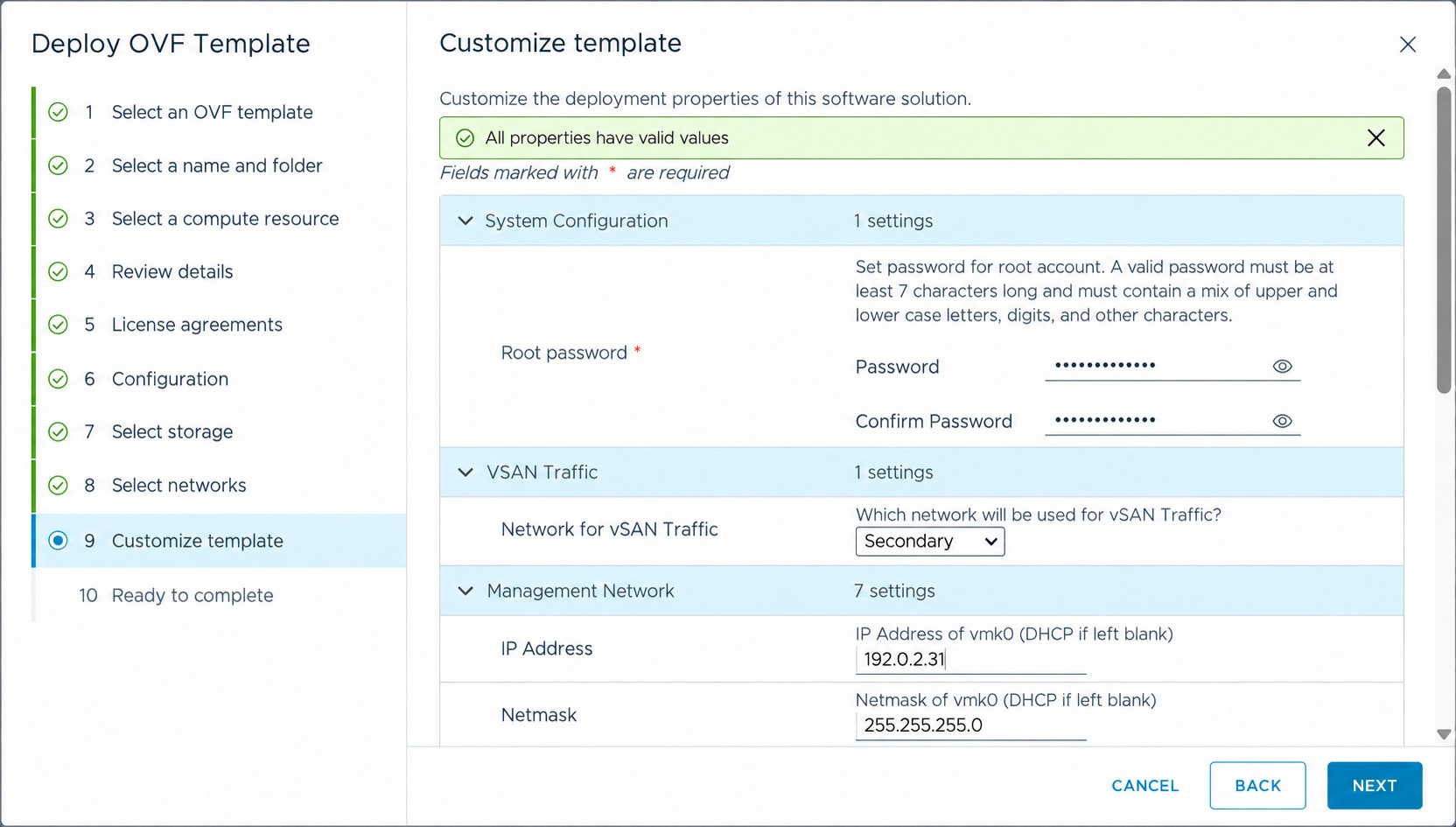
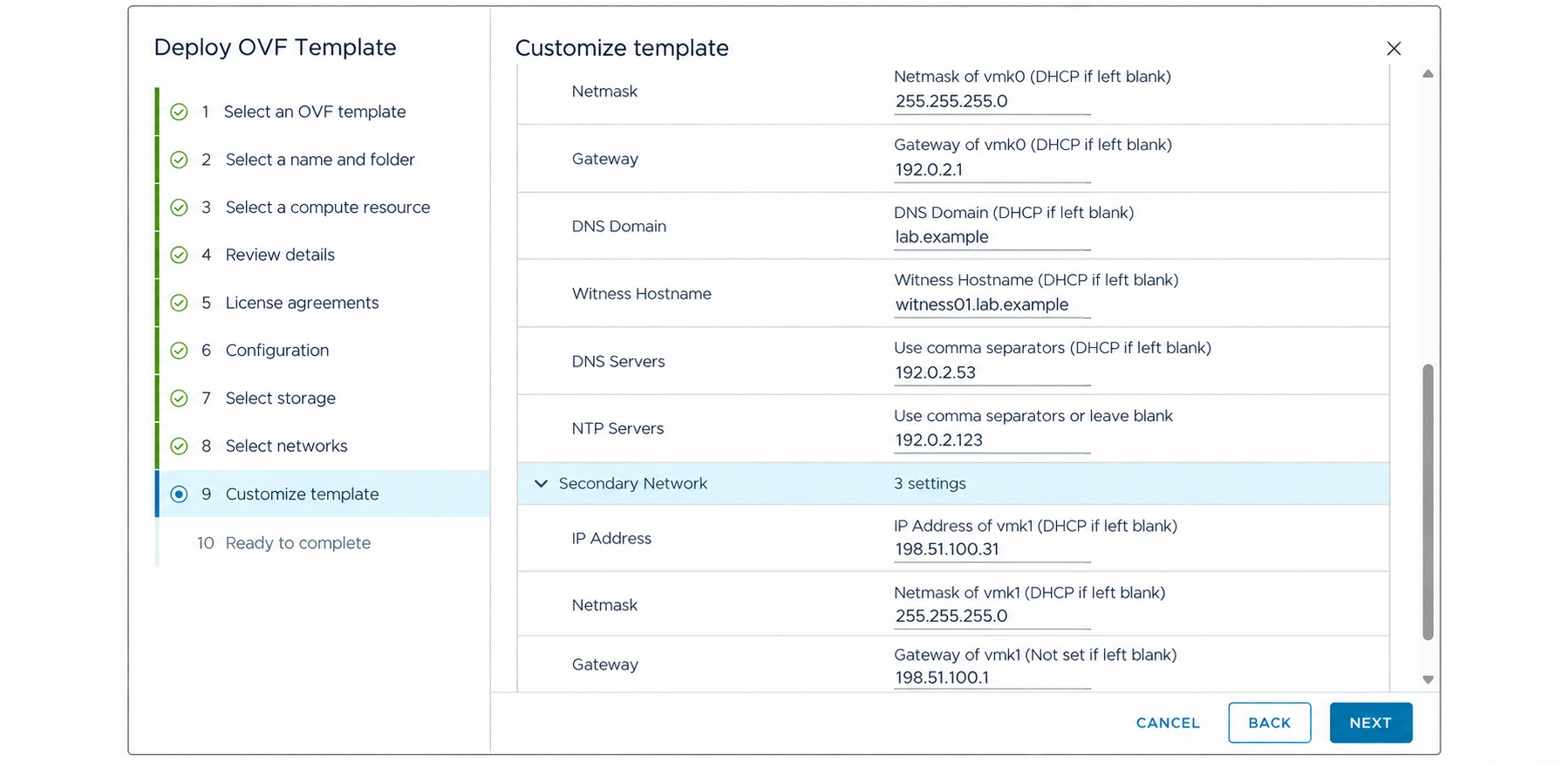
Complete the management gateway, DNS domain, hostname, DNS and NTP settings, then configure the secondary network’s IP address, mask and gateway. The screenshots use example values; substitute your own network settings.
Review the deployment summary and click Finish. Wait for deployment to complete and power on the appliance.
Correct the witness gateways and MTU after deployment
After deploying the witness OVA, I found that it had not applied the management-network gateway I entered. It was using the vSAN-network gateway for the management network as well, which prevented management communication from working.
I opened the witness appliance’s web console and corrected the management gateway. I also changed the default gateway on the vSAN VMkernel adapter to the correct gateway for its own subnet.
Finally, I increased the MTU on both the secondary virtual switch and the vSAN VMkernel adapter from the default 1500 to 9000, matching the two data hosts in this cluster. Leaving the witness path at 1500 would create an MTU mismatch with this lab’s 9000-byte vSAN configuration. The full network path must support the configured MTU.
These were corrections I made in this deployment. Check the management and vSAN gateways separately and verify the MTU settings before continuing.
Add the ESA witness to vCenter as a standalone host
After deploying and powering on the appliance, right-click the datacenter and select Add Host. The generalized screenshots call this datacenter Lab-DC. Add the witness as a standalone host outside the two-node data cluster.
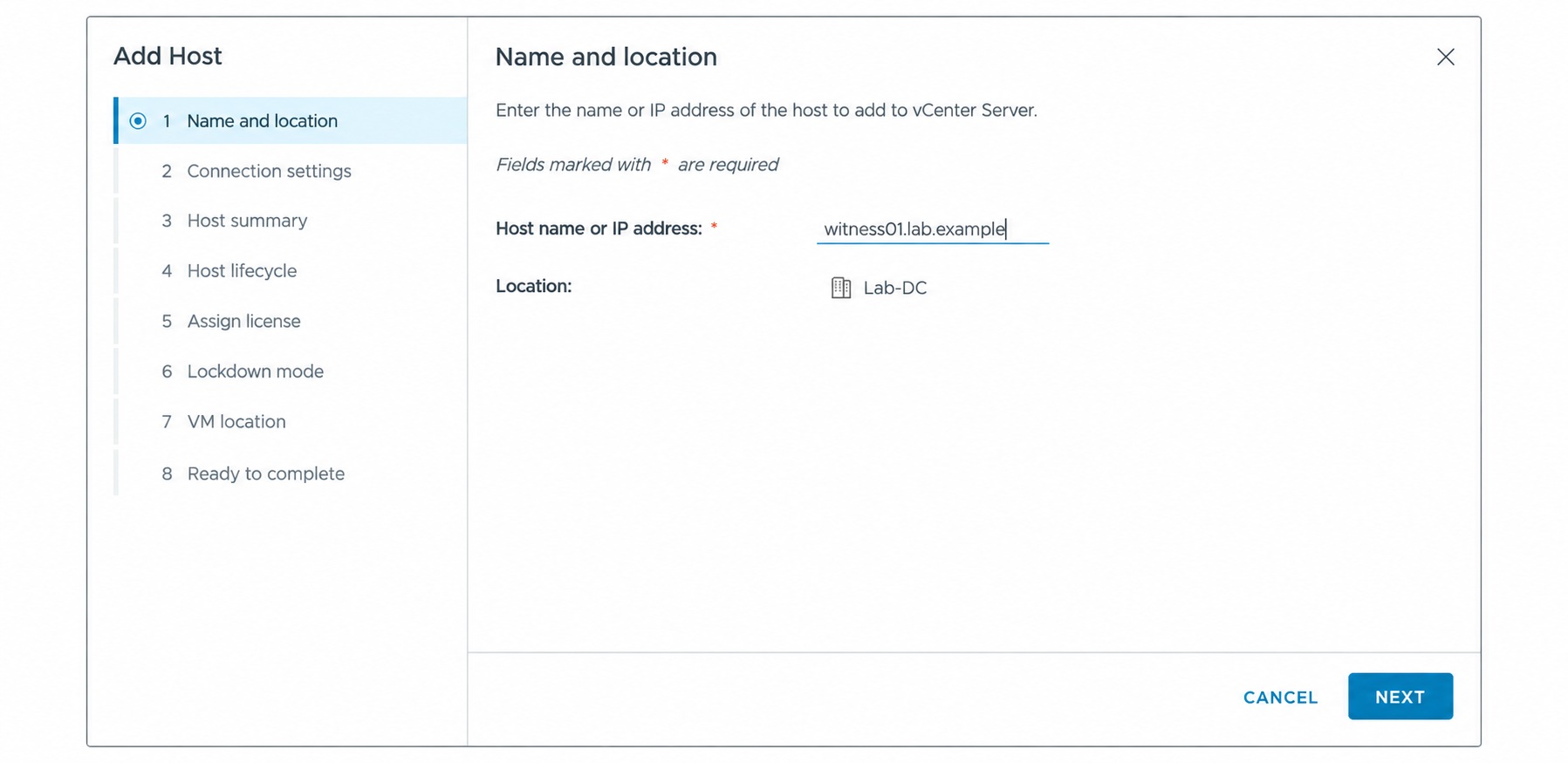
Enter the appliance’s management hostname or IP address. The example hostname is witness01.lab.example.
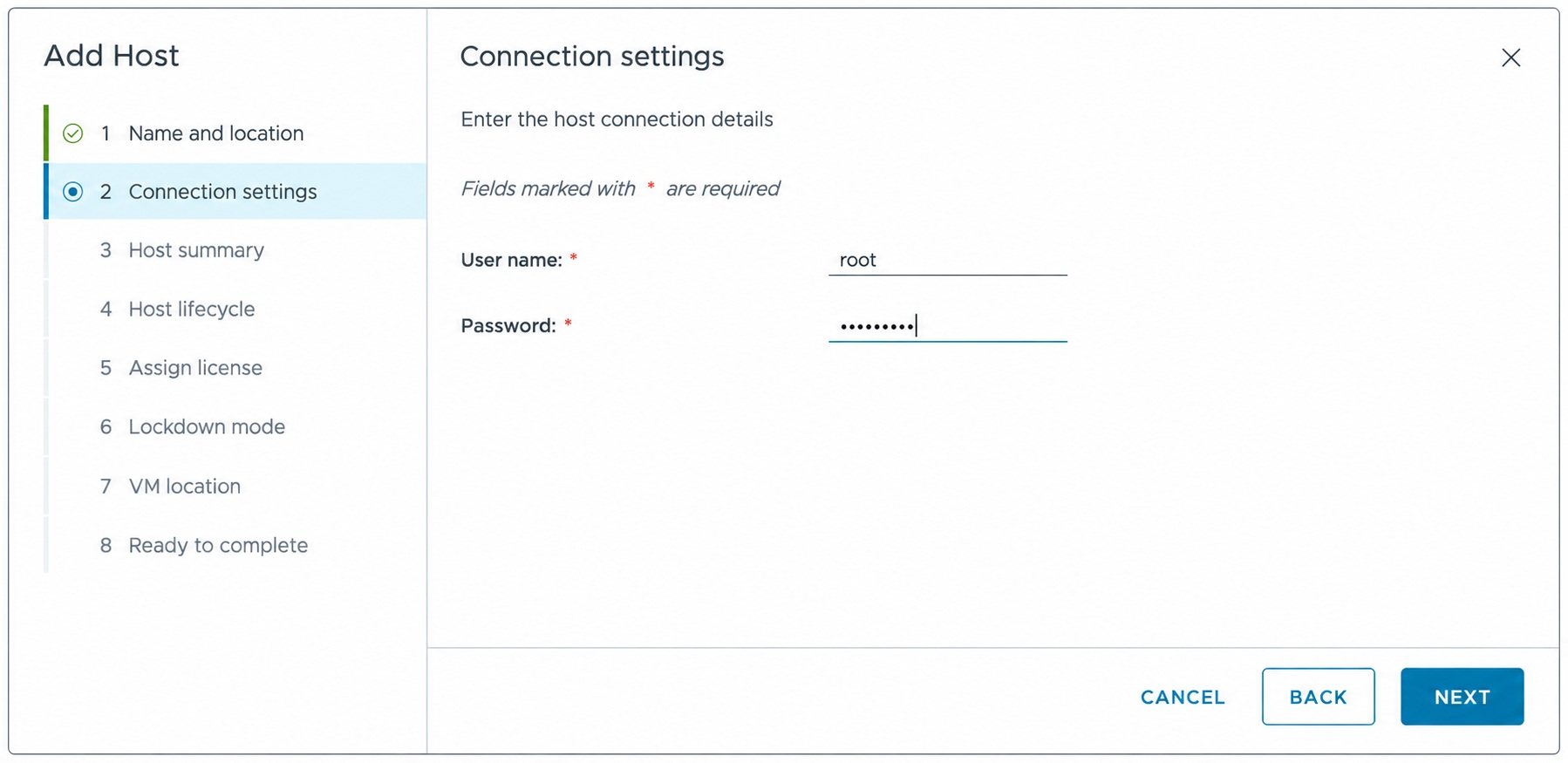
Enter root and the password configured during OVA deployment.
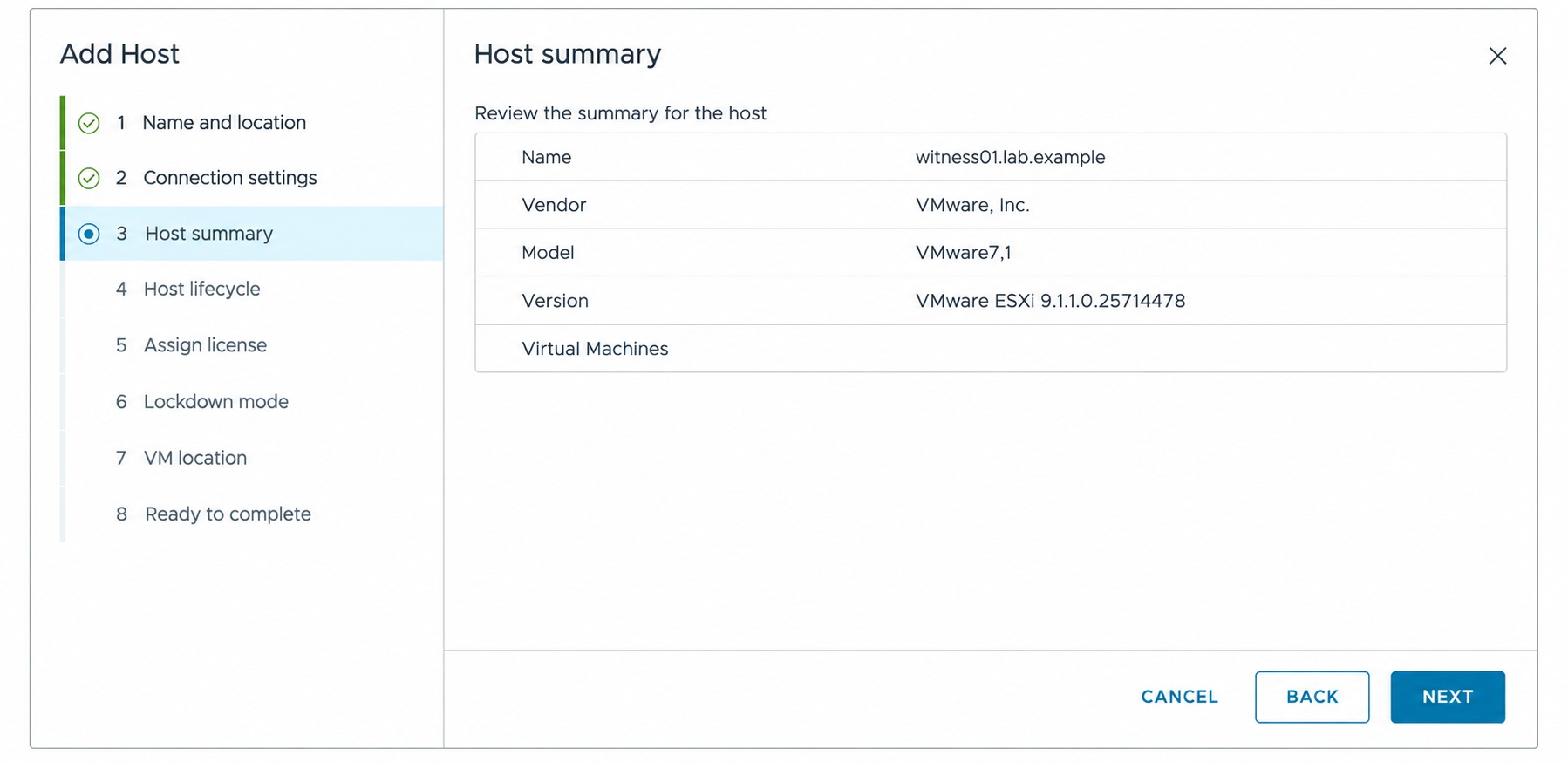
If the host certificate alert appears, review the certificate and verify that it belongs to the intended appliance before continuing. Review the host summary.
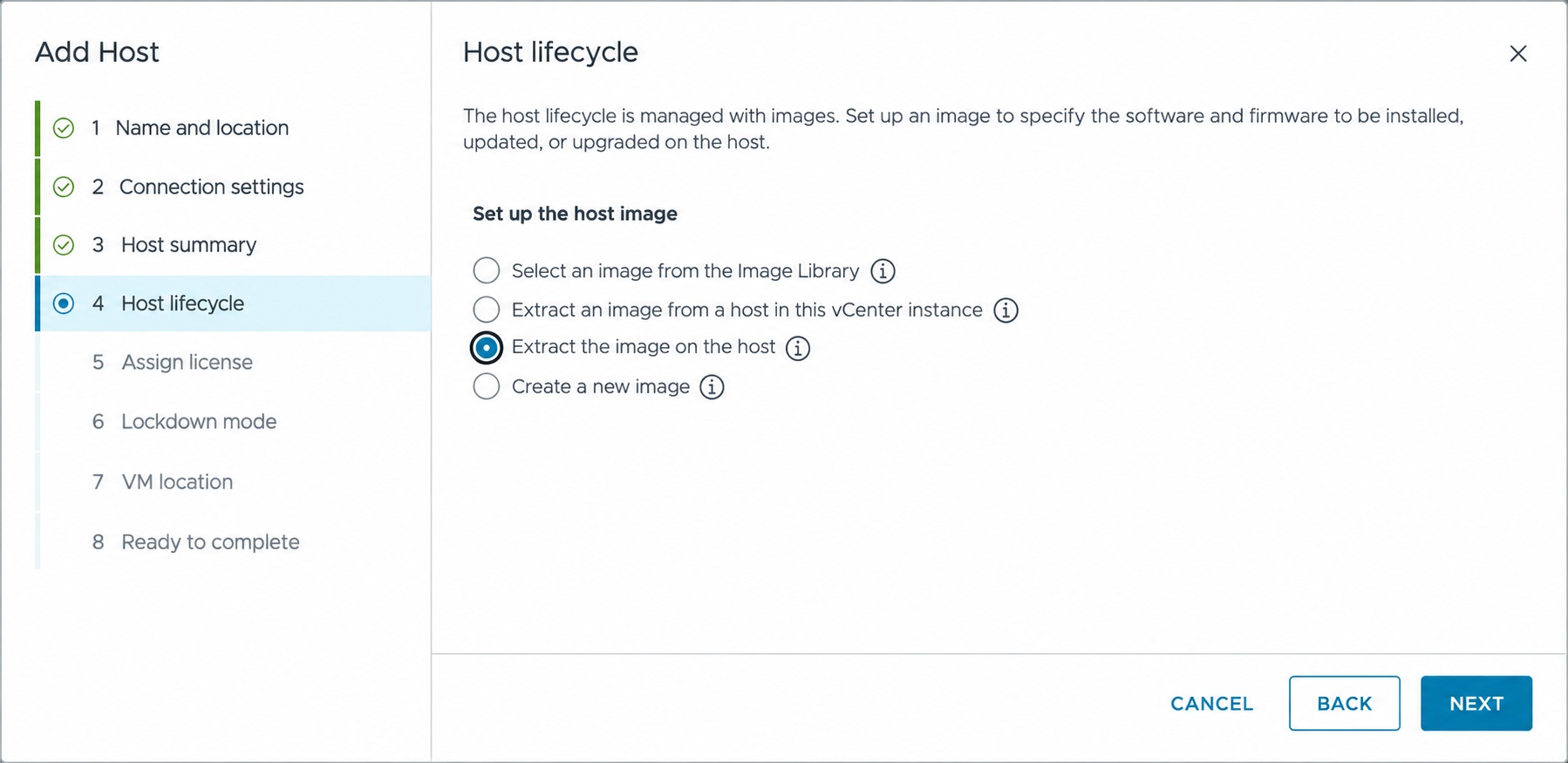
For host lifecycle management, I selected Extract the image on the host, then reviewed the resulting image specification.
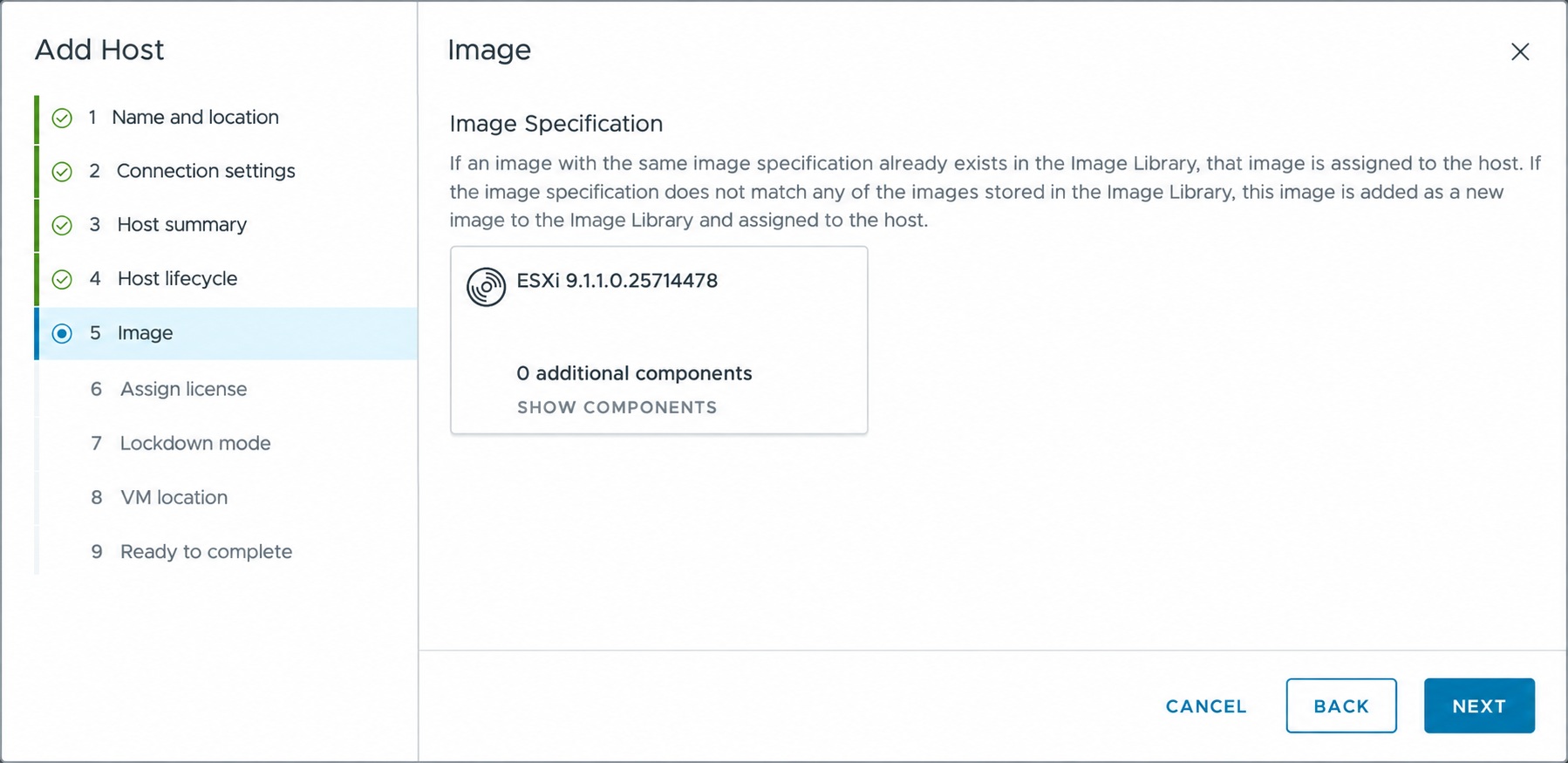
Review the extracted ESXi image before continuing.
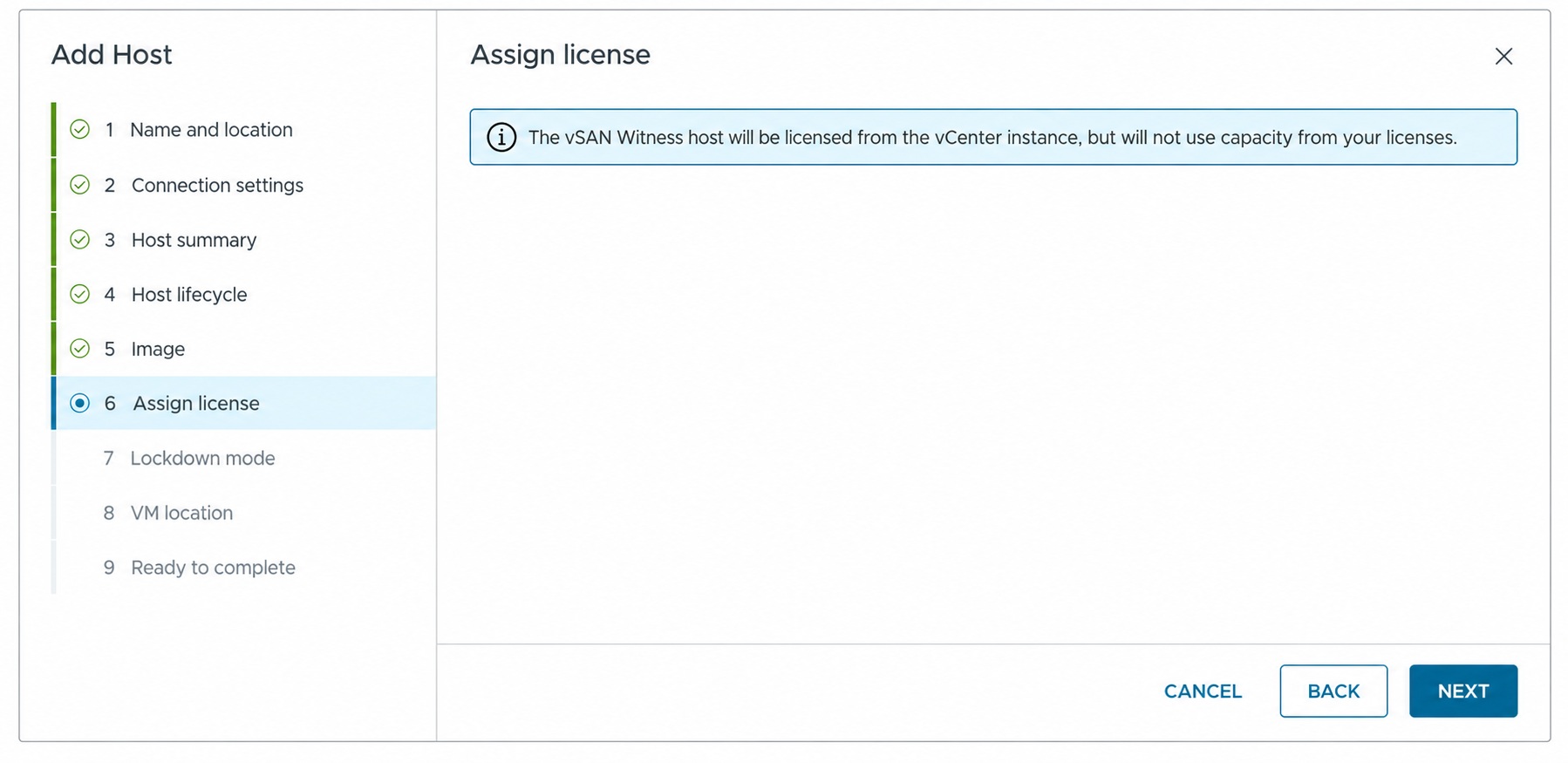
The Assign license screen identifies the host as a vSAN Witness host and states that it will not use capacity from the vCenter license.
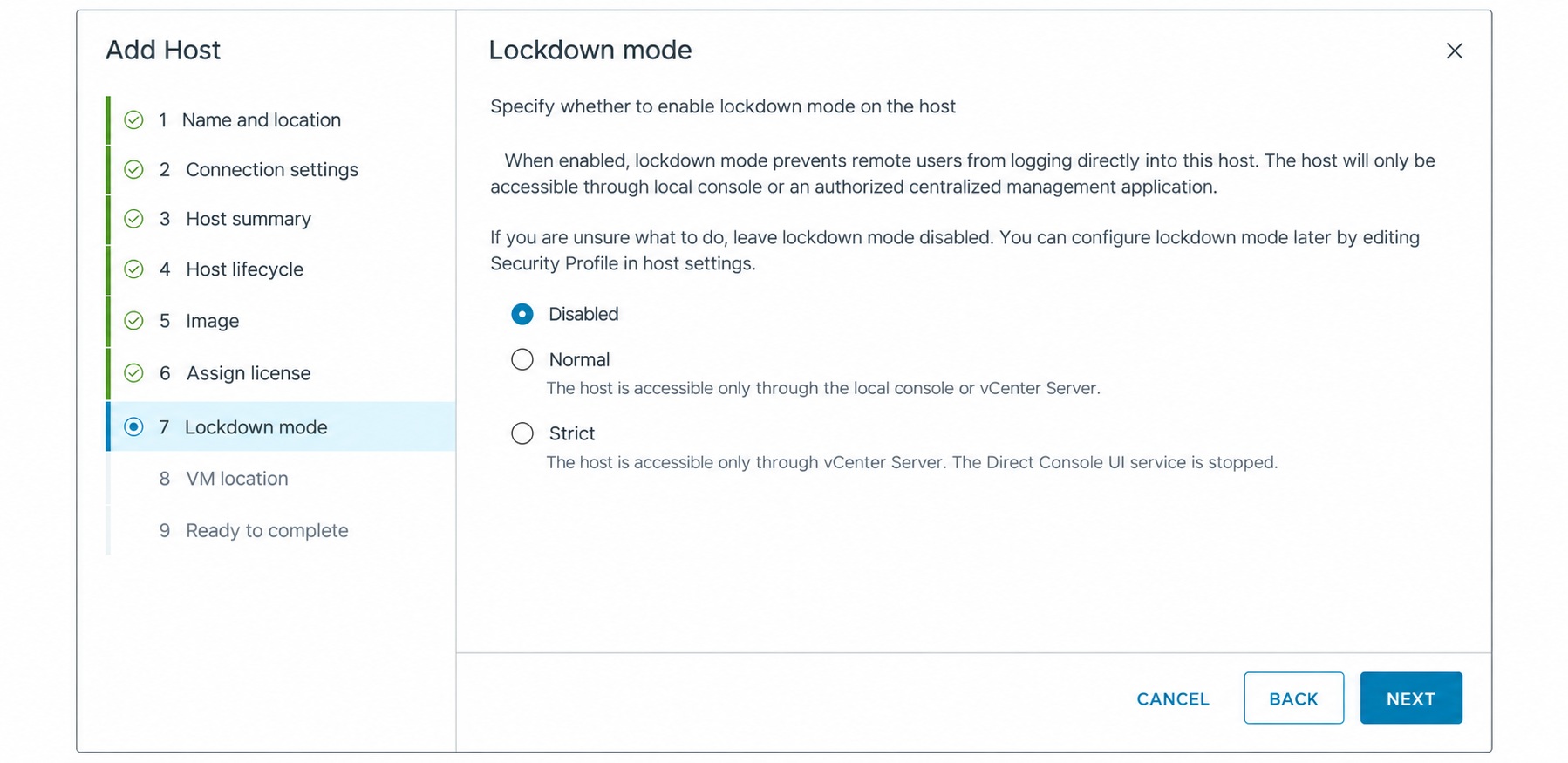
I left Lockdown mode set to Disabled for this lab.
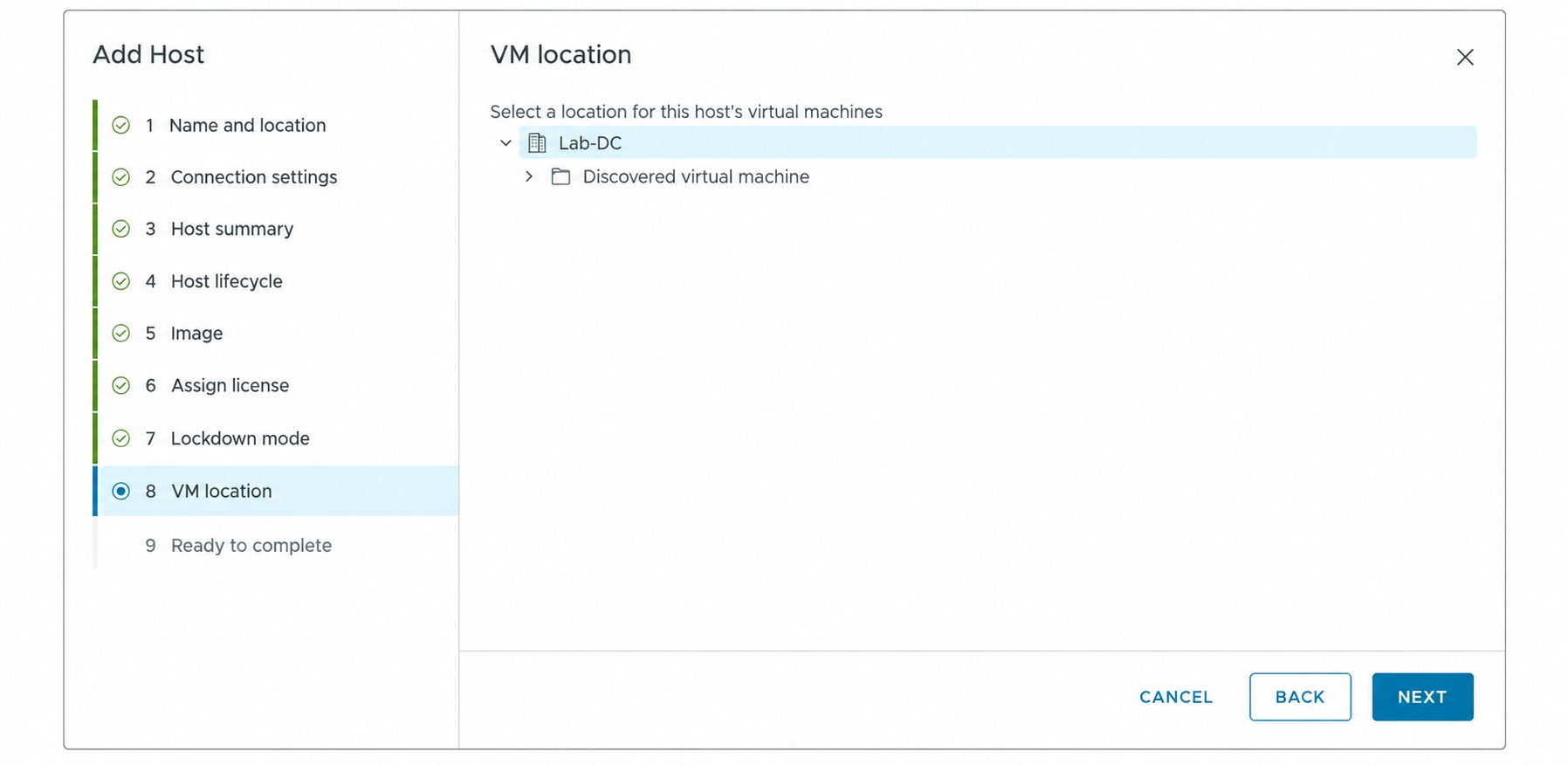
Select the location for the host’s virtual machines.
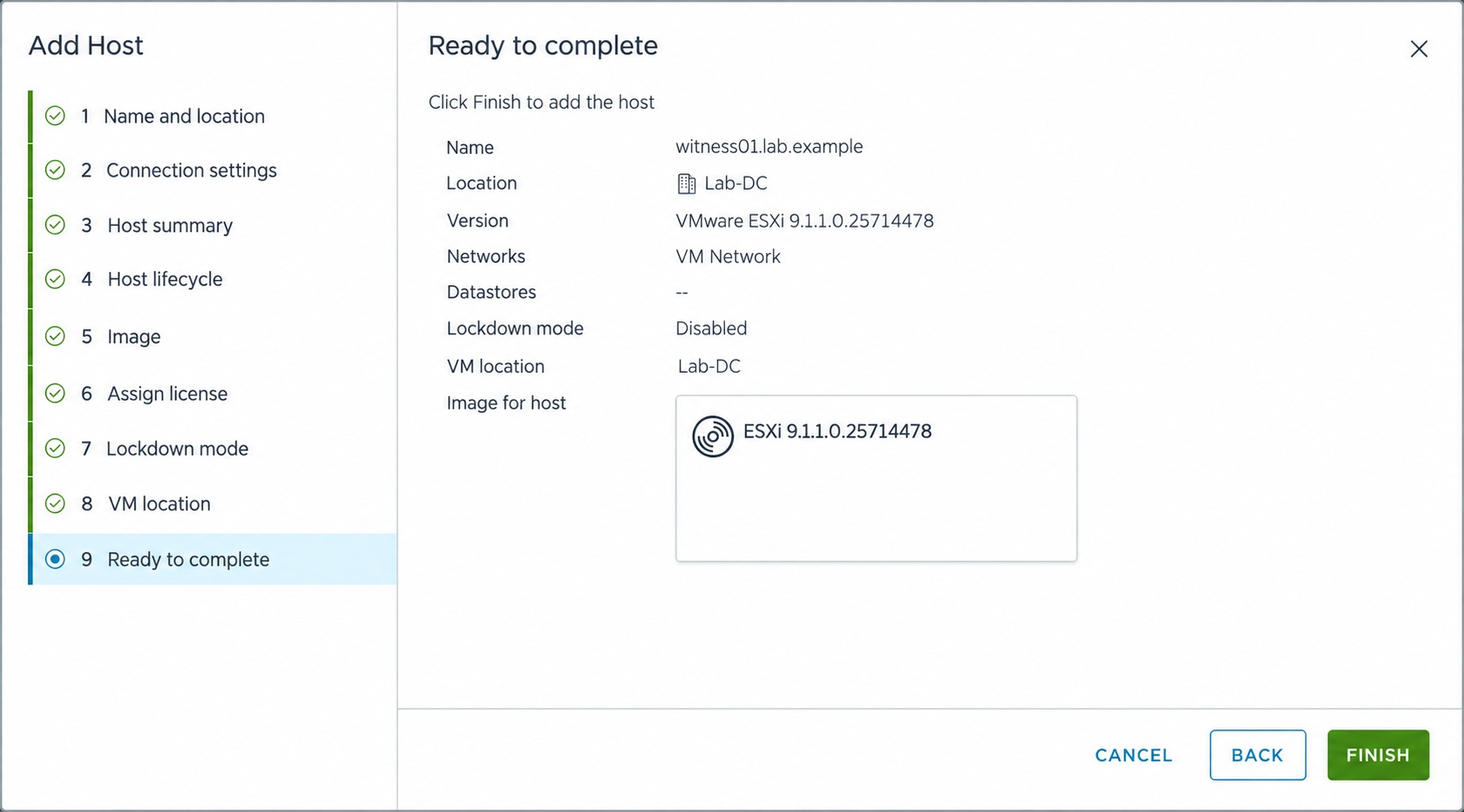
Review the hostname, location, image and other settings, then click Finish.
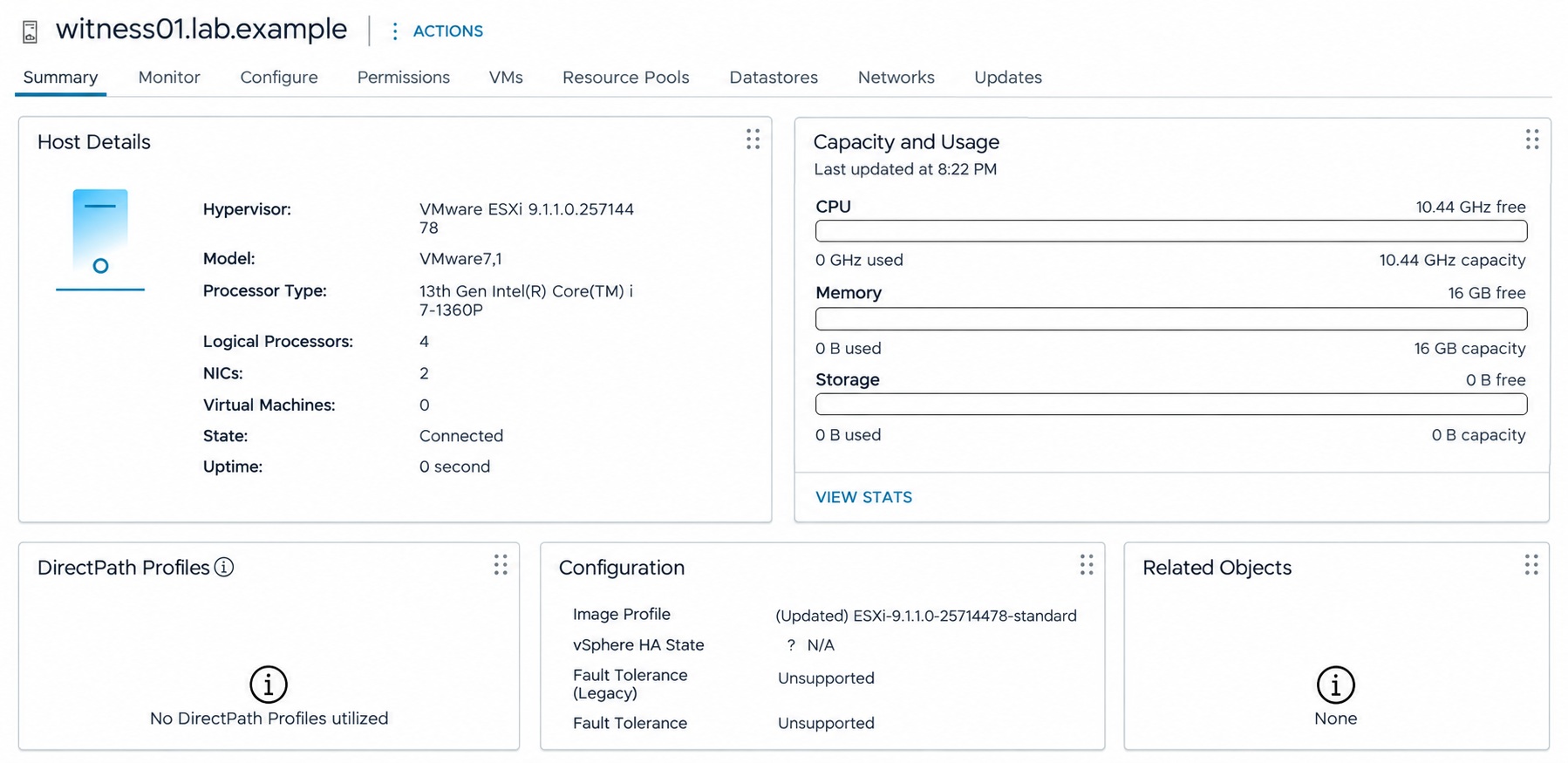
The final capture shows the witness host in the datacenter inventory with its state Connected. It is now available for selection in the two-node vSAN configuration wizard.
Temporarily disable vSphere HA
Before enabling vSAN, I confirmed that vSphere HA was turned off under Configure → Services → vSphere Availability. If it is enabled, open Edit and turn it off for this configuration step.
This is temporary. Broadcom’s enabling vSAN procedure describes disabling HA during configuration and enabling it afterward. The two-node guide includes the HA settings to review for this topology.
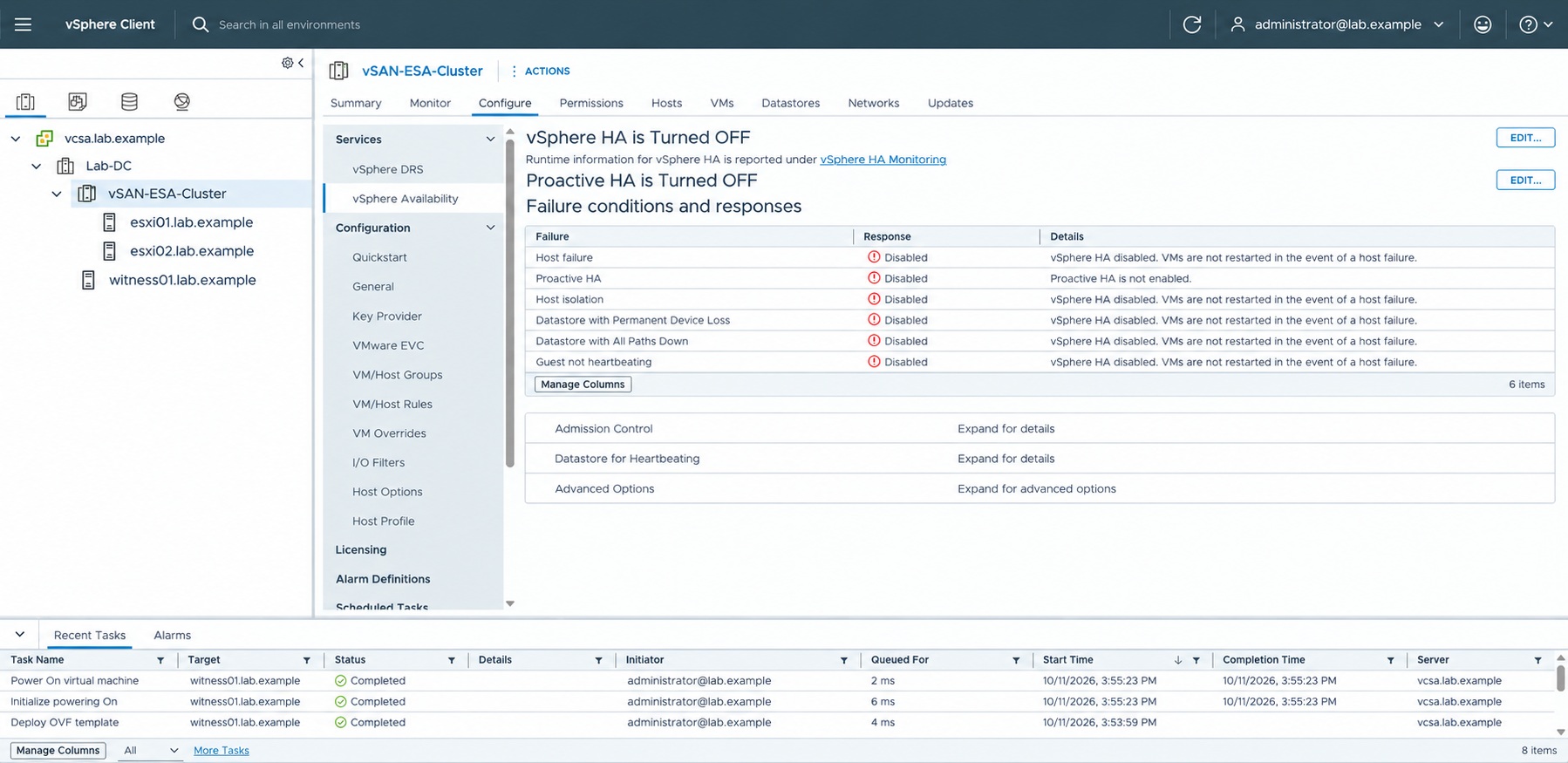
Configure the two-node vSAN ESA cluster
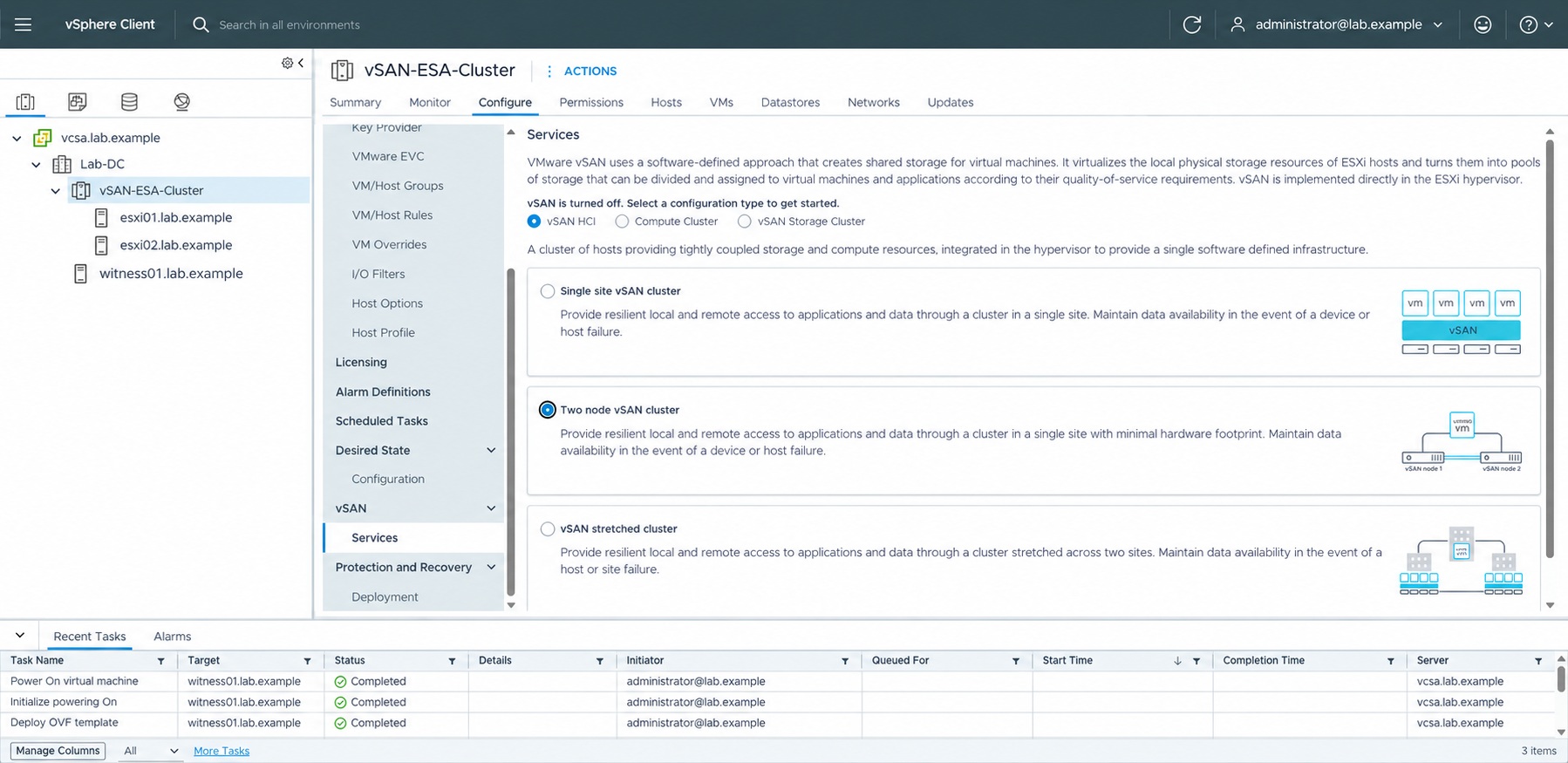
Select the data cluster and open Configure → vSAN → Services. Choose Two node vSAN cluster, then click Configure.
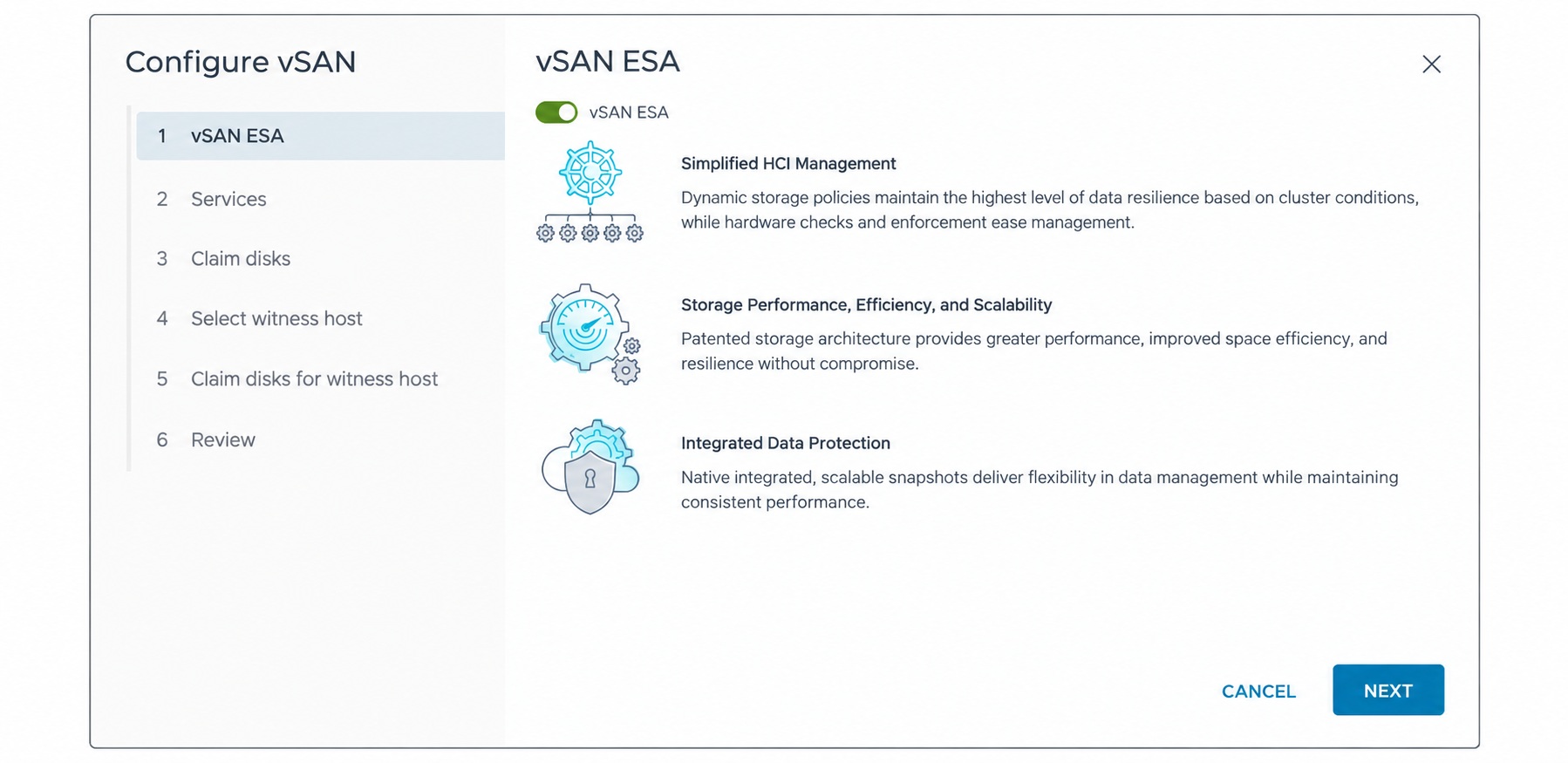
Keep vSAN ESA enabled on the first page and click Next.
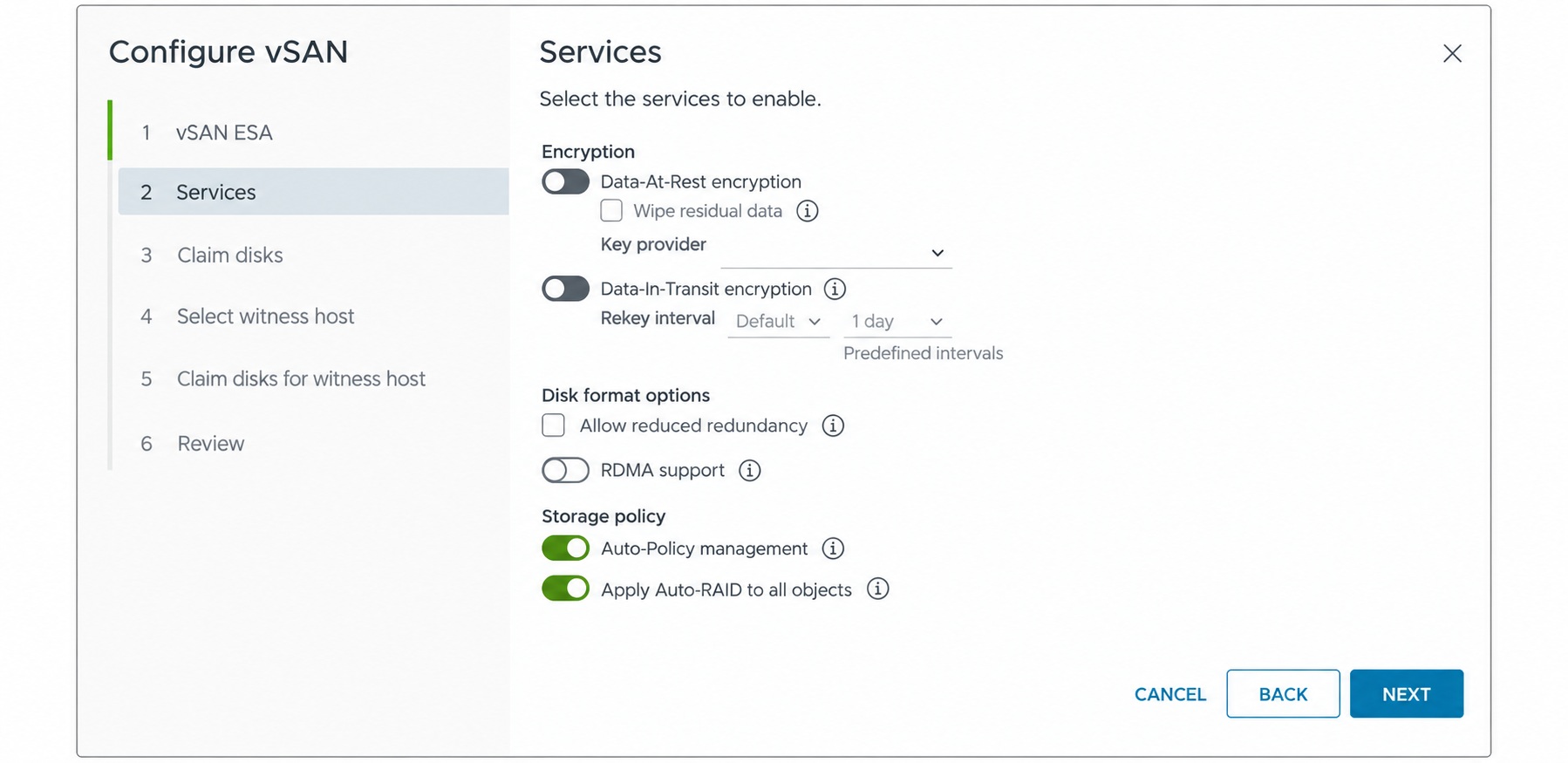
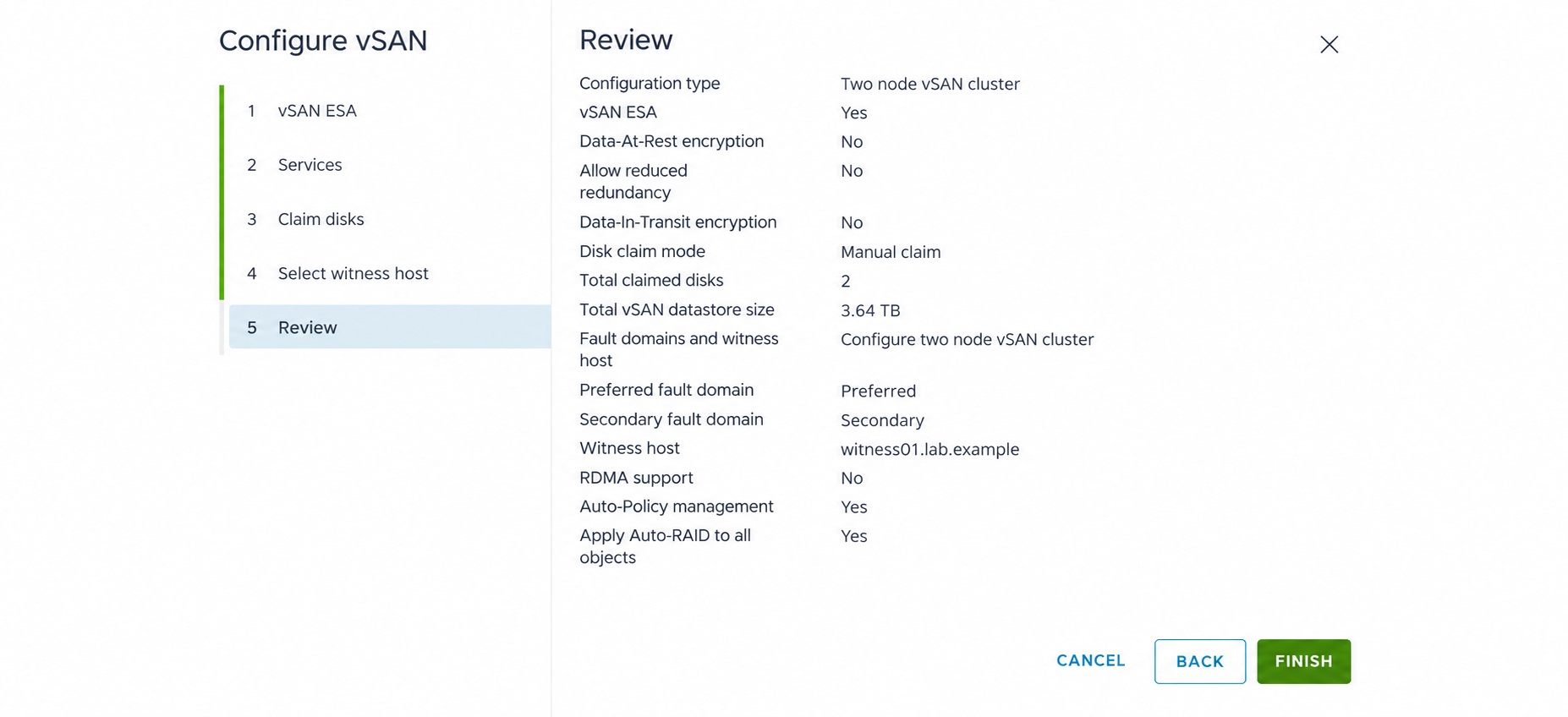
Review the optional services. In this lab, data-at-rest encryption, data-in-transit encryption, reduced redundancy, and RDMA were not enabled. Auto-Policy management and Apply Auto-RAID to all objects were enabled. These are the selections used for this walkthrough.
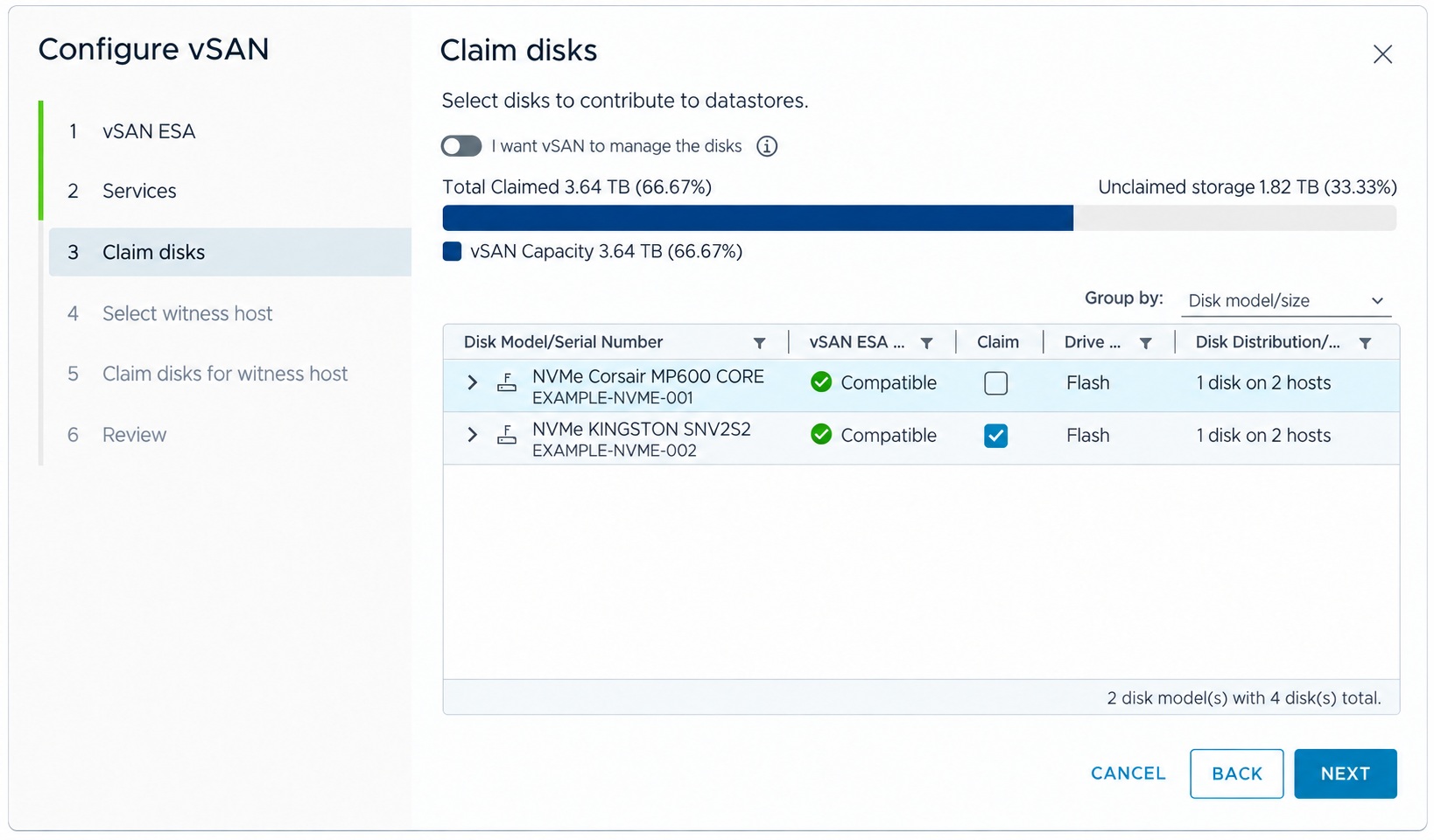
On Claim disks, select the devices that will contribute to the data hosts’ vSAN storage pools. I chose manual disk claiming for this two-node vSAN ESA cluster so I can enable memory tiering on these hosts at a later time. The wizard showed two claimed disks and approximately 3.64 TB of total vSAN datastore capacity. This displayed capacity is not the usable capacity after policy protection and overhead.
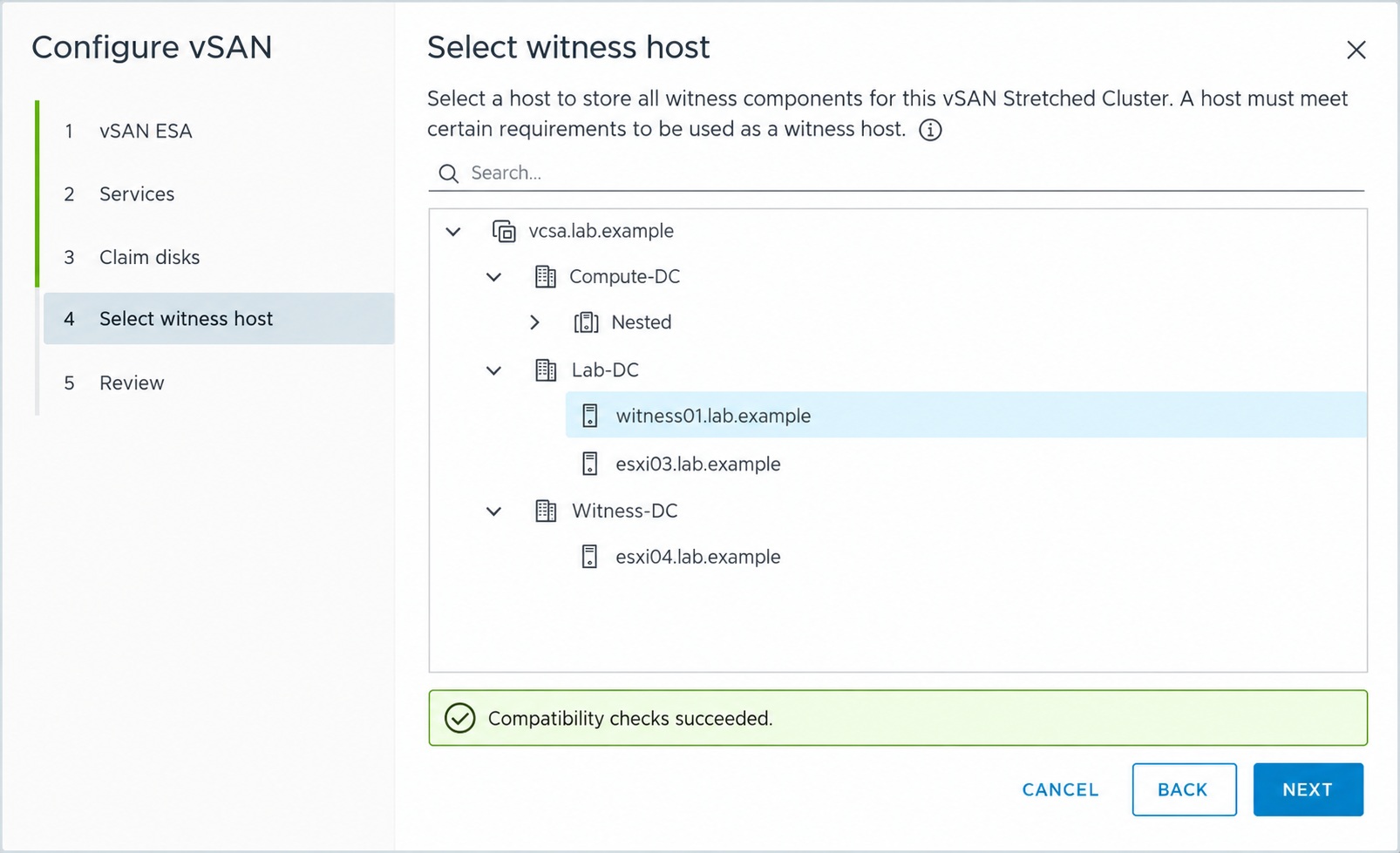
On Select witness host, choose the ESXi instance of the deployed ESA Witness Appliance. In the generalized screenshot, this is witness01.lab.example. Confirm that the compatibility check succeeds, then continue to Review.
Review the final configuration. Confirm the two-node topology, ESA, data disks, witness host, and service selections before clicking Finish.
Monitor the configuration tasks
After finishing the wizard, open Monitor → Tasks and Events → Tasks and watch the vSAN configuration tasks. Confirm that the configuration tasks complete successfully before reviewing cluster health.
Check vSAN health after configuration
Completed configuration tasks are the first checkpoint. I then opened Monitor → vSAN → vSAN Health to review cluster health and address the cluster-compliance finding.
Resolve the 10 Gb ESA cluster-compliance setting
The compliance remediation for this lab was to set /VSAN/DOMNetworkSchedulerThrottleComponent to 1 on each data host. Broadcom recommends this for ESA clusters using 10 Gb networking to improve sharing between resynchronization traffic and VM I/O. It is not a general requirement for faster networks; the Broadcom workaround advises against the setting for 25 Gb or faster networking.
SSH into each data host and run:
esxcli system settings advanced set -i 1 -o /VSAN/DOMNetworkSchedulerThrottleComponentVerify the value on each host:
esxcli system settings advanced list -o /VSAN/DOMNetworkSchedulerThrottleComponentConfirm that Int Value is 1, then rerun the health check. The subsequent health check showed that the compliance alert had cleared.
Two-node vSAN ESA cluster health checkpoint
After configuring the cluster with the ESA Witness Appliance, I returned to Monitor → vSAN → vSAN Health. The final captured overview shows a health score of 99, with one unhealthy finding and one informational finding. The details of those findings are not visible in this capture, so I would review them individually before treating validation as complete.
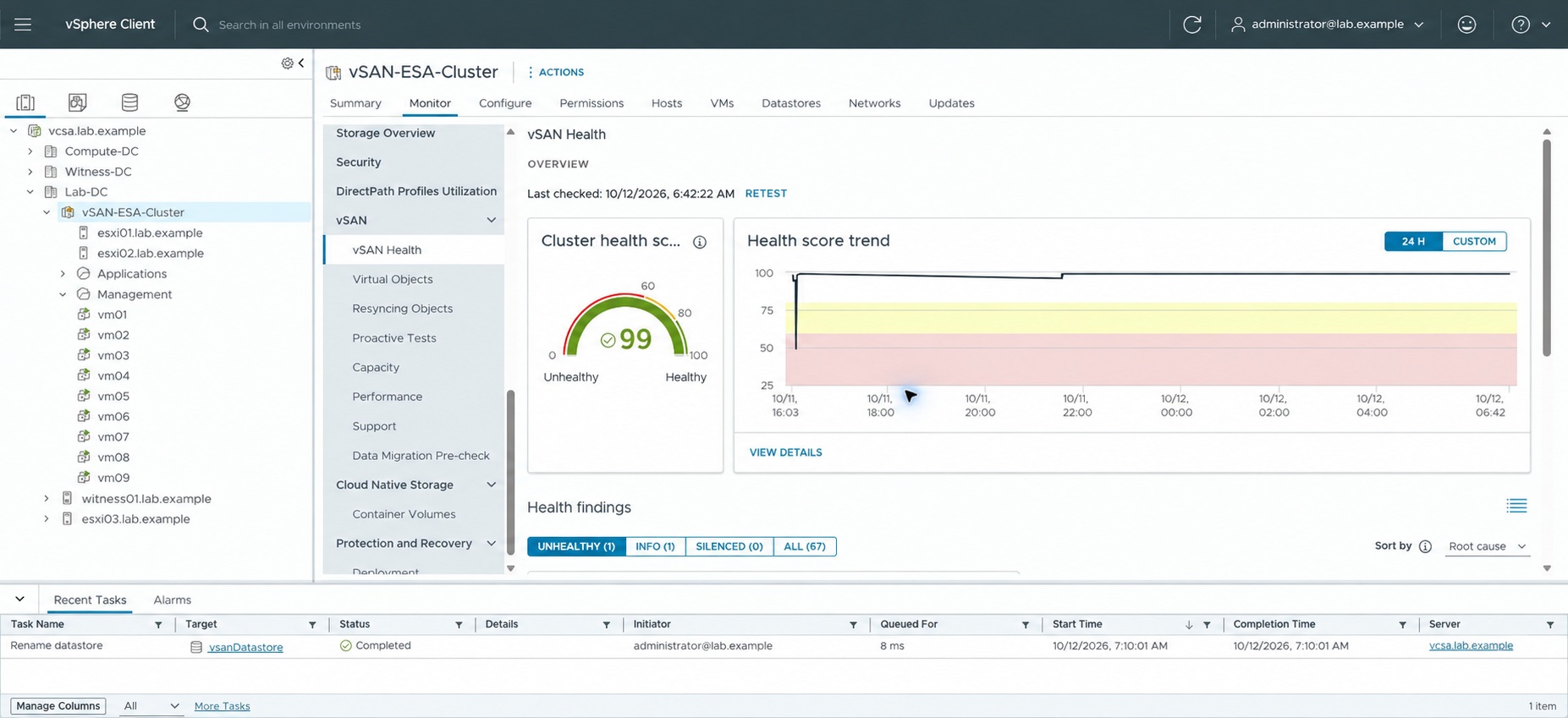
Validate the two-node vSAN ESA cluster before adding workloads
- Rerun vSAN health and resolve any remaining findings.
- Confirm connectivity, the storage pools on both data hosts, and the ESA Witness Appliance assignment.
- Check the datastore, VM storage policies, and policy compliance.
- Re-enable vSphere HA after vSAN configuration, then review the two-node HA guidance and validate the resulting configuration.
The vSAN 2-Node Cluster Guide provides design and operating guidance. My final captured health review is shown above. Review the remaining findings and validate the storage policies and HA configuration before relying on the cluster for workloads.
For another deployment workflow, see my guide to enabling vSAN ESA on a workload domain in VMware Cloud Foundation 9.1.1.