
PRIVATE AI LAB · PART 3
From a public model repository to a private Harbor model store
In my lab, I download model files on an internet-connected Windows workstation, verify the staged content, and upload it to a private Harbor project. PAIS then retrieves the model from Harbor without downloading its weights directly from the internet.
My deployment: VCF 9.1.1 · PAIS 3.0.0 · Harbor model project ai-models
Update: Harbor access after moving PAIS into Automation
October 21, 2026: My active PAIS instance now runs in an Automation-created namespace. Harbor remains the same private model store. The download, verification, separate uploader/puller accounts, and immutable-digest approach below still apply. Create or securely migrate the pull-only Secret into the new instance’s namespace, and reference it from the replacement ModelEndpoint; Secrets in the old namespace are not automatically available there.
Revalidate DNS, issuing-CA trust, and HTTPS access from the new runtime nodes. My new VPC had a different translated source address, so the registry firewall needed its actual client source allowed. Do not infer runtime access from a successful workstation upload. Replace wkld1-private-ai in the namespace-specific examples with the namespace returned by your Automation deployment.
Embedding package lesson from the migration
My staged Granite English embedding artifact contained Windows backslashes in nested file paths and did not preserve the empty normalization-module directory. The Linux inference runtime could not load that layout offline. I published a separate corrected revision with POSIX / paths and the required module directory present, while preserving and verifying the original model weights. The previous artifact was retained. This is an observed packaging correction, not a claim that every Windows CLI upload is affected.
I deployed the corrected granite-embedding-30m-english artifact through Infinity on CPU and verified a numeric 384-dimensional embedding. Include nested-path and module-layout inspection in artifact acceptance checks; matching an OCI digest alone does not prove a Sentence Transformers package can load. See the PAIS deployment update for the new instance context.
This post combines Harbor project preparation, separate upload and pull identities, model downloads, offline transfer, OCI packaging, and PAIS pull configuration. It follows my DSM deployment and my PostgreSQL database setup.
I use example names such as harbor.lab.example.com below. Replace them with your registry, paths, namespace, and certificate files. No real credentials are included.
1. Understand the artifact flow
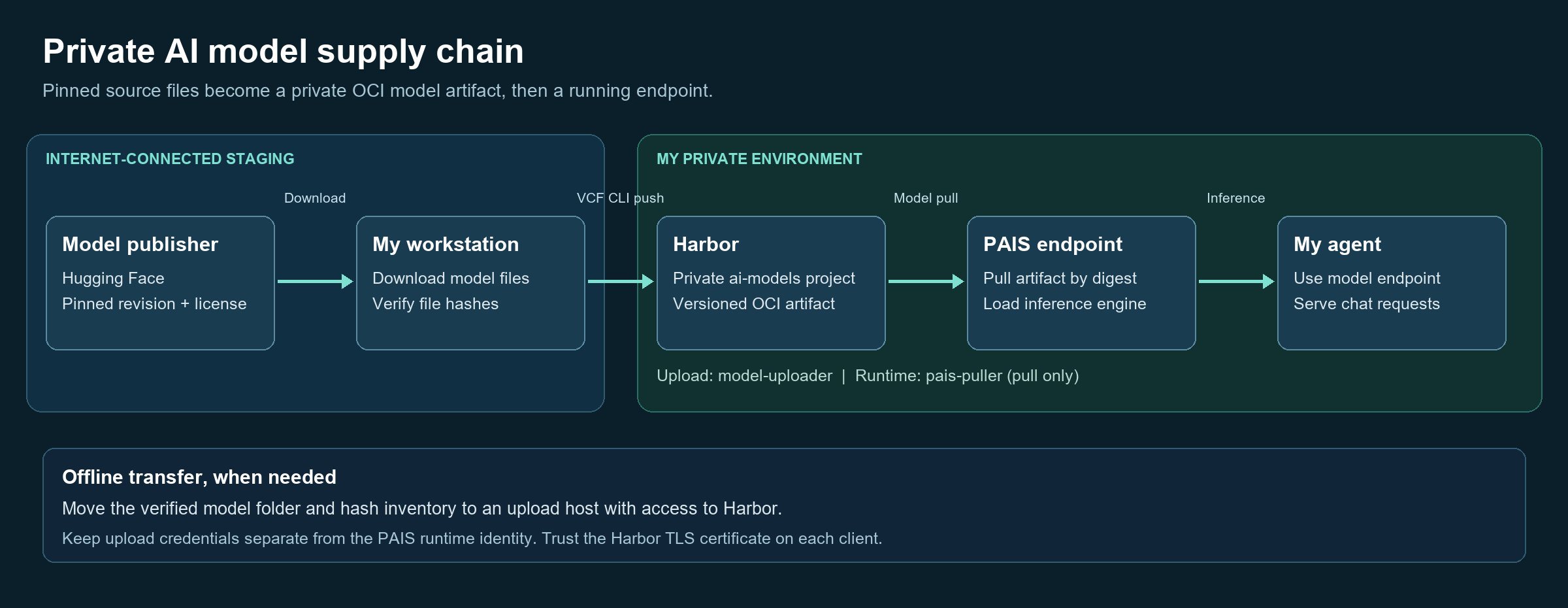
The model upload and PAIS runtime use different credentials. Harbor stores the model artifact, while PAIS provides the inference runtime. A successful upload does not prove that an engine can load a model or that it fits the GPU.
I also keep model weights separate from PAIS software bundles, inference engine images, and application containers. Mirroring a PAIS software bundle does not automatically mirror arbitrary Hugging Face model weights.
2. Prepare Harbor, DNS, TLS, and network access
My lab already had Harbor available through the storage appliance. This procedure starts with a working registry; it does not install Harbor itself. The S3 appliance article covers the backup storage foundation, while the registry is a separate service and endpoint. S3 bucket keys do not authenticate a Harbor model pull.
- Confirm Harbor resolves to the intended address and presents a certificate for its registry hostname.
- Trust the issuing CA on the staging workstation and in the Docker/registry client environment. For Docker Desktop, follow its supported certificate trust process and restart it if required.
- Configure the supported CA trust for the Supervisor/PAIS deployment. Browser trust and workstation trust do not automatically configure the PAIS model download components.
- Allow HTTPS from the staging workstation and the actual PAIS client source networks to Harbor.
- If NSX translates the workload traffic, check the translated source address at the registry firewall. A workstation connection does not prove runtime connectivity.
- Ensure registry storage has enough space for uploaded artifacts, ongoing retention, and temporary transfer overhead.
Resolve-DnsName harbor.lab.example.com
Test-NetConnection harbor.lab.example.com -Port 443
curl.exe -I https://harbor.lab.example.com/v2/
An unauthenticated 401 Unauthorized from /v2/ can be the expected registry authentication challenge. DNS errors, certificate failures, connection timeouts, and HTTP authorization failures indicate different problems. Keep certificate verification enabled.
3. Create a private model project
- Sign in to Harbor using an account permitted to create projects.
- Open Projects and select New Project.
- Enter
ai-models. - Keep the project private.
- Choose a storage quota that accommodates the intended models and retained revisions.
- Create the project and review its configuration, membership, and retention settings.
I used a dedicated project so model access and retention could be managed independently from application images. I use lowercase repository names and explicit revision tags, then record the digest for deployment.
4. Create separate upload and runtime robot accounts
In Projects → ai-models → Robot Accounts, create the following project-scoped identities:
| Account | Repository permissions | Use |
|---|---|---|
| model-uploader | Pull and Push | Staging workstation uploads |
| pais-puller | Pull only | PAIS runtime downloads |
- Select New Robot Account, enter the account name, and add a useful description.
- Set an expiration and plan credential rotation.
- Grant only the project permissions shown above.
- Finish creation and securely save the full generated username and secret.
- Repeat for the second account.
Harbor requires Pull permission together with Push. The generated username includes the configured robot prefix and project name; copy it rather than assuming a short account name will work. The secret is shown at creation and must be saved securely. These behaviors are documented in Harbor’s project robot account guide.
5. Prepare the Windows staging tools
On my staging workstation I use PowerShell, Python with Hugging Face tooling, Docker, and the VCF Consumption CLI with the PAIS plugin. Install compatible versions from their official sources before staging models.
python --version
docker version
vcf plugin list
vcf pais models push --help

python -m venv C:\Lab\PrivateAI\.venv
& 'C:\Lab\PrivateAI\.venv\Scripts\python.exe' -m pip install huggingface_hub
& 'C:\Lab\PrivateAI\.venv\Scripts\hf.exe' --help
Record the installed versions for repeatability. The examples below use the current hf command name; older environments may have huggingface-cli. Check the installed help rather than combining different CLI generations.
For a fully disconnected destination, stage the required CLI software and dependencies separately. The host that uploads into Harbor must be able to authenticate to Harbor, but it does not need internet access once all model files are present.
6. Choose a model and obtain access
I initially staged multiple model families and later ran Llama 3.1 8B through PAIS. For a first transfer test, a smaller model such as Granite 3.3 2B keeps the staging process manageable. Choose an architecture, file format, inference engine, and GPU footprint that work together.
- Open the publisher’s model page and review the model card, license, intended use, and file layout.
- For a gated repository such as Meta Llama, sign in and request access. Complete the publisher’s license and access process using your own details.
- Wait until the account has access before attempting an authenticated download.
- Create a read token limited to the repositories or gated public content needed.
- Authenticate through the CLI prompt; do not paste a token into scripts, screenshots, or a blog post.
& 'C:\Lab\PrivateAI\.venv\Scripts\hf.exe' auth loginRetain the model license and usage policy files with the staged model. Authorization to download a gated model does not grant unrestricted redistribution rights.
7. Download a pinned model revision
I record the full source commit so a moving branch cannot silently change a later download. The following revisions came from my verified staging inventory. Review the publisher’s repository before reusing them.
$hf = 'C:\Lab\PrivateAI\.venv\Scripts\hf.exe'
$modelRoot = 'C:\Lab\PrivateAI\models'
New-Item -ItemType Directory -Force $modelRoot | Out-Null

# Smaller initial transfer example
& $hf download ibm-granite/granite-3.3-2b-instruct --revision 707f574c62054322f6b5b04b6d075f0a8f05e0f0 --local-dir "$modelRoot\granite-3.3-2b-instruct"
if ($LASTEXITCODE -ne 0) { throw 'Granite download failed' }

# Requires approved Meta repository access
& $hf download meta-llama/Llama-3.1-8B-Instruct --revision 0e9e39f249a16976918f6564b8830bc894c89659 --local-dir "$modelRoot\llama-3.1-8b-instruct"
if ($LASTEXITCODE -ne 0) { throw 'Llama download failed' }
Download into a dedicated directory for each model and retain the required configuration, tokenizer, weight shards, and weight index. Full snapshots can contain alternative formats and extra files, so budget disk space accordingly. Hugging Face documents pinned revisions and local downloads in its download guide.
In my original staging workflow I selected the required files and checked publisher metadata, including LFS SHA-256 values where available. The commands here provide a simpler full-snapshot workflow. Local hashes in the next step verify transfer consistency; they do not independently prove publisher authenticity.
8. Create an inventory and transfer the model files
Run this once for each completed model directory. Keep the inventory outside the directory so it does not become part of the model artifact.
$modelDir = 'C:\Lab\PrivateAI\models\llama-3.1-8b-instruct'
$inventoryPath = 'C:\Lab\PrivateAI\llama-3.1-8b-instruct-sha256.csv'
$base = (Resolve-Path -LiteralPath $modelDir).Path

Get-ChildItem -LiteralPath $base -File -Recurse |
    Where-Object { $_.FullName -notlike "$base\.cache\*" } |
    ForEach-Object {
        [pscustomobject]@{
            Path = [IO.Path]::GetRelativePath($base, $_.FullName)
            Bytes = $_.Length
            SHA256 = (Get-FileHash -LiteralPath $_.FullName -Algorithm SHA256).Hash
        }
    } | Export-Csv -LiteralPath $inventoryPath -NoTypeInformation
Use PowerShell 7 for GetRelativePath. Transfer the model directory and CSV into the private environment using the approved file transfer method. If the connected workstation can already reach Harbor, this separate transfer is unnecessary.
At the destination, set the local paths and compare every inventoried file:
$modelDir = 'D:\PrivateAI\models\llama-3.1-8b-instruct'
$inventoryPath = 'D:\PrivateAI\llama-3.1-8b-instruct-sha256.csv'

foreach ($item in (Import-Csv -LiteralPath $inventoryPath)) {
    $file = Join-Path $modelDir $item.Path
    if (-not (Test-Path -LiteralPath $file -PathType Leaf)) {
        throw "Missing file: $($item.Path)"
    }
    if ((Get-Item -LiteralPath $file).Length -ne [long]$item.Bytes) {
        throw "Size mismatch: $($item.Path)"
    }
    if ((Get-FileHash -LiteralPath $file -Algorithm SHA256).Hash -ne $item.SHA256) {
        throw "Hash mismatch: $($item.Path)"
    }
}
'All inventoried model files verified.'
Also inspect the directory for unrelated files before uploading. Do not package cached credentials, token exports, other models, or administrative scripts with the weights.
9. Log in to Harbor as the uploader
Use the full username generated for model-uploader. This PowerShell prompt avoids a literal password in the command history:
$uploadCredential = Get-Credential -Message 'Enter the Harbor model-uploader robot username and secret'
try {
    $uploadCredential.GetNetworkCredential().Password |
        docker login harbor.lab.example.com --username $uploadCredential.UserName --password-stdin
    if ($LASTEXITCODE -ne 0) { throw 'Harbor login failed' }
} finally {
    $uploadCredential = $null
}
The registry client can retain credentials through Docker’s configured credential storage. Use the staging workstation’s approved credential handling and log out when that access is no longer needed.
10. Package and upload the model with the VCF CLI
Change into the model directory before pushing. The upload command packages the current model directory. Running it from the parent folder can produce the wrong artifact contents.
Set-Location 'D:\PrivateAI\models\llama-3.1-8b-instruct'
Get-ChildItem

vcf pais models push --modelStore harbor.lab.example.com/ai-models --modelName lab/llama-3.1-8b-instruct --tag rev-0e9e39f249a1
if ($LASTEXITCODE -ne 0) { throw 'Model upload failed' }
If uploading directly from the connected workstation, substitute its actual model path. The resulting tagged reference is:
harbor.lab.example.com/ai-models/lab/llama-3.1-8b-instruct:rev-0e9e39f249a1For the Granite example, change into its directory and use a separate repository and revision tag:
vcf pais models push --modelStore harbor.lab.example.com/ai-models --modelName lab/granite-3.3-2b-instruct --tag rev-707f574c6205This is a PAIS model artifact upload, rather than a Docker build of an inference server. Broadcom’s model store walkthrough demonstrates the same download, registry login, and VCF model push sequence.
11. Verify Harbor and record the digest
- Open Projects → ai-models → Repositories.
- Find the model repository and expected revision tag.
- Open the artifact and record its
sha256:digest. - Compare that digest with the Image Digest returned by the VCF upload command.
- Verify access using the pull-only identity, not just the upload account.
My upload automation compared the registry readback digest and confirmed access using the PAIS pull-only robot account. I retained the source repository, source revision, artifact reference, digest, and validation result in an inventory.
A digest identifies the uploaded OCI artifact. It is different from the Hugging Face commit ID and from the SHA-256 of an individual weight file. For deployment, use the digest returned by your own upload:
harbor.lab.example.com/ai-models/lab/llama-3.1-8b-instruct@sha256:YOUR_ARTIFACT_DIGEST12. Prepare the pull-only Secret for PAIS
When the PAIS namespace is available, create a registry Secret there using the pais-puller identity. This does not require granting PAIS upload permissions.
kubectl config current-context
kubectl get namespace wkld1-private-ai

$pullCredential = Get-Credential -Message 'Enter the Harbor pais-puller robot username and secret'
try {
    $pair = $pullCredential.UserName + ':' + $pullCredential.GetNetworkCredential().Password
    $auth = [Convert]::ToBase64String([Text.Encoding]::UTF8.GetBytes($pair))
    $dockerConfig = @{
        auths = @{'harbor.lab.example.com' = @{auth=$auth}}
    } | ConvertTo-Json -Depth 6 -Compress
    @{
        apiVersion = 'v1'
        kind = 'Secret'
        metadata = @{name='harbor-ai-models'; namespace='wkld1-private-ai'}
        type = 'kubernetes.io/dockerconfigjson'
        stringData = @{'.dockerconfigjson'=$dockerConfig}
    } | ConvertTo-Json -Depth 8 -Compress | kubectl create -f -
    if ($LASTEXITCODE -ne 0) { throw 'Registry Secret creation failed' }
} finally {
    $pullCredential = $null
    $pair = $null
    $auth = $null
    $dockerConfig = $null
}

kubectl get secret harbor-ai-models -n wkld1-private-ai
The command creates a new Secret and deliberately fails if the name already exists. Do not delete or overwrite a credential used by a running endpoint. Base64 is encoding, not encryption; protect Kubernetes Secret access and avoid printing the manifest.
The corresponding portion of a ModelEndpoint is:
spec:
  model:
    ociRef: harbor.lab.example.com/ai-models/lab/llama-3.1-8b-instruct@sha256:YOUR_ARTIFACT_DIGEST
    pullSecrets:
      - name: harbor-ai-models
This is a partial excerpt, not a complete endpoint manifest. The PAIS API reference documents OCI model references and pull Secret references. Registry authentication does not replace CA trust.
13. Check the complete runtime download path
In my lab, a registry listing and successful authentication were not enough. A reverse proxy initially buffered large Harbor responses into an unwritable temporary location, truncating model downloads. The appliance software correction disabled response buffering for that Harbor proxy path; the complete model subsequently downloaded.
If a deployment stalls or downloads are truncated, inspect the proxy and registry logs, temporary storage permissions, upload limits, timeouts, available space, and the actual workload source address. Apply configuration changes through the appliance’s supported management process. The exact fix depends on the proxy design.
Do not treat a small HTTP test as proof that a multi-gigabyte artifact can stream successfully. The final acceptance test is a complete pull by PAIS followed by a healthy model endpoint and a successful inference request.
Completion checks
- My model project is private, with separate uploader and pull-only identities.
- The workstation and PAIS download path trust Harbor’s issuing CA and can reach its endpoint.
- The source model revision and license are recorded.
- The transferred files match the staging inventory.
- The VCF CLI upload completes from the correct directory.
- The Harbor artifact digest matches the upload result and is recorded for deployment.
- The PAIS namespace has the pull-only Secret, and the endpoint references it.
- A complete runtime download and inference test validate the deployment before I consider a model usable.
My next step is to document the PAIS Supervisor service configuration, then deploy the model endpoint using the private artifact reference prepared here.