
VMware Cloud Foundation 9.1.1: Creating a Workload Domain
Creating a workload domain in VCF Operations, from deployment choices through validation and successful deployment.
VCF 9.1.1 · Three commissioned hosts · NFS storage
With the management environment in place, the next step is to configure a workload domain. This walkthrough follows the VCF Operations wizard to define the domain, its initial cluster, vCenter, NSX networking, storage, and distributed switch.
In this post, I create a workload domain on the three remaining Minisforum MS-A2 hosts. I work through the configuration, validate the deployment specification, and follow the workflow through to completion.
Hostnames, IP addresses, and infrastructure names throughout this post and its screenshots use generic examples. Replace these examples with values from your own deployment plan.
Deployment choices at a glance
| Setting | Selection |
|---|---|
| VCF release | 9.1.1; the instance reports 9.1.1.0.25713928 |
| Deployment type | Full deployment with cluster |
| Hosts | Three commissioned hosts |
| vSphere Supervisor | Deferred to a separate deployment |
| Cluster image | Image Management catalog; ESXi 9.1.1.0.25714478 |
| NSX Manager | New instance, Simple deployment, Medium appliance |
| VPC networking | Full Stack VPC with Centralized Connectivity |
| Principal storage | NFS |
| Distributed switch | Custom configuration starting from a copy of the default switch |
Prepare the hosts and prerequisites
I have already commissioned the three Minisforum MS-A2 hosts that will be used for this workload domain, so I will not cover host commissioning in this walkthrough. If you need help with that process, see Broadcom’s Commission Hosts documentation.
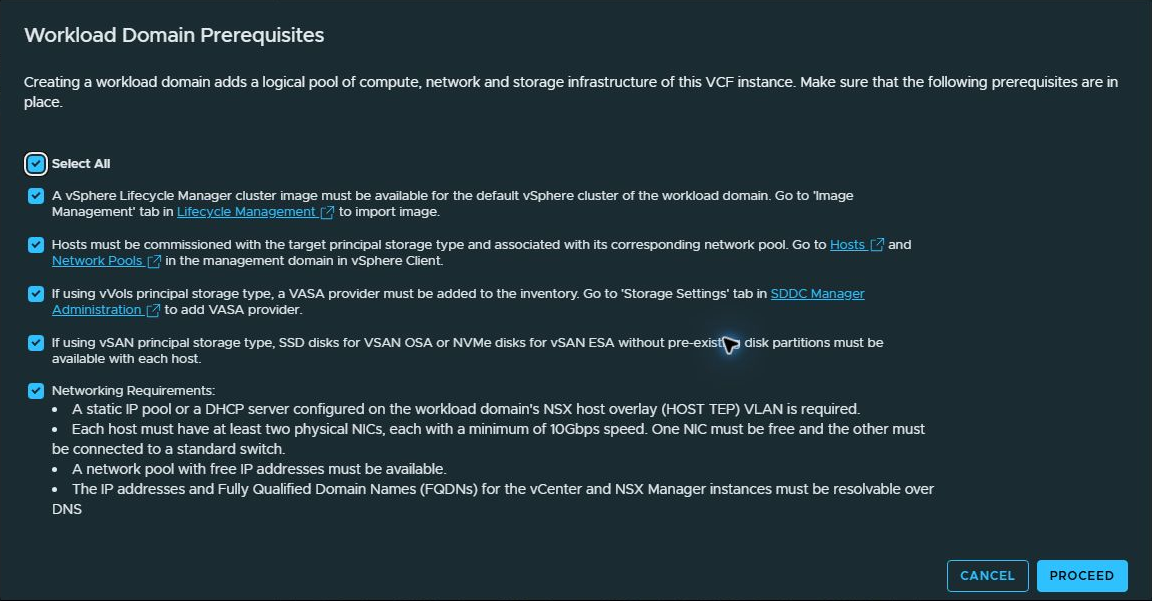
The wizard’s prerequisite checklist calls for a vSphere Lifecycle Manager cluster image, hosts commissioned for the intended principal storage type, and the corresponding network pool. It also lists the networking preparation: an NSX host-overlay address pool or DHCP service, available network-pool addresses, and DNS resolution for the vCenter and NSX Manager names and addresses.
The displayed checklist specifies at least two physical NICs per host with a minimum speed of 10 Gbps, with one NIC free and the other connected to a standard switch. Storage-specific prerequisites also appear for vVols and vSAN. My final storage selection in this walkthrough is NFS.
After reviewing the applicable prerequisites, I acknowledge the checklist and continue. These acknowledgements are separate from the automated validation performed at the end of the wizard.
Open the workload-domain workflow
After logging in to VCF Operations, I begin on Operate > Home, with the VCF Overview tab selected.

From Operate > Inventory, select the VCF instance in the Hosts and Clusters tree. The instance Summary provides the Add Workload Domain menu. For this new domain, the relevant option is Create New…; the same menu also offers Import a vCenter.

Choose the deployment type
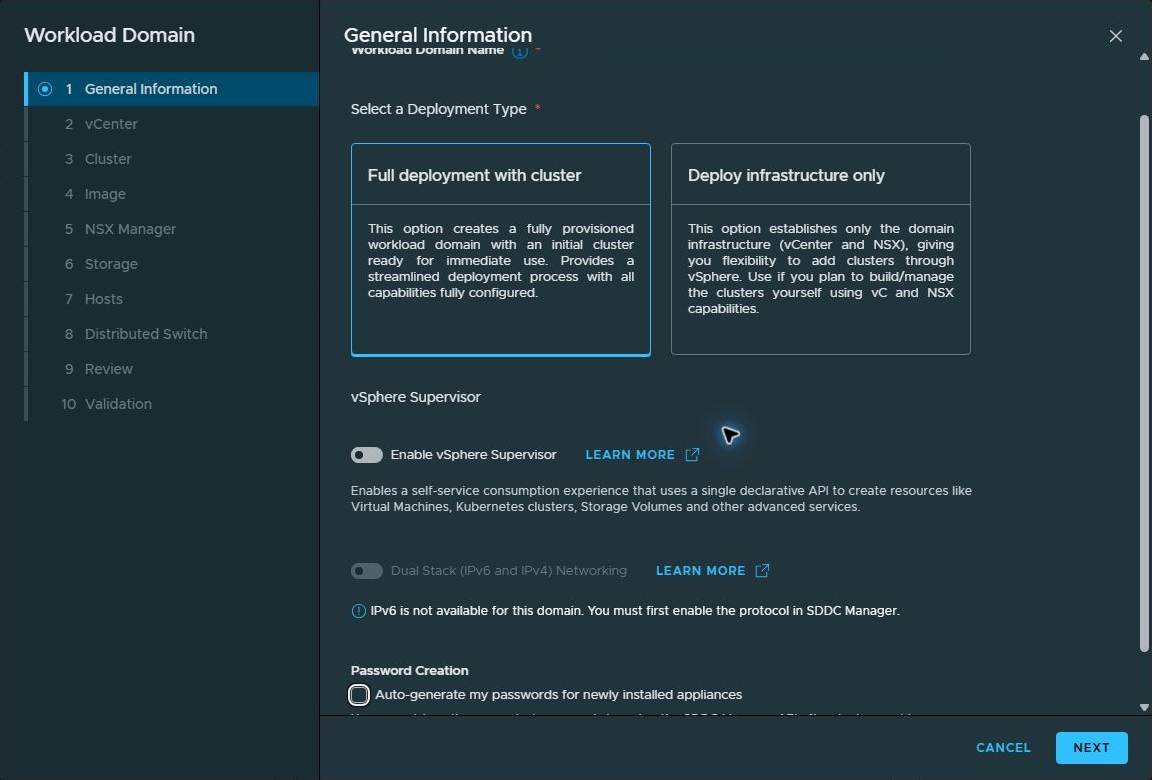
On General Information, I enter a workload-domain name and select Full deployment with cluster. This path includes the initial cluster as part of the workload-domain configuration.
I leave Enable vSphere Supervisor off because I will deploy Supervisor separately later. Dual Stack networking is also off; the wizard indicates that IPv6 must first be enabled in SDDC Manager. I leave automatic password generation unchecked and provide the appliance credentials in the subsequent forms.
Configure vCenter and the initial cluster
The vCenter page collects the new appliance FQDN and root credentials, followed by the SSO domain and administrator credentials. I use a new SSO domain; the wizard describes this as an isolated workload domain that can be added to VCF SSO later. Credentials are omitted from this walkthrough.
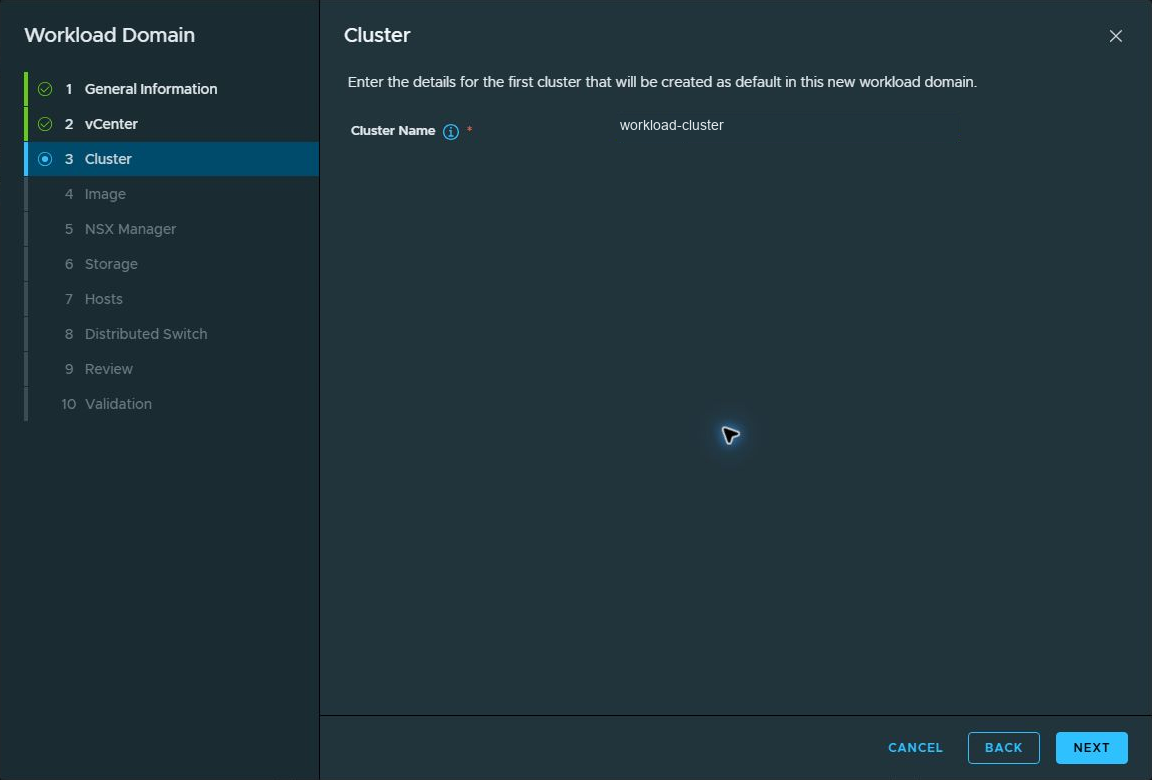
On the Cluster page, I name the first cluster that will be created as the default cluster for the workload domain. The example below uses workload-cluster.
Select the vSphere Lifecycle Manager image
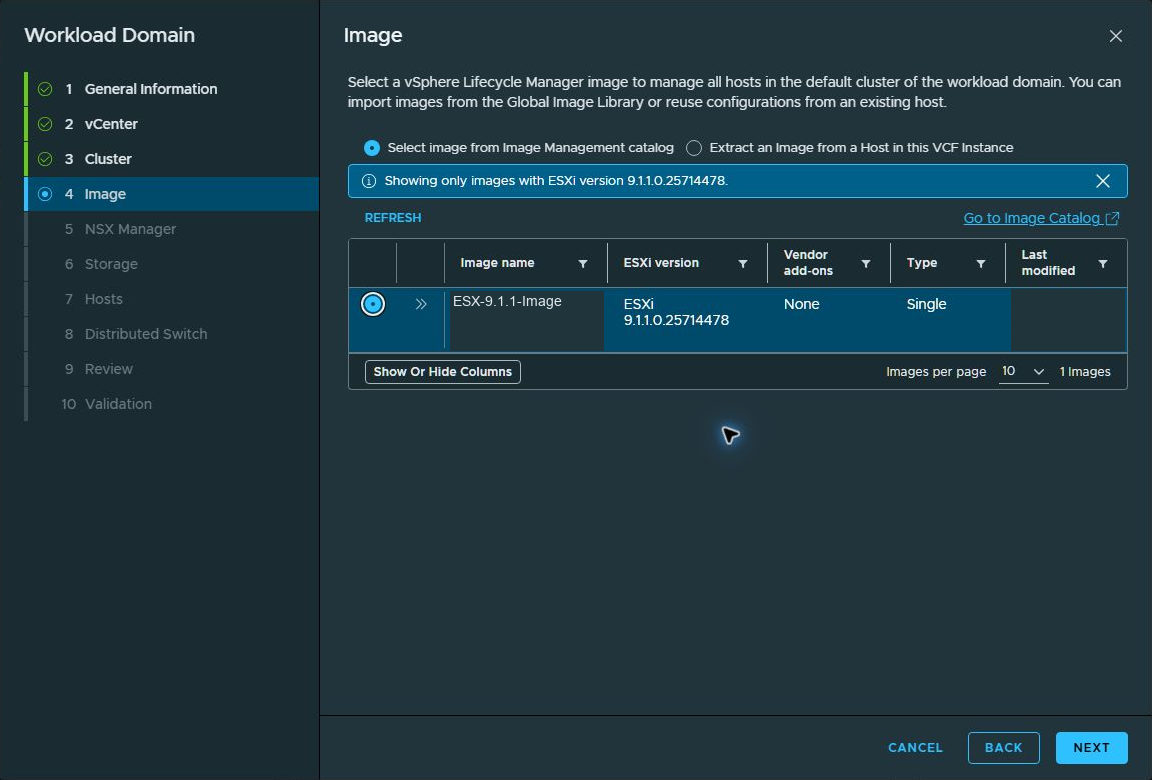
I choose Select image from Image Management catalog. The catalog shows an image with ESXi 9.1.1.0.25714478, no vendor add-ons, and type Single. The wizard filters the list to that ESXi version. I select the available image and continue.
Configure the NSX Manager instance
I select Create new NSX Manager instance, choose the Simple single-node deployment, and use the Medium appliance size. The wizard lists this size as 6 vCPU, 24 GB RAM, and 300 GB storage. I provide the appliance and cluster FQDNs and the required administrator and auditor credentials.
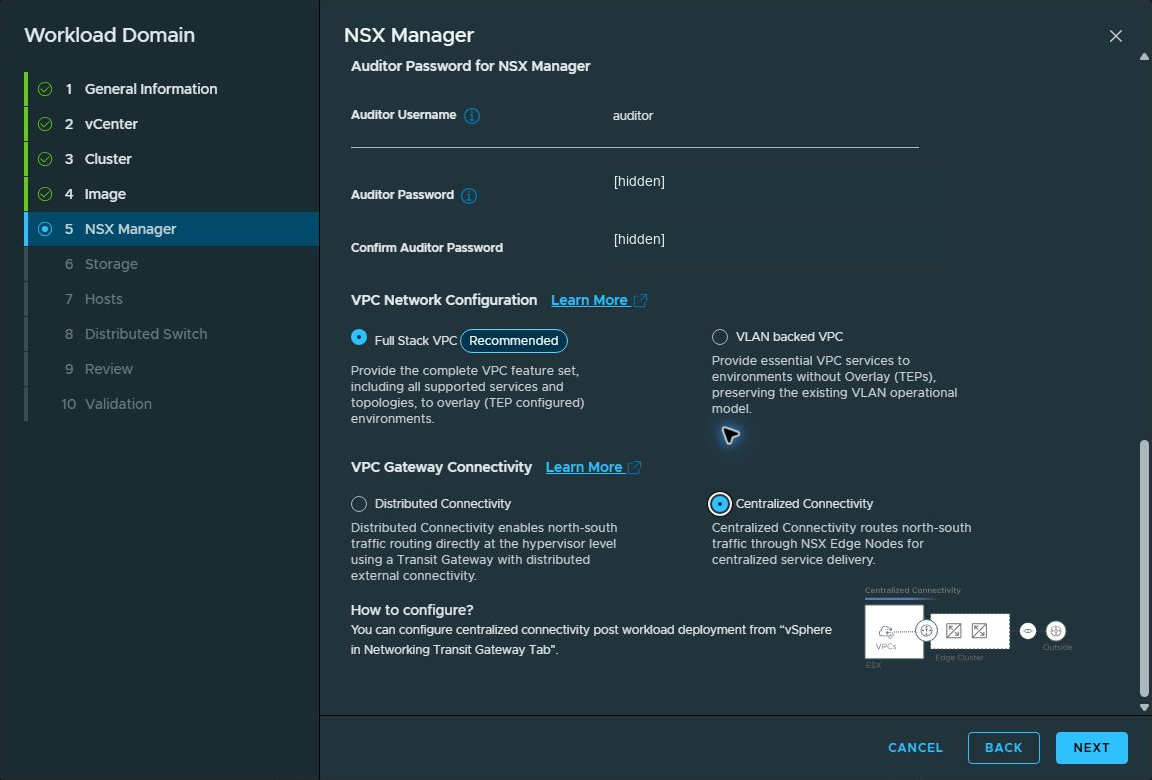
For VPC networking, I select Full Stack VPC and Centralized Connectivity. The wizard describes centralized connectivity as routing north-south traffic through NSX Edge Nodes. It also states that centralized connectivity can be configured after workload deployment from the vSphere Networking Transit Gateway tab. I will cover that configuration separately.
Configure NFS storage
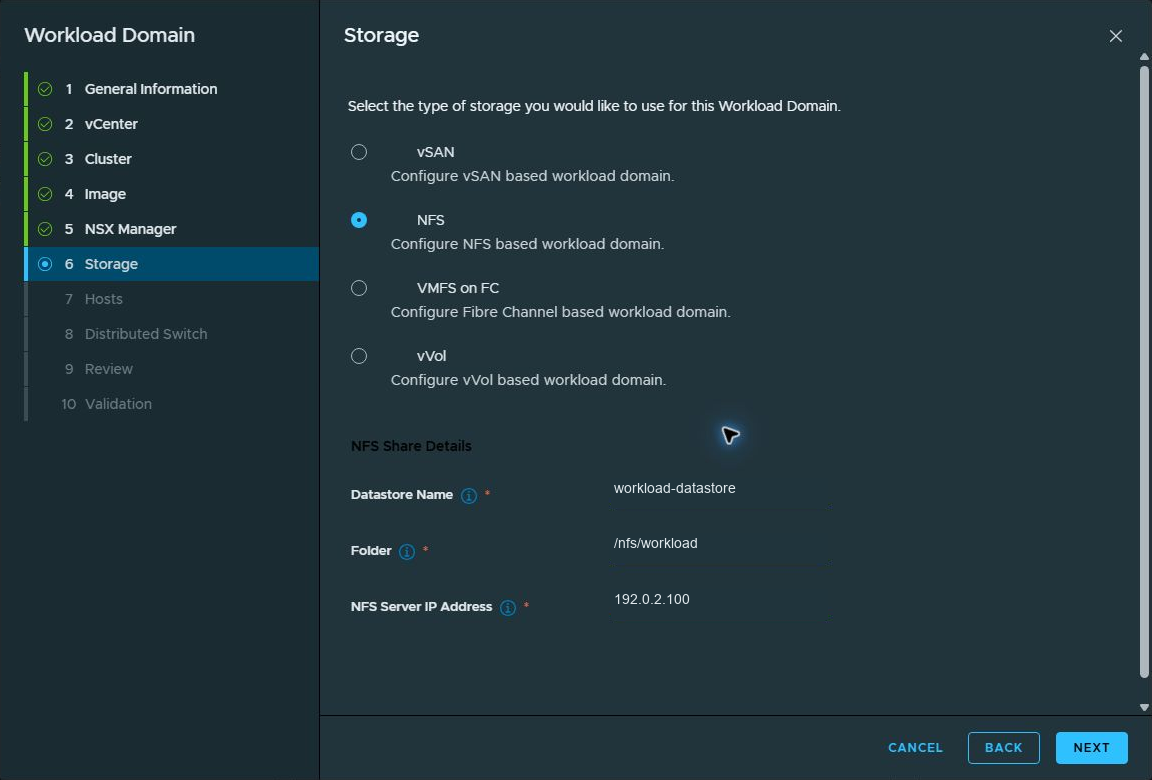
I chose NFS because I plan to enable memory tiering on this cluster. Selecting vSAN would automatically claim the disks I intend to reserve for memory tiering.
I select NFS as the principal storage type and enter the datastore name, export folder, and NFS server IP address. The examples below use workload-datastore, /nfs/workload, and 192.0.2.100.
Use the commissioned hosts
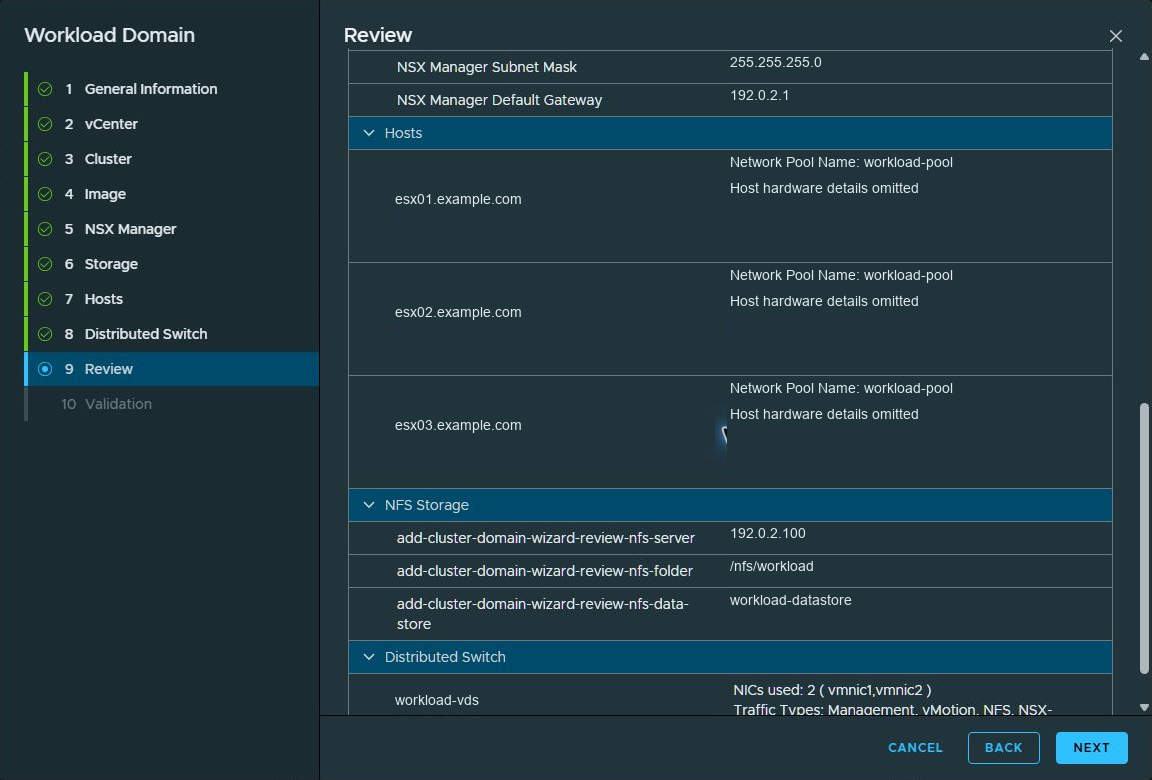
The final Review summary lists three hosts for the workload-domain cluster. In the screenshots, they appear as esx01.example.com, esx02.example.com, and esx03.example.com. The Review screen confirms the three-host configuration before validation.
Customize the distributed switch
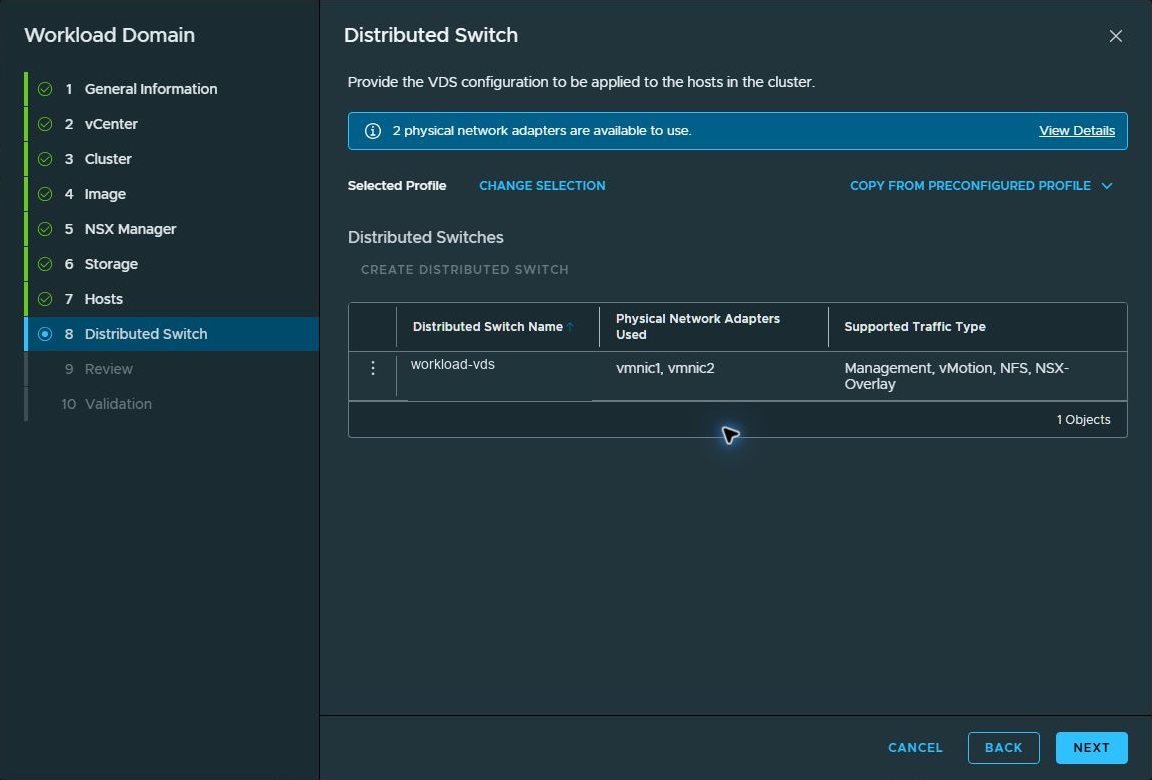
I create a custom distributed switch so I can control the port group names, starting with a copy of the default switch. The wizard provides Copy From Preconfigured Profile for this starting point.
The resulting switch uses two physical adapters, vmnic1 and vmnic2, and carries Management, vMotion, NFS, and NSX-Overlay traffic. The screenshot shows the completed switch summary. Individual port group names are not visible in this captured view.
Review the workload-domain configuration
Before validation, I review the domain and cluster information, selected image, vCenter and SSO settings, NSX Manager configuration, hosts, NFS storage, and distributed switch. The summary confirms three hosts, NFS storage, and the switch configuration for this deployment.
Validate the configuration
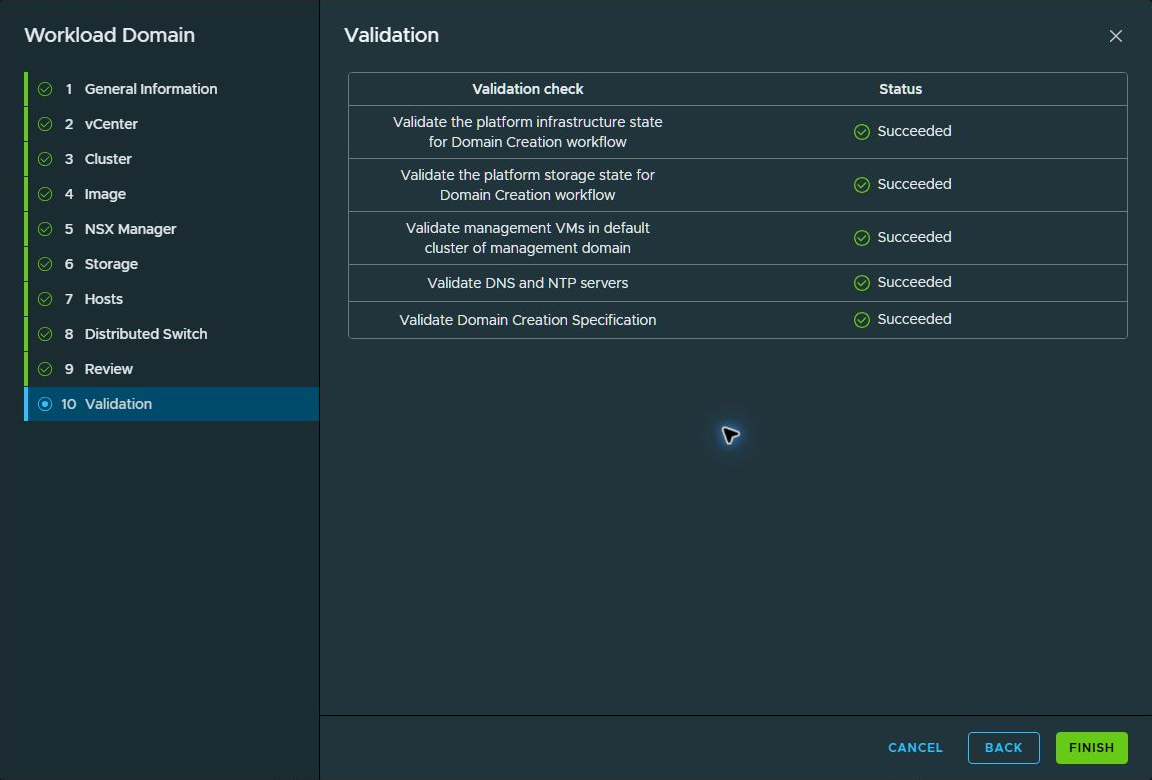
All five checks shown on the Validation page complete successfully:
- Platform infrastructure state for the Domain Creation workflow.
- Platform storage state for the Domain Creation workflow.
- Management VMs in the default cluster of the management domain.
- DNS and NTP servers.
- Domain Creation Specification.
With these checks passing, Finish is enabled to submit the configuration for deployment.
Monitor workload-domain creation
Once deployment has started, open Build > Tasks in VCF Operations and select the VCF instance to monitor the Creating Workload Domain workflow. The task list shows the current subtask and a progress indicator. You can follow the different stages or wait until deployment completes.

Deployment completed successfully
The workload domain has now been created successfully. This completes the workload-domain deployment on the three remaining Minisforum MS-A2 hosts, using the NFS storage and custom distributed switch configured in this walkthrough.

What comes next
With the workload domain in place, my next step is to deploy vSphere Supervisor. I left Supervisor disabled in this wizard so I can cover that process in a separate post.
For the management environment that precedes this walkthrough, see VMware Cloud Foundation 9.1.1: A Greenfield Deployment in My Homelab.
Continue through the lab guides
Lab architecture and hardware roles · Management-domain deployment · VCF lab guide index
For the earlier vSAN ESA deployment model, see the VCF 9.0 workload-domain guide.