
VMware Cloud Foundation 9.1.1: A Greenfield Deployment in My Homelab
A fresh VCF deployment on Minisforum MS-A2 hardware, from planning and custom networking through validation and deployment.
VCF 9.1.1 · Seven MS-A2 systems · NFS storage
This walkthrough builds a fresh VMware Cloud Foundation (VCF) 9.1.1 management environment on four Minisforum MS-A2 hosts, using NFS storage and custom networking. Three additional MS-A2 hosts provide the workload domain in the linked follow-up guide.
Four systems are allocated to the management domain and three to the workload domain. This guide covers the management environment through VCF Installer. Continue with Creating a VCF 9.1.1 Workload Domain for the completed workload deployment. VCF Automation remains separate follow-up work.
Hostnames, domain names, addresses, and infrastructure names in this post and its screenshots use generic examples. Screenshot values have been replaced with precise overlays, and task timing fields are hidden in the deployment screenshots. Substitute values from your own deployment plan.
The lab at a glance
| Component | My configuration |
|---|---|
| Management domain | Four Minisforum MS-A2 systems |
| Workload domain | Three Minisforum MS-A2 systems; deployment covered in the follow-up guide |
| Deployment model | Simple / Small |
| Initial storage | NFS v3 |
| Connectivity | Centralized Connectivity with NSX Edges |
| VCF Automation | Deferred to a later deployment |
Minisforum MS-A2 hardware specifications
The seven MS-A2 systems are split between two hardware profiles. The four management hosts provide more memory per system, while the three workload hosts use newer processors and dedicated GPUs. The specifications below describe the physical lab hardware; the workload-domain deployment is covered in the linked follow-up guide, while memory tiering remains planned for this rebuild.
| Hardware | Management domain | Workload domain |
|---|---|---|
| Systems | 4 × Minisforum MS-A2 | 3 × Minisforum MS-A2 |
| Processor per host | AMD Ryzen 9 7940HX | AMD Ryzen 9 9955HX |
| CPU cores / threads per host | 16 cores / 32 threads | 16 cores / 32 threads |
| Memory per host | 128 GB DDR5-5600 | 96 GB DDR5-5600 |
| Boot device per host | 500 GB NVMe | 500 GB NVMe |
| NVMe reserved for future memory tiering per host | 1 TB Samsung 990 EVO | 1 TB Samsung 990 EVO |
| Additional local NVMe per host | 2 TB Samsung 990 EVO | 2 TB Samsung 990 EVO |
| Workload GPU per host | — | NVIDIA RTX 4000 SFF Ada, 20 GB VRAM |
| Domain totals | 64 physical cores / 512 GB RAM | 48 physical cores / 288 GB RAM |
For this greenfield deployment, I am using NFS for the management datastore and reserving the 1 TB NVMe devices for memory tiering later. The local drive inventory above does not mean those devices have already been configured for memory tiering in this new environment.
What you need before starting
This post does not cover the prerequisite setup of DNS records, IP subnets, the VCF Offline Depot appliance, or downloading the deployment binaries. Those items should be ready before beginning the wizard. For the depot setup, see my VCF Offline Depot appliance walkthrough.
My preparation checklist includes forward and reverse DNS for the hosts and management appliances; planned VLANs, subnets, gateways, and address pools; routing and firewall access between the required networks; consistent MTU settings; and reachable NTP servers. The ESX hosts, storage, VCF Installer, and required deployment bundles should also be ready. Have the account credentials, licensing information, and component sizing plan available. These prerequisites are outside this walkthrough, rather than steps that the wizard replaces.
Choose a new VCF deployment
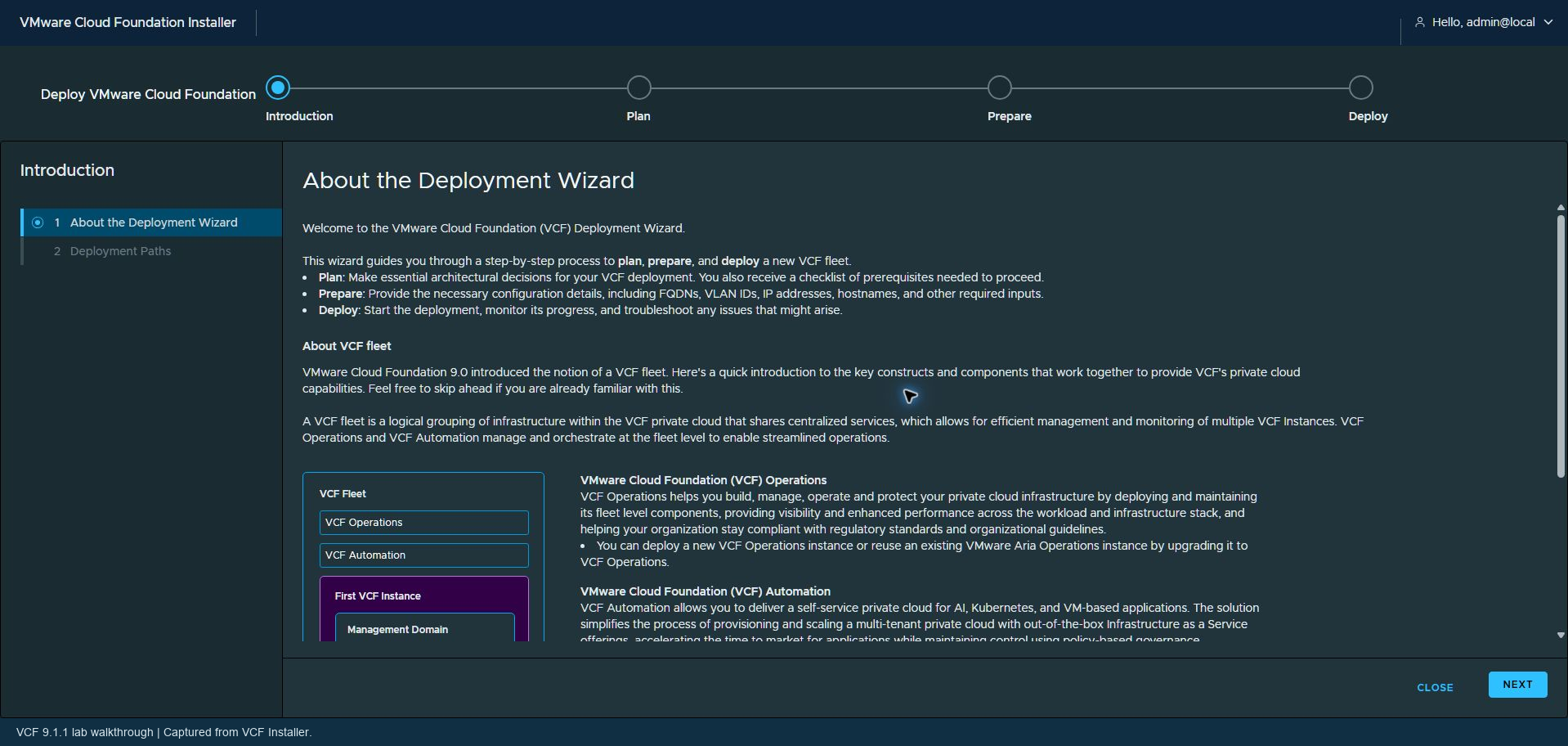
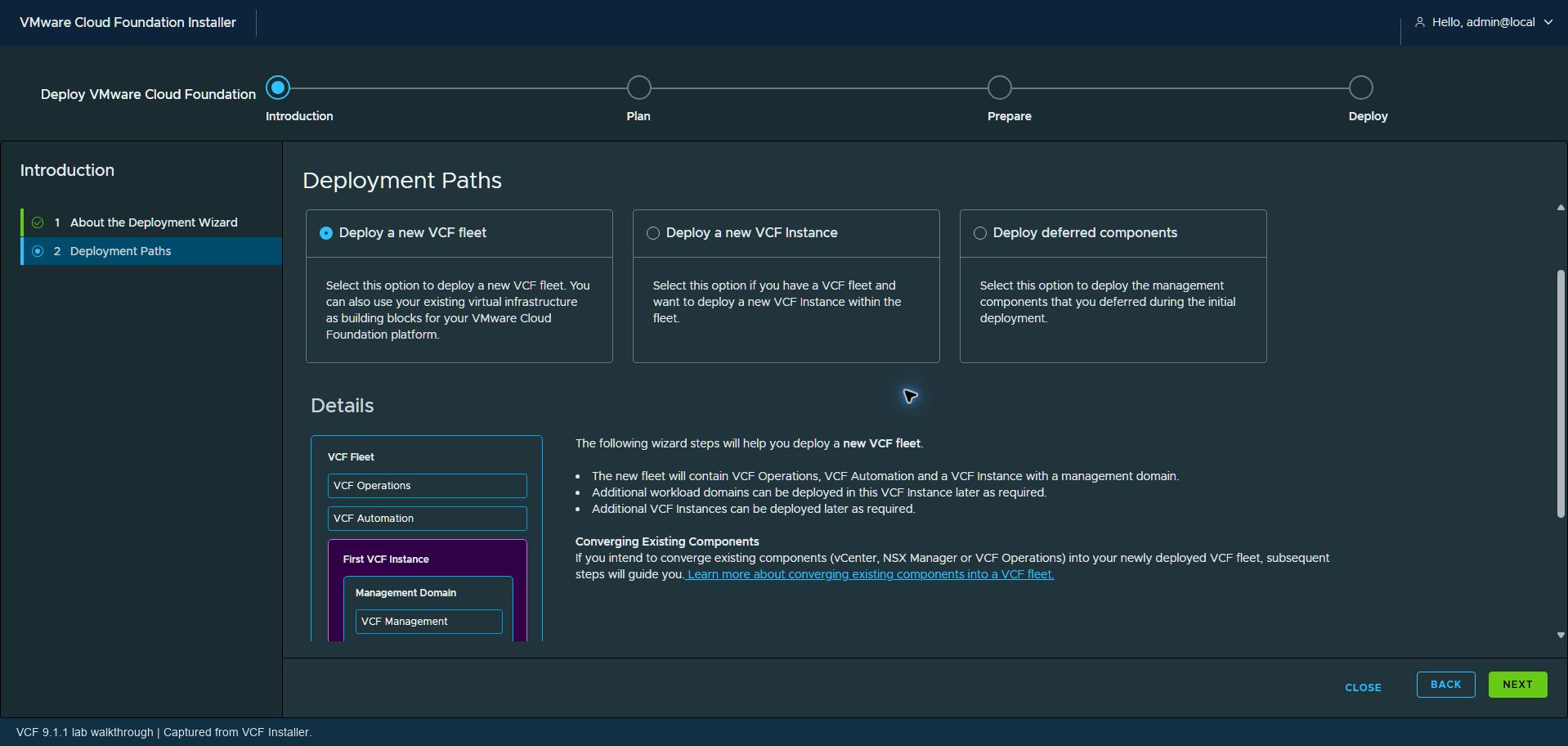
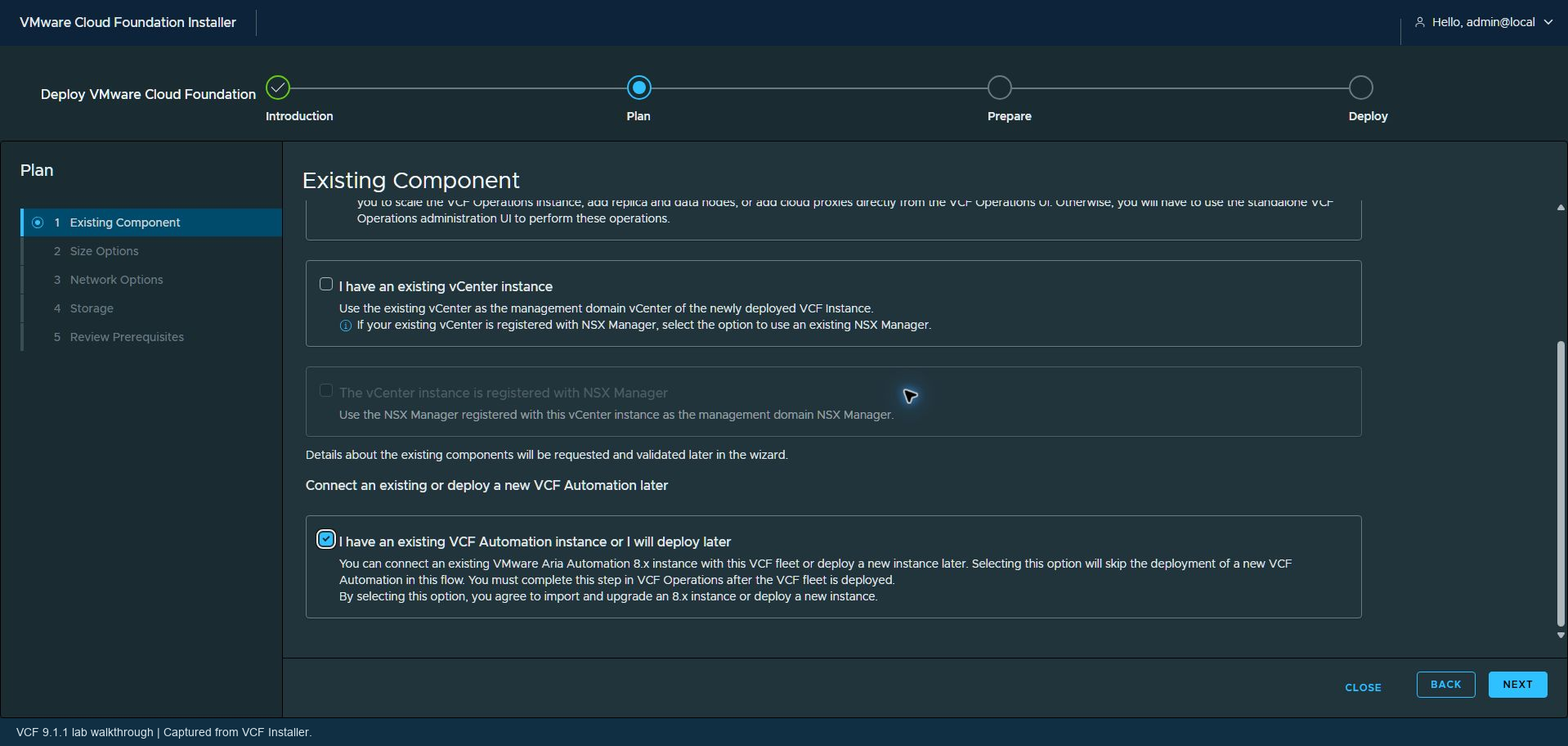
I am starting a new VCF fleet instead of reusing existing VCF Operations or vCenter components. I am also deferring VCF Automation until a later date. This keeps the initial walkthrough focused on getting the management environment deployed.
Use the Simple deployment model for the lab
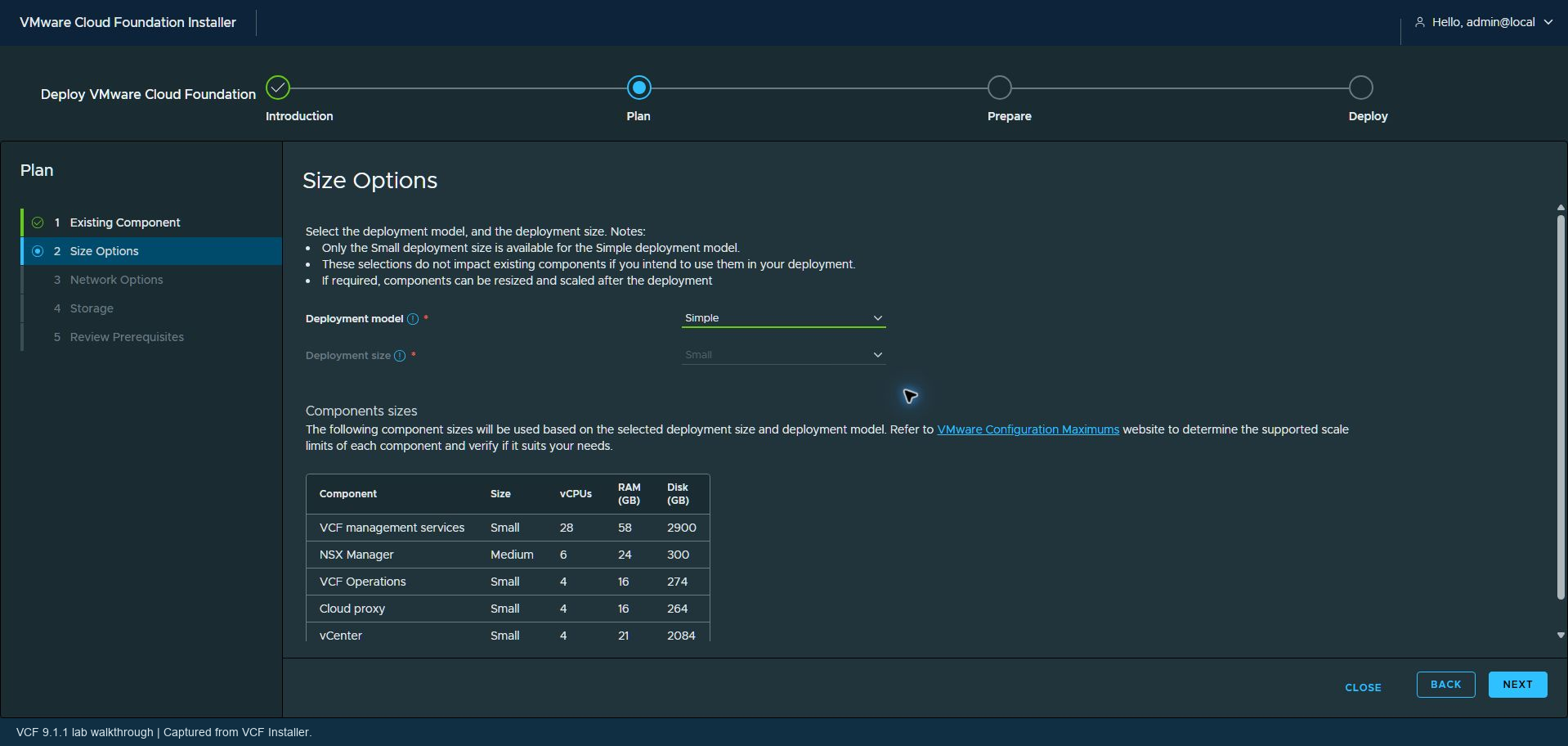
For this lab, I will select the Simple deployment model and Small sizing. These are choices for my environment and available resources. Size your own deployment for the services, capacity, and availability you need.
Customize the network options
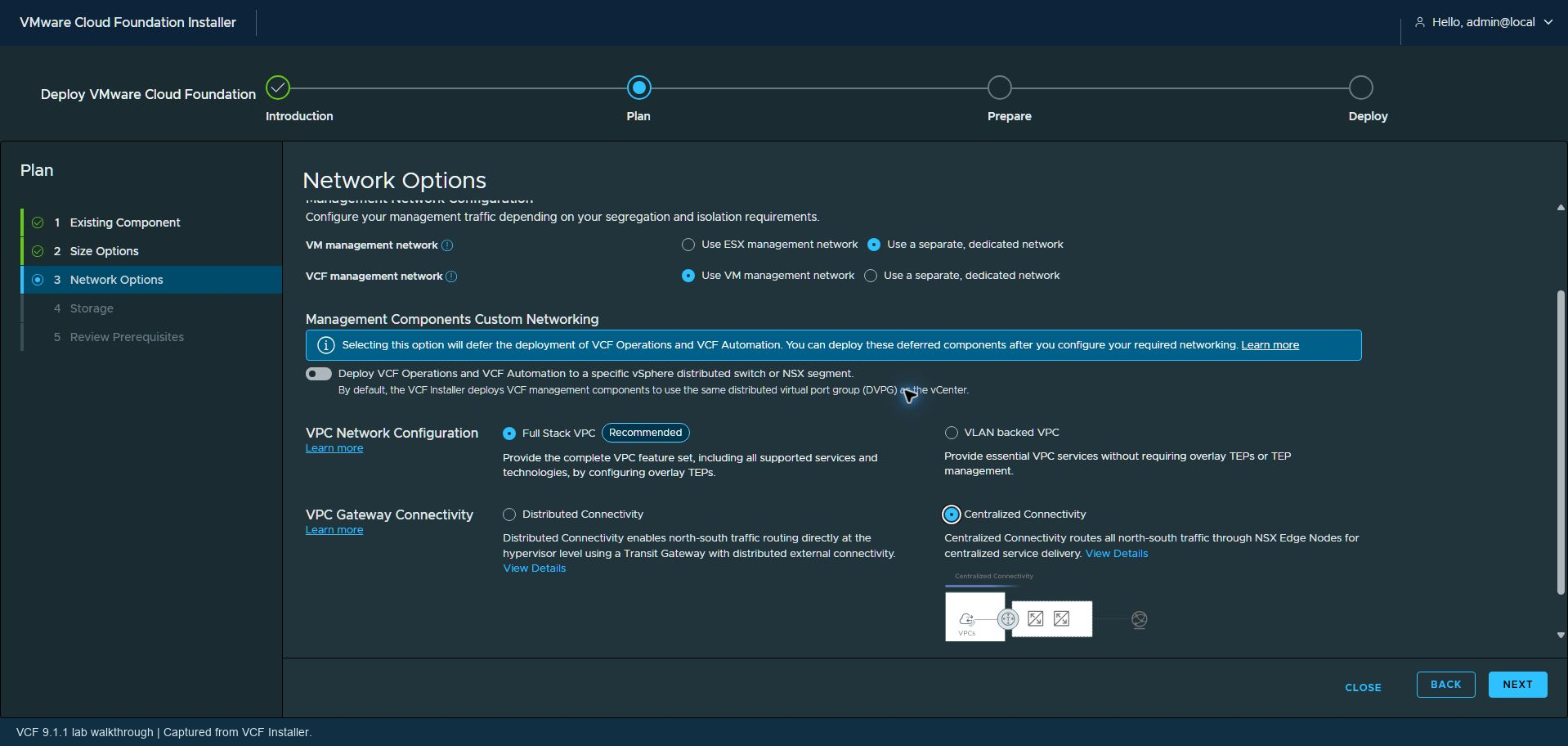
I am using separate ESX management traffic and VM management traffic. The VCF management components share the VM management network in this design. I also select Centralized Connectivity because I want to continue using NSX Edges for north-south connectivity.
In the wizard, this combination appears as Full Stack VPC with Centralized Connectivity.
Choose NFS storage with future memory tiering in mind
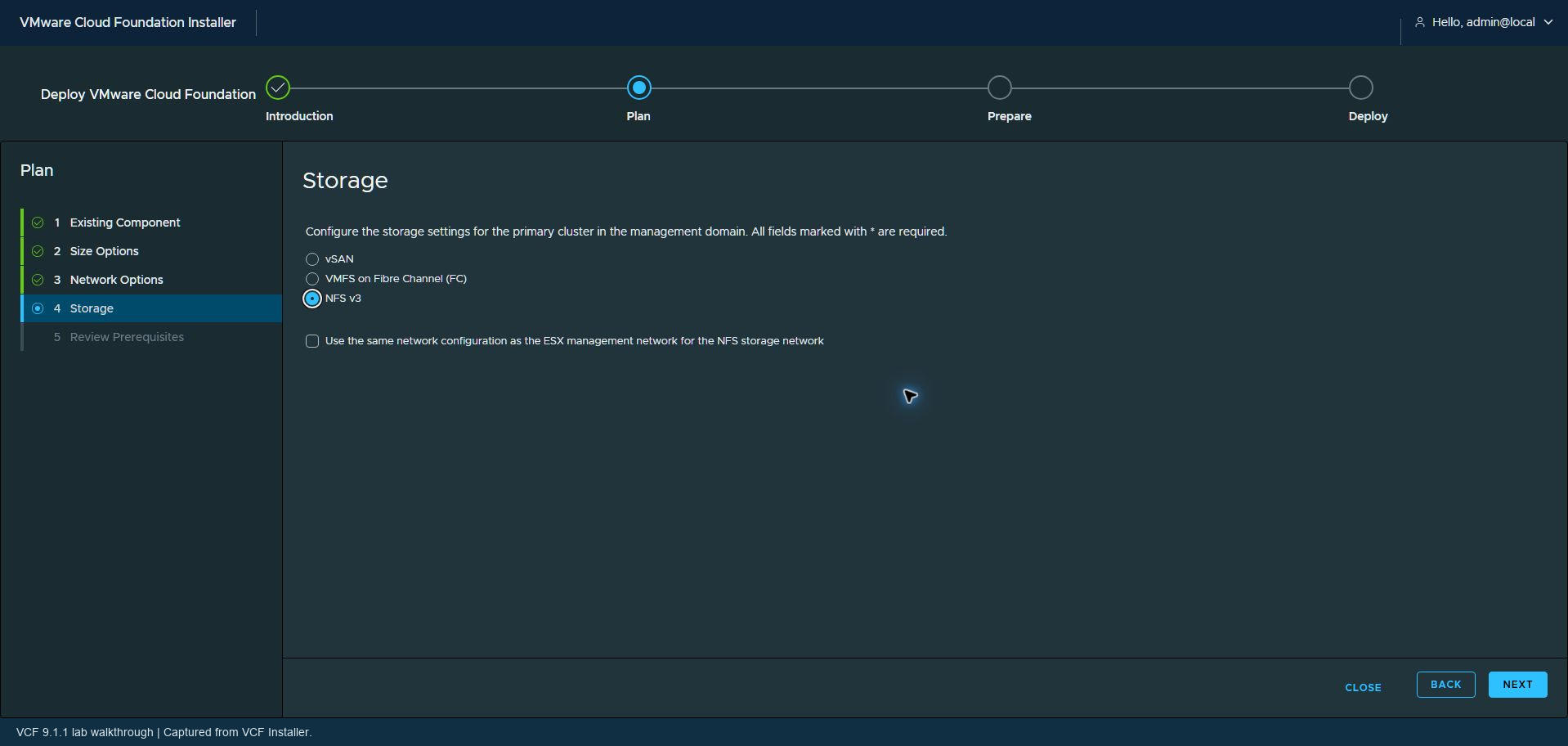
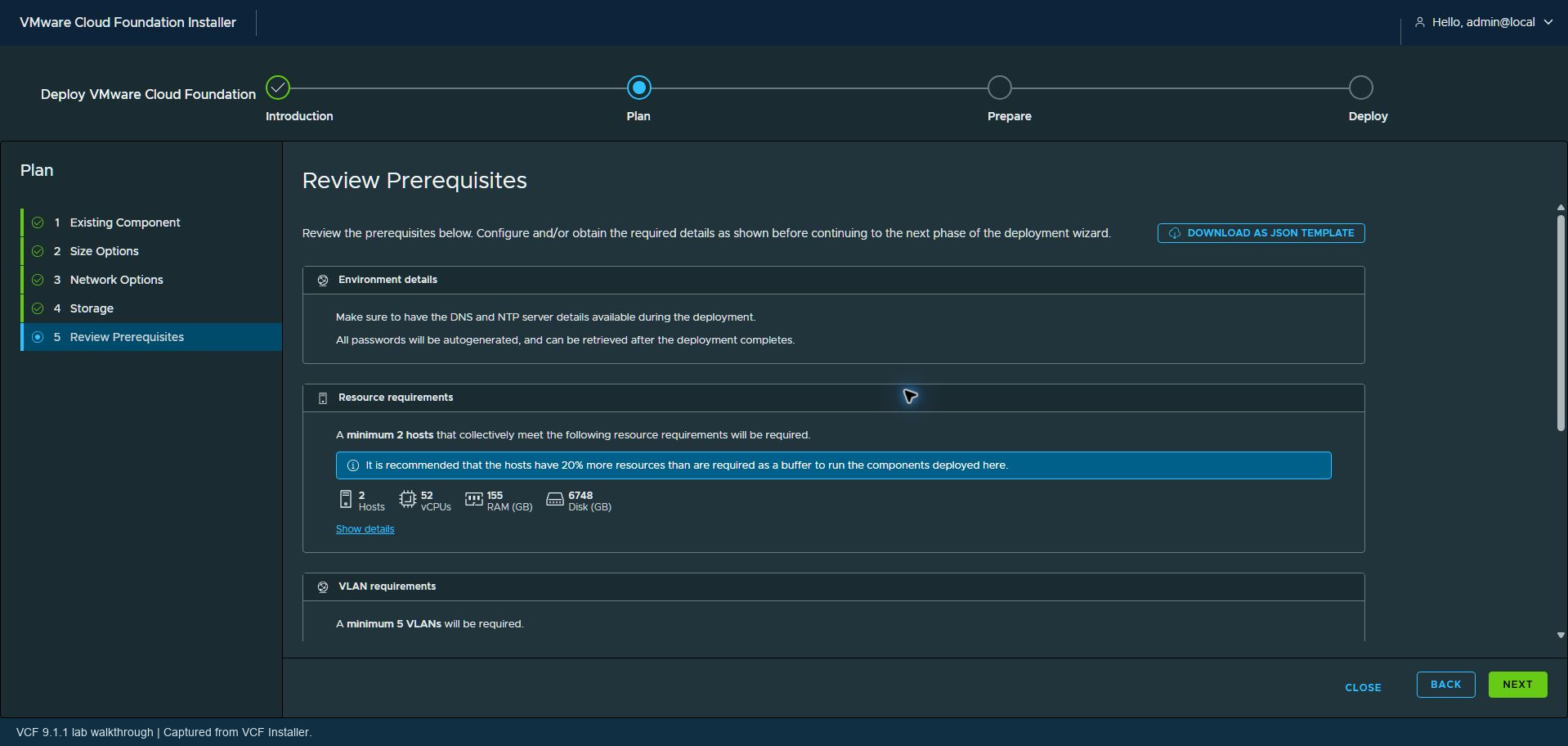
With NFS selected, the installer lists a minimum of two hosts for this installation, provided they collectively meet the resource requirements. I am choosing four management hosts to provide the resources needed for VCF services and because I plan to convert the environment to vSAN later. That conversion is future work and is not covered in this initial NFS deployment.
I am using NFS v3 for the initial management deployment because I want to preserve local NVMe capacity for memory tiering later. I do not want the initial vSAN storage configuration to consume the local devices I intend to reserve for that work.
Memory tiering is not configured in this walkthrough. Disk eligibility and claiming behavior should be checked for your hardware and storage configuration before applying the same approach.
Enter general information and add the hosts
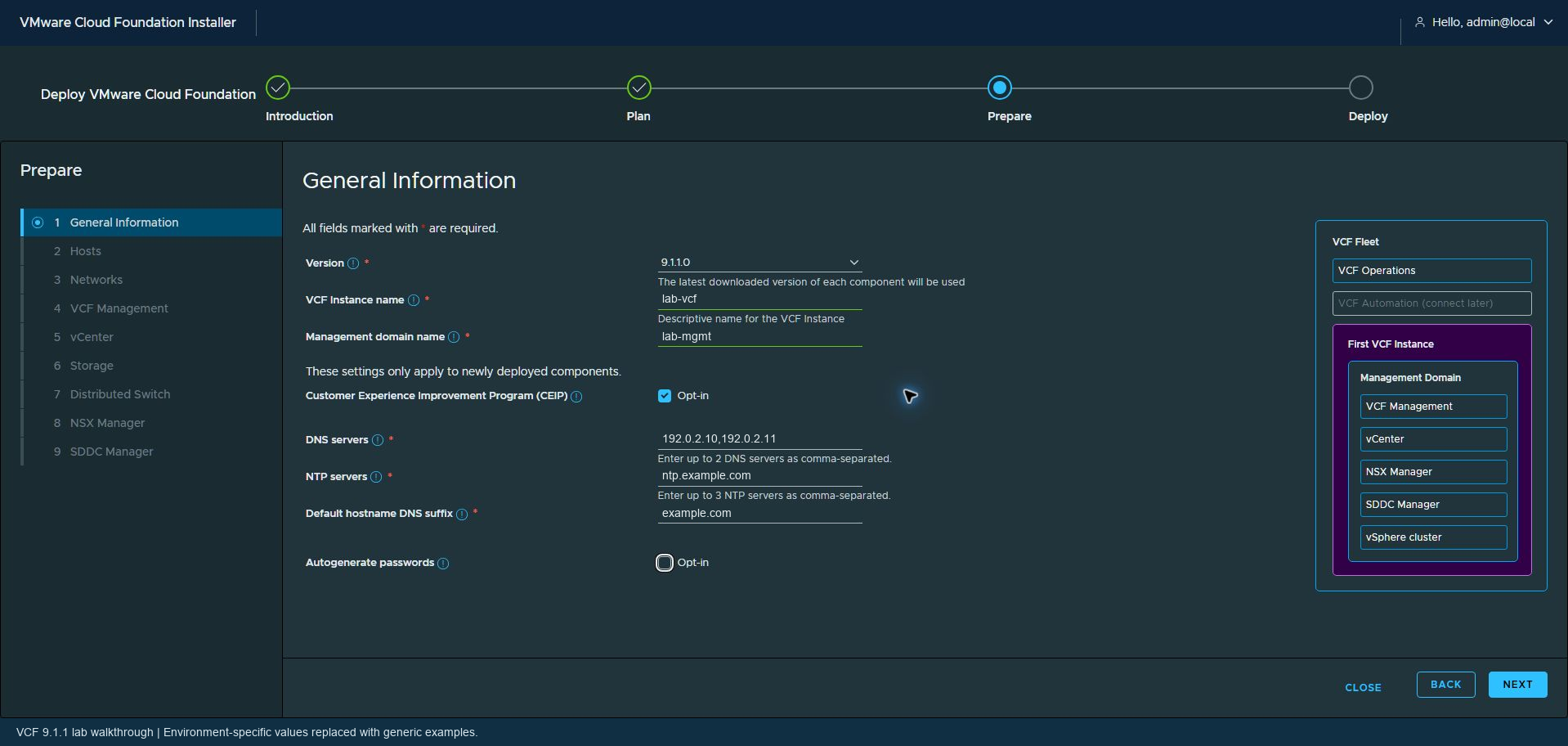
In Prepare, I selected VCF 9.1.1.0 and enter the instance and management domain names, DNS servers, DNS suffix, and NTP information. Generic examples would be a management domain named mgmt and an internal DNS namespace such as example.com. Use working DNS records from your own environment.
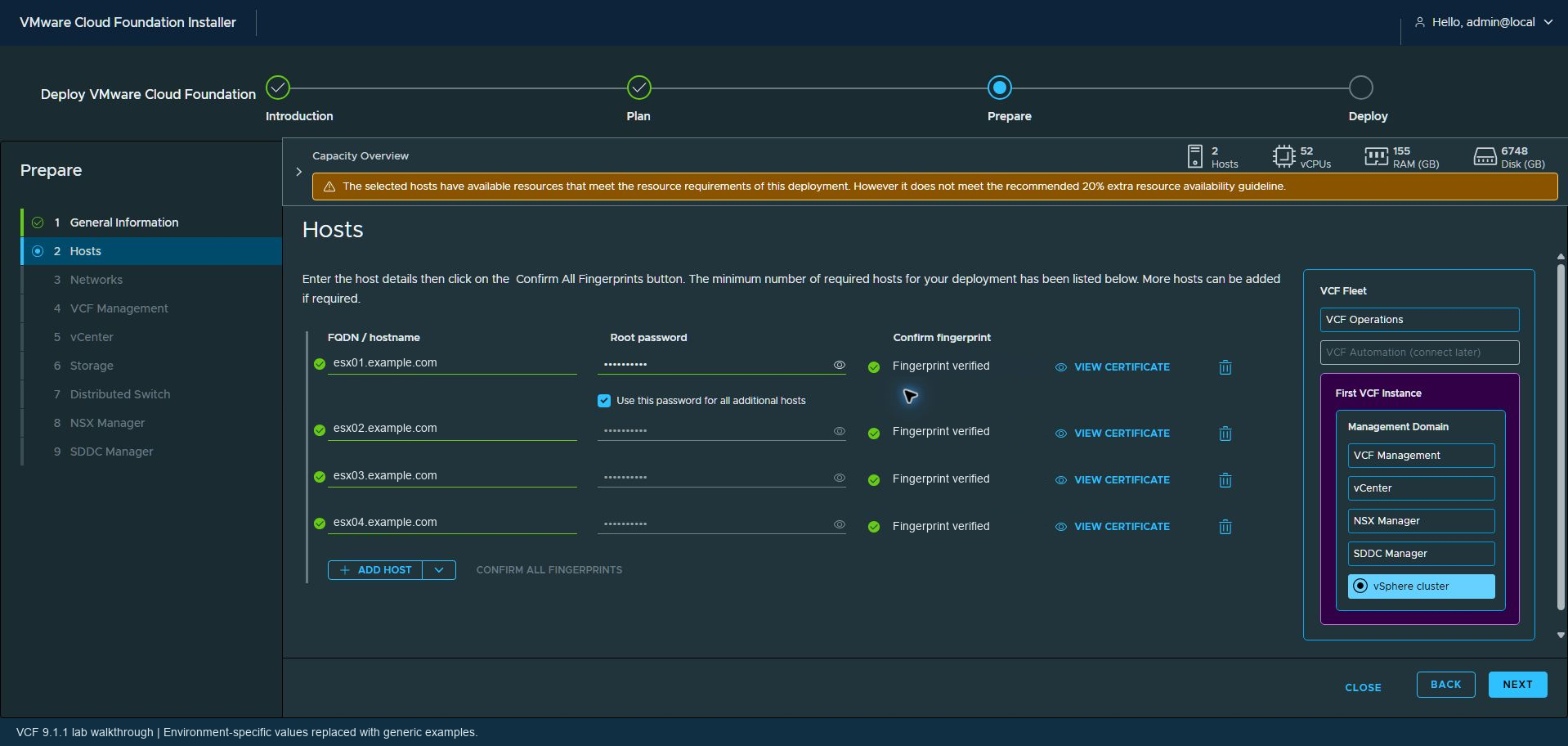
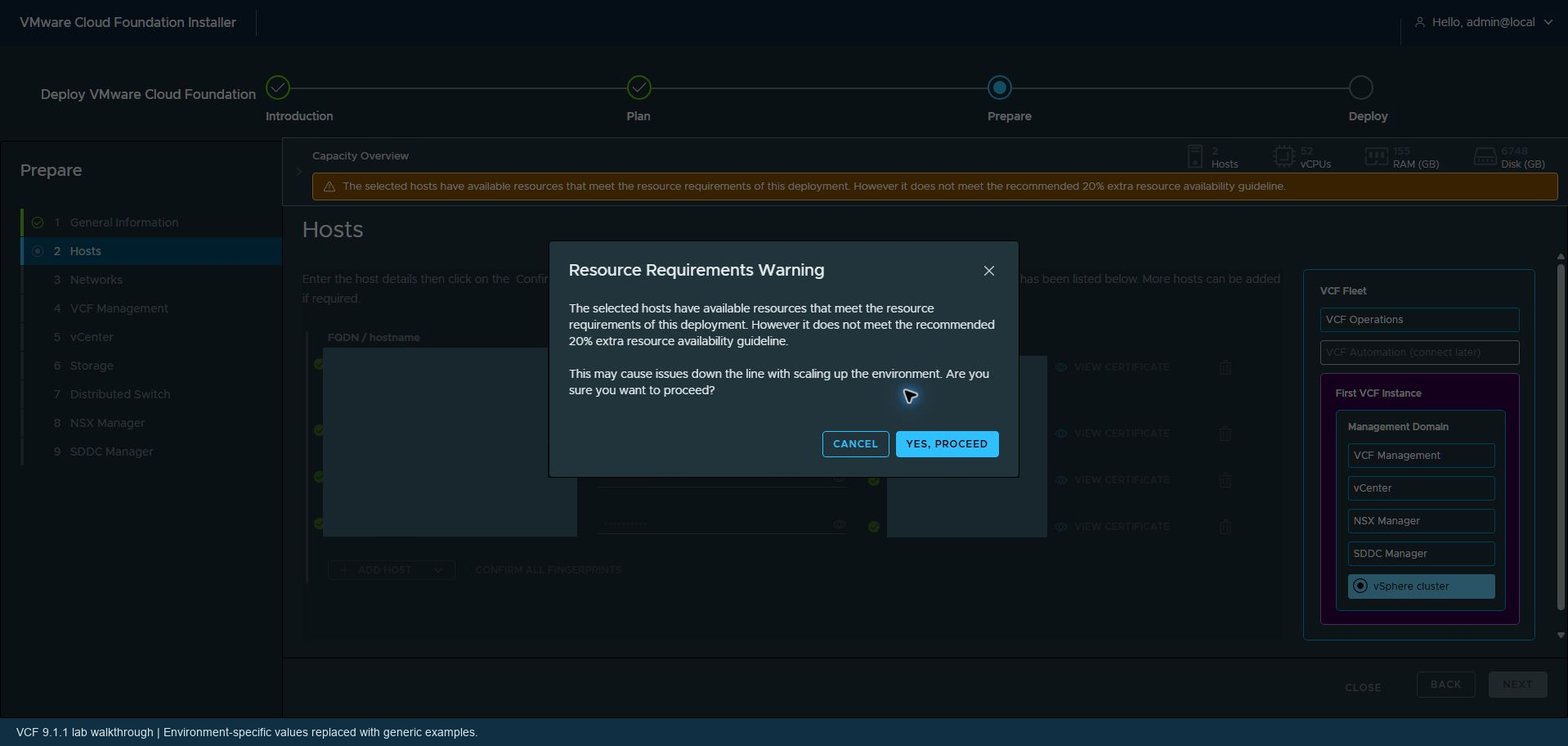
Next, I added the four management hosts and review their fingerprint indicators. Passwords are intentionally excluded from this post. During host preparation, the installer warns that the hosts meet the minimum requirements but do not provide the recommended resource buffer. Since this is my lab, I proceed with that warning understood.
Define the deployment networks
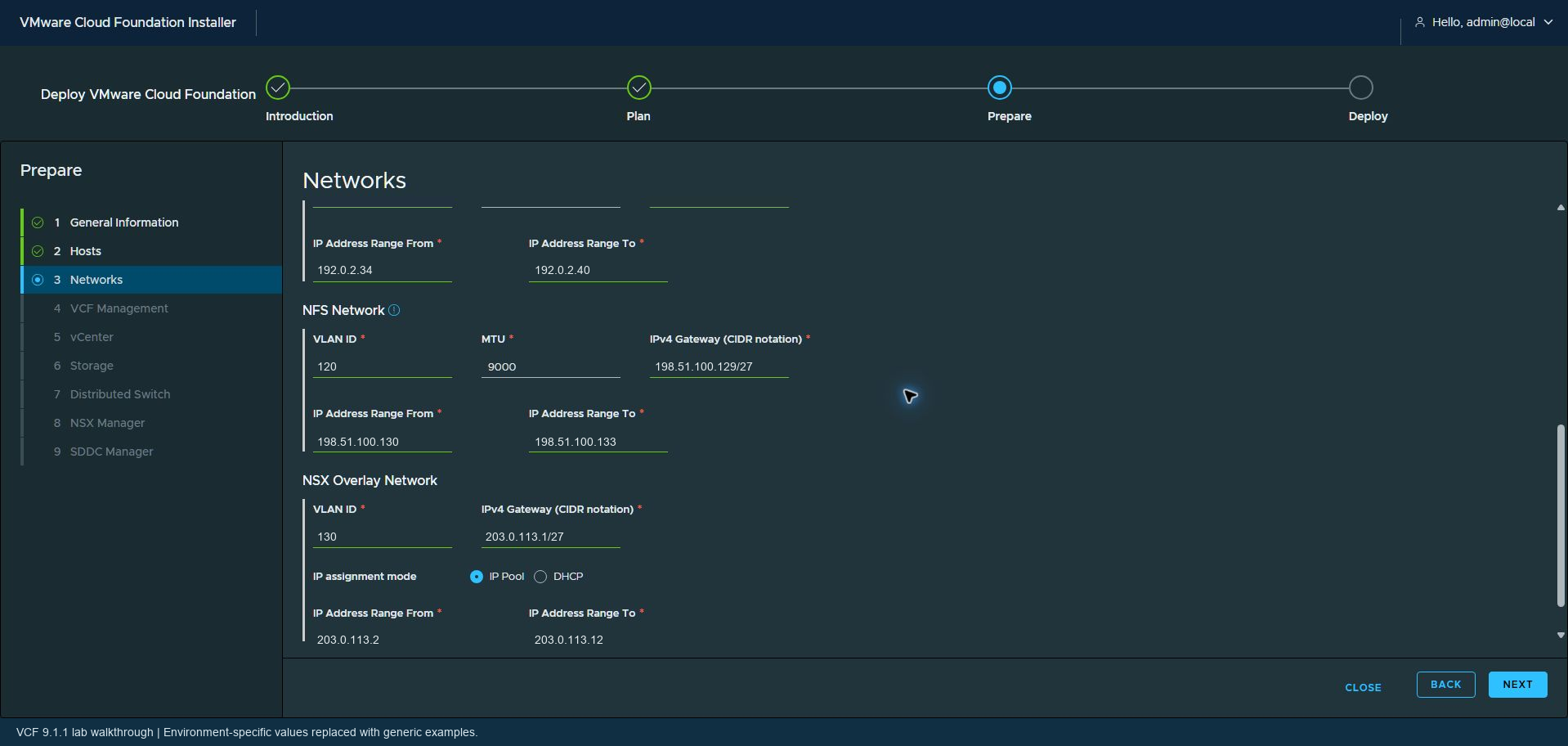
I configured separate entries for ESX management, VM management, vMotion, NFS, and the NSX host overlay network. For each applicable network, I enter the VLAN, gateway and subnet, MTU, and address pool. I also allocate the VCF services address range on the VM management network.
My vMotion and NFS entries use an MTU of 9000. The physical network needs to support the chosen MTU end to end. For the NSX host overlay network, I used an IP pool. All pool ranges must be reserved for their intended use and kept clear of existing devices.
One correction during my review was the NFS host address pool: its initial range overlapped the NFS server address. I changed the host pool so that it no longer included the server. This is a useful check before validation: an existing storage endpoint must not also be an address the installer can assign to a host VMkernel adapter.
Configure VCF management and vCenter
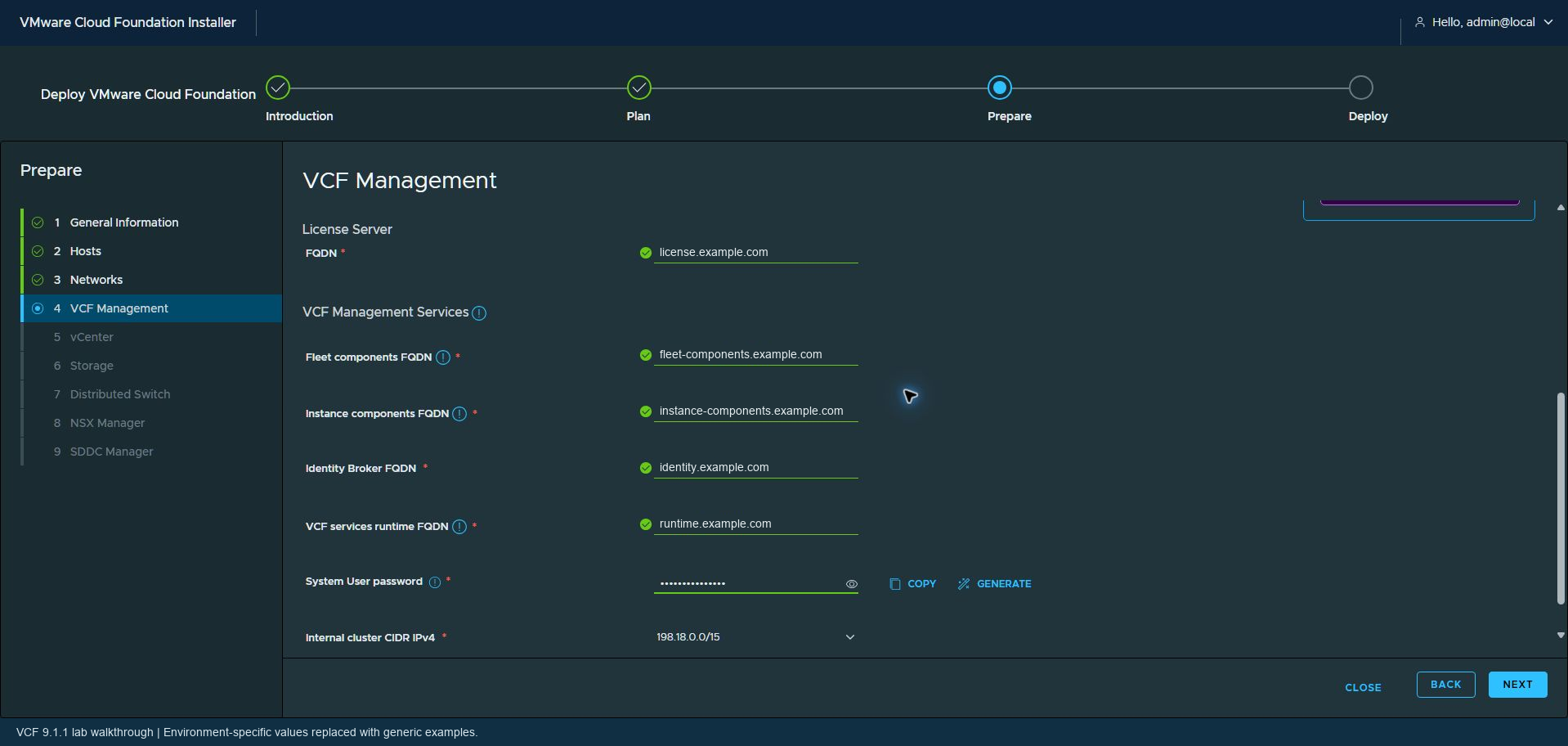
The VCF Management page collects the names for VCF Operations, its cloud proxy, licensing, and the management services. In a generic naming plan, these might be ops.example.com, cloud-proxy.example.com, license.example.com, fleet-components.example.com, instance-components.example.com, identity.example.com, and runtime.example.com. I also review the internal cluster CIDR and runtime name.
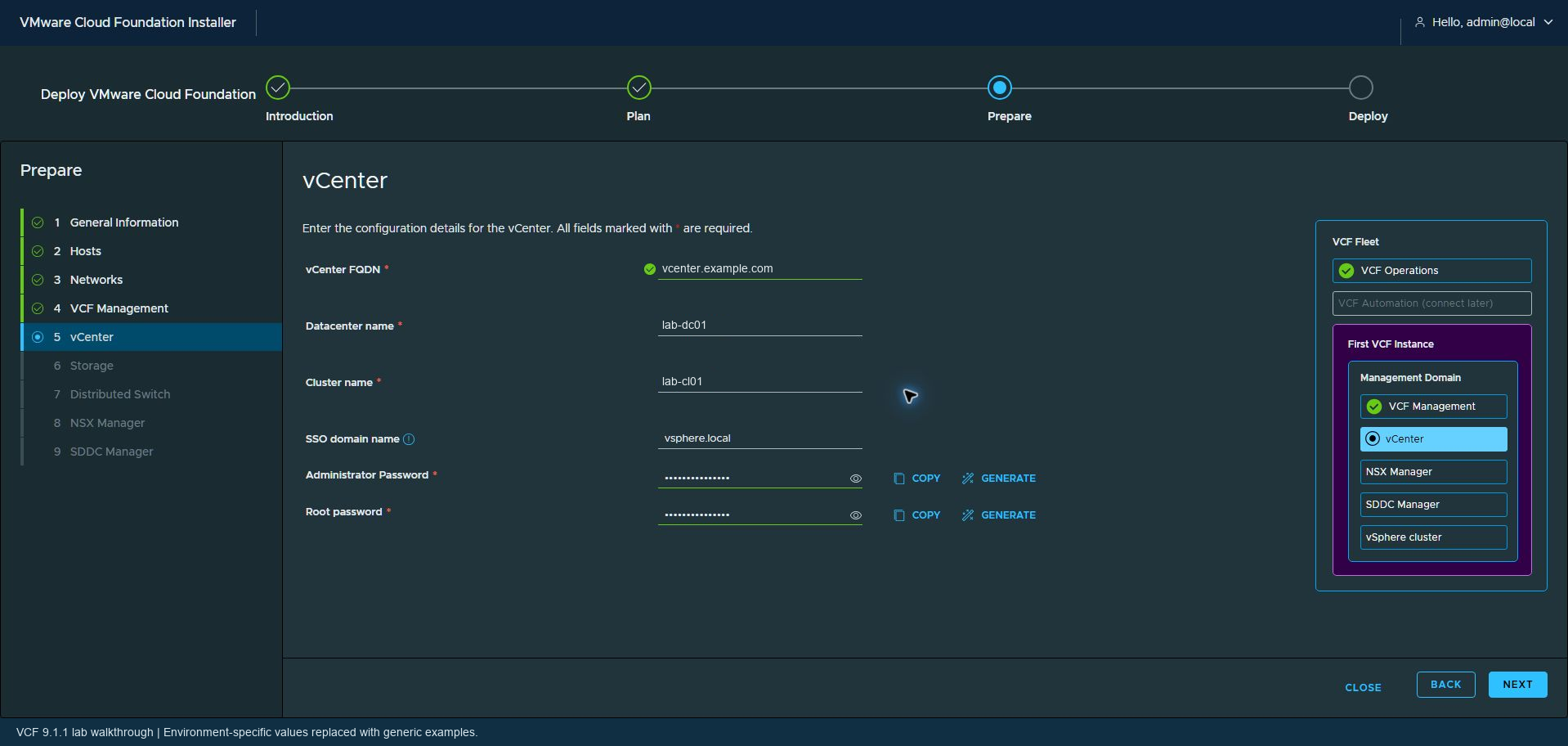
For vCenter, I entered the appliance FQDN, datacenter and cluster names, and SSO domain. Example names are vcenter.example.com, lab-dc01, and lab-cl01. The final review shows Small vCenter sizing with Large storage sizing.
Configure the NFS datastore
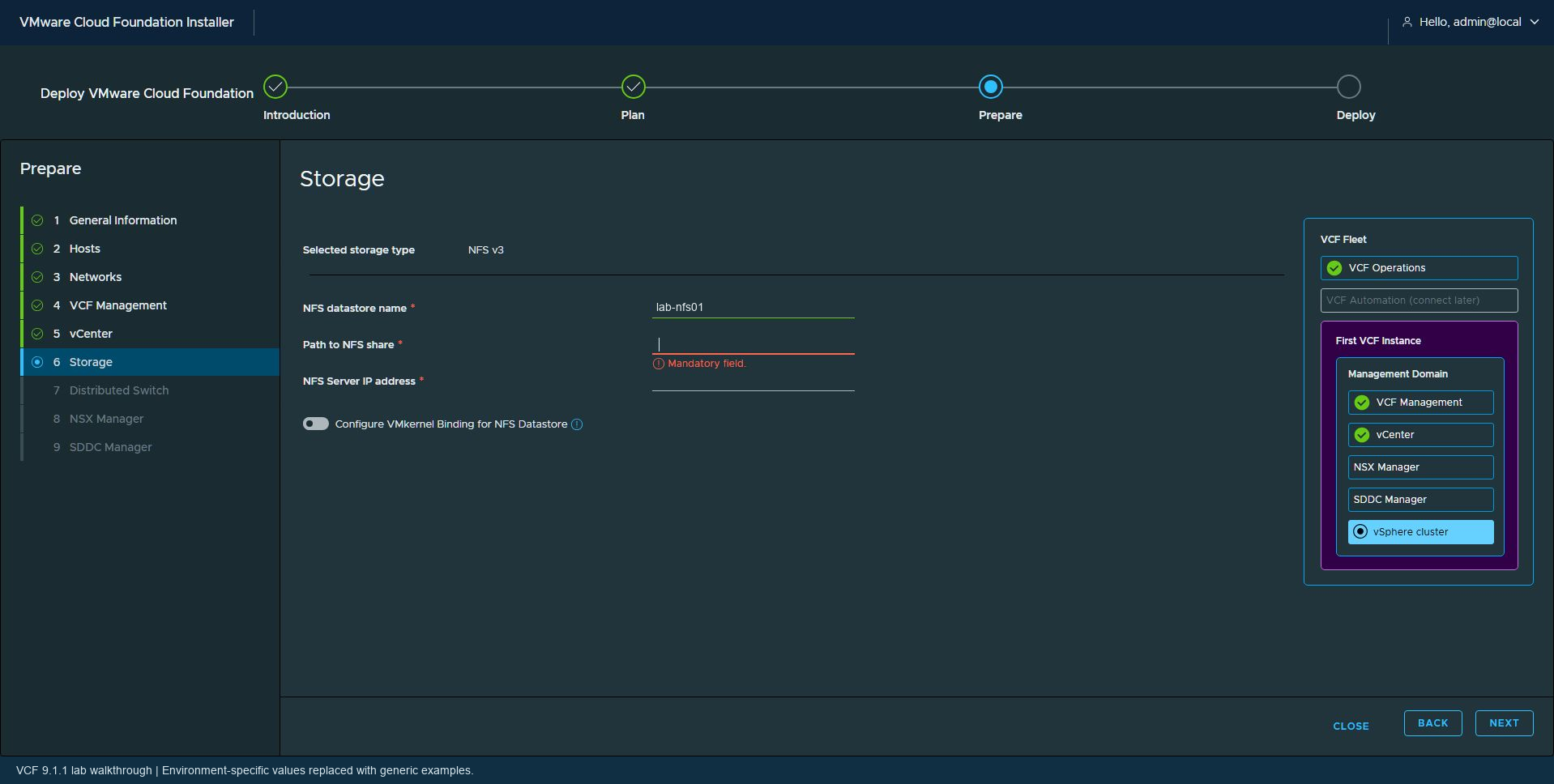
I entered the NFS server address, exported share path, and datastore name. VMkernel Binding is enabled in the final reviewed configuration. Together with the dedicated NFS network and corrected address pool, this defines the storage configuration the installer will apply to the management hosts.
Copy the default distributed switch configuration and customize it
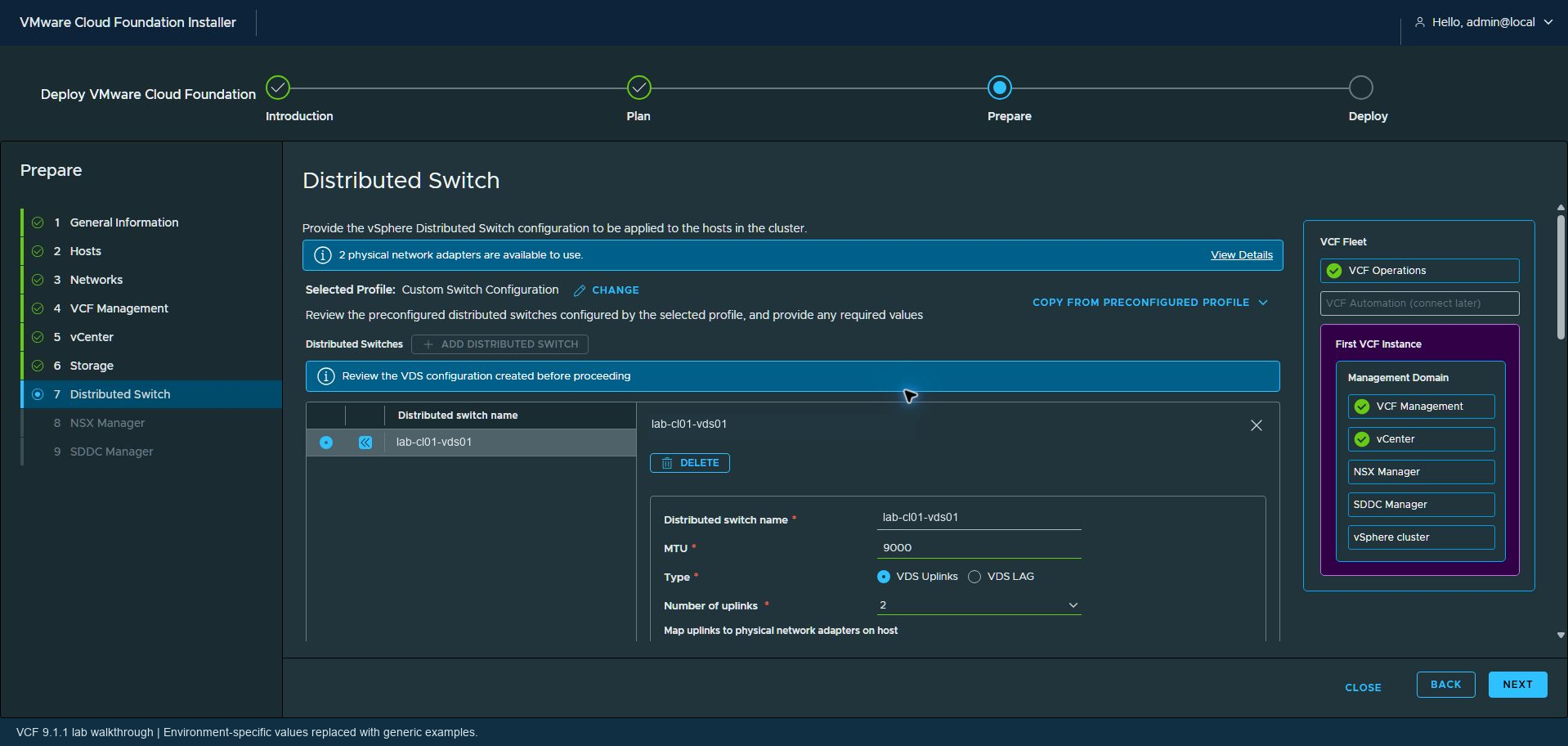
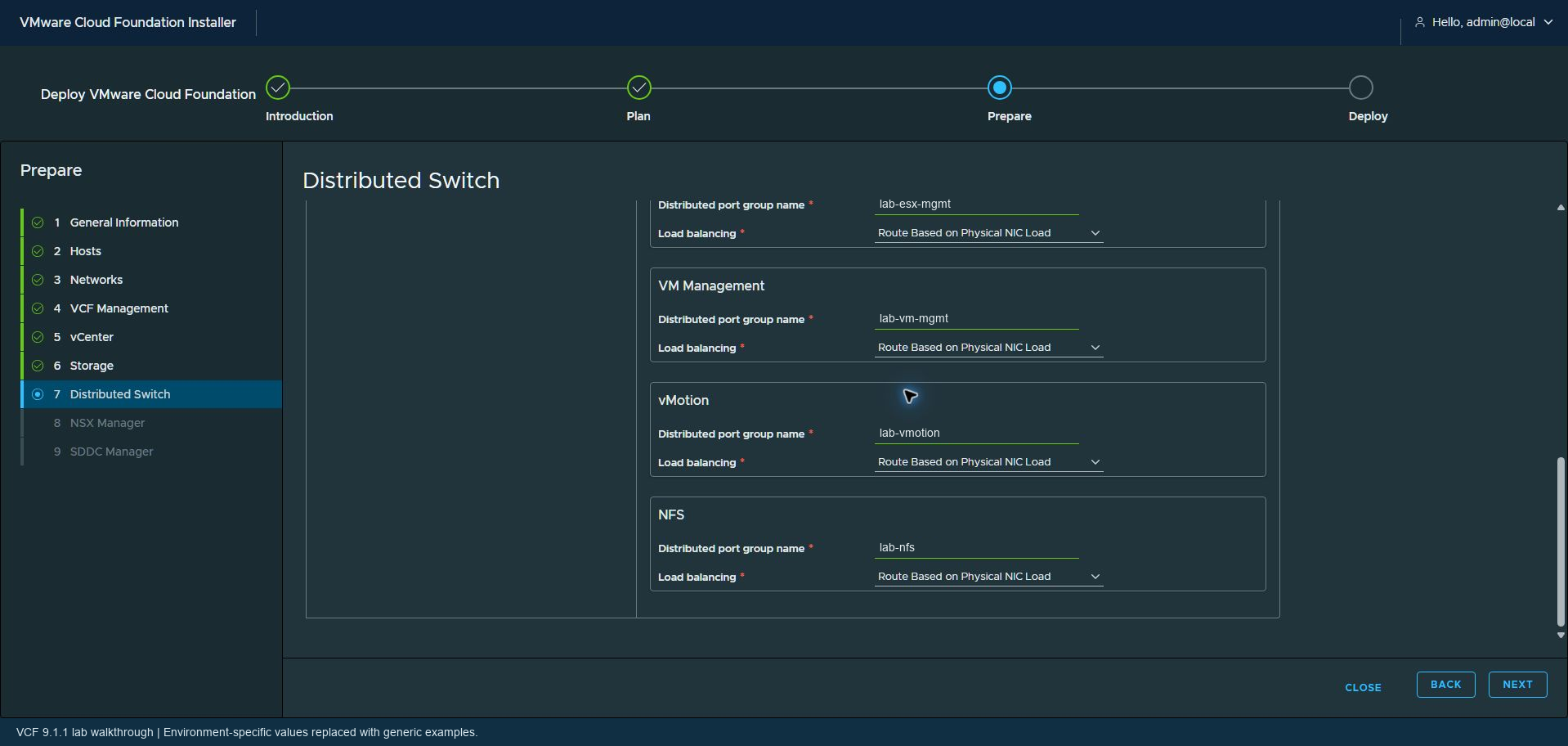
I like to start with a custom distributed switch copied from the default because I like to control the port group naming. This lets me use names that make the purpose of each network easy to recognize. Generic examples are lab-esx-mgmt, lab-vm-mgmt, lab-vmotion, and lab-nfs.
The final switch configuration uses MTU 9000 and two VDS uplinks, mapped to vmnic1 and vmnic2. Both uplinks are Active for the ESX management, VM management, vMotion, and NFS port groups, using Route Based on Physical NIC Load.
For NSX, both uplinks are also Active, with source port ID load balancing. I leave the default virtual switch mode selected and specify the overlay transport zone. I review the uplink policies again after making changes.
Configure NSX Manager and SDDC Manager
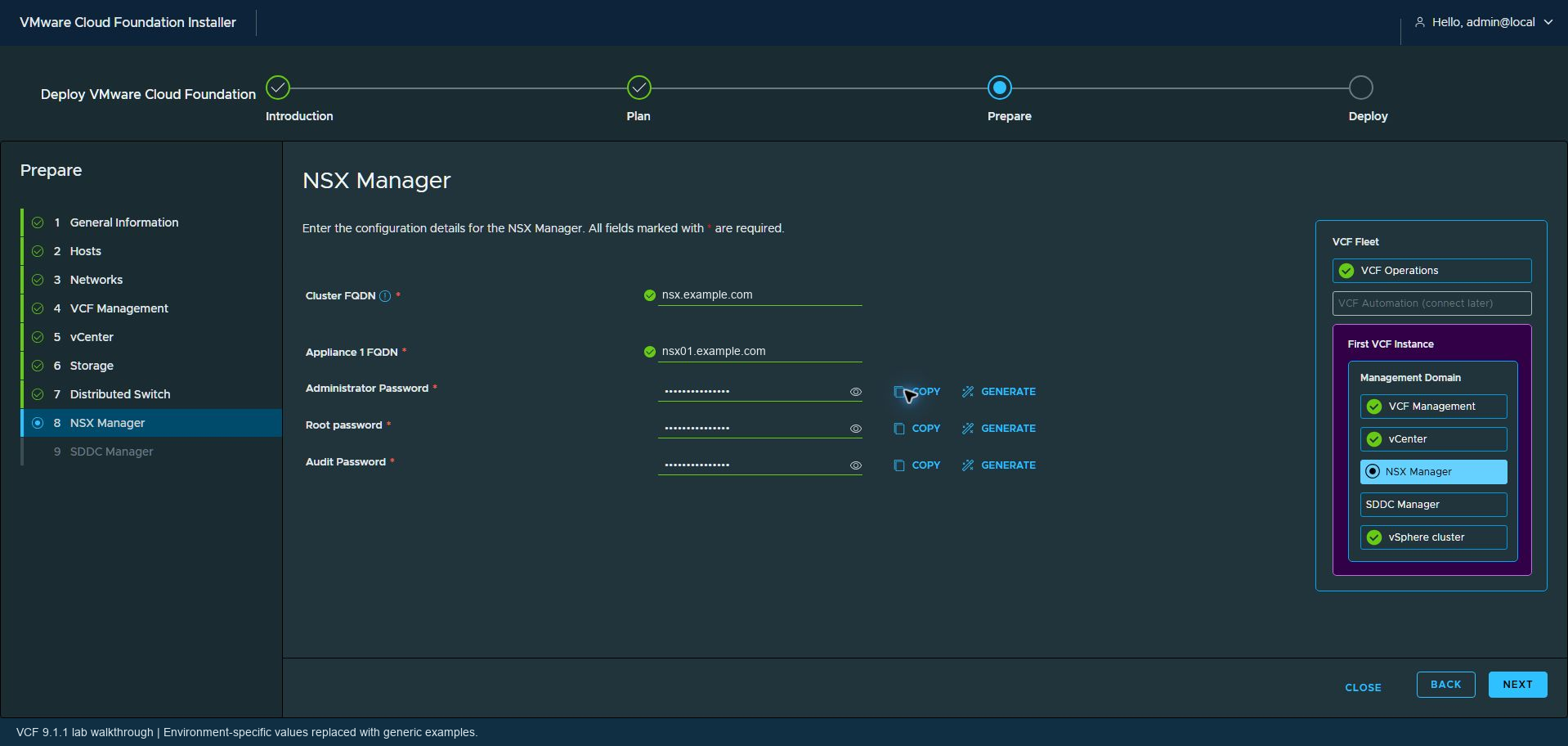
For this lab, I configured a single Medium NSX Manager appliance and its cluster name. Generic examples are nsx.example.com for the cluster and nsx01.example.com for the appliance. The wizard also collects the required account passwords.
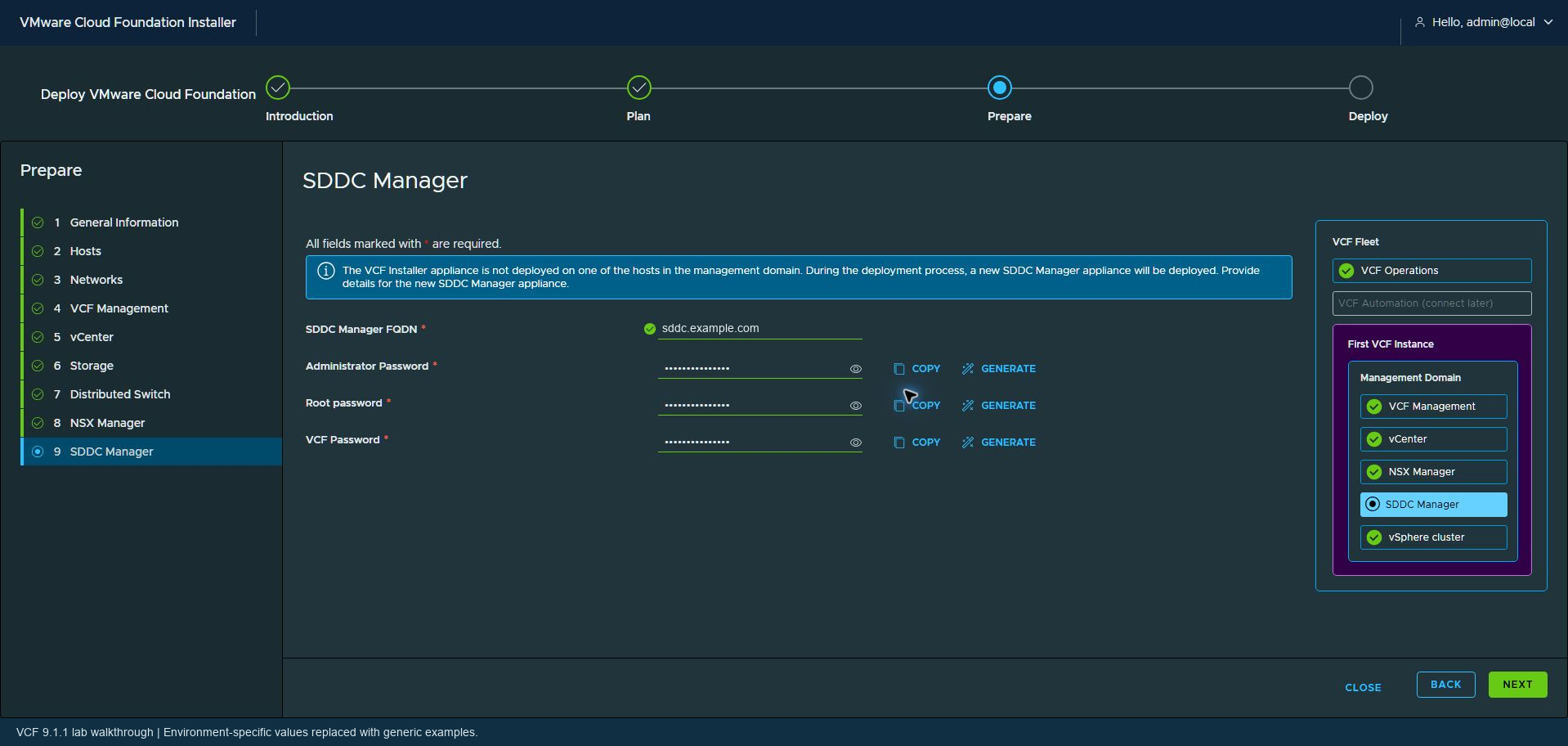
I then enter the SDDC Manager details, using a name such as sddc.example.com. In this deployment, the installer is outside the target management hosts, and the wizard indicates that it will deploy a new SDDC Manager appliance.
Review the specification and keep a reusable copy
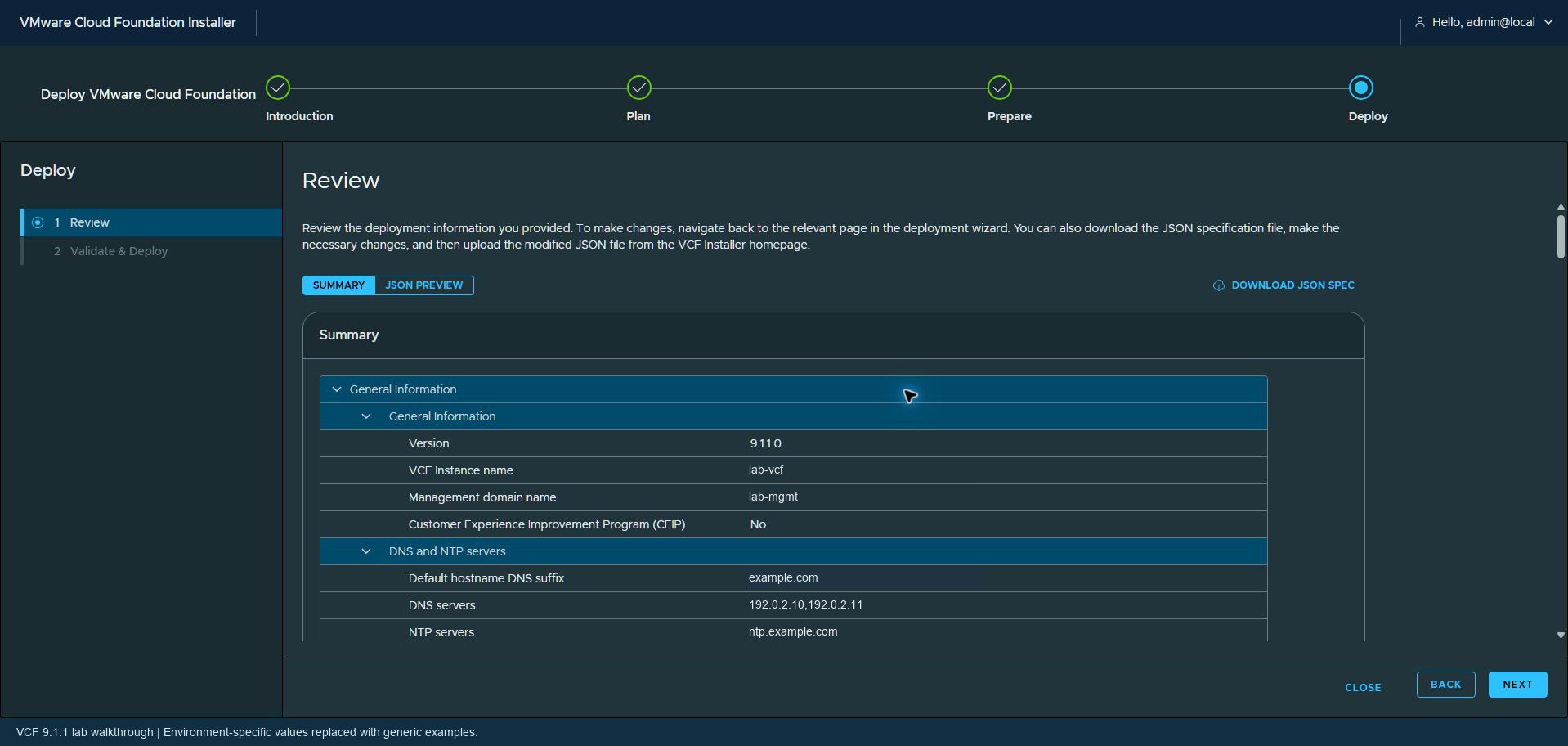
Before validation, I review the complete configuration, including the corrected NFS pool, VMkernel Binding, appliance sizes, and final switch settings. CEIP is set to No in my final review.
If you rebuild your lab regularly, this is a good time to download the JSON specification for future deployments. Keep it securely because it can contain sensitive configuration and credentials. Update the environment-specific values and validate the specification each time you reuse it.
Validate before deploying
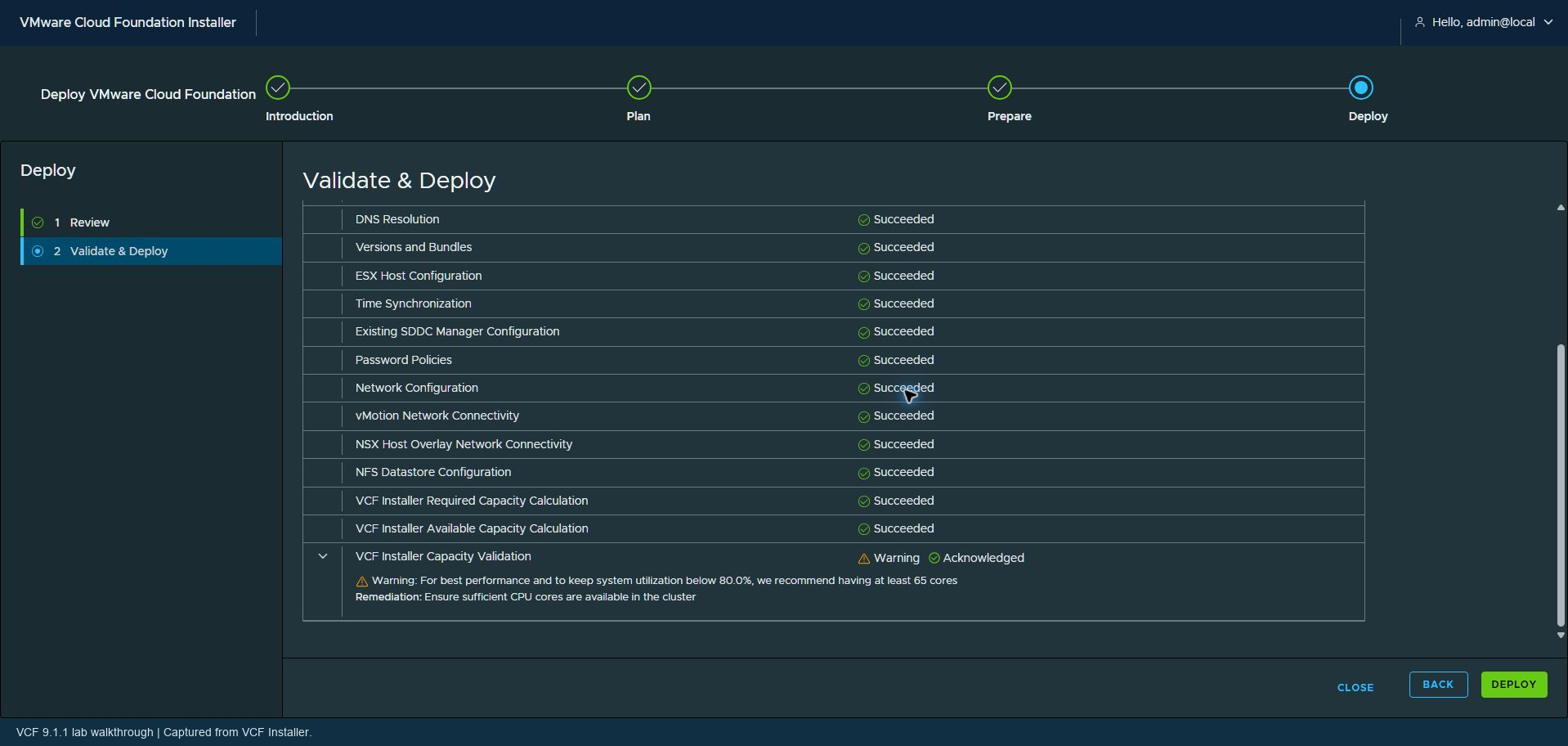
The installer validates the specification, security configuration, DNS, versions and bundles, ESX hosts, time synchronization, SDDC Manager configuration, password policies, networks, vMotion connectivity, NSX host overlay connectivity, NFS storage, and capacity.
My validation finishes with 14 checks succeeded and one acknowledged capacity warning. The warning recommends at least 65 cores for best performance and keeping utilization below 80 percent. Since this is a lab, I accept that capacity tradeoff and proceed. This is a lab decision, not a sizing recommendation for production.
Start the deployment and monitor progress
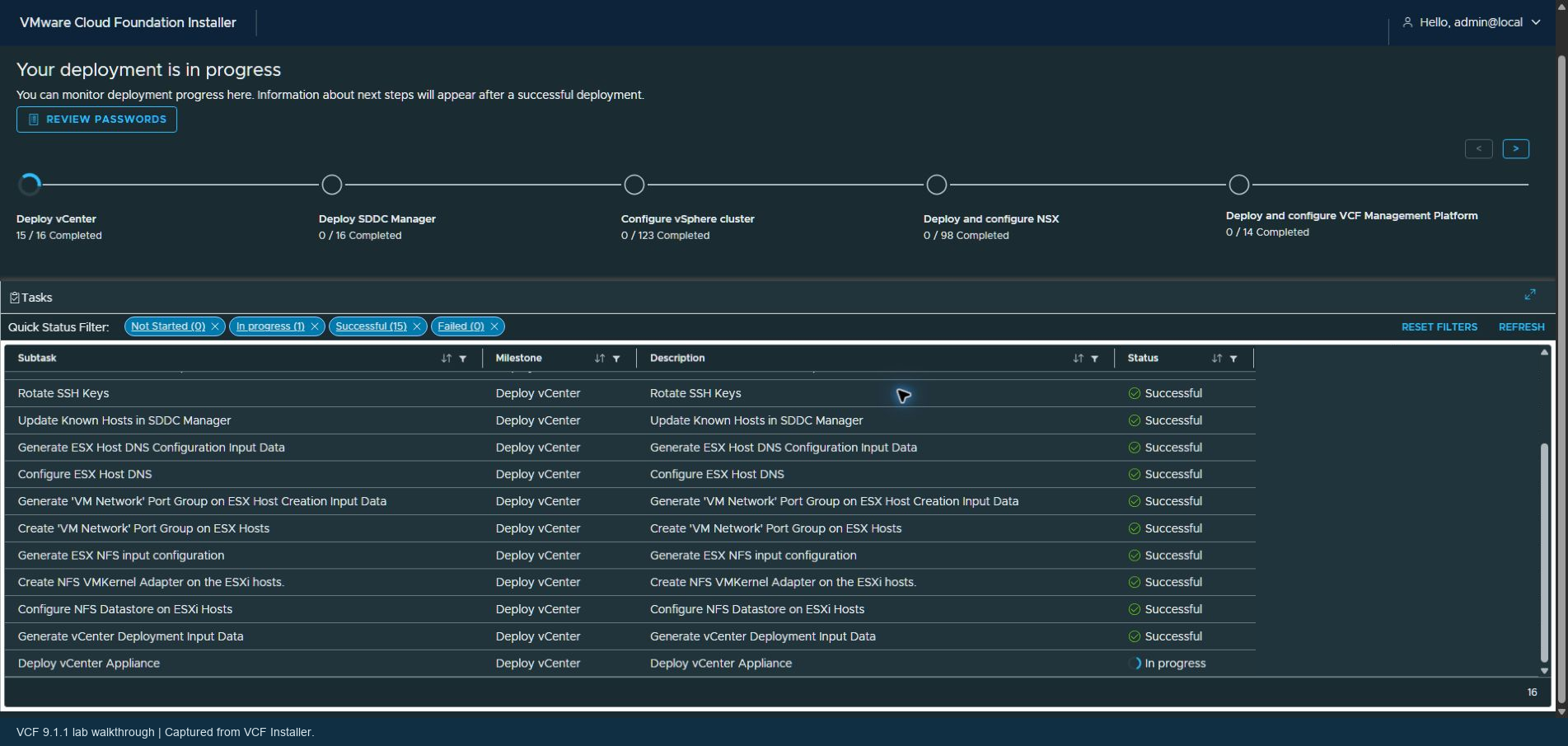
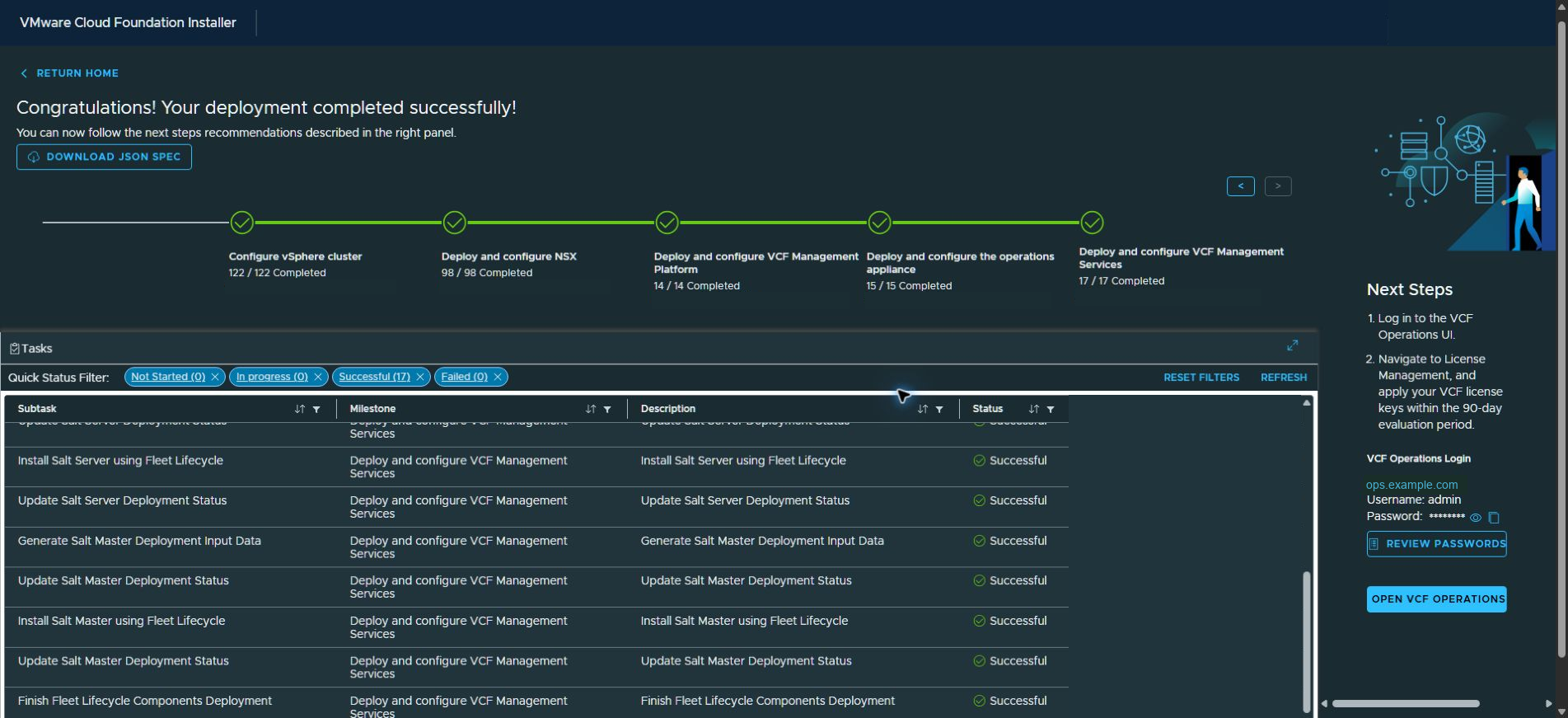
Once the deployment has started, you can follow along with the different stages in the VCF Installer progress view or wait until the deployment completes. Deployment time varies with the hardware and resources available in your environment.
Deployment completed successfully
Follow the Domain Manager log
Alongside the VCF Installer progress page, I use an SSH session on the VCF Installer appliance to follow the Domain Manager log. This gives me another view of the deployment activity while the wizard processes deployment tasks. The log can show failures, errors, and the surrounding diagnostic messages, providing more detail than the VCF Installer progress screen. If a task fails, I review the relevant entries to understand what happened and help troubleshoot the issue.
tail -vf /var/log/vmware/vcf/domainmanager/domainmanager.logThe -f option follows new log entries as they are written, and -v prints the filename header. Using the full path means the command works regardless of the current directory. Press Ctrl+C to stop following the log; this does not stop the deployment. I use the log for additional detail and continue checking the installer for task status and the final deployment result.
Next steps for the lab
The management environment is deployed on four MS-A2 hosts. Continue with the completed VCF 9.1.1 workload-domain walkthrough to deploy the three remaining hosts with NFS storage. Supervisor, VCF Automation and memory tiering remain separate work. Return to the VCF lab guide index for the full reading path.