
Deploy a VyOS Virtual Router on ESXi from ISO
Follow a VyOS virtual router deployment on ESXi from ISO, including VM resources, WAN and LAN network mappings and installation preparation.
Overview
This VyOS virtual-router guide starts from an ISO and a new ESXi virtual machine. I cover the VM resources and WAN/LAN network mappings used to separate my physical network from the nested lab, following the virtual-switch preparation.
Requirements
- VyOS 2025.09.10-0018-rolling ISO. This was the rolling build available during the September 15, 2025 timeframe of this lab deployment. Upload the ISO to a datastore of your choice. Current rolling images are available from the official VyOS nightly-build page.
Virtual Router Deployment
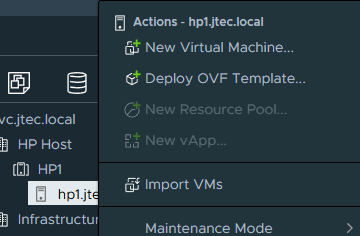
On your esxi host right click on the host name and select New Virtual Machine
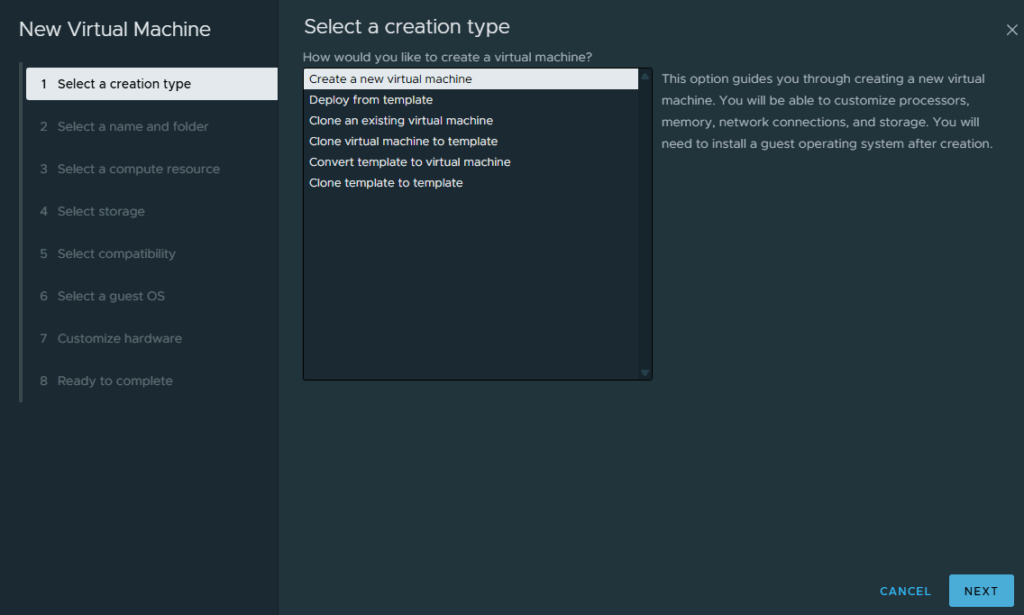
Select create a new virtual machine and click Next in the creation type window
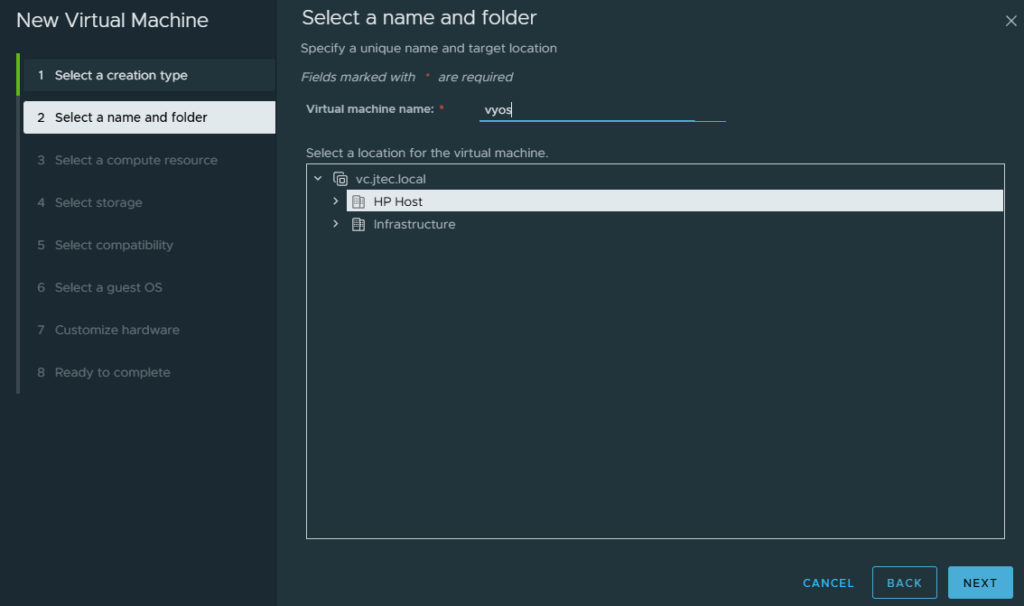
Enter the virtual machine name and ensure the correct datacenter is selected, then click Next
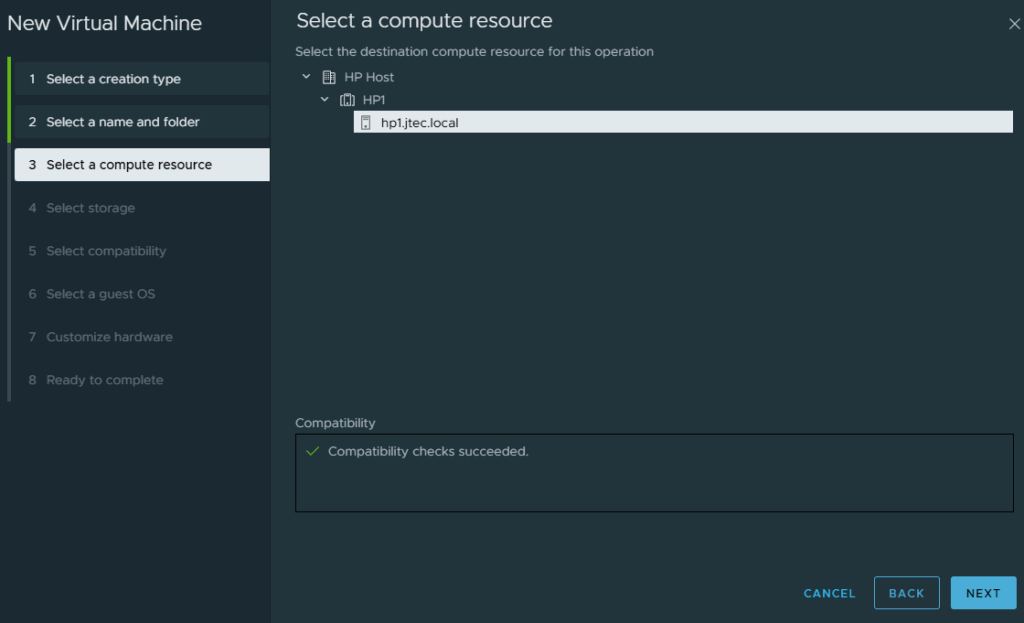
The esxi host is pre-selected in the compute resource window, click Next
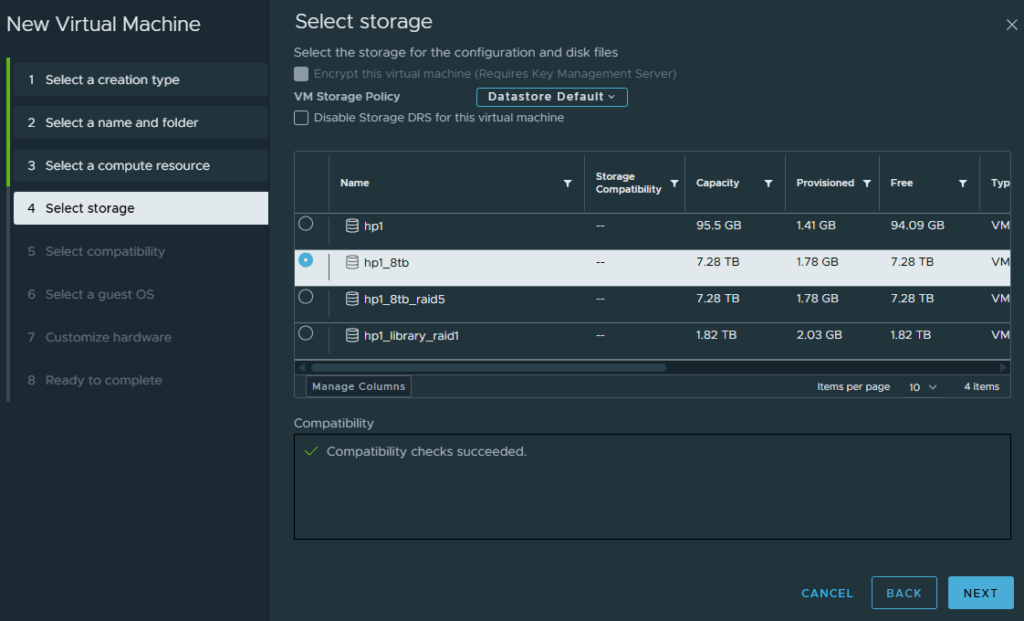
Choose a datastore for the virtual machine to reside on and click Next
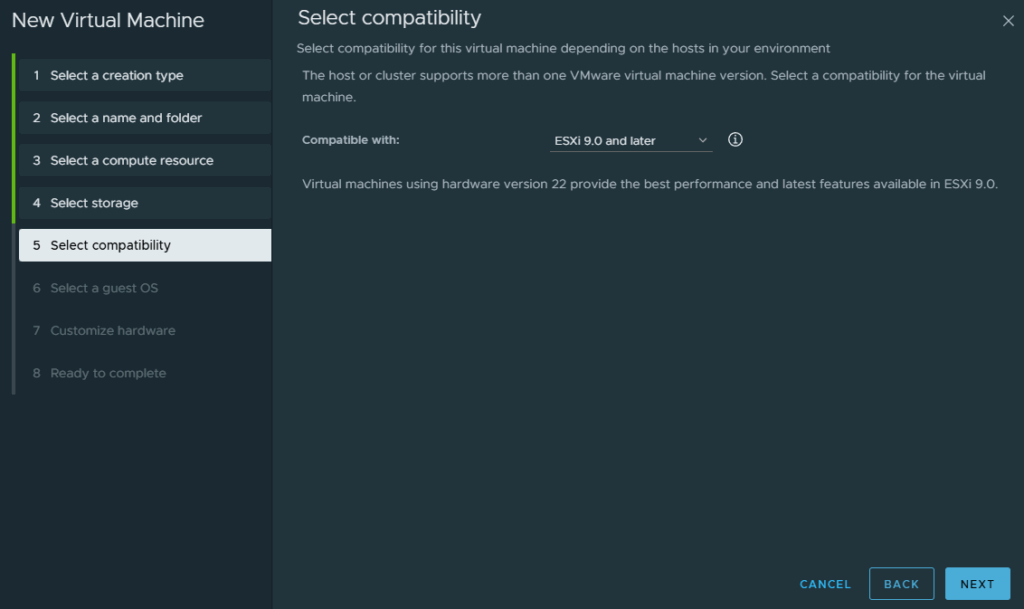
Leave the default compatibility selected and click Next
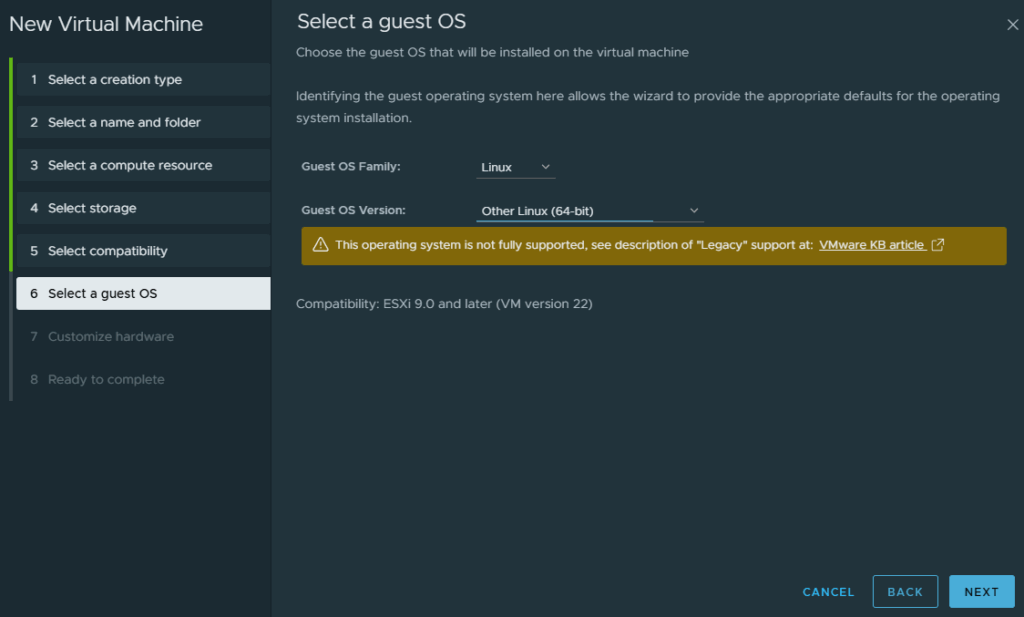
Under Guest OS Family select Linux and for Guest OS Version select Other Linux (64-bit), then click Next
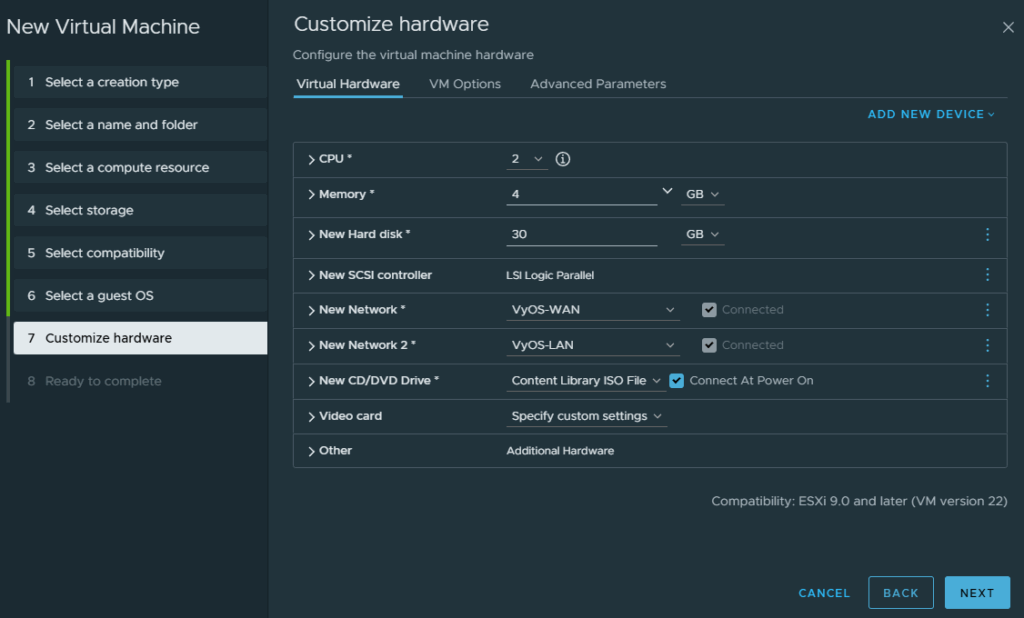
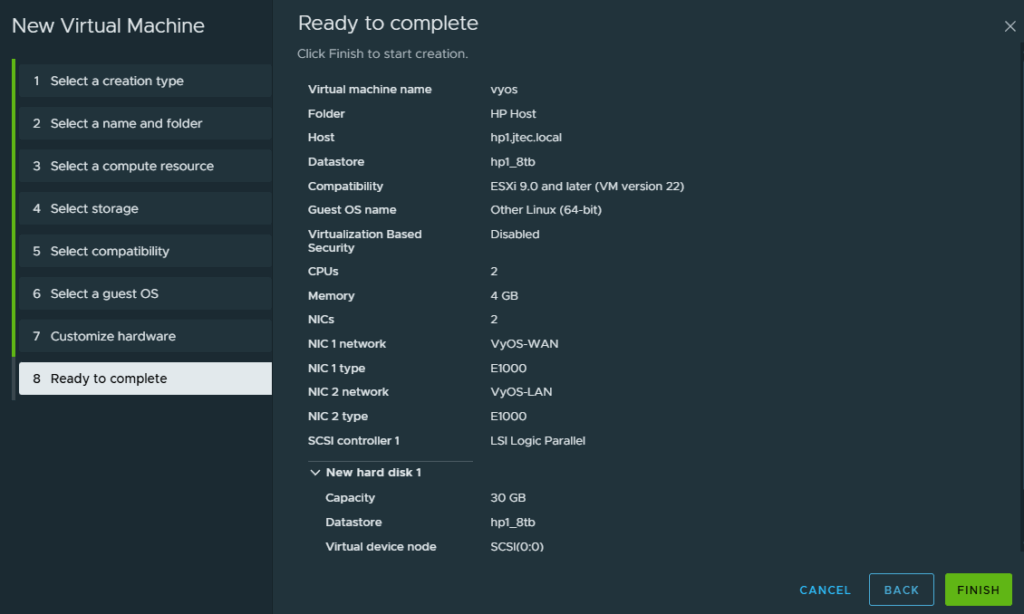
For this homelab deployment, I allocated the resources below. These values reflect my lab needs and are not sizing guidance for production or higher-throughput environments.
- CPU – 2
- Memory – 4GB
- Hard Drive – 30GB
- Network Adapter 1 – VyOS-WAN
- Network Adapter 2 – VyOS-LAN
- CD/DVD Drive – Datastore Location for VyOS ISO (Ensure connect at power on is selected)
Click Next
At the Ready to complete, review your settings and click Finish
After it has created, power on the virtual machine and follow the prompts to install VyOS. If you have trouble please refer to this blog post for additional help.