
When running nested ESXi hosts on your physical server it will require some configuration changes to the physical host along with running a virtual router that will handle all the routing. I am going to first walkthrough the preparation steps with the virtual switches.
Just for simplicity, I will be using standard vswitches on my physical host since I will be using 1 HP DL360 gen9 to host all the nested esxi systems. The first configuration will be to add a virtual port group to the current switch which will act as the uplink port for my VyOS router.
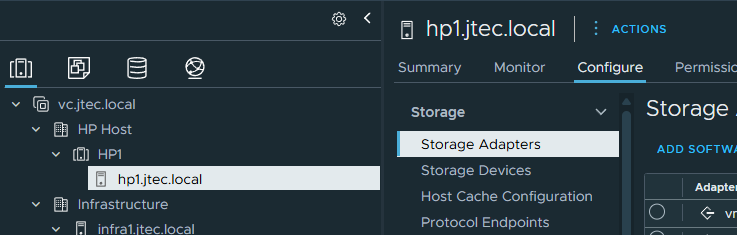
In the HP esxi host click on the hostname and select configure.
Click on Virtual Switches under Networking
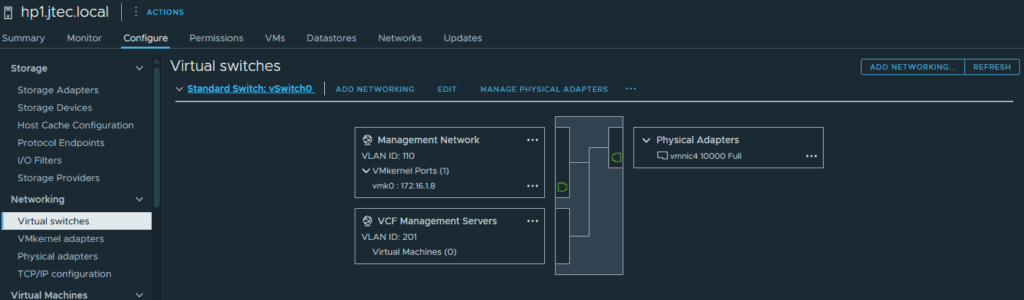
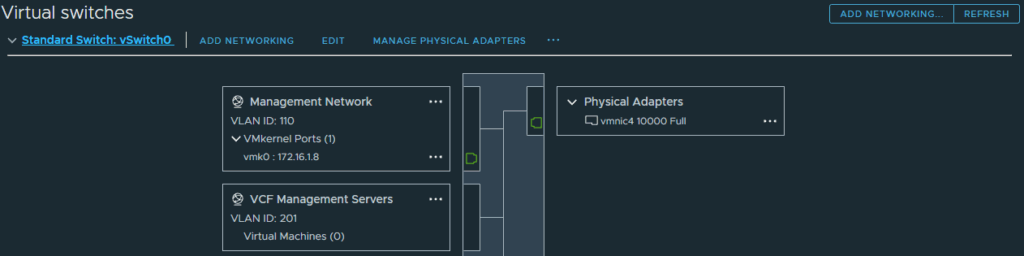
As you can see I have 2 virtual ports already created, these are the defaults that get created during installation of esxi. Click on Add Networking..
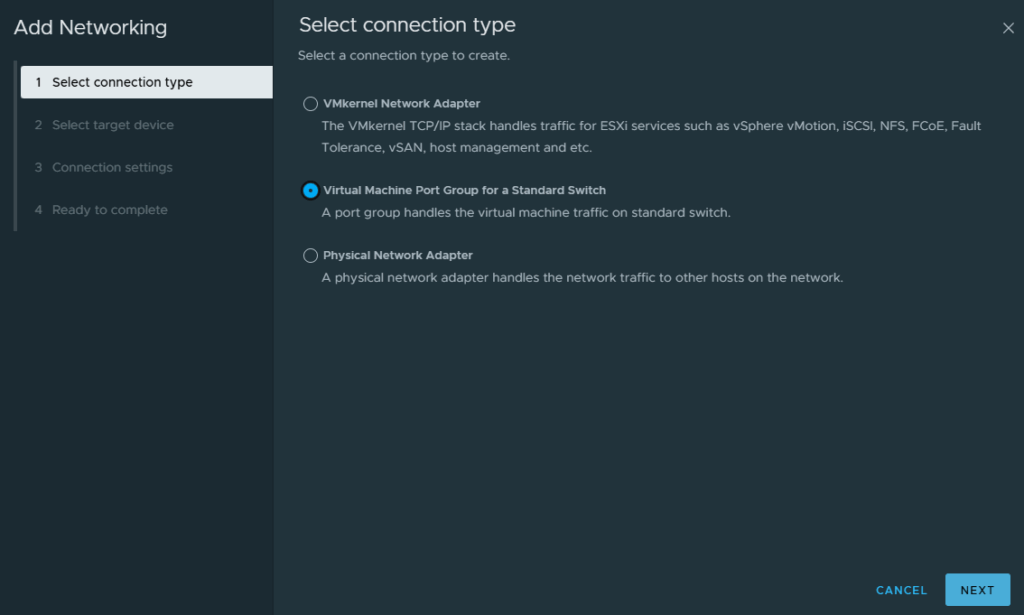
Under select connection type, click the radio button next to Virtual Machine Port Group for a Standard Switch and click Next
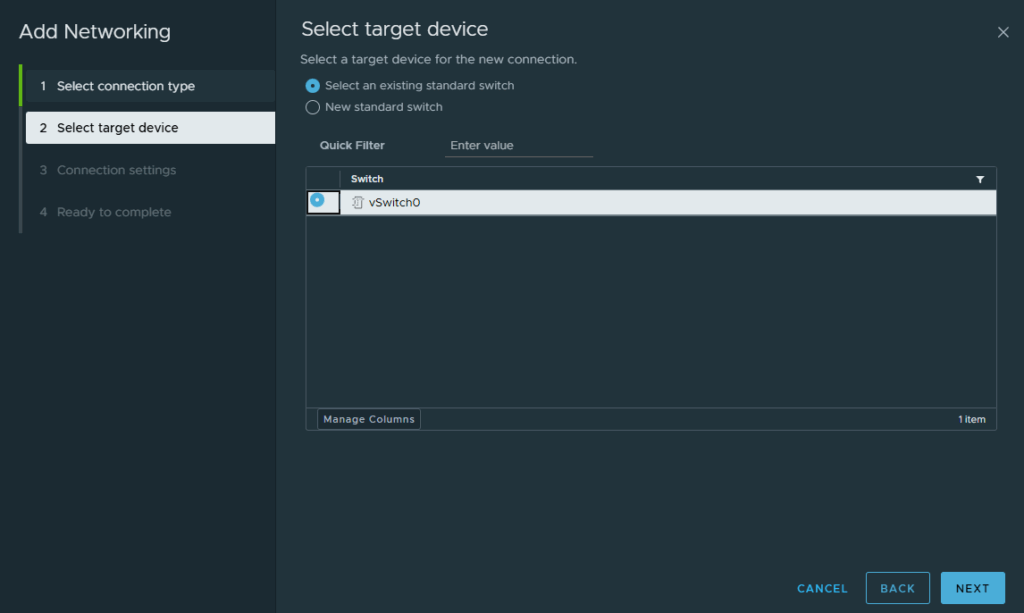
Click the radio button for vSwitch0 on the Select target device screen and click Next
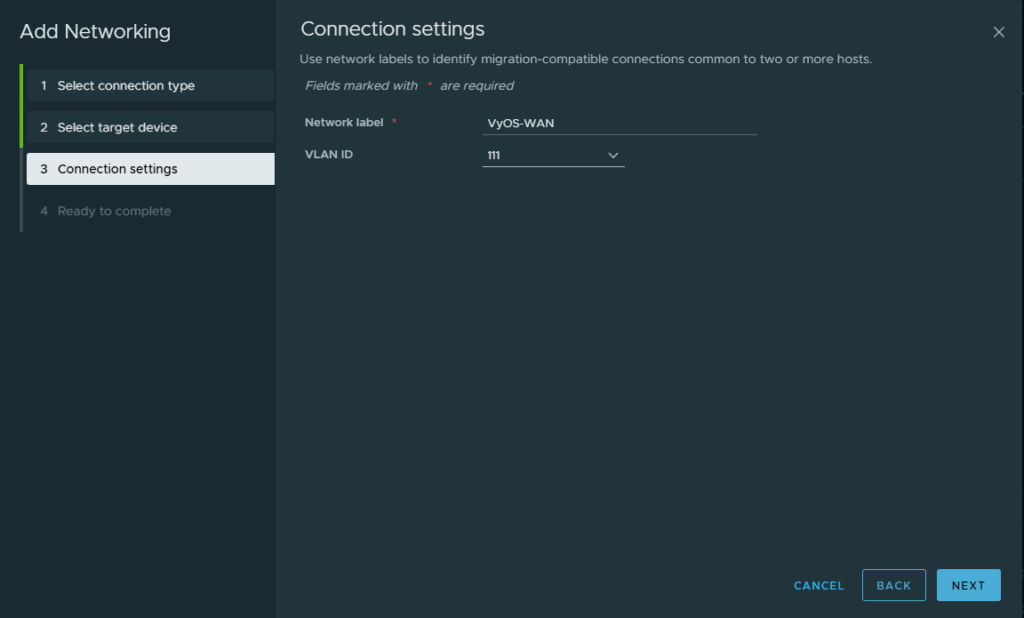
On the Connection settings screen, provide a network label and vlan ID for the uplink network on your VyOS Router. Then click Next
At the Ready to complete screen, review your settings and click Finish
This will create the virtual port group that will serve as the uplink to the physical network. Now we need to create another virtual switch that will be the nested side of the VyOS router.
Back at the Virtual switches screen, click Add Networking.. again
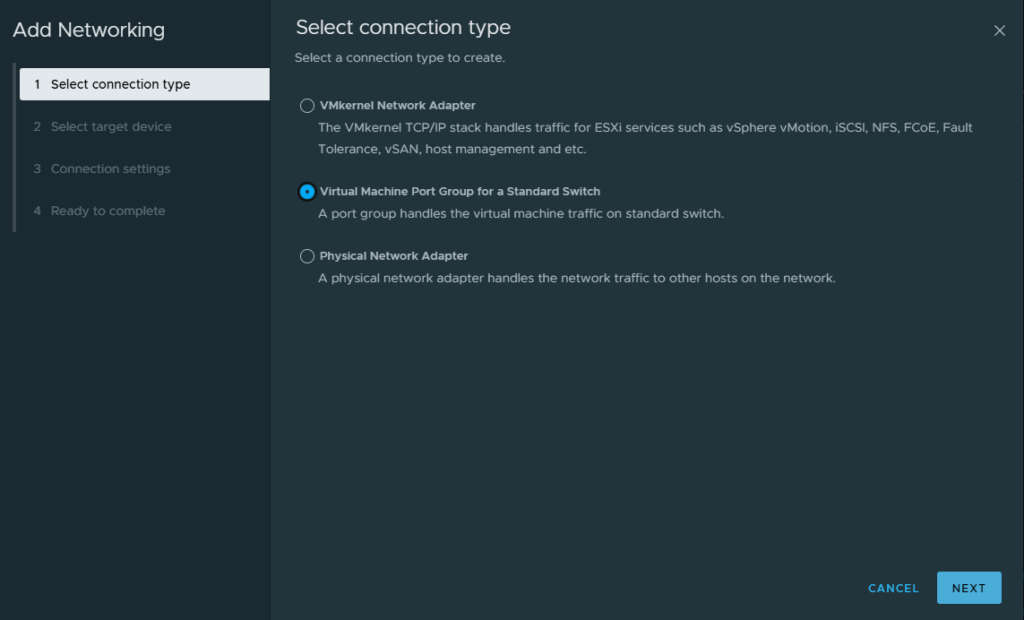
Select the radio button next to Virtual machine Port Group for a Standard Switch again and click Next
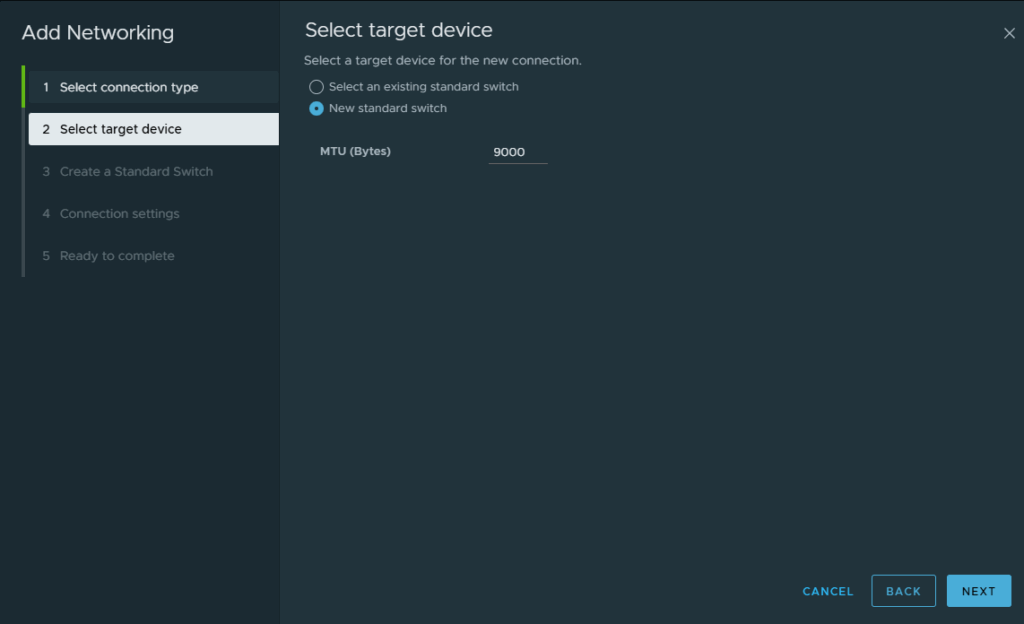
This time we are going to select New standard switch as the target device and for MTU enter in 9000. Then click Next
At the Create a Standard Switch screen, leave all the vmnics unclaimed and click Next
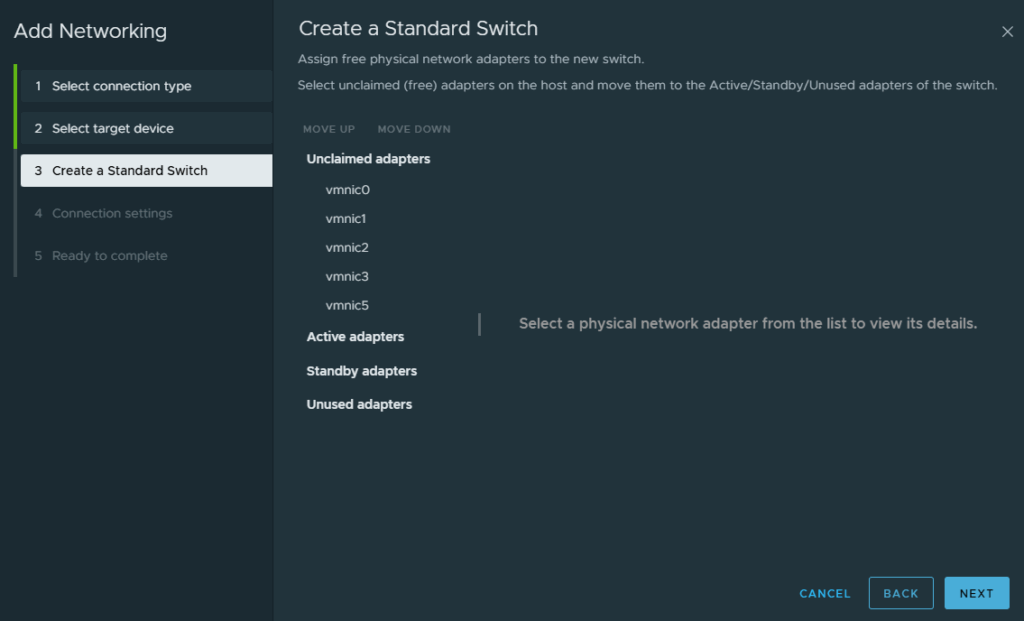
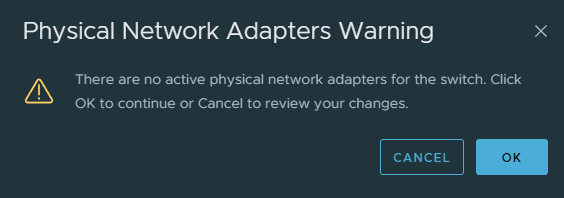
This will give you a warning that no active adapters are on this switch, just click Ok to continue
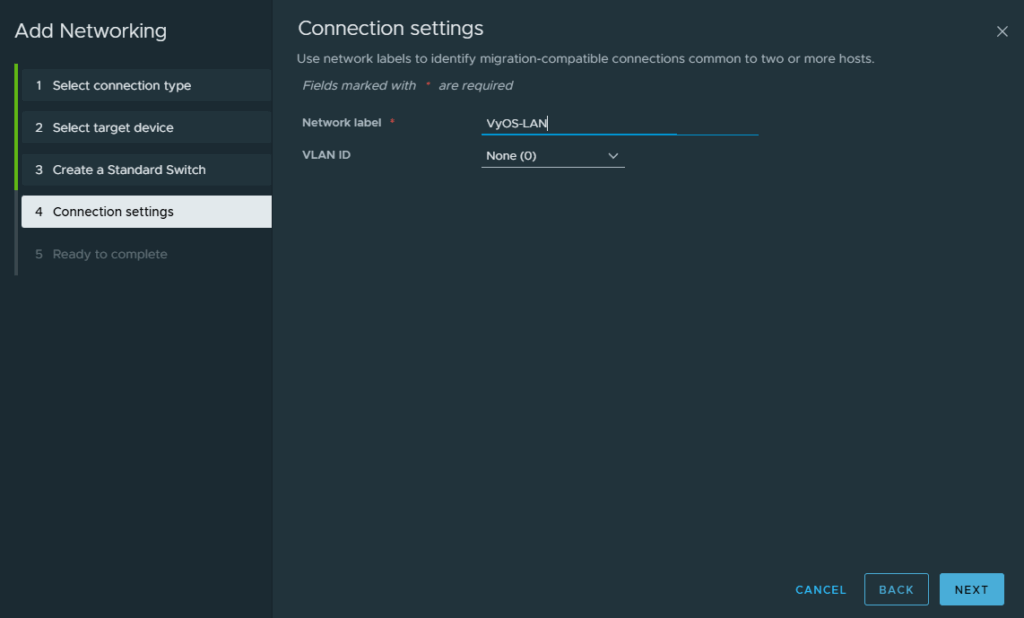
At Connection Settings, enter a name for your network label and click Next.
At the Ready to complete screen, review your changes and click Finish
Now that we have the physical port group and nested switch created, we are almost there. The last piece to this is to modify that physical port group security settings. Since we are going to be running numerous systems on the nested switch, we need to ensure the security on that port group doesn’t block the other systems from traversing to the physical network.
At the Virtual Switches screen, click the 3 dots next to that VyOS virtual port and select Edit Settings.
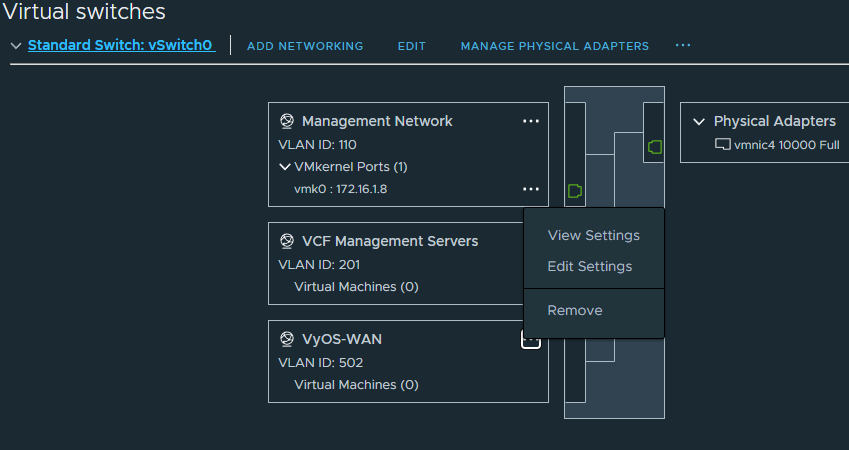
Click on Security in the left hand side of the window
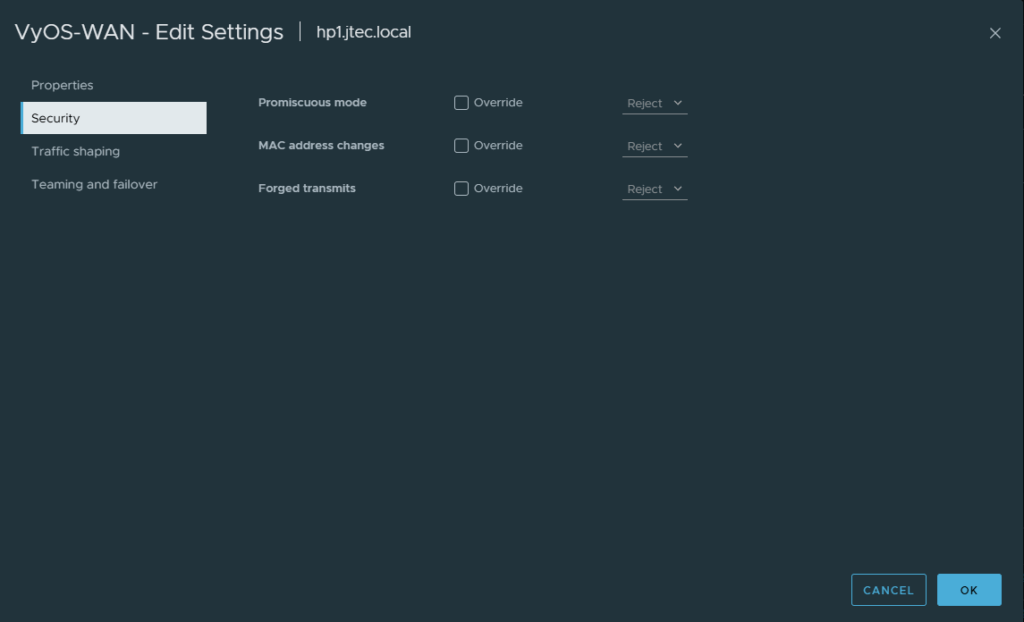
Click the checkbox next to Override for MAC address changes and select Accept in the dropdown. Click Ok
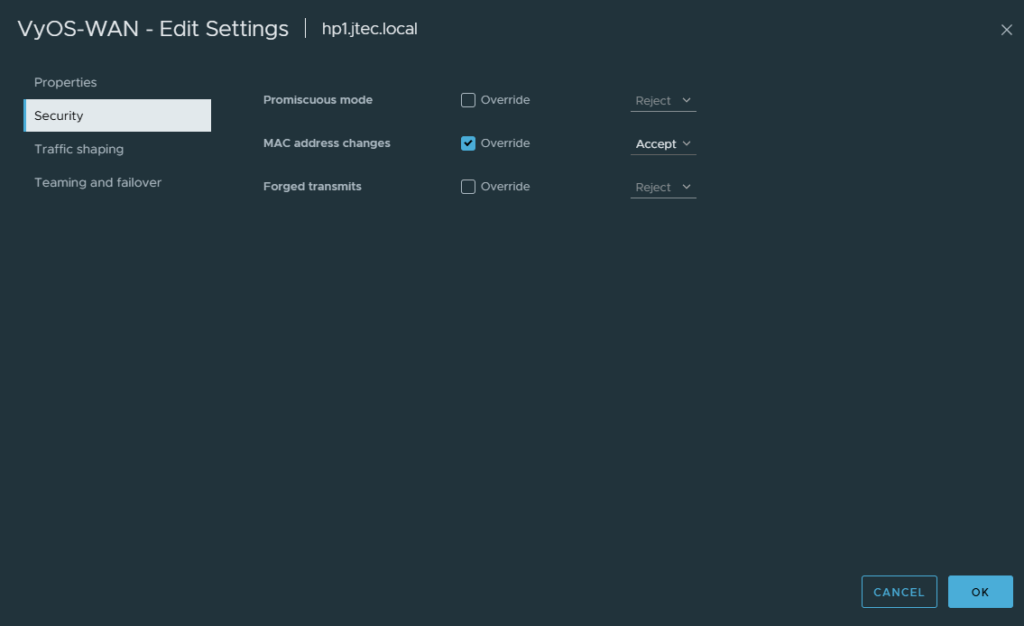
There are some schools of thought that Promiscuous mode and Forged transmits are also good to enable for nested esxi hosts but there are some performance degradation issues on the switches.
In my next post I will walkthrough the process of deploying a VyOS router.