
Another new feature with VCF 9 is that you can manage the esxi host certificates within the fleet management section of VCF Operations. This is something that was a manual process in previous versions.
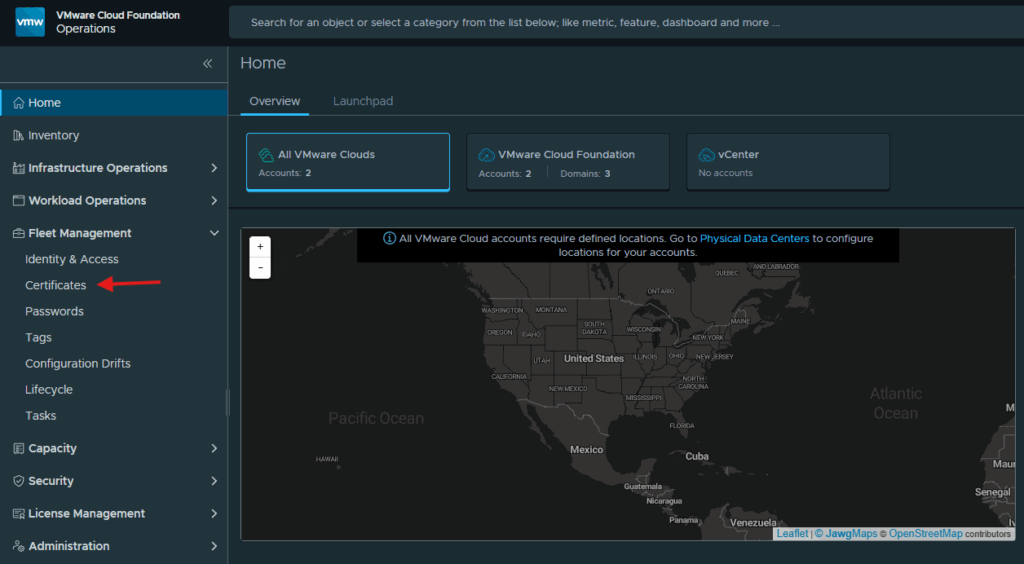
In order to replace the esxi host certificate, we first have to make them visible in the VCF Operations web gui. Start by logging in to the VCF Operations web gui, expand Fleet Management and click on Certificates.
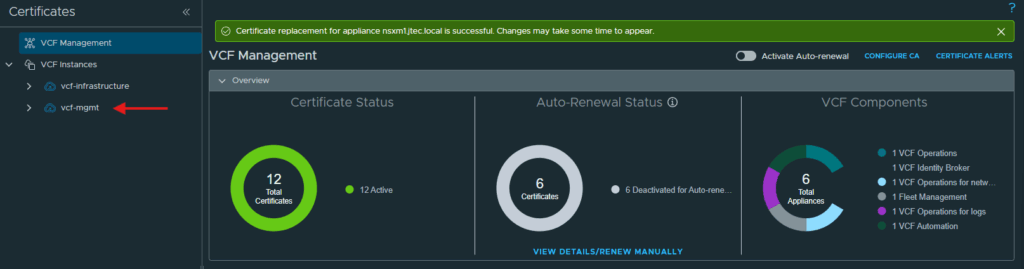
Expand VCF Instances and select one of the instances you want to replace certificates on.
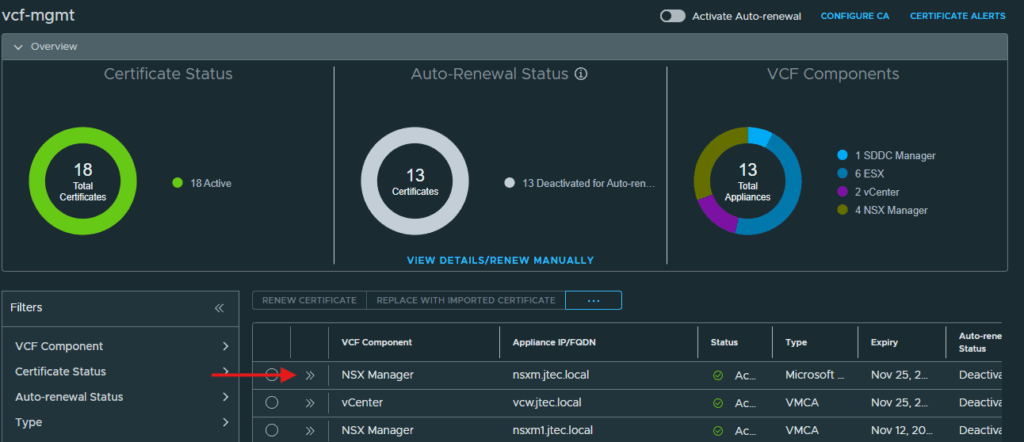
Expand the listing for one of the VCF components.
Click the button next to Show ESX Hosts so they become visible in the console.
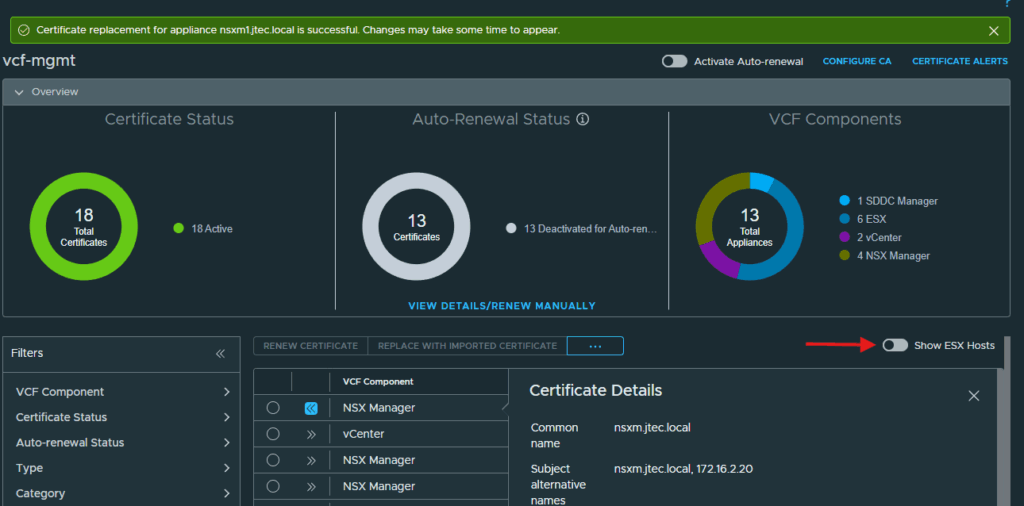
You can now see the ESX hosts listed under VCF Components.
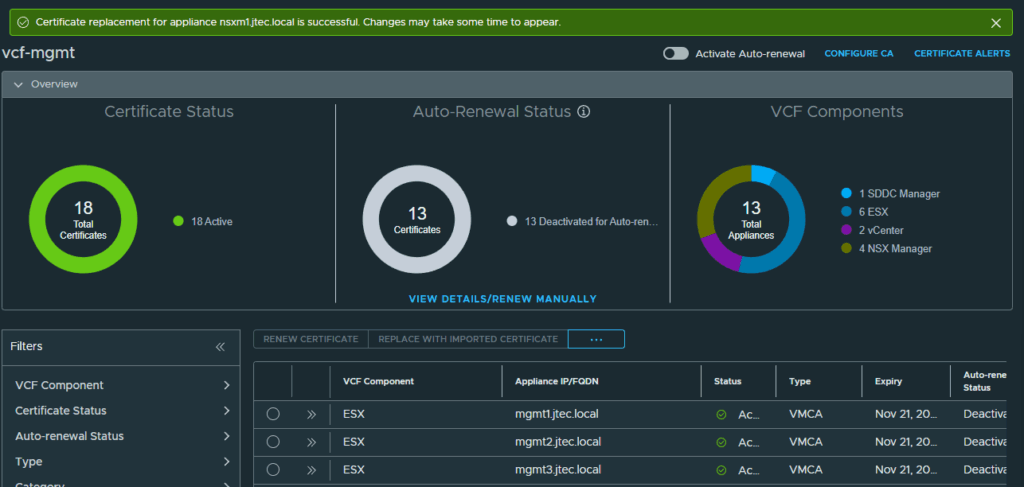
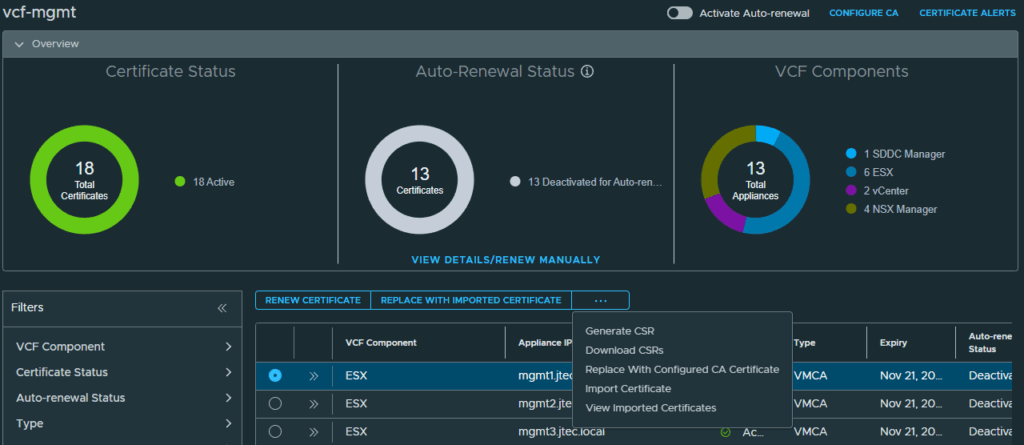
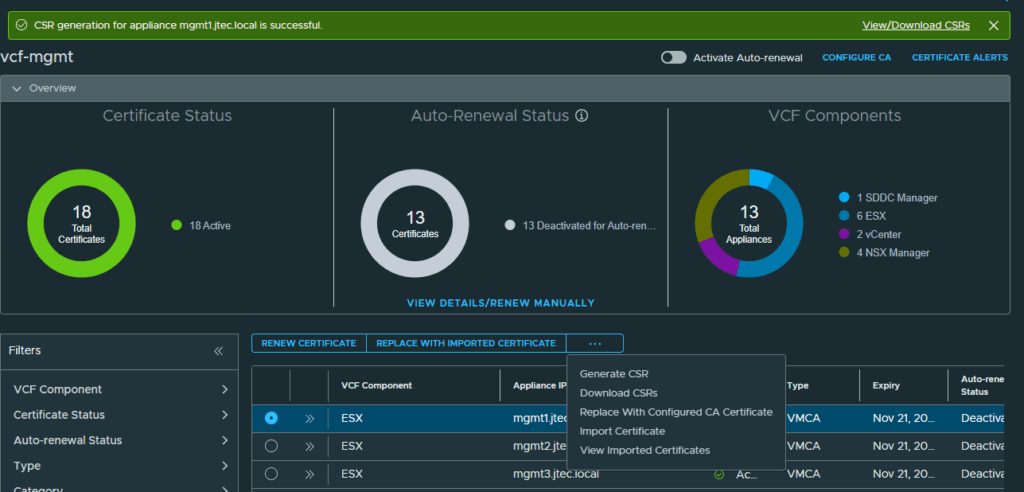
The process to replace these certificates is the same as before, select the radio button next to an ESX host and click the 3 dots to Generate CSR
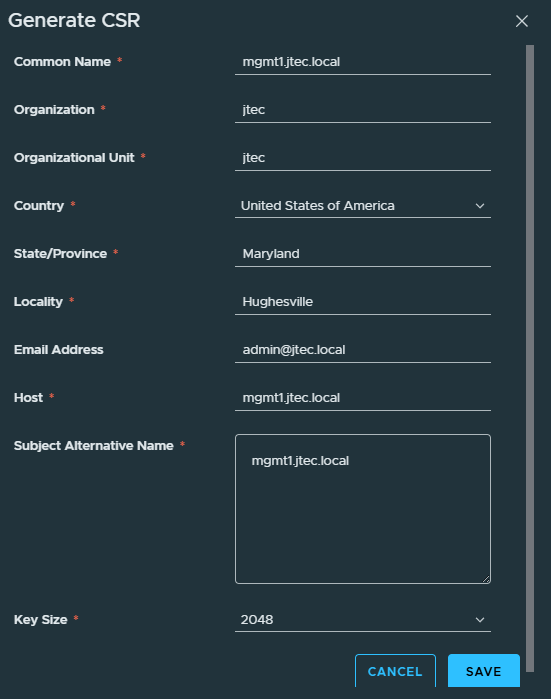
Enter in the required information for the certificate signing request and click Save.
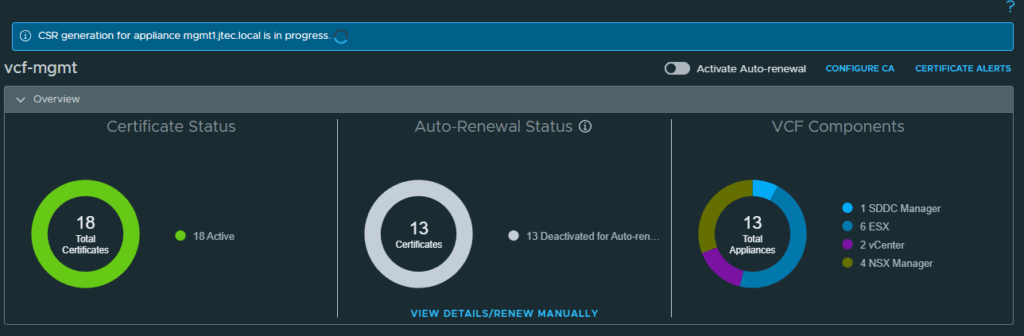
Wait for the certificate signing request to complete.
Click the 3 dots and select Replace With Configured CA Certificate
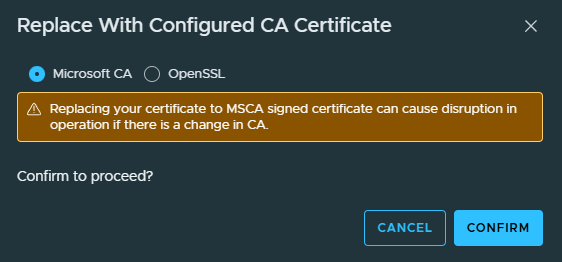
A pop-up will appear to confirm that you want to proceed with replacing this certificate. Click Confirm to continue.
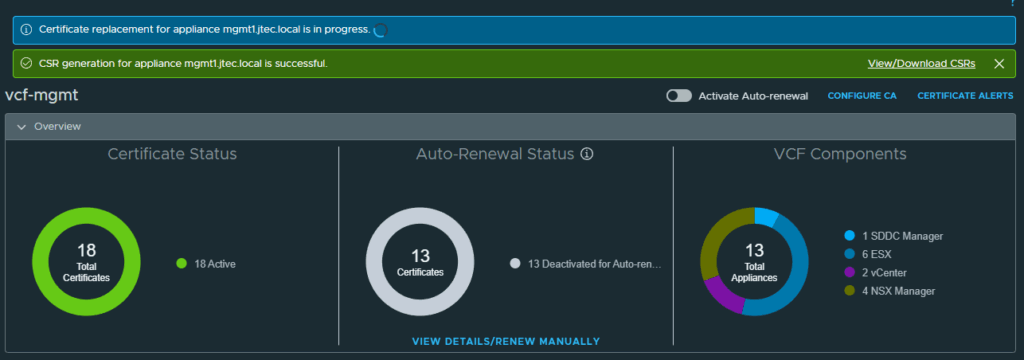
The replacement process will issue a new certificate from the Microsoft CA, import in on to the ESX host and restart host management services.
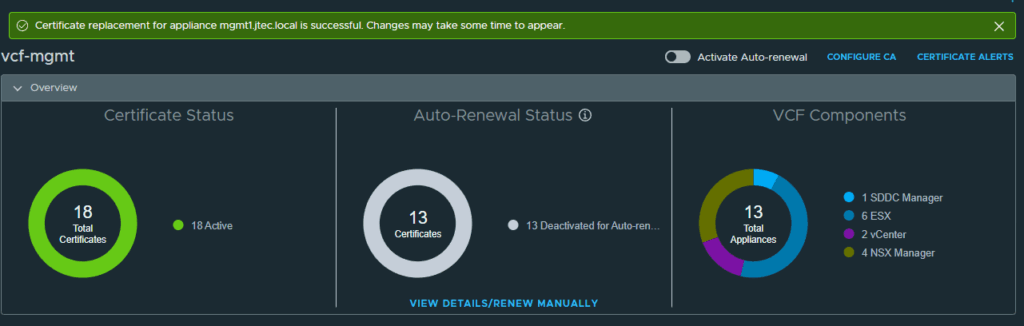
You can repeat this process for each additional ESX hosts after the replacement has completed.
You can return to my main VCF Lab page to follow along with this deployment.