
Replace VCF Component Certificates with a Microsoft CA
Follow VCF CA certificate replacement in Fleet Management. Generate a CSR and replace a component certificate using a configured Microsoft CA.
Overview
This VCF CA certificate replacement walkthrough starts after the Microsoft CA connection is configured. I use Fleet Management to select a component, generate its CSR and replace the certificate, then allow the inventory to refresh.
Before and after certificate replacement
- Confirm the CA configuration succeeded at the scope containing the component. Verify the intended FQDN, SANs, subject values, issuing chain and validity period before generating the CSR.
- Have a current supported backup, protected recovery credentials and a maintenance window. A service restart can interrupt UI/API access; changing the issuing CA can also affect trust between components.
- Select the certificate matching the component FQDN rather than a similarly named entry. The unclear first screenshot has been removed; use the selection instructions below.
- After completion, reconnect through the FQDN and inspect the served certificate: expected issuer, matching SAN, current validity and trusted chain.
- Wait for inventory refresh, confirm component health and integration collection, and review any failed task. Do not repeat replacement merely because the display has not refreshed.
Select the component and generate a CSR
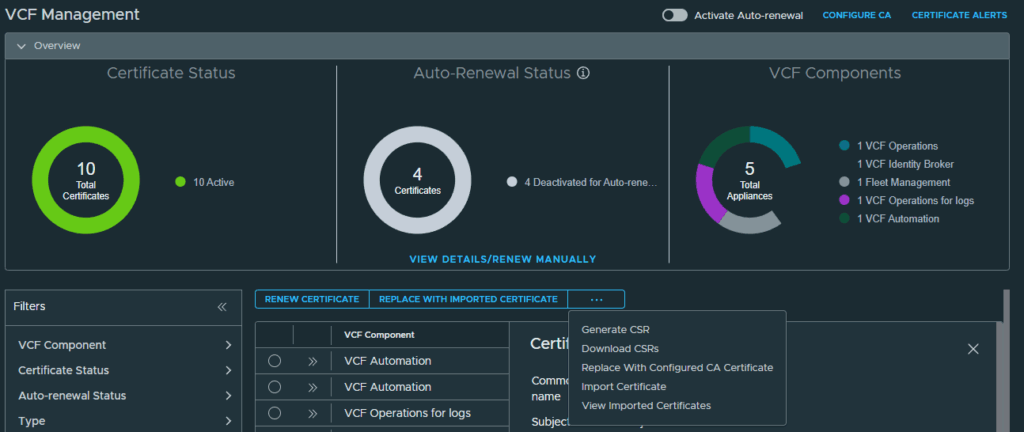
We can now begin deploying external CA certificates to the VCF components. At the VCF Management screen, click the radio button next to the fleet management component. You will see there are 2 listings for fleet management, ensure you click the radio button for the certificate that matches the FQDN of the fleet manager.
Click the 3 dots above the components and click Generate CSR
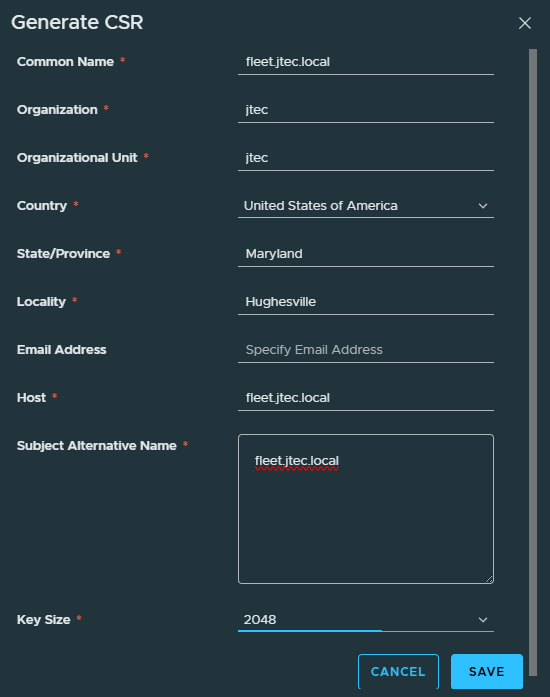
Input the required information for the certificate signing request and click Save
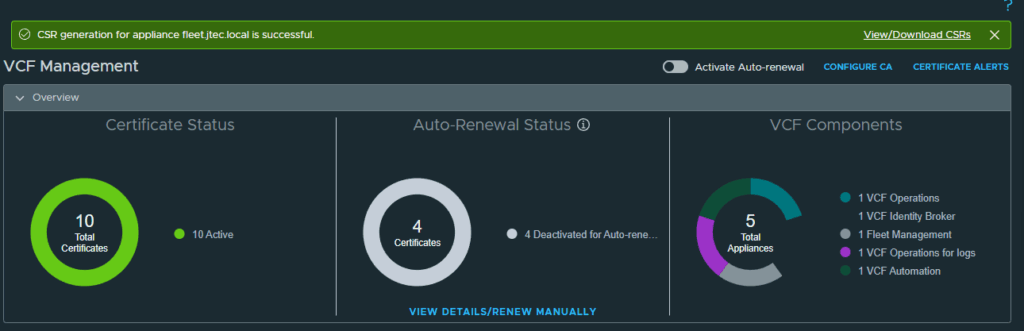
A notification will appear after the CSR generation is successful at the top.
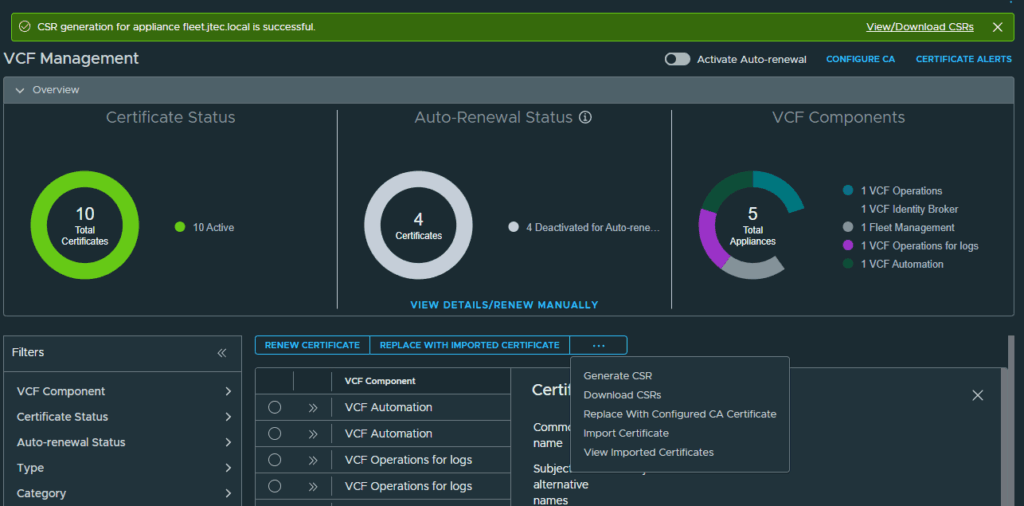
Replace the certificate
Click the 3 dots again and click Replace With Configured CA Certificate
A pop-up will appear to confirm that you want to replace the certificate with a Microsoft CA certificate. Click Confirm.
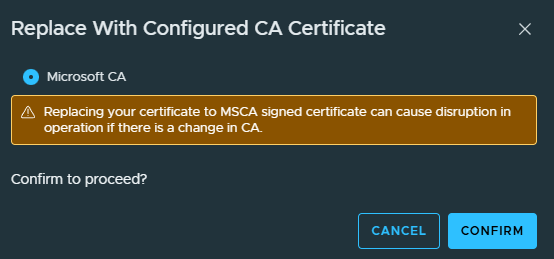
The certificate deployment process will start.
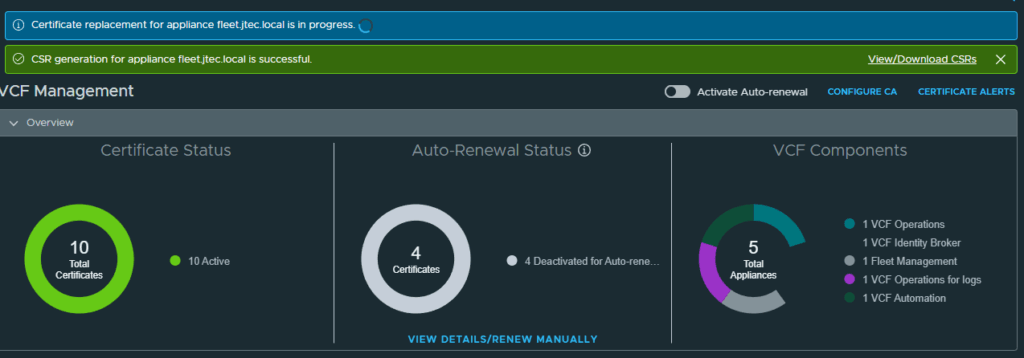
It will take some time to deploy this certificate as it requires service restarts on the fleet manager.
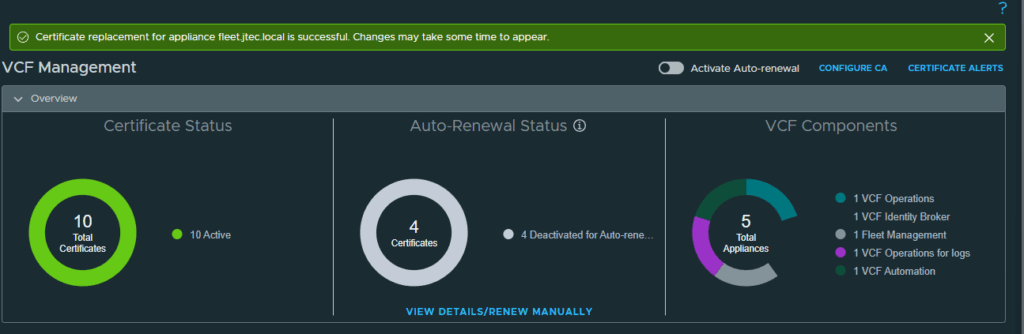
Allow the inventory to refresh
After the certificate replacement has completed, it will take time for the changes to be reflected in VCF Operations.
Repeat the process above for each individual component within VCF to replace the self-signed certificates that we created during deployment.