
Create DNS A and PTR Records from CSV with PowerShell
Explore creating DNS A and PTR records from CSV with PowerShell and dnscmd, using a homelab example to reduce repetitive DNS administration.
Overview
I used PowerShell and dnscmd.exe to create DNS A and PTR records from a CSV file instead of entering roughly 75 hostnames manually. This post shows the lab approach, the script snippet and where I ran it after building my domain controllers.
Checked import with duplicate and error handling
Use the original screenshot transcript only to understand the first lab approach. The function below adds input validation, duplicate/conflict checks, per-row errors and -WhatIf. It is a new example, locally parser-checked and tested with mocked DNS commands; it has not been run against a live DNS server.
- Run on Windows with the DnsServer PowerShell module installed and a delegated account allowed to read and add records in the intended zones. Import the module before calling the function.
- Create and verify the forward and /24 reverse zones beforehand. This deliberately excludes IPv6, classless reverse delegations and multivalue host records.
- Back up the zones using your supported process. WhatIf still queries DNS but performs no writes. The two record additions are not atomic; review an A-created error before retrying after a PTR failure.
dnsserver,zone,name,type,IP
dc1.example.com,example.com,host1,A,192.0.2.10
function Import-LabDnsRecords {
[CmdletBinding(SupportsShouldProcess)]
param([Parameter(Mandatory)][string]$Path)
# Requires the DnsServer module, existing writable zones and delegated rights.
# Deliberately limited to single-label A records and /24 IPv4 reverse zones.
$rows = @(Import-Csv -LiteralPath $Path -ErrorAction Stop)
if (!$rows.Count) { throw 'The CSV has no data rows.' }
foreach ($column in 'dnsserver','zone','name','type','IP') {
if ($column -notin $rows[0].PSObject.Properties.Name) {
throw "Missing CSV column: $column"
}
}
foreach ($row in $rows) {
$stage = 'Preflight'
try {
$server = ([string]$row.dnsserver).Trim()
$zone = ([string]$row.zone).Trim().TrimEnd('.')
$name = ([string]$row.name).Trim()
$ipText = ([string]$row.IP).Trim()
if (!$server -or !$zone -or $row.type -ne 'A') {
throw 'Supply a DNS server, forward zone and type A.'
}
if ($name -notmatch '^[a-zA-Z0-9](?:[a-zA-Z0-9-]{0,61}[a-zA-Z0-9])?$') {
throw 'Name must be a single DNS host label (not an FQDN).'
}
$ip = $null
if ($ipText -notmatch '^\d{1,3}(\.\d{1,3}){3}$' -or
![System.Net.IPAddress]::TryParse($ipText,[ref]$ip) -or
$ip.AddressFamily -ne [System.Net.Sockets.AddressFamily]::InterNetwork -or
$ip.ToString() -ne $ipText) { throw 'Use canonical dotted-decimal IPv4.' }
$octets = $ipText.Split('.')
$reverse = "$($octets[2]).$($octets[1]).$($octets[0]).in-addr.arpa"
$ptrName = $octets[3]
$fqdn = "$name.$zone."
$forwardZone = Get-DnsServerZone -ComputerName $server -Name $zone -ErrorAction Stop
$reverseZone = Get-DnsServerZone -ComputerName $server -Name $reverse -ErrorAction Stop
if ($forwardZone.IsReverseLookupZone -or !$reverseZone.IsReverseLookupZone -or
$forwardZone.ZoneType -ne 'Primary' -or $reverseZone.ZoneType -ne 'Primary') {
throw 'Expected writable primary forward and /24 reverse zones.'
}
# Query whole zones so access/transport errors are never treated as a missing name.
$records = @(Get-DnsServerResourceRecord -ComputerName $server -ZoneName $zone -ErrorAction Stop |
Where-Object HostName -EQ $name)
$ptrs = @(Get-DnsServerResourceRecord -ComputerName $server -ZoneName $reverse -ErrorAction Stop |
Where-Object HostName -EQ $ptrName)
if (@($records | Where-Object { $_.RecordType -ne 'A' -or
[string]$_.RecordData.IPv4Address -ne $ipText }).Count) {
throw 'Conflicting forward record; nothing changed for this row.'
}
if (@($ptrs | Where-Object { $_.RecordType -ne 'PTR' -or
([string]$_.RecordData.PtrDomainName).TrimEnd('.') -ne $fqdn.TrimEnd('.') }).Count) {
throw 'Conflicting reverse record; nothing changed for this row.'
}
if (!$records.Count -and $PSCmdlet.ShouldProcess("$server / $zone / $name", "Add A $ipText")) {
Add-DnsServerResourceRecordA -ComputerName $server -ZoneName $zone -Name $name -IPv4Address $ipText -ErrorAction Stop
$stage = 'A created'
}
if (!$ptrs.Count -and $PSCmdlet.ShouldProcess("$server / $reverse / $ptrName", "Add PTR $fqdn")) {
Add-DnsServerResourceRecordPtr -ComputerName $server -ZoneName $reverse -Name $ptrName -PtrDomainName $fqdn -ErrorAction Stop
$stage = 'PTR created'
}
[pscustomobject]@{Name=$fqdn; IP=$ipText; Status='Processed'; Detail='Existing matches skipped; requested additions processed. WhatIf performs no writes.'}
} catch {
# A and PTR writes are not atomic. Never delete records as an automatic rollback.
[pscustomobject]@{Name=$row.name; IP=$row.IP; Status='Error'; Detail="$stage : $($_.Exception.Message)"}
}
}
}
Import-Module DnsServer -ErrorAction Stop
# Save the function as Import-LabDnsRecords.ps1, then load it:
. .\Import-LabDnsRecords.ps1
Import-LabDnsRecords -Path .\DNSEntries.csv -WhatIf
# After reviewing the preview and zone backups:
Import-LabDnsRecords -Path .\DNSEntries.csv | Export-Csv .\dns-import-results.csv -NoTypeInformation
Review every Error row and verify forward and reverse resolution afterward. No record is automatically overwritten or removed. References: Get-DnsServerZone and DNS resource-record cmdlets.
Automate A and PTR records
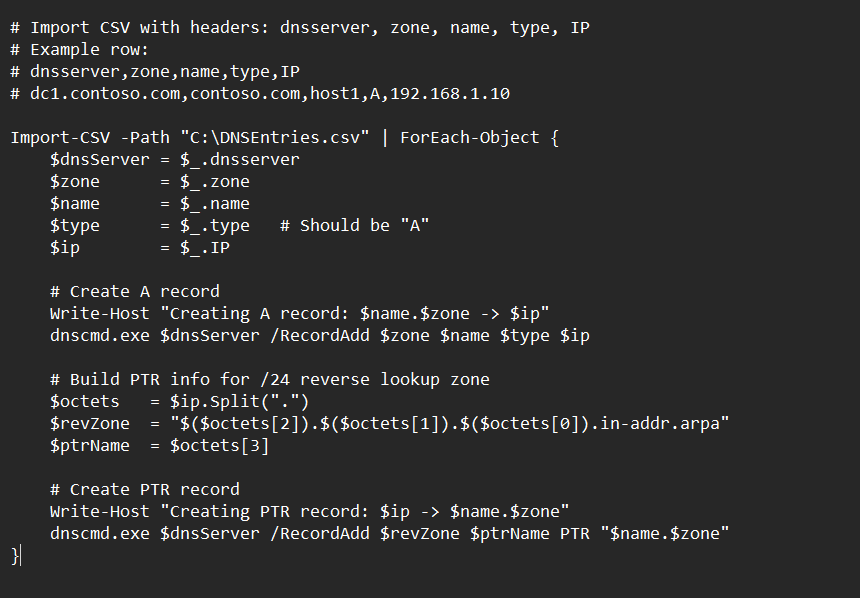
So instead of manually entering them all in the server GUI, I searched around a bit and with some help from ChatGPT I built a simple PowerShell script that will read a DNSEntries.csv file and used the dnscmd.exe command to create the A and PTR records for all the hosts.
Here is a snippet of what that script looks like:
Copyable PowerShell example
Text version of the lab example shown above. The CSV headers and sample row are included in the comments. This snippet builds PTR records for a /24 reverse lookup zone and does not include duplicate detection or error handling.
# Import CSV with headers: dnsserver, zone, name, type, IP
# Example row:
# dnsserver,zone,name,type,IP
# dc1.contoso.com,contoso.com,host1,A,192.168.1.10

Import-CSV -Path "C:\DNSEntries.csv" | ForEach-Object {
    $dnsServer = $_.dnsserver
    $zone      = $_.zone
    $name      = $_.name
    $type      = $_.type   # Should be "A"
    $ip        = $_.IP

    # Create A record
    Write-Host "Creating A record: $name.$zone -> $ip"
    dnscmd.exe $dnsServer /RecordAdd $zone $name $type $ip

    # Build PTR info for /24 reverse lookup zone
    $octets   = $ip.Split(".")
    $revZone  = "$($octets[2]).$($octets[1]).$($octets[0]).in-addr.arpa"
    $ptrName  = $octets[3]

    # Create PTR record
    Write-Host "Creating PTR record: $ip -> $name.$zone"
    dnscmd.exe $dnsServer /RecordAdd $revZone $ptrName PTR "$name.$zone"
}
Run the script on the DNS server
I then uploaded this PowerShell script and the csv file with all hostname up to my domain controller and let the script do the rest of the work. Saved me a good amount of time considering I had roughly 75 names on that list.
Remote execution considerations
You can also run this script remotely if you would like but it requires some additional configurations on your management workstation as RSAT DNS tools are not installed by default on Windows 11 and unless your joined to the lab domain on that system you would get access denied errors as well. Since I don’t need to run this script more than once, it wasn’t feasible for me to configure my management workstation for this.