Enable Log and Network Collection in VCF Operations
Configure VCF Operations log collection and network flow collection for vCenter and NSX, then verify the connected data sources.
Overview
VCF Operations log collection and network flow collection need their own configuration after the Logs and Networks appliances are deployed. In this walkthrough, I enable the relevant collection settings for vCenter and NSX, then check the connected data sources.
Before enabling collection
- Deploy and validate the Logs and Networks platforms and their collectors first. Confirm licensing, capacity and the supported versions for the sources you will add.
- Ensure the selected collector can resolve and reach vCenter/NSX and that its credentials and trusted certificates are valid. A browser connection from your workstation does not test this path.
- Record which collector owns each source to avoid accidental duplicate collection. Check source-specific permissions and required ports for the exact release.
- Decide whether you need inventory, logs, flows or all three. The screenshots leave NetFlow/IPFIX unchecked; enabling network collection does not prove that flow export is configured.
After saving, verify data-source status and fresh timestamps, then look for a known recent event or flow in the relevant product. The screenshots show configured sources, but the small Networks deployment also warns of limited collection.
Open the VCF integration
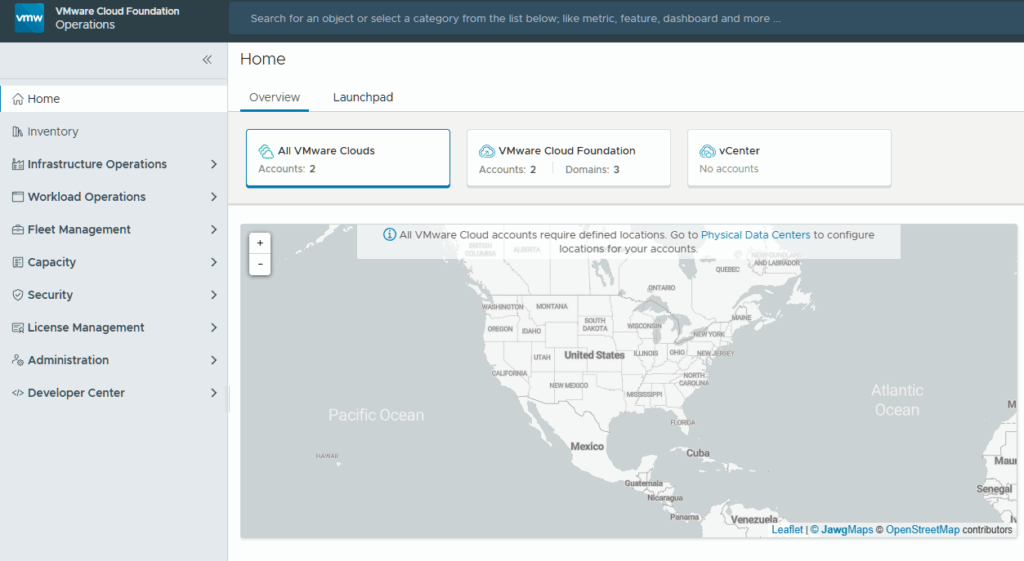
In this post I want to go over how to configure those additional pieces for collection in VCF Operations. Start by logging into the VCF Operations web gui.
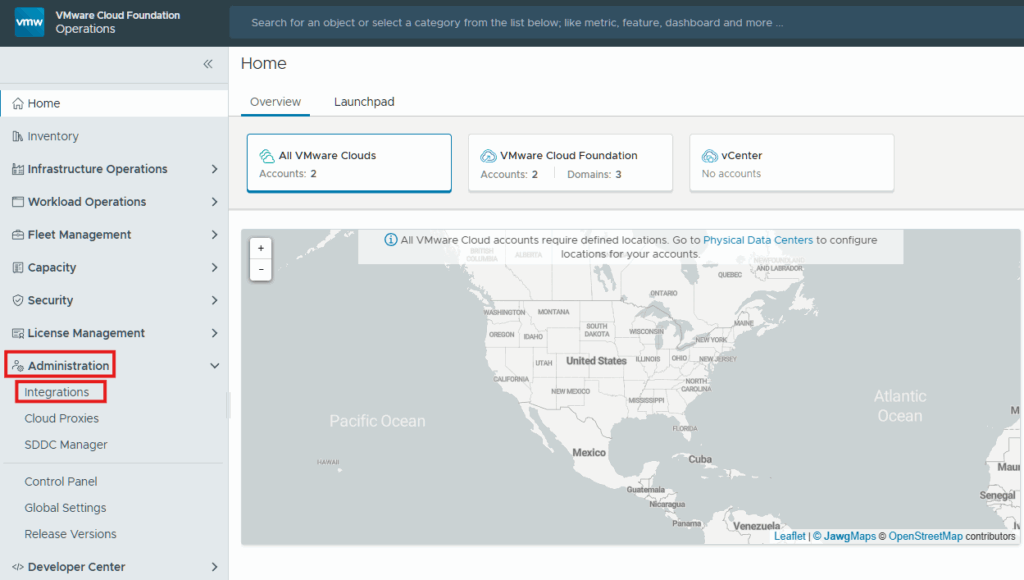
Expand Administration and click on Integrations.
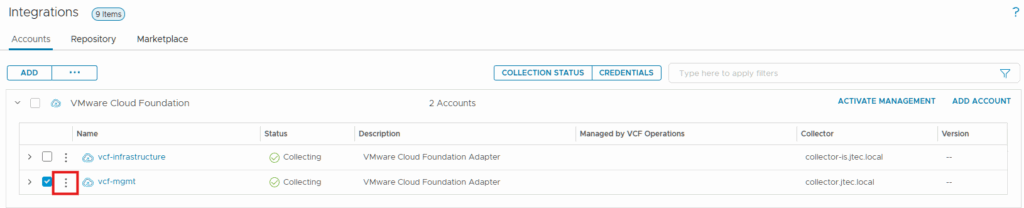
Expand VMware Cloud Foundation.

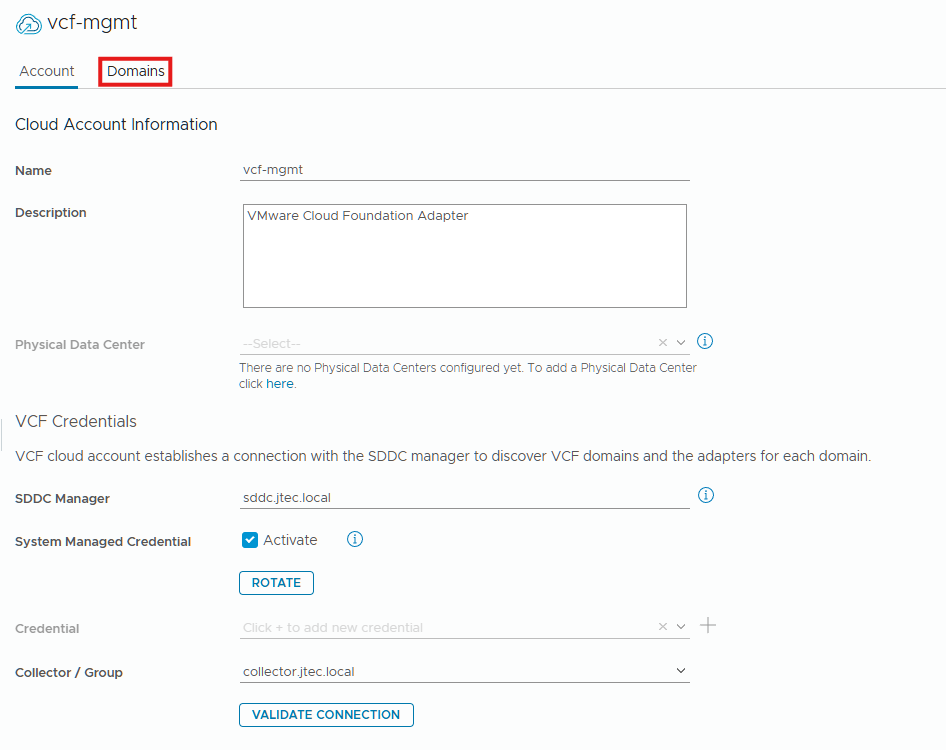
Click the 3 dots next to the adapter we want to manage and select Edit.
Click on Domains.
Enable collection for vCenter
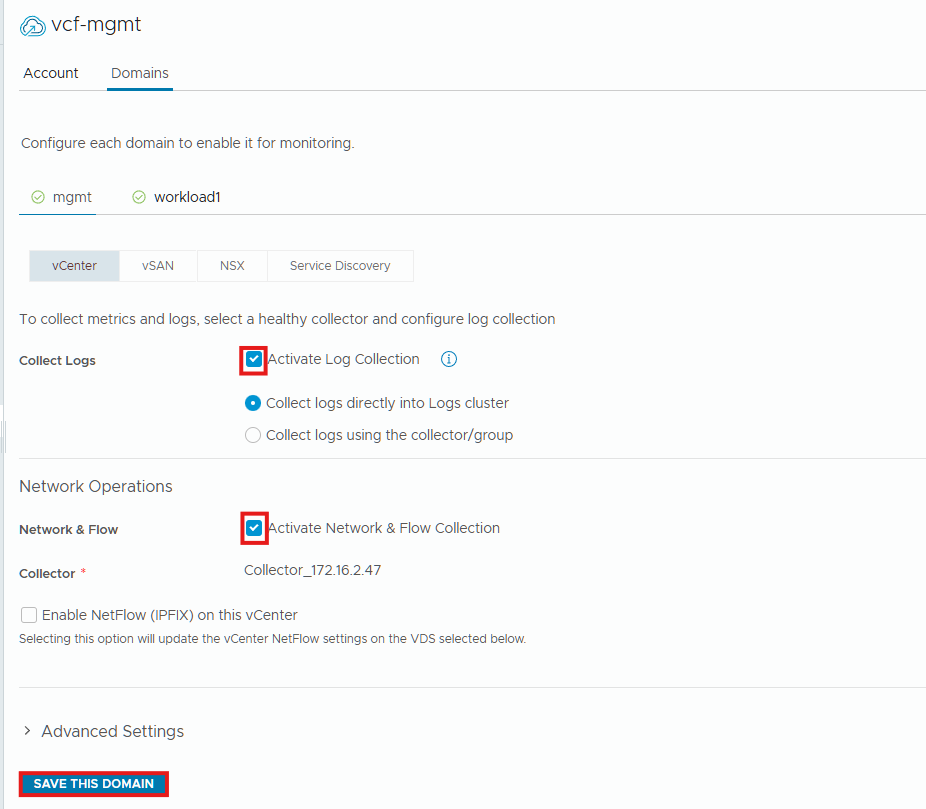
Locate the Log Operations section on the vCenter and click the checkbox next to Activate Log Collection.
Scroll down and click the checkbox next to Activate Network & Flow Collection under Network Operations.
Click Save This Domain.
Enable collection for NSX
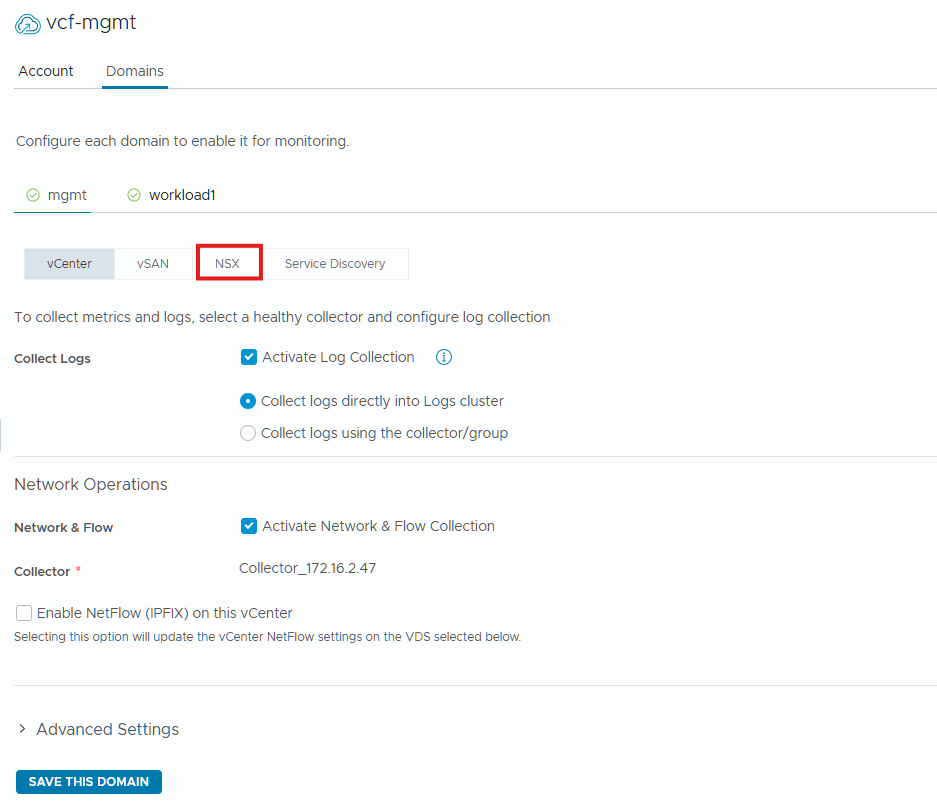
vCenter will start being collected by these products now, we also need to do the same for NSX. Click on the NSX tab.
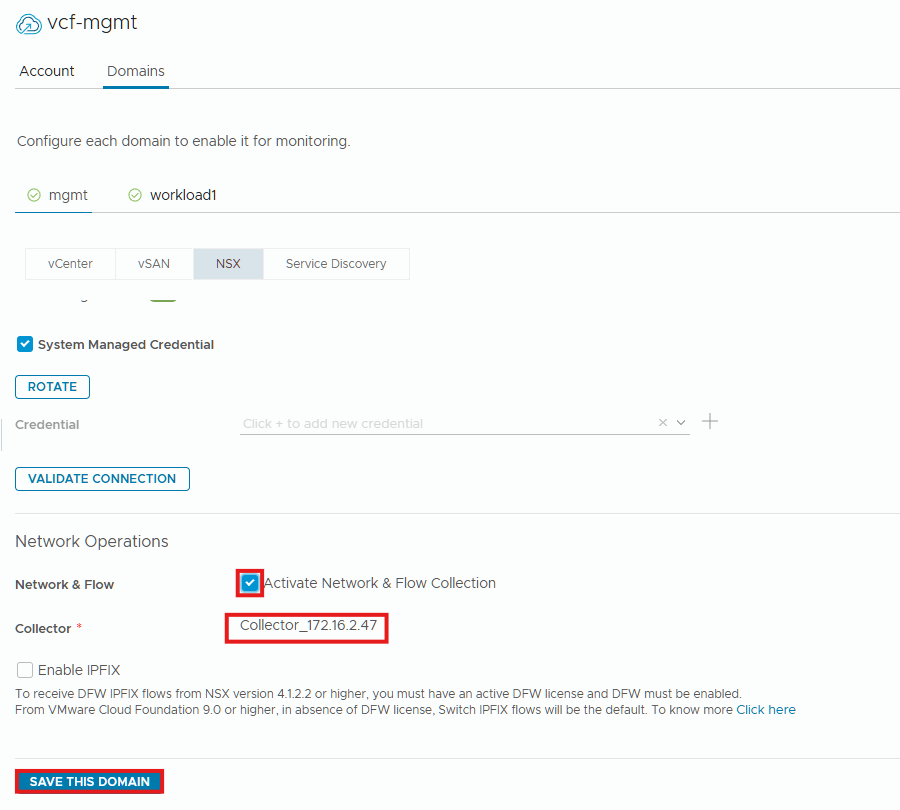
Click the checkbox next to Activate Network & Flow Collection and select the collector in the drop-down box. Click Save this Domain.
Verify the connected data sources
We now have both vCenter and NSX configure for VCF Operations for Logs and VCF Operations for Networks. This can be validated by logging into the VCF Operations for Networks gui and clicking on Settings > Accounts and Data Sources.
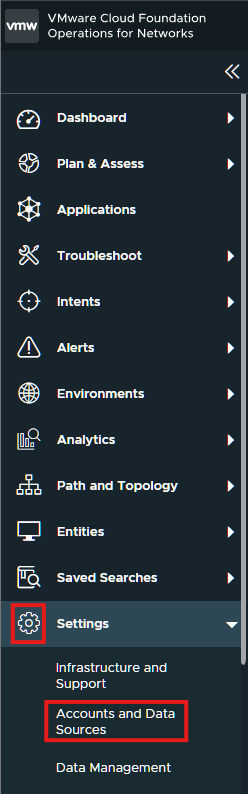
You will see those data sources listed now.

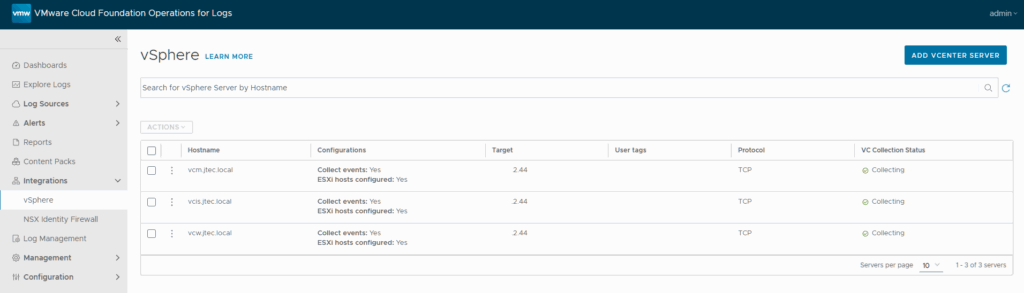
You can also login to VCF Operations for Logs and click on Integrations > vSphere to view the data connections.