
Now that the domain is ready, my next step is going to be deploying the VMware Cloud Foundation installer appliance on one of my infrastructure hosts. In order to do this, you will need to download the VCF installer from the Broadcom support portal and that requires a valid contract or evaluation license for VCF.
VCF Installer Download Site
Once you have downloaded the VCF installer, login to your esxi host and click on virtual machines.
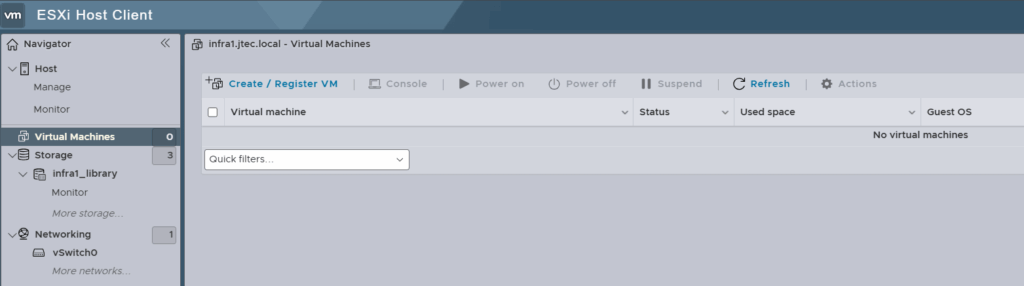
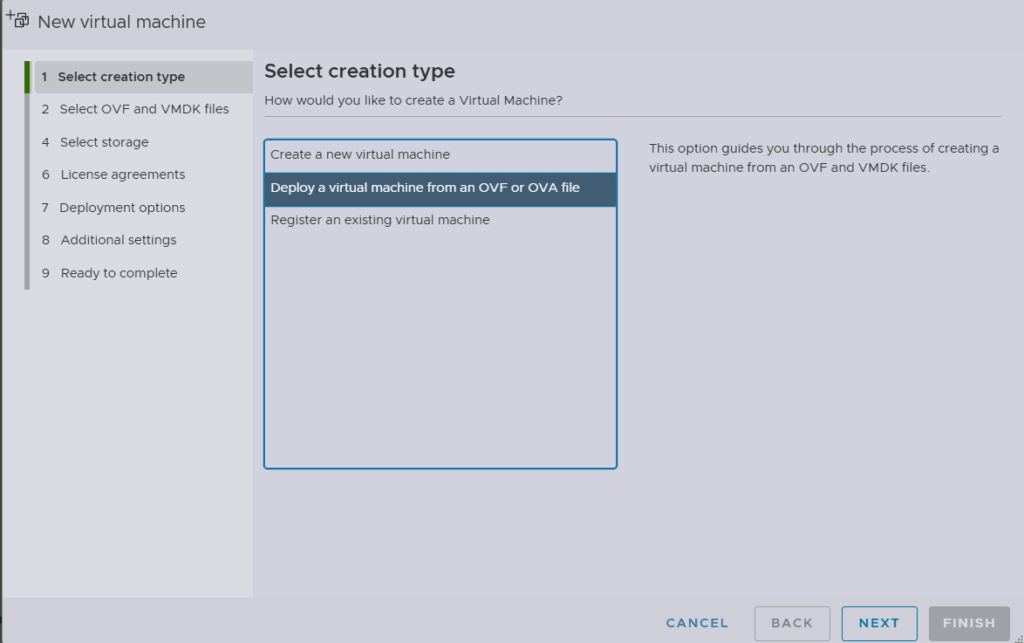
Click on Create/Register VM, and select Deploy a virtual Machine from an OVF or OVA File. Then click Next.
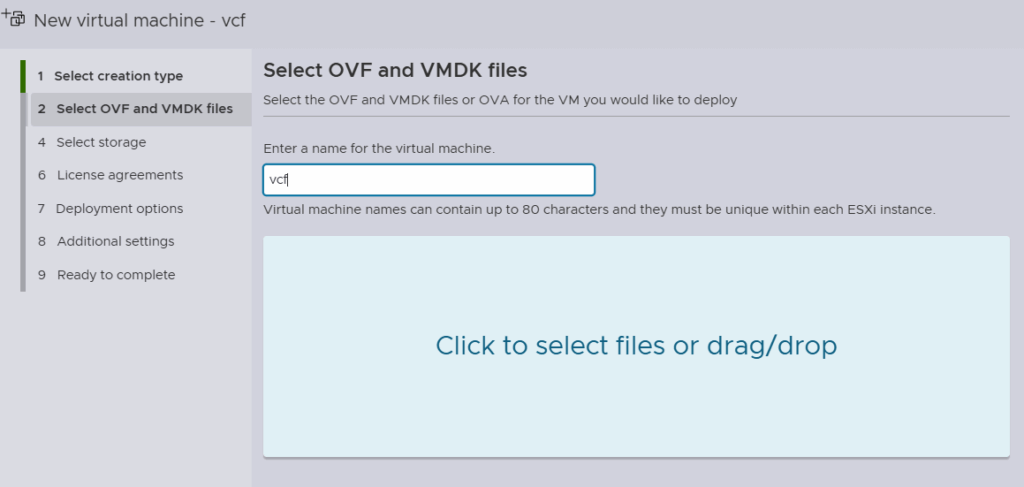
Enter a name for the virtual machine and click to select files.
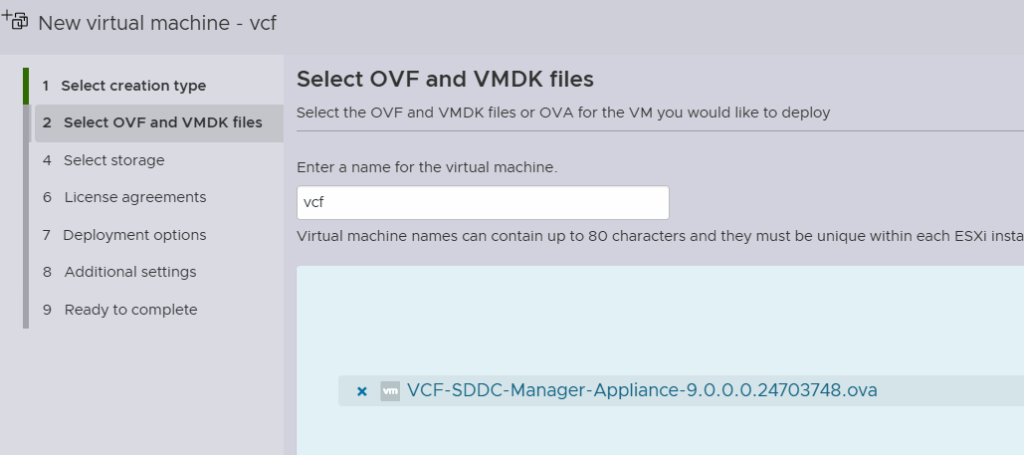
You are going to select the VCF installer ova you downloaded and click Next.
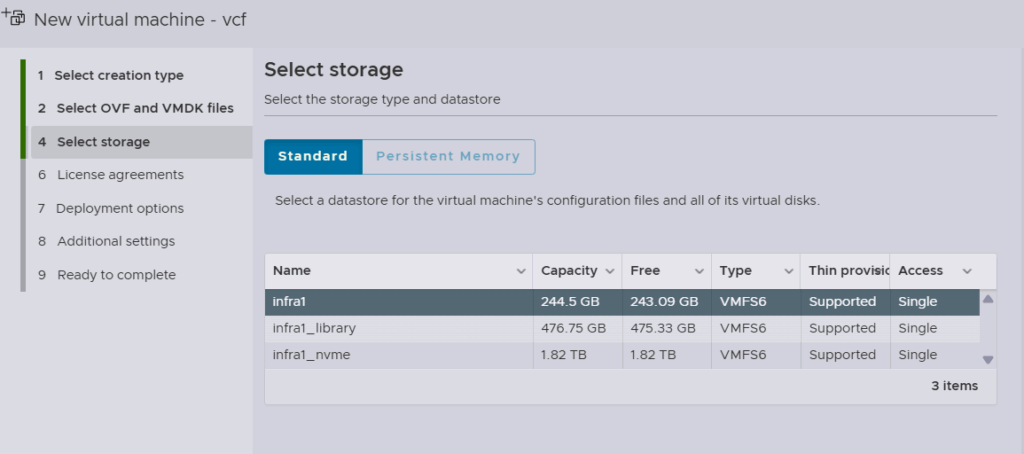
Select a datastore where this appliance will be installed and click Next.
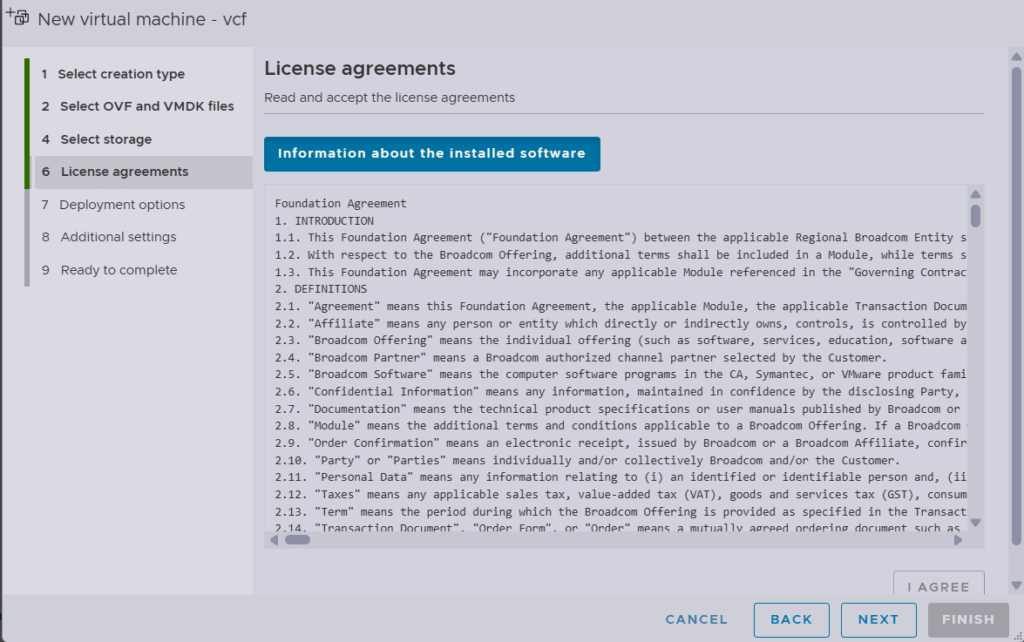
Click I Agree on the license agreement and click Next.
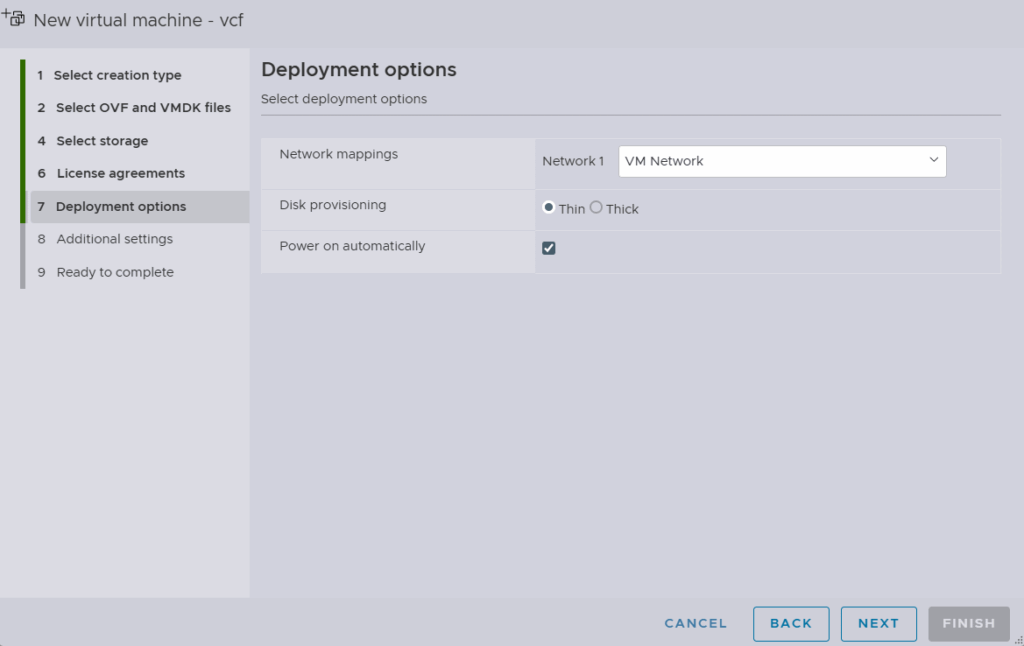
Select the network mappings, disk provisioning for the appliance. I have pre-configured my VM Network to the correct VLAN id for all my management servers. Then click Next.
You will want to expand Application and enter the appropriate configuration settings
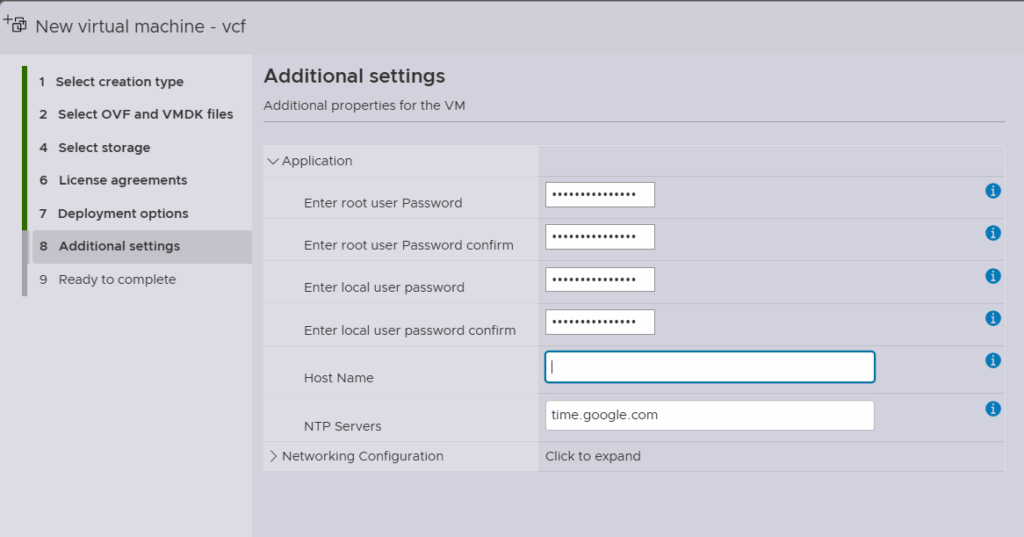
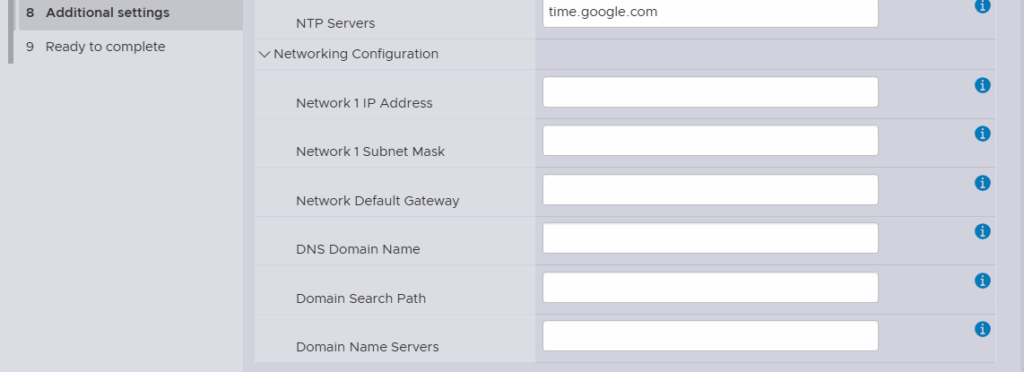
Also expand the Networking Configuration and enter the appropriate settings for your network. Click Next when completed
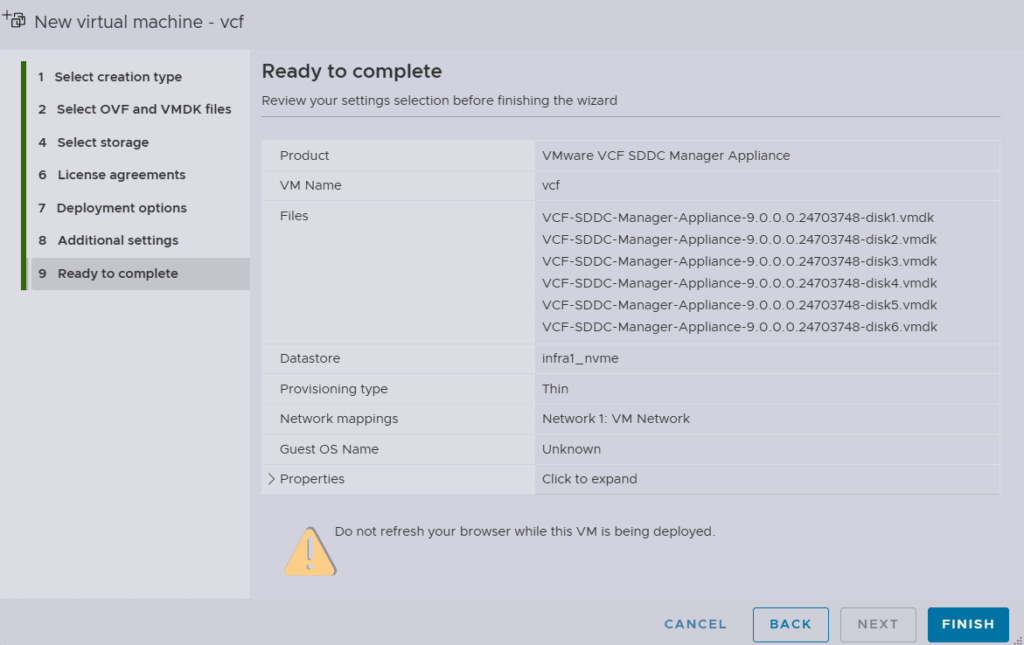
Review the settings at the Ready to complete screen and if correct, click Finish. This will start the VCF installer deployment and it will power on after it has deployed the OVA.
Depending on how your network is setup this could take some time to deploy and after the appliance has powered on it will require some additional time to complete the setup. Once the appliance has finished setting up and deploying, you can access it via web browser with the hostname you provided.