
Configure VCF Operations SSO with Active Directory
Configure VCF Operations SSO with Active Directory. Import users and groups, assign roles and object scopes, and verify login access.
Overview
This VCF Operations SSO guide connects the console to the Active Directory setup used in my lab. I enable SSO, import users and groups, assign roles and object scopes, and test login access.
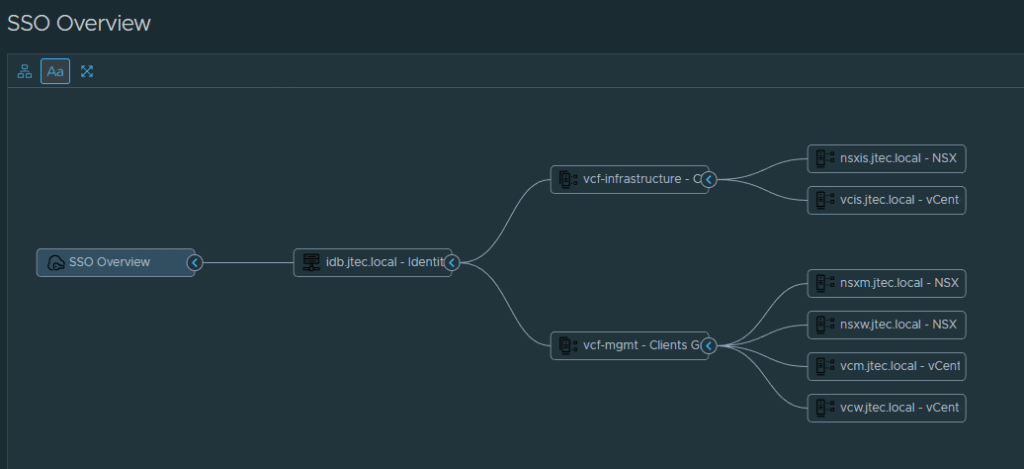
Enable VCF Operations SSO
Now I want to configure my VCF Operations console to have this capability as well, we first start by logging in to the VCF Operations web gui.
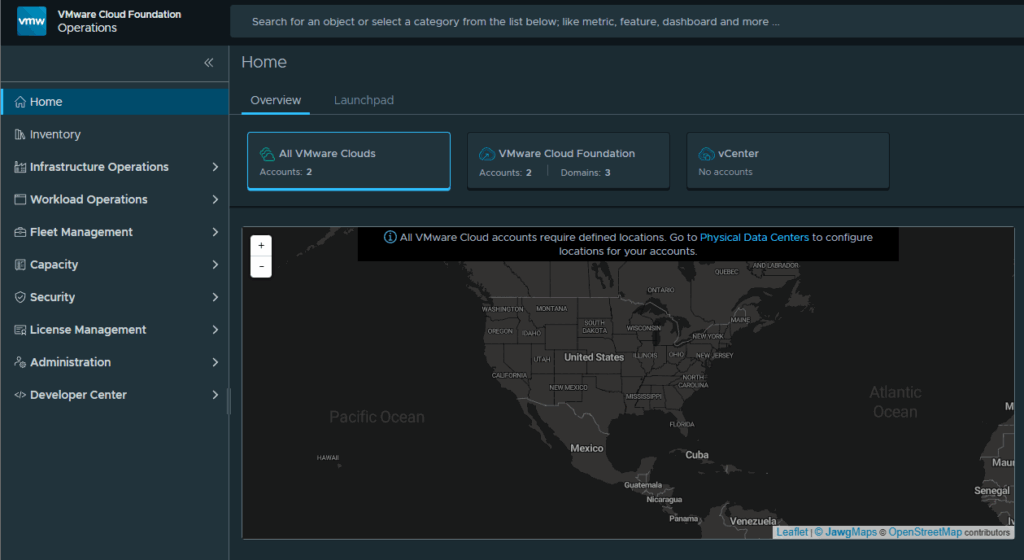
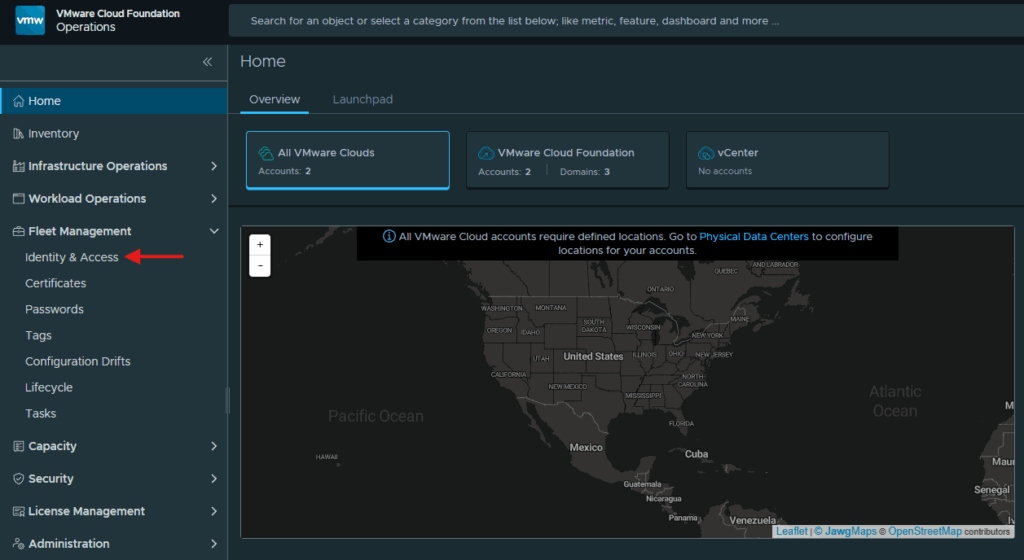
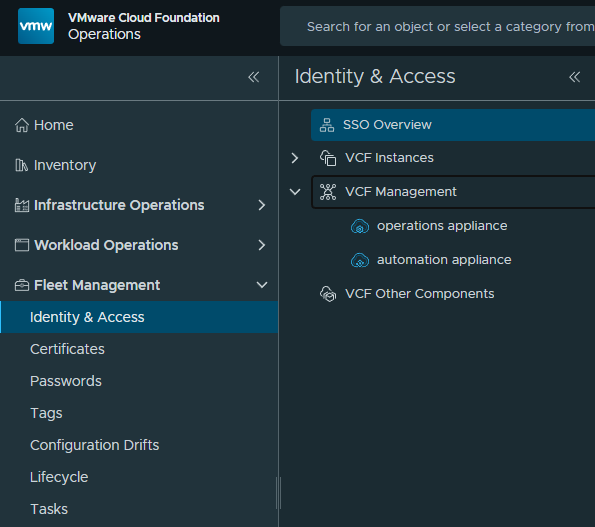
Expand Fleet Management and click on Identity & Access
You will see a list of the areas where SSO can be configured.
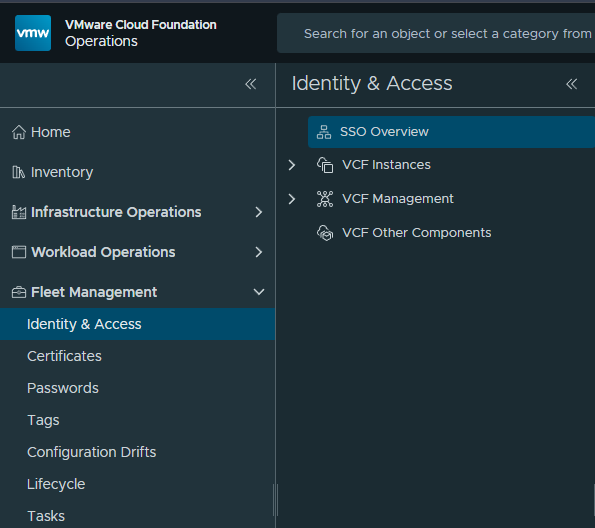
I have already completed the VCF Instance, so this time we want to expand VCF Management
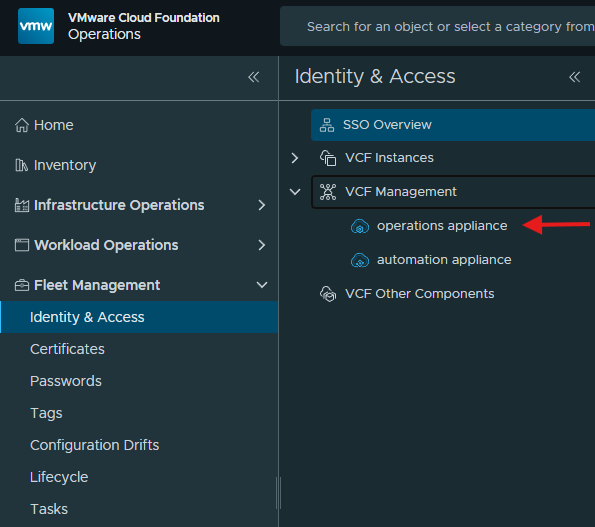
Since we are configuring VCF Operations, click on operations appliance under VCF Management.
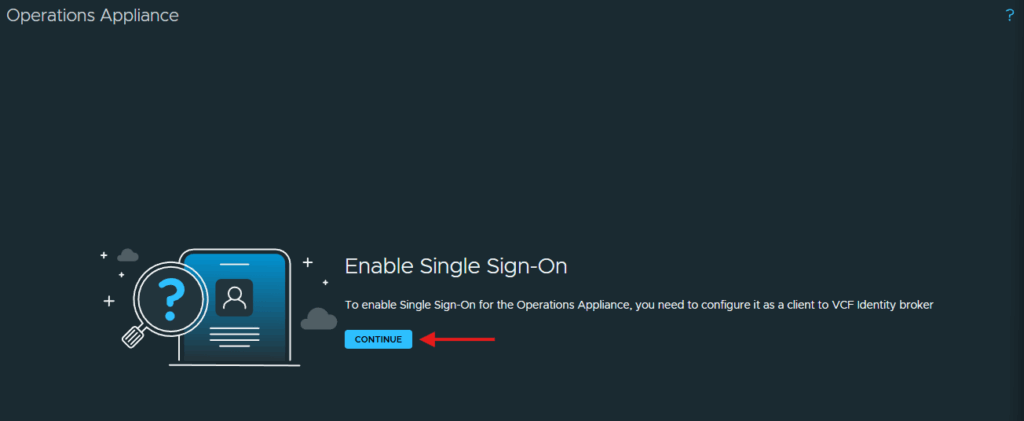
Click Continue to enable single sign-on
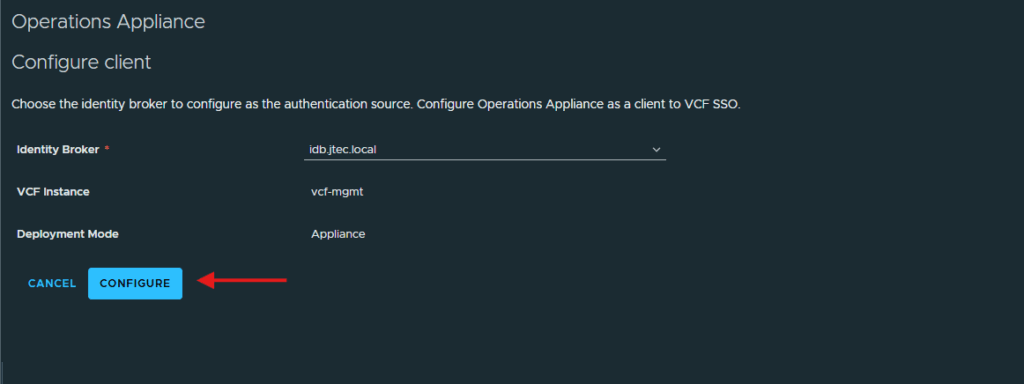
The identity broker will be pre-selected for us, we can click on Configure to configure the appliance
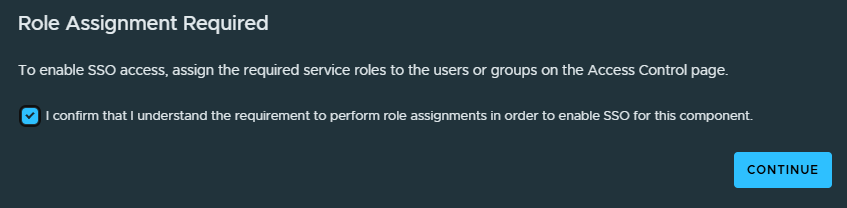
A pop-up will appears, letting us know that in order to enable SSO we have to assign the required roles to the users and groups in the Access Control page. Click the checkbox to confirm and click Continue.
Import users and assign roles
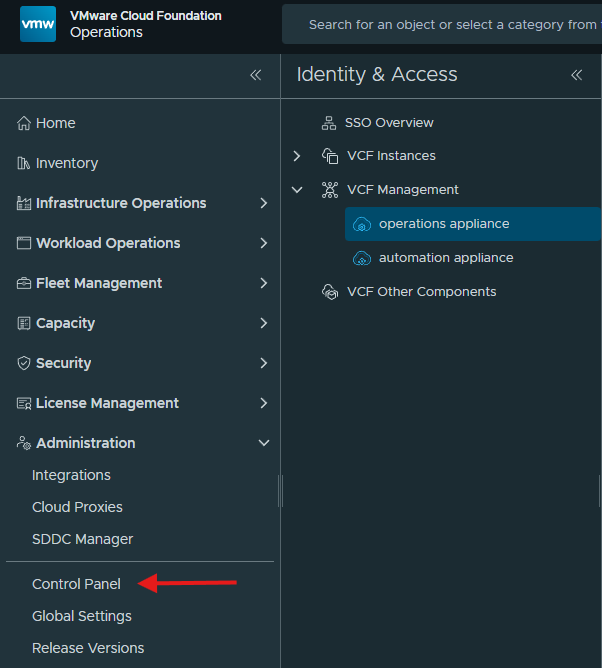
Then we need to expand Administrations and click on Control Panel.
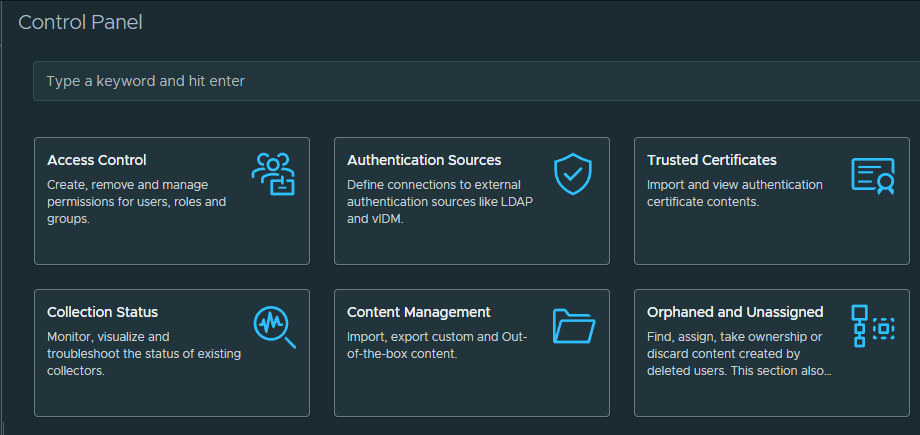
Click on Access Control.
Click on the 3 dots next to add and select Import from Source.

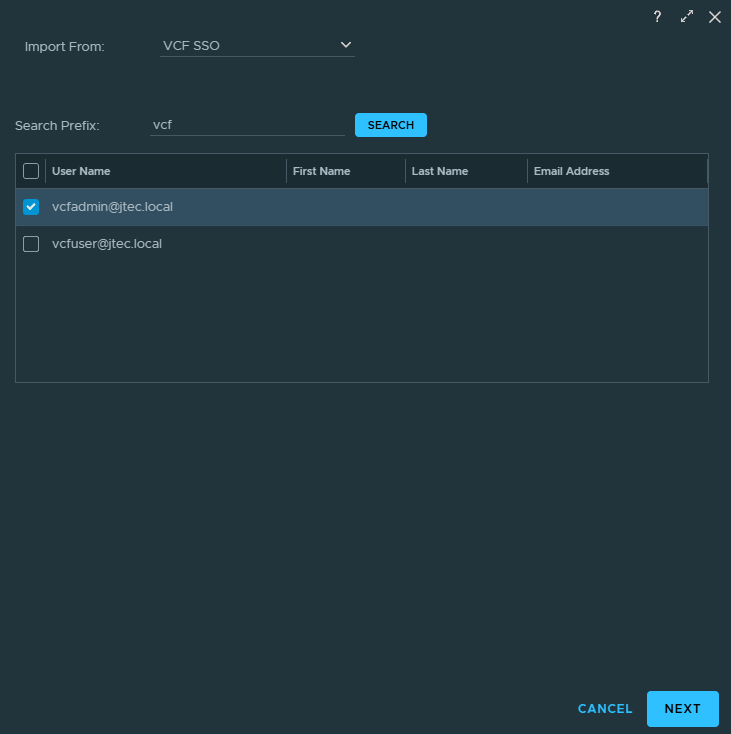
The Import From will default to VCF SSO, enter in the user name in the search prefix and click Search
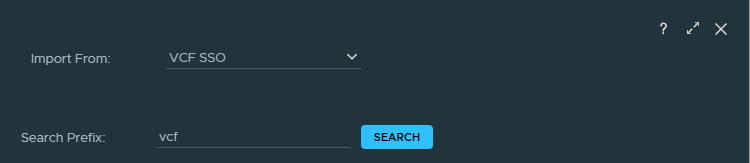
Click the checkbox next to the user you want to import and click Next.
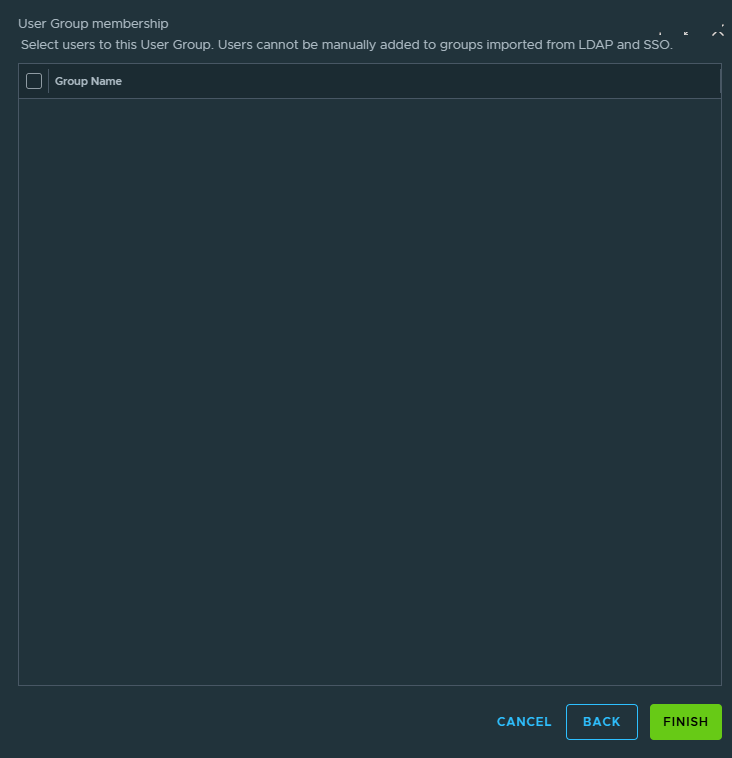
I have no user group membership currently, so we will just click Finish to continue.
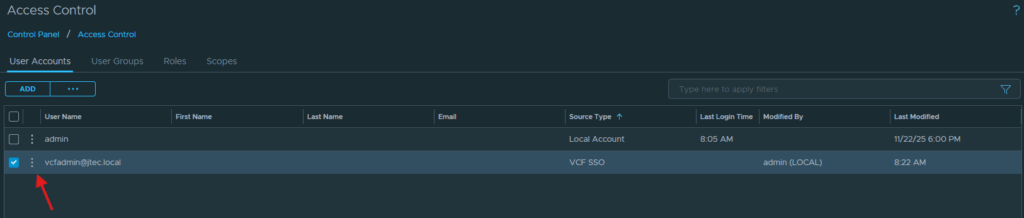
With the user now added, we still need to assign a role. Click the 3 dots next to the user and select Edit.
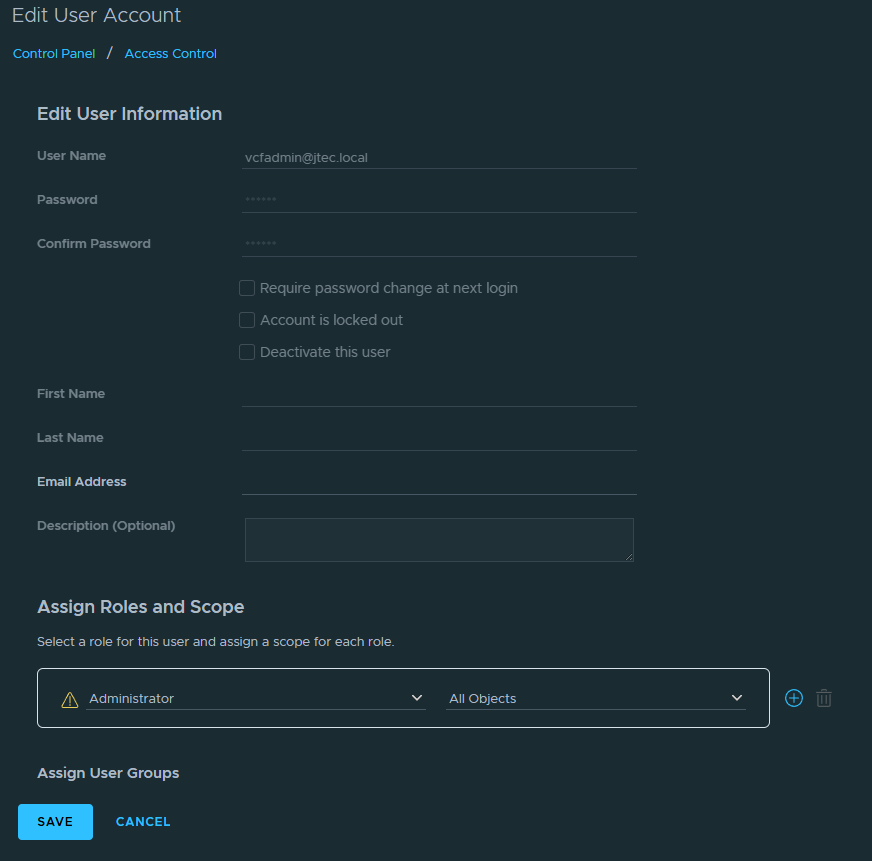
Click the dropdown to assign the appropriate role for that user and then select the dropdown to select the scope. I have chosen to make this user an Administrator across All Objects. Click Save to assign the role.
Import groups and assign scope
If you would like to add Active Directory groups, click on the User Groups section.
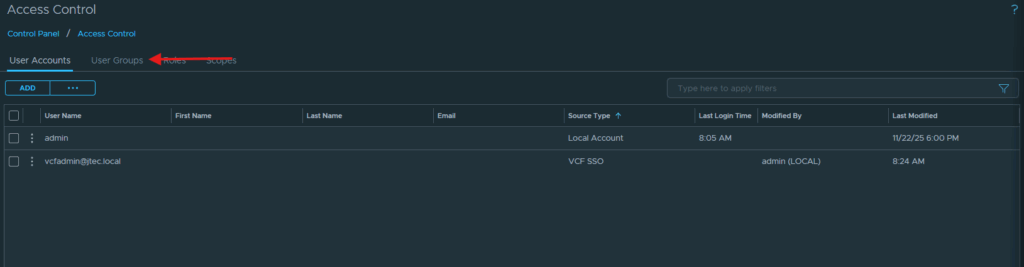
Click the 3 dots and select Import from Source.

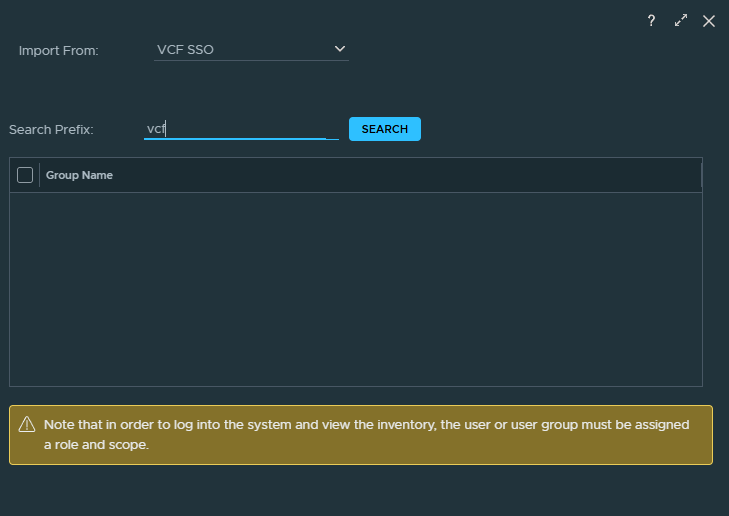
Enter in a a search prefix for the group name and click Search
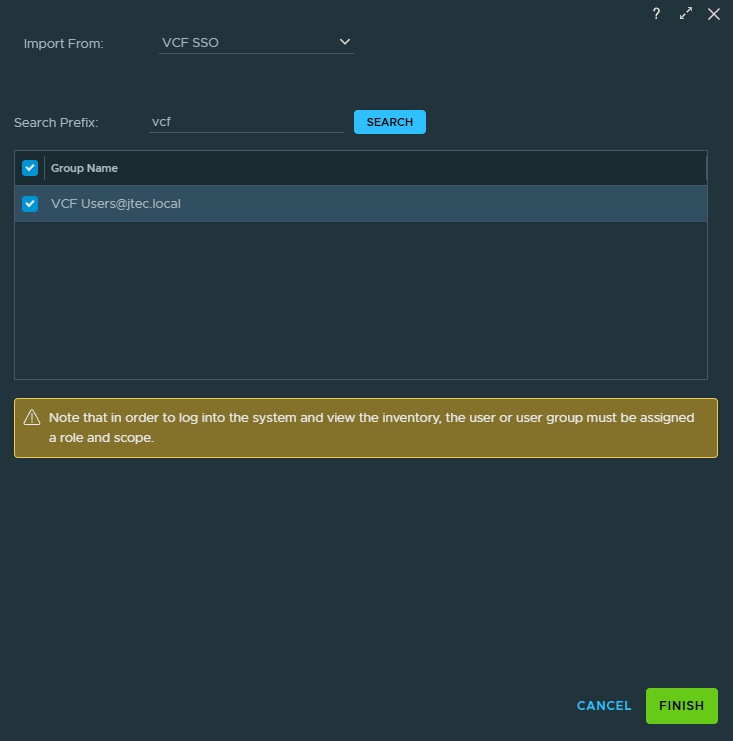
Click the checkbox next to the group and click Finish
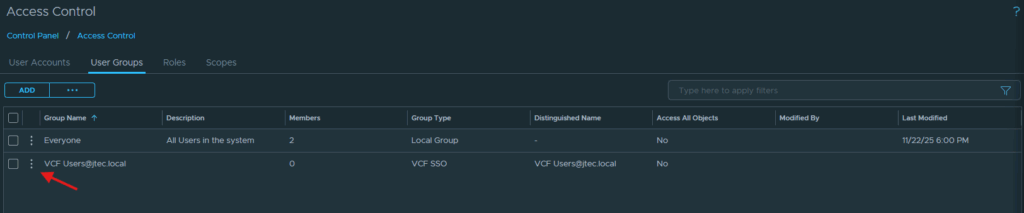
A role still needs to be assigned to this group, click on the 3 dots and select Edit.
Click the drop downs to assign the role for that group and select the scope of the permission. Click Save to complete the role assignment.
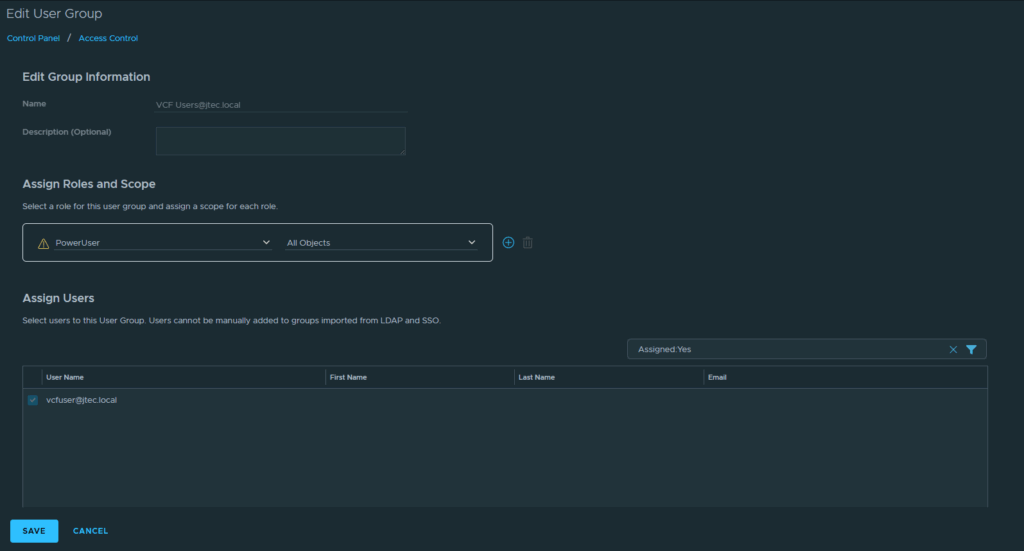
Verify SSO login
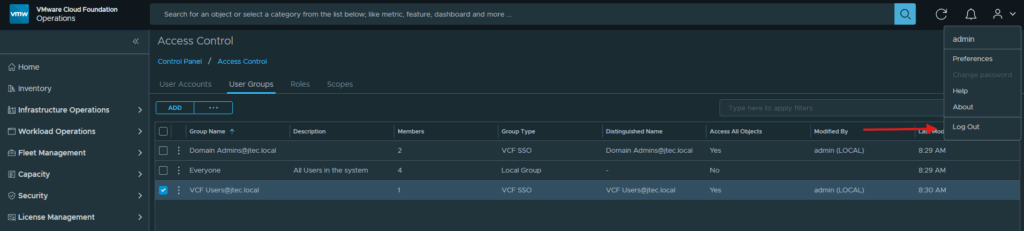
Click the drop down next to the person in the top right hand corner and click Log Out.
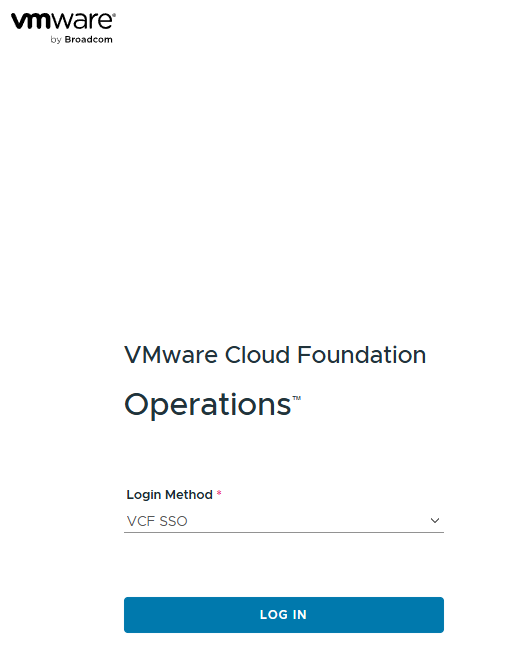
We now have the option to use VCF SSO as the login method, click Login
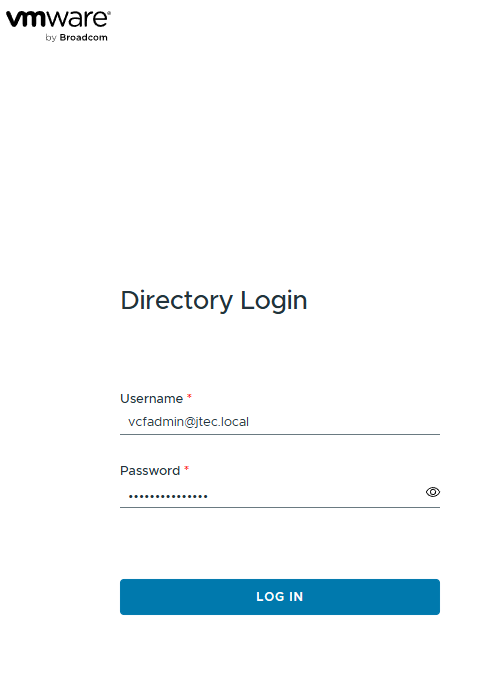
Enter in an active directory user you provided access to and click Log In.
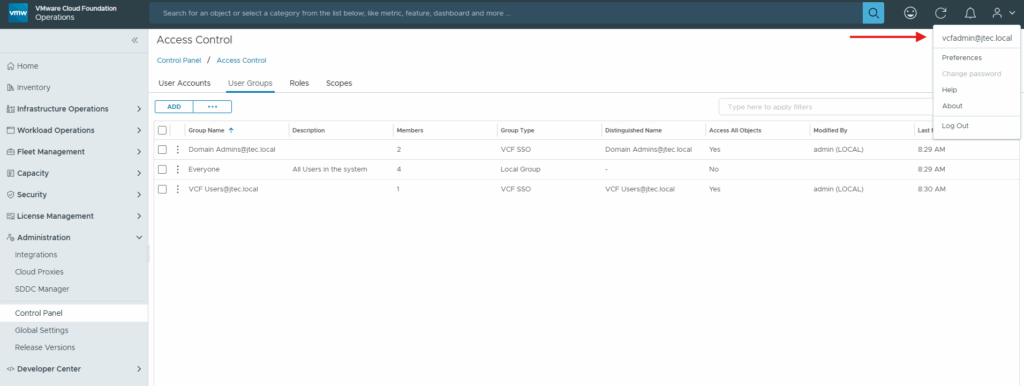
If successful it will log you in to the VCF Operations web gui. You can click the drop down next to the person icon in the top right to confirm the user.
In other posts I will complete the single sign on for the other VCF appliances.
You can return to my main VCF Lab page to follow along with this deployment.