
In this post I am going to configure my Unifi Dream Machine (UDM) Pro router integration with the VCF Operations appliance. This will allow my UDM to send Simple Network Management Protocol (SNMP) messages to VCF Operations and allow me to have more insight in to my physical network.
To complete the setup, first we need to login to the UDM web gui and configure the necessary information.
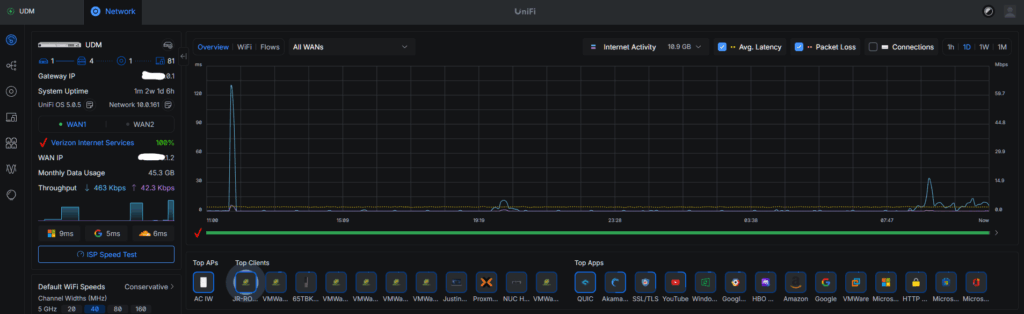
Click on Settings
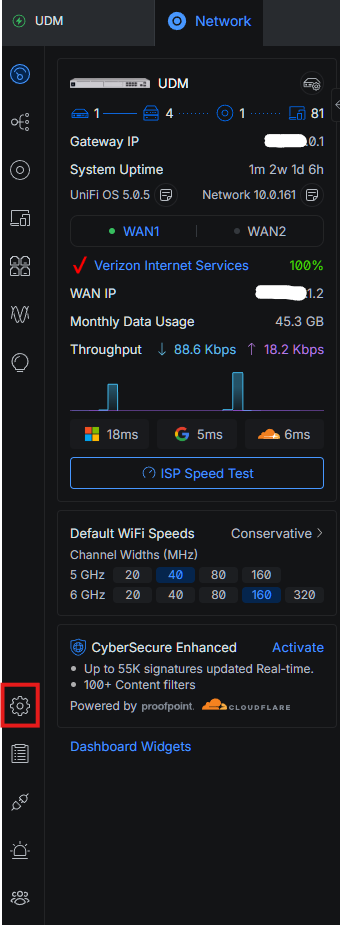
Click on CyberSecure > Traffic Logging
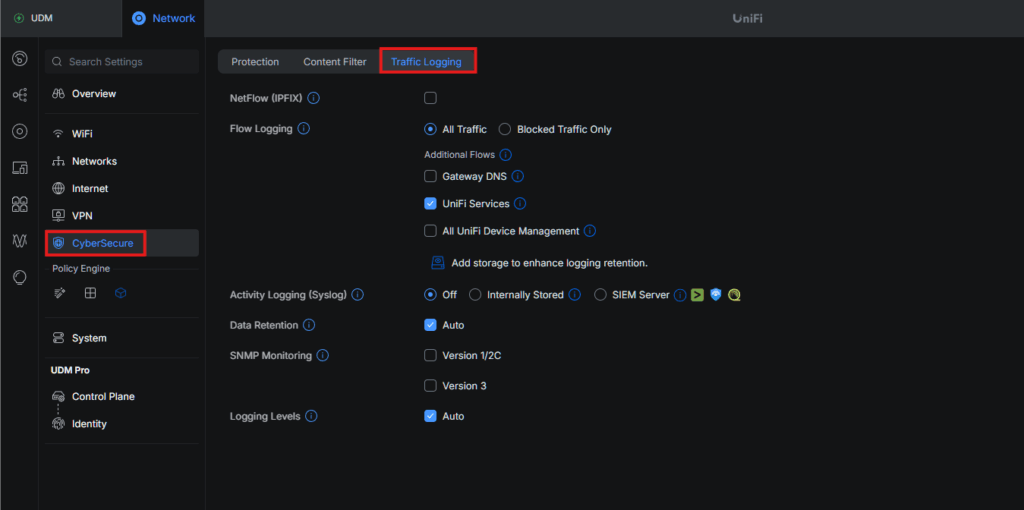
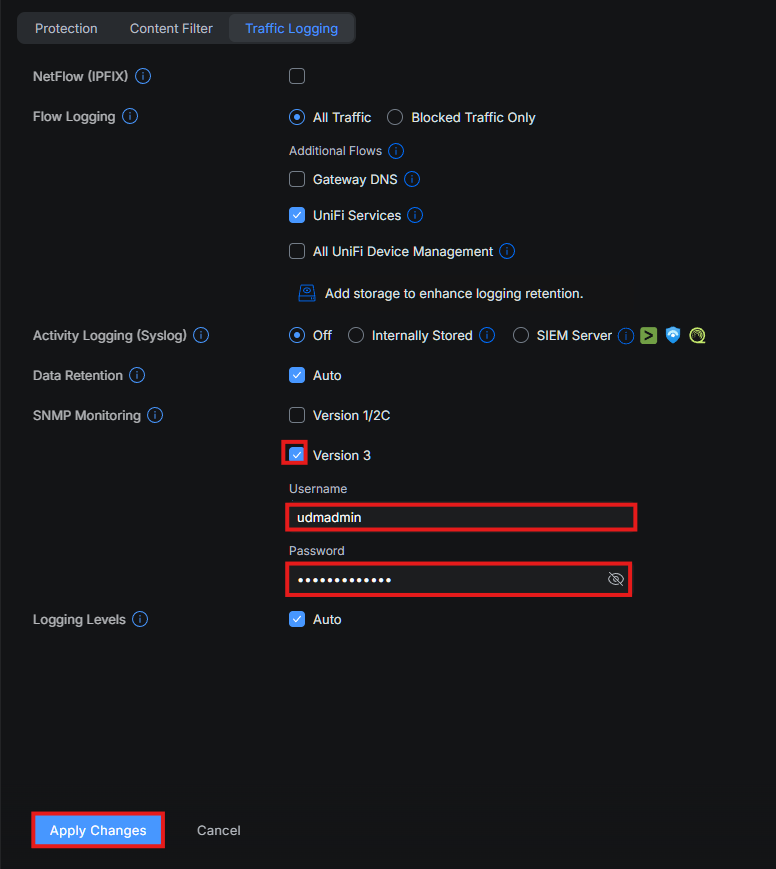
Under SNMP Monitoring, click the checkbox next to Version 3. Then provide a Username and Password, click Apply Changes
Now we need to login to the VCF Operations web gui.
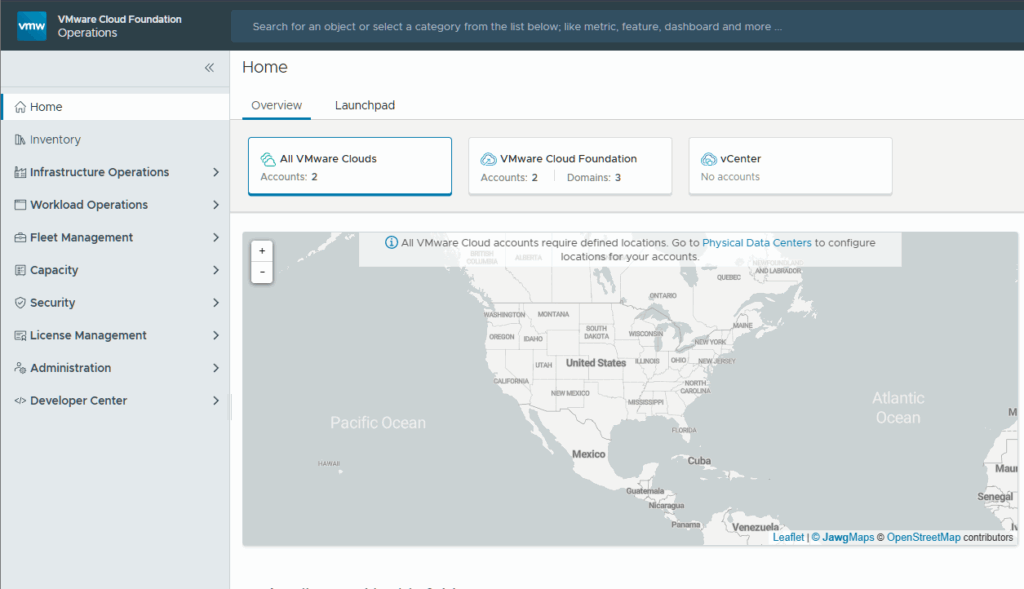
Click on Administration > Integrations.
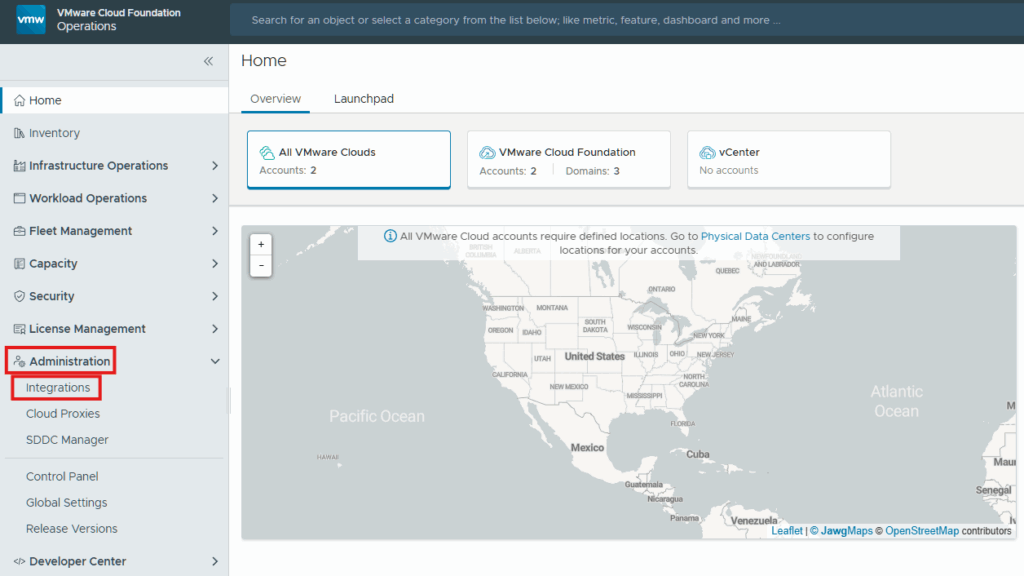
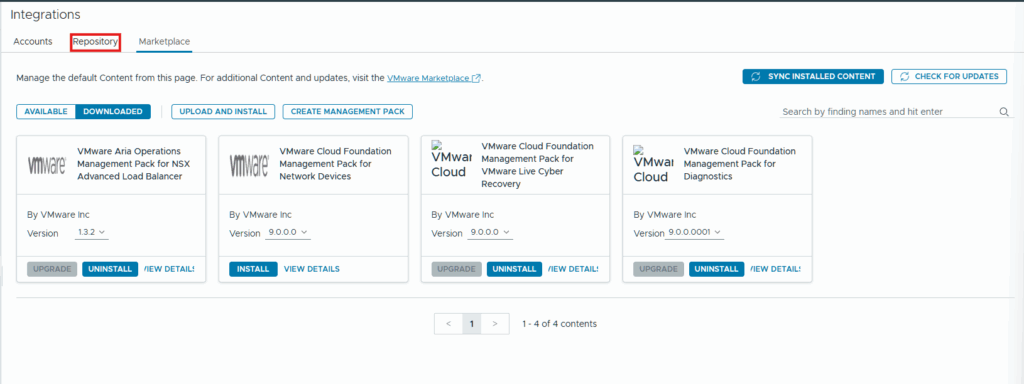
Click on Marketplace.
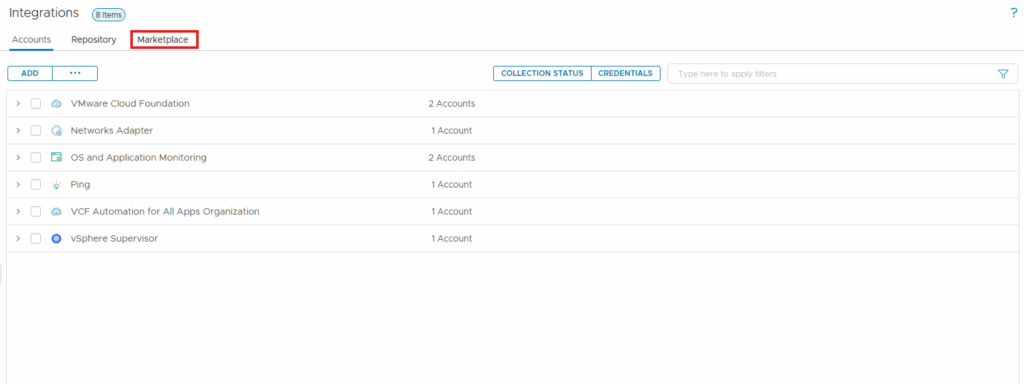
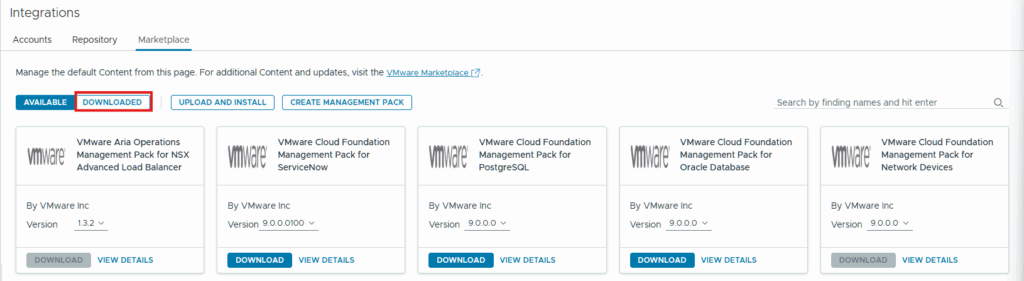
Look for the VMware Cloud Foundation Management Pack for Network Devices and click Download.
I prematurely downloaded the management pack so my button is greyed out but your will see a blue button.
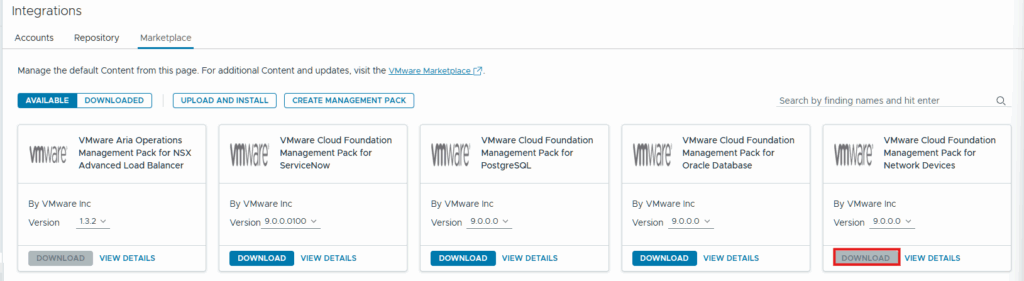
Once it has downloaded, click the Downloaded button.
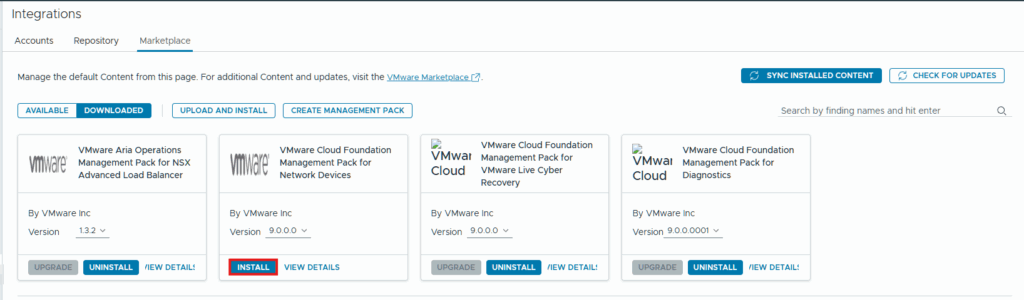
Click Install for the management pack we just downloaded.
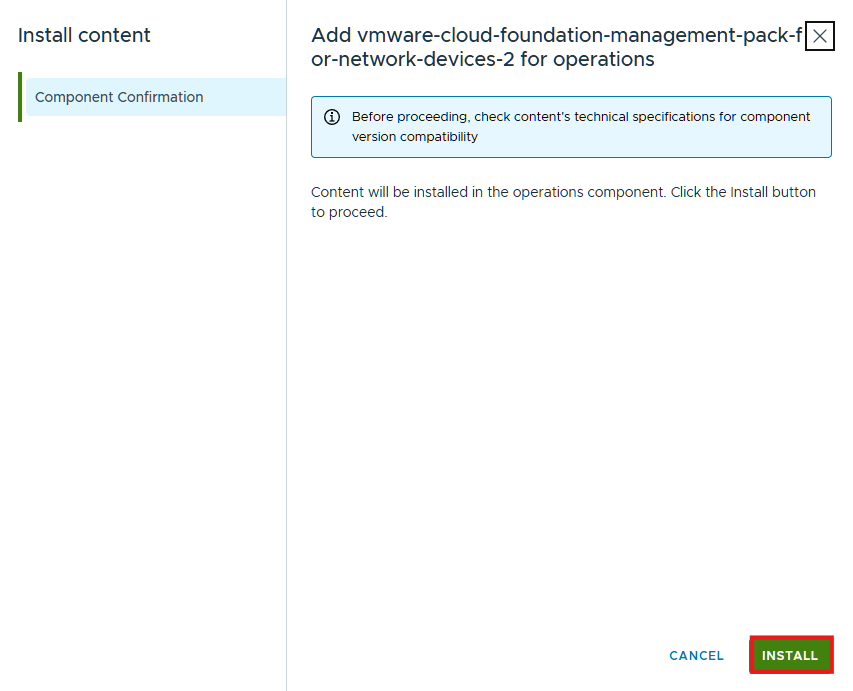
In the Install content pop-up click Install.
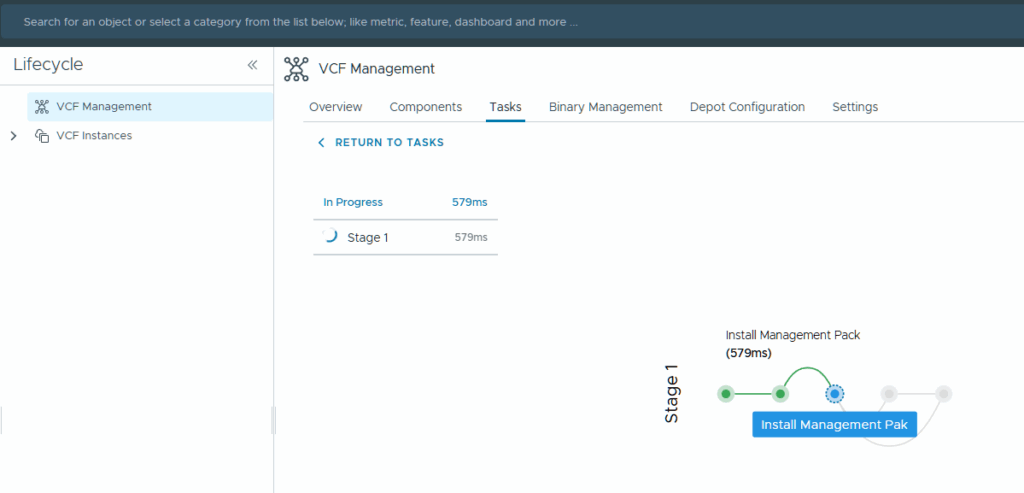
You can click the request status link to follow the installation progress.
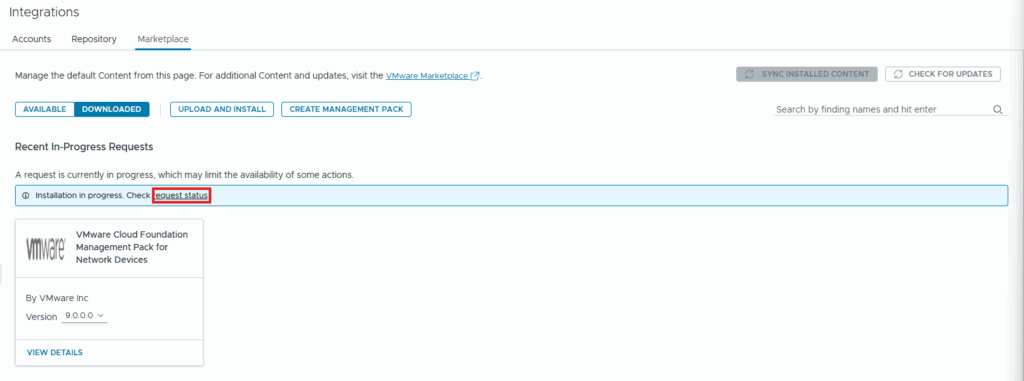
Another tab will open in your web browser where you can view the progress.
Once the management pack is installed, we go back to the Integrations screen and click Repository.
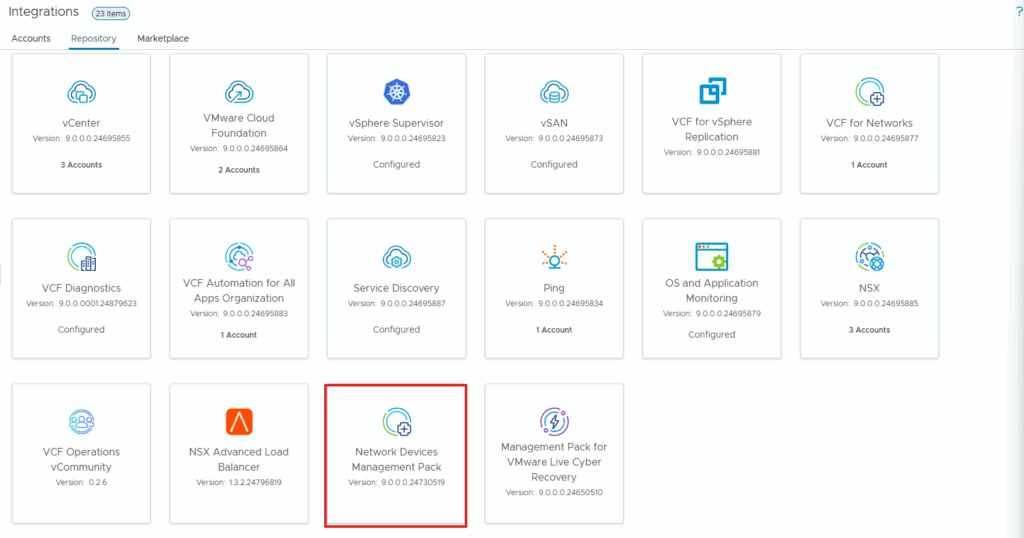
At the repository screen, click on the Network Devices Management Pack.
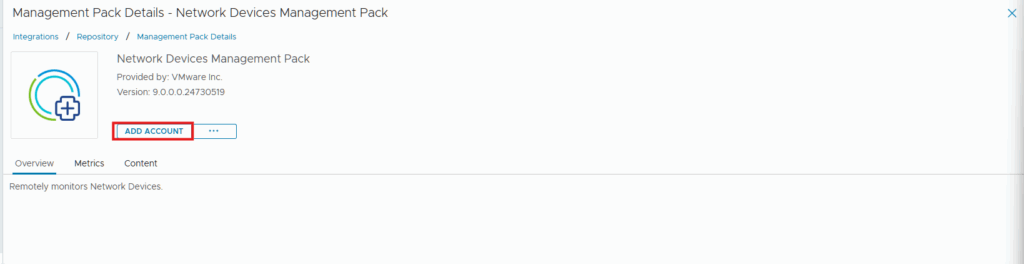
Click Add Account.
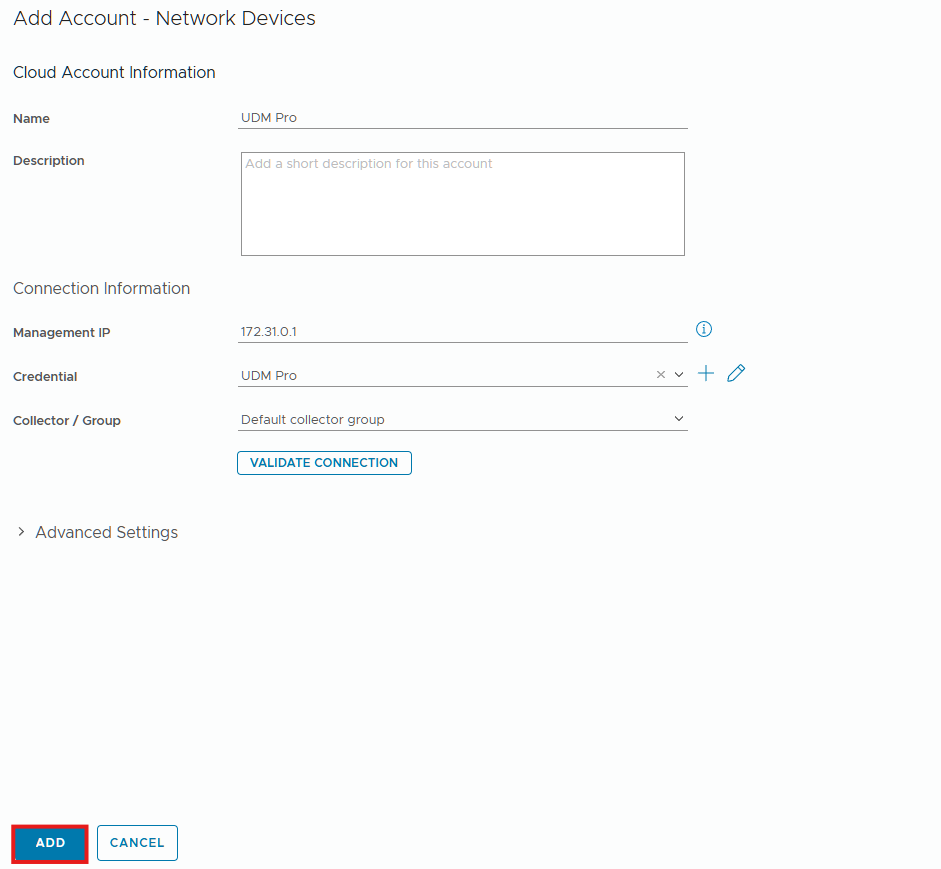
Provide a name for the account, and the management IP of your UDM router. Click the + symbol next to credential.
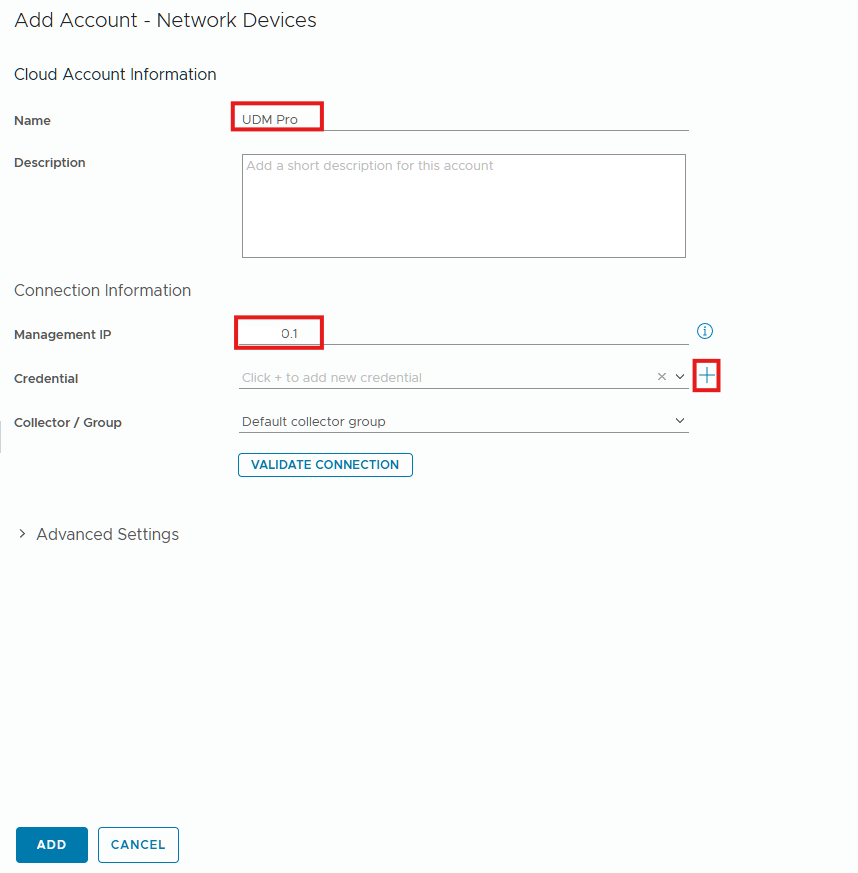
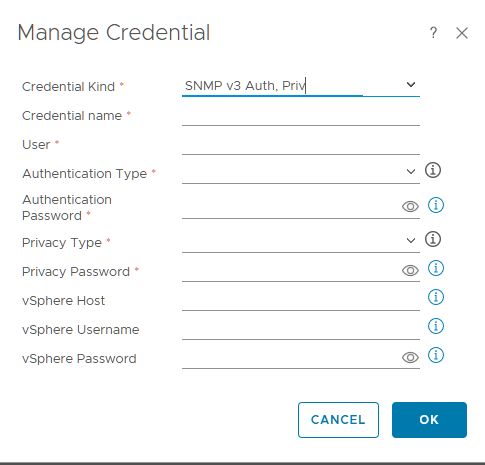
At the Manage Credential screen, click the dropdown for Credential Kind and select SNMP v3 Auth, Priv
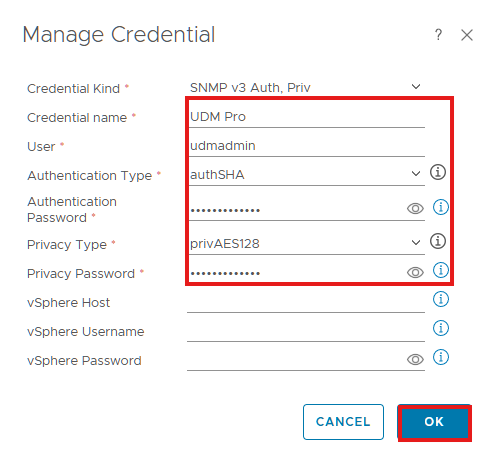
Then enter in the following information: Credential Name, User, Authentication Type, Authentication Password, Privacy Type, Privacy Password. Click Ok once the required information is entered.
The Authentication Password and Privacy Password are going to be the same that you entered for the user in the UDM pro router.
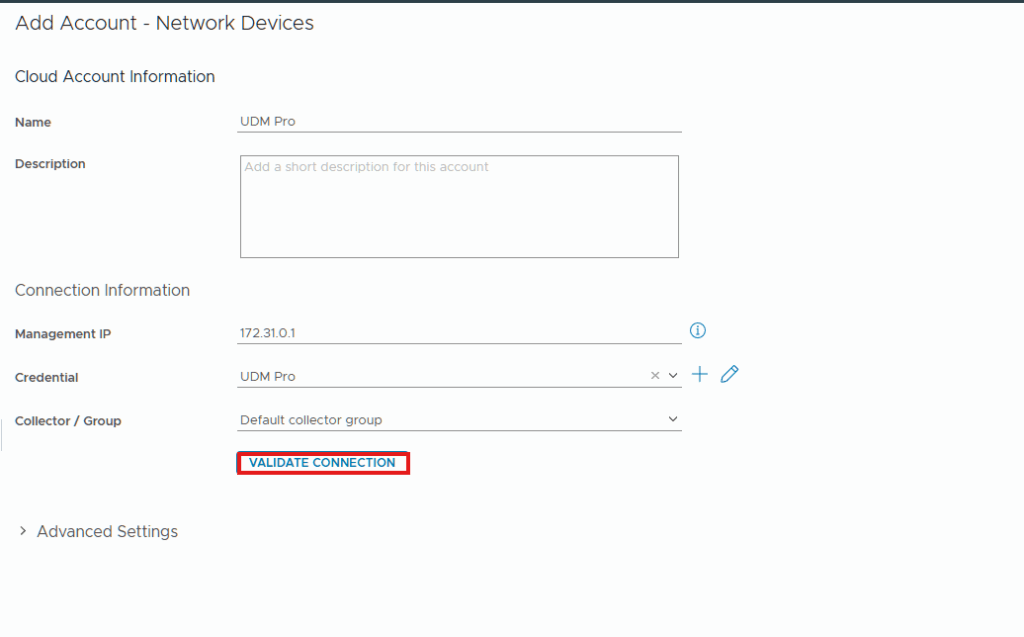
Click Validate Connection.
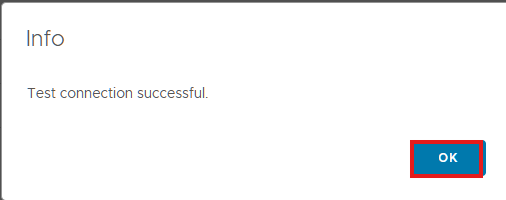
You should get a Test connection successful pop-up, click Ok.
Click Add.
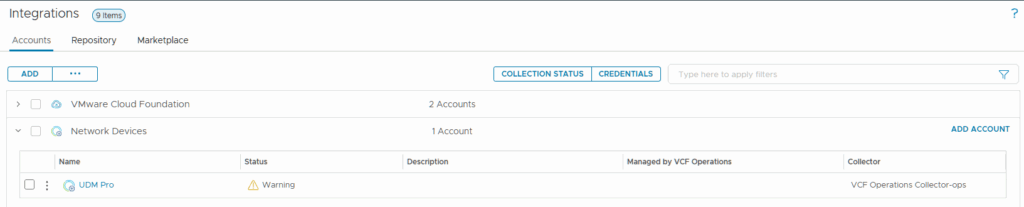
We can expand Network Devices and see that the connection has been added. A warning will appear when it is first created due to it starting.
It will start collecting after a few minutes.
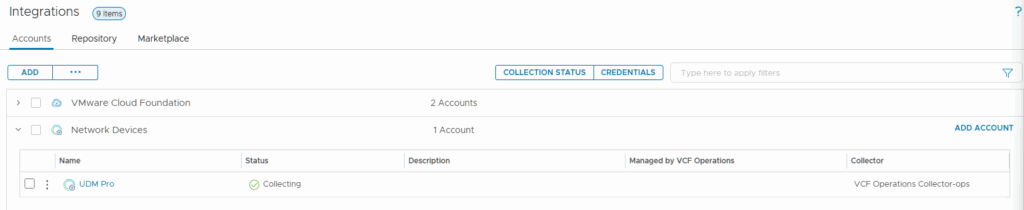
We will now be getting SNMP data from our Unifi UDM Pro router. If you would like more information on SNMP Monitoring, check out the Unfii post below.