
VMware Cloud Foundation 9.1.1: Enabling Memory Tiering in My Homelab
A complete workload-domain walkthrough: create a configuration profile, enable NVMe Memory Tiering, assign host devices, and verify successful rolling remediation.
VCF 9.1.1 · MINISFORUM MS-A2 · Samsung NVMe tiering
With VCF 9.1.1 running in my homelab, I wanted to enable Memory Tiering and follow the process from the first configuration draft through to a compliant cluster. This post follows the three-host workload cluster wkld1-cl01 from Create Configuration through successful remediation and a fresh compliance check. I also include a recovery lesson from the earlier management-domain rollout.
Memory Tiering combines DRAM as Tier 0 with NVMe as Tier 1. The additional capacity is useful in a compact lab, but active memory demand still needs attention. Enabling the feature is the first step; validating its effect on my workloads is a separate exercise.
Configuration at a glance
| Setting | Walkthrough |
|---|---|
| Release | VCF 9.1.1; hosts report ESXi 9.1.1 |
| Hardware focus | MINISFORUM MS-A2 homelab |
| Tiering devices | Samsung SSD 990 EVO 1TB devices on all three workload hosts |
| Configuration method | vSphere Configuration Profiles |
| Draft setting | memtier → nvme |
| Impact review | Sequential maintenance mode; no host reboot requested |
| Final result | 3 hosts succeeded; all hosts and solutions compliant |
The MS-A2 hardware reference
The hardware reference for this post is William Lam’s VCF 9.0 Hardware BOM for Silicon Valley VMUG. His build uses the MINISFORUM MS-A2 with an AMD Ryzen 9 7945HX and a Crucial 128GB DDR5 SODIMM kit. It assigns separate NVMe devices to ESXi, Memory Tiering, and vSAN ESA.
My variation uses Samsung NVMe tiering drives for tiering; William’s reference BOM specifies Sabrent Rocket 1TB drives for that role. I am using his post as the design reference, rather than presenting every part in that BOM as my exact configuration. The hardware discussion here focuses on the MS-A2.
This is a homelab walkthrough. The device choice describes my lab and is not a production hardware qualification. The screenshots document the cluster workflow; they document the workload-domain configuration sequence rather than a hardware sizing comparison.
Prepare for a rolling configuration change
Before starting, identify the dedicated NVMe device on each host and verify that it is available for tiering. Keep the tiering device separate from storage already used for boot, VM datastores, or vSAN. Also make sure the remaining hosts have enough capacity to accept evacuated VMs during maintenance mode.
Check vMotion readiness and the health of cluster services, including NSX and vSAN where present. The earlier management-domain rollout included lengthy migrations and an NSX recovery issue; the workload-domain operation below completed in 1 minute 40 seconds.
Broadcom’s VCF 9.1 Memory Tiering configuration guide covers the guided workflow and optional mirroring, encryption, and tier-size settings. Review those choices for your own environment before applying the draft.
Create the cluster configuration profile
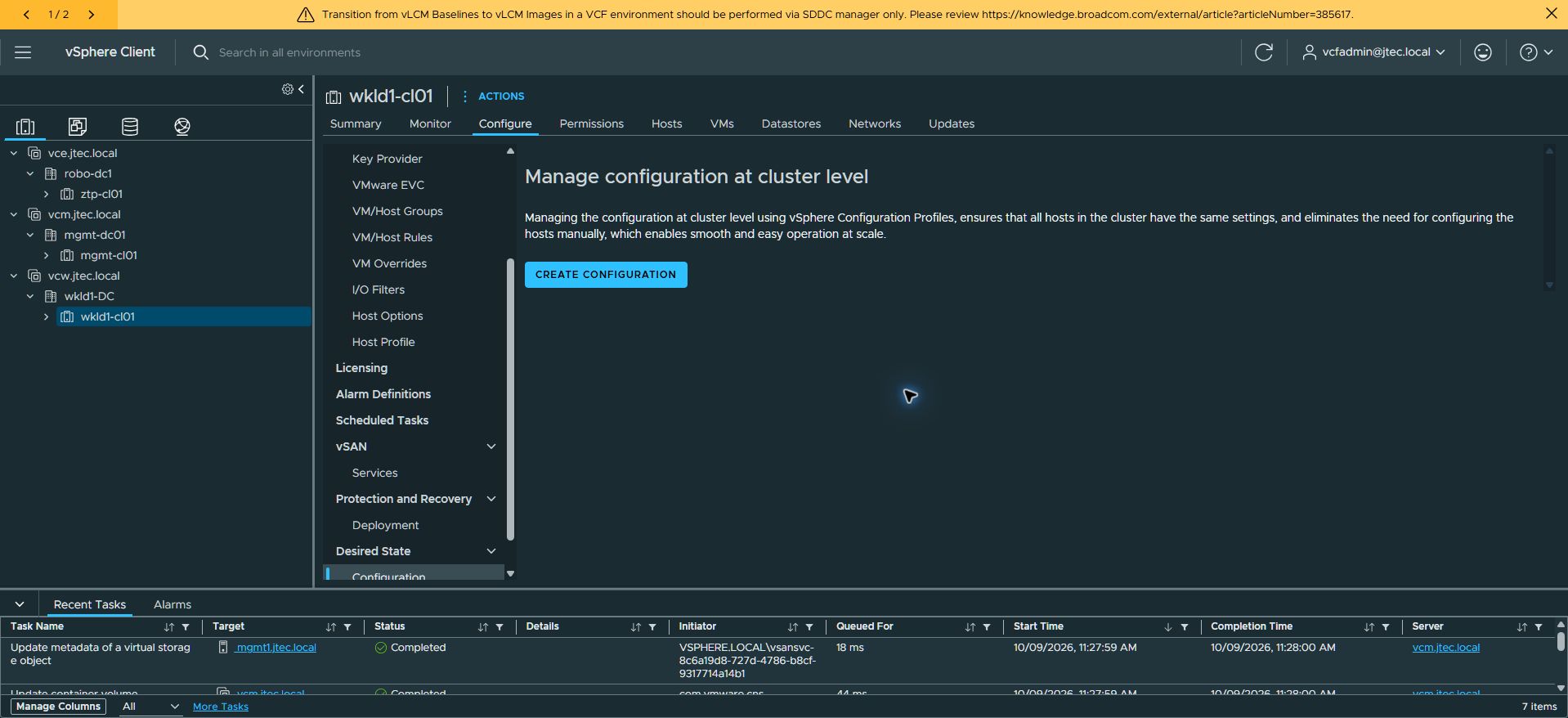
Select the workload cluster and open Configure → Desired State → Configuration. On wkld1-cl01, I selected Create Configuration. The client first checks whether configuration can be managed at cluster level. If your cluster already has a profile, proceed to its Draft tab.
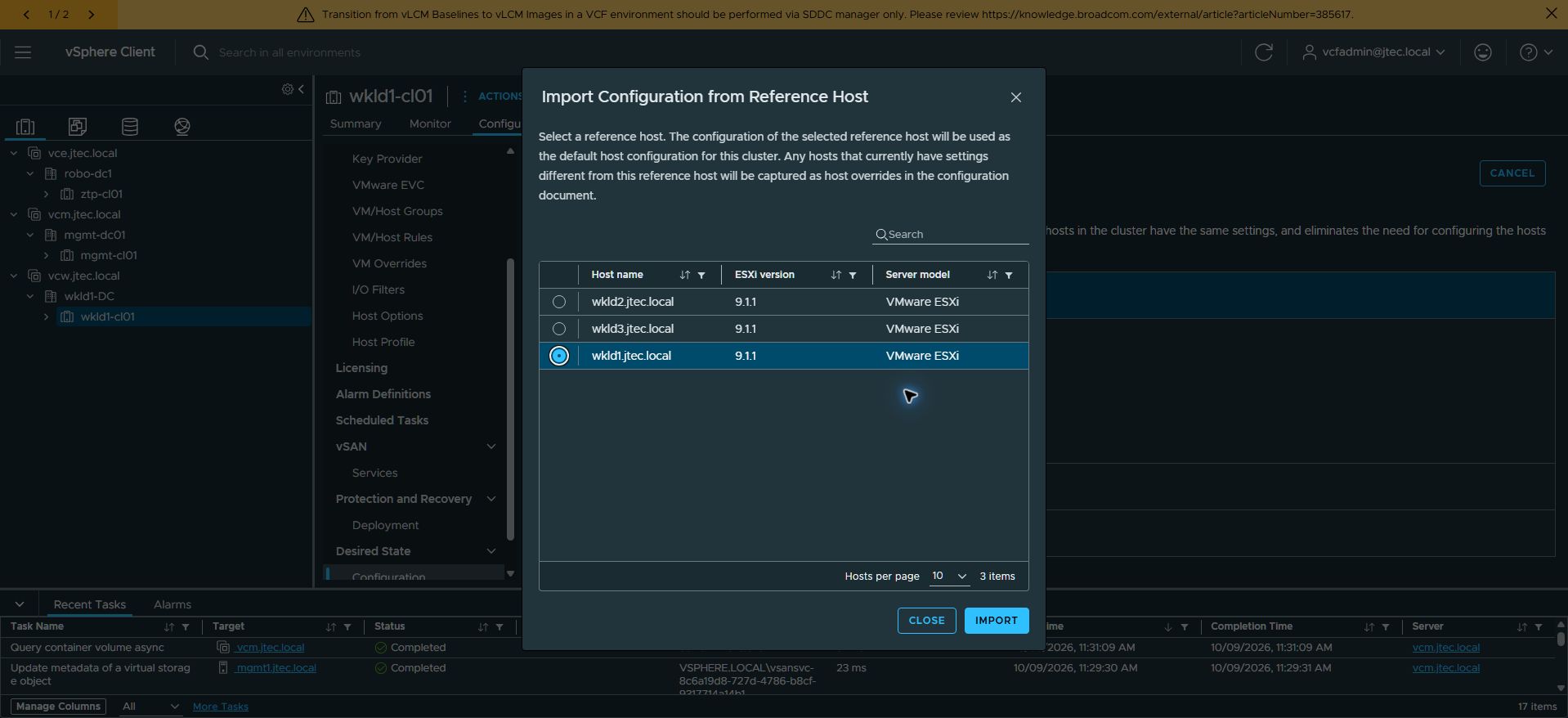
In Import Configuration from Reference Host, select a host whose configuration will provide the cluster default. Settings that differ on other hosts are captured as host overrides. I selected wkld1.jtec.local, running ESXi 9.1.1, then selected Import.
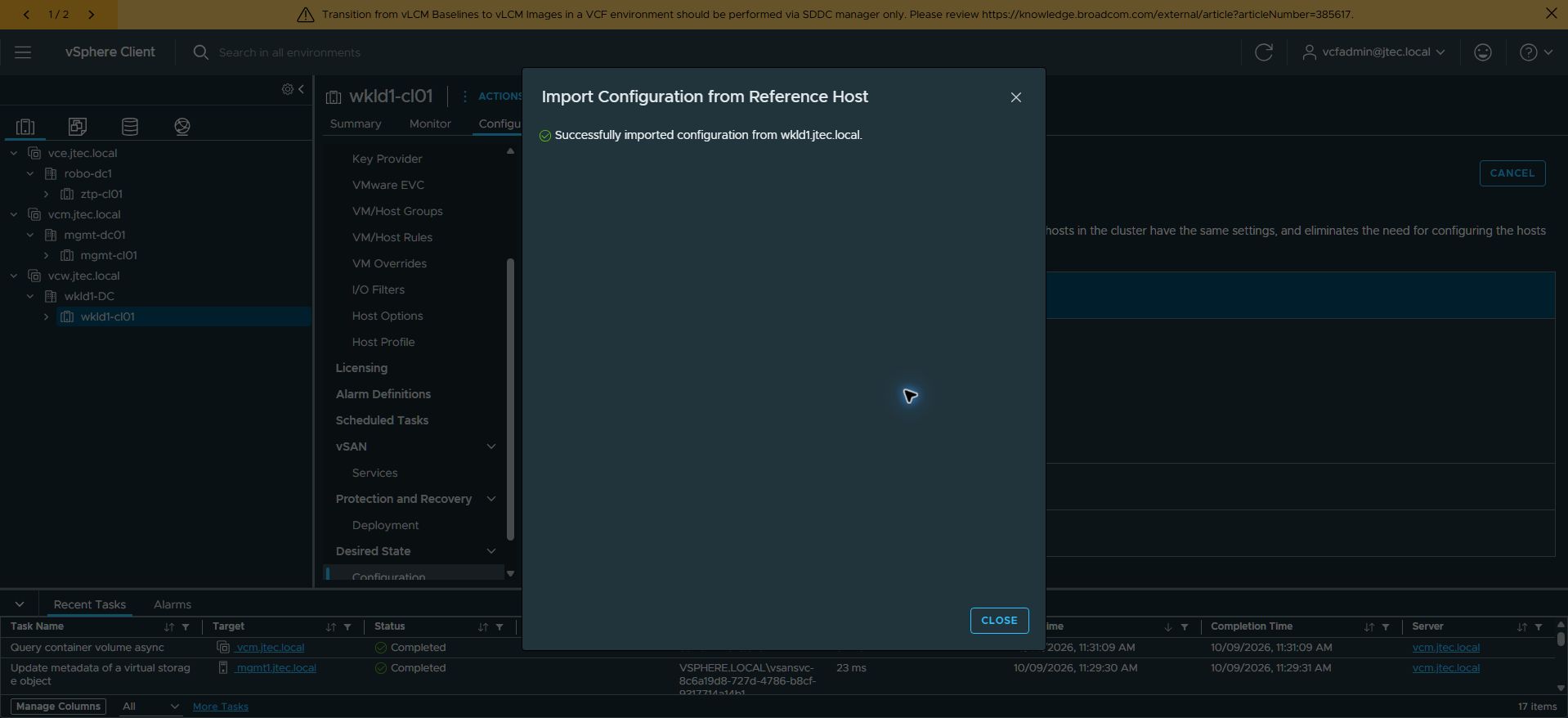
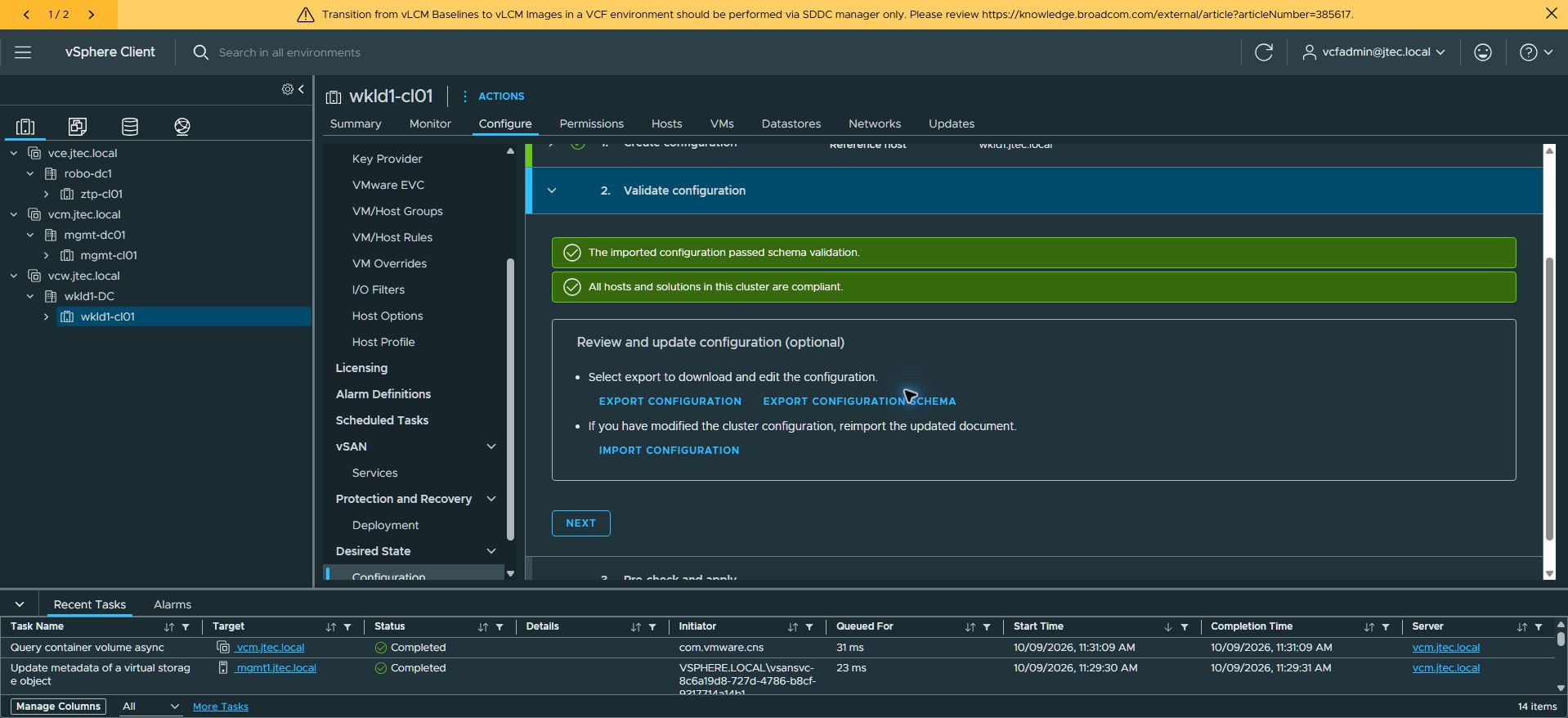
Close the successful import dialog. The wizard validates the imported configuration against the cluster hosts. Wait for schema validation and compliance results. My configuration passed schema validation, and all hosts and solutions were compliant. The optional review section allows exporting the configuration or schema, editing the document, and importing it again. I proceeded with Next.
The Pre-check and apply step checks the configuration and its cluster impact. This initial profile precheck found no issues and showed zero hosts requiring maintenance mode or reboot. This result belongs to profile creation; the Memory Tiering change has its own impact review later.
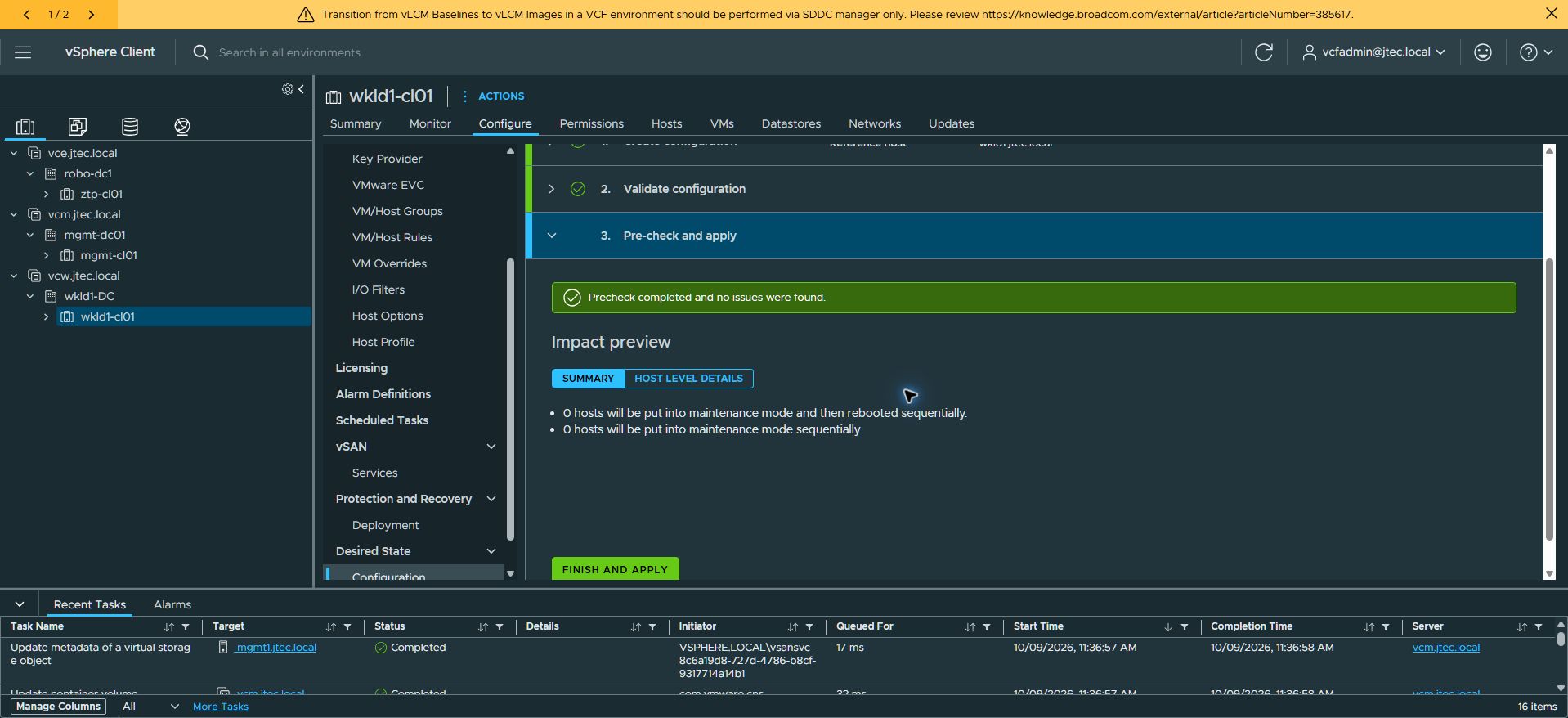
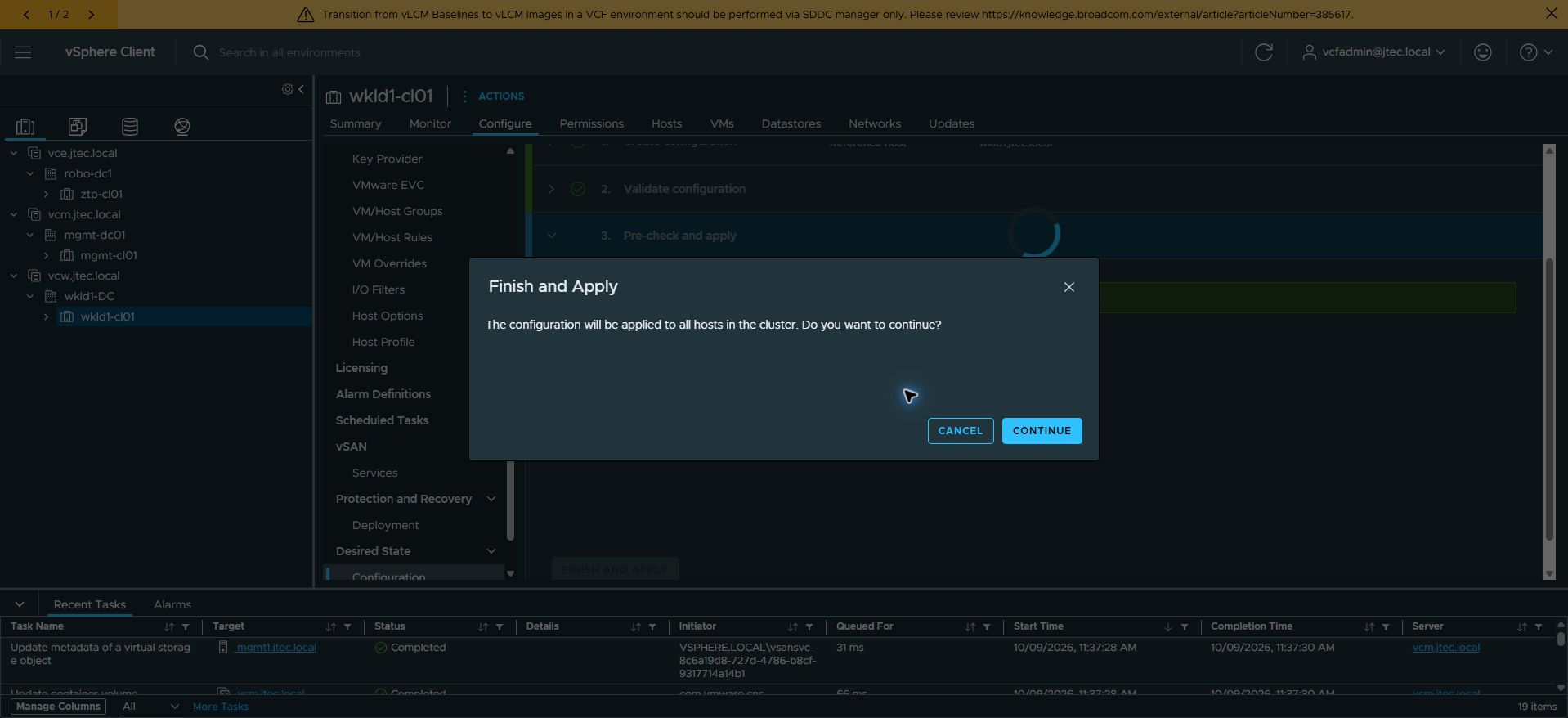
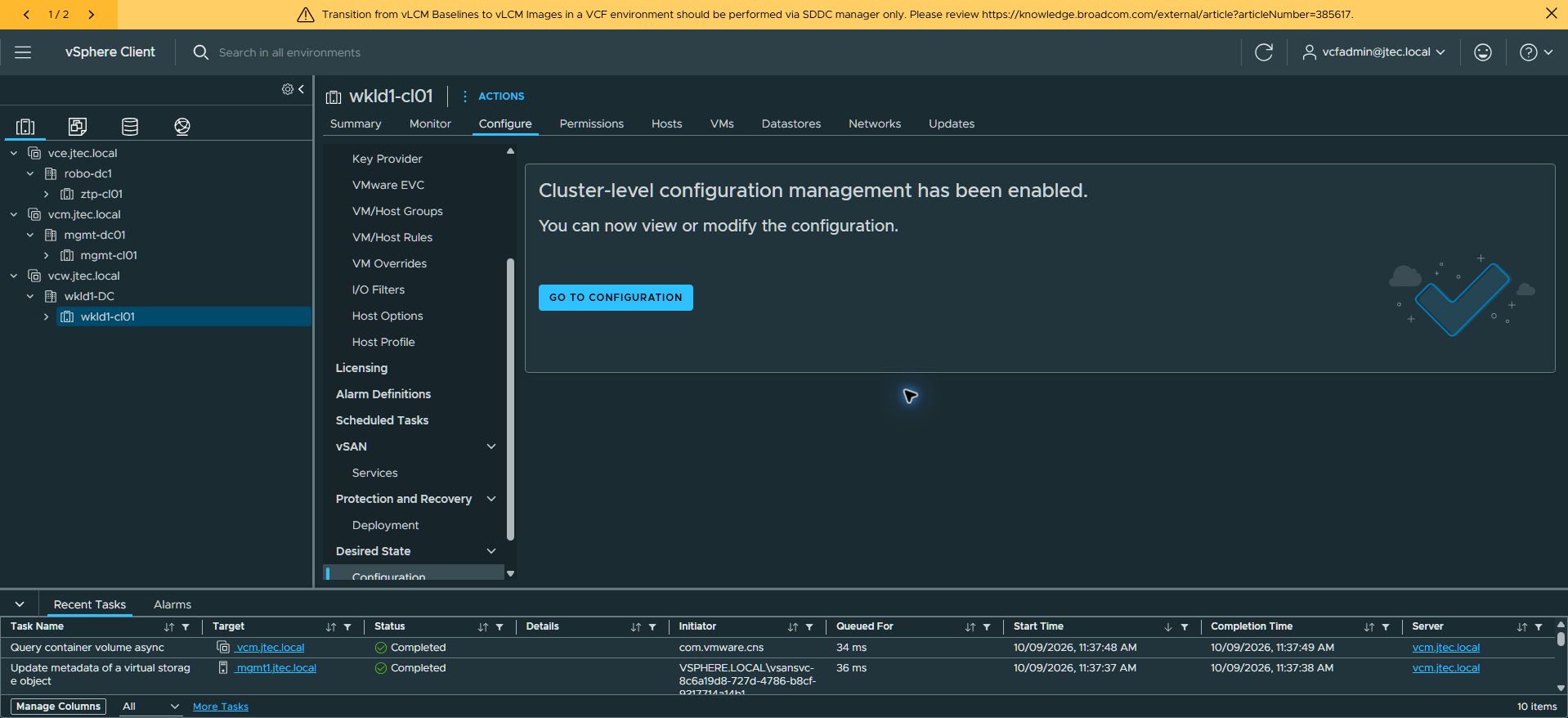
Select Finish and Apply, then Continue in the confirmation dialog. When cluster-level configuration management is enabled, select Go to Configuration and wait for the initial compliance check.
Create and configure the Memory Tiering draft
With all hosts and solutions compliant, open Draft and select Create Draft. A draft copies the current settings so the changes can be reviewed and applied together.
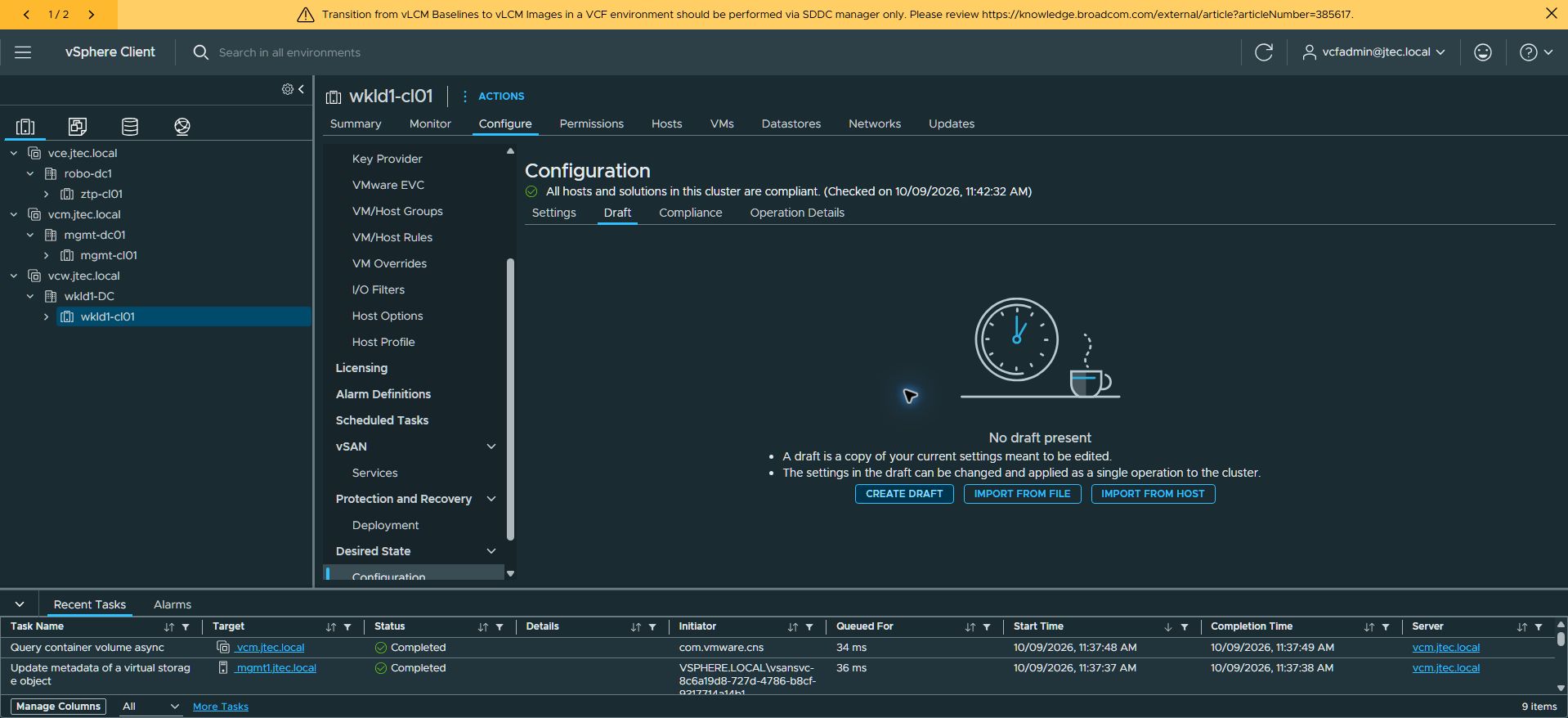
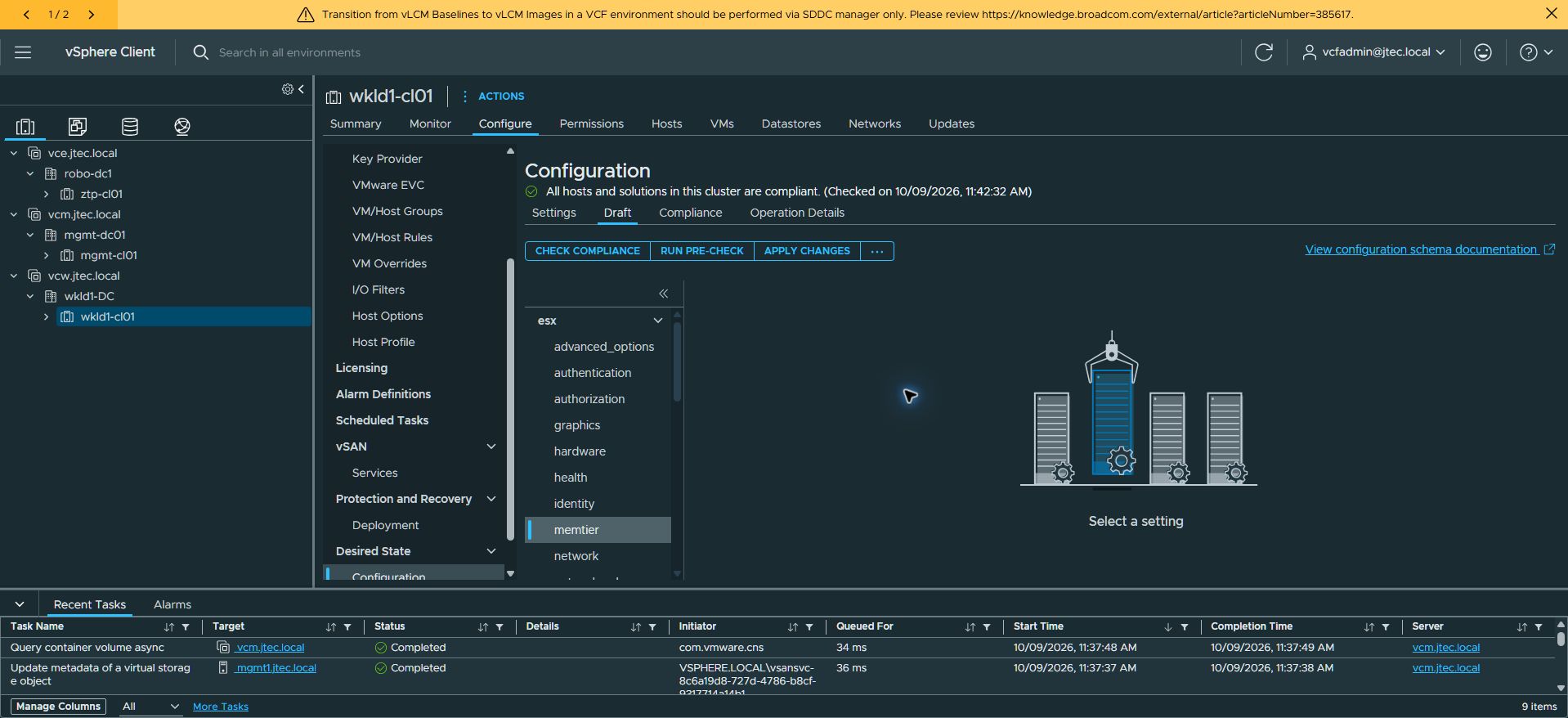
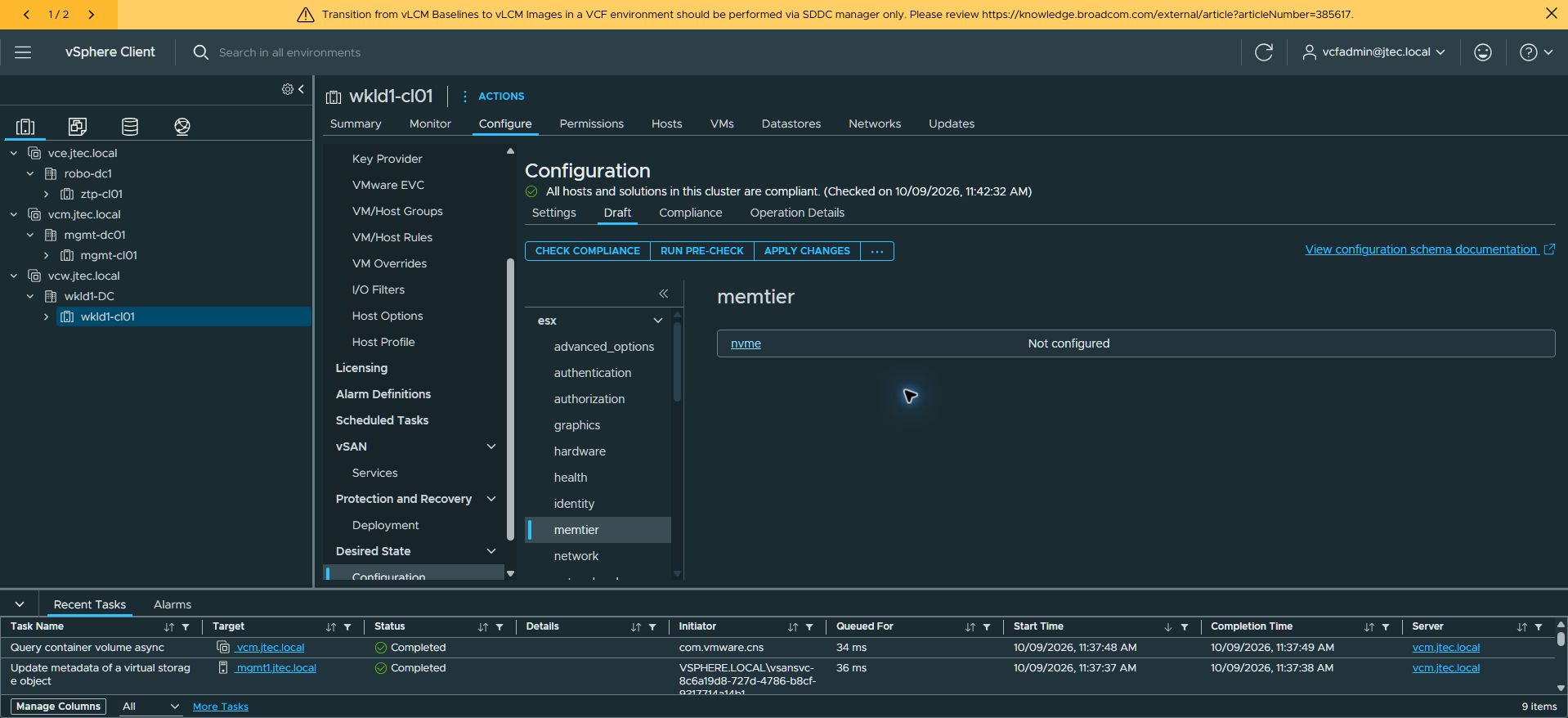
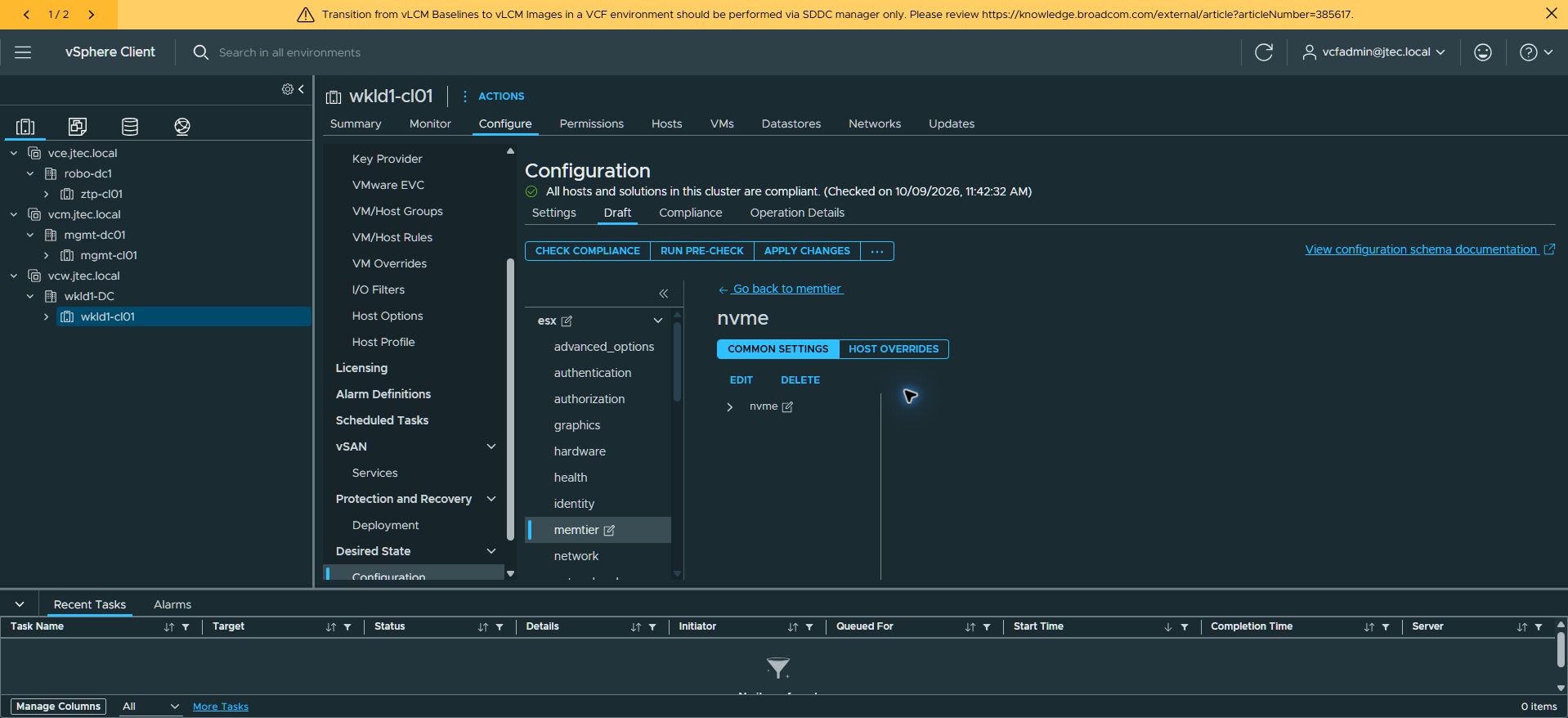
In the settings tree, select esx → memtier, open nvme, and select Configure Settings under Common Settings. The NVMe setting initially shows Not configured.
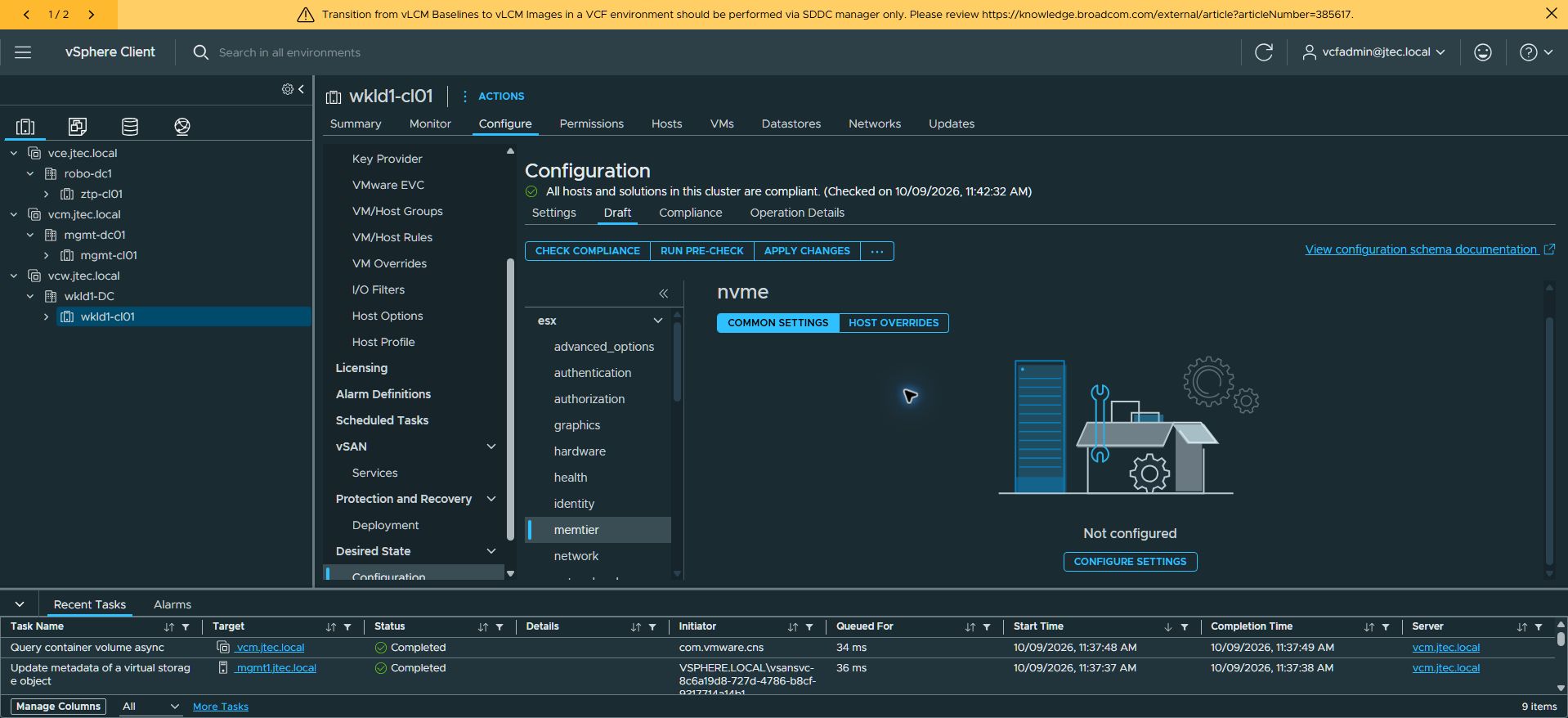
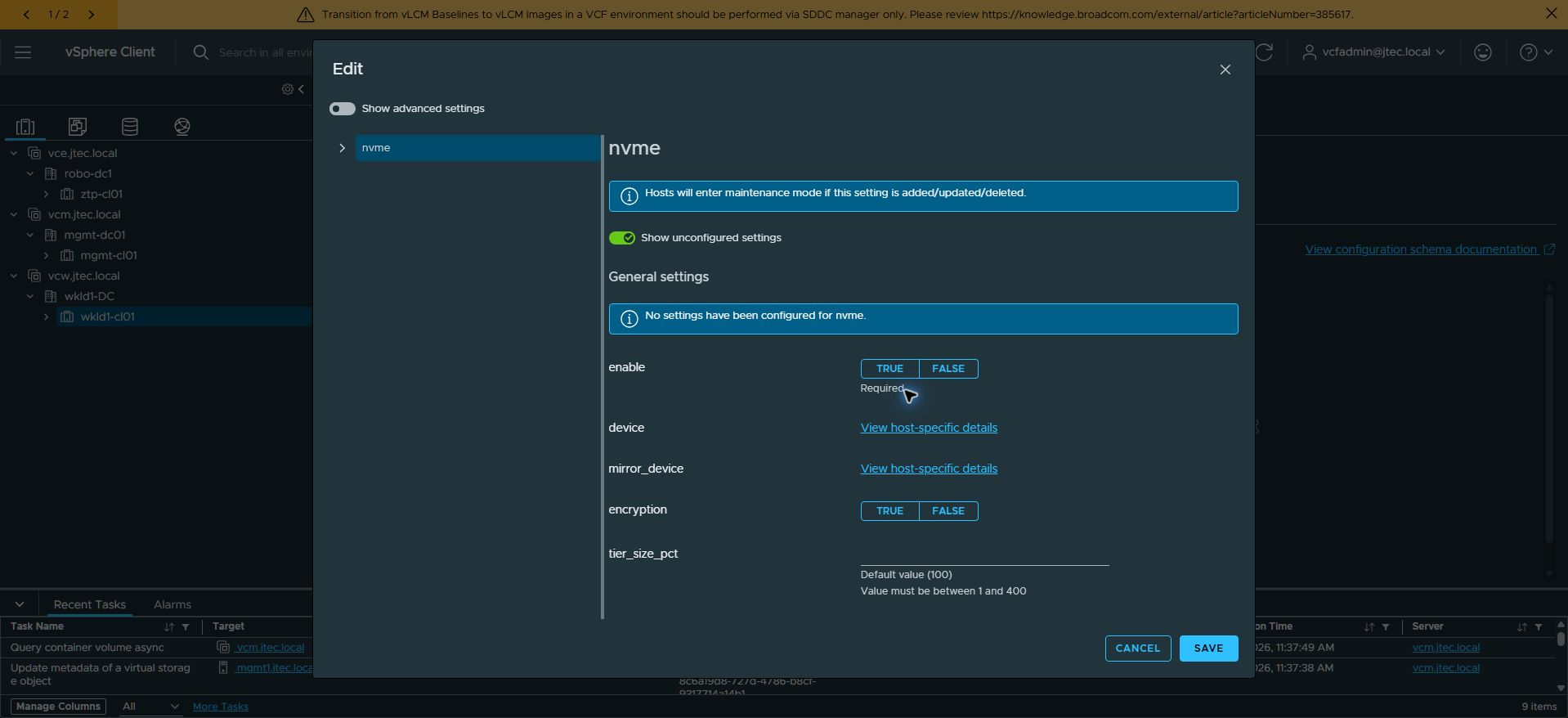
The Edit dialog shows the fields for enable, device, mirror_device, encryption, and tier_size_pct. It also warns that hosts enter maintenance mode when this setting is added, updated, or deleted. Set enable = TRUE.
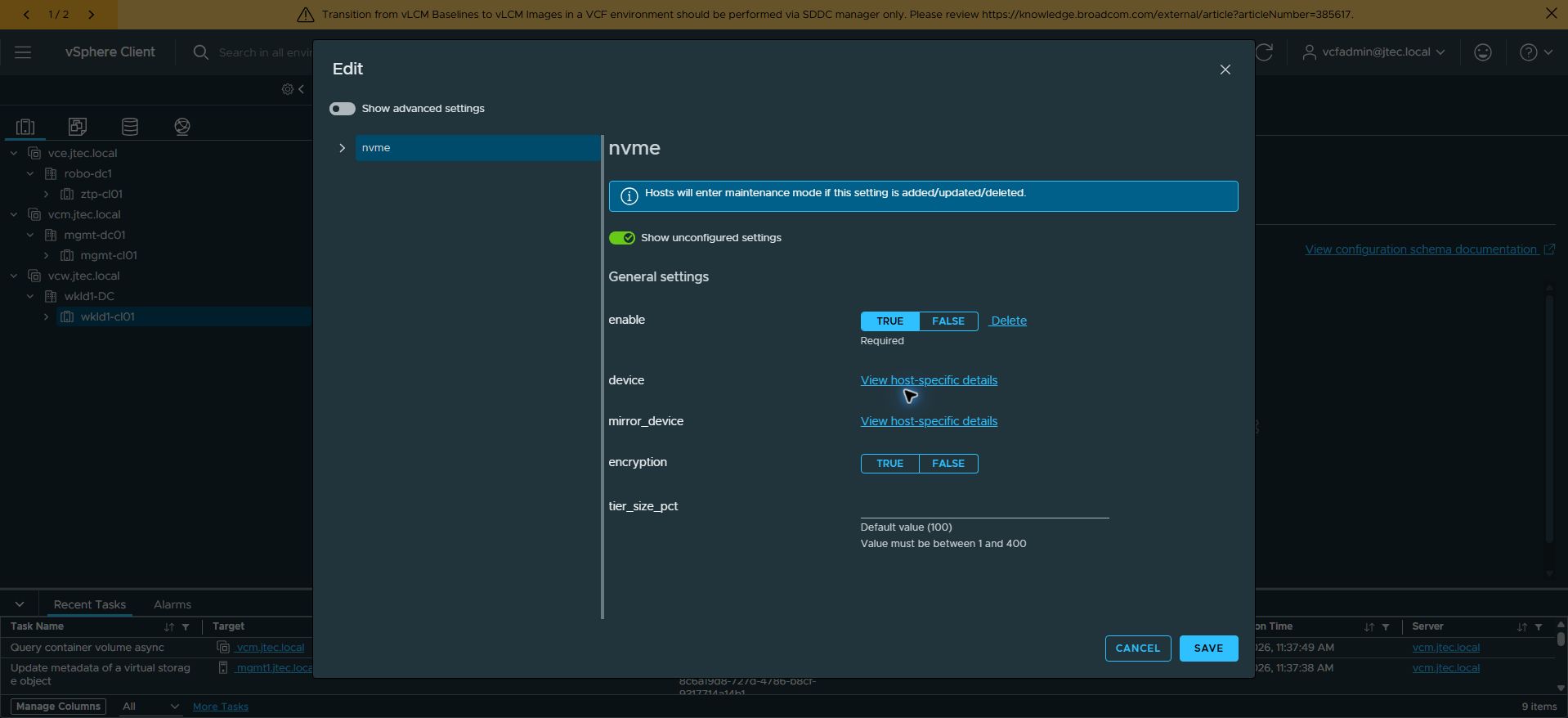
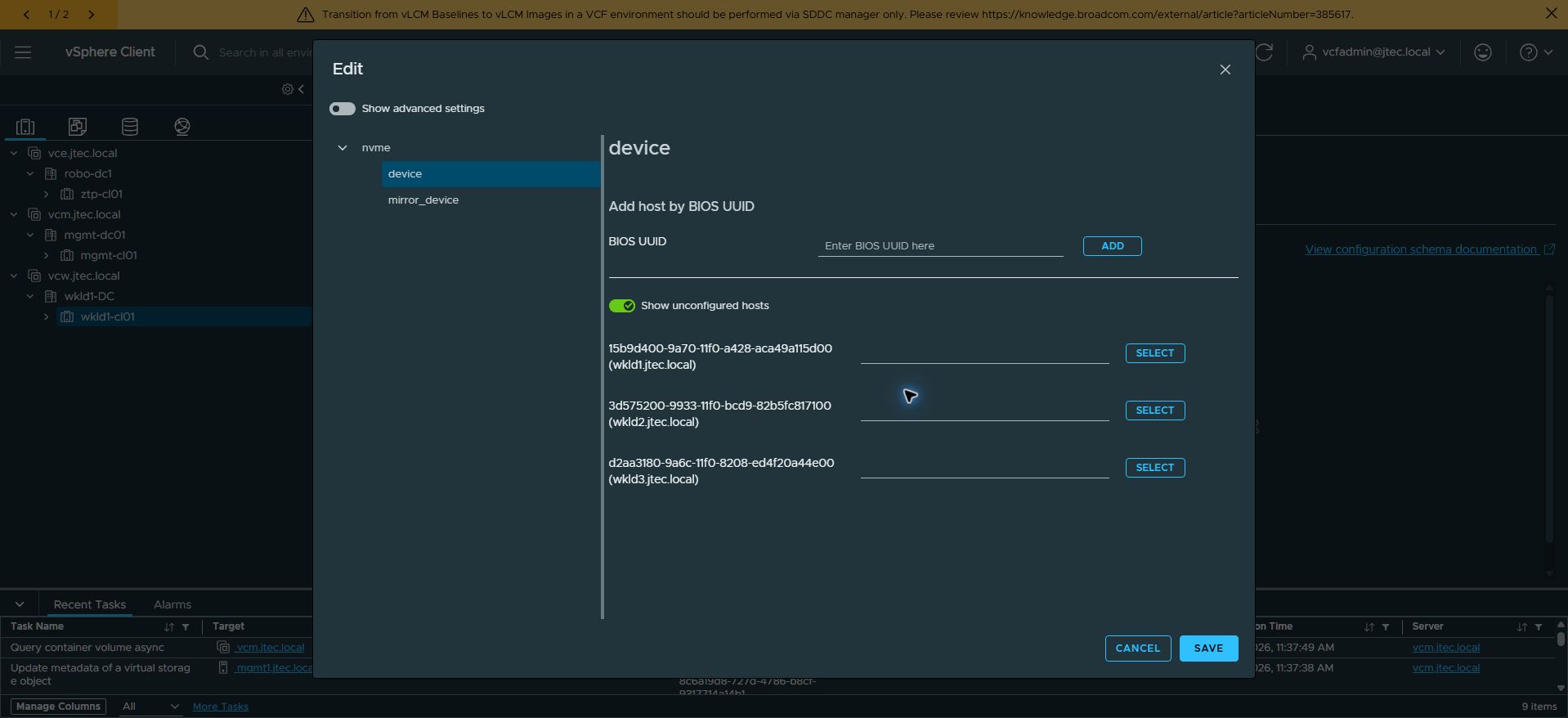
Next to device, select View host-specific details. The device pane lists each cluster host by BIOS UUID and hostname. Use its Select button to open the available devices for that host.
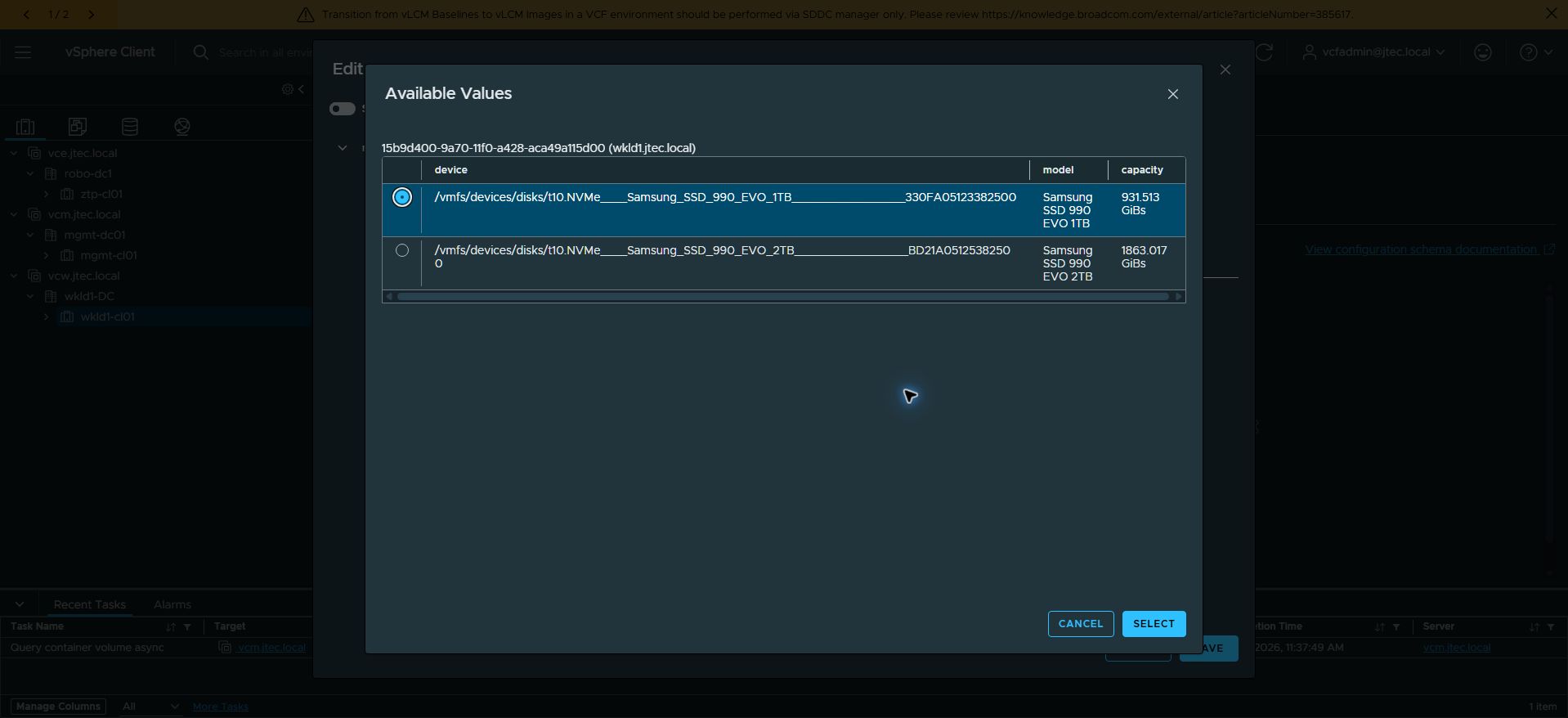
For wkld1.jtec.local, I selected the Samsung SSD 990 EVO 1TB, shown as 931.513 GiB. The dialog also listed a Samsung 2TB device, making model and capacity useful checks before confirming with Select. Repeat this selection for every host using its intended tiering drive.
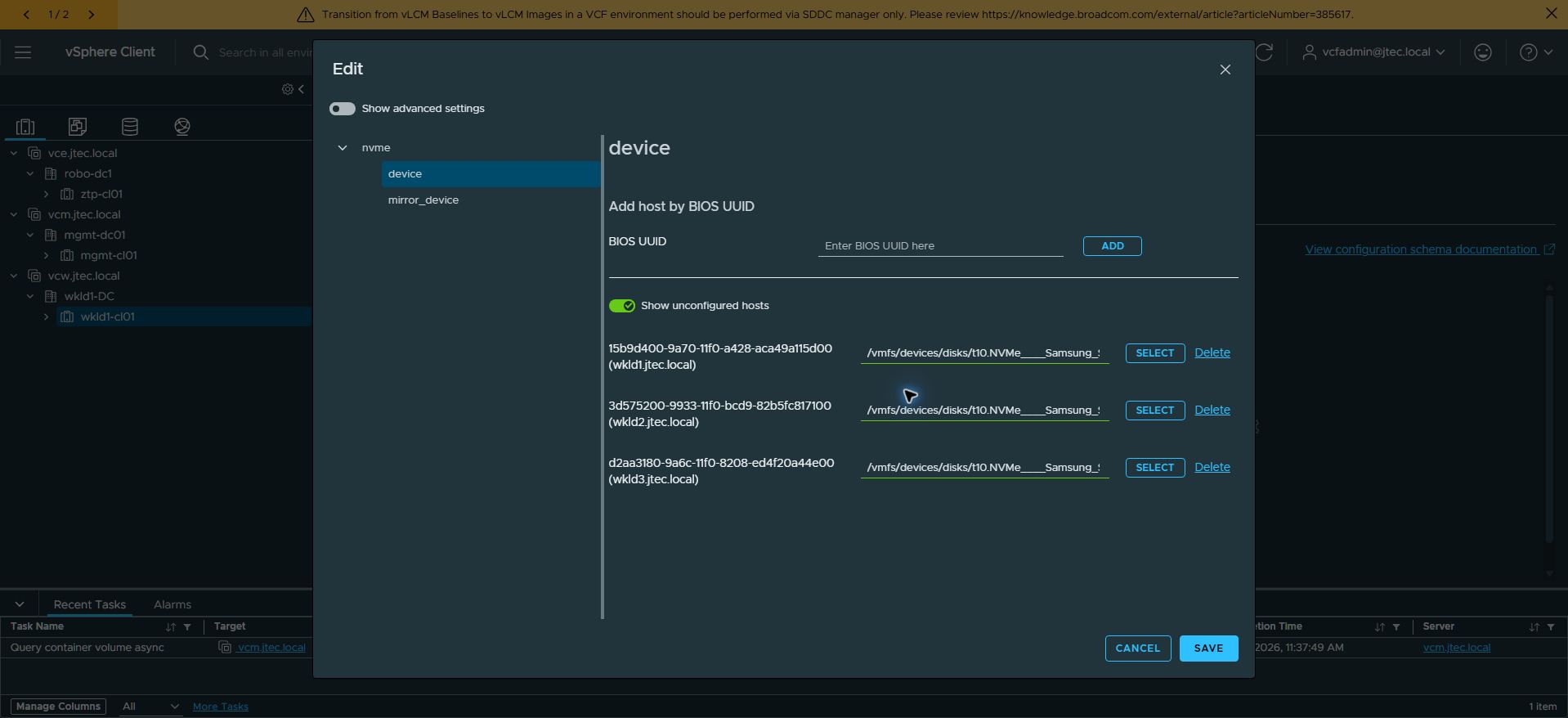
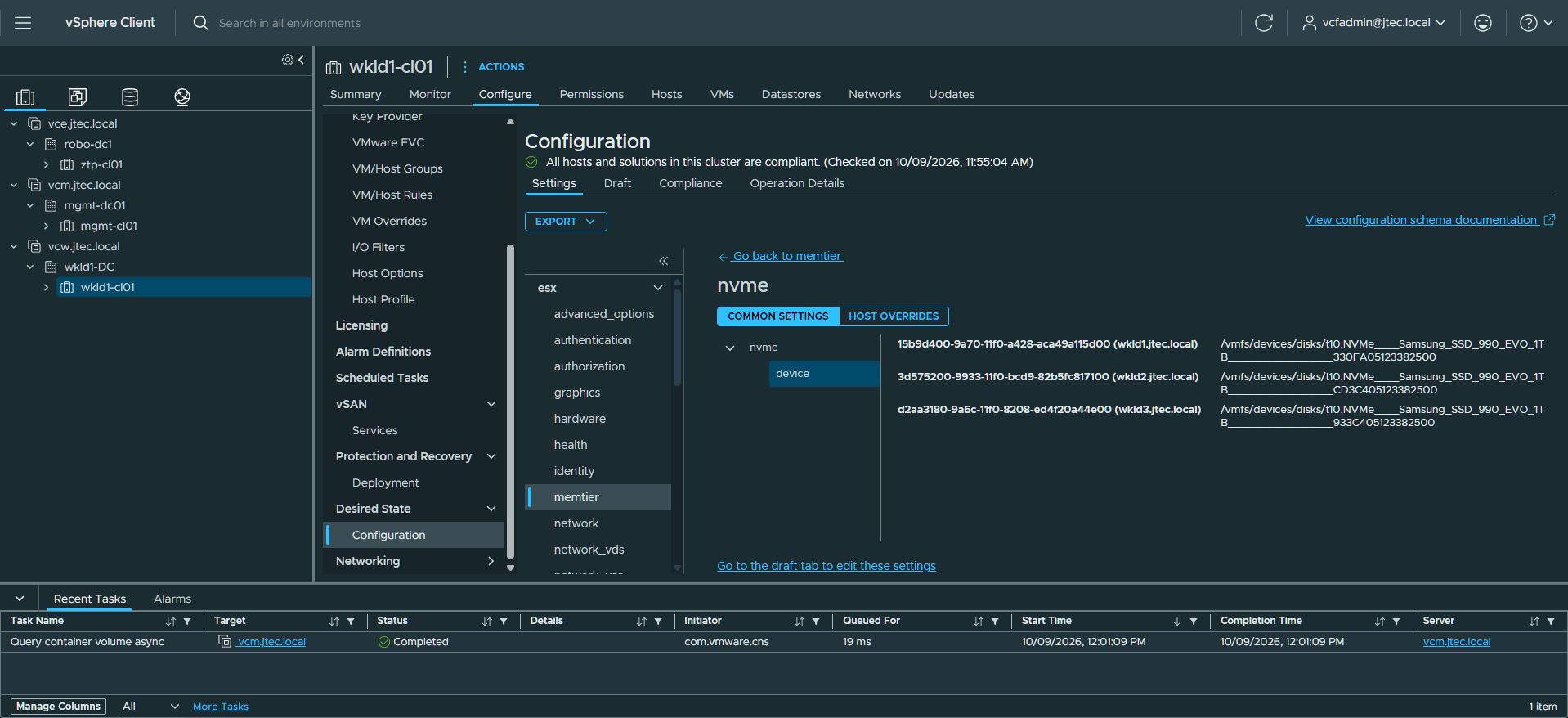
After completing all three selections, the device pane showed a populated Samsung NVMe path for each workload host. Device paths are host-specific; verify the intended drive on each host rather than reusing a path from another host. The later applied-settings view confirms Samsung SSD 990 EVO 1TB model identities for wkld1, wkld2, and wkld3. The wkld1 selection dialog also shows the device capacity as 931.513 GiB.
Review the optional mirror device, encryption, and tier-size choices before selecting Save. The captured dialog shows tier_size_pct with a default of 100 and a valid range of 1–400. That field was blank in the captured edit view; encryption had no explicit TRUE/FALSE selection, and no mirror assignment was captured. The post-remediation saved profile confirms enable = true and the host-specific devices. It contains no explicit tier_size_pct, encryption, or mirror_device entries. I left those optional fields unconfigured in the profile; this does not establish their runtime default values.
After saving, the dialog closes and change indicators appear beside esx, memtier, and nvme. At this point, the change is saved in the draft and has not yet been applied to hosts.
Precheck and apply the draft
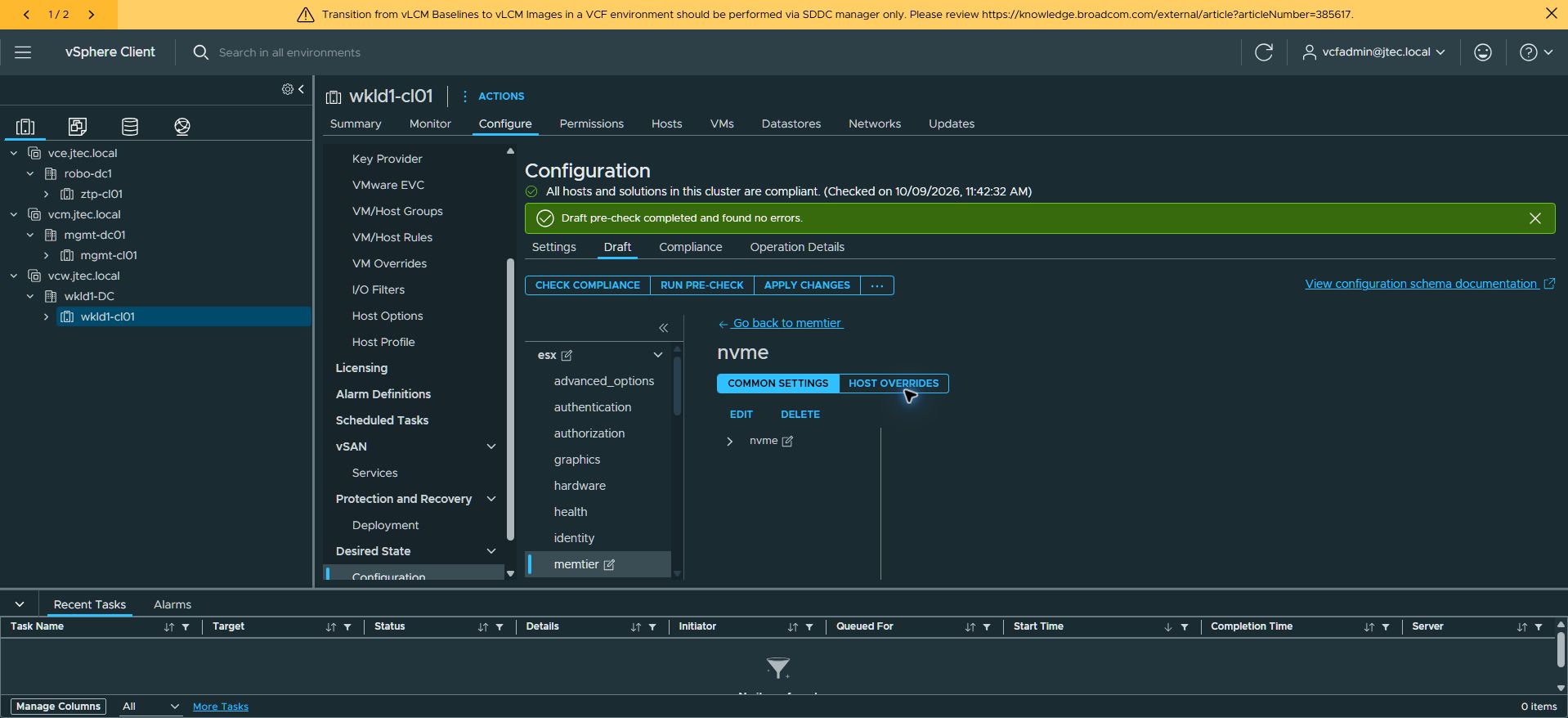
Select Run Pre-check on the Draft tab. Wait for Draft pre-check completed and found no errors, then select Apply Changes.
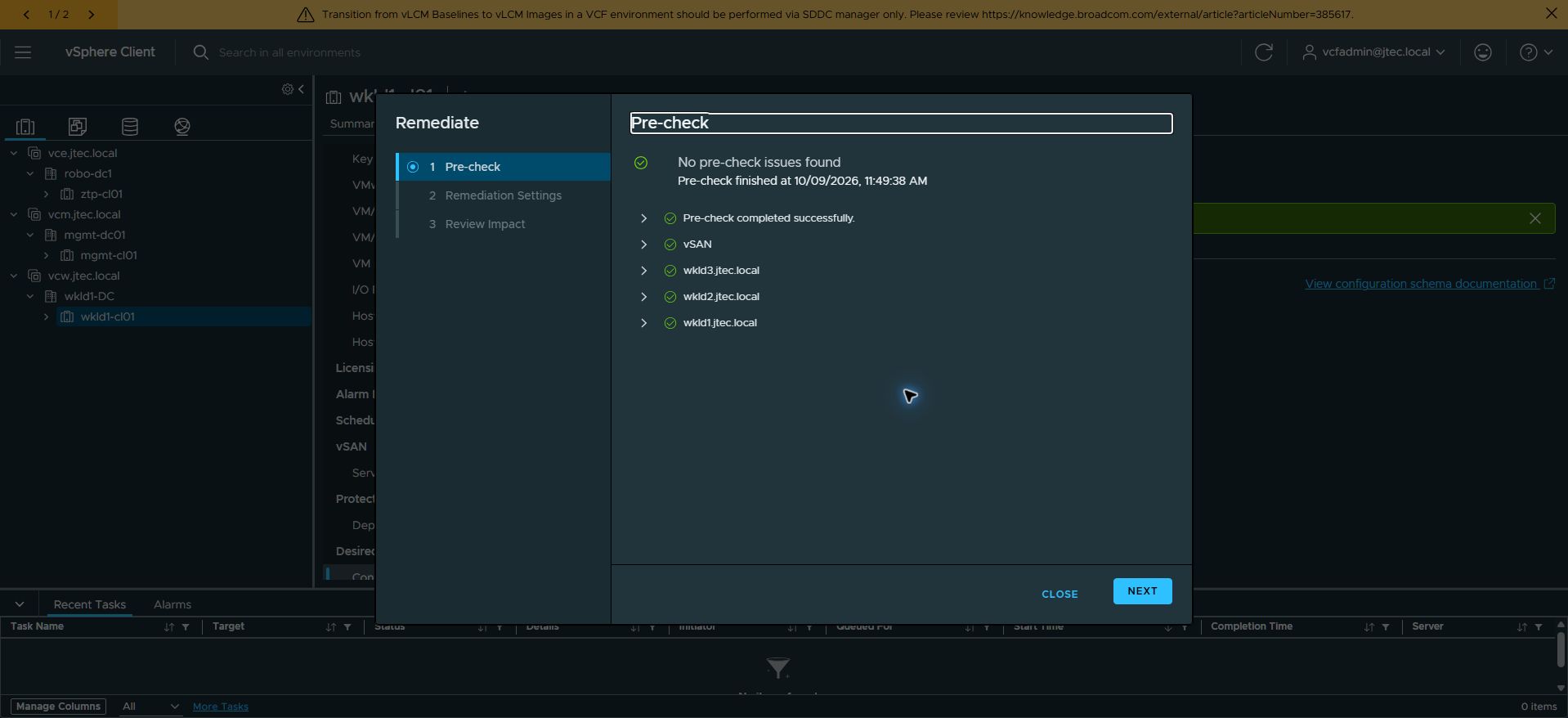
The Remediate wizard opens at Pre-check. My result showed no issues for vSAN or any of the three hosts. Select Next to review Remediation Settings.
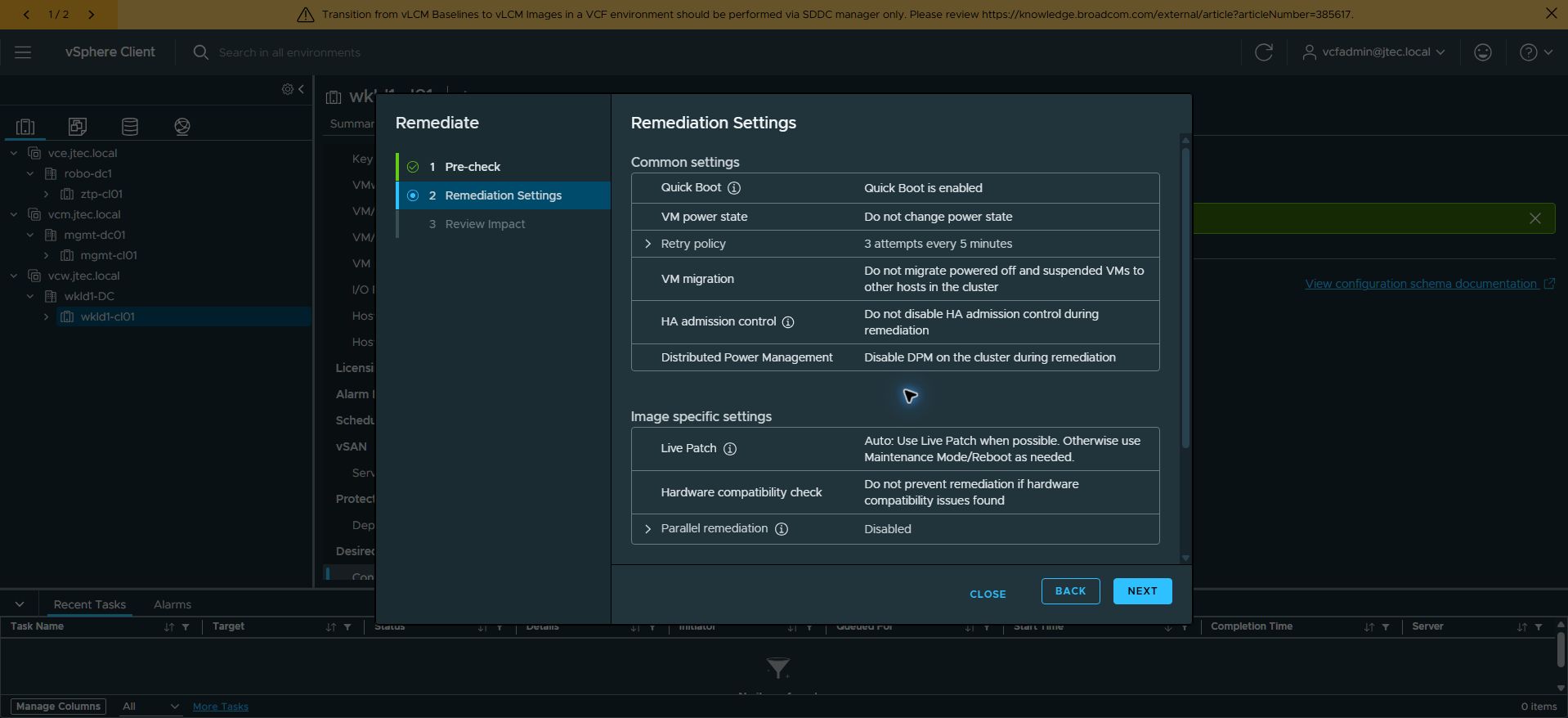
Review the settings that control host evacuation and remediation behavior. My wizard displayed a retry policy of three attempts every five minutes, no VM power-state change, and no migration of powered-off or suspended VMs. HA admission control remained enabled, DPM was set to be disabled during remediation, and parallel remediation was disabled. Quick Boot was enabled in the settings, but the later impact review requested no reboot.
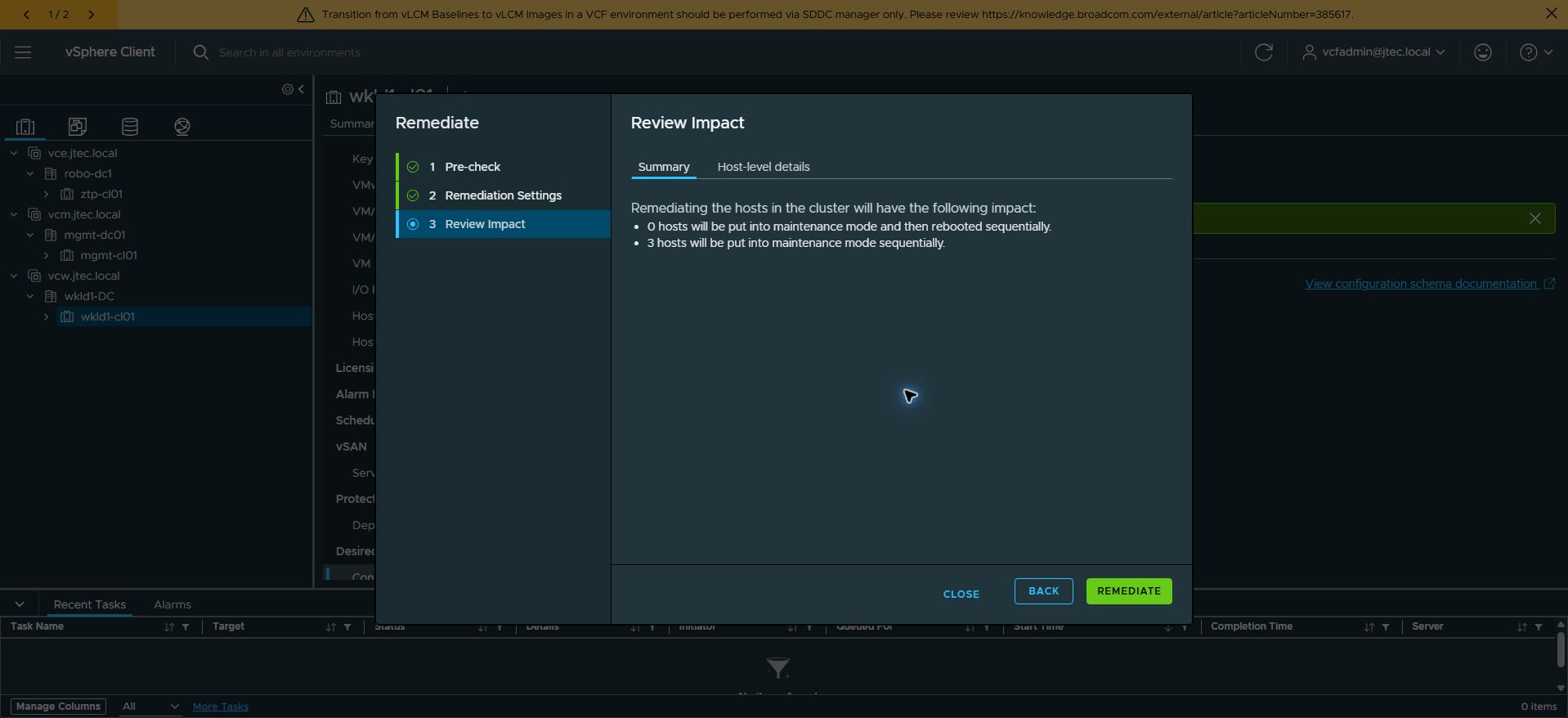
Select Next and review the impact. For this Memory Tiering change, three hosts would enter maintenance mode sequentially and zero hosts required maintenance mode followed by reboot. After reviewing that result, I selected Remediate.
Monitor the rolling remediation
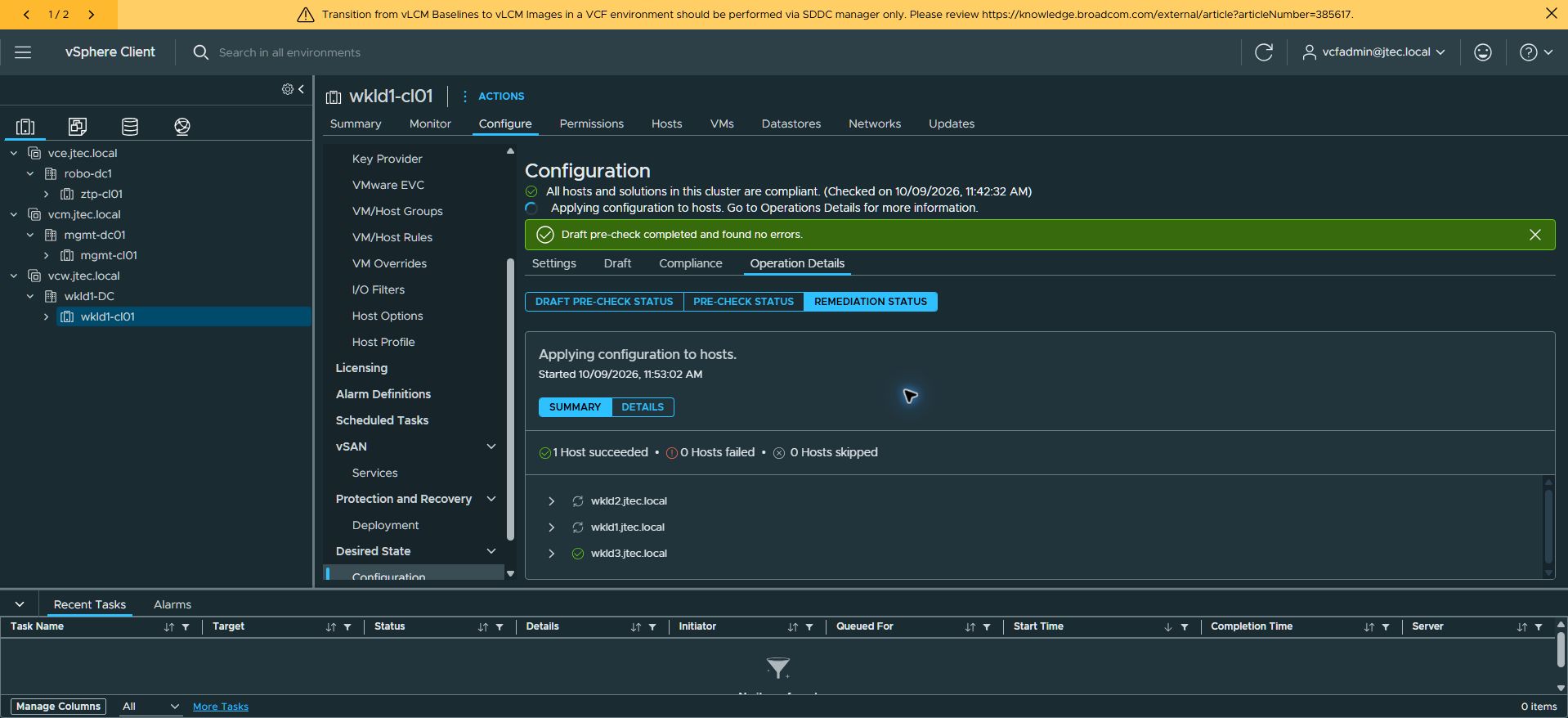
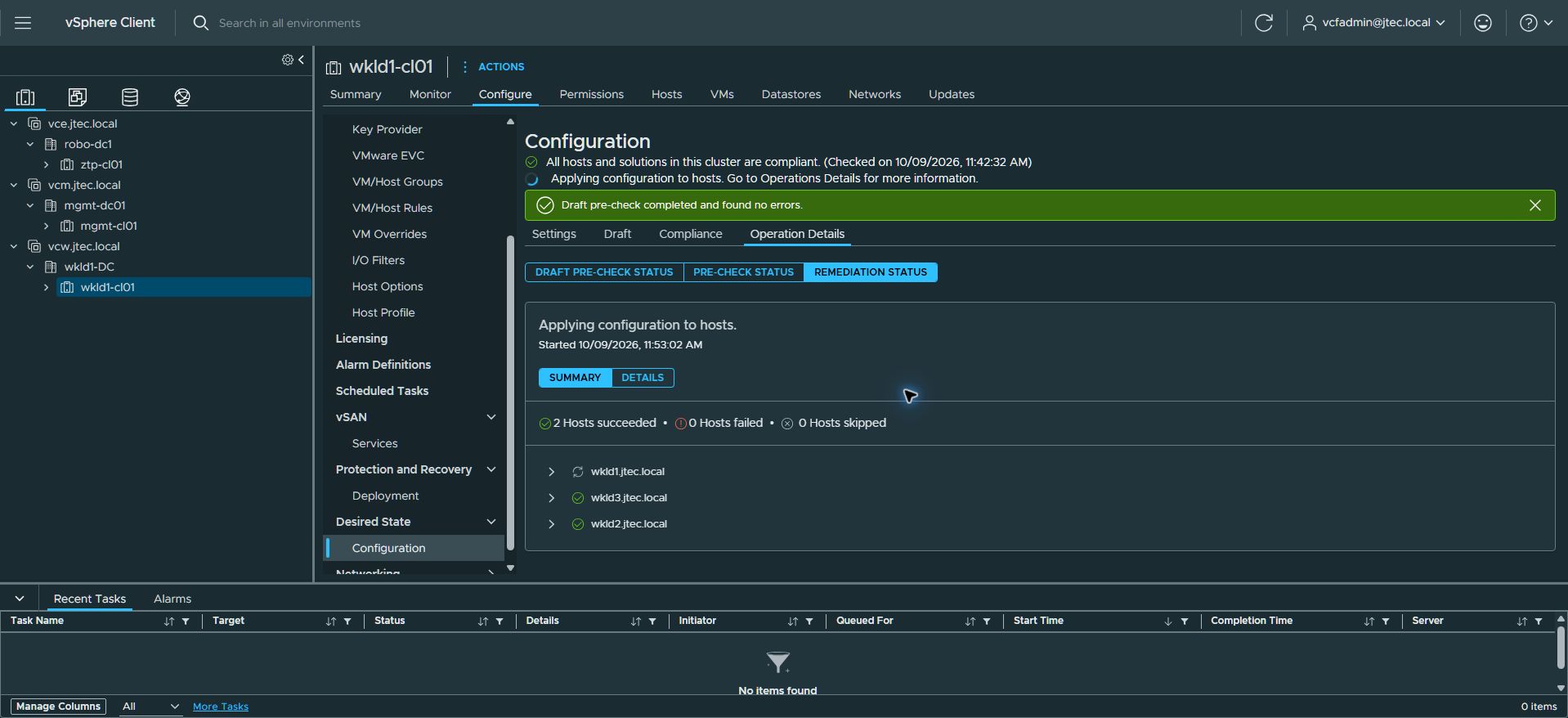
Open Operation Details → Remediation Status. Follow the per-host results and expand a host if you need to inspect its notifications. The draft is consumed when application begins, so the Draft tab can show “No draft present” while the host operation is running.
My workload-domain remediation started at 11:53:02 AM on October 9, 2026. The first successful host was wkld3; wkld2 completed next, leaving wkld1 in progress. No failures or skipped hosts were reported during these milestones.
Confirm successful remediation and compliance
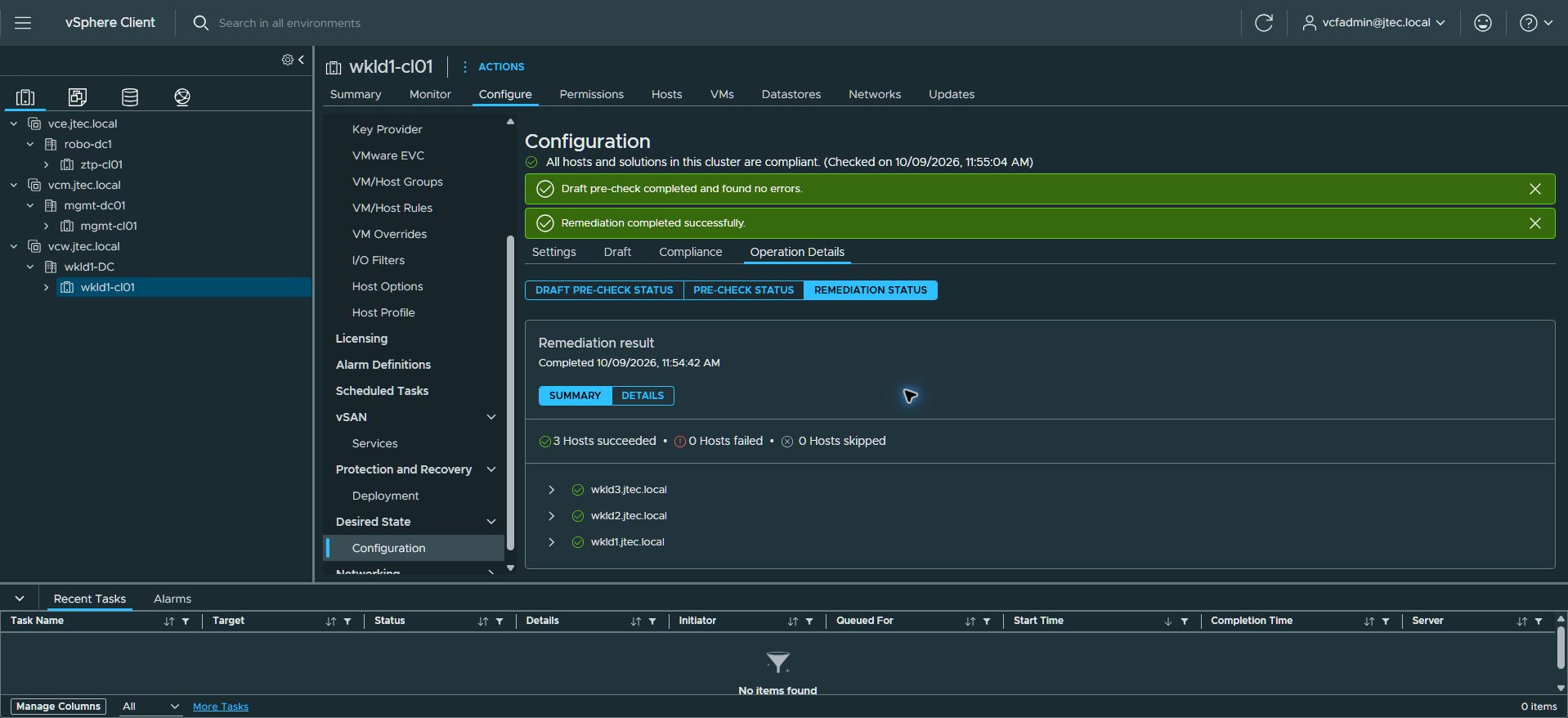
The operation completed at 11:54:42 AM: three hosts succeeded, zero failed, and zero were skipped. The elapsed remediation time was 1 minute 40 seconds. A fresh compliance check at 11:55:04 AM confirmed that all hosts and solutions in the workload cluster were compliant.
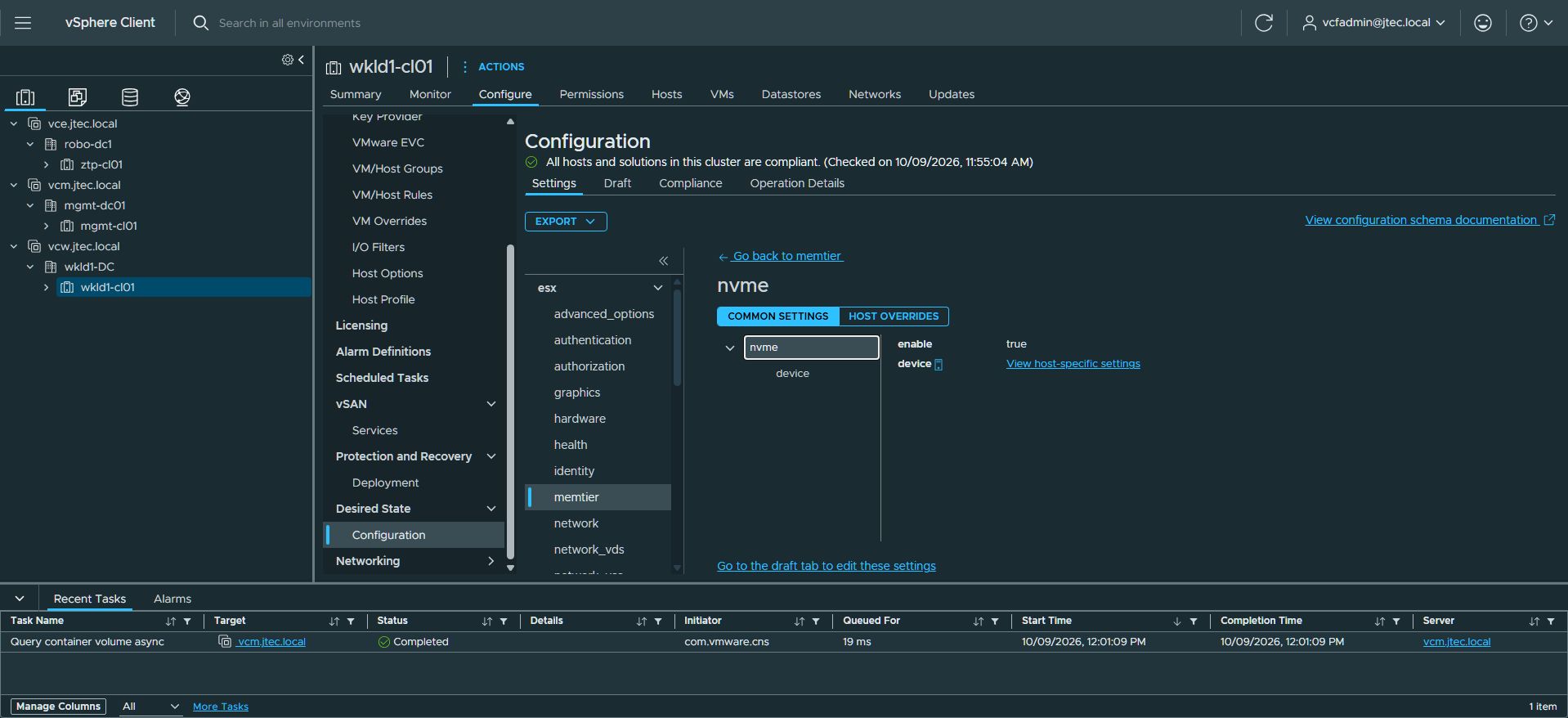
After remediation, I opened Settings → esx → memtier → nvme to verify the applied configuration. Common Settings shows enable = true. The device view lists the assigned Samsung SSD 990 EVO 1TB paths for all three workload hosts. Optional tier size, encryption, and mirror settings have no explicit entries in the saved profile.
Finally, I returned to the cluster Summary tab. The Memory panel confirms Memory Tiering enabled on 3 out of 3 hosts, with 562.02 GB total capacity. Tier 0 and Tier 1 each display approximately 281 GB. These are the reported capacities of this workload cluster.
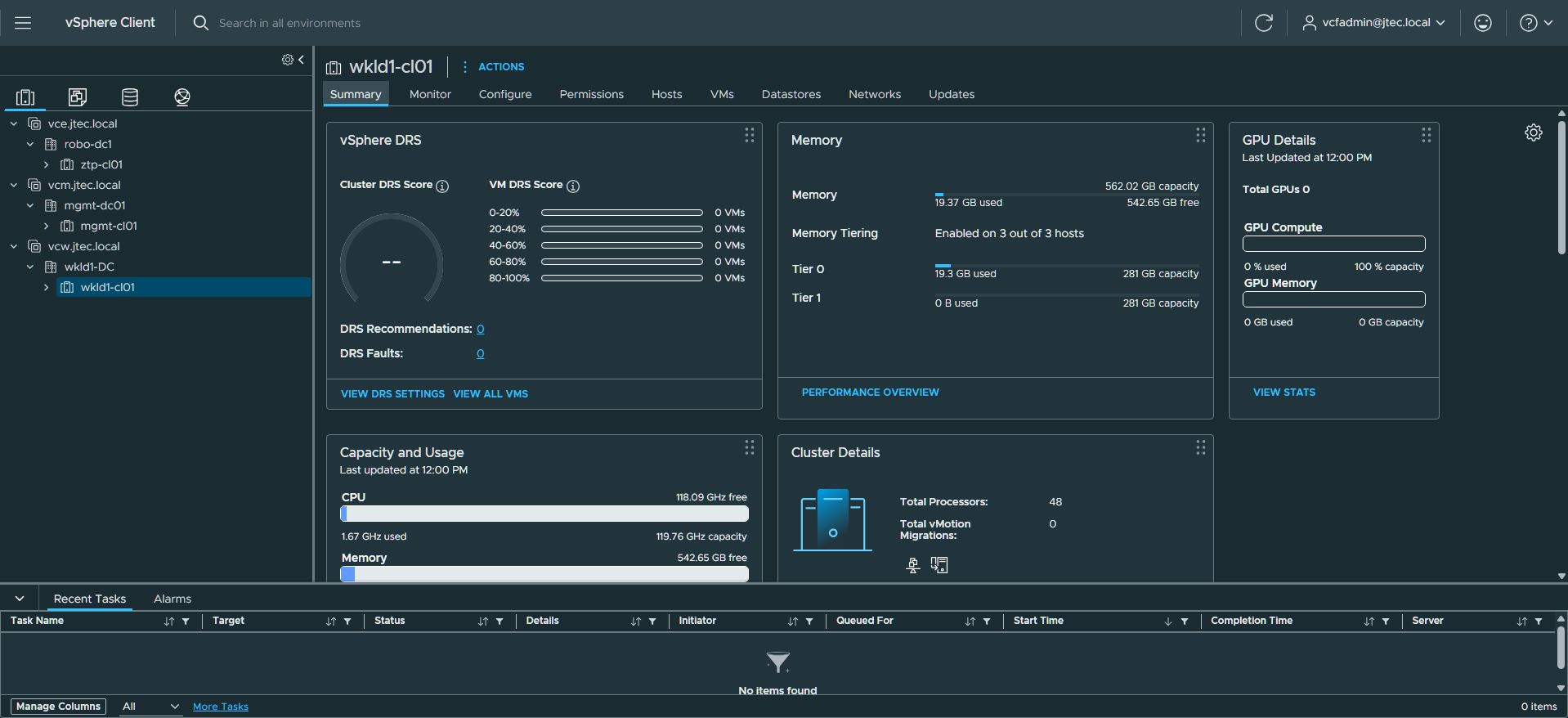
Tier 1 usage was 0 B in this snapshot. Equal displayed tier capacities are consistent with the tier-size default of 100 shown in the edit dialog, but the profile does not explicitly set that value. This is a configuration and capacity verification, not a workload performance benchmark. Remediation duration also depends on host evacuation and workload conditions.
A lesson from the earlier management-domain rollout
The workload-domain rollout above completed successfully. During my earlier management-domain rollout, the NVMe tiering remediation succeeded on the final host, but its subsequent NSX-T health check failed and left that host in maintenance mode. NSX had not recovered properly after migration; diagnostics reported SEARCH and MANAGER components down.
The recovery sequence was: wait for NSX services to recover, run a fresh compliance check, refresh the stale client result, and review the new compliance status. Once all hosts and solutions were compliant, I exited maintenance mode on the remaining host. Another remediation was unnecessary in that run. Broadcom documents Check Compliance → Run Pre-check → Remediate for a related NSX Configuration Profiles status issue; repeat remediation only when the actual result calls for it.
What comes next
With the workload-domain configuration applied and compliant, the next step is to observe active memory, tier utilization, and application behavior under representative workloads. The detailed configuration and remediation captures document enablement; they do not establish a performance improvement.
Continue through the lab guides
Lab architecture and hardware roles · Management-domain deployment · Workload-domain walkthrough · VCF lab guide index