
Configure SDDC Manager SSO and Active Directory Roles
Enable SDDC Manager Active Directory login through VCF SSO. Add users or groups, assign roles and verify access in a VCF lab.
Overview
This guide enables SDDC Manager Active Directory access after configuring VCF SSO in my lab. I add users or groups, assign roles and test login through the SDDC Manager interface.
Add users and assign roles
Start by logging into the SDDC manager web gui.
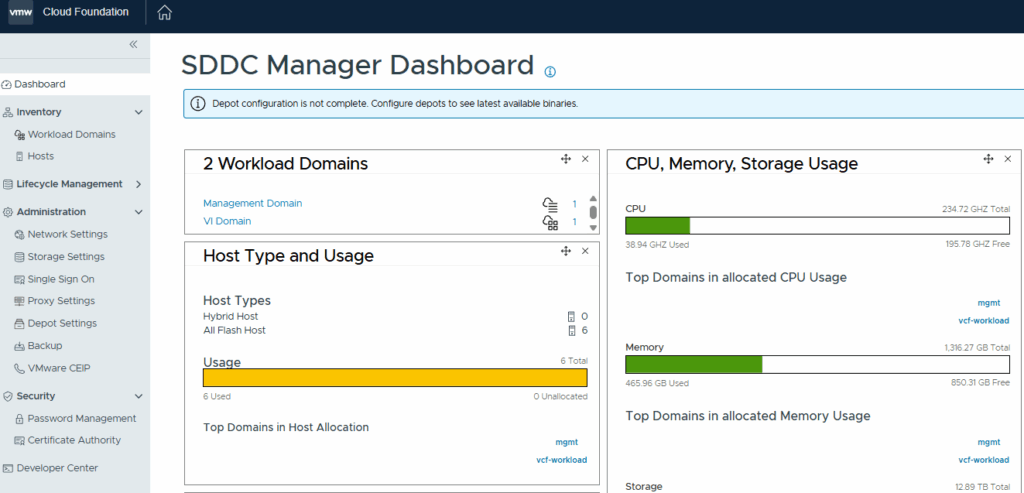
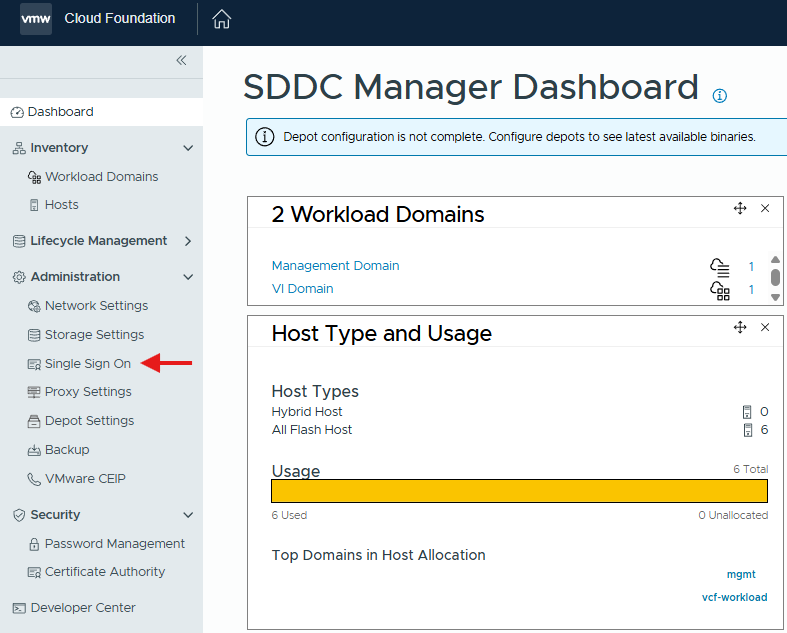
Click on Single Sign On under Administration.
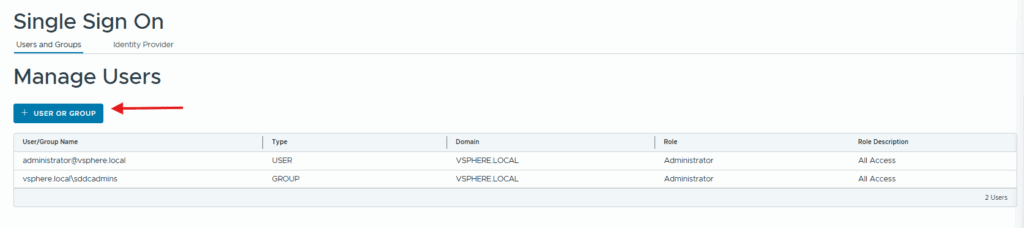
Click on + User Or Group button to add an Active Directory user.
Change the domain to your active directory domain.

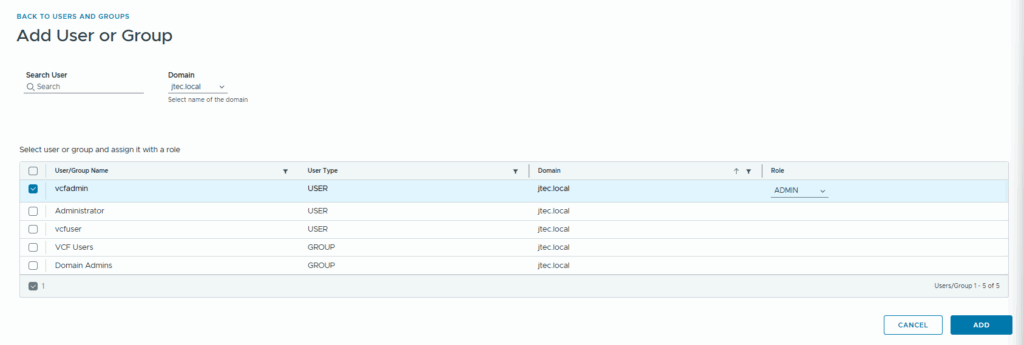
It will display a list of the users that have been synced with the identity broker we have configured.
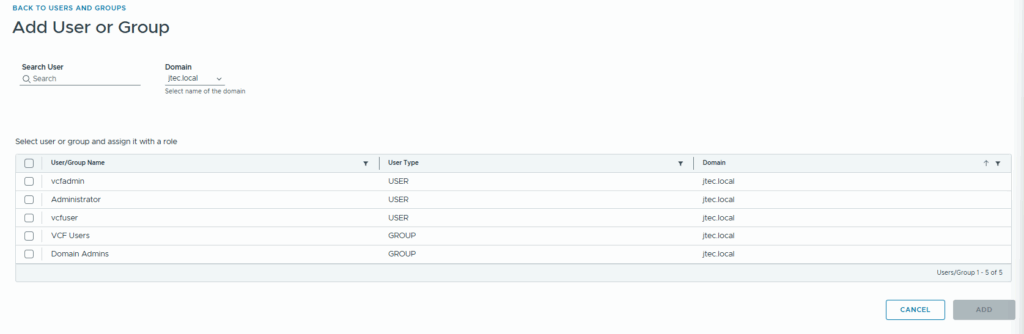
Click the checkbox next to the user or group you want to add and the Choose Role dropdown will appear.

Select the appropriate role for that user or group. You have the choice of Admin, Operator or Viewer.
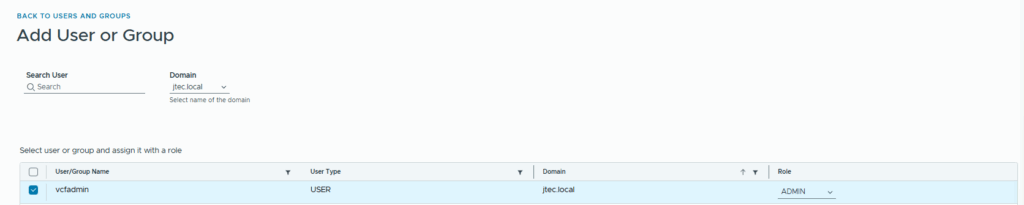
Click Add to add this user to the SDDC manager.
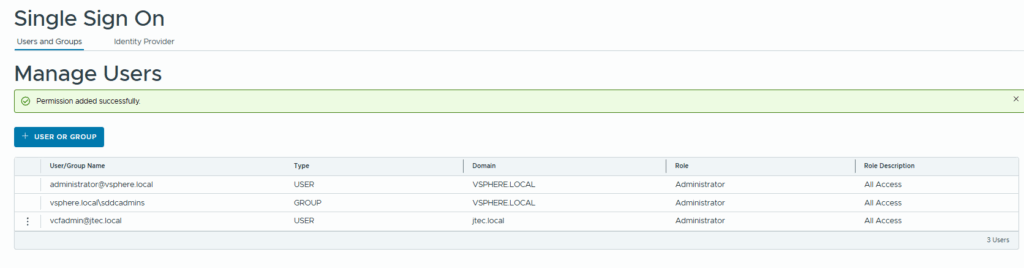
That user will now appear in the users lists.
Verify Active Directory login
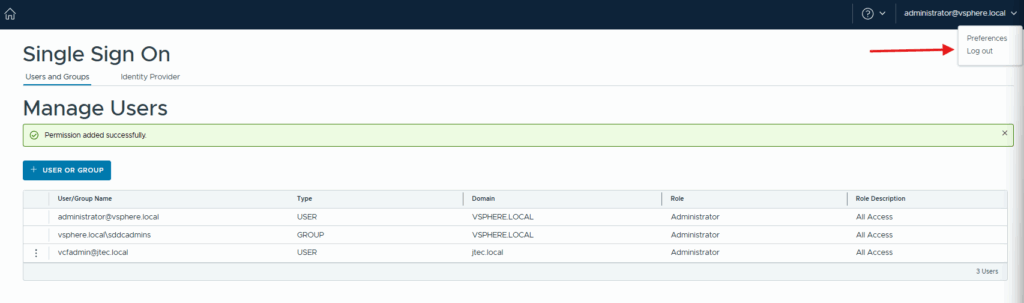
Click the dropdown next to the logged in user and select Log Out, We are going to test active directory login.
Enter in an active directory user in the login screen and click Log in
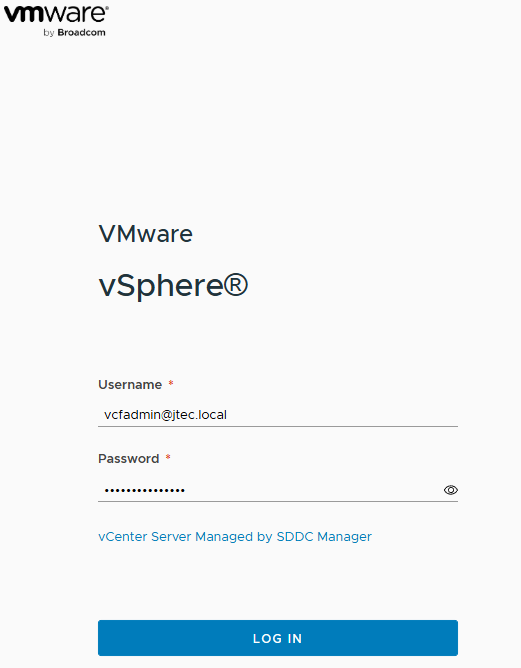
The Active Directory login test completed successfully in this lab, and the assigned account reached the SDDC Manager interface. Confirm more than authentication: verify that the account can perform only the tasks allowed by its assigned role, then sign out and retain the test result with the role assignment record.
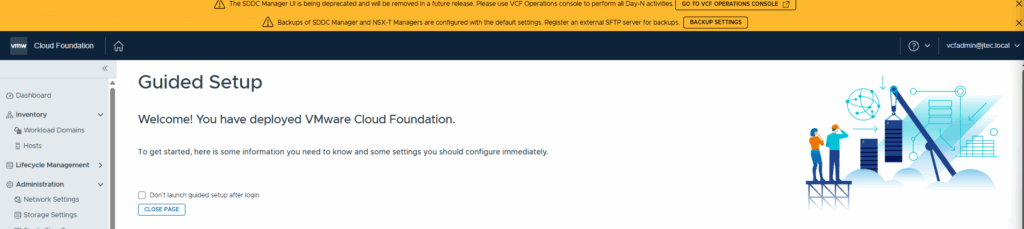
We now can login to our SDDC manager with active directory accounts.
You can return to my main VCF Lab page to follow along with this deployment.